How to fix
0xa00f4292 error
on Windows
Resolve the 0xa00f4292 error on Windows 10 and 11 with easy fixes. Get your camera working smoothly again—expert-tested solutions inside!


What causes How to fix 0xa00f4292 error?
- Corrupted files
- Missing important files
- Improperly installed Windows updates
- Issues with camera components
- Virus or malware presence
Repairs Windows system files, removes malware, and restores a clean OS state — without reinstalling.
Hey. Everytime I try to use my camera an error comes up. Is there a chance to make it stop? The Camera error code is 0xa00f4292. Is it a Camera error or somethings wrong with my PC? Maybe I have a virus?
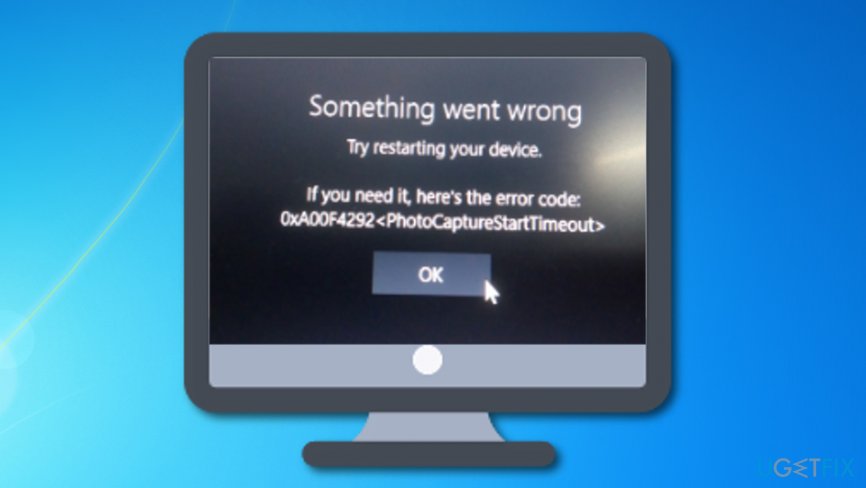
The 0xa00f4292 error code is a message that something is not working as it should be in your Windows computer system. Mostly, this problem occurs while trying to perform activities with your machine's camera.[ref en-1] If you try to access this device and the error code appears, you will supposedly find it failing to launch or perform other tasks.
0xa00f4292 error might be caused due to corrupted files and other components that are connected with your camera. For example, if an important file is missing, the entire device will not be able to function as it should. To check if this is the case, you have to perform an SFC scan with Command Prompt[ref en-2] that we are going to describe at the end of this article.
Continuously, the before mentioned reasons are not the only ones that can force the 0xa00f4292 error to appear. In fact, this bug might occur if some type of Windows update is missing or was not installed properly. However, we are not sure what caused the appearance of this error code on your computer, so we have provided more than one fixing method.
How to fix 0xa00f4292 error?
If you have been recently looking for ways how to fix 0xa00f4292 error on your Windows computer, we are here to help you. You should try the following methods for the elimination of the problem. However, if find them unhelpful, you can try scanning your entire system with [d1] and identifying the issue automatically.
Step 1. Run an SFC scan and search for damaged files
The 0xa00f4292 error code might be a sign that there are some corrupted or missing objects in your system. In order to find out if this is the cause of the problem you are facing, complete the following steps:
- Go to Windows Search.
- Type "cmd".
- Launch Command Prompt with Administrative privileges.
- When a black dialogue box shows up, type sfc /scannow and hit Enter.
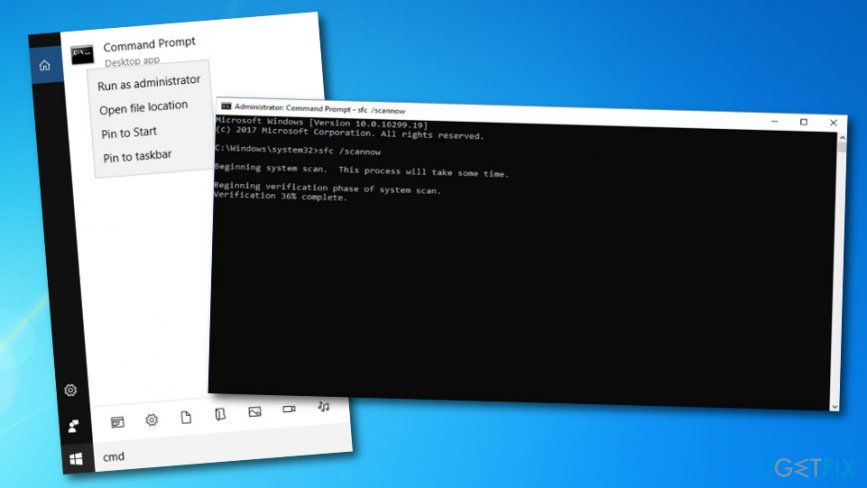
Run sfc scan - Wait until the process is finished.
- Reboot your computer.
Step 2. Permit camera access
However, if you have completed the method above you and it did not give you any positive results, there are other options to try. One of them is permitting your computer to access the camera device.
- Go to Windows Search.
- Type "settings".
- Once Windows Settings window appears, opt for the Privacy section.
- Find Camera, opt for Allow apps to access your camera.

Go to privacy settings - If the previous option is currently unavailable, select Allow access to camera on this device first.
Step 3. Update the driver that is connected to your camera
- Go to the Windows Start menu.
- Type "device manager" in the search section.
- Locate your camera driver in the Device Manager window.
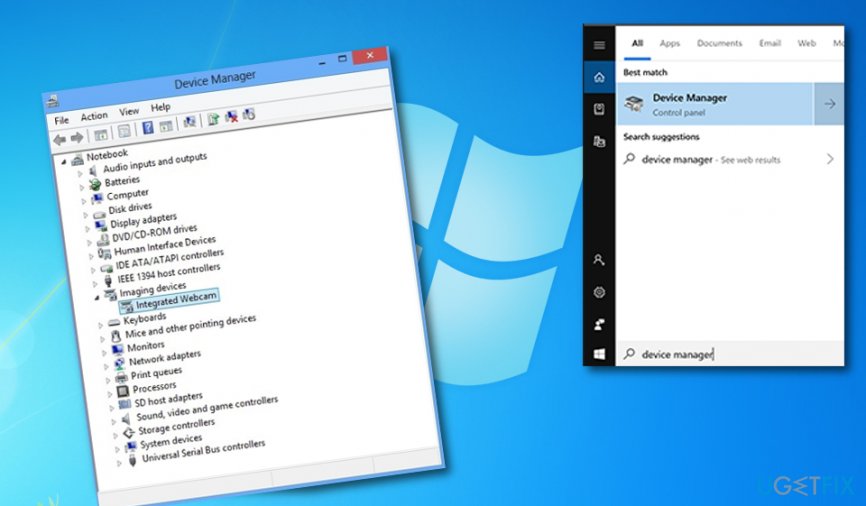
Update camera driver - Right-click on the device and choose the function that says "Update driver".
If the problem was not the outdated driver, this method might have not helped you to fix 0xa00f4292 error code on your Windows[ref en-3] machine. If the issue still occurs, continue with Step 4.
Step 4. Reinstall the camera driver
- Access your Device Manager again (this can be done via Windows search or by clicking the Win key and X button at the same time).
- Find the driver and right-click on it.
- Go for the Properties section.
- Once you are in the Driver tab, opt for Uninstall --> Delete the driver software for this device --> OK.
- Continuously, wait for the process to finish and select the Action menu button --> Scan for hardware changes.
Step 5. Permit camera access via firewall/antivirus
- Type "firewall" in the Windows search section.
- Click the first program that appears on the list.
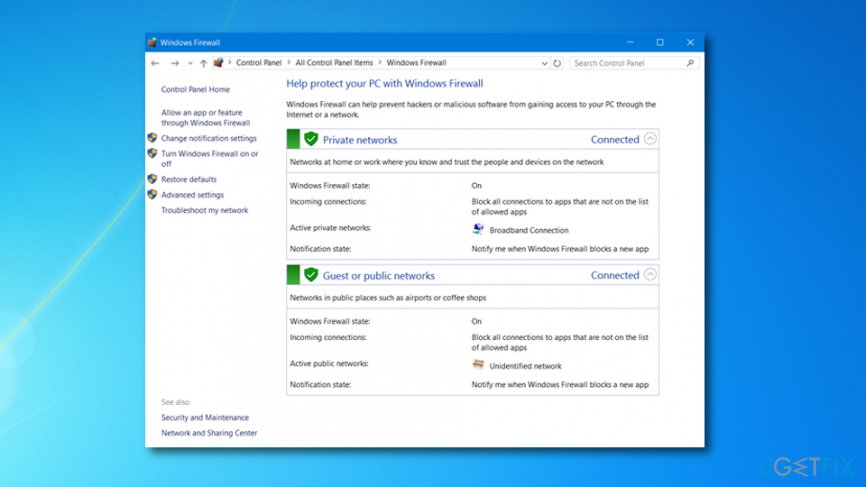
Allow camera access through windows firewall - Enter Firewall settings and go for Allow an app or service through Windows Defender Firewall.
- Locate your camera application and make sure that the access to it is allowed.
Bottom line
To fix the 0xa00f4292 error, you can run an SFC scan to check for damaged files, ensure all Windows updates are installed properly, and check for any issues with camera components. If these methods do not resolve the issue, consider scanning your entire system for viruses or malware.
Frequently asked questions
The 0xa00f4292 error typically occurs due to issues with the camera driver, permissions, or conflicts with other software. This error often prevents users from accessing the camera functionality.
To update your camera drivers on Windows 10 or Windows 11, go to Device Manager, locate your camera under 'Imaging devices', right-click it, and select 'Update driver'.
Yes, resetting the camera app can help; go to Settings > Apps > Apps & features, find the Camera app, and click 'Advanced options' to reset it.




Report an issue
What's wrong with this guide? We review every report and update or remove content.
Report received — thank you. We'll review and fix it.
You need a free account to submit a report.
Be the first to comment