How to fix
0xc000000f Blue Screen
on Windows
Resolve the 0xc000000f Blue Screen error on Windows 10 and 11 with proven fixes. Get back to smooth operation with expert-tested solutions.


What causes How to fix 0xc000000f Blue Screen in Windows?
- Corrupted system boot file
- Driver software issues
- Hardware problems
- Corrupted system files
- Registry issues
Repairs Windows system files, removes malware, and restores a clean OS state — without reinstalling.
Hello. Today I received a 0xc000000f Blue Screen in Windows. My computer is fairly new, so what could be the problem?
The BSOD (Blue Screen of Death)[ref en-1] is a nightmare for any computer user. It appears suddenly and without warning. All your unsaved work is gone, and you're left with a blue screen on your monitor with a message that does not explain the problem.
Blue Screen errors are also intimidating because they might be linked to computer hardware problems. There is a big chance of having to bring your device in for repair, and parts may need to be replaced. The error could also come from issues with the driver[ref en-2] software.
Recently, some users reported seeing the 0xc000000f Blue Screen. The error code suggests that the system boot file is corrupted and that is why Windows will not boot. It may be possible to fix this issue by running Startup Repair or fixing corrupted system files.
In this guide, you will find 4 steps that should help you fix 0xc000000f Blue Screen in Windows. However, the troubleshooting process could take a while, so you can use a repair tool like [d1] that can fix various system errors (including BSODs), corrupted files, and registry[ref en-3] issues. Otherwise, you can start with the step-by-step instructions below.
Method 1. Perform Startup Repair
- Hold down the power button for 10 seconds to turn off your device
- Press the power button again to turn on your device
- On the first sign, that Windows has started (for example, some devices show the manufacturer’s logo when restarting) hold down the power button for 10 seconds to turn off your device
- Press the power button again to turn on your device
- When Windows restarts, hold down the power button for 10 seconds to turn off your device
- Press the power button again to turn on your device
- Allow your device to restart into Automatic Repair, and select Advanced options to enter winRE
- On the Choose an option screen, select Troubleshoot, and then go to Advanced options
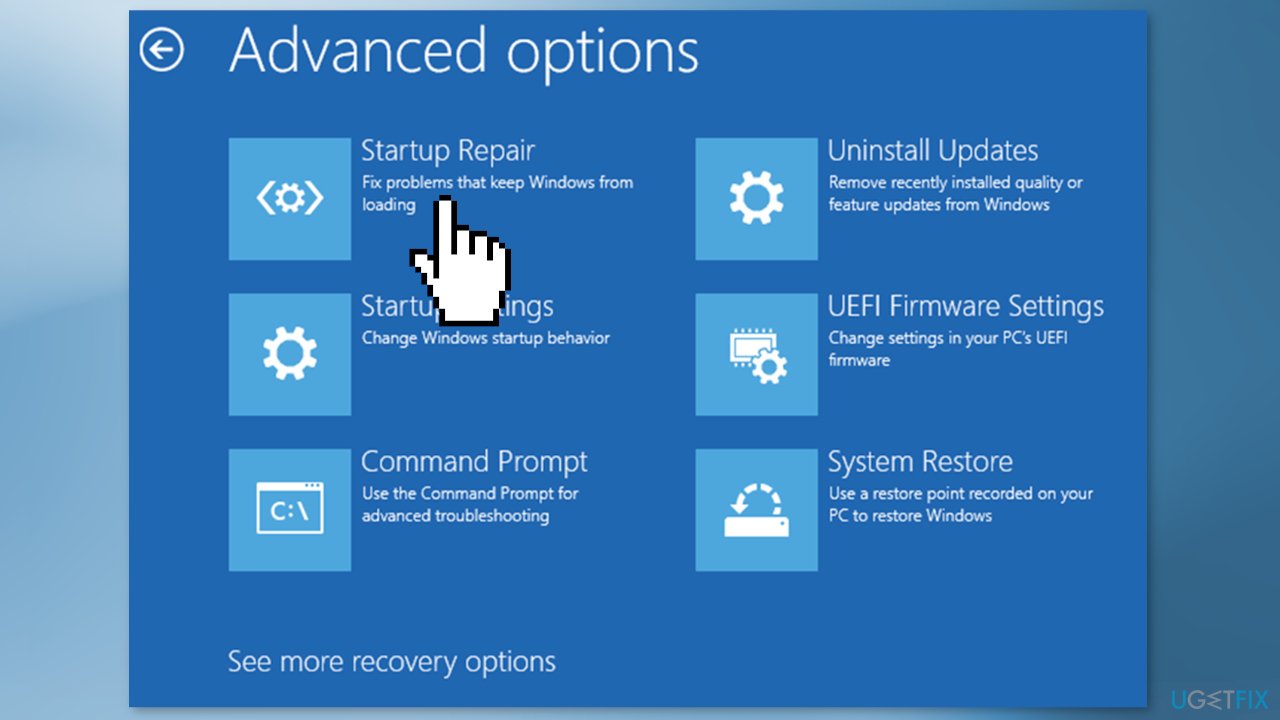
- Choose Startup Repair
Method 2. Repair Corrupted System Files
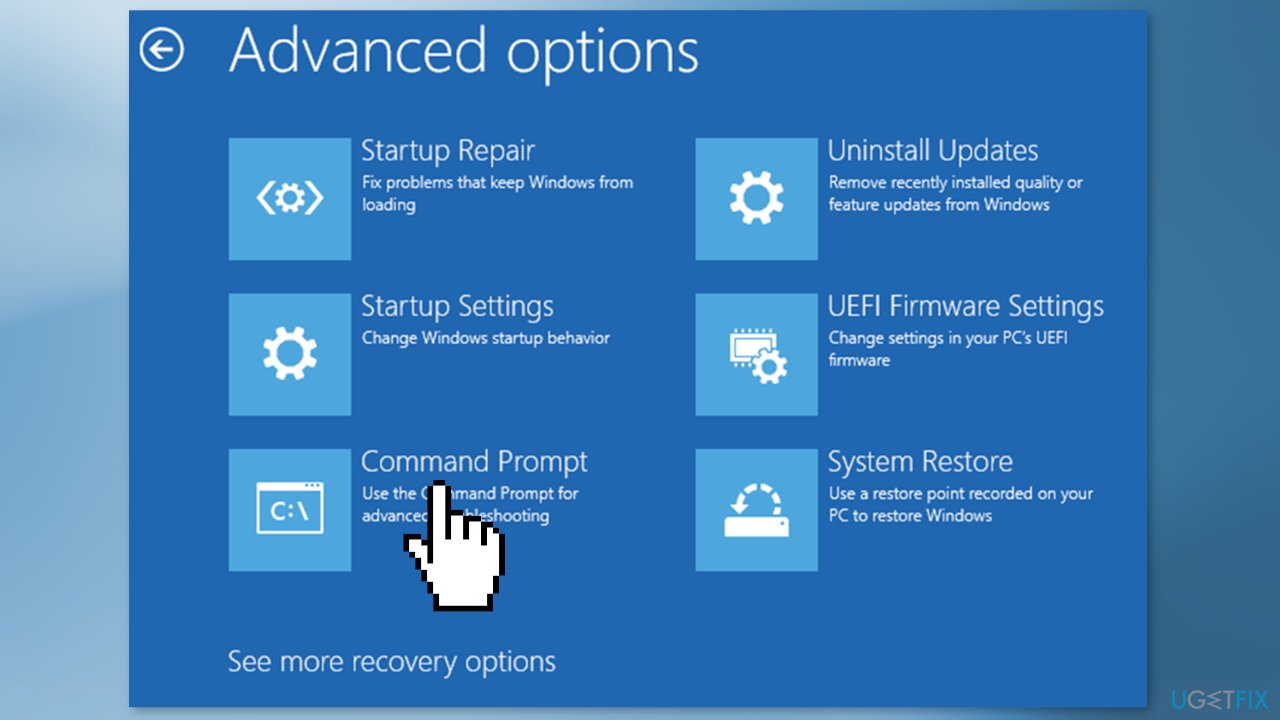
- Select Command Prompt, then log in with your account and run the commands below.
sfc /scannow
chkdsk X: /f
bootrec /fixmbr
bootrec /fixboot
bootrec /scanos
bootrec /rebuildbcd
Method 3. Uninstall Updates
If you installed a system update before the Blue Screen error, uninstall the most recent update:
- Choose Uninstall Updates from the menu and proceed with the on-screen instructions
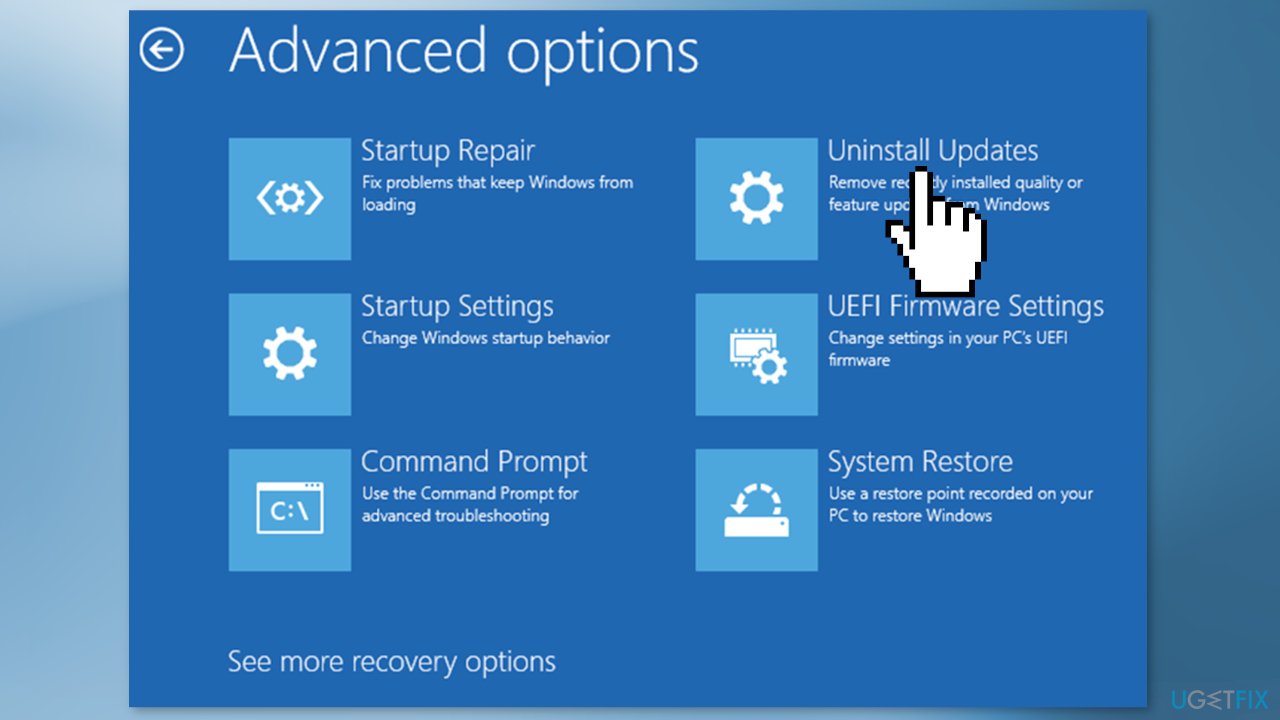
- Try uninstalling both Quality updates and Feature updates
Method 4. Re-install Windows using USB Recovery Image
Download Recovery Image:
Note: to download the Recovery Image you will need a PC running Windows 7 or later or a Surface Device.
- Visit the Microsoft Surface support page to Download the recovery image for your Surface
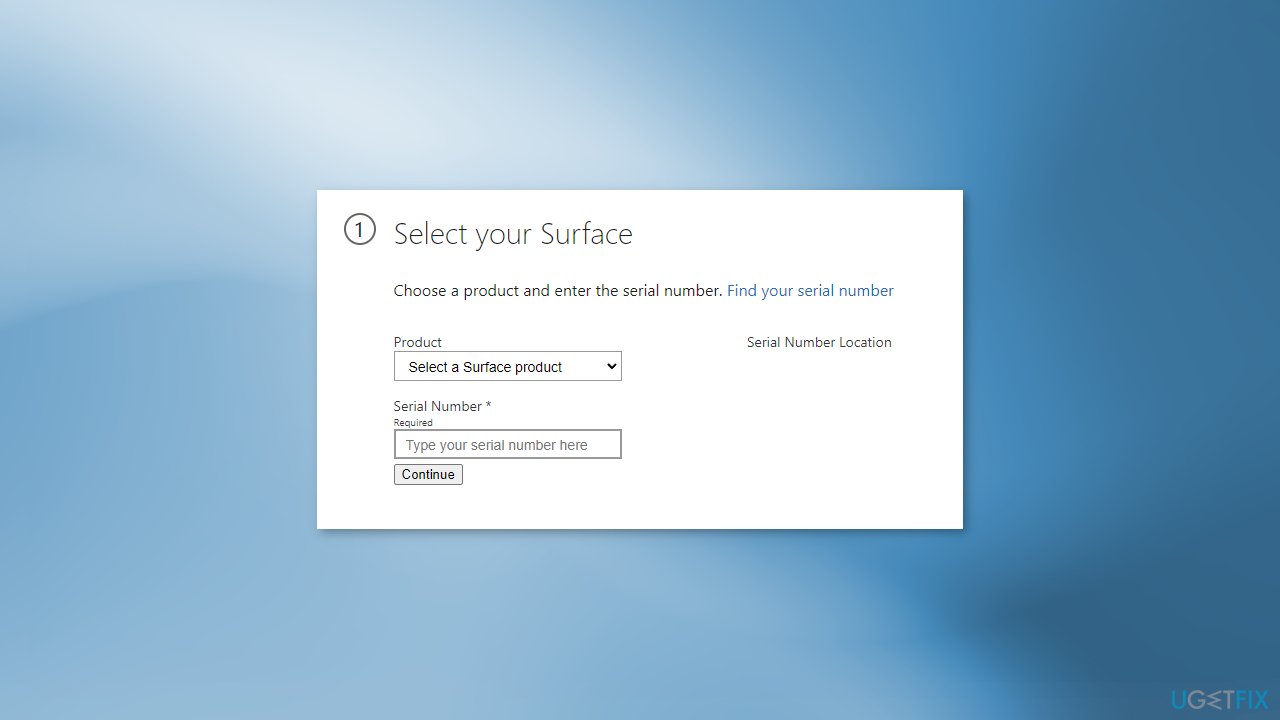
- Sign in with your Microsoft Account
- From the list of Surface devices available, select the device that you need a recovery image for
Note: while you will only be presented with devices that are currently registered on your account, you will also be presented with the option to get an image for a different type of device. If you try to use this option, you will be prompted to enter the serial number for that device.
- Download the recovery image using the button on the page
- When the download bar pops up at the bottom of your screen, save the file in a location you will be able to find it
Format USB Drive:
Note: Formatting a recovery drive will erase anything that is already stored on your USB drive. Make sure to transfer any important data from your USB drive to another storage device before using it to create a Surface USB recovery drive.
- Insert your USB drive into the USB port of your PC
- From the desktop, open File Explorer
- Right-click on the USB drive and choose Format
- Select FAT32 as the file system and enter a Volume label to name the USB drive, such as RECOVERY, and then tap Start
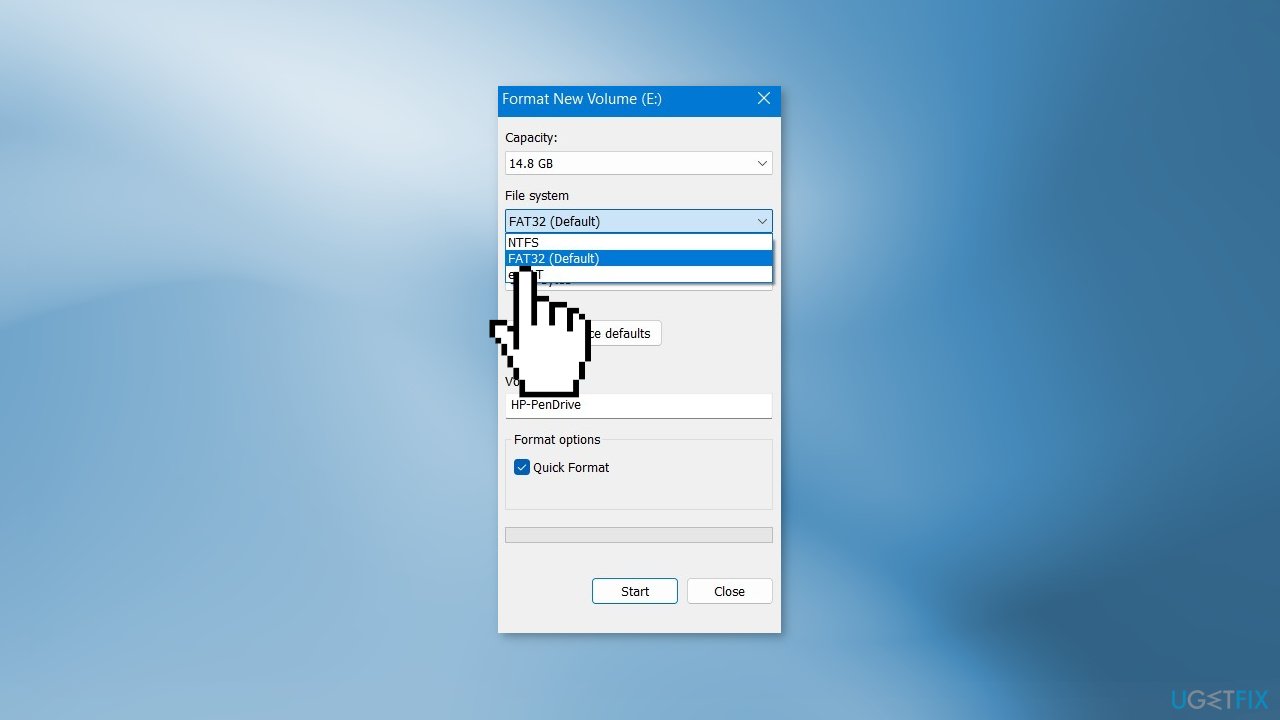
- Click OK to erase the contents of the USB drive
- Click OK again when the format is complete
Create a recovery drive:
- On your Surface or PC, open the recovery image that you downloaded by double-clicking it or right-clicking
- Select Extract and then Extract all
- Select the USB drive you formatted earlier for the location and click Extract
Use a USB recovery drive to reset your Surface:
- Shutdown the Surface
- Insert the USB recovery drive into the USB port
- Press and hold the volume-down (-) rocker
- Press and release the power button
- When the Surface logo appears, release the volume-down (-) rocker
- Surface will start the recovery software on the USB recovery drive
- When prompted, choose your language options and keyboard layout
- Select Troubleshoot
- Select Recover from a Drive
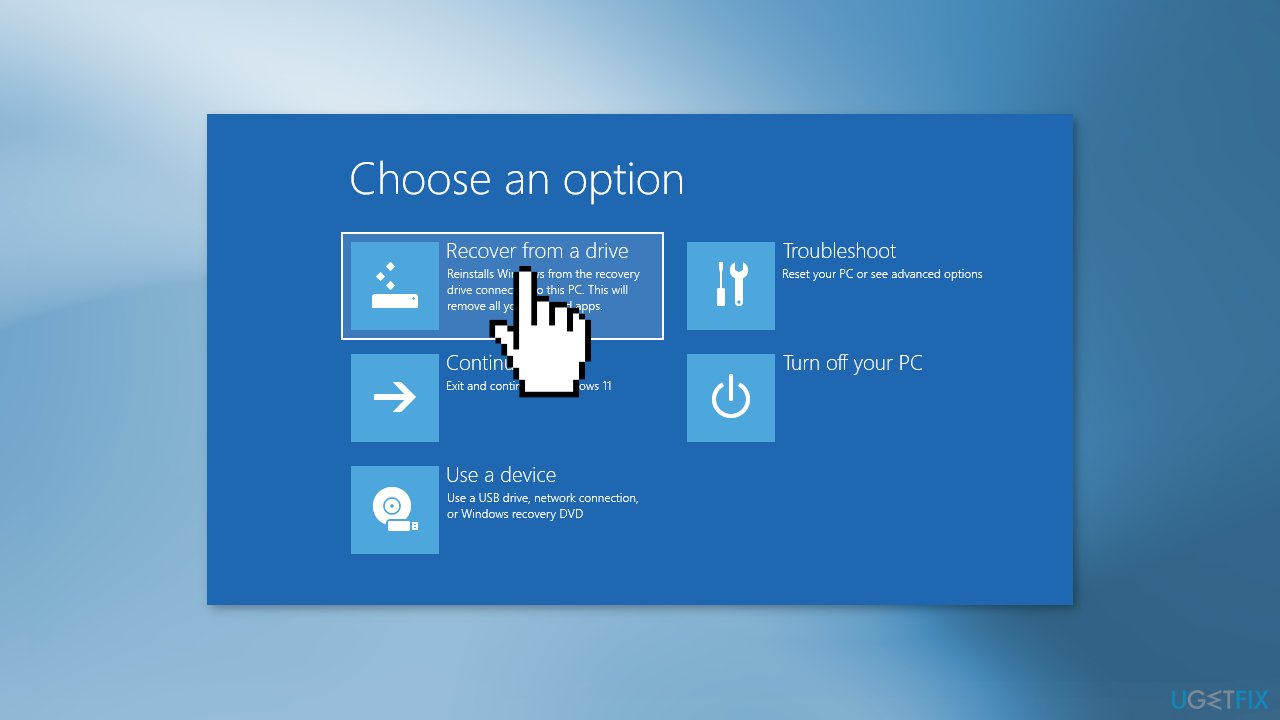
- Choose Remove Everything and Fully Clean the Drive
- If prompted, select Repartition the drives
- If prompted for BitLocker Key, tap Skip this Drive
Bottom line
To fix the 0xc000000f Blue Screen in Windows, you can perform a Startup Repair or repair corrupted system files. If these methods do not resolve the issue, consider using a repair tool to address various system errors.
Frequently asked questions
The 0xc000000f Blue Screen error in Windows 10 is typically caused by corrupted system files, hard drive issues, or improper configurations in the boot settings.
You can fix the 0xc000000f error by booting into the Windows Recovery Environment, selecting 'Repair your computer', then using 'Startup Repair' or 'Command Prompt' to run bootrec commands.
To prevent the 0xc000000f error in Windows 11, regularly check your hard drive for errors, keep your system updated, and ensure that your backup settings are configured properly.




Report an issue
What's wrong with this guide? We review every report and update or remove content.
Report received — thank you. We'll review and fix it.
You need a free account to submit a report.
Be the first to comment