How to fix
0xc000000f Error When Installing Creators Update
on Windows
Resolve the 0xc000000f error during Creators Update installation on Windows 10 or 11 effortlessly. Expert-tested solutions for quick fixes!

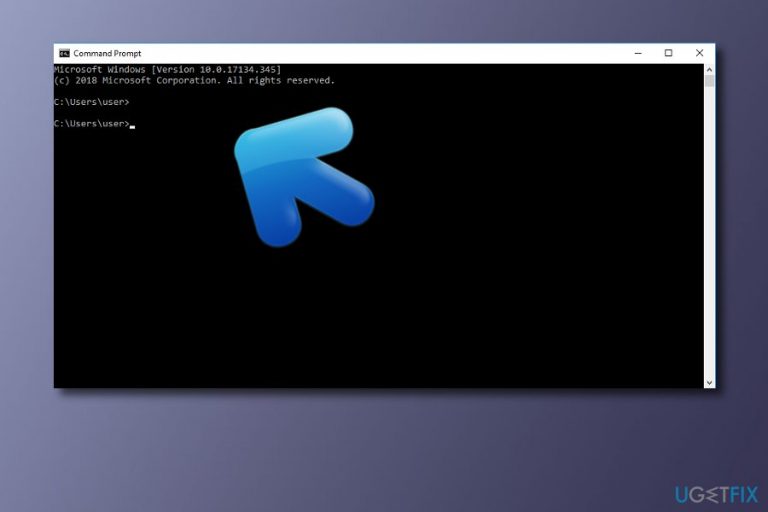
What causes How to Fix 0xc000000f Error When Installing Creators Update on Mac?
- Boot Configuration Data is corrupted
- Improper installation of Windows 10
- Incompatibility with Boot Camp
- System infection or malware presence
Repairs Windows system files, removes malware, and restores a clean OS state — without reinstalling.
Do you know why can‘t I clean install the Creators Update on my Mac with Boot Camp? I tried to do so a couple of times, but each attempt ends up with an error code 0xc000000f.
Officially Windows 10 Creators Update will become available for all users on the 11th of April. Nevertheless, the most eager PC users are already able to install the update via Windows Update Assistant[ref en-3], while Mac users should get such ability in Boot Camp. The problem is that Apple Mac[ref en-1] users are not able to clean-install the Redstone 2 because the process in winload.efi is interrupted by the error code 0xc000000f.
Microsoft has already acknowledged this bug and both Apple and Microsoft are working to resolve the problem as soon as possible. Those who are not intending to wait for the fixes and wish to use Windows 10 Creators Update on Mac will have to install the Anniversary Update to be able to download the latest update.
As Microsoft points out:
Instead of performing a new install of Creators Update, download and install Windows 10 Anniversary Update ISO. Then install the Creators Update via the normal Windows update process.
Try the following methods to fix this error. If you have performed all of them and none were successful, maybe the error message has been caused by some time of system infection. You can find that out by performing a full system scan with [d1] or any other reliable anti-malware program.
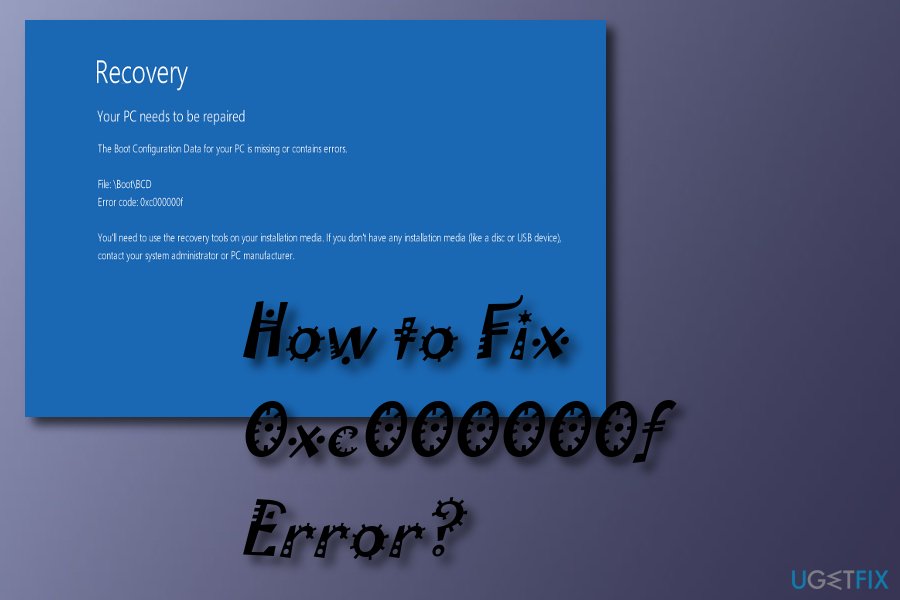
Method 1. Use bootrec.exe tool
This tool can be found installed in the Windows operating system and used o rebuild Boot Configuration Data. Follow the below-given steps to complete this method:
- Restart your PC and use DVD/USB to start it;
- If you are asked for some key, pressing any button on your keyboard will allow you to continue;
- Choose the time, language, and currency. Press Next;
- Choose the repairable operating system and click on the Next button;
- Go to System Recovery Options and press on Command Prompt;
- Type bootrec.exe in the black window and hit Enter.
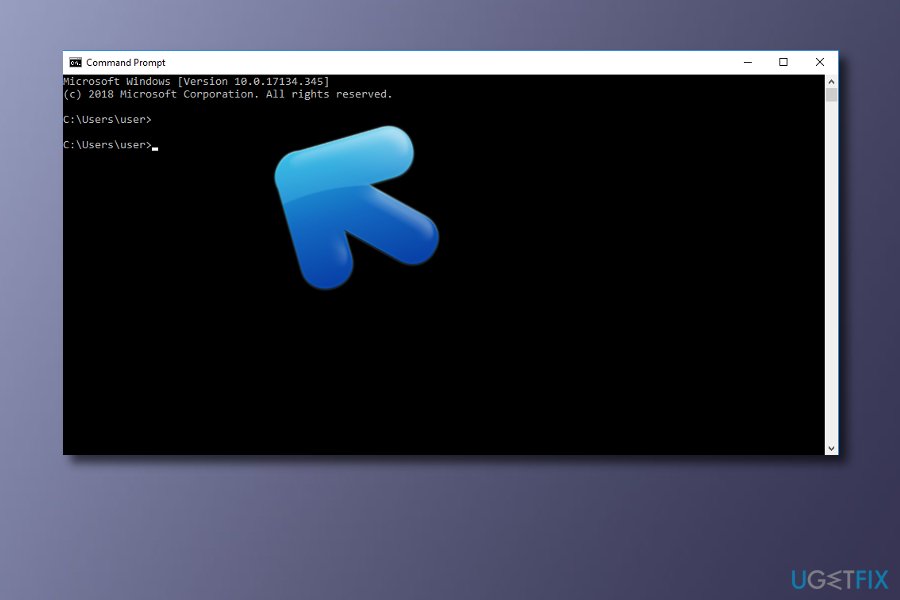
- Type these lines into the black window, put a space after each line:
Error fix
- bcdedit /export C:\\BCD_Backup
- c:
- cd boot
- attrib bcd –s –h –r
- ren c:\\boot\\bcd bcd.old
- bootrec /RebuildBcd
Method 2. Generate an EFI
- Boot Windows from a USB;
- Go to Command Prompt;
- When the black windows opens, type diskpart and select Enter;
- Type list disk and press Enter;
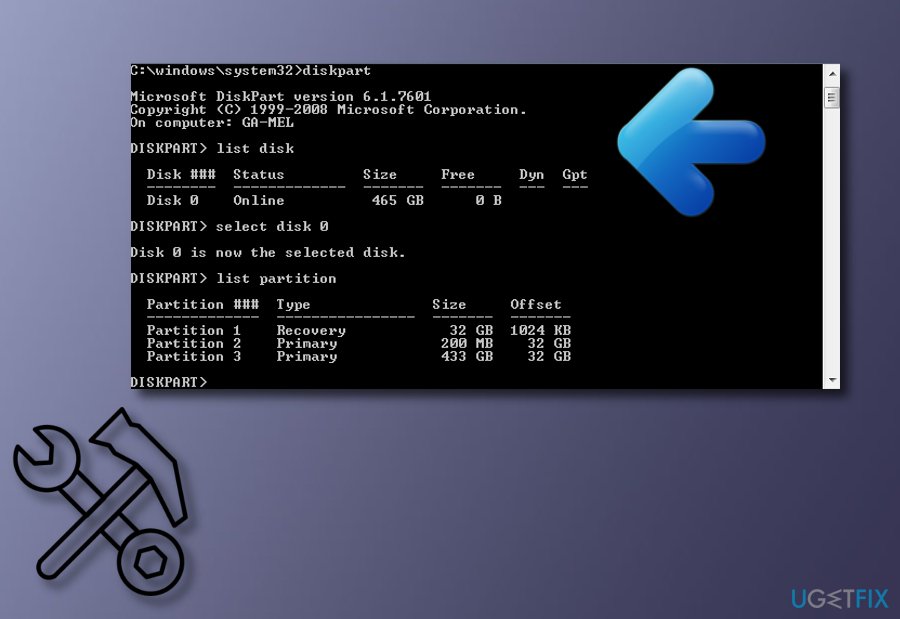
Fix error - Type select disk 0 and click Enter;
- Type list partition and click Enter;
- After that, type select partition 1 and then Enter;
- Type shrink desired=200 minimum=200 and then select Enter;
- Type in create partition efi and choose Enter;
- Furthermore, type list partition and press Enter again;
- Type select partition 2 and press Enter;
- Type format fs=fat32 and click Enter;
- Now, type list vol and press Enter;
- Type in select vol 3 and then Enter;
- Type assign and click Enter;
- Again type in list vol and select Enter;
- After that, type bcdboot C:\\Windows /l en-gb /s B: /f ALL and press Enter.
Method 3: Repair your pc
If you want to perform this method on your Windows operating system, you need to have a bootable DVD/USB device.
- Go to the computer's BIOS by pressing F2 and clicking on Boot Order;
- Take the DVD/USB and bring it to the top as the First Boot Device;
- Save the changes you have made and reboot your machine.
Hopefully, you have successfully installed the Creators Update on your Mac. If the process failed again, then try to perform the same steps one more time in case you did something wrong. Didn‘t work? Then we would strongly recommend you to wait until the bug will be removed by Microsoft[ref en-2].
Bottom line
To fix the 0xc000000f error, you can use the bootrec.exe tool to rebuild the Boot Configuration Data, or install the Windows 10 Anniversary Update before attempting the Creators Update. If these methods do not resolve the issue, consider performing a full system scan with a reliable anti-malware program.
Frequently asked questions
The error code 0xc000000f typically indicates a problem with the boot configuration data, preventing Windows 10 or Windows 11 from loading properly on your Mac.
You can resolve the error by using a Windows installation media to access the recovery options, and then execute the 'bootrec /rebuildbcd' command in the Command Prompt.
Yes, it is highly recommended to back up your data before attempting any repairs, as there is a risk of data loss during the troubleshooting process.




Report an issue
What's wrong with this guide? We review every report and update or remove content.
Report received — thank you. We'll review and fix it.
You need a free account to submit a report.
Be the first to comment