How to fix
0xc000006d error
on Windows
Fix the 0xc000006d error on Windows 10 and 11 quickly with our easy-to-follow guide. Get expert-tested solutions that work in minutes!

What causes How to fix 0xc000006d error in Windows?
- Corrupted system files
- Issues with Windows Update
- Problems with the login PIN
- Malfunctions after a Windows update
- Registry issues
Repairs Windows system files, removes malware, and restores a clean OS state — without reinstalling.
Hello. Ever since I updated my Windows computer, I receive an 0xc000006d error when I try to log in. Can someone help me solve this?
Windows is the first choice for many when it comes to operating systems. It has a user-friendly interface, customization abilities, and built-in troubleshooters that can help fix minor system issues. Microsoft also released the newest version at the end of 2021. However, an operating system relies on thousands of processes to run smoothly. If even one process goes rogue, people can experience errors, glitches, bugs,[ref en-1] and other malfunctions.
Recently, some users encountered an issue after updating Windows. They report seeing a 0xc000006d error when trying to log in. The error message "Something went wrong and your PIN is not available status:0xc000006d, substatus: 0xc0070016” is shown on the screen and it is difficult for people to log in. The problem was reported to appear in Windows 10 and Windows 11.
You may create a new PIN but that may be exhausting to do every time you want to log onto your system. In this guide, you will find 6 steps that could help you fix the 0xc000006d error. However, troubleshooting can be a lengthy process, so you can try using a maintenance tool like [d1] to run a scan. This powerful software can fix various system errors, BSODs,[ref en-2] corrupted files, and registry[ref en-3] issues. Otherwise, follow the step-by-step instructions below.
Method 1. Run Windows Update Troubleshooter
- Press the Windows key + R to launch the Run dialog box
- Type ms-settings-troubleshoot and hit Enter
- In the Troubleshooting tab, go to the Get up and running section and then click on Windows Update
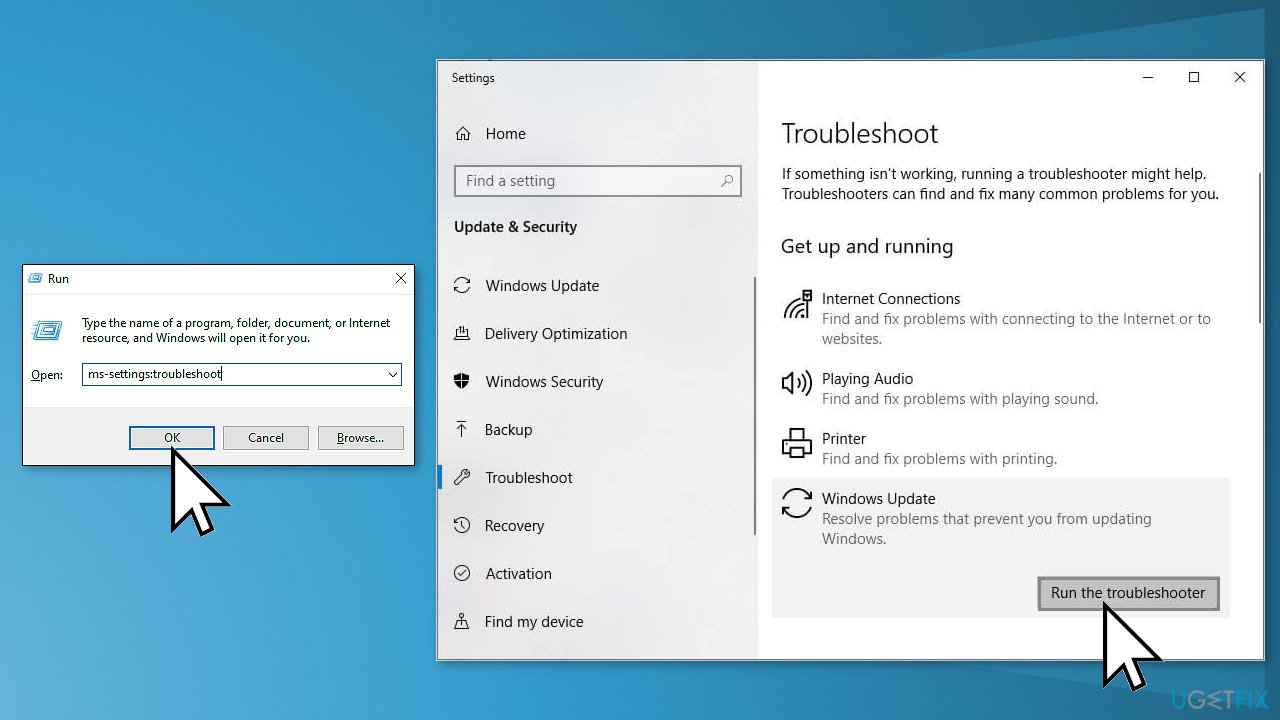
- Click on Run the troubleshooter
- The troubleshooter will start scanning your system, wait for it to complete
- Tap on Apply this fix to apply the suggested fix if there is one
Method 2. Fix Corrupted System Files
Running an SFC scan is a good idea to check whether Windows files are not damaged.
- Open Command Prompt as administrator
- Use the following command and press Enter:
sfc /scannow
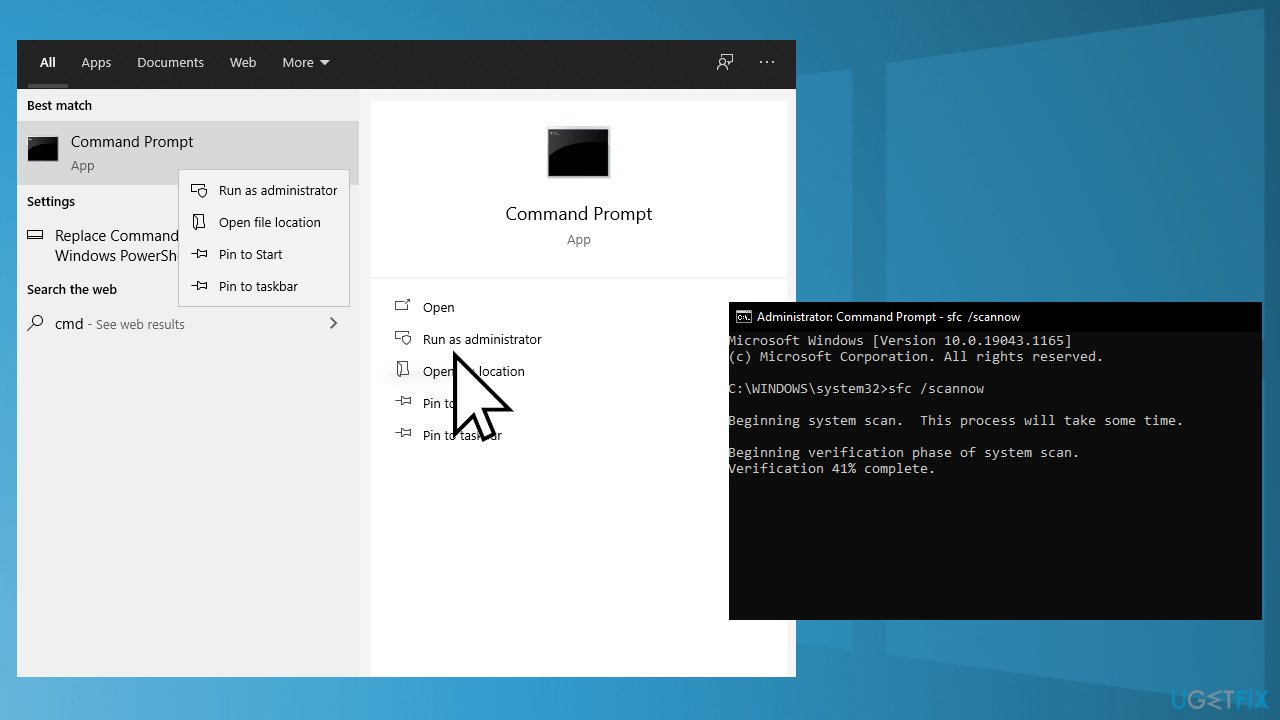
- Reboot your system
- If SFC returned an error, then use the following command lines, pressing Enter after each:
DISM /Online /Cleanup-Image /CheckHealth
DISM /Online /Cleanup-Image /ScanHealth
DISM /Online /Cleanup-Image /RestoreHealth
Method 3. Clear Windows Update Cache
- Press the Windows key + R to open the Run box
- Type %windir%\SoftwareDistribution\DataStore in the box and click OK
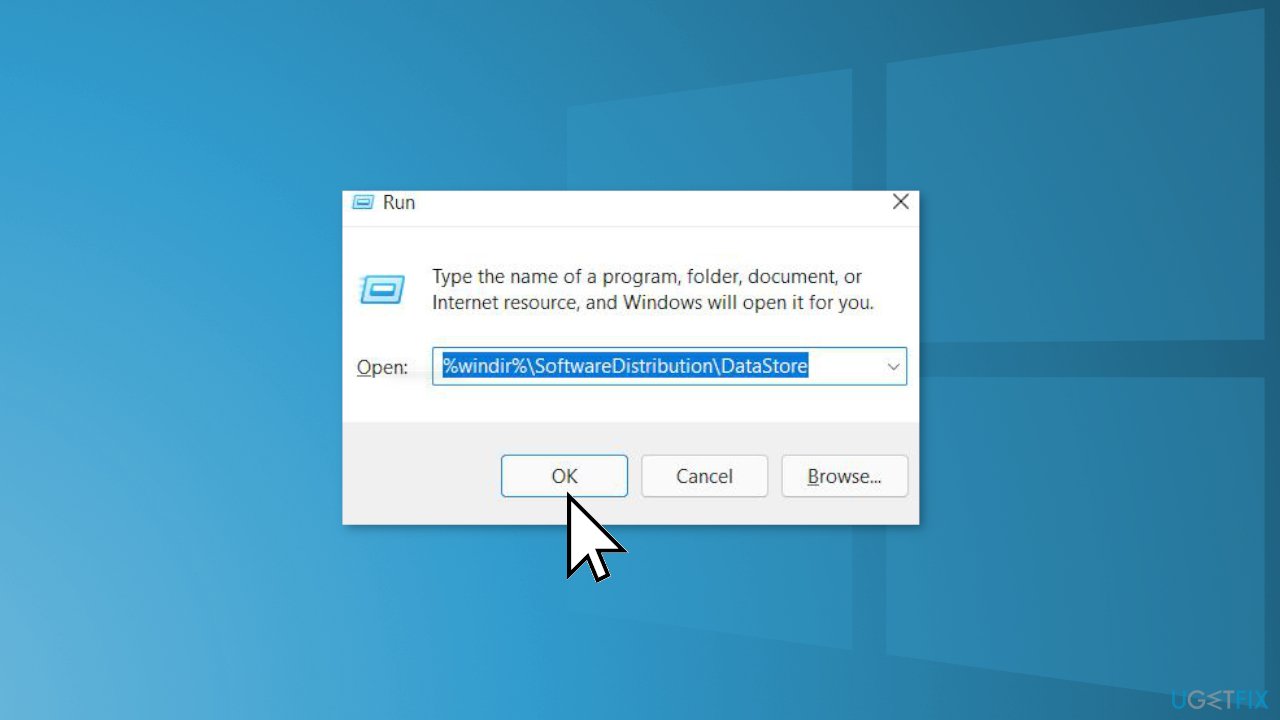
- Now it will open the Windows Explorer
- Delete all the contents on this folder
- Restart
Method 4. Clean Windows Update Download Path
- Press the Windows key + R to open the Run box
- Now type regedit and hit Enter
- Navigate to HKEY_LOCAL_MACHINE\SOFTWARE\Policies\Microsoft\Windows\WindowsUpdate
- Search for WUStatusServer and WUServer on the right-hand side
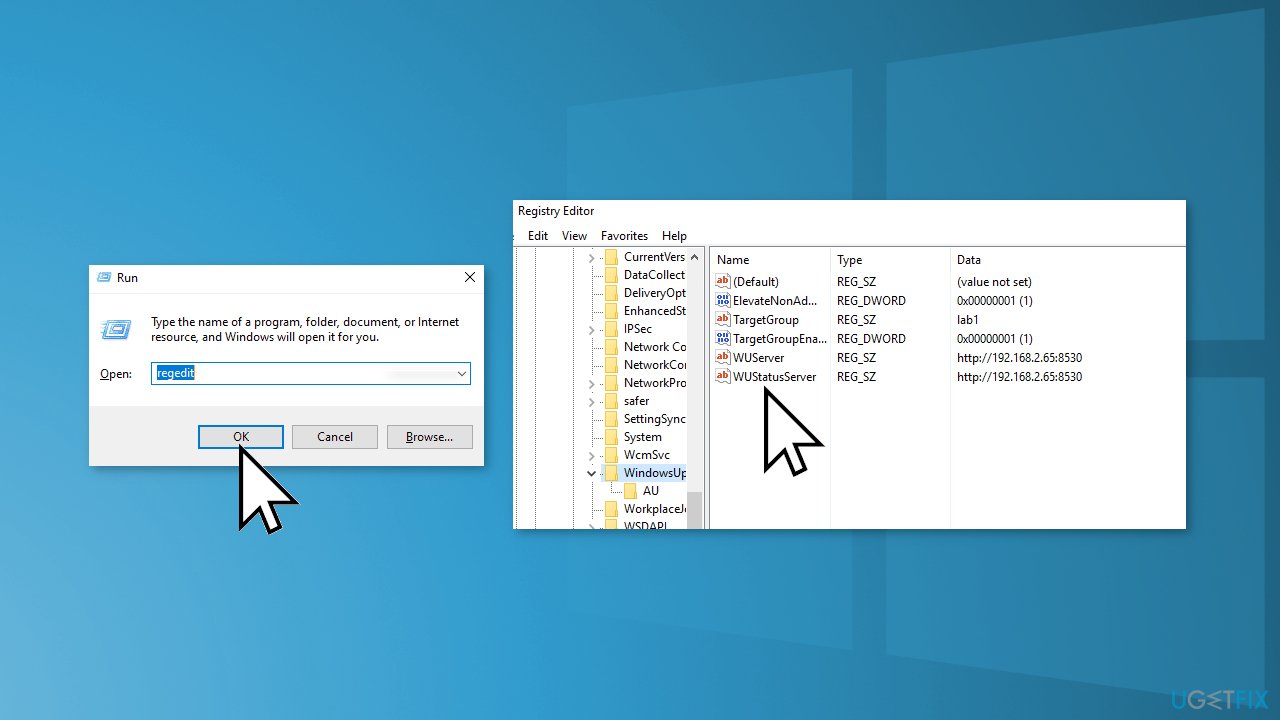
- Clean the listed downloaded path that appeared on the screen
- If the path is not listed then you cannot clear the path
- Restart
Method 5. Enable WU-related Services
- Start by hitting the Windows key + R to open up a Run box
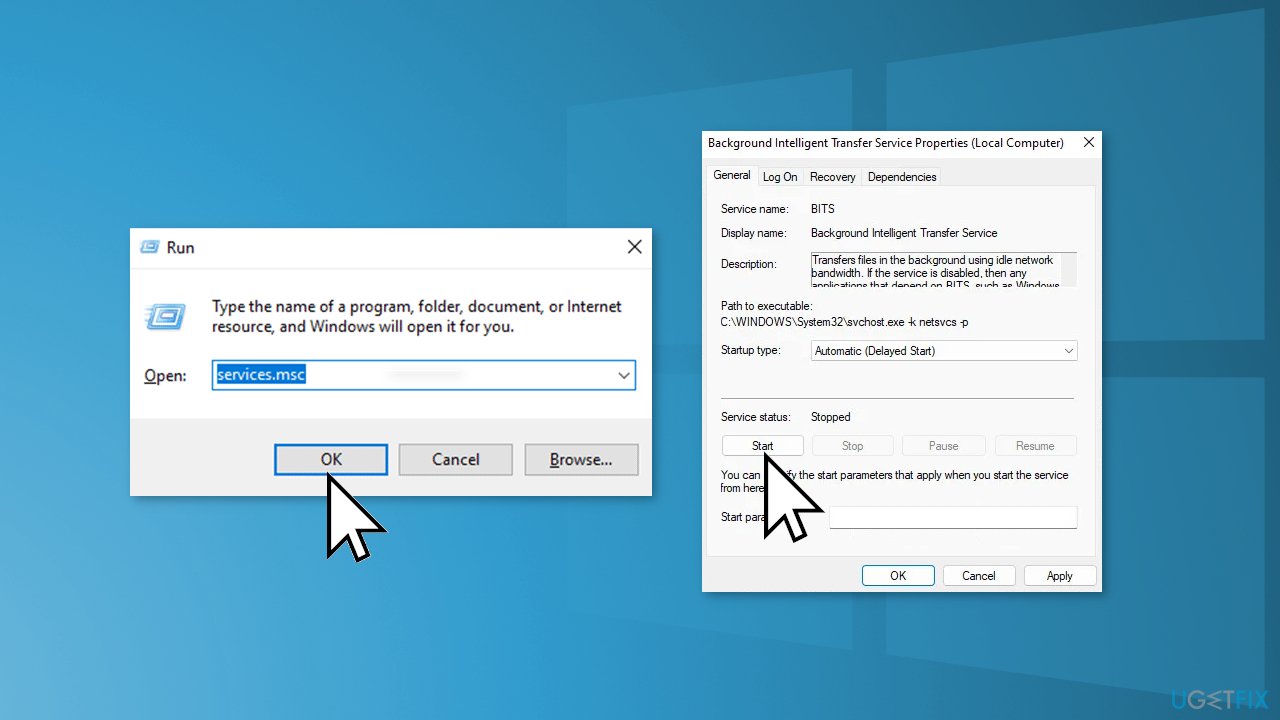
- Type services.msc inside the text box and press Enter
- Find services listed below, ensure they are running and double-tap on each one to change the Startup type to Automatic:
Background Intelligent Transfer Service
COM+ Event System
DCOM Server Process Launcher
Windows Update
Remote Procedure Call (RPC)
Method 6. Clean Install Windows
If all else fails and you can't even reset your Windows computer, you can reinstall the OS entirely. You won't even need an activation number or any proof of purchase, either. Just make sure you have more than 4GB of space available, as that's how much space the file you'll download takes up. Here's how to reinstall Windows 10:
- Download the ISO file
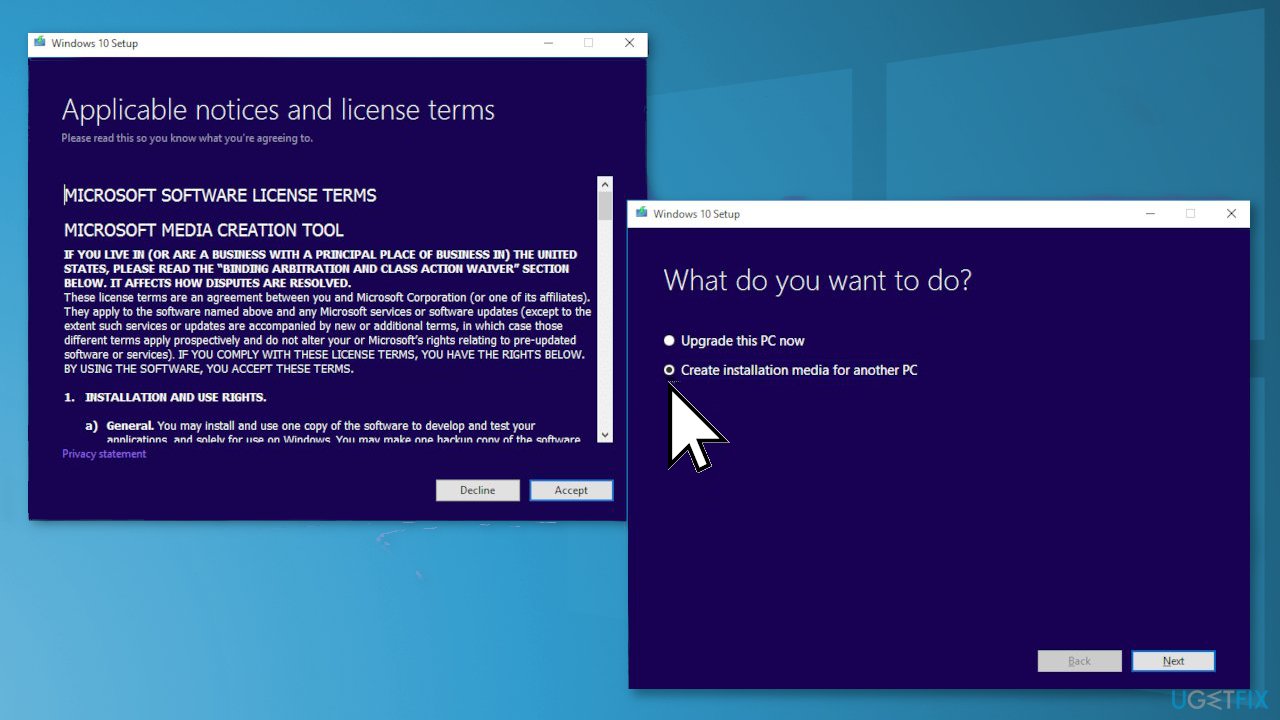
- Select Create installation media for another PC and click Next
- Select ISO file and click Next
- Click Finish
- Open the Windows ISO file you downloaded
- Open Setup and click Next
- Click Accept (Be prepared to wait; this next part may take a while)
- Click Install
- Wait for your system to restart and install Windows
Bottom line
To fix the 0xc000006d error, you can run the Windows Update troubleshooter and perform an SFC scan to check for corrupted system files. If these methods do not resolve the issue, consider using a maintenance tool to scan for additional system errors.
Frequently asked questions
The 0xc000006d error typically occurs due to issues with user authentication, such as incorrect credentials or problems with the security policy settings in Windows.
To troubleshoot the 0xc000006d error on Windows 11, ensure your account credentials are correct and check the Local Security Policy settings for any misconfigurations.
Yes, you can fix the 0xc000006d error without reinstalling Windows 10 by using the Command Prompt to reset your password or by modifying the Local Security Policy settings.




Report an issue
What's wrong with this guide? We review every report and update or remove content.
Report received — thank you. We'll review and fix it.
You need a free account to submit a report.
Be the first to comment