How to fix
0xc0000094 error
on Windows
Resolve the 0xc0000094 error in Windows 10 or 11 effortlessly with our expert-tested solutions. Get back to smooth performance in minutes!

What causes How to fix 0xc0000094 error in Windows?
- Deleted Registry entries
- Malware infections
- Improper uninstallation of software
- Hardware malfunctions
- OS corruption
Repairs Windows system files, removes malware, and restores a clean OS state — without reinstalling.
Hello. I recently installed a program on the computer. It was running smoothly before, so I was surprised, but the error 0xc0000094 appears right now. I don't know how to fix this or why it is appearing right now. I need your help or an explanation at least.
The 0xc0000094 error in Windows can appear on Windows 10 or Windows 11 machines and cause issues with the performance due to the third-party programs that are not fully uninstalled or altered system data. Users[ref en-1] report these issues and there are different solutions as well as root causes.
The main reason behind these system issues can be the deleted Registry entries. That can happen due to the malware[ref en-2] infections that alter those entries. It can happen when the software is deleted and not properly, so the leftovers cause issues with system functions. If you recently uninstalled applications you can see those leftovers from the C drive and registry causing the issue.
Hardware malfunctions or OS corruption can trigger changes on the machine and lead to a 0xc0000094 error in Windows. Incorrectly deleting files or entries in the registry, and other folders can cause system issues. These missing files, however, can be solved with applications like [d1] that find and repair affected or corrupted files. It can help with either malware leftovers or damaged system files.
The latest updates of the operating system can also be missing needed files, so the issue with these error codes might appear. You can encounter these issues on Windows 10 or Windows 11[ref en-3] machines after the upgrade or installation. It is possible to fix the 0xc0000094 error in Windows by checking for the newer upgrade. There are various solutions, you should follow the steps and find the fix for you.
1. Change the date and time settings
- Press the Windows+I keys to open the Settings.
- Click the Time & language tab.
- Then, click on Date & time on the right.
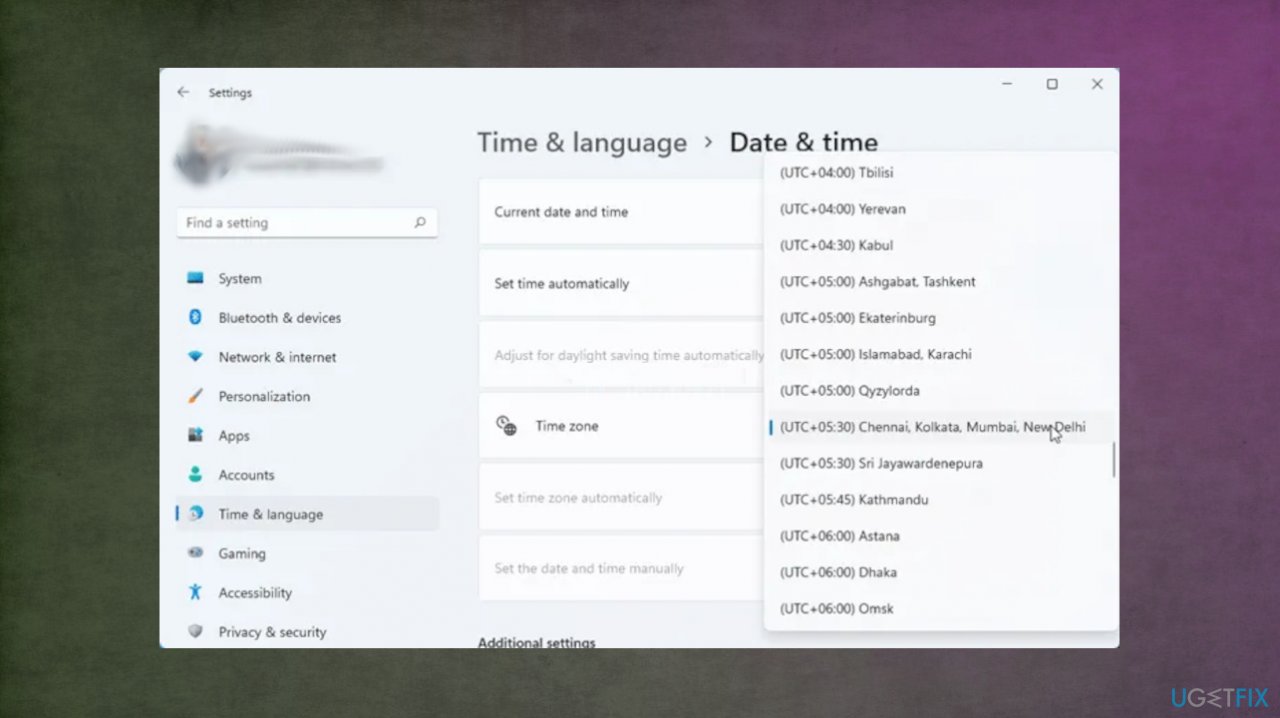
Windows 0xc0000094 error date time - On the next page, make sure that the Set time automatically toggle is turned off.
- Hit the Change button next to Set the date and time manually. This will open a window for adjusting the date and time.
- Adjust the time settings.
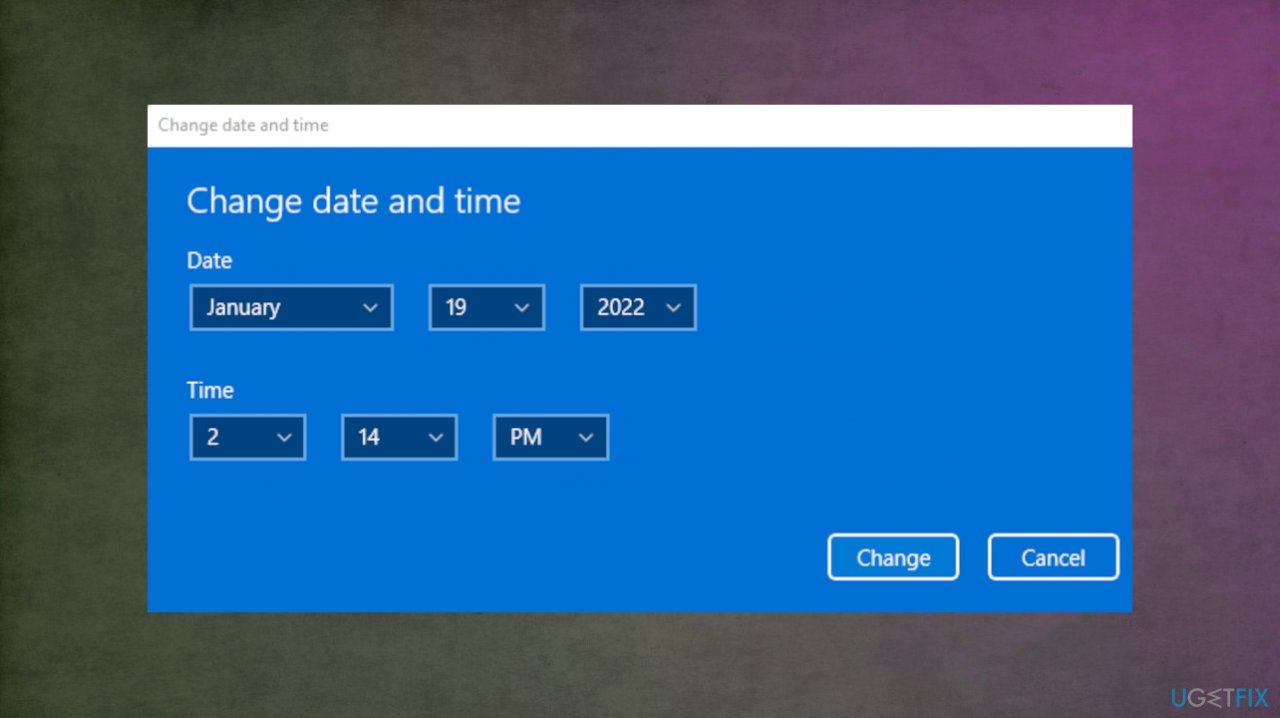
Windows 0xc0000094 error date - Click the Change button to save the changes.
- Close and restart your computer.
2. Restore Registry files
- Press Win+R and type regedit.
- Hit the Enter button.
- Click the Yes.

Windows 0xc0000094 error registry - Click the File and choose Import.
- Select the backup file and click the Open button.
3. Use System Restore
- Type in Create a Restore point in Windows search and hit Enter.
- Go to the System Protection tab.
- Pick System restore.

Windows 0xc0000094 error restore - Click Next.
- Hit Show more restore points.
- Choose the time before the problem and click Next.

Windows 0xc0000094 error restore points - Follow the steps and restart the PC.
4. Scan for malware
- Hit the Start button with a right-click.
- Go to Settings and choose Update & Security.

Windows 0xc0000094 error settings - Click the shield to open Windows security.
- Select Virus & threat protection.
- Advanced scan.
- Choose Scan options.
- Select Full scan and click on Scan now.
- Clean threats when any of them are detected.
- Choose to Remove and Start to clear threats.
Bottom line
To fix the 0xc0000094 error in Windows, you can change the date and time settings, check for newer upgrades, and use applications to repair corrupted files. If these solutions do not resolve the issue, consider seeking further technical assistance.
Frequently asked questions
The 0xc0000094 error is often caused by hardware issues, such as faulty RAM or hard drive problems, and can also be triggered by corrupt system files.
You can troubleshoot the error by running a System File Checker (SFC) scan and checking for hardware malfunctions using the Windows Memory Diagnostic tool.
Yes, you can attempt to repair the error by using the Startup Repair tool or by performing a system restore to revert to a previous working state.




Report an issue
What's wrong with this guide? We review every report and update or remove content.
Report received — thank you. We'll review and fix it.
You need a free account to submit a report.
Be the first to comment