How to fix
0xc00000e5 error
on Windows
Resolve the 0xc00000e5 error in Windows 11 with easy solutions that ensure your system runs smoothly again. Expert-tested fixes inside!

What causes How to fix 0xc00000e5 error in Windows 11?
- Antivirus software conflicts
- Inaccessible system files
- Conflicts between software components
- Updates to antivirus programs
Repairs Windows system files, removes malware, and restores a clean OS state — without reinstalling.
Hello. When I try to launch some Windows apps I get the 0xc00000e5 error on my Windows 11 PC. Is there a way to fix this?
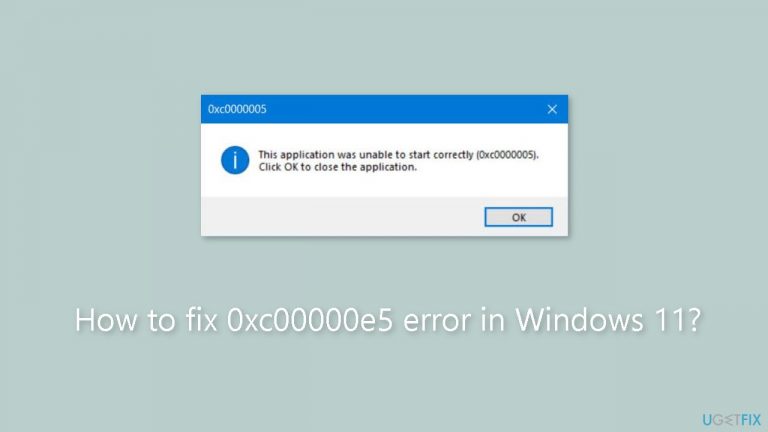
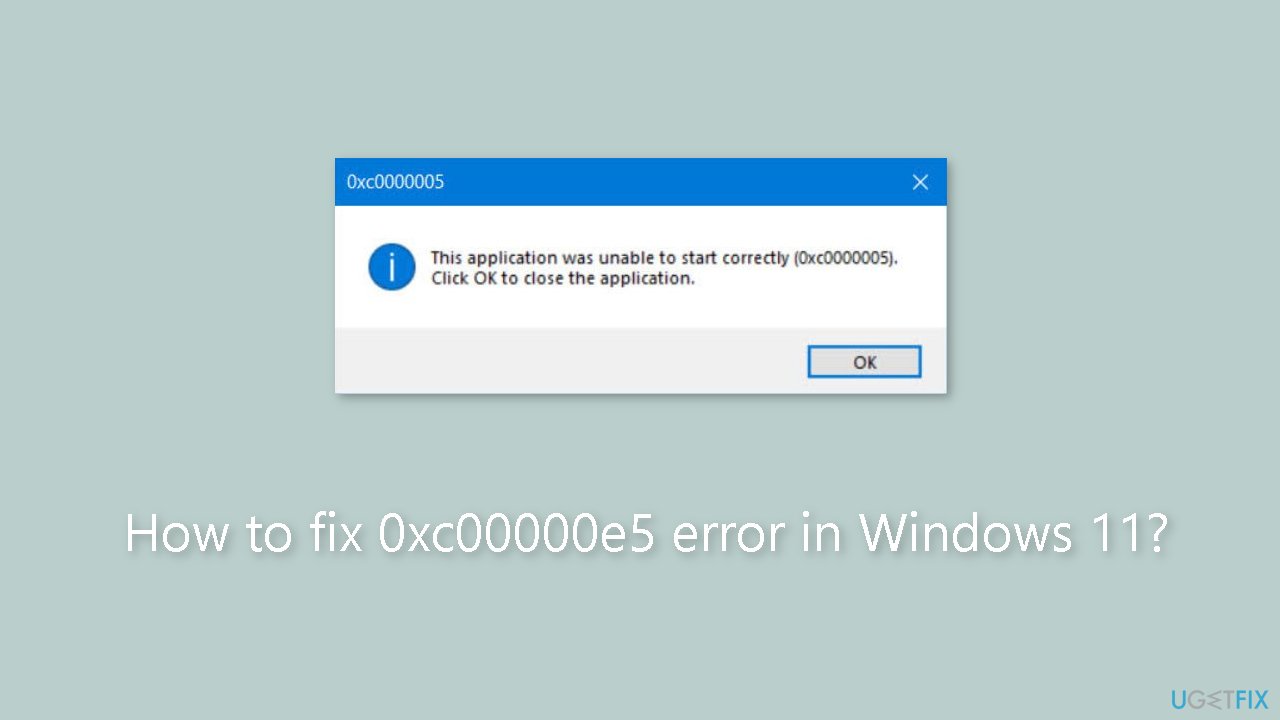
The 0xc00000e5 error is a common problem experienced by Windows 11 users when attempting to launch a Windows application and discovering that it fails to start properly. This error can frustrate and stymie affected users' productivity. Users of Comodo and AVG antivirus software have frequently reported encountering the 0xc00000e5 error.
It appears that an update to these antivirus programs can inadvertently prevent applications from launching in Windows, resulting in the error. This highlights the potential impact of third-party antivirus software on Windows application functionality.
It is important to note, however, that the 0xc00000e5 error can also be caused by other factors. The error may occur, for example, if an application is unable to access the necessary system files or if there are conflicts between different software components. These underlying issues can disrupt application functionality and result in an error message.
The 0xc00000e5 error can have a significant impact on users. It prevents them from accessing the desired applications, resulting in lost time and productivity. Furthermore, the frustration caused by such errors can have a negative impact on the overall user experience and satisfaction with the Windows 11 operating system.
Several solutions can be considered to address the 0xc00000e5 error. One option is to temporarily disable or uninstall the antivirus software that is known to be the source of the problem. This can assist in determining whether the antivirus program is the root cause of the problem.
In this guide, you will find 5 steps that should help you fix 0xc00000e5 error in Windows 11. Keep in mind that the manual troubleshooting process can be lengthy. You can use a maintenance tool like [d1] that can fix most system errors, BSODs,[ref en-1] corrupted files, and registry[ref en-2] issues. Otherwise, follow the step-by-step instructions below.
Method 1. Install Windows Updates
- Press the Windows key + R to open the Run box.
- Type ms-settings:windowsupdate in the text box and press Enter.
- Click the Check for updates button.
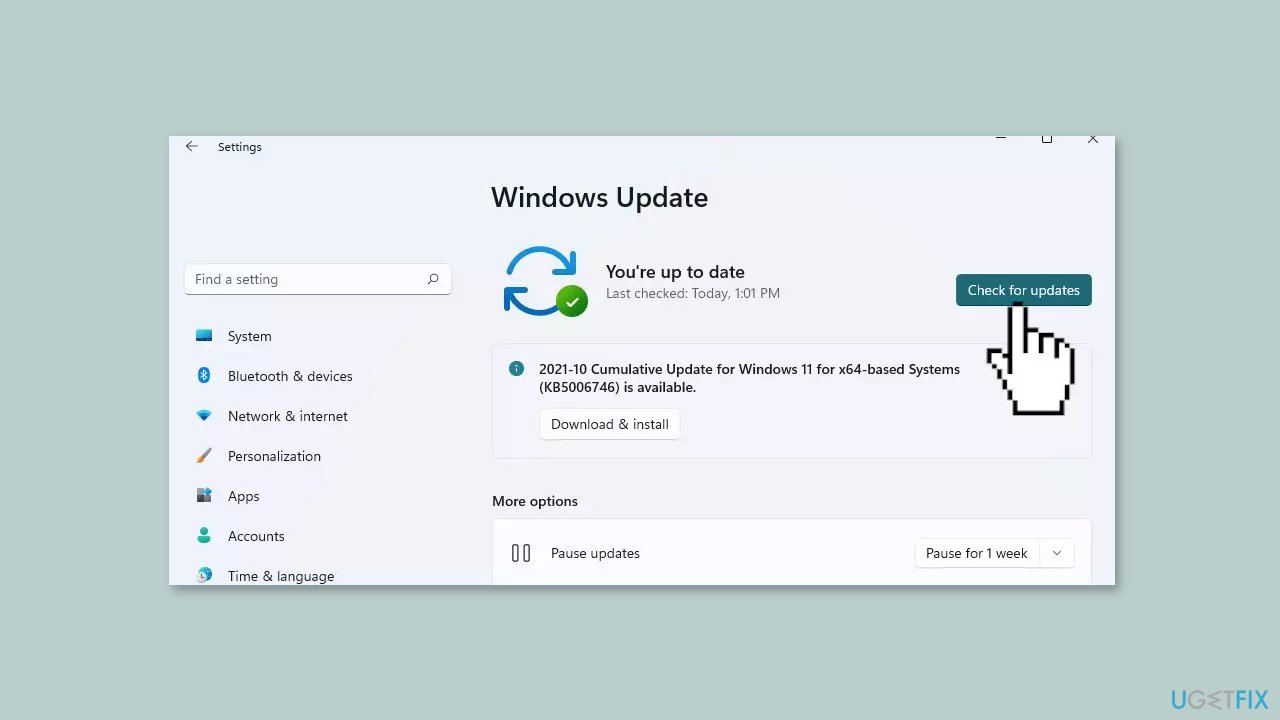
- If a new update is available, click the Download & Install all button.
- Restart your computer after the process is finished and check to see if the problem is fixed.
Method 2. Fix Corrupted System Files
Use Command Prompt commands to repair system file corruption:
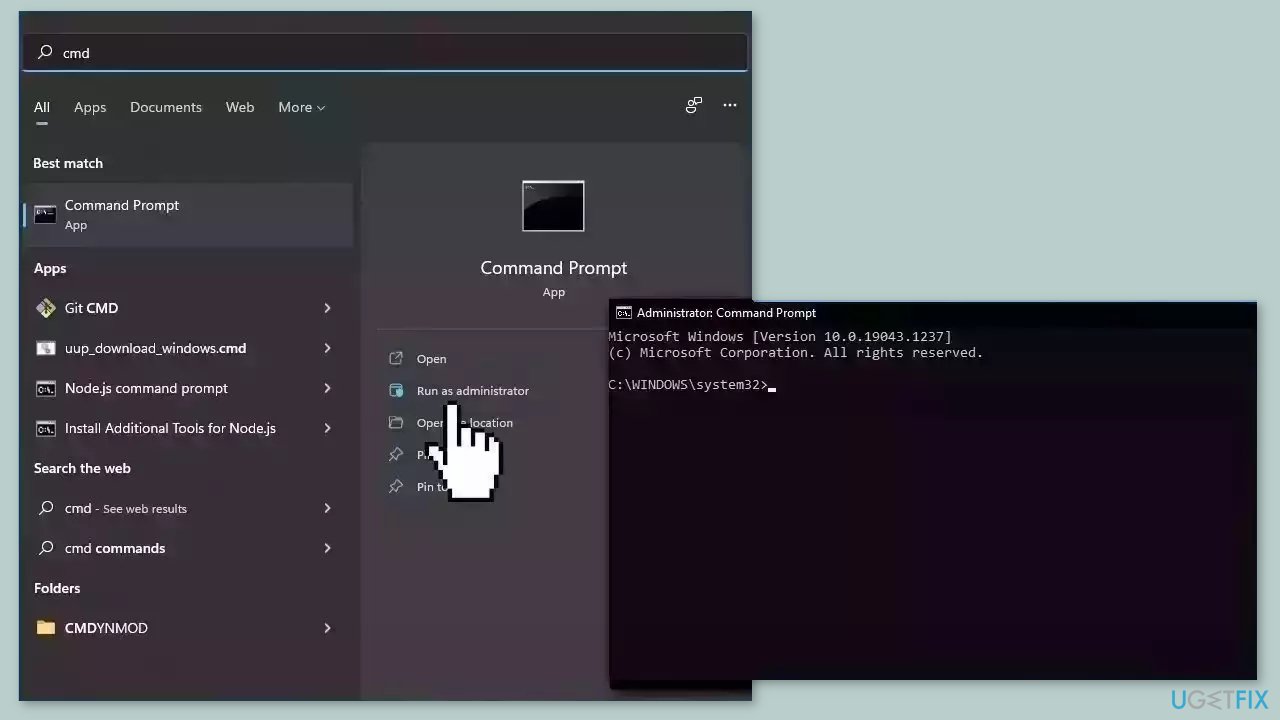
- Open Command Prompt as administrator
- Use the following command and press Enter:
sfc /scannow
- Reboot your system
- If SFC returned an error, then use the following command lines, pressing Enter after each:
DISM /Online /Cleanup-Image /CheckHealth
DISM /Online /Cleanup-Image /ScanHealth
DISM /Online /Cleanup-Image /RestoreHealth
Method 3. Disable Third-Party Antivirus
Third-party antivirus software functions by monitoring and obstructing potentially dangerous actions on your computer. Although this is typically advantageous, these programs can occasionally misinterpret harmless actions as risks. To put it differently, the antivirus software may produce a false positive.
Consequently, the antivirus program might impede the initiation or proper functioning of a program, resulting in errors like 0xc00000e5. Temporarily disabling the antivirus software can assist in identifying whether it is the root cause of the issue. However, if you don't have a third-party antivirus, you can also try temporarily disabling Windows Security.
- Press the Windows key.
- Type Windows Security and click Open.
- Click Virus & threat protection.
- Click Manage Settings.

- Under Real-time protection, toggle off the switch to disable antivirus temporarily.
- Windows Security will be active once you restart your computer.
Method 4. Try Clean Boot
- Open the Search menu, type in system configuration, and press Enter.
- Under the Services tab, tick the Hide all Microsoft services box.
- Click on Disable all button.
- Head over to the Startup tab and click on Open Task Manager.

- Select a third-party program and click on Disable at the top.
- Repeat this step to disable all third-party apps and programs.
- Restart your PC to enter the clean boot state and see if the issue persists.
- If the issue disappeared in the clean boot state, then you can be certain that a third-party app is causing it.
- Go through all recently installed apps or programs and remove them one by one.
Method 5. Use System Restore
System Restore is a feature in Microsoft Windows that allows users to revert their computer's state to a previous point in time. This can be helpful if you have made changes to your system that are causing problems.
- Press the Windows key + R on your keyboard to open the Run box.
- Type SystemPropertiesProtection and press Enter.
- Go to the System Protection tab.
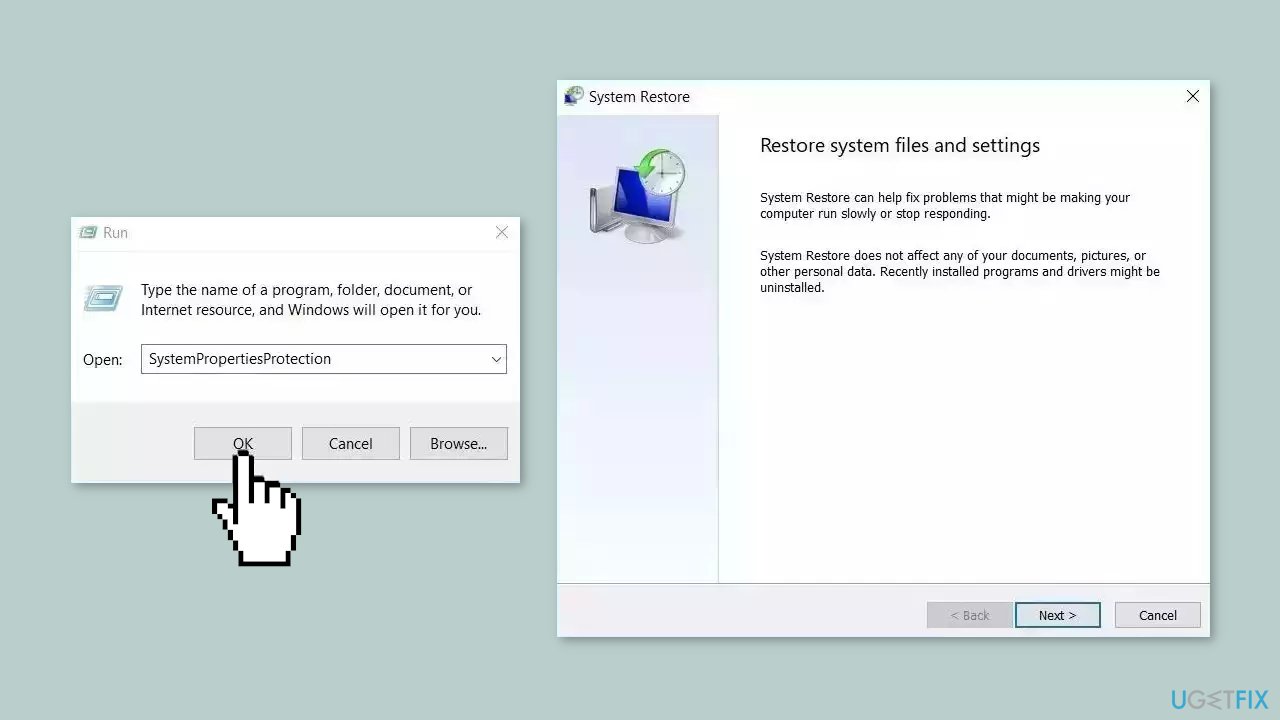
- You will see the System Restore… button. Click it to run System Restore.
- Follow the prompts until you can select a restore point.
- Select the one you want (ideally before the issue started occurring) and go ahead with the process.
Bottom line
To fix the 0xc00000e5 error in Windows 11, you can try temporarily disabling or uninstalling the antivirus software, installing Windows updates, or using a maintenance tool to address system errors. If these solutions do not resolve the issue, consider further troubleshooting steps or seeking professional assistance.
Frequently asked questions
The 0xc00000e5 error in Windows 11 is often caused by corrupted system files, issues with the hard drive, or problems with the boot configuration data.
You can troubleshoot the 0xc00000e5 error by running the System File Checker (SFC) and the Deployment Imaging Service and Management Tool (DISM) to repair corrupted files.
Yes, you can often fix the 0xc00000e5 error by using the Startup Repair feature or by restoring your system to a previous restore point without needing to reinstall Windows 11.




Report an issue
What's wrong with this guide? We review every report and update or remove content.
Report received — thank you. We'll review and fix it.
You need a free account to submit a report.
Be the first to comment