How to fix
0xc0000225 error
on Windows
Resolve the 0xc0000225 error in Windows 10/11 quickly and easily. Get expert-tested solutions to restore your system with zero traces left.

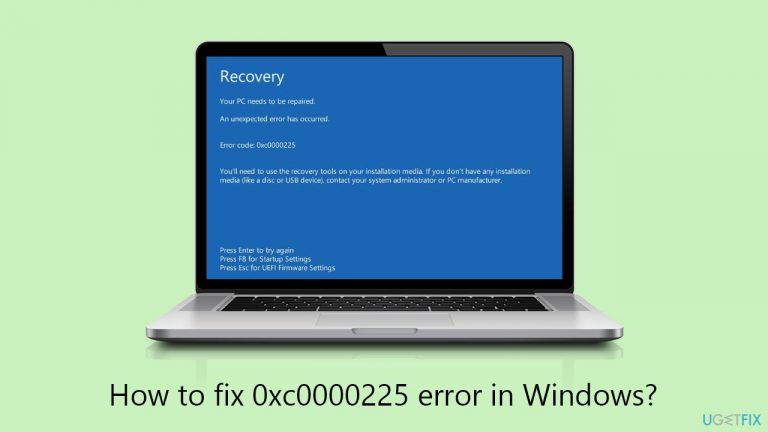
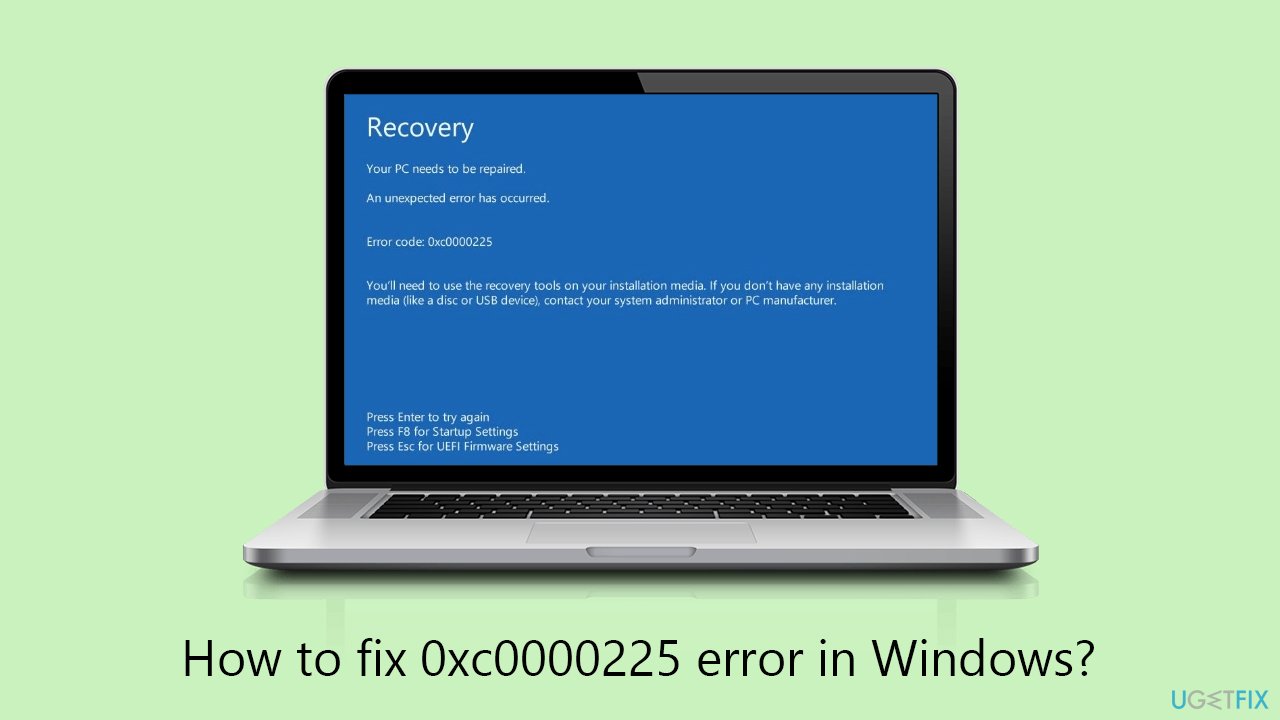
What causes How to fix 0xc0000225 error in Windows?
- Missing Boot Configuration Data (BCD)
- Corrupted Boot Configuration Data (BCD)
- Incomplete or damaged Windows update or installation
- Disk partition changes
- Disruptions in hardware or software
Repairs Windows system files, removes malware, and restores a clean OS state — without reinstalling.
Hello. I have recently updated Windows and now I can no longer boot into it properly. It loads, and then instantly crashes with 0xc0000225 error code, and I am stuck in this loop. Please help.
0xc0000225 error is a critical issue primarily related to the Boot Configuration Data (BCD), which plays a vital role in the Windows boot process. BCD is essentially a database that stores crucial boot-related information and settings - it tells the system where and how to access the operating system files. When BCD is missing, corrupted, or incorrectly configured, it can lead to errors, crashes, and boot-loops, indicating that the system cannot find the necessary files to boot.
One of the common reasons for encountering the 0xc0000225 error is due to disruptions in the system's hardware or software, which can be caused by various factors, such as sudden power failures, disk write errors, or even faulty hardware. Moreover, the error can also be triggered by an incomplete or damaged Windows update or installation, which might corrupt the BCD file. Additionally, disk partition changes, often made during reformatting or resizing the disk, can lead to this issue.
To address this, it's important to note that the resolution often involves repairing or rebuilding the BCD. This process can be complex and requires a certain level of technical proficiency. If you are comfortable with advanced troubleshooting, you might consider using Windows recovery tools or command-line utilities to reconstruct the BCD.
Alternatively, simpler methods, such as restoring from a system restore point or using startup repair, can sometimes resolve the issue without the need for in-depth technical intervention.
For those seeking a more straightforward solution, the use of a specialized PC repair tool like [d1] can be effective. These tools are designed to diagnose and fix various Windows errors automatically, including issues related to BCD and the 0xc0000225 error. By utilizing such a tool, you can often resolve the underlying issues causing the error with minimal hassle and technical knowledge.
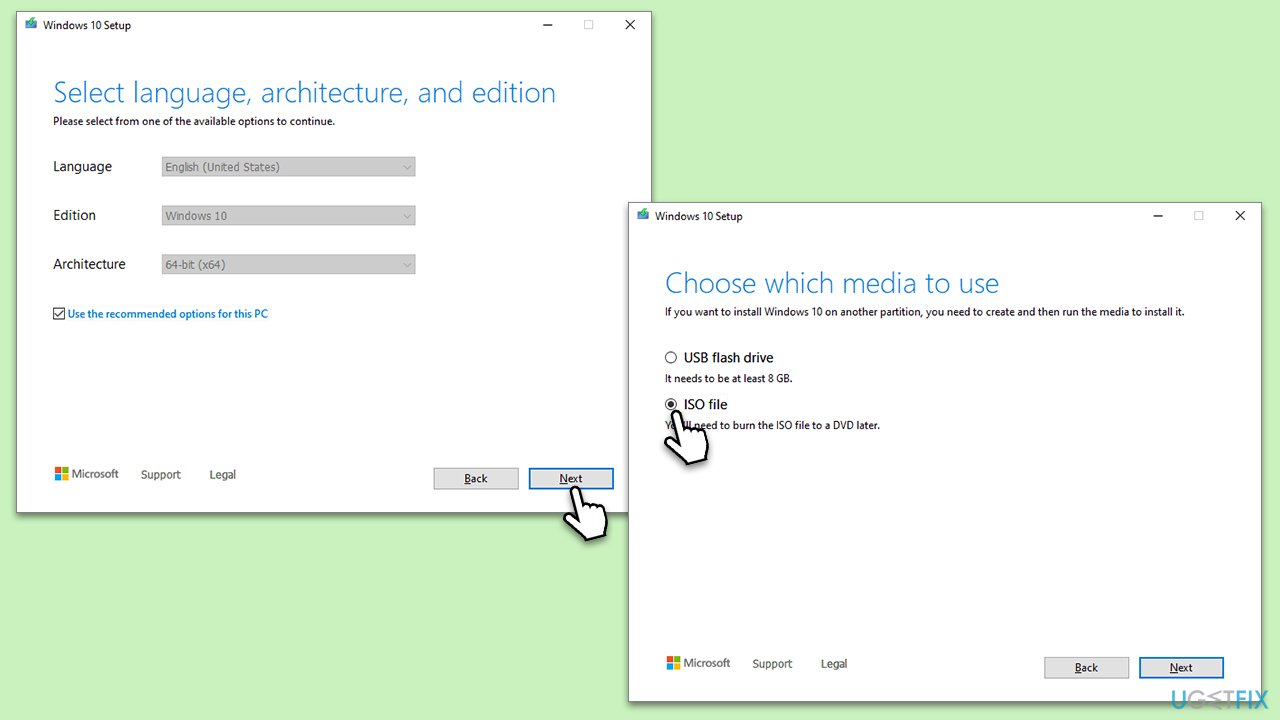
Fix 1. Create a bootable Windows USB for another computer
To a Windows Installation Media USB, you will have to use another computer to download and set up a bootable USB drive with the Windows installation files. The bootable USB drive will allow you to access various recovery options and perform essential repair tasks ahead.
- Download Windows 11 Installation media from the official Microsoft website. [Windows 10 version]
- Double-click the MediaCreationTool.exe file to launch it.
- When UAC shows up, click Yes.
- Accept license terms.
- Select Language and Edition (make sure it matches the one you have currently installed) or simply mark the Use the recommended options for this PC and click Next).
- Select the ISO file and click Next.
- Pick the location for your ISO file and wait till all the needed files are downloaded, then click Finish.
- Insert your Windows installation media (USB or DVD) into a malfunctioning PC.
Fix 2. Repair system files in the Windows Recovery Environment
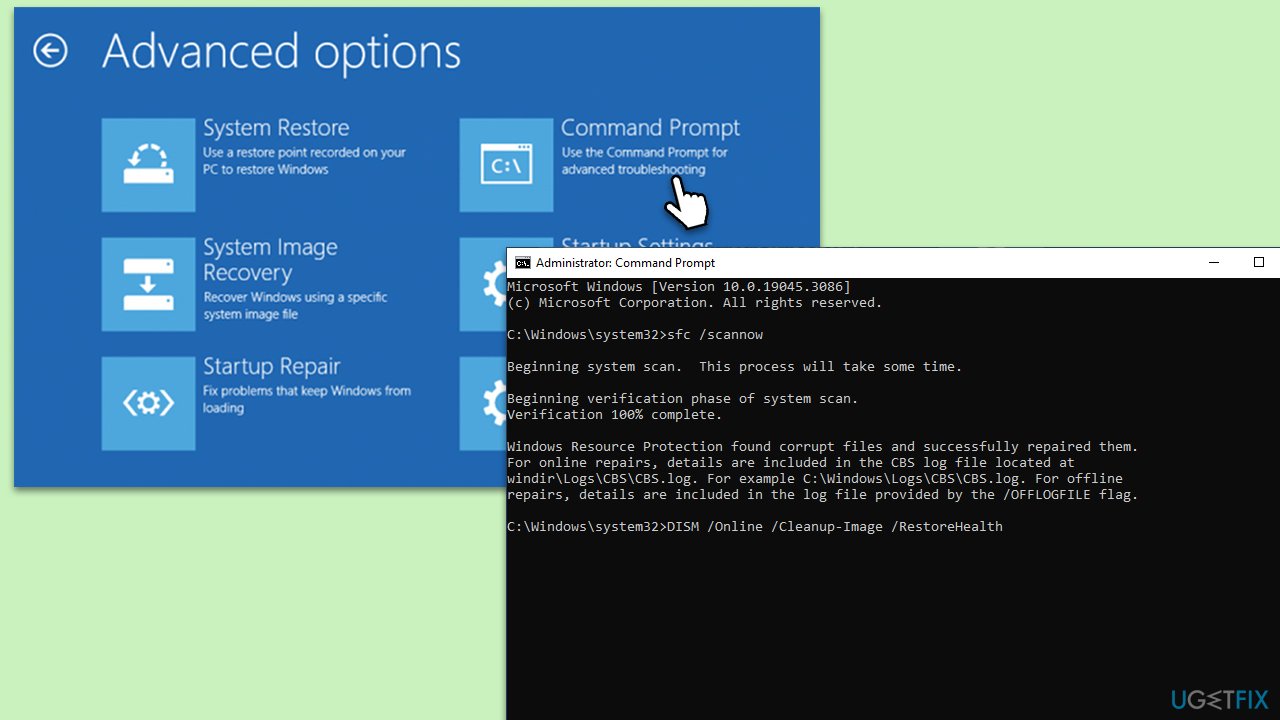
System File Checker (SFC) and Deployment Image Servicing and Management (DISM) are tools designed to repair Windows system files. Running these tools in the Windows Recovery Environment can help fix the 0xc0000225 error by repairing corrupted or missing system files.
- Restart Windows - use the Power or Reset button.
- Once the system starts loading, interrupt the process by pressing and holding the Power button for several seconds - do this two more times, and you should enter Windows Recovery Environment.
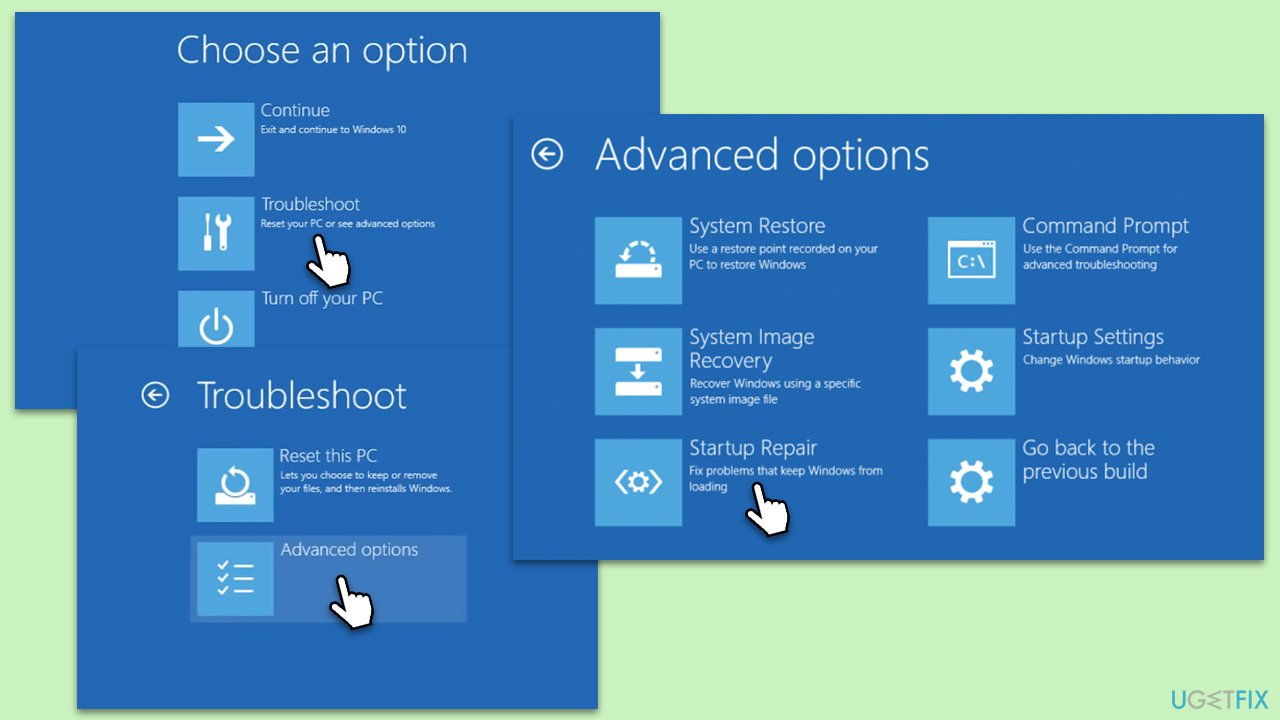
- Select Troubleshoot > Advanced options > Command Prompt.
- In the Command Prompt, type in the following command and press Enter. This command will initiate the scanning process.
sfc /scannow - Allow some time for the scan to complete and repair any corrupted files found.
- When done, use the following command, pressing Enter after:
Dism /Online /Cleanup-Image /RestoreHealth - Once finished, reboot your system in normal mode.
Fix 3. Repair bootup files
Repairing bootup files in Windows Recovery Environment (WinRe) involves rebuilding the Boot Configuration Data (BCD) file and fixing other boot-related files. This can resolve issues where the BCD file is missing, corrupt, or misconfigured.
- Access WinRe and select Troubleshoot > Advanced options.
- From the subsequent options, open Command Prompt.
- In Command Prompt, type the following commands and press Enter each time (wait for every command to execute):
CHKDSK /f /r /b
Bootrec /Scanos
Bootrec /Rebuildbcd
Bootrec /Fixmbr
Bootrec /Fixboot - Restart your computer.
Fix 4. Use Startup Repair in WinRe
Startup Repair can sometimes fix the bootup issues automatically so it is definitely worth trying.
- Access Windows Recovery Environment.
- From here, select Troubleshoot > Advanced Options and click Startup Repair.
- Allow the Startup Repair process to run and follow any on-screen instructions.
Fix 5. Use System Restore in WinRe
If you had System Restore Point set up, you can return your system to a time when the the 0xc0000225 error was absent.
- Access Windows Recovery Environment.
- Go to Troubleshoot > Advanced options.
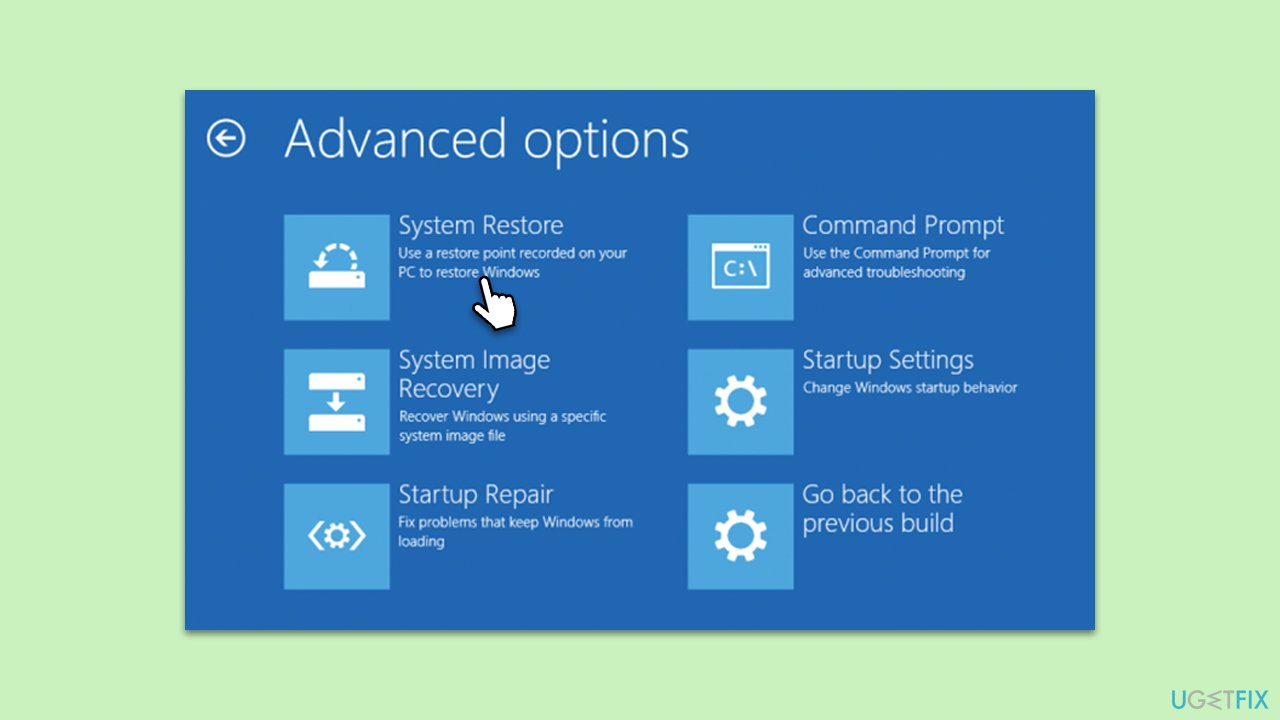
- From here, pick System Restore.
- Pick the point in time when the problem did not exist and follow on-screen instructions.
- Your system will restart.
Fix 6. Go back to the previous build [if applicable]
If the 0xc0000225 error occurred after a Windows update, you can resolve it by going back to the previous build. This option is only available if the error appears shortly after an update and the system has created a restore point.
- Access Windows Recovery Environment.
- Go to Troubleshoot > Advanced options.
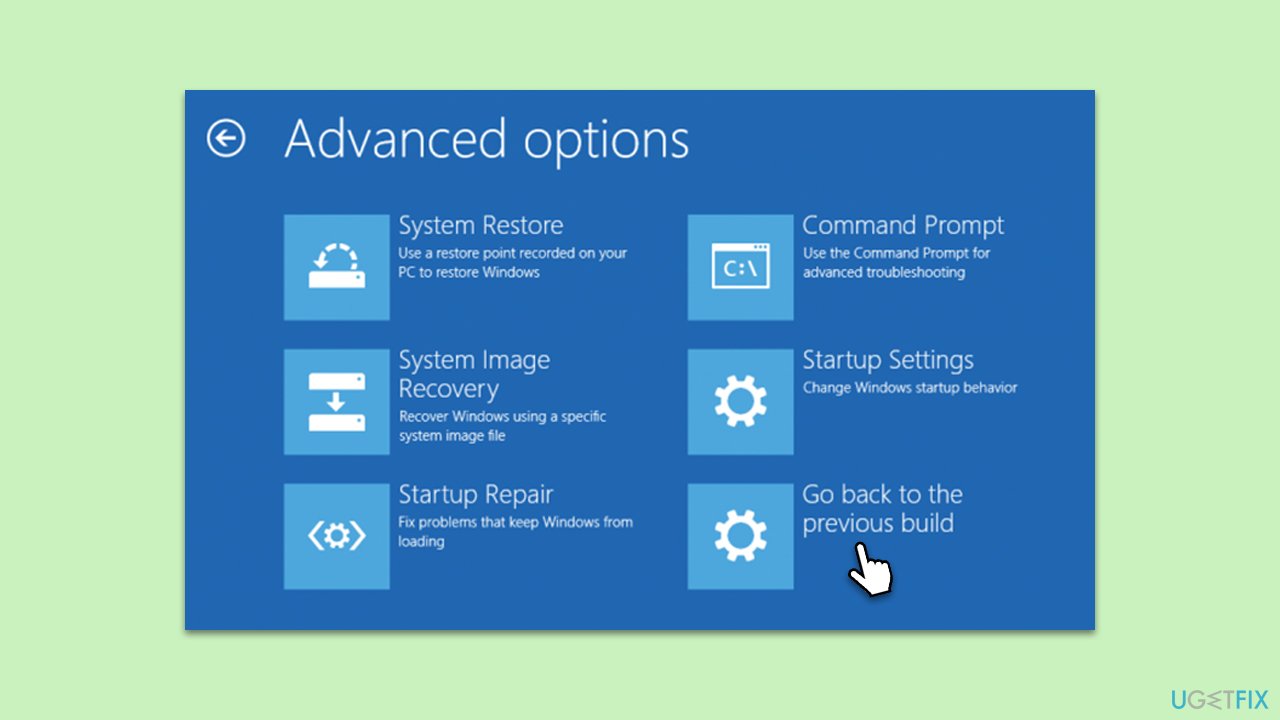
- Select Go back to the previous build.
- Select your user account and provide the password if required.
- Follow the prompts to revert to the previous build.
- Restart your computer once the process is complete.
Fix 7. Reinstall Windows without losing files using Media Creation Tool
This method refreshes the operating system without removing your personal files.
- Boot into BIOS by pressing F2, F8, F12, Del, or another shortcut (refer to your laptop or motherboard manufacturer's website) during the Windows bootup process.
- Go to the Boot menu.
- Here, select the Boot priority option and set it to USB.
- Restart the system.
- When the system boots, you will be presented with the Install now option - click it.
- Select all the preferences and click Next.
- Skip Windows activation for now - select I don't have a product key.
- Select the correct version of the operating system (if you were using Windows 11 Home before, use the same option).
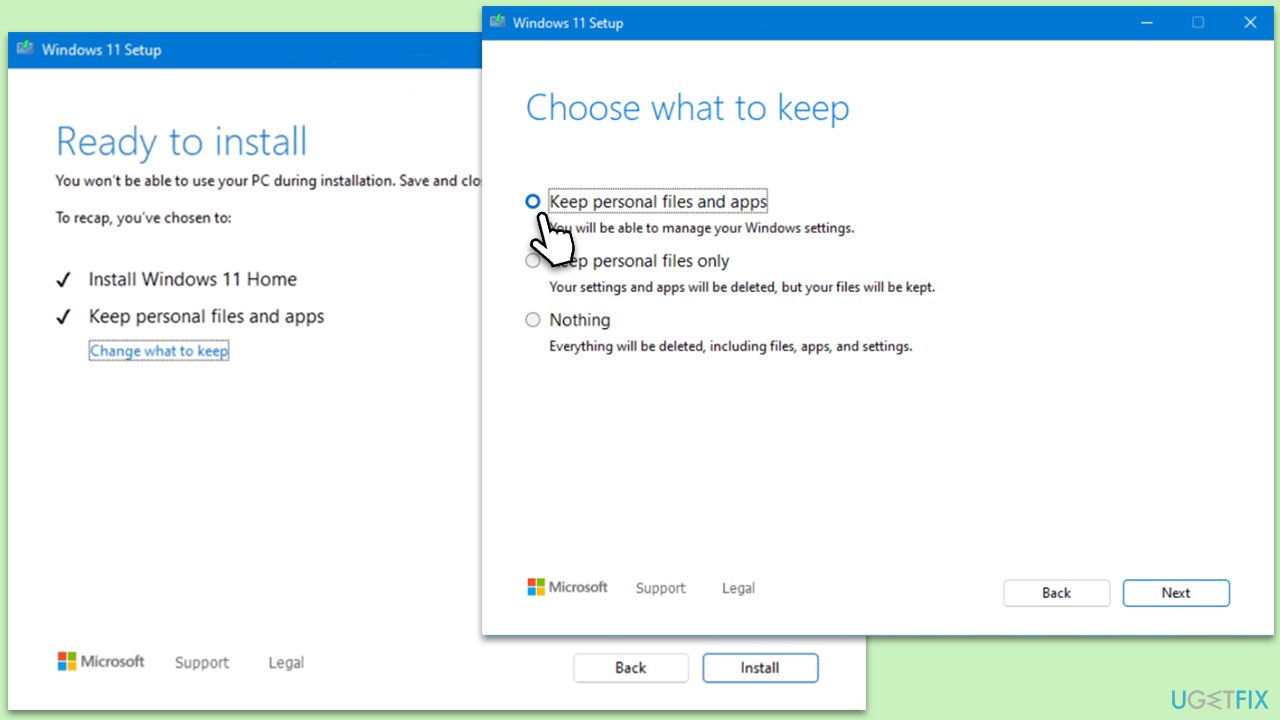
- In the next step, select Keep personal files and apps.
- Select the correct partition and click Next.
- Finalize the process - your Windows should be repaired.
Bottom line
To fix the 0xc0000225 error, you can repair or rebuild the Boot Configuration Data using Windows recovery tools or command-line utilities. Alternatively, simpler methods like restoring from a system restore point or using startup repair may resolve the issue. If none of these solutions work, consider using a specialized PC repair tool to diagnose and fix the problem.
Frequently asked questions
The 0xc0000225 error is typically caused by corrupted boot configuration data (BCD) or issues with the hard drive. It can also occur due to improper shutdowns or hardware failures.
You can fix the 0xc0000225 error by booting from a Windows installation media, selecting 'Repair your computer', and then using the 'Startup Repair' or 'Command Prompt' to rebuild the BCD.
Yes, you can often resolve the 0xc0000225 error without reinstalling Windows by repairing the BCD or using system restore points, if available.




Report an issue
What's wrong with this guide? We review every report and update or remove content.
Report received — thank you. We'll review and fix it.
You need a free account to submit a report.
Be the first to comment