
How to fix 0xC0000719 error in Windows?

Prefer to fix it yourself? The manual steps follow.
- 7methods
- 5 minutes for a cold start, 15 to 30 minutes for the recovery environment, up to 40 minutes for a driver or BIOS fix
- Intermediate
Applies to Windows 11, Windows 10
7 methods in this guide
Hello. I keep getting the 0xC0000719 error when I try to connect any device through the USB port. Is there anything I can do about this?
0xC0000719 is a Windows status code that shows up in two places: on a blue recovery screen at startup that names \hiberfil.sys, and as Status: 0xC0000719 in a Device not migrated event in Device Manager. The startup error means the saved hibernation image could not be resumed. The Device Manager event is often harmless.
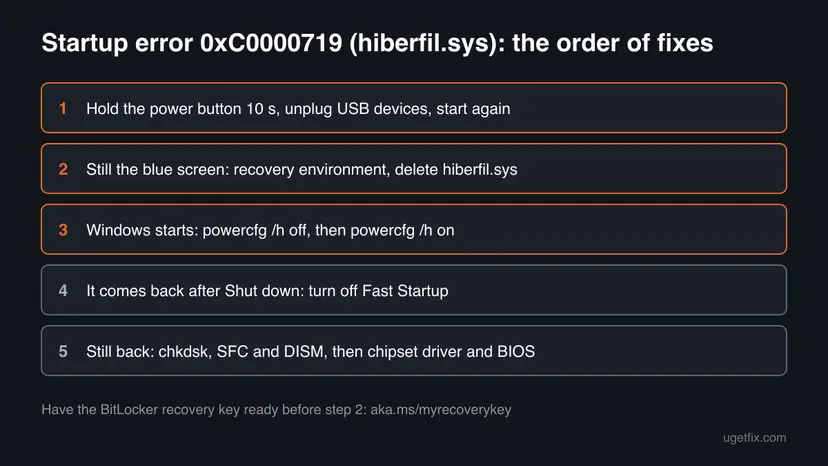
First see where the code appears. On a startup recovery screen with \hiberfil.sys, hold the power button for 10 seconds, unplug USB devices and start again (Fix 1). If the screen returns, delete hiberfil.sys from the recovery environment (Fix 2), then rebuild it with powercfg (Fix 3). In a Device not migrated event with Present: false, nothing is broken. If a device stopped working, reinstall its driver (Fix 6).
| Error | 0xC0000719, the NTSTATUS value STATUS_CONTEXT_MISMATCH: "The provided context did not match the target." |
|---|---|
| Where it appears | (A) A blue recovery screen at startup that names the file \hiberfil.sys. (B) Device Manager, a device's Properties > Events tab, in a Device not migrated entry as Status: 0xC0000719. |
| Main cause | (A) Windows cannot resume the hibernation or Fast Startup image in hiberfil.sys. (B) After a Windows update, the device's saved settings did not match the device Windows found. |
| Fastest fix | (A) A full power off and cold start, then rebuild hiberfil.sys with powercfg /h off and powercfg /h on. (B) Nothing if the device works; otherwise reinstall its driver. |
| Also written as | 0xc0000719, status: 0xc0000719, status 0xc0000719, error code 0xc0000719, error 0xc0000719, hiberfil.sys 0xc0000719 and the typo 0x0000719. |
| Affects | Windows 11 (the searches 0xc0000719 windows 11 and 0xc0000719 windows11) and Windows 10. The Microsoft Q&A report with the event is from Windows 10. |
| Microsoft's status | No known issue or fixing update is listed. Microsoft documents the code only in its NTSTATUS reference. |
| Data at risk | Only the session that was hibernated: open documents that were not saved before hibernation are lost when hiberfil.sys is deleted. |
| Time to fix | 5 minutes for a cold start, 15 to 30 minutes from the recovery environment, 20 to 40 minutes for a BIOS update. |
Facts checked on 15 October 2026. Steps written for Windows 11 (25H2 and 26H2) and Windows 10 22H2, from Microsoft's NTSTATUS reference and recovery documentation.
What error 0xC0000719 means and where you see it
0xC0000719 is an NTSTATUS code, a status value used inside Windows and its drivers. Microsoft's NTSTATUS reference names it STATUS_CONTEXT_MISMATCH with the text "The provided context did not match the target." In plain words: Windows had saved information about something, and when it came back to it, the saved information did not fit what it found.
That one meaning shows up in two very different situations. Which one you have decides the fix, so look at where you saw the code before you do anything.
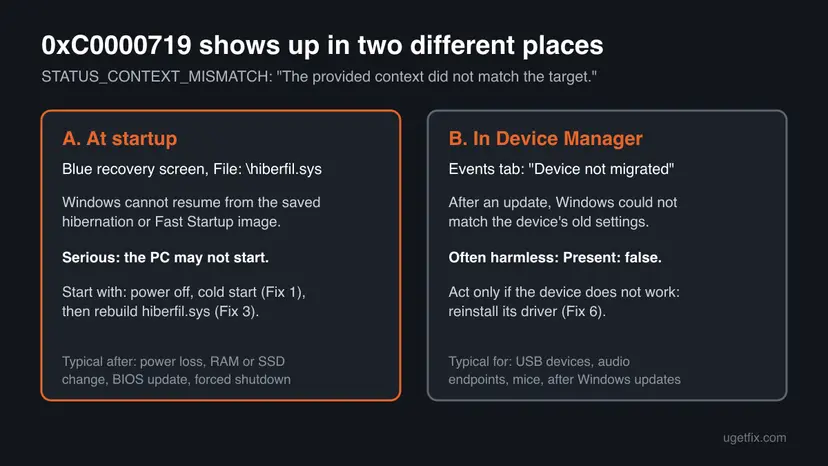
- At startup, with hiberfil.sys. A blue recovery screen appears instead of the sign-in screen and names the file
\hiberfil.syswith error code 0xc0000719. hiberfil.sys is the file in the root of drive C: where Windows saves memory for hibernation and for Fast Startup. Windows could not resume from it. - In Device Manager, as Status. In a device's Properties > Events tab you see a Device not migrated entry. Its text ends with
Status: 0xC0000719. This is the form people search as status: 0xc0000719 or status 0xc0000719. - Other spellings. 0xc0000719, error code 0xc0000719 and error 0xc0000719 are all the same code. 0x0000719 is a typo with one zero missing; it is the same code too.
A Device not migrated entry with Status 0xC0000719 (Windows 10, as posted on Microsoft Q&A)
Device SWD\MMDEVAPI{0.0.1.00000000}.{98cd4dff-961f-44d5-9a68-746042da58a5} was not migrated due to partial or ambiguous match.
Last Device Instance Id: SWD\MMDEVAPI{0.0.0.00000000}.{b995c36b-fdae-4b3d-b707-e76960b35554}
Class Guid: {c166523c-fe0c-4a94-a586-f1a80cfbbf3e}
Location Path:
Migration Rank: 0xF00000000000F120
Present: false
Status: 0xC0000719In the event above, Present: false says the device is not connected now. SWD\MMDEVAPI is a software audio endpoint, not a physical USB port. A Device not migrated entry like this is a record from the last Windows update. It does not by itself block your USB ports.
Why 0xC0000719 appears: the causes, ranked
At startup, the cause is most often a hibernation image that was cut off or no longer matches the PC: a power loss, a forced shutdown or a battery that ran out while Windows was saving it. Less often the hardware changed between shutdown and start, such as RAM, an SSD or a BIOS update. Rarely the disk has errors where hiberfil.sys sits.
| Where | Cause | How often | Fix |
|---|---|---|---|
| Startup | Hibernation or Fast Startup image damaged by a power loss or forced shutdown | Most often | Fix 1, Fix 2, Fix 3 |
| Startup | RAM, SSD, graphics card or BIOS changed since the PC was shut down | Often | Fix 1, Fix 2, then Fix 4 |
| Startup | The error returns after every Shut down because Fast Startup reuses the image | Sometimes | Fix 4 |
| Startup | Disk errors or damaged system files around hiberfil.sys | Rarely | Fix 5 |
| Startup | Old chipset or storage driver, or a BIOS that handles sleep states badly | Rarely | Fix 7 |
| Device Manager | Windows update could not match a device's old settings to the device it found | Most entries | Fix 6, often nothing |
Users on Quora and Reddit report the startup error right after cleaning a PC and reseating the CPU cooler, and on laptops that ran out of battery. Both fit the same pattern: the saved image no longer matched the hardware. The second start usually works.
How to fix error 0xC0000719 in Windows 11 and 10
Fixes 1 to 5 are for the startup error with hiberfil.sys, in the order that costs least. Fix 6 is for the Device not migrated entry in Device Manager. Fix 7 is for both when the problem keeps coming back.
| What you see or have | Start with |
|---|---|
| A blue recovery screen at startup that names \hiberfil.sys and 0xc0000719. | Fix 1 |
| The same screen comes back after a cold start. | Fix 2 |
| Windows starts again after the error. | Fix 3 |
| The error appears only after Shut down, never after Restart. | Fix 4 |
| The error returns after Fix 3 and Fix 4. | Fix 5, then Fix 7 |
| A Device not migrated entry with Status: 0xC0000719 in Device Manager. | Fix 6 |
Fix 1. Power the PC off completely and start it cold
5 minutesLow riskYou see the blue recovery screen with \hiberfil.sys and 0xc0000719 at startup.
The error comes from one failed attempt to resume a saved image. A full power off clears the hardware state, and on the next start Windows often discards the image it cannot use and boots fresh. Users report that the second start works in many cases.
- Hold the power button for 10 seconds until the PC is fully off.
- Unplug every USB device except the keyboard and mouse: drives, docks, phones, printers and hubs.
- On a desktop, switch off the power supply or unplug the cable for 30 seconds. On a laptop, plug in the charger.
- Press the power button to start the PC.
- If the recovery screen offers to continue, press Enter and let Windows start normally.
If you changed RAM, an SSD or a graphics card just before the error, check it is seated well before the cold start. A module that is not fully in its slot is a common reason the saved image no longer matches.
It worked if: Windows reaches the sign-in screen. Anything that was open before hibernation may be gone, and Windows starts as after a normal boot.
If not: If the same screen appears again, go to Fix 2. If Windows starts, do Fix 3 now so the damaged image is replaced.
Fix 2. Delete hiberfil.sys from the Windows recovery environment
15 to 30 minutesRead the warningThe hiberfil.sys 0xc0000719 screen comes back after Fix 1 and Windows does not start.
Windows tries to resume from hiberfil.sys as long as the file holds a saved image. Deleting it from outside Windows leaves nothing to resume, so the next start is a normal boot. Windows creates a new file later (Fix 3).
Deleting hiberfil.sys throws away the hibernated session: documents that were open and not saved are lost. Your saved files stay. If the drive is encrypted with BitLocker, the recovery environment asks for the recovery key; a Microsoft account keeps it at aka.ms/myrecoverykey.
First open the recovery environment. After two or three failed starts Windows opens it by itself; select Advanced options. Step by step: Run Startup Repair. You can let Startup Repair run once first: it sometimes clears the resume on its own.
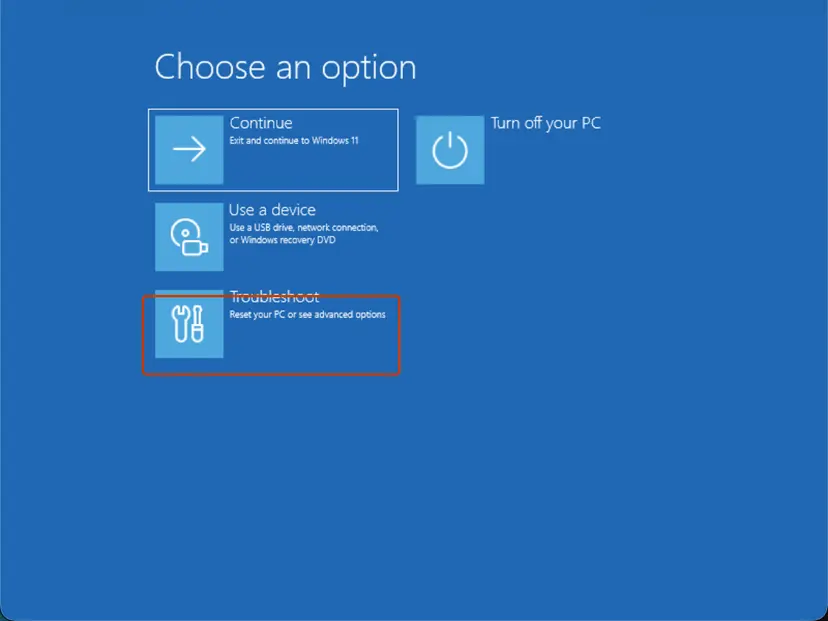
- Select Troubleshoot > Advanced options > Command Prompt.
- Type
dir /a C:\hiberfil.sysand press Enter. If it says the file is not found, tryD:andE:instead ofC:. The recovery environment often gives the Windows drive another letter. - On the drive where the file is found, type
attrib -s -h C:\hiberfil.sysand press Enter (use your letter). - Type
del C:\hiberfil.sysand press Enter. - Type
exitand press Enter. - Select Continue to start Windows.
Recovery environment Command Prompt (replace C: with the drive where the file is found)
dir /a C:\hiberfil.sys
attrib -s -h C:\hiberfil.sys
del C:\hiberfil.sys
exit
It worked if: Windows starts to the sign-in screen without the recovery screen.
If not: If del says access is denied or the drive is locked, unlock BitLocker first with the key. If Windows still does not start, use System Restore from the same Advanced options menu: Undo recent changes with System Restore.
Fix 3. Rebuild the hibernation file with powercfg
5 minutesLow riskWindows starts again after the startup error, or after Fix 1 or Fix 2.
Turning hibernation off makes Windows delete hiberfil.sys, and turning it on creates a clean new one. This replaces a damaged file that could cause 0xC0000719 again at the next resume or Fast Startup.
- Right-click Start and select Terminal (Admin). On Windows 10, select Windows PowerShell (Admin).
- Select Yes when Windows asks for permission.
- Type
powercfg /h offand press Enter. This deletes hiberfil.sys. - Type
powercfg /h onand press Enter. This creates a new hiberfil.sys. - Restart the PC with Start > Power > Restart.
- Then use Shut down, wait a minute and start the PC again to test Fast Startup.
Terminal (Admin)
powercfg /h off
powercfg /h onIf you never use hibernation, you can leave it off with powercfg /h off. That removes hiberfil.sys and frees several gigabytes on drive C:, but it also turns off Fast Startup.
It worked if: Both commands return without a message. After a shut down and a new start, the PC boots without the recovery screen.
If not: If the error returns after Shut down but never after Restart, go to Fix 4. If it returns after both, go to Fix 5.
Fix 4. Turn off Fast Startup when the error follows a shut down
3 minutesLow riskThe 0xc0000719 screen appears after Shut down and a new start, but not after Restart.
With Fast Startup, Shut down saves the Windows kernel and its drivers to hiberfil.sys and resumes from it at the next start. Restart does not use the file. When only Shut down fails, the saved image is the problem, and turning Fast Startup off removes the resume.
- Press Win + R, type
powercfg.cpland select OK. - In the left pane, select Choose what the power buttons do.
- Select Change settings that are currently unavailable.
- Under Shutdown settings, clear Turn on fast startup (recommended).
- Select Save changes.
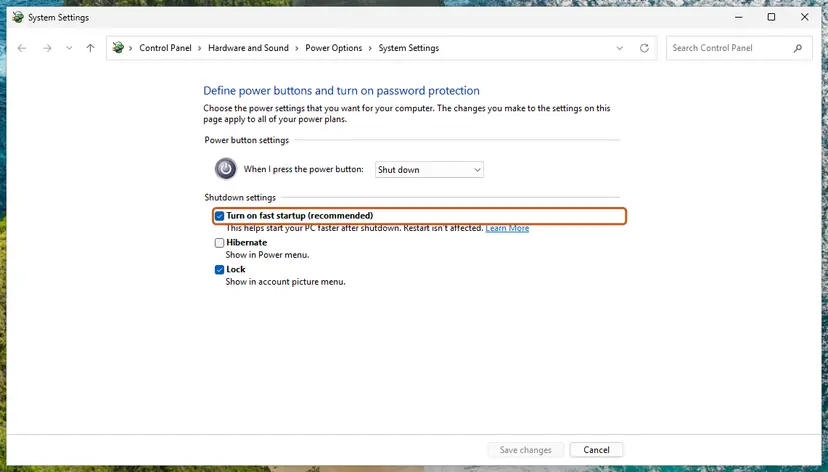
The full procedure with Windows 11 screenshots: Turn off Fast Startup.
It worked if: Shut down and a new start bring you to the sign-in screen without the error. The PC may start a few seconds slower.
If not: If the error still appears, Fast Startup was not the cause. Go to Fix 5.
Fix 5. Check the disk and repair Windows system files
20 to 60 minutesLow riskThe startup error returns after Fix 3 and Fix 4, or the PC had a power loss or crash.
hiberfil.sys is one large file on drive C:. File system errors or bad sectors under it, or damaged Windows power components, can corrupt each new image. CHKDSK repairs the file system, and SFC with DISM repairs Windows files.
- Check drive C: for file system errors and bad sectors. Step by step: Check a disk for errors (chkdsk).
- Restart so CHKDSK can finish if it asks to run at the next start.
- Repair Windows system files with SFC and DISM. Step by step: Run DISM and SFC to repair Windows system files.
- Restart, then do Fix 3 once more so a new hiberfil.sys is written.
- CHKDSK finds bad sectors: back up your files now. A failing drive will damage hiberfil.sys again.
- SFC repairs files: restart, then do Fix 3 once more so the new hiberfil.sys is written by repaired components.
- Both report nothing: the disk and Windows are fine; go to Fix 7.
It worked if: CHKDSK reports no problems or fixed them, SFC finds no integrity violations or repaired them, and the next starts are clean.
If not: If the error survives, go to Fix 7.
Fix 6. Fix the device behind a Device not migrated entry
10 to 15 minutesLow riskYou see Status: 0xC0000719 in a Device not migrated entry, or a USB device stopped working after a Windows update, as in the question above.
The entry says Windows could not carry the device's old settings over after an update, so it set the device up again. That is harmless when the device works. When it does not, a clean driver reinstall makes Windows set it up from scratch.
- Right-click Start and select Device Manager.
- Right-click the device that does not work, or the one you saw in the event, and select Properties.
- Open the Events tab and read the entries: Device not migrated, then Device configured and Device started below it mean Windows set the device up again.
- Select the Device not migrated entry. If the text says
Present: false, the device is not connected and needs no fix. - If the device is present and does not work, continue with the driver reinstall below.
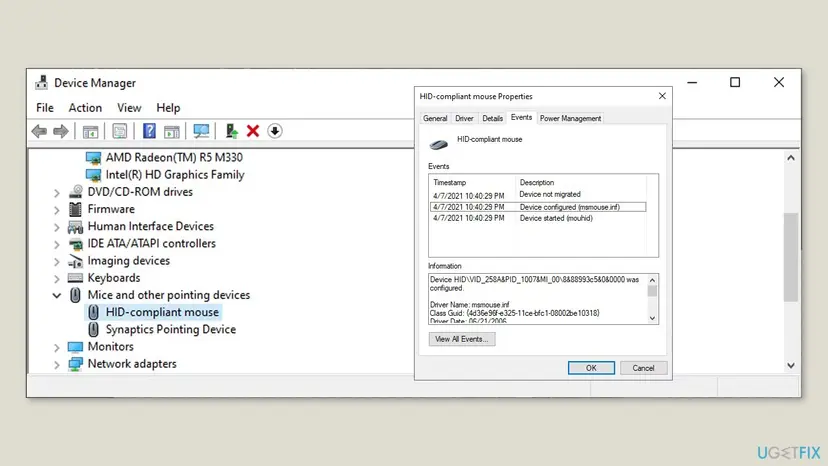
Reinstall the driver of that device, and for USB problems also the drivers under Universal Serial Bus controllers. Step by step: Update, roll back or reinstall a driver.
If Device Manager also shows a yellow mark on the device, or Event Viewer logs a Kernel-PnP error for it, follow our guide to Kernel-PnP Event ID 411. It reads the device and its Problem code.
It worked if: The device works, and its Events tab ends with Device started. A Device not migrated entry from the update can stay in the list; that is normal history.
If not: If several USB devices fail on every port, go to Fix 7 for the chipset driver and BIOS.
Fix 7. Update the chipset driver and the BIOS
20 to 40 minutesRead the warningThe startup error keeps coming back after Fixes 1 to 5, or USB devices fail on every port after Fix 6.
Hibernation, Fast Startup and USB controllers all depend on the chipset driver and the firmware's power settings. An old chipset driver or BIOS can write or read the saved image wrongly, and both are updated only by the PC or motherboard maker.
A BIOS update cut off by a power loss can leave the PC unable to start. Plug a laptop into power and close all apps. If BitLocker is on, have the recovery key ready, because a firmware change can make Windows ask for it.
- Press Win + R, type
msinfo32and press Enter. - Note System Manufacturer, System Model and BIOS Version/Date.
- Open the support page of your PC or motherboard maker and find your exact model.
- Install the newest chipset driver first and restart.
- If the maker lists a newer BIOS, install it with the maker's tool or instructions and let the PC restart by itself.
- Do Fix 3 once more, then test Shut down and a new start twice.
It worked if: After the updates and a new hiberfil.sys, Shut down and Restart both start Windows without the error.
If not: If the error survives all of this, read the next section for the hardware signs and what to send to support.
If 0xC0000719 continues: what to read and when it is hardware
Windows writes what happened at each start to Event Viewer. Open it with Win + R, eventvwr.msc, then Windows Logs > System. Look for Kernel-Power and Kernel-Boot entries at the time of the error, and for Disk or Ntfs errors that point to the drive.
- The error came right after a hardware change: put the old part back or reseat the new one. Users report the error after reseating a CPU cooler and RAM, and a clean start once the parts sat well.
- Run a memory test if the PC also crashes at other times: How to test your RAM with Windows Memory Diagnostic. Bad RAM corrupts the saved image.
- Disk errors in the System log or bad sectors from CHKDSK: back up and replace the drive.
- Contact the PC maker with your model, BIOS version, the time of the error and the Kernel-Power entries. HP and MSI owners report the error in the makers' forums, so name the error code in your request.
If nothing else works and Windows starts, a repair install keeps your files and apps and replaces Windows system files: Reinstall Windows without losing files.
Windows 10 left support on 14 October 2025. Makers are dropping new Windows 10 chipset drivers and BIOS fixes, so a recurring 0xC0000719 on old hardware may only go away on Windows 11 or with the maker's last Windows 10 release.
How to keep 0xC0000719 from coming back
- Shut the PC down from Start before you open it, change RAM or an SSD, or update the BIOS.
- Save your work before hibernation. Hibernation keeps memory, but a failed resume loses it.
- Keep a laptop above about 10 % battery or on the charger while it hibernates.
- Keep the chipset driver and BIOS from your PC maker up to date.
- Do not hold the power button while Windows is still saving to hibernate.
- Do not move a drive with a hibernated Windows to another PC and start it there.
- Do not switch off security features or your antivirus to fix this error. Neither is involved.
- Do not clean or reinstall drivers with third party driver updaters that pick drivers for the wrong model.
Frequently asked questions
What does error code 0xc0000719 mean?
It is the NTSTATUS value STATUS_CONTEXT_MISMATCH, which Microsoft describes as "The provided context did not match the target." Windows saved information about something and later found it did not match. At startup that saved information is the hibernation or Fast Startup image in hiberfil.sys, so Windows cannot resume. In Device Manager it is a device's old settings that did not match after an update, logged as a Device not migrated entry.
What is hiberfil.sys and can I delete it?
hiberfil.sys is a hidden system file in the root of drive C:. Windows writes the contents of memory to it when the PC hibernates, and the kernel and drivers when you shut down with Fast Startup on. You can remove it safely, but only with powercfg /h off while Windows runs, or from the recovery environment when Windows does not start (Fix 2). Deleting it loses only the hibernated session, not your saved files.
How do I fix hiberfil.sys error 0xc0000719 when Windows will not start?
Power the PC off fully with the power button, unplug USB devices and start again (Fix 1). If the recovery screen returns, open Advanced options, then Command Prompt, find the drive that holds hiberfil.sys with dir /a C:\hiberfil.sys, remove its hidden and system attributes and delete it (Fix 2). Windows then starts without trying to resume. Once it runs, rebuild the file with powercfg /h off and powercfg /h on (Fix 3).
What does Status: 0xC0000719 in a Device not migrated event mean?
It means that after a Windows update, Windows could not match the saved settings of a device to the device it found, so it set the device up again. The entry says the device was not migrated due to partial or ambiguous match. If the text shows Present: false, the device is not connected and nothing needs fixing. If a present device stopped working, reinstall its driver (Fix 6).
Does 0xC0000719 stop my USB ports from working?
Not by itself. A Device not migrated entry with Status 0xC0000719 is a record of how Windows set a device up after an update. When USB devices really fail on every port, the cause is usually the USB controller or chipset driver. Reinstall the drivers under Universal Serial Bus controllers (Fix 6) and update the chipset driver and BIOS from your PC maker (Fix 7).
Is 0xc0000719 on Windows 11 different from Windows 10?
No. The code and its meaning are the same on Windows 11 and Windows 10, and the fixes on this page work on both. Paths differ only in small details, such as Terminal (Admin) on Windows 11 and Windows PowerShell (Admin) on Windows 10. Windows 10 no longer gets support since 14 October 2025, so a recurring error on Windows 10 may not get a fix from the PC maker.
Is 0x0000719 the same error as 0xC0000719?
Almost certainly yes. 0x0000719 is how the code is often typed when the C is dropped, and the searches for it lead to the same hiberfil.sys and Device not migrated reports. If you see 0x00000719 in a different program, such as an installer, read the full message: a code without the leading C can be a different kind of error, and this page would then not apply.
Will I lose my files when I delete hiberfil.sys?
No. Your documents, photos and apps stay where they are. You lose only what was open in memory when the PC hibernated or shut down with Fast Startup, for example a document you had not saved. That is why the recovery screen error is worth a cold start first (Fix 1): if Windows can still resume, it keeps that session.
Should I turn off hibernation for good?
Only if you do not use it. Without hibernation, powercfg /h off frees several gigabytes on drive C: and the startup error with hiberfil.sys cannot happen, but Fast Startup goes with it, so cold starts take a few seconds longer. If you use hibernation on a laptop, rebuild the file instead (Fix 3) and keep it on.
I searched for накопитель (drive). Does this page help?
This page is about the Windows error 0xC0000719, in English. If your drive appears in the message, the startup error with hiberfil.sys concerns the system drive C:, where Windows keeps the hibernation file. Fix 2 and Fix 5 cover that drive: deleting the file from the recovery environment and checking the disk for errors.
Sources
- Microsoft Learn: [MS-ERREF] NTSTATUS Values (0xC0000719 STATUS_CONTEXT_MISMATCH) (learn.microsoft.com)
- Microsoft Q&A: I have a 0xC0000719 error (Device not migrated event with Status 0xC0000719, Windows 10) (learn.microsoft.com)
- NinjaOne: How to fix hiberfil.sys error 0xC0000719 in Windows 11 (powercfg rebuild, causes) (ninjaone.com)
Did this fix work?
One click, no account. It tells the next reader which guides are worth their time.
Questions and experiences: fix 0xC0000719 error in Windows
Still broken, or found a fix we did not cover? Ask here: members and our editors answer. Reading is open; writing needs a free account.
…