How to fix
0xc10100be error
on Windows
Resolve the 0xc10100be error on Windows 10 and 11 effortlessly with our expert-tested solutions. Get your system back on track in minutes!

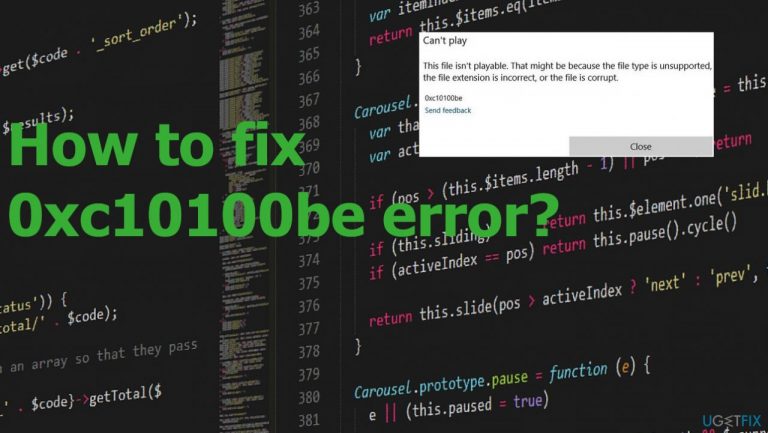
What causes How to fix 0xc10100be error?
- Corruption of the media file
- Unsupported file extension
- Outdated media software
- Missing or outdated codecs
- Corrupted system files
- Presence of malware
Repairs Windows system files, removes malware, and restores a clean OS state — without reinstalling.
Hello. I want to run the Windows Media Player, but the error 0xc10100be keeps me from playing it. It states that the file is not playable. I use the updated version of the player, and it should work properly, but the file is unsupported for some reason. I need serious help here. Please!
The error is related to files that are not unsupported to run properly on the player. The issue is related to media files, and the error can list the reason for it, which is either corruption of the file or that the file extension is wrong. 0xc10100be error playing media files on Windows can be caused by other things, so these supported, or unsupported file indications might not determine the cause of the issue fully.
Common reasons for this error can include outdated media software and corrupted files that are wanted to be played. Missing or outdated codes also can be very important and cause issues with the video playback. 0xc10100be video error is related to the corruption of files and supported file error that triggers the failure of the video file playback and delivers the error for users.[ref en-1]
If the error is caused by the media player that does not support the file extension of the video you try to play, it is important to address these issues and solve the residing issues with the system if there are any. Corrupted system files and malware[ref en-2] that are present on the machine can cause issues with common processes of the computer.
You can solve these common Windows updates[ref en-3] and corrupted or damaged files issues if you properly take care of the Windows system. You can even run applications like [d1] and solve these problems with files missing or damaged, so the 0xc10100be error even gets fixed.
However, this might not be the solution for everyone, so take care of the machine and follow the guide below thoroughly. Some quick solutions could be trying the different media player that plays popular video files and checking if the file is the issue or if the problem comes from the application you use.
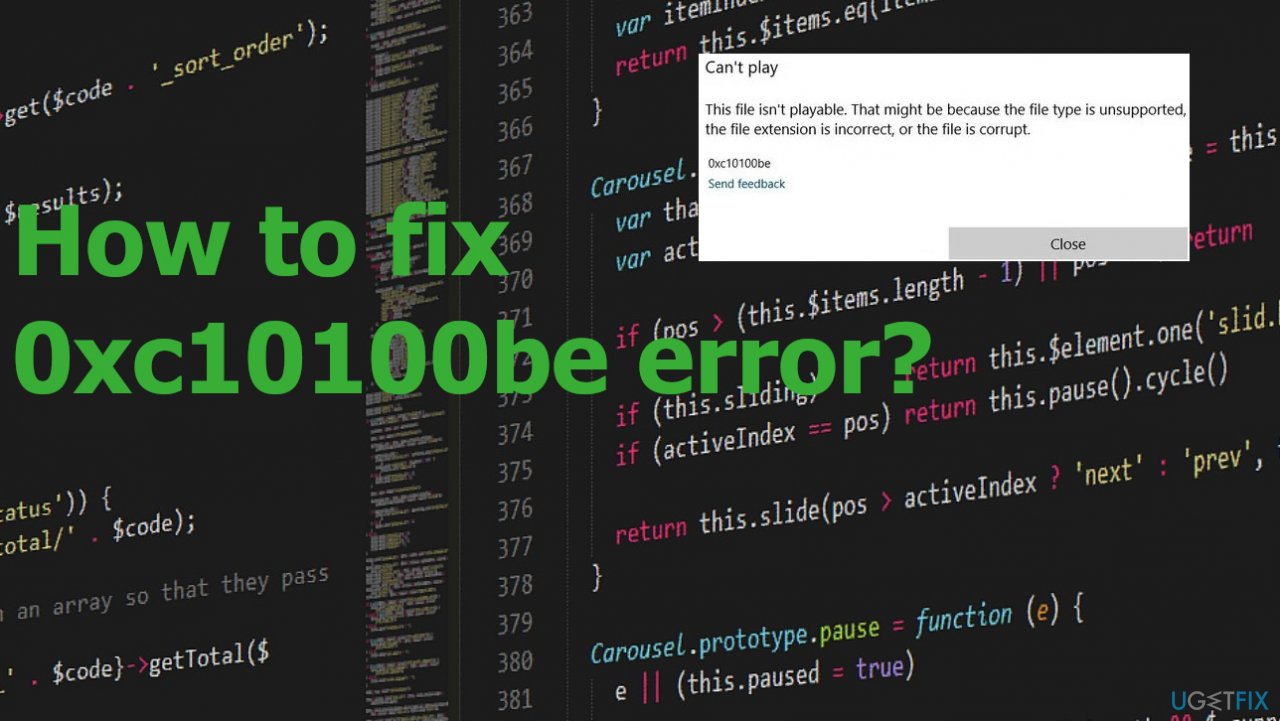
1. Download the right codecs
- Open Windows Media Player 11.
- Go to Tools.
- Locate Options.
- Choose Player.
- Select the Download codecs automatically checkbox, and click OK.
- Next, play the error-giving video. If it prompts to install the codec, click Install.
2. Convert the video file via VLC
- Open VLC Media Player or download VLC Media Player.
- Now click on the Media button on the top and select Convert/Save.
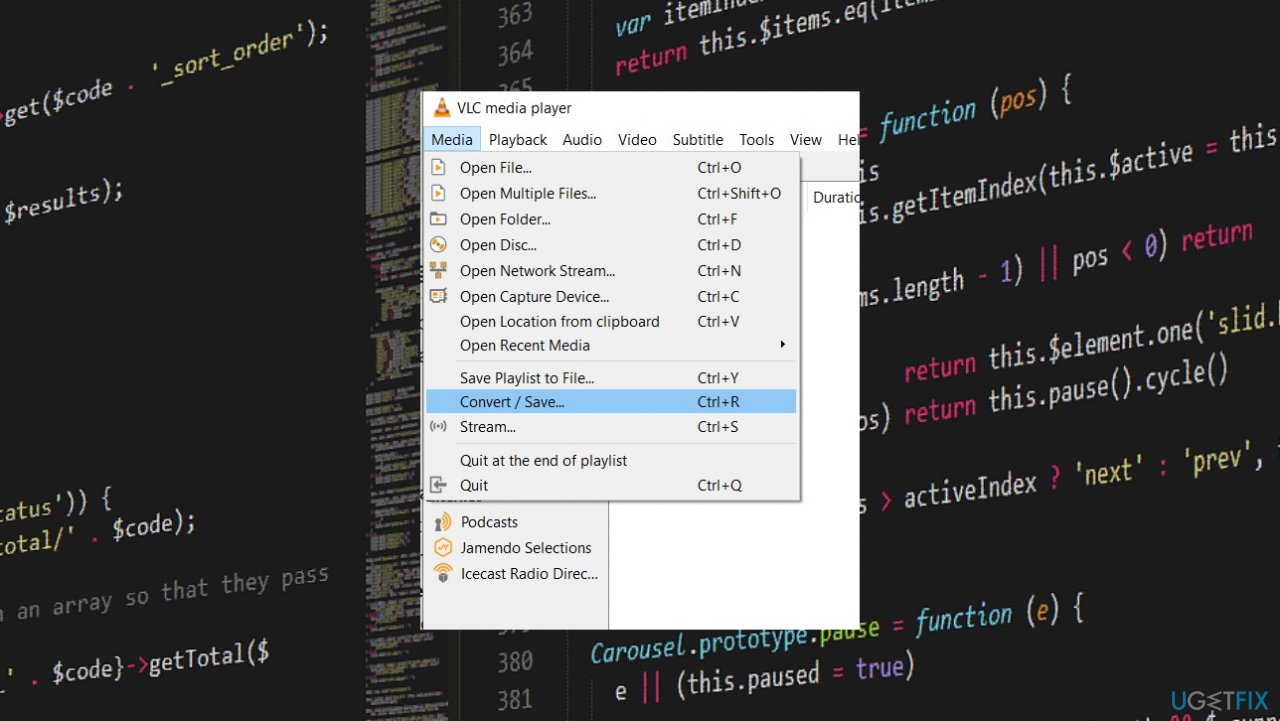
0xc10100be error open media convert save - Click on Add to select the problematic video location.
- Once you select the location, click on Convert/Save.
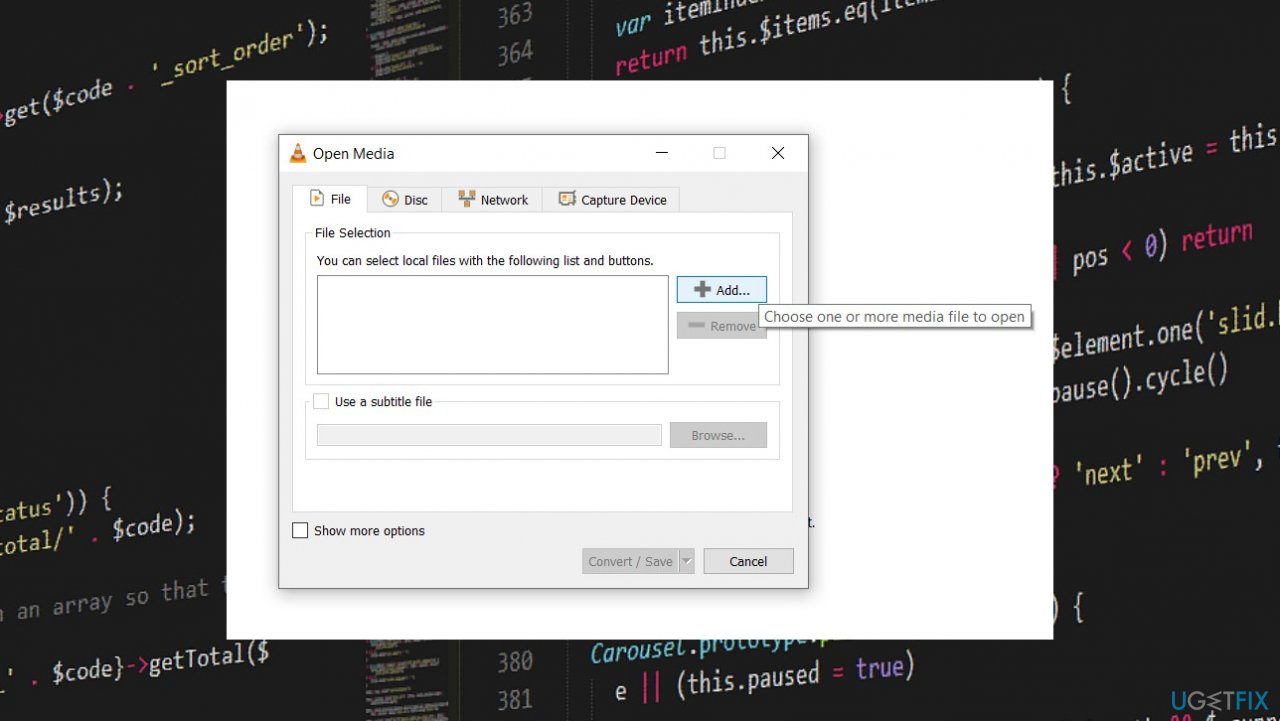
0xc10100be error open media - Now click on the Browse button to add the destination where the converted file will save.
- While selecting the destination folder, insert the file extension at the end of the file name and click on Save.
- Click on the Start button to change the file format.
- Once done, open the converted video and check if the error persists.
3. Check for malware infections
- Press the Windows + I keys together to launch the settings.
- Navigate to Update & Security.
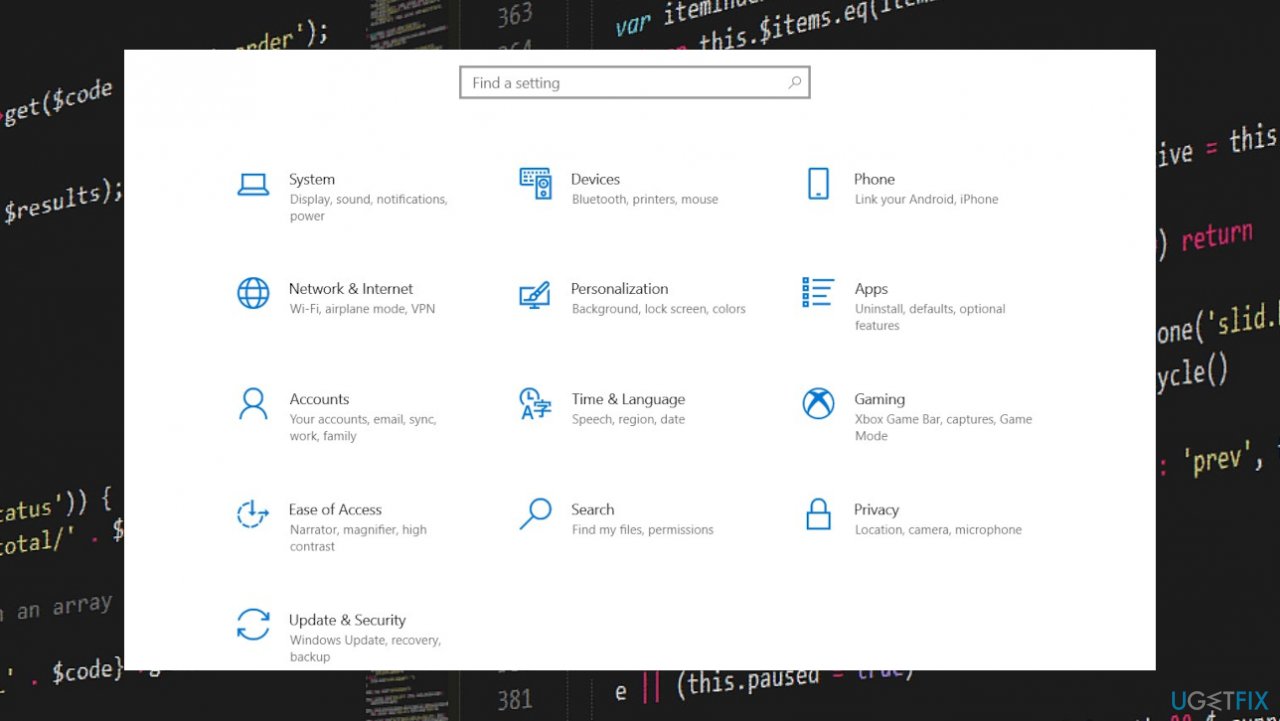
0xc10100be error settings - Then click on Windows Security which is in the left sidebar.
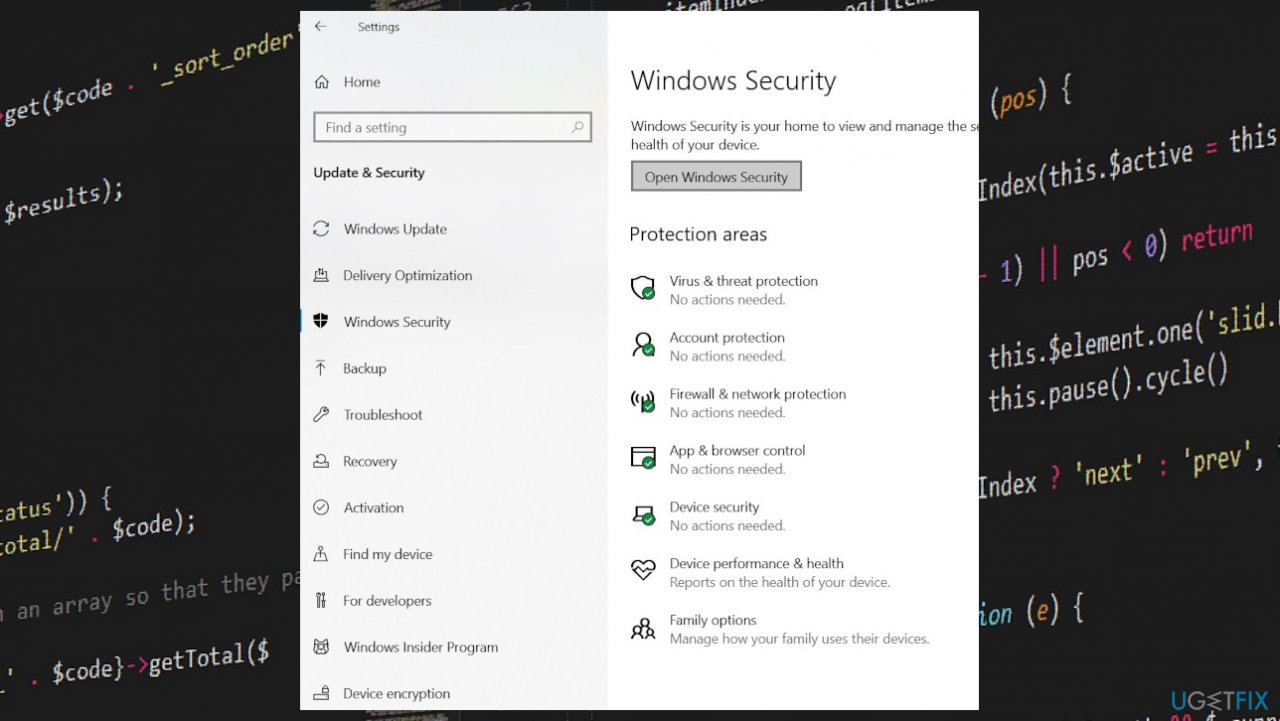
0xc10100be error windows security open - Click on Open Windows security.
- Click on Virus & threat protection.
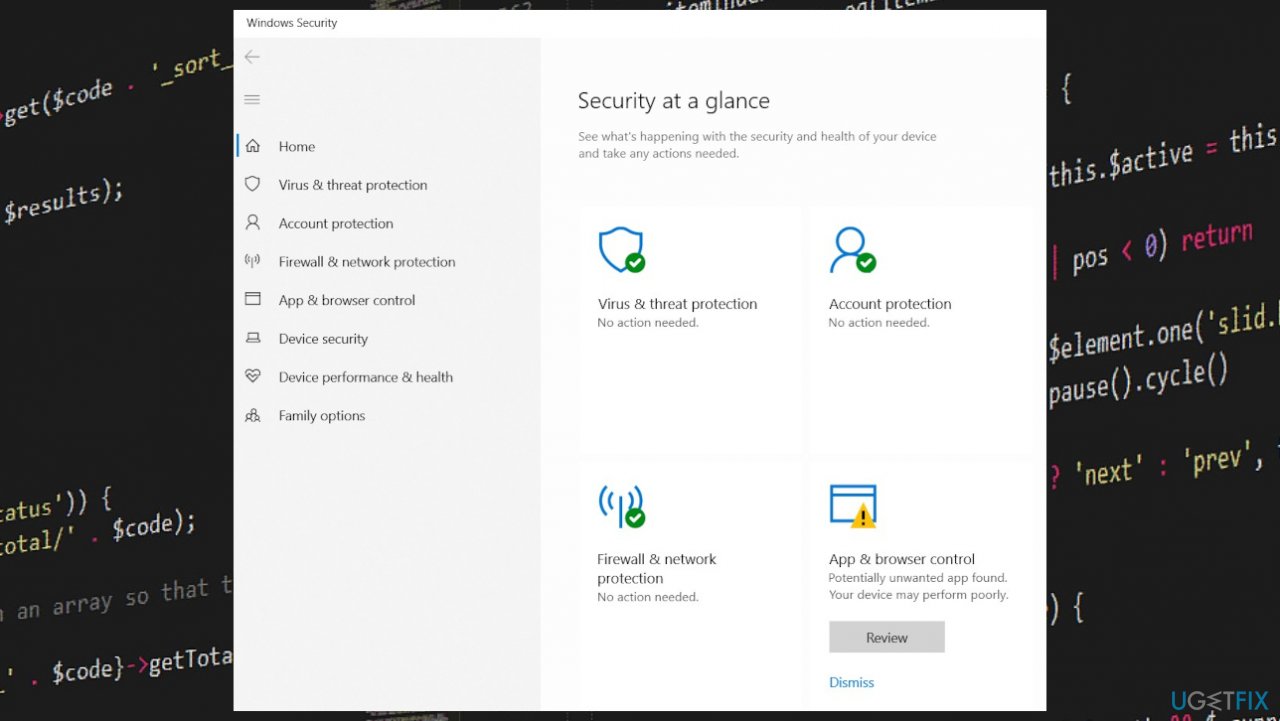
0xc10100be error windows security - Click the Quick scan button to scan for Malware.
- Once done, check if the error persists.
4. Fix video via VLC
- Open VLC Media Player.
- Click on the Tools button then select Preference.
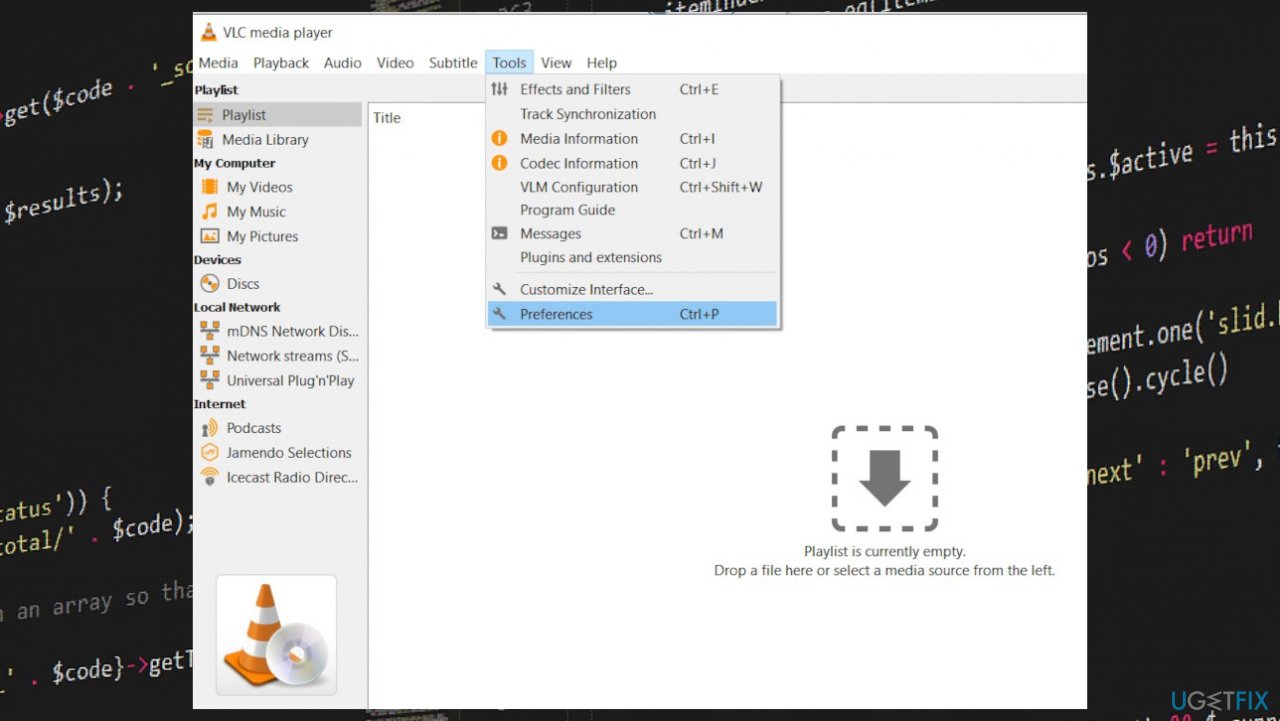
0xc10100be error preferences - Click on the Input / Codecs on the top.
- You should see the Damaged or Incomplete AV1 file option on the bottom.
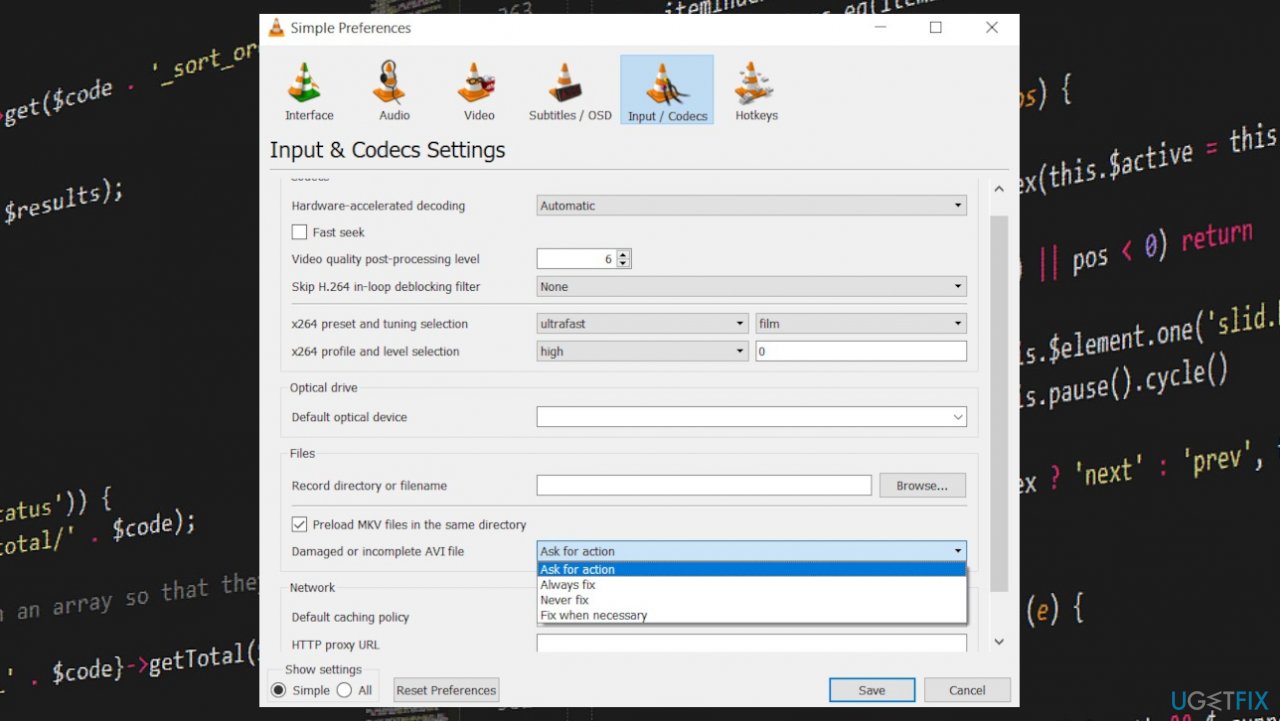
0xc10100be error input - By default, the Ask for action is selected, click on the arrow down icon and change it to Always fix.
- Click on the Save button to apply the changes and check if the error is solved.
Bottom line
To fix the 0xc10100be error, you can try updating your media player, checking for corrupted files, and ensuring you have the necessary codecs installed. Additionally, consider running system maintenance tools to address any corrupted system files. If none of these solutions work, try using a different media player to see if the issue persists.
Frequently asked questions
The 0xc10100be error indicates a problem with media playback or file corruption, often occurring when trying to play or download videos or audio files.
To troubleshoot the 0xc10100be error on Windows 11, try resetting the Media Player app or reinstalling any related codecs that may be causing the issue.
Yes, you can quickly fix the 0xc10100be error in Windows 10 by running the Windows Store Apps troubleshooter or checking for system updates.




Report an issue
What's wrong with this guide? We review every report and update or remove content.
Report received — thank you. We'll review and fix it.
You need a free account to submit a report.
Be the first to comment