How to fix
0xC1900101 – 0x20004 installation error
on Windows
Resolve the 0xC1900101 - 0x20004 installation error in Windows 10/11 quickly with expert tips and solutions. Fixed in minutes!

What causes How to fix 0xC1900101 – 0x20004 installation error in Windows?
- Incorrect BIOS settings
- Faulty hardware such as damaged SATA cables
- Issues with the Windows update service
- Insufficient disk space
Repairs Windows system files, removes malware, and restores a clean OS state — without reinstalling.
Hi, I had some problems with Windows, so I've decided to reinstall it. Unfortunately, I got an 0xC1900101 - 0x20004 error. Since then, I tried to redo the process several times, but I keep running into the same issue.
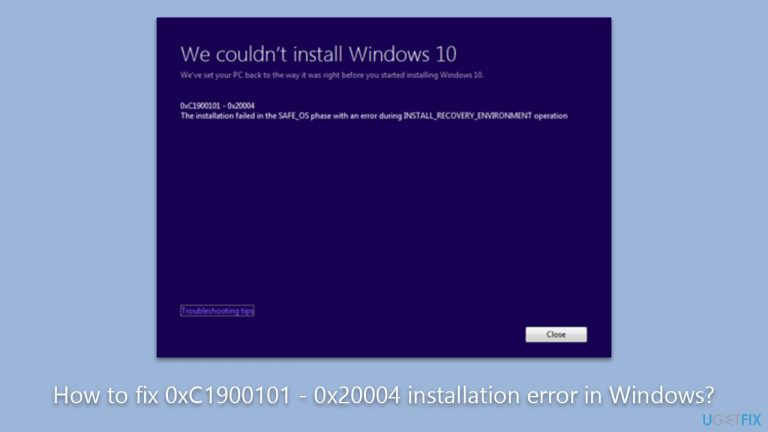
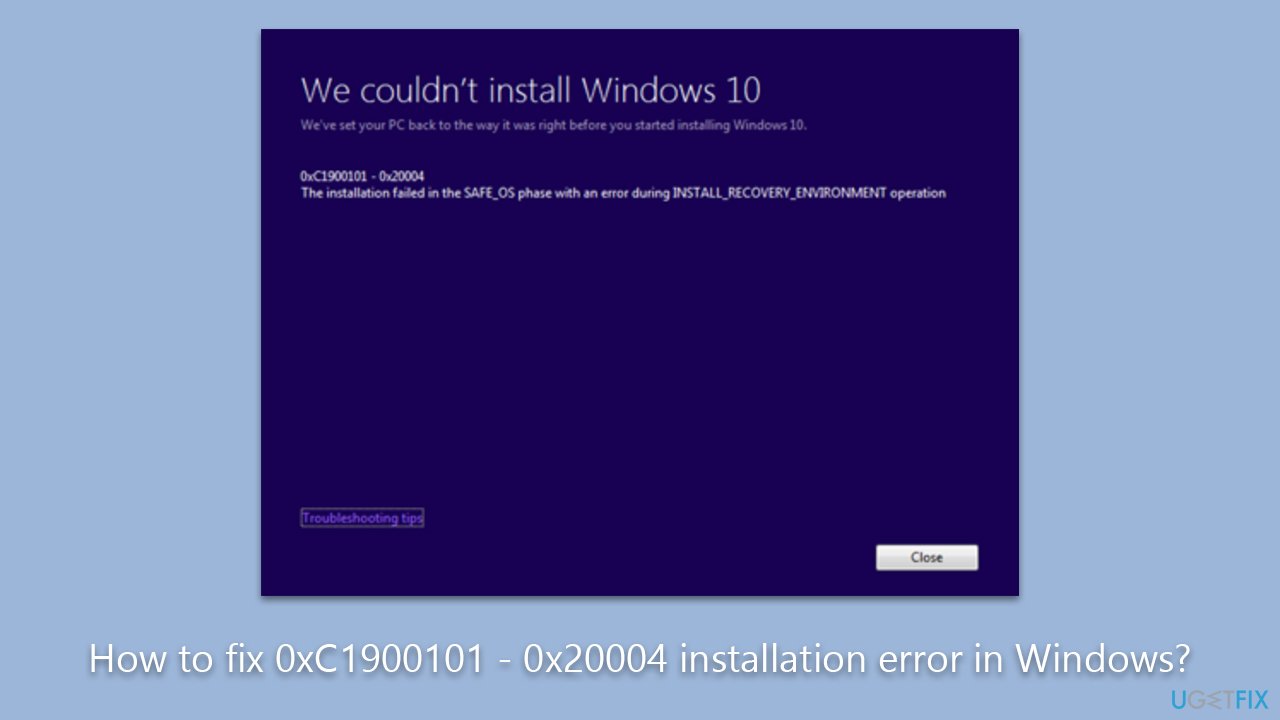
Choosing to upgrade to the latest version of Windows or deciding to reinstall the current one can be a path to various benefits, such as accessing new features or simply revitalizing the system. Yet, during these processes, some users might stumble upon the perplexing error code 0xC1900101 - 0x20004. This system hiccup can disrupt the smooth transition to a new or renewed Windows experience, prompting users to seek out solutions. The message is as follows:
The installation failed in the safe_OS phase with an error during INSTALL_RECOVERY_ENVIRONMENT operation
Error 0xC1900101 - 0x20004 is primarily associated with specific system settings and hardware issues that can crop up during the Windows installation or upgrade process. The first possible culprit could be incorrect BIOS settings. These are essential low-level system settings that, if improperly configured, can halt the upgrade or installation process, resulting in the error.
Faulty hardware, such as SATA cables that connect the hard drive to the motherboard, can also trigger this error. If these cables are damaged or loose, they can disrupt the communication between the hard drive and the rest of the system, causing the installation process to falter.
Additionally, this error can be a result of issues with the Windows update service. If the service is not functioning as it should, it could interfere with the installation or upgrade process, culminating in the 0xC1900101 - 0x20004 error. Furthermore, the lack of sufficient disk space could lead to this issue. The installation or upgrade process requires ample space to work properly; insufficient space can abruptly stop the process, generating an error.
As daunting as these potential causes might sound, solutions often involve correcting the BIOS settings, replacing faulty SATA cables, troubleshooting the Windows update service, or freeing up disk space. However, for those who might feel overwhelmed with these manual adjustments or simply seek an easy fix, a Windows repair tool like [d1] can be a handy ally.
Fix 1. Perform Disk Cleanup
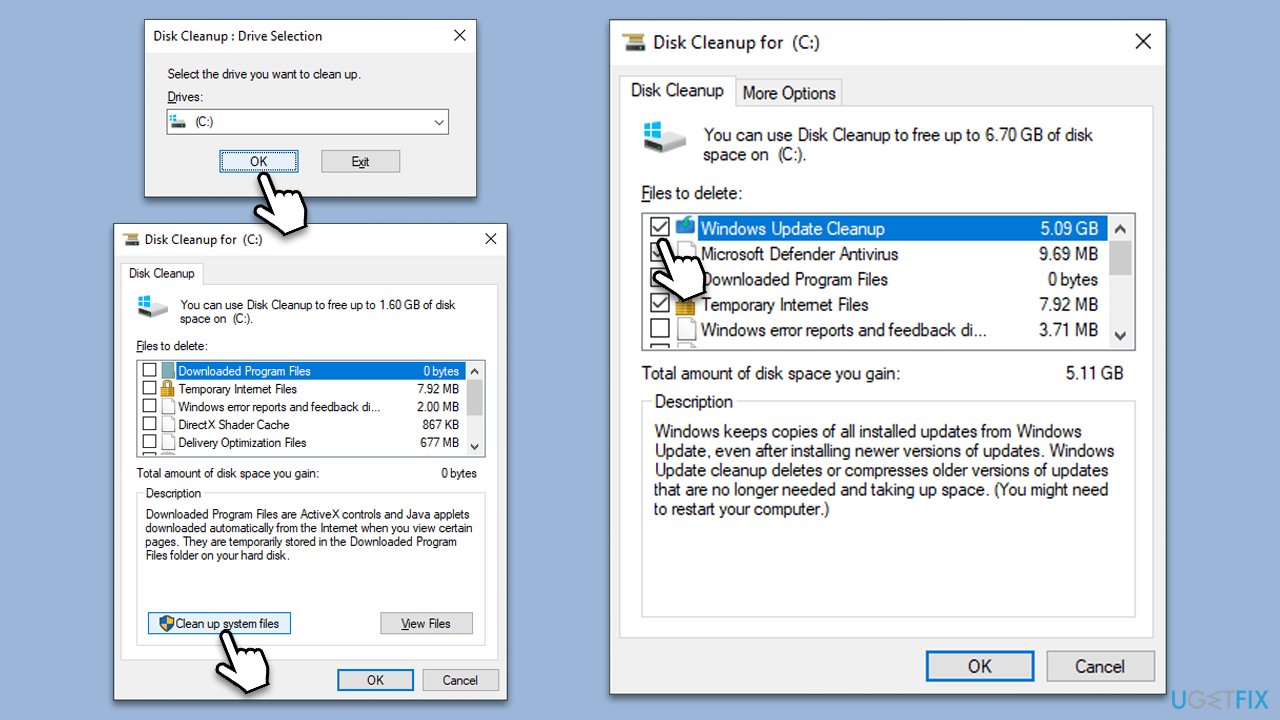
Insufficient storage space can disrupt the Windows installation or upgrade process. Disk Cleanup is a Windows built-in tool that can help to clean up unnecessary files, potentially eliminating the error by freeing up valuable storage space.
- In Windows search, type Disk Cleanup, and hit Enter.
- Choose the drive you wish to clean (usually C:).
- Click Clean up system files at the bottom.
- Select sections you want to remove, for example, Windows update files, temp files, etc.
- Click OK to start the cleaning process.
- This may take some time, depending on the amount of data to be cleaned.
Fix 2. Run Check Disk
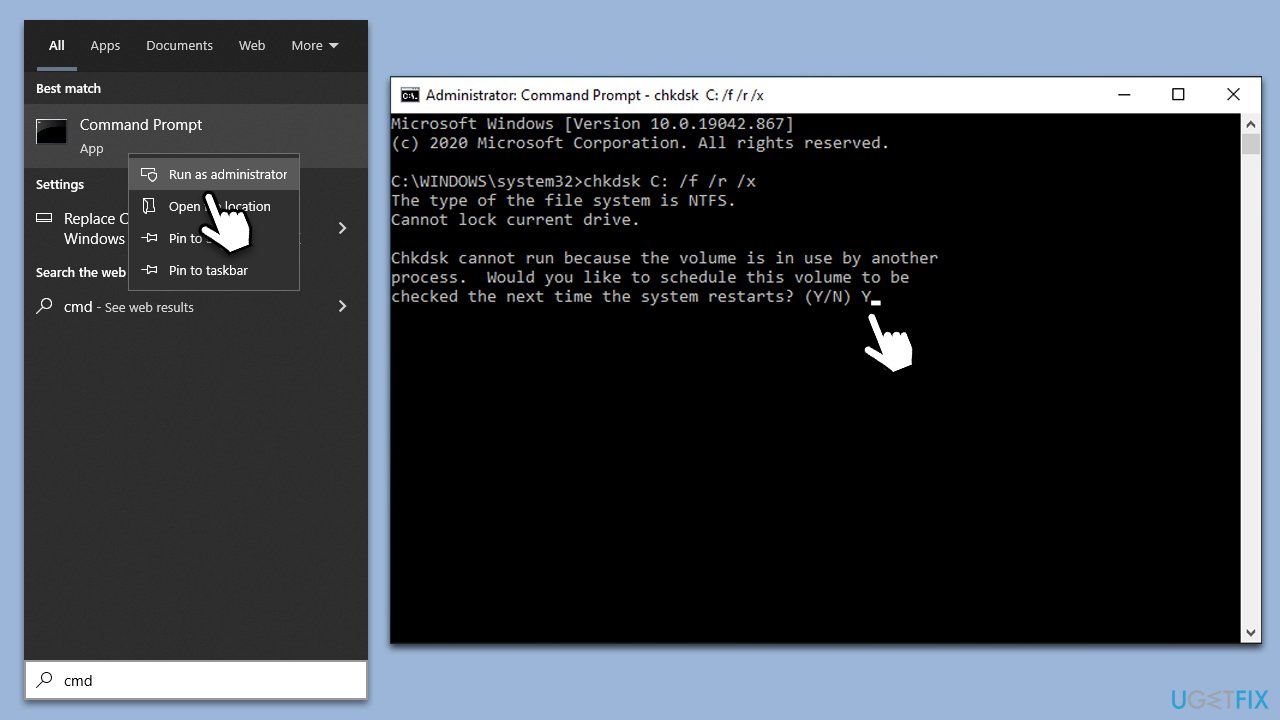
Windows has a built-in Check Disk tool that can identify and repair file system errors. Running this utility can potentially fix any issues that are causing the installation error.
- Type cmd in Windows search.
- Right-click on Command Prompt and select Run as administrator.
- When UAC shows up, click Yes.
- In the new window, type in the following command and press Enter after:
chkdsk c: /f
(Note: use chkdsk c: /f /r /x command if you are using SSD as your primary partition. Also, replace c: with another drive letter if you are not using default) - If you receive an error, type in Y, close down Command Prompt, and restart your system.
- Wait till the scan is finished.
Fix 3. Remove unused SATA devices
Unused or faulty SATA devices can interfere with the system's communication and trigger the 0xC1900101 - 0x20004 error during installation. Physically removing these devices can help mitigate any potential conflicts.
- Shut down your computer.
- Open your computer's casing.
- Carefully unplug any unused SATA devices.
- Reassemble your computer and try the installation process again.
Fix 4. Update all device drivers
Outdated or incompatible drivers can pose a significant problem during a Windows upgrade or installation process. Ensuring all device drivers are up-to-date can help prevent conflicts and resolve errors.
- Right-click on Start and pick Device Manager.
- Expand each of the presented sections, for example, Network adapters.
- Right-click on a device and select Update driver.
- Follow the prompts to update the driver.
- Repeat this process for all devices listed in the Device Manager, then restart your system.
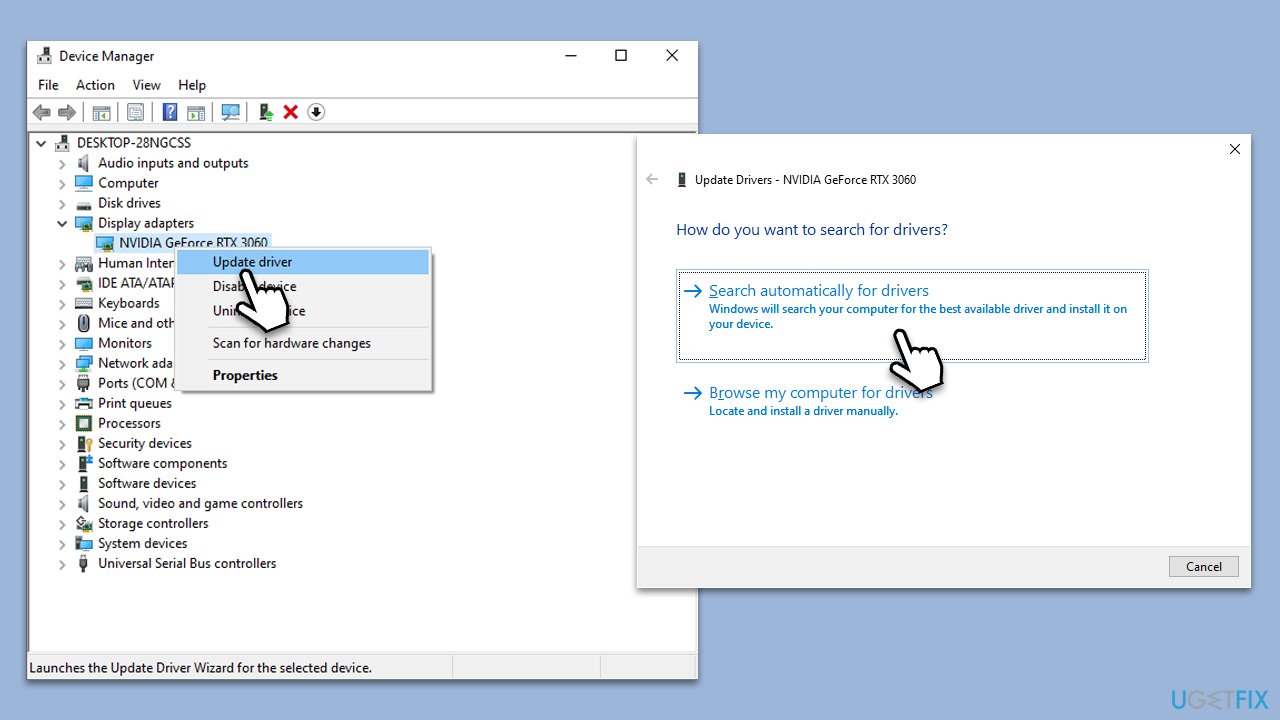
Note that downloading drivers through Windows is not always efficient, and it may not download the latest drivers (plus, this may take a long time). Instead, we recommend downloading the newest drivers from the device manufacturer's website or employing automatic tools such as [rev id="DriverFix"] for a hands-free approach.
Fix 5. Disable incompatible WLAN chip
Incompatible WLAN chips can create conflicts during the Windows installation process. Disabling these chips temporarily during the upgrade or installation can potentially resolve the error.
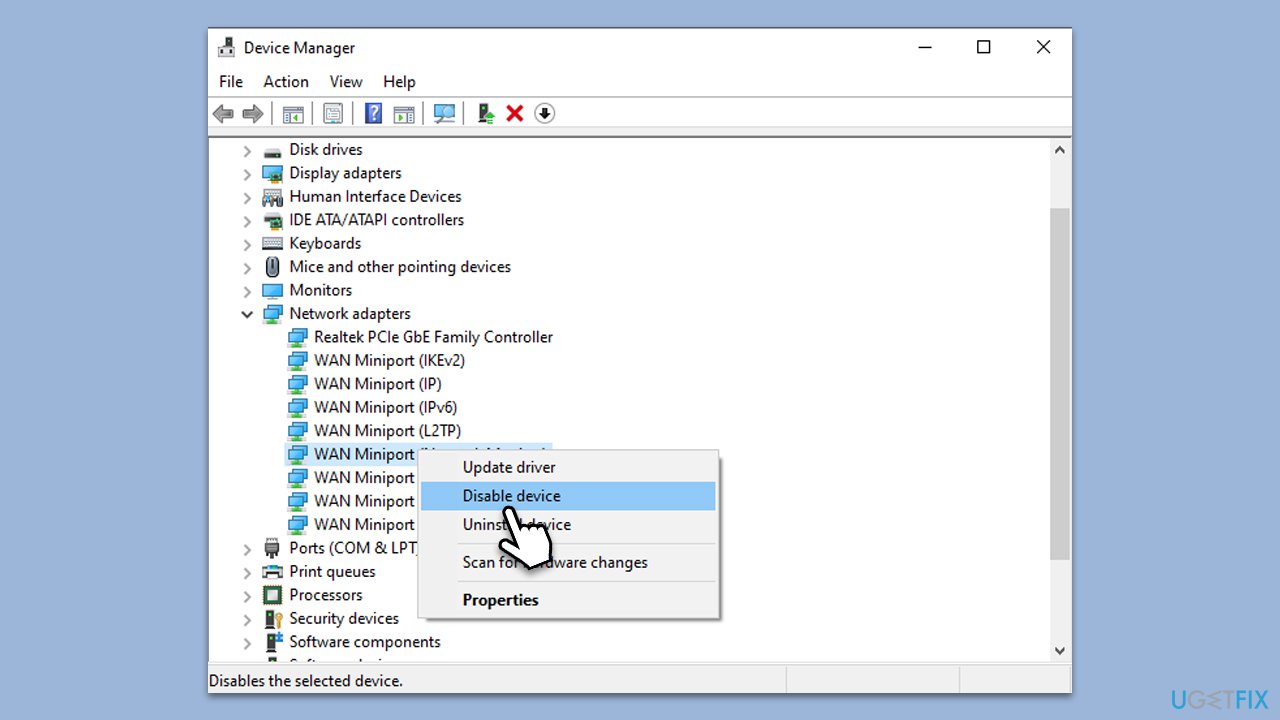
- Open Device Manager.
- Locate your WLAN chip under Network Adapters.
- Right-click on it and select Disable device.
- After the upgrade or installation, remember to re-enable the WLAN chip.
Fix 6. Update BIOS
The BIOS serves as the bridge between your hardware and software. If the BIOS settings are outdated or misconfigured, it could interfere with the Windows installation or upgrade.
- Before proceeding, backup your data as a precaution.
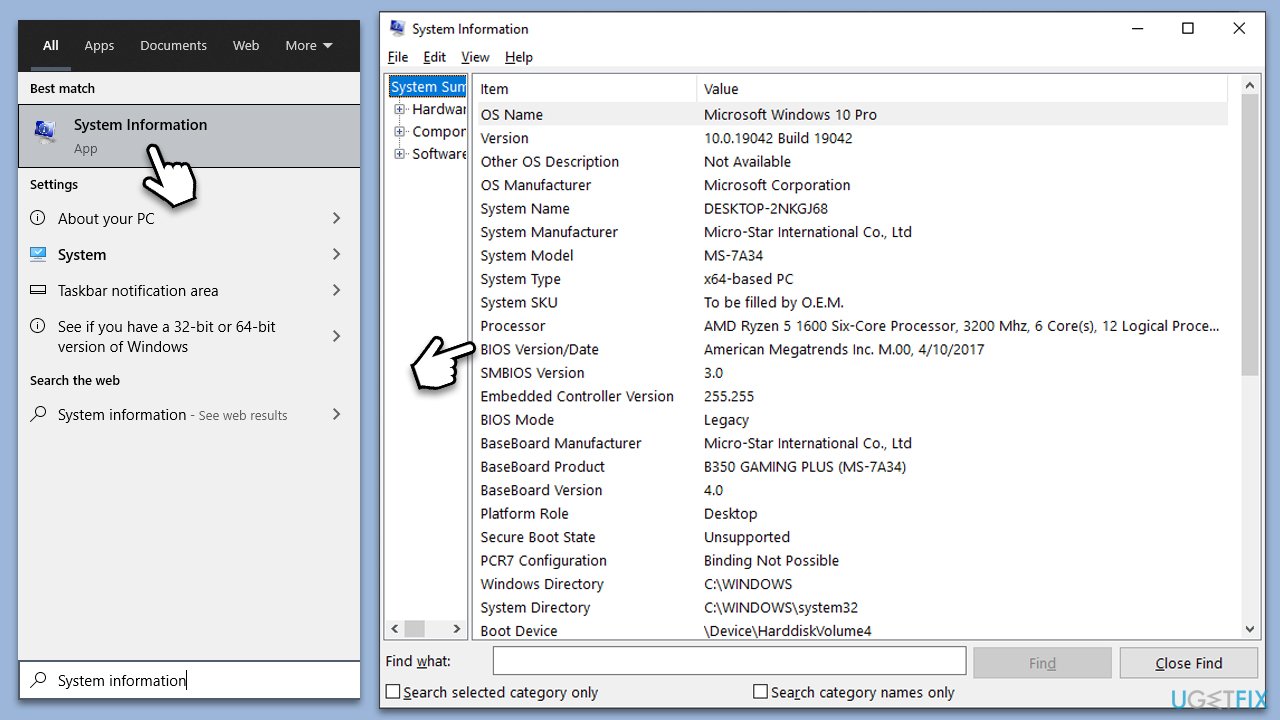
- Visit the manufacturer's website and download your specific model's latest BIOS update file (you can check which BIOS you are using by typing System information in Windows search and checking the BIOS Version/Date and BaseBoard Product entries there).
- Extract the BIOS update files and read any provided instructions or documentation.
- Create a bootable USB drive with the BIOS update files, if required.
- Update the BIOS using the manufacturer's recommended method, which may be through a built-in utility or booting from a USB drive.
- Restart your device to complete the process.
Fix 7. Enable Windows update service
The Windows Update Service is essential for downloading and installing Windows updates. If this service is disabled, it could lead to installation errors.
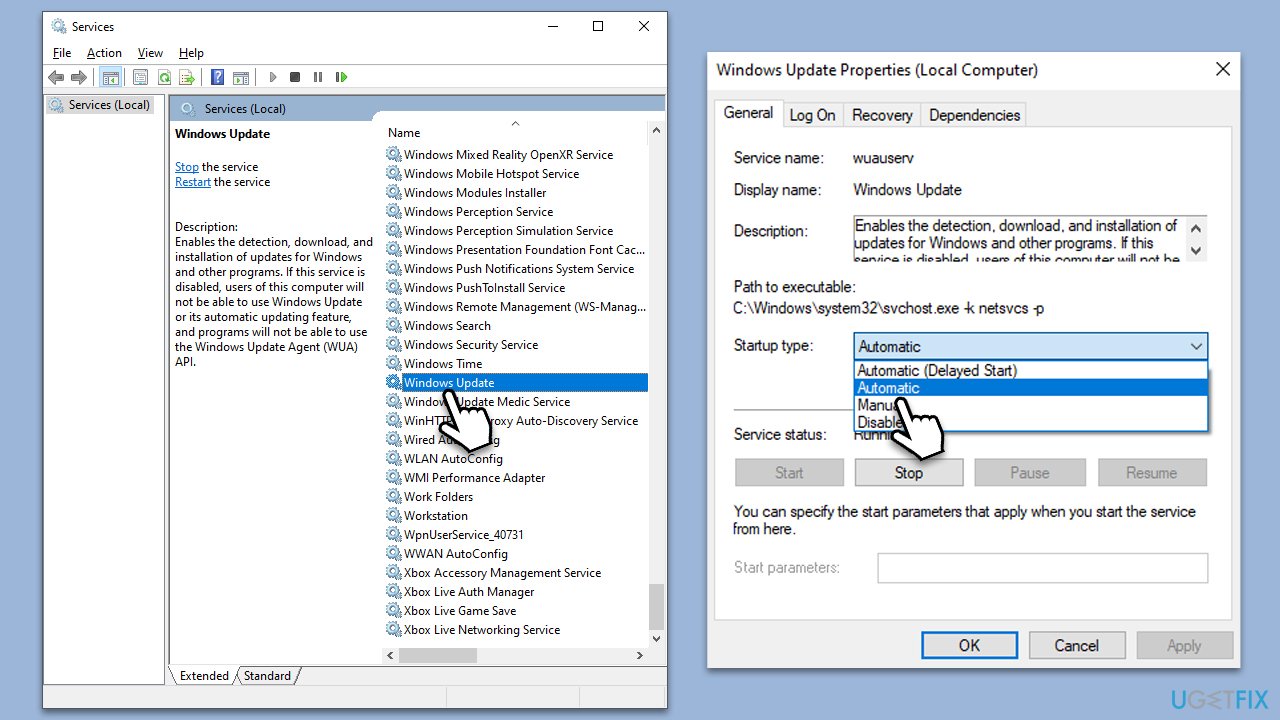
- Type Services in Windows search and press Enter.
- Scroll down to Windows Update and double-click on it.
- Set the Startup type to Automatic and click Start.
- Click Apply, then OK.
Fix 8. Use Windows ISO to upgrade
Using a Windows ISO file to perform the upgrade can circumvent potential issues that are associated with the regular Windows Update route, thereby avoiding the error. Before proceeding, make sure you disable third-party security software.
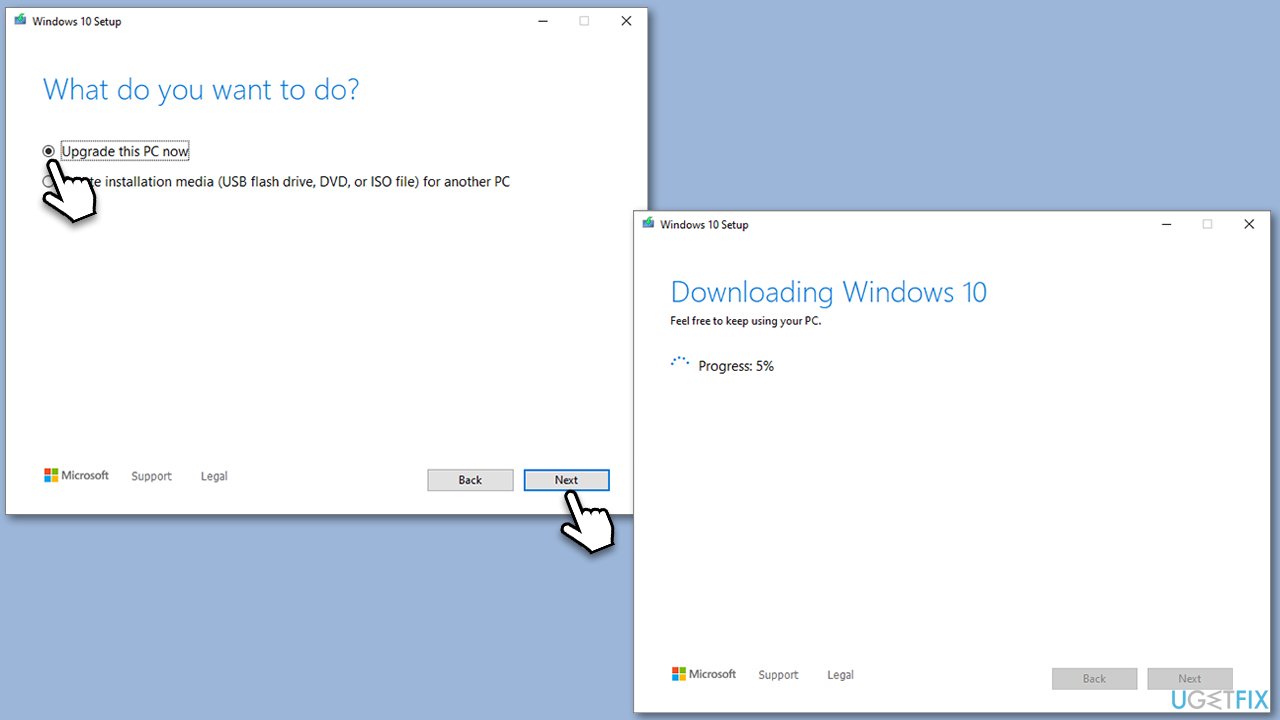
- Visit the official Microsoft website and download Windows 10 installation media. [Windows 11 version]
- Double-click the installer and select Yes when UAC shows up.
- Agree to the terms and click Next.
- Select Upgrade this PC now and click Next.
- Wait till Windows downloads all the necessary files.
- Restart your device when finished.
Bottom line
To resolve the 0xC1900101 - 0x20004 error, you can correct the BIOS settings, replace faulty SATA cables, troubleshoot the Windows update service, or free up disk space. If these solutions do not work, consider seeking professional assistance.
Frequently asked questions
This error indicates that there is a driver issue or hardware compatibility problem during the installation of Windows 10 or Windows 11. It often occurs when the system is unable to load necessary drivers.
To fix this error, ensure that all your drivers are up-to-date and disconnect any unnecessary hardware devices before attempting the installation again. You can also try running the Windows Update Troubleshooter.
Yes, focus on checking your graphics, network, and storage drivers, as these are commonly associated with this error during the upgrade process in Windows 11. Updating these drivers might help resolve the installation issue.




Report an issue
What's wrong with this guide? We review every report and update or remove content.
Report received — thank you. We'll review and fix it.
You need a free account to submit a report.
Be the first to comment