How to fix
0xc1900101 – 0x4000d Error during Windows 10 Installation
on Windows
Resolve the 0xc1900101 – 0x4000d error quickly during Windows 10 installation with proven fixes. Expert-tested solutions for a seamless upgrade!


What causes How to Fix 0xc1900101 – 0x4000d Error during Windows 10 Installation?
- Incompatibility with hardware drivers
- Insufficient disk space
- Corrupted system files
- Issues with USB drive used for installation
- Conflicting software or applications
Repairs Windows system files, removes malware, and restores a clean OS state — without reinstalling.
I have encountered this issue for a long time now. My gaming PC gives me issues when I try to install Win 10. Why can’t I upgrade Windows 7 to 10? When I try to do so, the setup stops incomplete and then I receive the error 0xC1900101 – 0x4000D.
0xC1900101 – 0x4000D is not the most common error among Windows 10 update errors.[ref en-1] However, people who use Windows 7 system face this issue quite often because, for some reason, this error appears on Windows 7 while upgrading to Windows 10 only.[ref en-2] The biggest risk to encounter 0xC1900101 – 0x4000D error is to update Windows using the USB drive.
Several methods can be used to update the Windows system from the older version to the recent Windows 10. Often, these methods create frustration because of the created issues or caused errors like 0xC1900101 – 0x4000D. There is a need to take care of many problems before the system update works appropriately.
Encountering such errors over and over again creates a circle of disappointment and makes people desperate for any fix. The same error may require different solutions, depending on the machine and other issues with the OS. So, don't give up after one or two methods - try them all. Follow the rest of this article and learn about reasons and ways to fix 0xC1900101 – 0x4000D error.
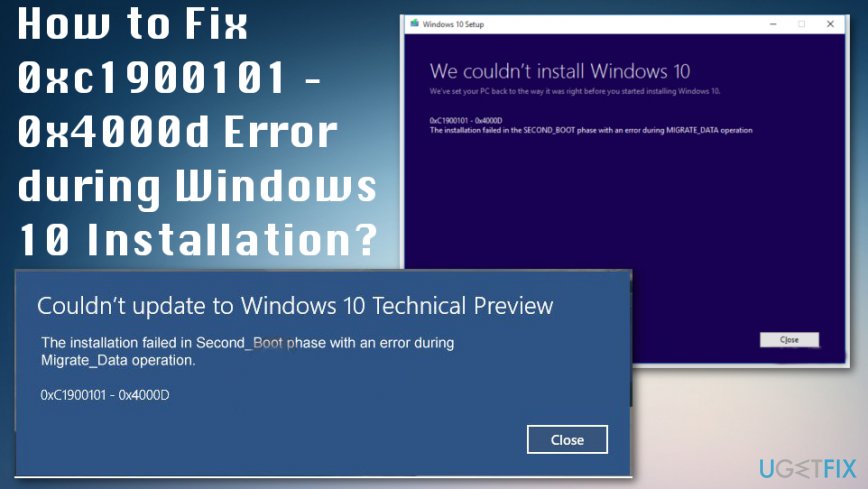
This particular 0xC1900101 – 0x4000D error is very annoying as it does not allow to install the Windows 10 update. As soon as the update is launched, the process goes smoothly but gets stuck at a certain percentage (usually more than 70%). Then the user gets a notification saying:
"The installation failed in Second_Boot phase with an error during Migrate_Data operation."
After a while, the error disappears and configuration proceeds. However, not for a long time. At around 90% of configuration settings phase, an error 0xC1900101 - 0x4001E emerges. It says:
The installation failed in Second_Boot phase with an error during Pre_Oobe operation".
After that, Windows 10 update gets stuck. There are many reasons why this error may occur, e.g. incompatibility with an anti-virus program, wrong update, other software incompatibilities, etc. Luckily, there are a couple of methods that help to fix 0xc1900101 – 0x4000d error during Windows 10 installation.
How to fix 0xc1900101 – 0x4000d Error on Windows?
Windows operating system is the one that many people around the world choose over the other OSs. This is why Microsoft always fixes and patches bugs creating issues with computers.[ref en-3] However, there is a lot of issues with devices running on Windows.
For example, some files may get corrupted or damaged ant the device runs with errors and other issues. So you need to scan the machine thoroughly first, in case, there is something not okay with these files. We can offer the system optimizers, reputable antivirus programs for that job. Like [d1] that has a huge database of Windows OS files needed for recovery.
Disable background applications.
It might be that the programs running in the background of the system while you execute the update are the culprit of the 0xc1900101 – 0x4000d error. Therefore, make sure that you disable the software that is running in the background via Task Manager.
Uninstall problematic program
- Log in with administrative rights.
- Go to Control Panel.
- Select View as and click Uninstall a Program in the Programs section.
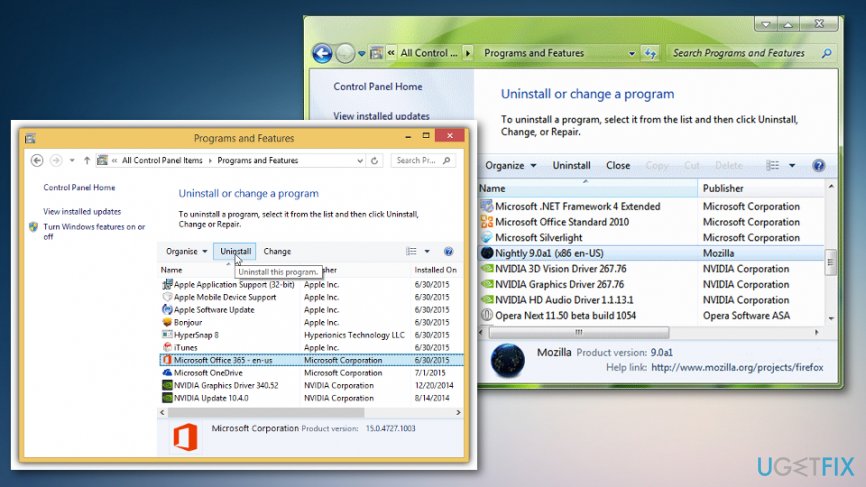
How to fix 0xc1900101 0x4000d error during windows 10 installation uninstall program - Choose Repair and Remove in the wizard.
- Select Remove and click Next to uninstall the program.
Remove Anti-malware
Anti-malware tools commonly cause problems as they consist of files that may be incompatible with other software. Therefore, it is assumed that 0xc1900101 – 0x4000d error when installing Windows 10 may be caused by antivirus. To remove it from the system:
- Go to Control Panel, select System and Security.
- Click on Windows Solution Center.
- Hit Security and locate your anti-virus.
- Click on it and it and select Uninstall.
- Restart your PC.
Install system Updates
- Go to Start menu - select System and Security – Windows Updates.
- Select Check for updates.
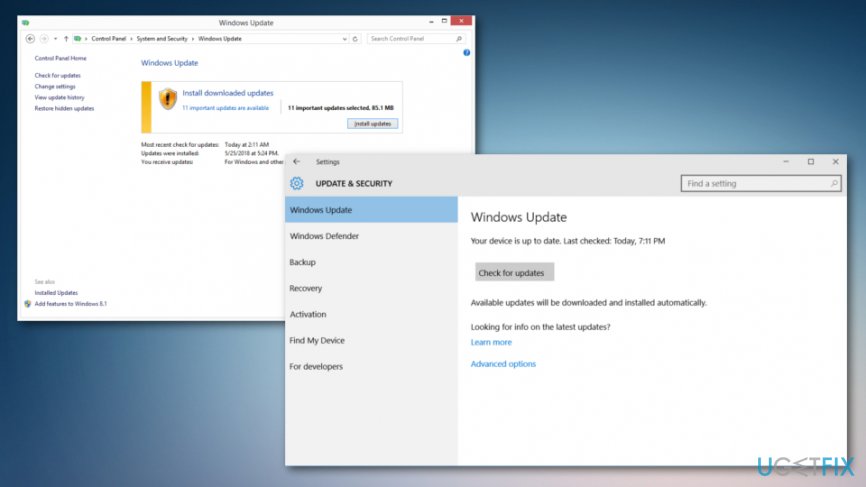
How to fix 0xc1900101 0x4000d error during windows 10 installation windows updates - If the system finds some required updates, select them all and click Install Updates.
- Restart your PC
Run the Disk Cleanup Tool
- Click the Start menu button or go to Search and type Disk Cleanup.
- Run the system scan.
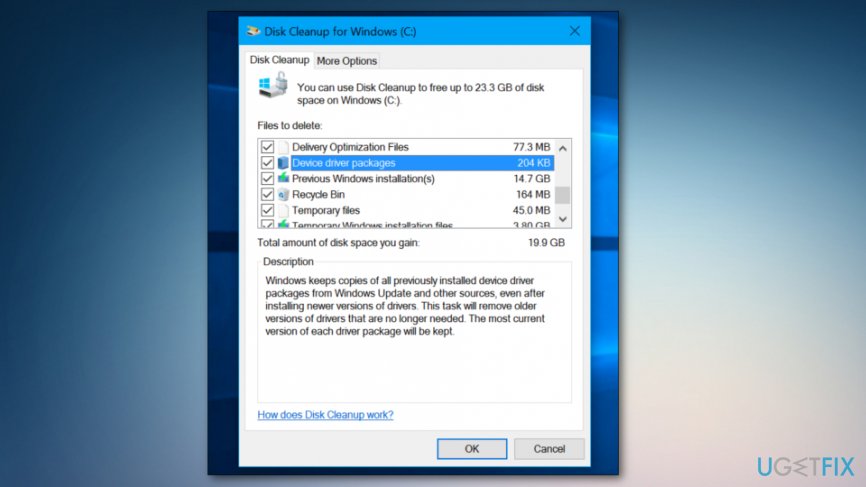
How to fix 0xc1900101 0x4000d error during windows 10 installation disk cleanup - Click OK to proceed with further processes.
- Try rerunning the update.
Check the system for incompatibilities
For this purpose, you should use the System Readiness tool. Download System Update Readiness Tool for Windows 7 for x64-based Systems (KB947821) and let it automatically detect what incompatibilities exist on your machine. If no results are found, then try to update Windows 10 one more time. If, however, some conflicts are found, then they have to be fixed first.
Bottom line
To fix the 0xc1900101 – 0x4000d error, you can try updating your hardware drivers, ensuring you have enough disk space, and checking for corrupted system files. If the problem persists, consider using a different installation method or checking for conflicting software. If none of these solutions work, seek further assistance or consider a clean installation of Windows.
Frequently asked questions
This error typically occurs due to incompatible drivers or hardware issues, particularly related to graphics or storage devices during the installation process.
To fix this error, ensure all drivers are updated, disconnect unnecessary peripherals, and run the Windows Update Troubleshooter.
Yes, you can prevent this error by checking your hardware compatibility, updating all drivers, and performing a clean boot before initiating the installation.




Report an issue
What's wrong with this guide? We review every report and update or remove content.
Report received — thank you. We'll review and fix it.
You need a free account to submit a report.
Be the first to comment