How to fix
0xc1900102 error
on Windows
Resolve the 0xc1900102 error swiftly on Windows 10 and Windows 11 with our expert-tested solutions. Get your system running smoothly again!

What causes How to fix 0xc1900102 error in Windows?
- Incompatibility drivers
- Outdated storage drivers
- Outdated network drivers
- Third-party programs like antivirus software
- Insufficient disk space
- Corrupted system files
Repairs Windows system files, removes malware, and restores a clean OS state — without reinstalling.
I continue to get the 0xc1900102 error when updating to a newer version of Windows. It will download and start installing but fails at roughly 30% and goes back to the previous version. I tried rebooting my PC and installing the update, but I get the same message. How can I fix this and what is causing this??
Windows updates are critical to keeping aspects of security, stability, and compatibility up to date while offering users with new features, fixes, and patches for Windows 10 and Windows 11. Updates come out monthly - they help secure devices and keep it current. However, at times the update process fails, and the users get errors like 0xc1900102, which gets in the way of the installation and prevents the system from upgrading.
The 0xc1900102 error code usually occurs when you attempt a feature update (an upgrade) to a newer version of Windows 10 (like from 21H2 to 22H2). It usually happens after the update begins downloading and installing, and then fails at some percentage through the process and rolls back to the previous version.
The error typically indicates a timeout issue, where the update process is not permitted to complete within the time window anticipated. Common culprits are incompatibility drivers, e.g., outdated storage or network drivers, which interfere with the update. Third-party programs, like antivirus software, may also interfere. Insufficient disk space, corrupted system files, or hardware issues (e.g., a failing hard drive or incompatible peripherals) can also be the cause. Network interference or conflicts with Windows Update components can also trigger this error.
Because there is no universal fix for all users, a number of troubleshooting measures can be used to resolve the 0xc1900102 error. Freeing up disk space, updating drivers, or uninstalling conflicting software is usually sufficient to resolve the problem. In more persistent instances, resetting update components or conducting a clean installation may be required. The steps outlined below give eight step-by-step solutions to put your Windows update back in order.
To promptly resolve the issue, we recommend that you download [d1], a PC repair program that can fix system file corruption automatically, driver error, and other Windows problems presumably causing the 0xc1900102 error.
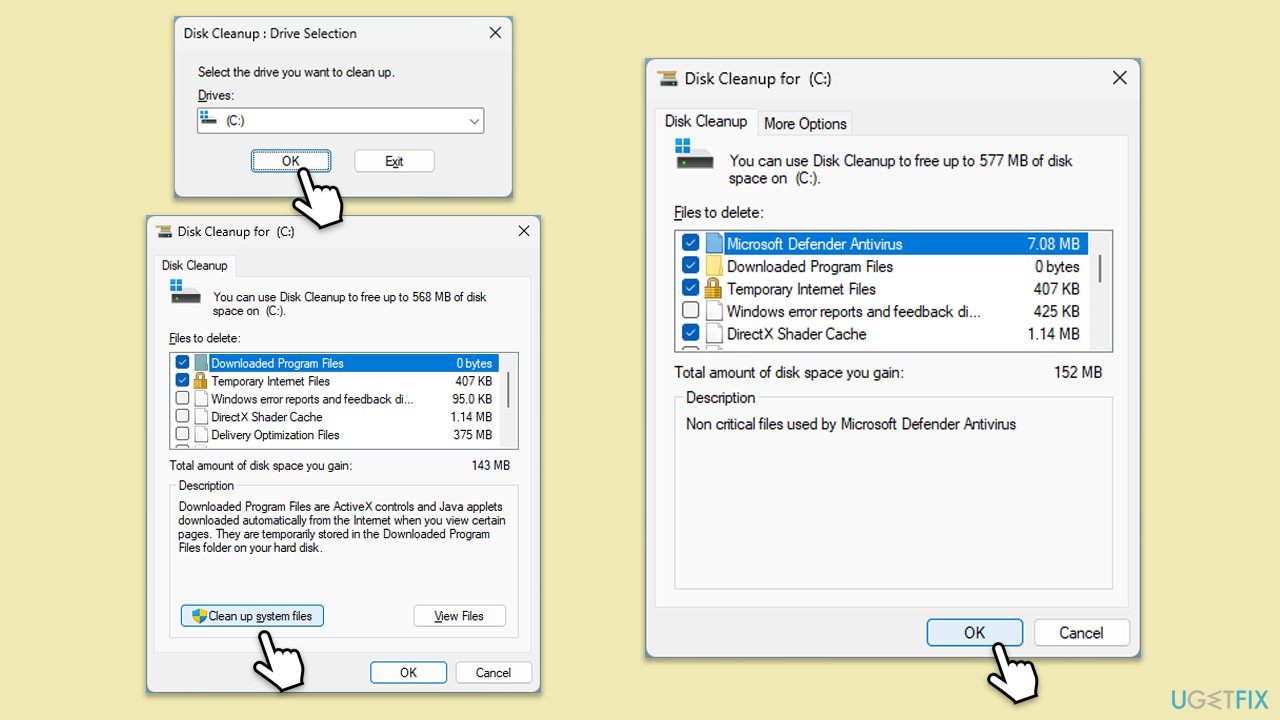
Fix 1. Free up disk space
Windows updates require significant free space to download, unpack, and install files, and insufficient space can cause the update to time out. Ensuring enough room on your system drive can prevent this error.
- Type Disk Cleanup in Windows search and hit Enter.
- If your Windows is installed on drive C, pick it from the list (should be by default) and press OK.
- Click Clean up system files.
- Select your main drive again and click OK.
- Here, select the largest portions of the data used - these typically include Temporary Internet Files, Windows Update, Temporary Files, Recycle Bin, Delivery Optimization Files, and others. Marking Windows Update is vital here.
- Click OK - the process should be finished shortly.
- Ensure at least 20 GB of free space is available before retrying the update.
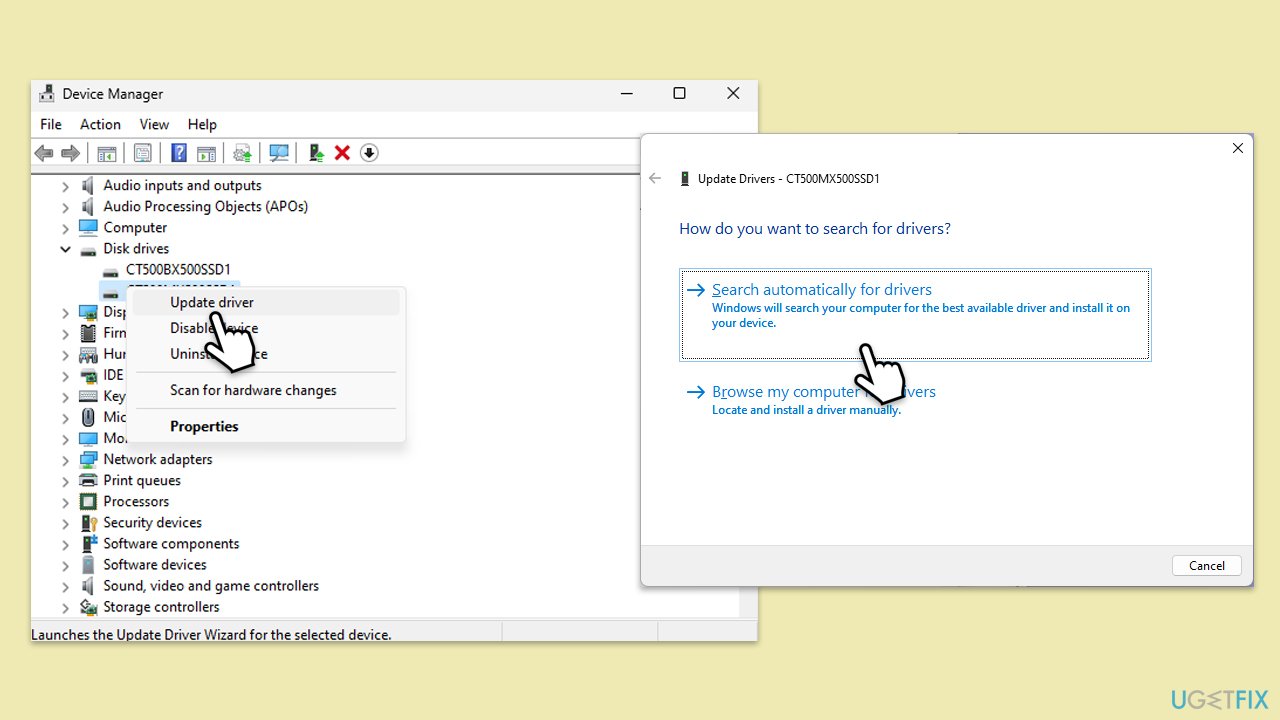
Fix 2. Update device drivers
Outdated or incompatible drivers, especially for storage or network devices, can cause the update process to fail by interrupting system operations. Updating them ensures compatibility.
- Right-click on Start and pick Device Manager.
- Expand categories like Disk drives, Network adapters, and Storage controllers.
- Right-click each device and select Update driver.
- Choose Search automatically for drivers and follow the prompts.
- Restart your computer after updating all drivers and retry the update.
Fix 3. Disconnect external devices
Incompatible or malfunctioning peripherals, such as USB drives or external monitors, can interfere with the update process, leading to timeouts. Disconnecting them can help.
- Close all applications.
- Unplug all external devices except your keyboard, mouse, and monitor.
- Restart your computer to ensure no residual connections remain.
- Go to Settings > Windows Update and try installing the update again.
Fix 4. Run the Windows Update troubleshooter
Built-in troubleshooters can detect and fix common update issues, such as service errors or corrupted caches, that might cause the 0xc1900102 error.
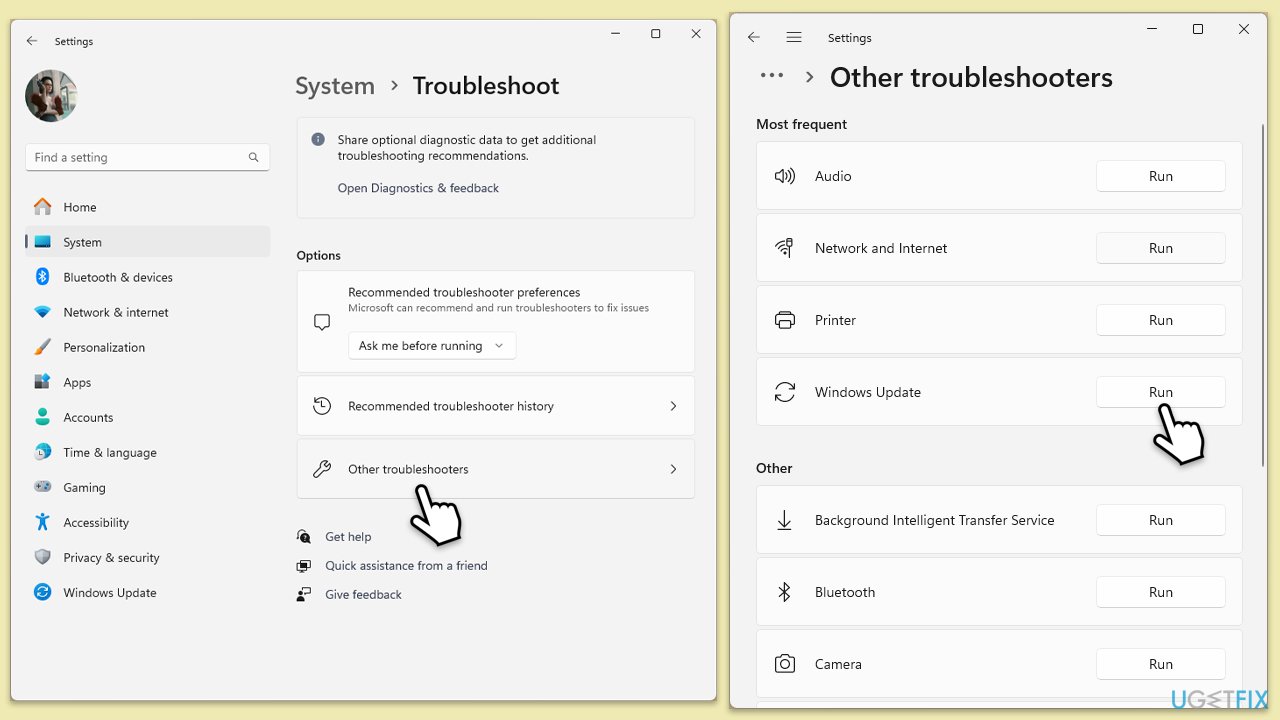
- Type Troubleshoot in Windows search and press Enter.
- Select Additional troubleshooters/Other troubleshooters.
- Find Windows Update from the list.
- Click it and select Run the troubleshooter/Run.
- Restart your PC when the update process finishes.
Fix 5. Run SFC and DISM tools
Corrupted system files can disrupt the update process, causing errors like 0xc1900102. SFC and DISM tools can repair these files and ensure a smooth update.
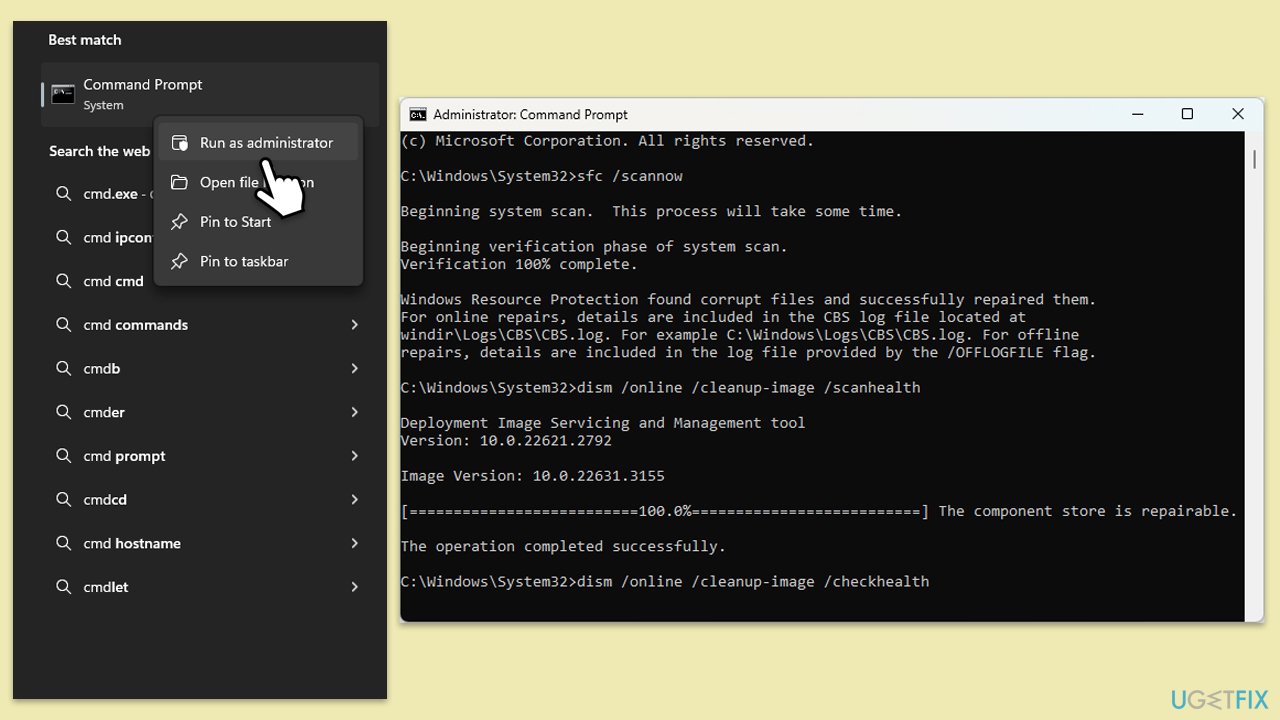
- Type cmd in Windows search.
- Right-click on Command Prompt and pick Run as administrator.
- User Account Control will ask you whether you want to allow changes – click Yes.
- Copy and paste this command and hit Enter:
sfc /scannow - Wait for the scan to finish.
- As soon as it finishes, Windows will report whether integrity violations were found and if they could be fixed. Regardless of the outcome, use these commands next, pressing Enter after each:
Dism /Online /Cleanup-Image /CheckHealth
Dism /Online /Cleanup-Image /ScanHealth
Dism /Online /Cleanup-Image /RestoreHealth - Close down the Command Prompt and restart your computer.
Fix 6. Reset Windows Update components
Corrupted update components, such as the update cache or services, can lead to installation failures. Resetting them clears out problematic files and restarts essential services.
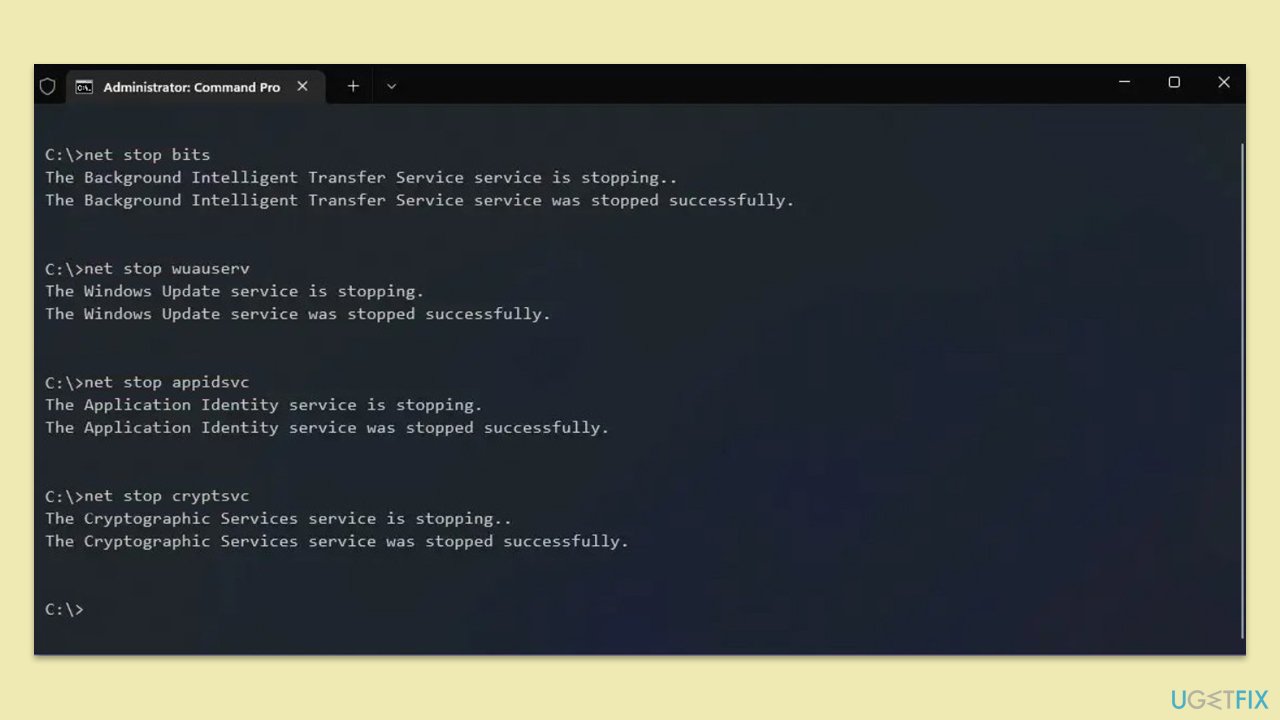
- Open Command Prompt as administrator.
- Stop the Windows Update-related services by running the following commands one at a time, pressing Enter after each one:
net stop wuauserv
net stop cryptSvc
net stop bits
net stop msiserver - Rename the SoftwareDistribution and Catroot2 folders by running the following commands:
ren C:\Windows\SoftwareDistribution SoftwareDistribution.old
ren C:\Windows\System32\catroot2 Catroot2.old
Note: If your Windows installation is not on the C drive, replace "C" with the appropriate drive letter. - Restart the Windows Update-related services by running the following commands:
net start wuauserv
net start cryptSvc
net start bits
net start msiserver - Reboot your computer.
Fix 7. Disable third-party antivirus temporarily
Third-party antivirus software can interfere with the update process by blocking system changes, leading to timeouts. Temporarily disabling it can help.
- Open your antivirus program.
- Locate the real-time protection settings.
- Disable it.
- Run the Windows update again.
Fix 8. Use Media Creation Tool for a clean update
If the update continues to fail, deeper system issues might be at play. Using the Media Creation Tool to perform an in-place upgrade can reinstall Windows while keeping your files.
- Visit the official Microsoft website and download Windows 10 installation media. (Windows 11 version).
- Double-click the installer and select Yes when UAC shows up.
- Agree to terms.
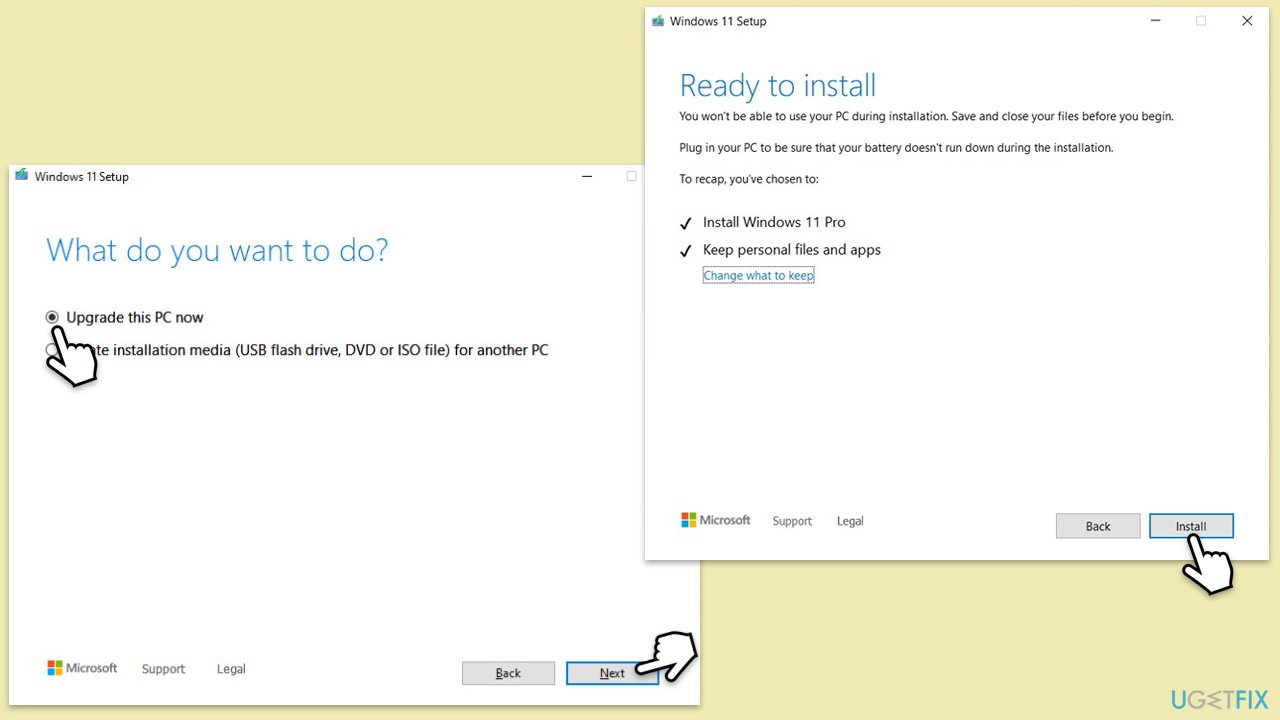
- Select Upgrade this PC now and select Next.
- Windows will now download all the necessary files – it might take a while.
- Agree to the terms once again and click Next.
- Before installing, ensure you are happy with your choices (otherwise, you can click the Change what to keep option).
- Click Install to begin the upgrade process.
Bottom line
To fix the 0xc1900102 error, you can try freeing up disk space, updating drivers, or uninstalling conflicting software. If the issue persists, consider resetting update components or conducting a clean installation. If none of these solutions work, it may be helpful to download a PC repair program to fix system file corruption automatically.
Frequently asked questions
The 0xc1900102 error typically occurs due to insufficient disk space or corrupted system files during the update process.
You can use the Disk Cleanup tool to remove unnecessary files or uninstall unused applications to free up disk space in Windows 10 or Windows 11.
Yes, you can run the System File Checker (SFC) tool by executing 'sfc /scannow' in the Command Prompt to repair corrupted files in Windows 10 or Windows 11.




Report an issue
What's wrong with this guide? We review every report and update or remove content.
Report received — thank you. We'll review and fix it.
You need a free account to submit a report.
Be the first to comment