How to fix
0xd0000225 PIN login error
on Windows
Resolve the 0xd0000225 PIN login error in Windows 10 and 11 quickly with our expert-tested solutions. Fix issues in minutes, guaranteed!


What causes How to fix 0xd0000225 PIN login error in Windows?
- Corrupted NGC folder
- Incorrect folder permissions
- Issues with Windows Hello feature
- System file corruption
- Registry issues
Repairs Windows system files, removes malware, and restores a clean OS state — without reinstalling.
Hello. When I try to login to my Windows computer using the PIN I get this message: "Something went wrong and your PIN isn't available (code: 0xd0000225). Restart your device to see if that fixes the problem." I tried to restart but it did not help. How do I fix this?
Windows 10 and Windows 11 have a feature called Windows Hello.[ref en-1] It provides users with a more secure way to get instant access to their Windows devices using a PIN, facial recognition, or fingerprint. Using a PIN is easier and safer to sign in to your device because your PIN is only associated with one device and it is also backed up for recovery with Microsoft account.
Using a PIN to log into a Windows computer is also faster than using a password, which is why most people choose this option. However, recently some users encountered an issue where they cannot log in to their devices. They receive this message:
Something went wrong and your PIN isn't available (code: 0xd0000225). Restart your device to see if that fixes the problem.
When some users tried to log in to their device using a PIN, just like they always do, they received a 0xd0000225 error. It is unknown why exactly this problem happens. In this guide, you will find 3 steps that should help you fix 0xd0000225 PIN login error in Windows.

However, manual troubleshooting can be a lengthy process, so you can use a maintenance tool, like [d1] that can automatically fix most system errors, BSODs,[ref en-2] corrupted files, and registry[ref en-3] issues. Otherwise, follow the step-by-step instructions below.
Solution 1. Rename the NGC folder
- Restart your computer while holding the Shift button
- The Advanced Startup menu will open on the boot
- Go to Troubleshoot
- Now, go to Advanced Options and select Command prompt
- Run this command to take ownership of the folder:
icacls C:\Windows\ServiceProfiles\LocalService\AppData\Local\Microsoft\Ngc /T /Q /C /RESET
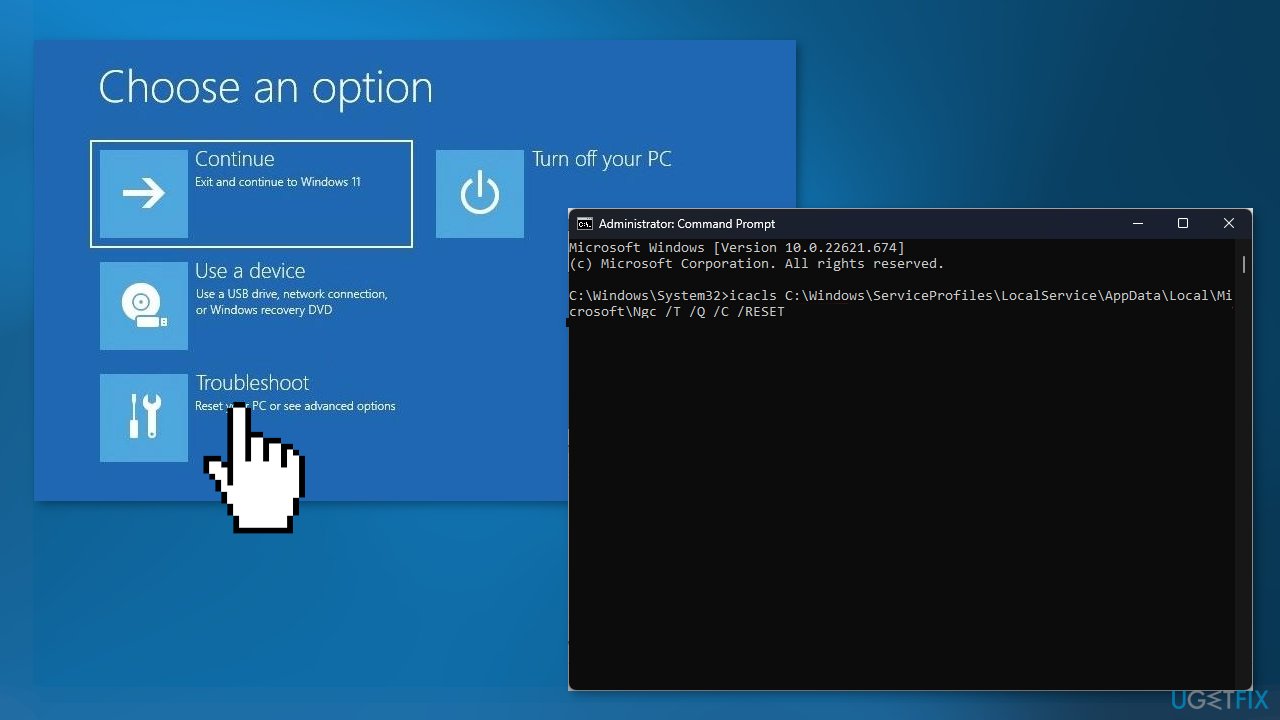
- Run this command to rename the folder:
Ren C:\Windows\ServiceProfiles\LocalService\AppData\Local\Microsoft\Ngc Ngc.old - Close the command prompt then click to return to the first screen
- Click to continue to normal boot
- Sign in using your password, and then configure your PIN again
Solution 2. Re-add your login PIN
- Press the Windows key + I on your keyboard to open Settings
- Go to Accounts on the left pane and scroll down to select Sign-in options
- Click to expand the PIN (Windows Hello) tile and select Remove
- Click on Remove again on the next dialogue to proceed
- Enter your device password and click on the OK button to confirm the removal
- Go back to expand the PIN (Windows Hello) tile and click on the Set up button
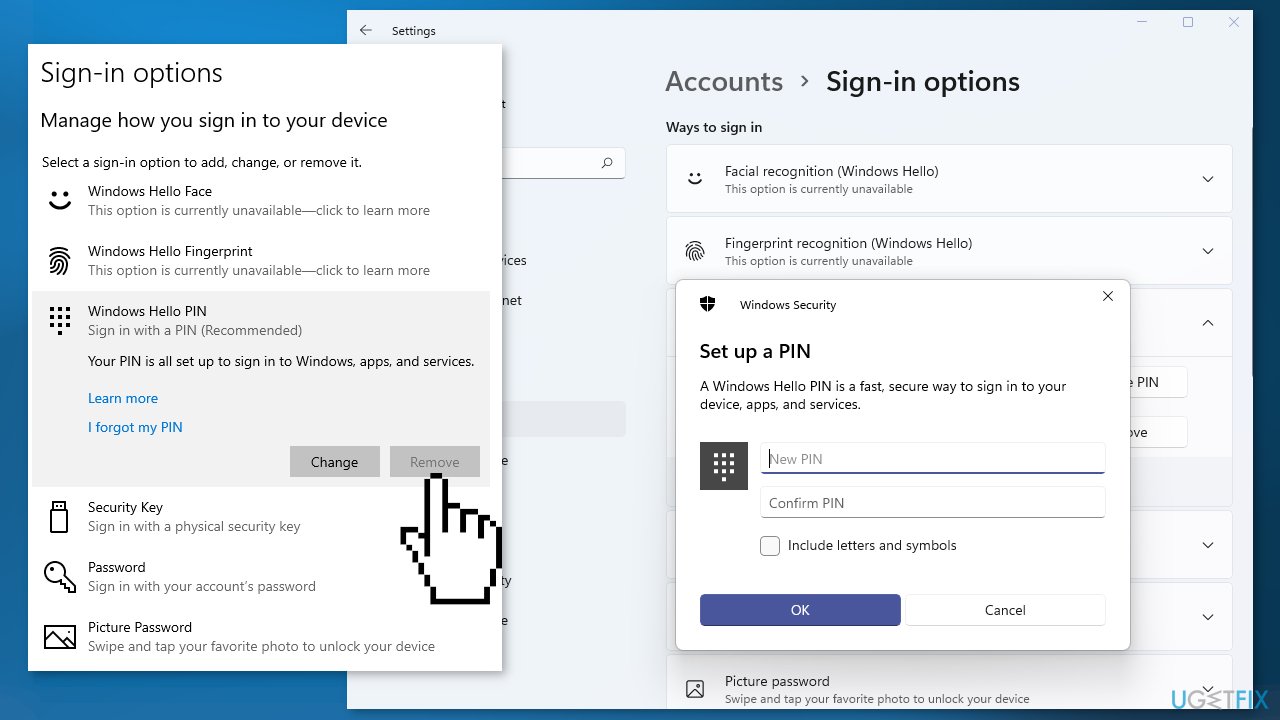
- Input your device password and click the OK button to proceed
- Input your new PIN and click the OK button to save it
- Restart your PC and sign in with your PIN to check if the issue is fixed
Solution 3. Reset your PC in Safe Mode
- On the Windows sign-in screen, press and hold the Shift key while you restart your computer to boot the system into Safe Mode
- After your PC restarts to the Choose an option screen, select Troubleshoot
- Next, click on Reset this PC
- Select Keep my files to proceed
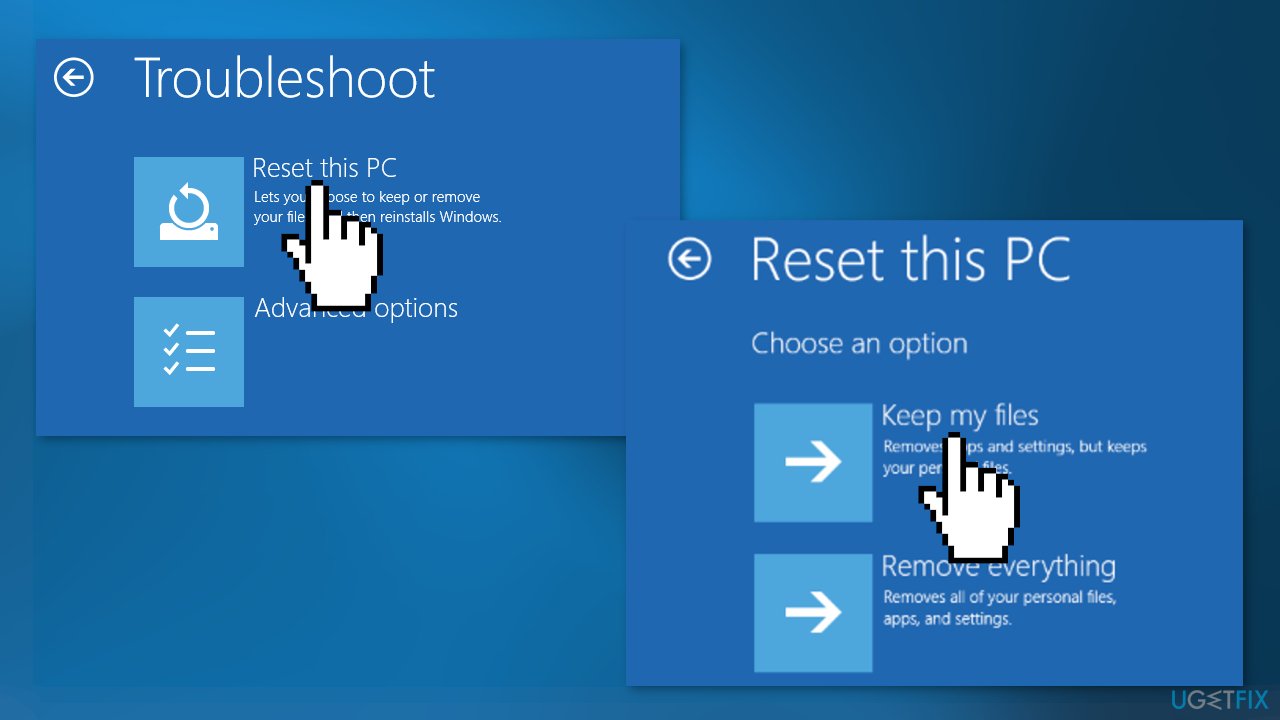
- On the next screen, choose Cloud download and click on Next
- Wait for the process to complete
- Set up another sign-in PIN
Bottom line
To fix the 0xd0000225 PIN login error, you can rename the NGC folder and adjust its permissions. If these steps do not resolve the issue, consider using a maintenance tool to automatically fix system errors or perform further troubleshooting.
Frequently asked questions
The 0xd0000225 error typically occurs due to corrupted system files, misconfigured boot settings, or issues with the Windows Boot Manager in Windows 10.
To resolve the 0xd0000225 error in Windows 11, you can use the Automatic Repair tool or execute commands like 'bootrec /fixmbr' in the Command Prompt.
Yes, you can reset your PIN by accessing the sign-in options from the login screen, but you may need to boot into Safe Mode if the error prevents normal access.




Report an issue
What's wrong with this guide? We review every report and update or remove content.
Report received — thank you. We'll review and fix it.
You need a free account to submit a report.
Be the first to comment