How to fix
100% disk usage
on Windows
Resolve 100% disk usage issues on Windows 10 with proven solutions. Get your PC running smoothly again—expert-tested and fixed in minutes!

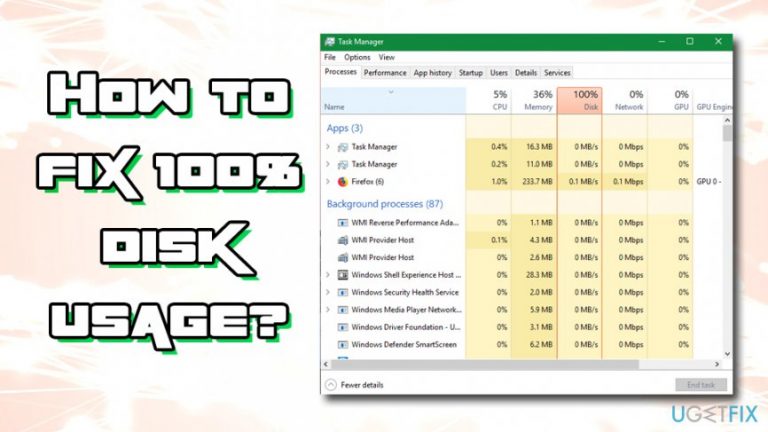
What causes How to fix 100% disk usage on Windows 10?
- Inappropriately installed software
- Driver malfunction
- System file corruption
- Malware infection
- Hardware failure
Repairs Windows system files, removes malware, and restores a clean OS state — without reinstalling.
Hello. I’m having an on-going issue with disk usage. My laptop is running Windows 10. I did a clean install with the bootable media after I noticed this issue and then disk usage went back to normal. However, when I reinstalled needed apps, the disk usage shot back to 100% constantly. I went through various forums online and the only thing I’ve found out that there are hundreds of people who are struggling with obscure 100% disk usage on Windows 10. Do you have any ideas why this may be happening and what should I do to fix this?
100% disk[ref en-1] usage on Windows 10 can be attributed to many factors, including inappropriately installed software, driver malfunction, system file corruption, malware infection or even hardware failure.
However, according to specialists, this issue is typically triggered by a common software combination of Google Chrome and Skype. These two programs are known for sucking up memory individually, meaning that launching them at the same time might have devastating consequences, such as 100% disk usage on Windows 10, as well as serious slowdowns, freezes, and crashes.[ref en-2]
If you are not running Skype and Google Chrome simultaneously, it might be that Google Chrome alone is taking up your disk usage alone if a PC is infected by virus or malware.[ref en-3] According to Chrome engineers, advanced settings on Google Chrome contain an option called "Protect you and your device from dangerous sites".
If you have this option enabled and the malware inside the system, this may root cause a high disk activity. As a matter of fact, various programs might be influencing system slowdowns and 100% disk usage, including Norton anti-virus, OneDrive, or Background Intelligent Transfer Service. Therefore, it’s very important to troubleshoot the issue and corresponding optimization methods.
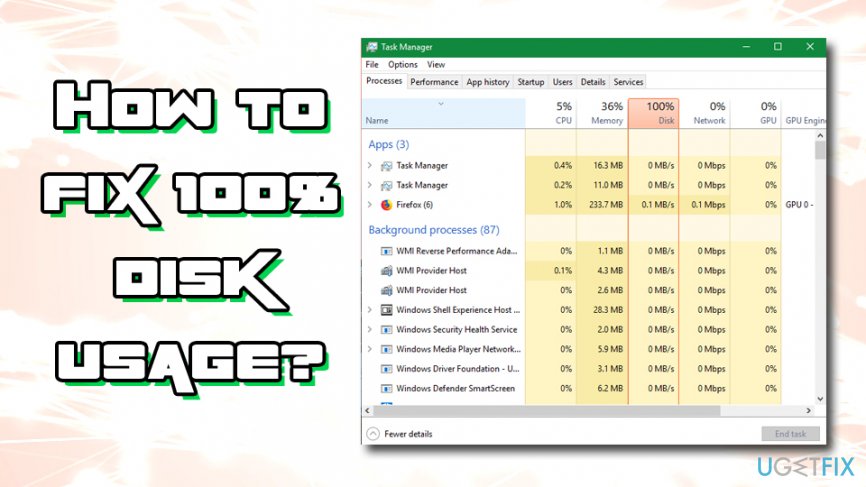
How to fix 100% disk usage on Windows 10?
If you are using Google Chrome and Skype simultaneously, our recommendation would be to close one of them. Don’t forget that clicking on X button on Skype doesn’t close the application completely as it keeps running in the background. You can find out how to turn off Skype completely in this post.
Furthermore, if your Google Chrome is set to "Protect you and your device from dangerous sites", try to disable this option and run a scan with a professional anti-virus, for instance, [d1]. Virus, malware, worms, and similar threats are, needless to say, sucking up PC’s resources and generally influencing its performance in a negative way.
It’s worth mentioning that many people have managed to fix 100% disk usage on Windows 10 by unregistering one of OneDrive services. Although this solution is not officially proved, there are a number of people who claim this method to stand out its purpose. If these simple steps did not help to optimize 100% disk usage in Win 10, try the following fixes:
Fix 1. Change Google Chrome settings
- Launch Google Chrome and open Settings by clicking on three vertical dots at the top right corner of the screen.
- Scroll down and click on Show Advanced Settings.
- Select Privacy and security and untick an option Use a prediction service to load pages more quickly.
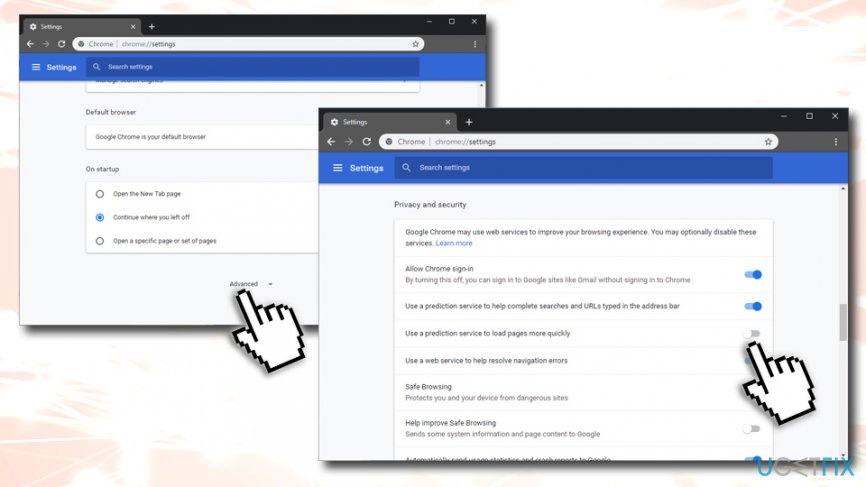
Fix 100 disk usage on windows 10 change google chrome settings
Fix 2. Change Skype settings
- Press Ctrl + Shift + Esc simultaneously.
- In the Task Manager, locate SkypeApp and shut it down by clicking on it once and then End task.
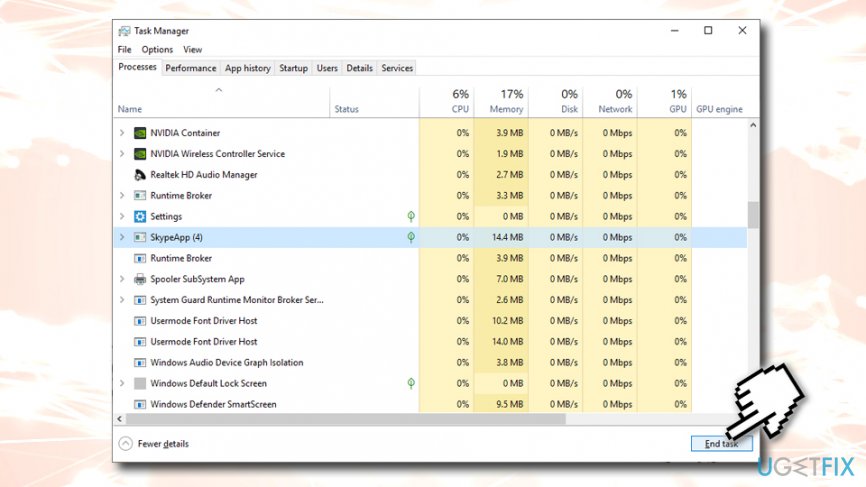
Fix 100 disk usage on windows 10 change skype settings - Once done, open Windows Explorer and navigate to C:\\Program Files (x86)\\Skype\\Phone\\.
- Right-click on Skype.exe and select Properties.
- Click on Security tab, select Edit, and highlight ALL APPLICATION PACKAGES.
- Place a check mark in the Write box.
- Click Apply and OK to save the changes.
Fix 3. Try a Clean Boot to fix 100% disk usage on Windows 10
- Open search, type System Configuration, and press Enter.
- Go to the Services, select Hide all Microsoft services and then Disable all.
- Open Startup tab and select Task Manager.
- Mark all non-Microsoft applications and click Disable.
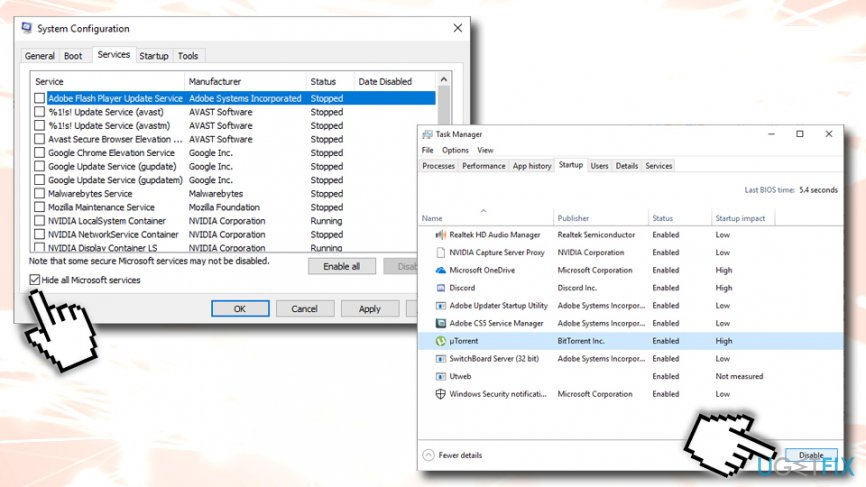
Fix 100 disk usage on windows 10 perform clean boot - Once done, exit Task Manager.
- On the System Configuration dialogue box, click OK.
- Restart the system.
Check if the memory usage went back to normal. If it did, then you should enable applications one by one to find out which one of them is problematic.
Fix 4. Disable Windows 10 search
- Type in cmd into the search bar
- Right click on Command Prompt search results and select Run as administrator
- On the UAC window, click OK.
- Type in the following and hit Enter:
net.exe stop "Windows search"
- After that, check if your Windows 10 disk usage decreased to the normal level.
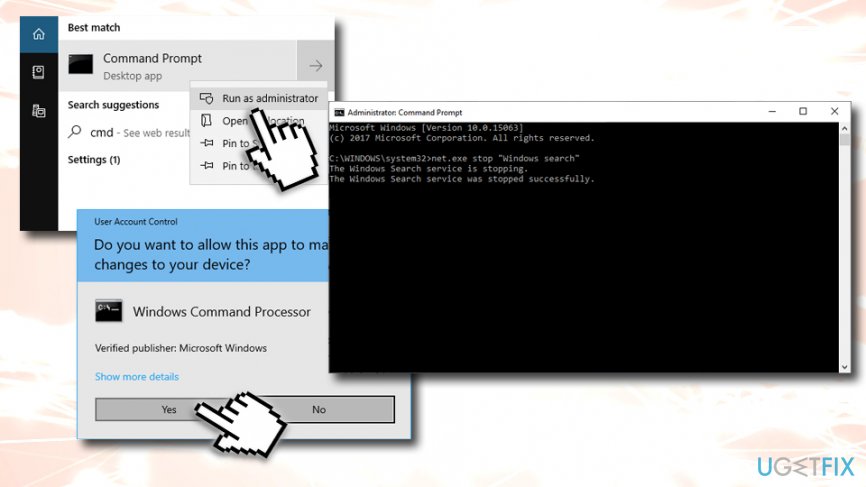
Fix 100 disk usage on windows 10 stop windows search
Dix 5. Disable Adobe Flash in Google Chrome browser
Adobe Flash Player is one of the most vulnerable software ever created. It has multiple flaws which were abused by many cybercriminals over the years. For that reason, Adobe plans to shut down the plugin in 2020. Users reported that it can also cause 100% disk usage. You should disable the tool, as modern browsers do not really require it anymore:
- Go to menu and click on Settings
- Select Show advanced settings
- Next, go to Privacy > Content settings
- Find Flash and select Block sites from running Flash
Fix 6. Disable Superfetch Service
This service has been suspected as a potential cause of disk usage issues on earlier Windows versions, so disabling it is worth trying in Windows 10 system, which is encountering a 100% disk usage issue. For that, you should:
- Go to Command Prompt (Admin) again
- Click OK on the UAC window.
- Type net.exe stop superfetch command in the log and press Enter.
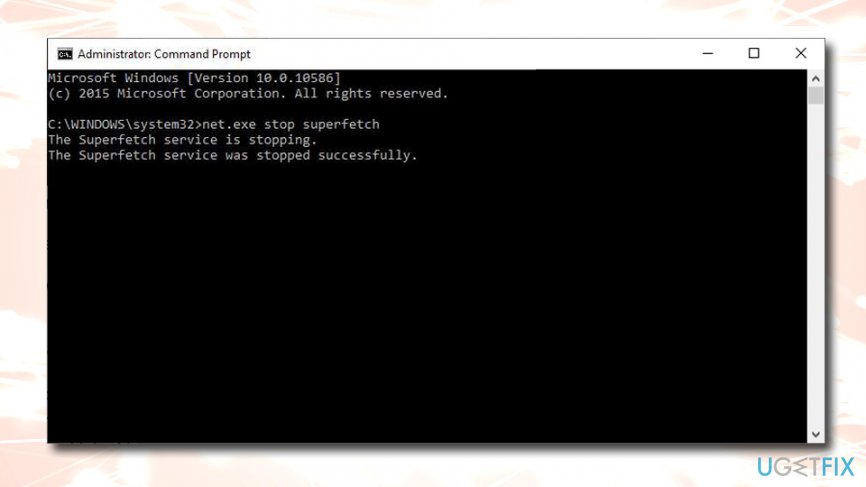
Fix 100 disk usage on windows 10 stop superfetch
Fix 7. Run disk check
Disk check command can be run via Command Prompt in order to make sure your HDD is not affected by bad sectors which can result in 100% disk usage on Windows 10.
- Go to Command Prompt (Admin)
- In the new window, type in
chkdsk C: /f /r /x
Note: replace the letter C with the drive your operating system is installed into - You should restart the computer to run the check
Hopefully, you have adjusted some of the above-listed tips and managed to fix 100% disk usage on Windows 10. In general, the disk usage should rarely reach 100%, and, in case you tried all the methods mentioned above and nothing worked, it is likely that your hardware components are failing.
Bottom line
To fix 100% disk usage on Windows 10, consider closing either Google Chrome or Skype if both are running simultaneously. Additionally, check advanced settings in Google Chrome and disable the 'Protect you and your device from dangerous sites' option if malware is present. If these solutions do not resolve the issue, further troubleshooting may be necessary.
Frequently asked questions
Common causes include Windows Search indexing, Superfetch service, and various background processes consuming resources.
You can disable Windows Search by opening the Services app, locating 'Windows Search,' and setting its startup type to 'Disabled'.
Yes, disabling Superfetch can alleviate disk usage problems, especially if you notice high disk activity caused by this service.




Report an issue
What's wrong with this guide? We review every report and update or remove content.
Report received — thank you. We'll review and fix it.
You need a free account to submit a report.
Be the first to comment