How to fix
“502 Bad Gateway Error” in Google Chrome and other browsers
on Windows
Resolve the "502 Bad Gateway Error" on Windows 10 or 11 effortlessly with expert-tested solutions. Get your browser back up and running in minutes!


What causes How to fix “502 Bad Gateway Error” in Google Chrome and other browsers?
- Issues with the user's internet connection
- Problems with the website's server
- Issues with the user's computer or browser
- Browser extensions causing conflicts
- Corrupted cache and cookies
Repairs Windows system files, removes malware, and restores a clean OS state — without reinstalling.
Hello. I can't access a website on Chrome because I get the "502 Bad Gateway Error". Is there a way to get rid of it?
The 502 Bad Gateway error is a common problem that can occur when attempting to access a website. When a user receives this error, it indicates that the website they are attempting to access is not responding due to a server problem. This error can be caused by a number of factors, including issues with the user's internet connection, problems with the website's server, or issues with the user's computer or browser.
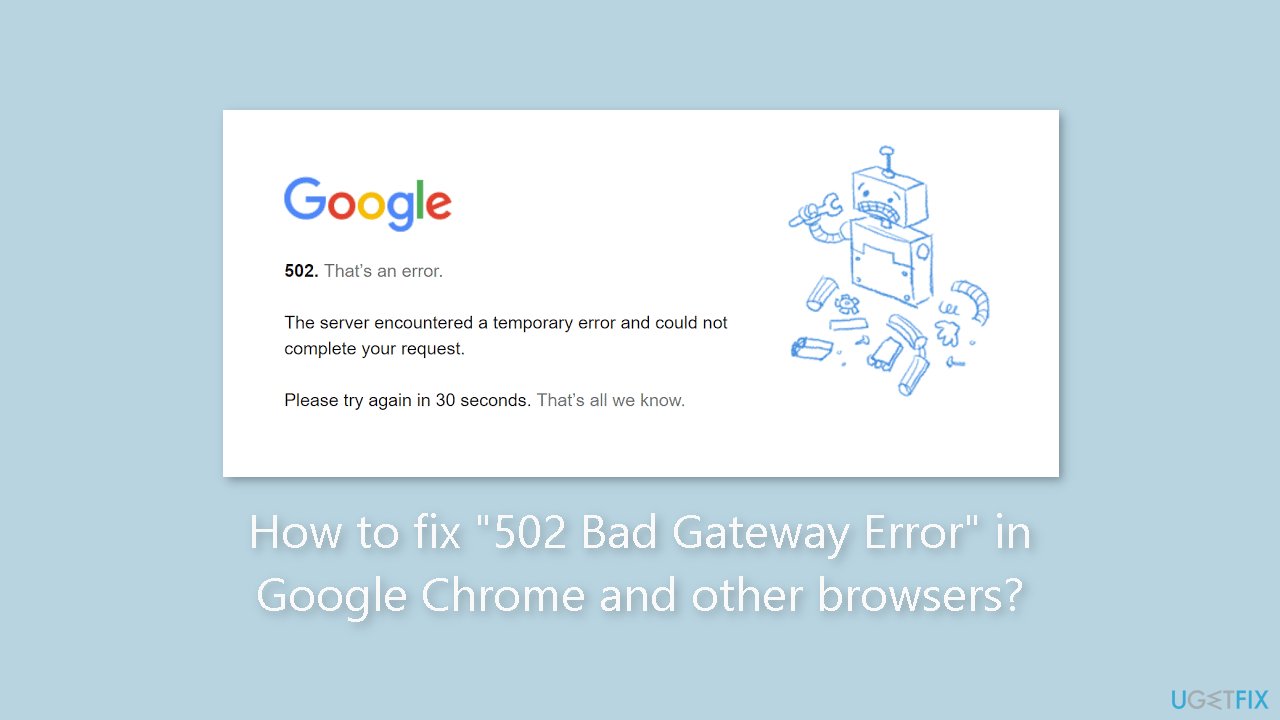
There are different variations of the 502 error that users may encounter, including 502 Bad Gateway, 502 Service Temporarily Overloaded, Error 502, Temporary Error (502), 502 Proxy Error, 502 Server Error: The server encountered a temporary error and could not complete your request, HTTP 502, 502. That's an error, and Bad Gateway: The proxy server received an invalid response from an upstream server.
The impact of this error on users can range from a minor annoyance to a complete inability to access a website or perform certain tasks. For example, if a user attempts to make a purchase on an e-commerce site and receives a 502 error during the checkout process, the user may be unable to complete the transaction.
Refreshing the page, clearing the browser cache and cookies,[ref en-1] disabling browser extensions, restarting the browser or computer, and checking for internet connectivity issues are all possible solutions to this problem. However, the specific solution that will work for a user will be determined by the cause of the error, which may necessitate some troubleshooting.
In this guide, you will find 7 steps that should help you fix "502 Bad Gateway Error" in Google Chrome and other browsers. However, if you want to avoid a lengthy troubleshooting process, you can try using a maintenance tool like [d1] that can fix most system errors, BSODs,[ref en-2] corrupted files, registry[ref en-3] issues, or clear cookies and cache automatically. Otherwise, follow the step-by-step instructions below.
Solution 1. Reload the page
- Press F5 or Ctrl + R (Command + R on a Mac) on your keyboard.
- Alternatively, click on the refresh/reload button.
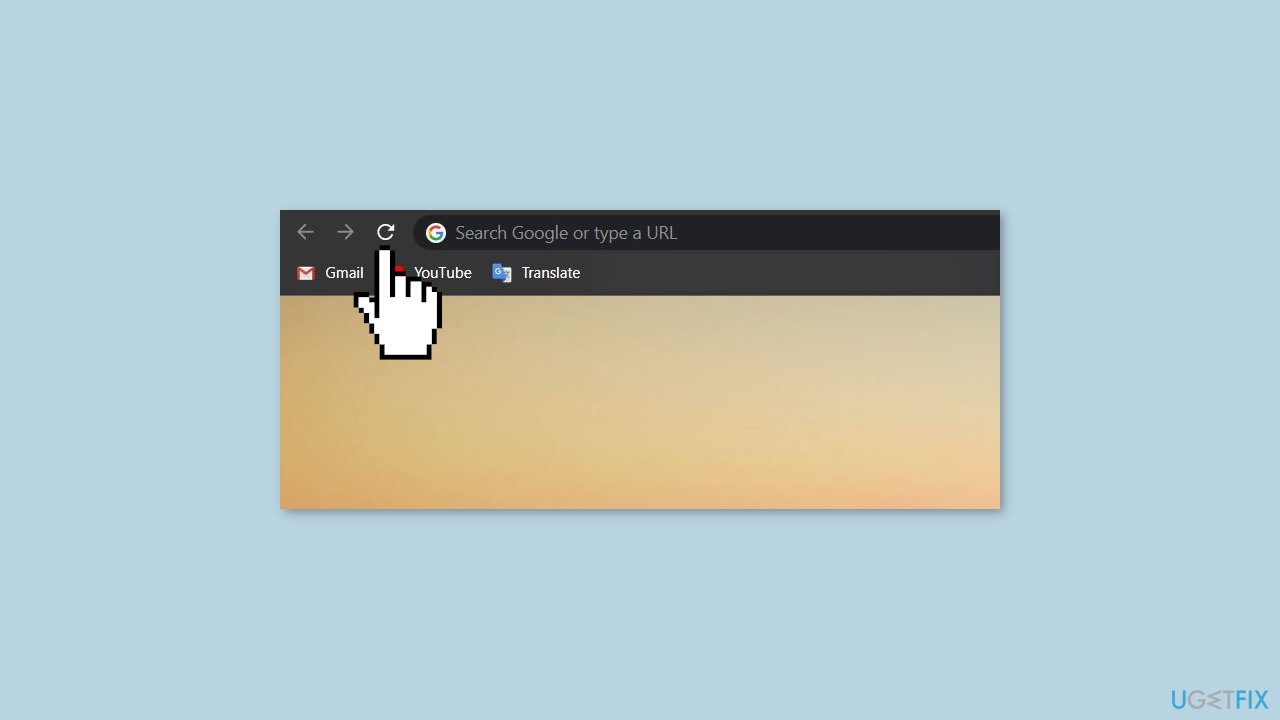
- This will reload the webpage that you are trying to access.
- If the webpage still does not load, repeat the process.
Solution 2. Start a new browser session
It's possible that the 502 error you encountered was caused by an issue on your computer that occurred while using your browser. To solve the problem, you can try restarting the browser program itself by starting a new browser session.
- Close all open browser windows.
- Open a new browser window.
- Attempt to open the webpage again.
Solution 3. Restart your PC
If you're experiencing 502 errors on multiple websites, it's possible that temporary issues with your computer or network connection are to blame. In such cases, restarting your computer may resolve the issue.
Solution 4. Restart the router
If you're encountering 502 Bad Gateway or other 502 errors, it's possible that issues with your modem, router, switches, or other networking devices could be the culprit. Restarting these devices could potentially solve the problem.
Solution 5. Clear browsing data
Chrome:
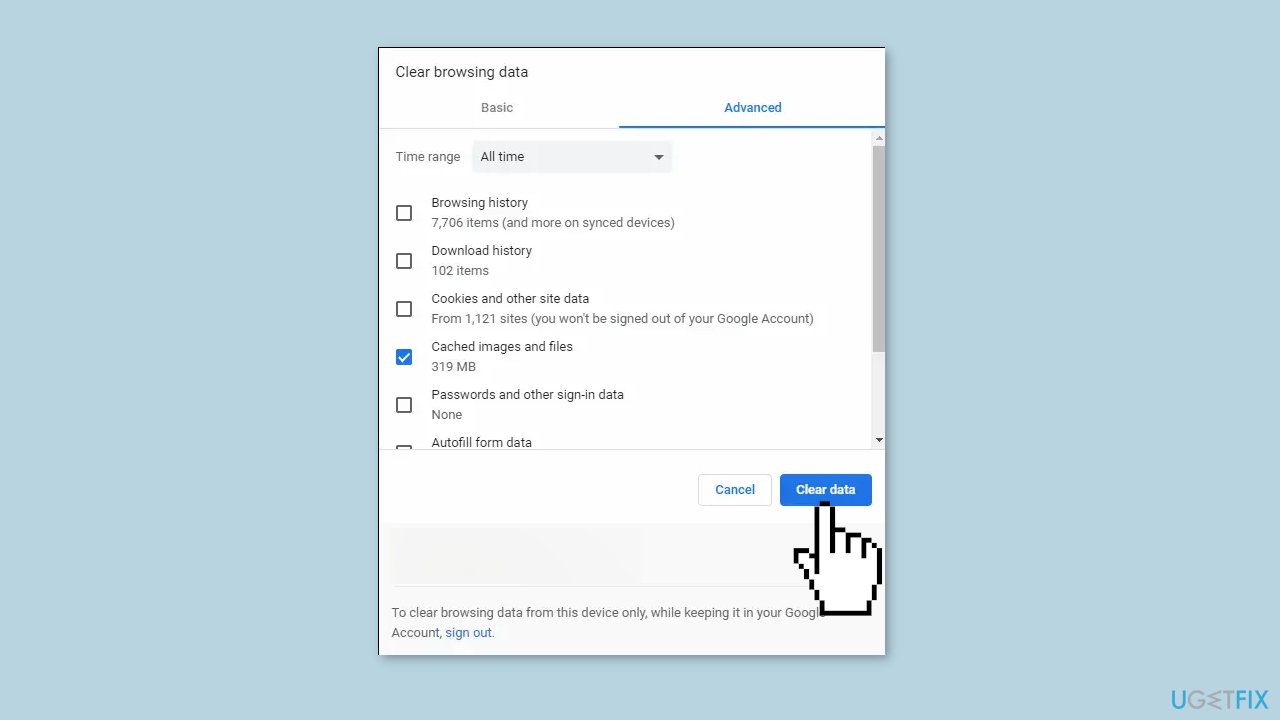
- Click on the 3 vertical dots located in the upper-right corner of the Chrome screen.
- Select More Tools from the dropdown menu.
- Choose Clear browsing data from the subsequent menu.
- Check the box next to Cookies and other site data.
- Click on the Time range drop-down arrow and select a time period. For instance, select All time to delete all cookies and passwords in Chrome, regardless of when they were saved.
- Click on the Clear data button.
Firefox:
- Click on the menu button located in the upper-right corner of Firefox.
- Select Settings from the dropdown menu.
- Select Privacy & Security from the left-hand menu.
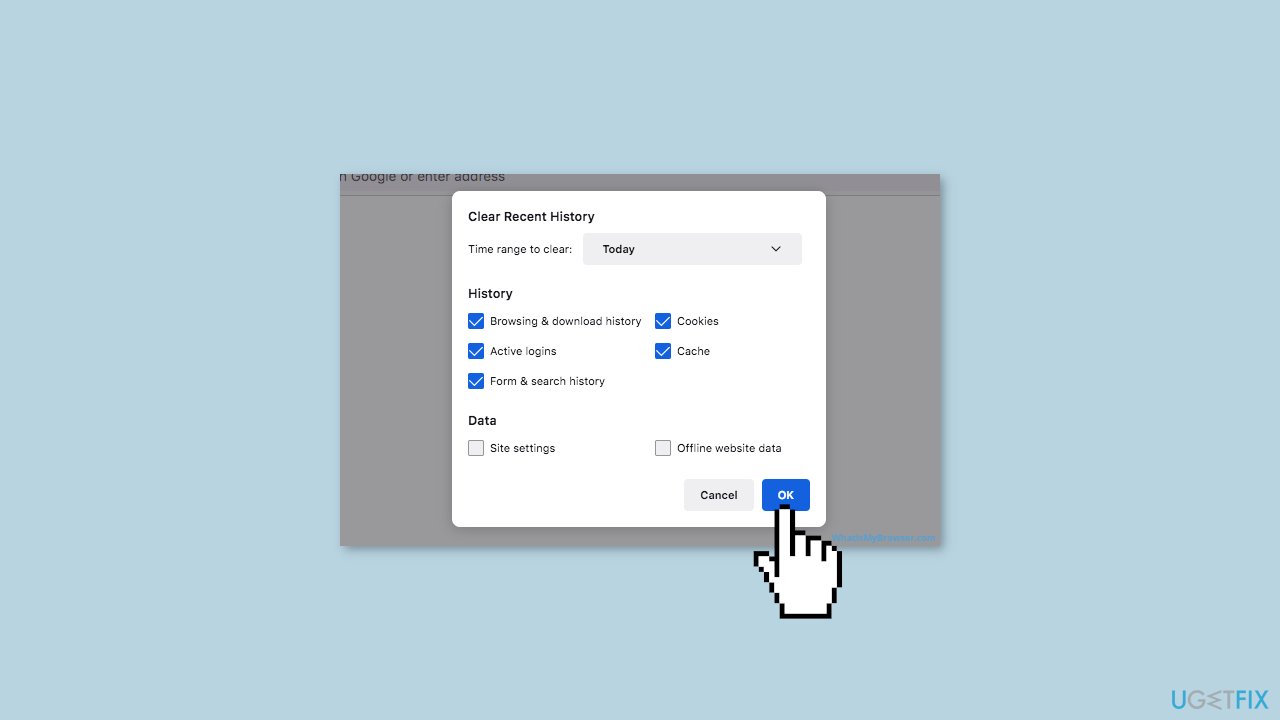
- Under the Cookies and Site Data section, select Clear Data.
- Check the box next to Cookies and Site Data.
- Click on the OK button.
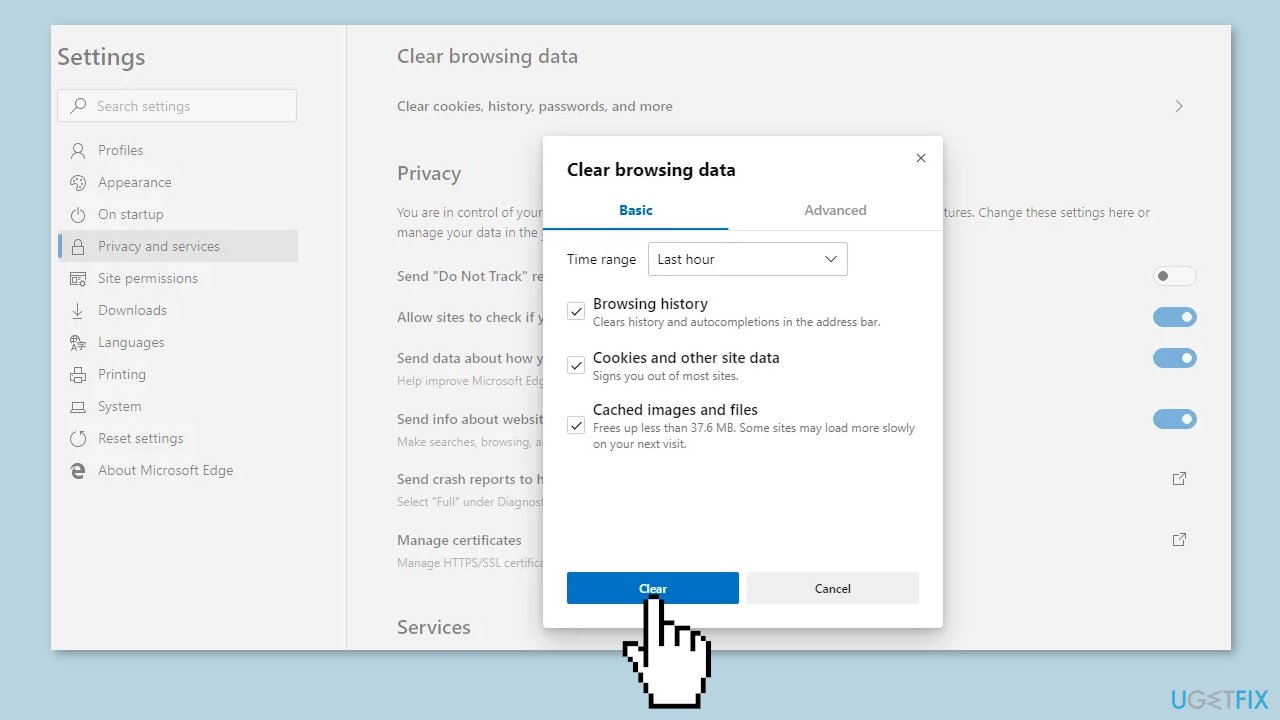
Edge:
- Click on the three horizontal dots located in the upper-right corner of Microsoft Edge or press Alt + F.
- Select Settings from the dropdown menu.
- Click on Privacy, search, and services from the left-hand pane. If you don't see the left pane, click on the three-lined menu button at the top left to open it.
- Select Choose what to clear from the Clear browsing data section.
- Ensure that the checkbox next to Cookies and other site data is checked. You can also choose to delete other types of data such as passwords, download history, browsing history, cached images and files, and more.
- Click on the Clear button.
Solution 6. Disable extensions
Chrome:
- Open Google Chrome.
- Click on the three vertical dots located in the top right corner of the Chrome window.
- From the dropdown menu, select More Tools.
- Choose Extensions from the subsequent menu.
- Turn off each extension one by one to see if one of them is causing the error.

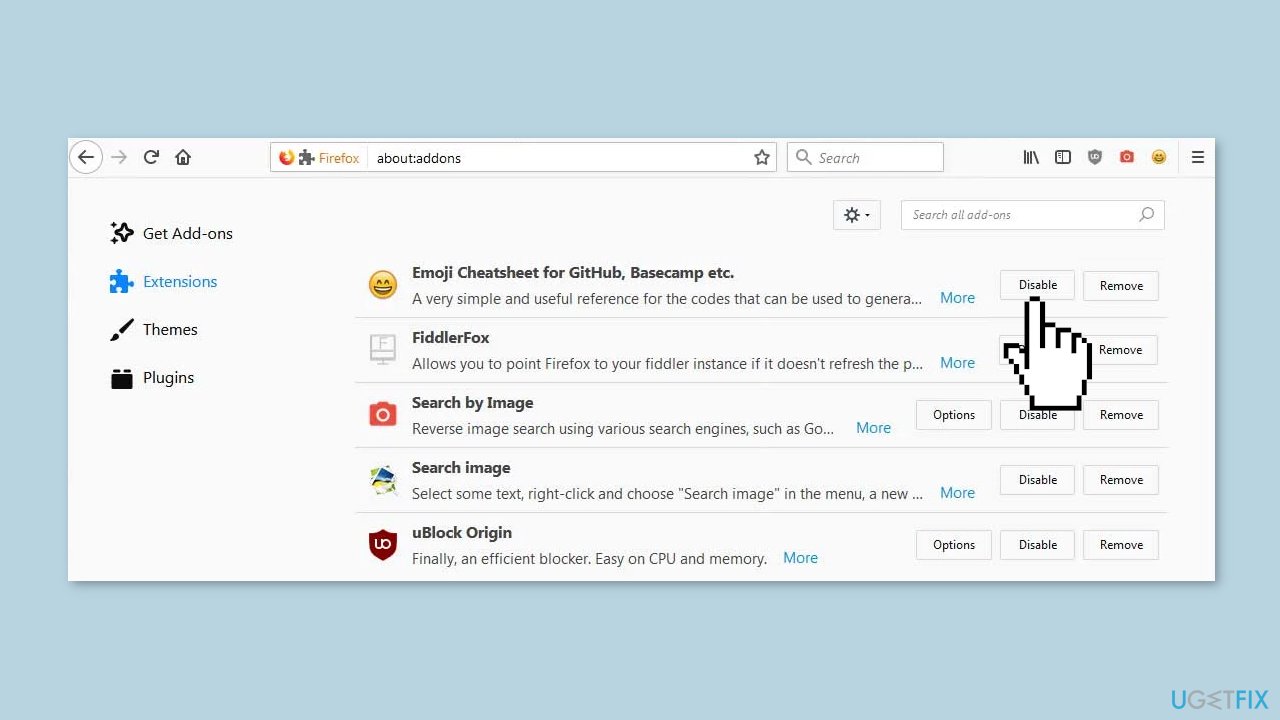
Firefox:
- Click on the menu button in Firefox located in the top right corner of the Firefox window.
- Click on Add-ons and Themes and then select Extensions.
- The Add-ons Manager Manage Your Extensions page will open in a new tab.
- Scroll through the list of extensions and disable them one by one to see if one of them is causing the issue.
Edge:
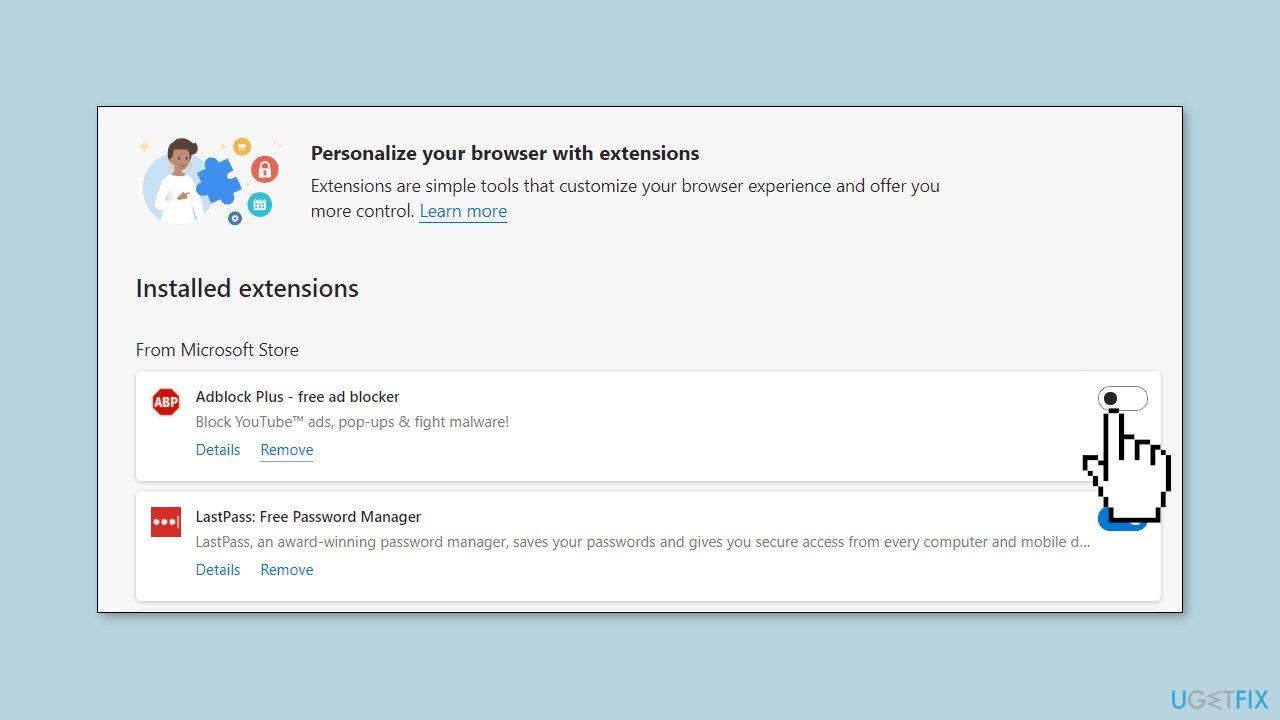
- Click on the menu icon in the top right-hand corner of the browser window.
- Click on Extensions.
- Select the plugin you want to disable, then click on the gear icon located next to it.
- Toggle the switch to turn off the plugin or browser extension.
Solution 7. Contact your internet service provider
If your browser, computer, and network are all functioning properly and the website reports that it's operational, a 502 Bad Gateway issue could be attributed to a network problem for which your internet service provider (ISP) is responsible.
Bottom line
To fix the 502 Bad Gateway error, you can try refreshing the page, clearing the browser cache and cookies, disabling browser extensions, or restarting your browser or computer. If these steps do not resolve the issue, consider using a maintenance tool to fix system errors or perform further troubleshooting.
Frequently asked questions
The '502 Bad Gateway Error' typically occurs when a server acting as a gateway or proxy receives an invalid response from the upstream server. This can happen due to server overload, network issues, or misconfigured settings.
You can troubleshoot this error by clearing your browser cache, checking your internet connection, or trying to access the website using a different browser. Additionally, restarting your router or flushing the DNS cache may resolve the issue.
Yes, similar steps can be taken in other browsers, such as clearing the cache, disabling browser extensions, or checking firewall settings to ensure they are not blocking the connection. If the problem persists, checking the website's status or contacting the site administrator may be necessary.




Report an issue
What's wrong with this guide? We review every report and update or remove content.
Report received — thank you. We'll review and fix it.
You need a free account to submit a report.
Be the first to comment