How to fix
7-Zip Data error
on Windows
Resolve 7-Zip data errors on Windows 10 and 11 efficiently. Follow our expert-tested guide for quick fixes and get back to file management in no time!


What causes How to fix 7-Zip Data error in Windows?
- Incomplete downloads
- Physical storage damage
- Compatibility issues
- Outdated 7-Zip version
- Corrupted files
Repairs Windows system files, removes malware, and restores a clean OS state — without reinstalling.
I've been encountering a problem with 7-Zip on my Windows computer. Whenever I try to extract files from an archive, I get an error message saying '"Data error'." It's quite annoying because it happens with different files, and I'm not sure what's causing it. Any advice would be appreciated.
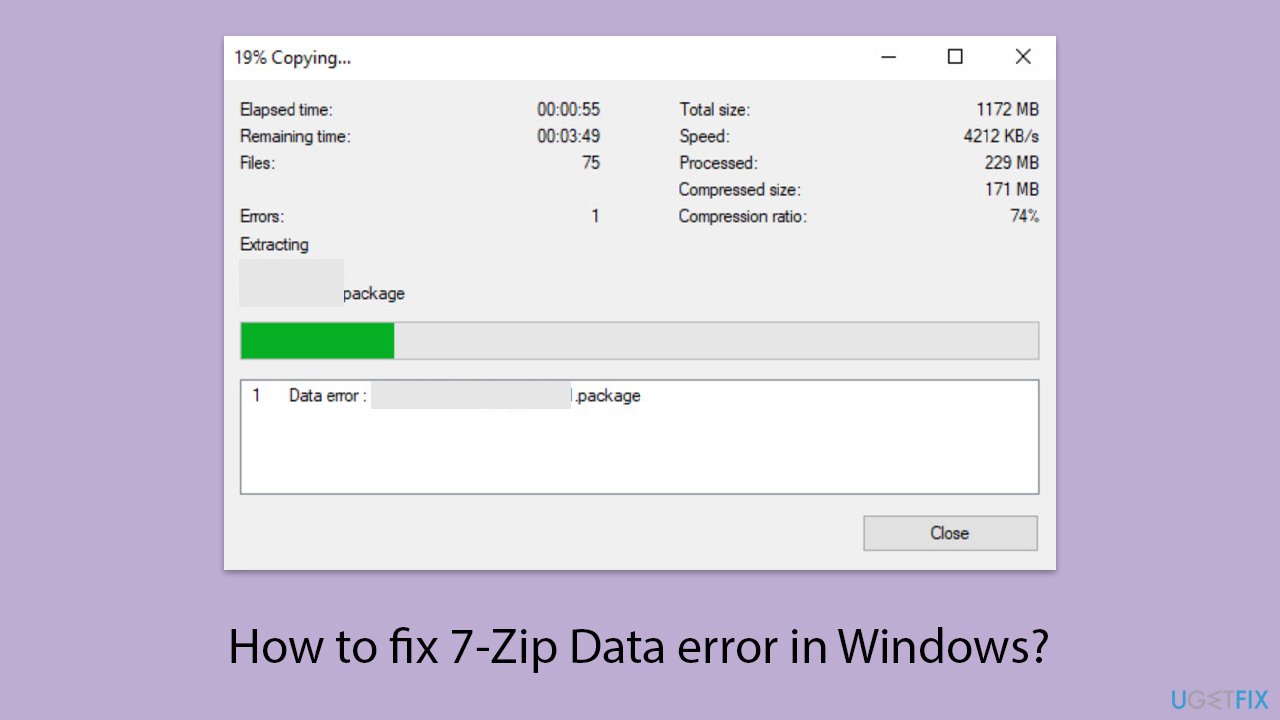
7-Zip is a popular open-source file archiver known for its excellent compression ratio and ability to support a variety of archive formats. However, when attempting to extract files, users may receive a "Data error" notice. This issue typically indicates that 7-Zip found faulty or incomplete data within the archive, which prevented successful extraction. Incomplete downloads, physical storage damage, or compatibility issues are all potential causes of the problem.
First, ensuring that the archive was completely and correctly downloaded is essential. Partial downloads often lead to corrupted files, which can trigger the "Data error". Verifying the integrity of the download or attempting to download the file again from a reliable source can rectify this issue.
Second, storage media issues can corrupt files, including those within archives. Running a disk check on the storage device holding the archive can identify and possibly fix bad sectors or other problems that might corrupt data.
Third, compatibility or specific file format issues might cause 7-Zip to struggle with certain archives. Ensuring that 7-Zip is updated to the latest version can help, as newer versions improve support for various formats and fix known bugs.
Lastly, using alternative software to attempt extraction can sometimes bypass the issue if it is specific to 7-Zip's handling of the archive. If alternative software successfully extracts the files, the problem may lie with the app's compatibility with that particular archive format or compression method.
Addressing the "Data error" in 7-Zip often involves a process of elimination, starting from the simplest solutions like re-downloading and moving towards more technical steps such as checking for storage device errors. For a comprehensive approach to resolving underlying system issues that could be affecting 7-Zip and other applications, professional PC repair software [d1] can be invaluable.
Fix 1. Redownload the archive
Sometimes, the "Data error" message appears because the archive was not fully downloaded or got corrupted during the download process. Redownloading the file from a reliable source might resolve the issue.
- Navigate to the original source of the file.
- Delete the previously downloaded archive to avoid confusion.
- Download the file again, ensuring the download completes successfully.
- Try extracting the file with 7-Zip again once the download is finished.

Fix 2. Restart 7-Zip
A simple restart of the application can sometimes resolve minor glitches or errors that occur during its runtime.
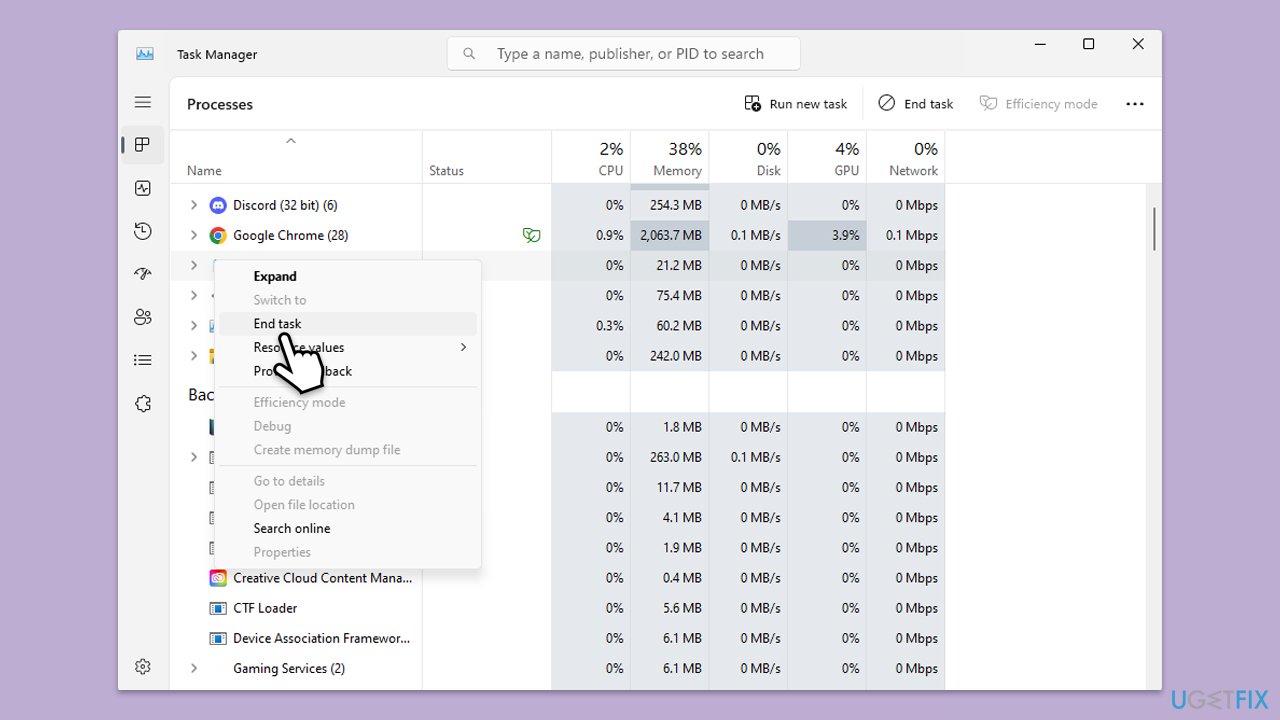
- Close the 7-Zip application entirely. Make sure it's not running in the background. To do that, press Ctrl+Shift+ Esc to open the Task Manager, find any related instances, right-click on them, and select End Task.
- Wait a few seconds.
- Reopen the app and attempt to extract the file again.
Fix 3. Double-check for the correct password
If the archive is password-protected, entering the wrong password can lead to a "Data error" message. Ensuring you have the correct password is crucial.
- Confirm the password for the archive, checking for any possible typos or case sensitivity issues.
- Enter the password carefully when prompted during extraction.
- If uncertain about the password, contact the source of the archive for clarification.
Fix 4. Scan your system for malware
Malware can corrupt files, including archives, leading to errors. Running a malware scan can detect and remove any malware that might be causing issues. You can use any reliable third-party security software, employ Microsoft Security Scanner, or simply Windows Defender:
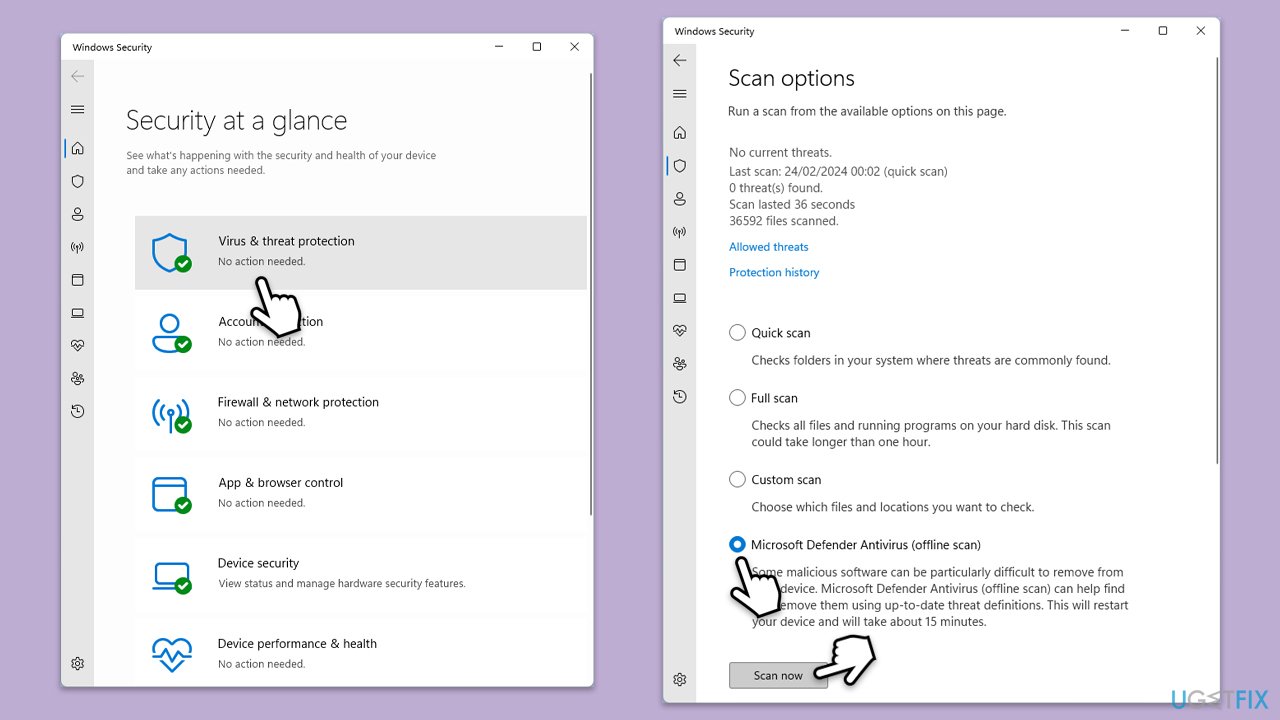
- Type Windows Security in the Windows search bar and hit Enter.
- Select Virus & threat protection.
- Pick Scan options.
- Choose Microsoft Defender Offline scan and click Scan now.
- Your computer will immediately reboot and begin a deep scan.
Fix 5. Perform Disk Check
Bad sectors on your hard drive can corrupt files stored on it, including archives. Running a disk check can find and attempt to repair these issues.
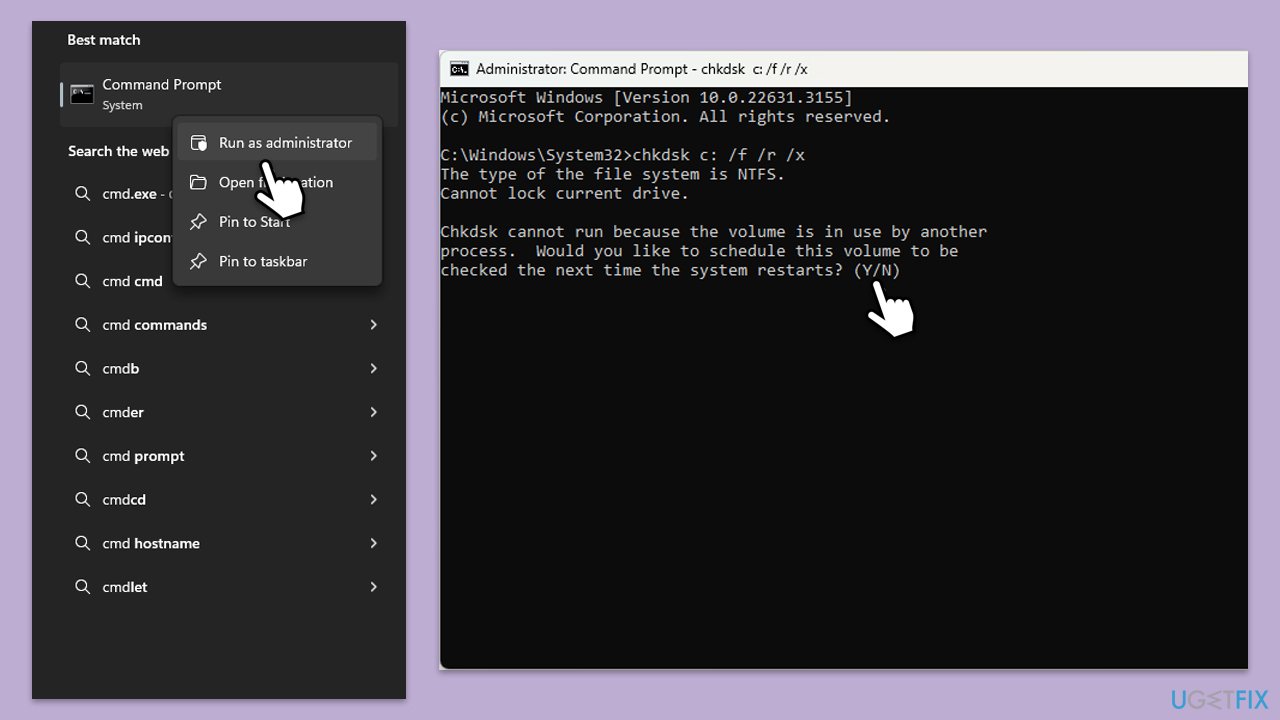
- Type cmd in Windows search.
- Right-click on Command Prompt and pick Run as administrator.
- Click Yes when UAC asks for access.
- Type in the following command and press Enter after:
chkdsk c: /f
(Note: use chkdsk c: /f /r /x command if you use SSD as your primary partition). - If you receive an error, type in Y, close down Command Prompt, and restart your computer.
- After a restart, Windows will begin to scan your disk. After your system boots back up, you can find the results in the Event Viewer.
Fix 6. Reinstall 7-Zip
A corrupted 7-Zip installation can cause various errors. Reinstalling the program ensures you have a clean, error-free installation.
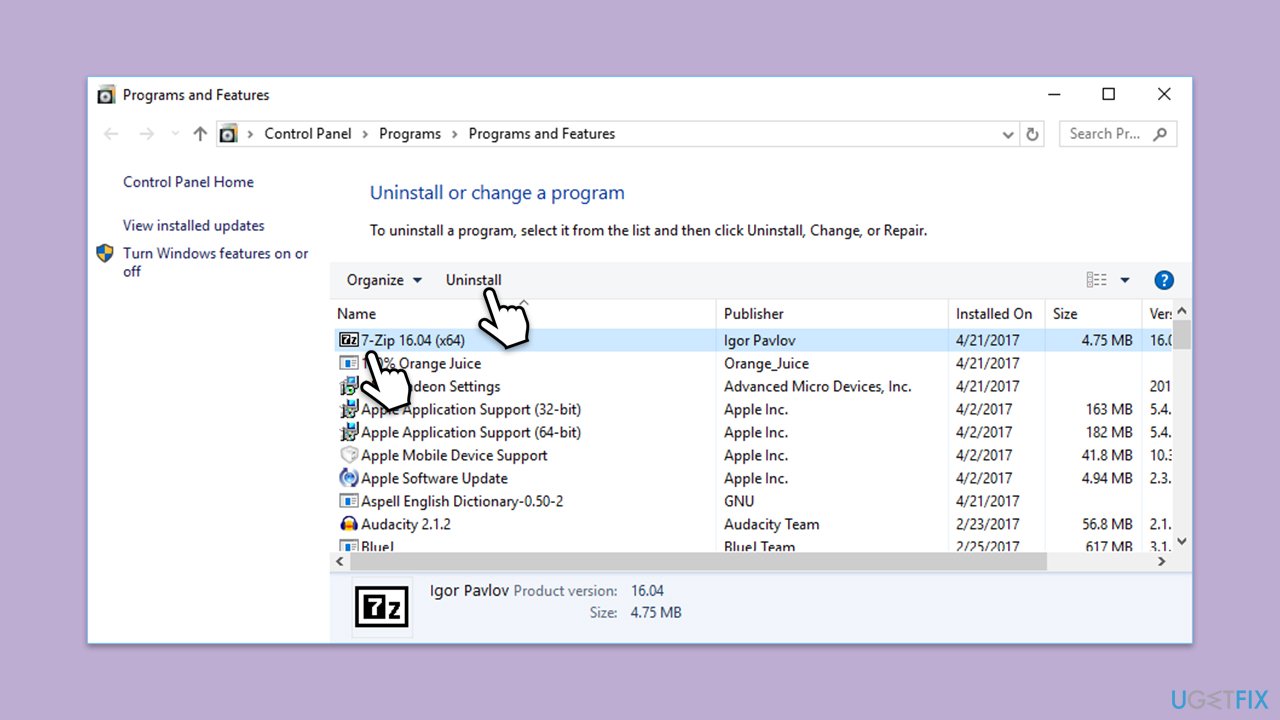
- Open the Control Panel and go to Programs > Uninstall a program.
- Find 7-Zip in the list and select it, then click Uninstall.
- Follow the prompts to uninstall it.
- Restart your PC.
- Download the latest version of 7-Zip from the official website.
- Install the app by following the installation prompts.
- After installation, restart your computer and try extracting the archive again.
Bottom line
To fix the 7-Zip data error, ensure the archive is completely downloaded, run a disk check on the storage device, and update 7-Zip to the latest version. If the issue persists, consider using alternative extraction software or seek professional PC repair software for further assistance.
Frequently asked questions
The 7-Zip Data error can be caused by corrupt files, interrupted downloads, or issues with the storage media. Ensuring the integrity of your files and the health of your hard drive can help prevent this error.
To fix the 7-Zip Data error on Windows 11, try re-downloading the files or using a different extraction tool. Additionally, running a disk check can help identify and resolve underlying storage issues.
Yes, you can attempt to recover files from a corrupted 7-Zip archive by using the 'Test' feature in 7-Zip, or by using recovery software designed for damaged archives.




Report an issue
What's wrong with this guide? We review every report and update or remove content.
Report received — thank you. We'll review and fix it.
You need a free account to submit a report.
Be the first to comment