How to fix
80248015 Error
on Windows
Resolve the 80248015 error on Windows 7 effortlessly. Follow our expert-tested solutions for a smooth experience with zero traces left.

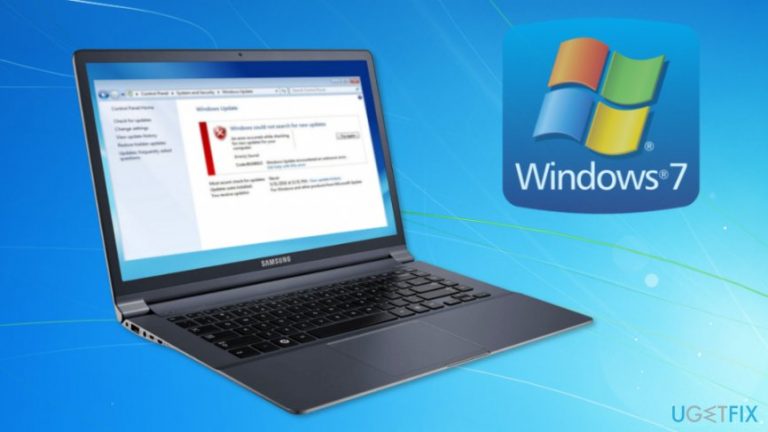
What causes How to Fix 80248015 Error in Windows 7?
- Expired authcab.cab file
- Authorization.xml file expiration
- Service not running
- Issues with Windows Update
- User attempts to restart computer
Repairs Windows system files, removes malware, and restores a clean OS state — without reinstalling.
I cannot check for available updates on Windows 7. I restarted computers, ran Troubleshooter and ran scf /scannow command. However, it still gives me 80248015 error. How can I fix it?
Windows 7 users started reporting about Windows 7 Update Error 80248015 on Microsoft forums[ref en-1] since the 3rd of December. Once they checked for the available updates, they receive one of the two error messages:
Windows Update cannot currently check for updates, because the service is not running. You may need to restart your computer.
or
Windows could not search for new updates. An error occurred while checking for new updates for your computer. Error(s) found: Code 80248015. Windows Update encountered an unknown error.
However, restarting the system and running Troubleshooter does not help. The problem seems to be related to an expired authcab.cab file which is located in C:\\Windows\\SoftwareDistribution\\AuthCabs\\authcab.cab directory.[ref en-2] This file includes an authorization.xml file which became expired on 12/3/2017 at 11:59:25 PST.
In order to fix 80248015 Error in Windows 7, Microsoft should release an update to the expired CAB file.[ref en-3] In the meantime, you can try two methods offered by online community to solve the issue temporarily.
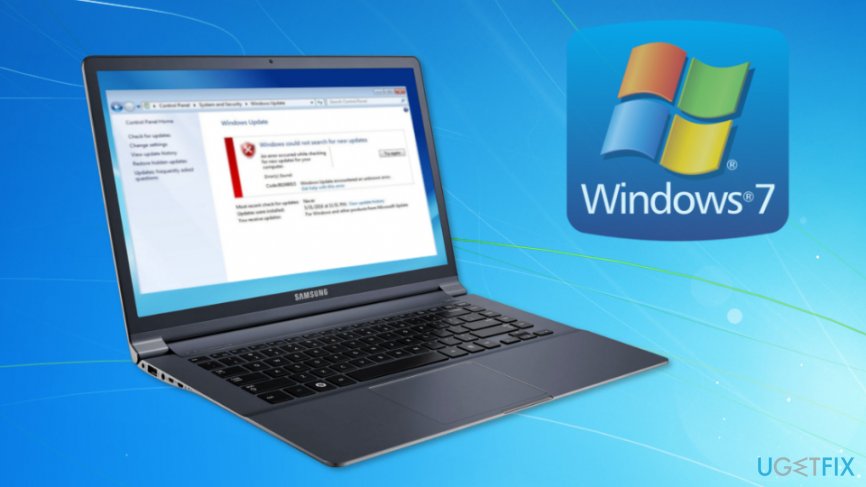
Two methods that might help to fix 80248015 Error in Windows 7
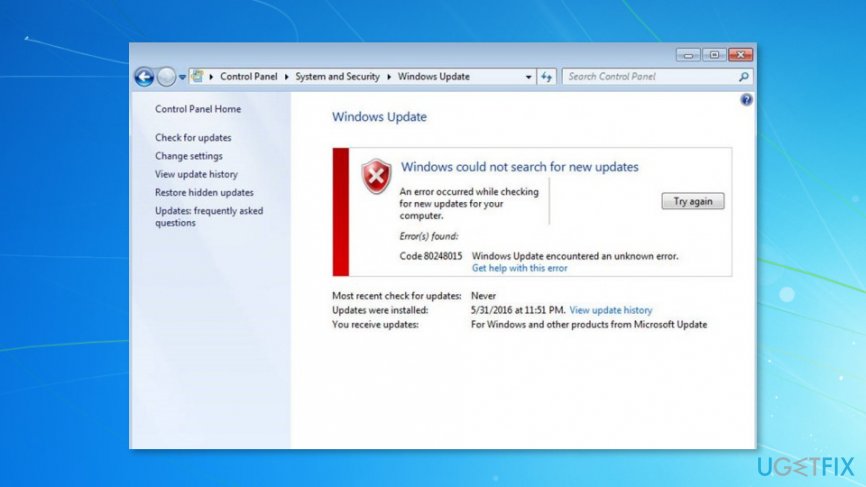
Microsoft did not provide the official solution to the problem. However, computer users and IT specialists suggest trying alternative methods and fix the update error temporarily. Unfortunately, not all Windows 7 users were able to solve the update issue using these two methods.
Method 1. Change your computer’s time and run Windows Update
Windows 7 Update Error 80248015 is triggered by a CAB file that includes authorization.xml file that expires on 12/3/2017 at 11:59:25 PST. Thus, it explains why users after third of December started reporting about an error. This file is expired and cannot be updated.
Microsoft should provide the long-term solution to error becaus the corporation signs this file, and no one else can change its expiration date. However, users are advised to alter computers’ time and run Windows Update then.
- Click on the clock in the Taskbar.
- Select "Change date and time settings” option in the pop-up window.
- In the dialog box click “Change date and time…” button.
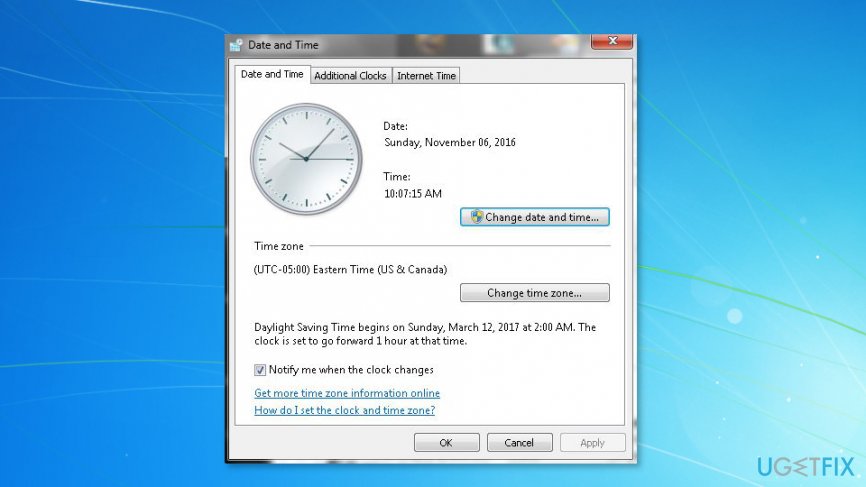
Change time to fix windows 7 update error - Set the time to 2nd of December 2017.
- Click OK to save the changes.
Method 2. Alter “Windows Update Change Settings”
Another method that might help to solve the problem temporarily is changing “Windows Update Change Settings,” more specifically, you have to remove the check from "Give me updates for Microsoft products and check for new optional Microsoft software when I update Windows” entry:
- Click Start and go to Control Panel.
- Go to System and Security > Windows Update > Change settings.
- Look up for Microsoft Update section. Below you should see "Give me updates for Microsoft products and check for new optional Microsoft software when I update Windows” entry. Uncheck this option.
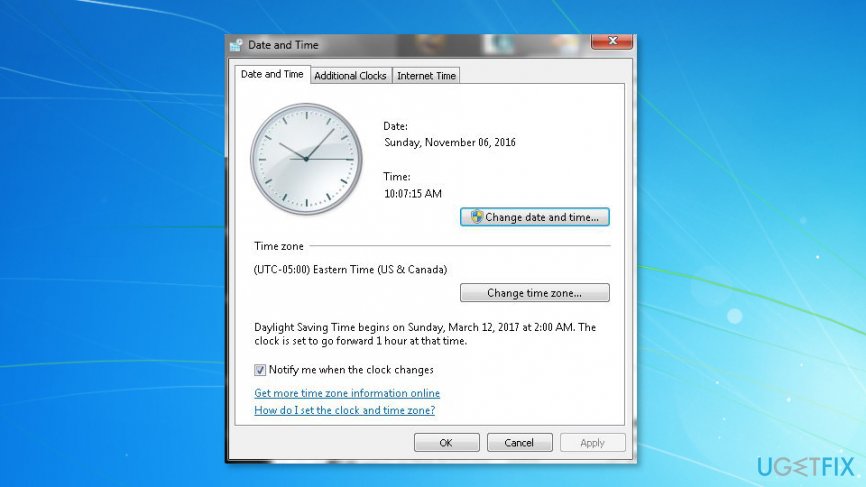
Change time to fix windows 7 update error - Click OK to save the changes.
Warning:
- Some computer users report that they were unable to find "Give me updates for Microsoft products and check for new optional Microsoft software when I update Windows” option in settings.
- Other users report that this method caused white screen or hourglass loop of Windows.
We want to point out that both of these methods are not officially suggested by Microsoft. Thus, they may not be effective. However, if you found another way to solve the problem, please let us know, and we update the article soon. Meanwhile, we should wait for Microsoft to update expired CAB file.
Bottom line
To fix the 80248015 error in Windows 7, users can try changing their computer's time and then running Windows Update. If these methods do not resolve the issue, it is recommended to wait for Microsoft to release an update to the expired CAB file.
Frequently asked questions
The 80248015 error usually indicates a problem with Windows Update services, preventing your system from downloading or installing updates properly.
While the 80248015 error is specific to Windows 7, similar update-related issues can occur on Windows 10 and Windows 11 with different error codes.
To fix the 80248015 error, you can try resetting the Windows Update components or running the Windows Update Troubleshooter from the Control Panel.




Report an issue
What's wrong with this guide? We review every report and update or remove content.
Report received — thank you. We'll review and fix it.
You need a free account to submit a report.
Be the first to comment