How to fix
“A breakpoint has been reached” error code 0x80000003
on Windows
Resolve the "A breakpoint has been reached" error 0x80000003 on Windows 10 and 11 swiftly. Get expert-tested solutions to eliminate this issue for good.

What causes How to fix “A breakpoint has been reached” error code 0x80000003 in Windows?
- Corrupted system files
- Memory leaks
- Issues related to video games
- Problems with Origin service
- Malfunctioning background processes
Repairs Windows system files, removes malware, and restores a clean OS state — without reinstalling.
Hello. Almost every time that I try to shut down my Windows computer I receive "A breakpoint has been reached" message with an error code 0x80000003. How do I fix this?
Windows is most likely the most popular operating system in the world. People use it because it has a user-friendly interface, built-in troubleshooters, customization abilities, and many other functions. A system like this relies on thousands of processes running in the background to keep it running smoothly.
Even if one process malfunctions, users can start experiencing various errors, bugs, glitches, etc. Recently, some users have described having issues when trying to turn off the computer. "A breakpoint has been reached" message with an error code 0x80000003 pops up:
A breakpoint has been reached
0x80000003 occurred in the application at location 0X0000000005CB7EF3
Click on OK to terminate the program
It seems like the error generally appears because of a video game or similar services. Reportedly, the message error points to Origin as the culprit. However, it is more likely that the error is related to Windows. It can appear because of corrupted system files or memory leaks.[ref en-1]
In this guide, you will find 4 methods that could help you fix "A breakpoint has been reached" error code 0x80000003 in Windows. Manual troubleshooting can be a lengthy process, so you can use a maintenance tool like [d1] that can fix most system errors, BSODs,[ref en-2] corrupted files, and registry[ref en-3] issues. Otherwise, follow the step-by-step instructions below.
Method 1. Fix Corrupted System Files
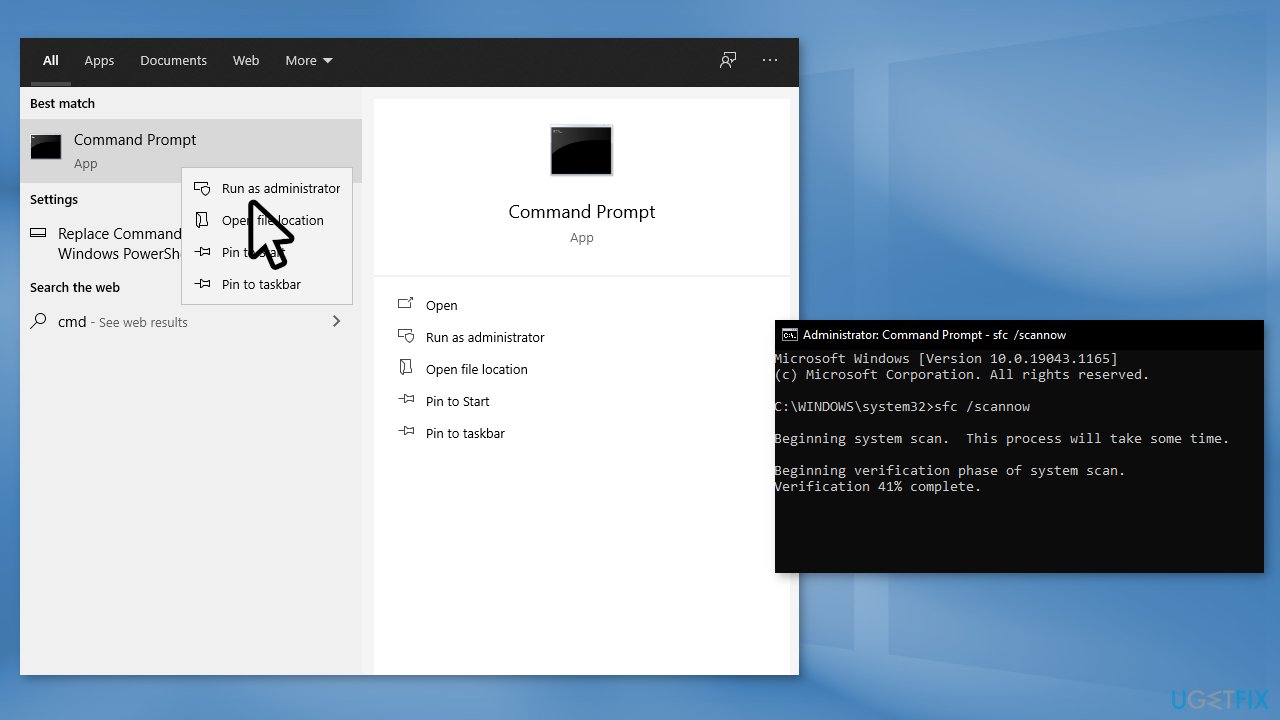
Use Command Prompt commands to repair system file corruption:
- Open Command Prompt as administrator
- Use the following command and press Enter:
sfc /scannow
- Reboot your system
- If SFC returned an error, then use the following command lines, pressing Enter after each:
DISM /Online /Cleanup-Image /CheckHealth
DISM /Online /Cleanup-Image /ScanHealth
DISM /Online /Cleanup-Image /RestoreHealth
Method 2. Check Disk
- Press the Windows key + R to open the Run box
- Type cmd and press Ctrl + Shift + Enter to launch it
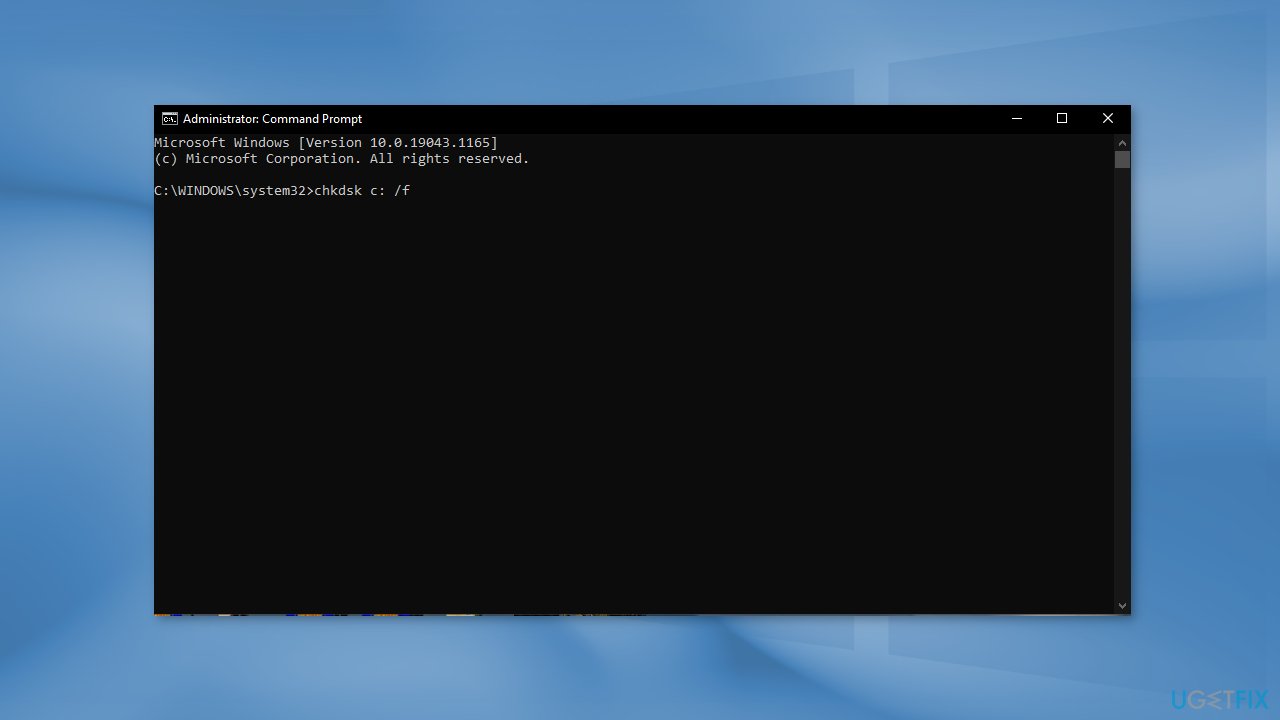
- Type the following command and press Enter:
chkdsk C: /r
- Once the scan finishes restart your PC
Method 3. Run a Memory Diagnostic Tool
The 0x80000003 error code can also be a symptom of memory leaks. Run the Memory Diagnostic Tool to check:
- Press the Windows key + R to open the Run box
- Type mdsched.exe and press Enter to launch Memory Diagnostic Tool
- Restart your PC using the prompt that appears
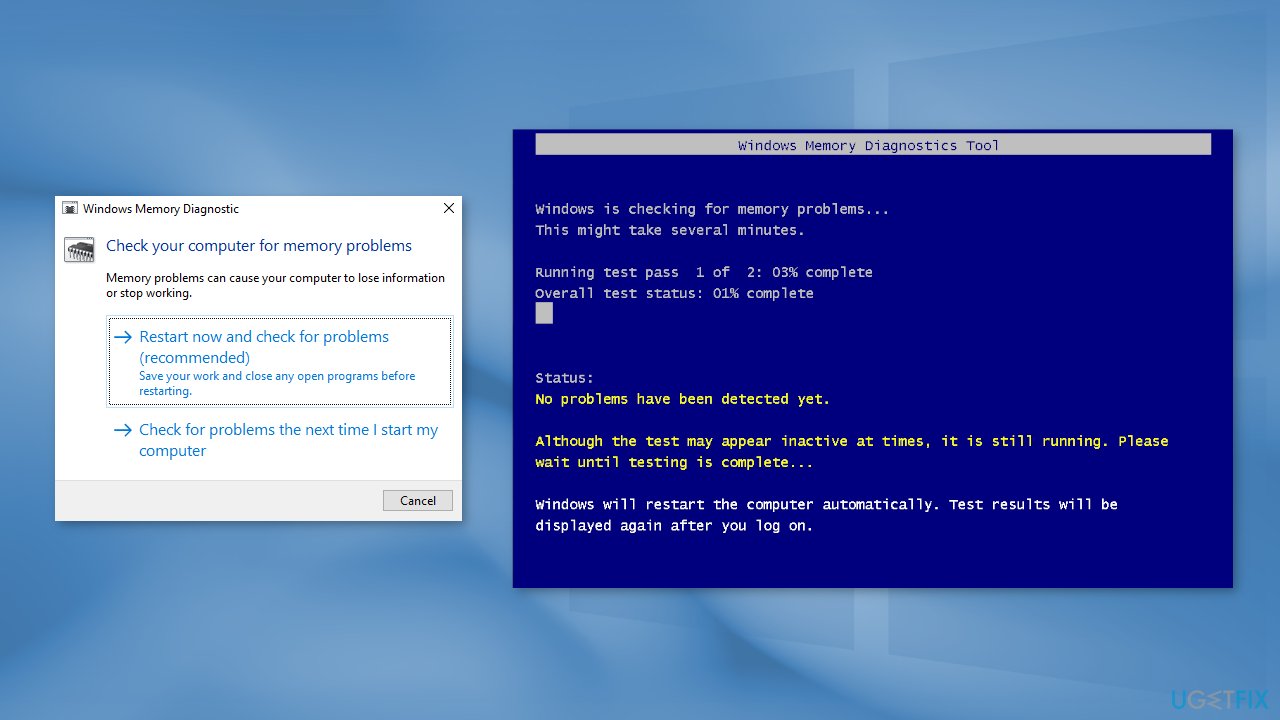
- You can also do that by typing the following command:
shutdown.exe /r
- After a reboot, perform a basic scan or go for the Advanced options like Test mix or Pass count
- Hit F10 to start the test
Method 4. Create a new Administrator Account in Windows
- Go to Settings and choose Accounts
- Select Family & other users
- Select Add someone else to this PC
- Click on I don't have this person's sign-in information, and on the next page, select Add a user without a Microsoft account
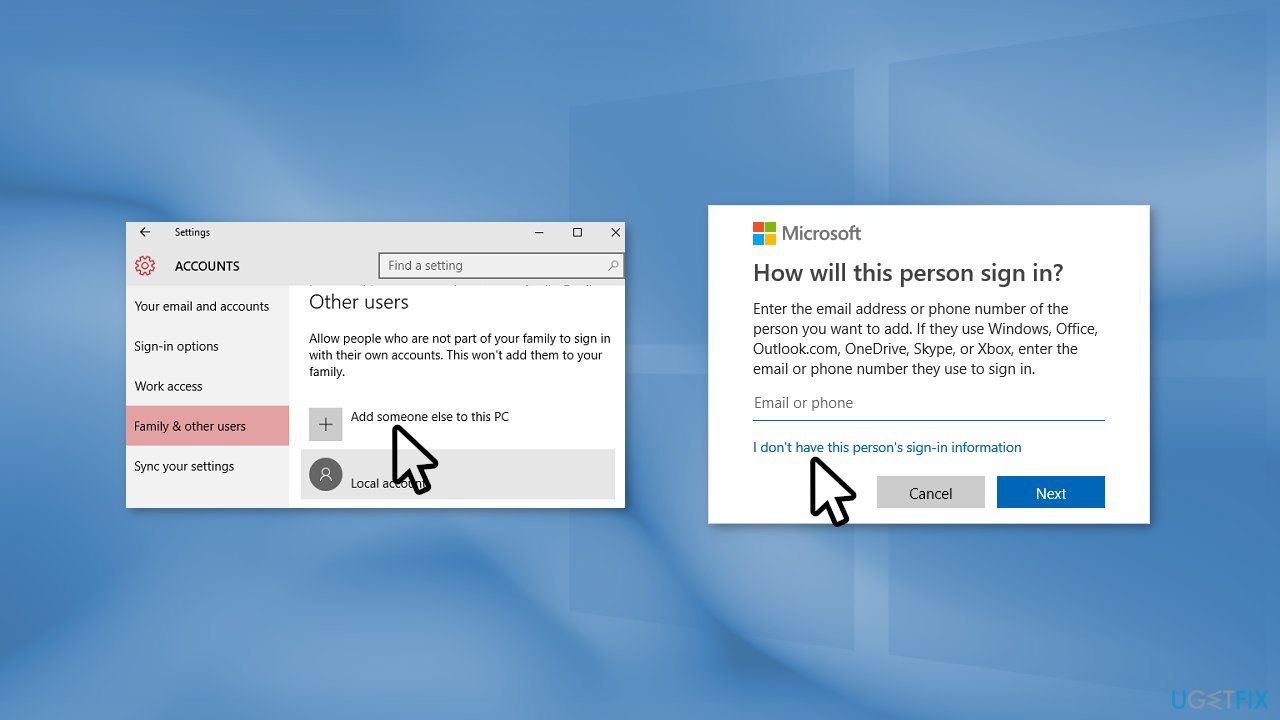
- Enter a user name, password, or password hint, and then select Next
- Go to Accounts again
- Under Family & other users, select the account owner name then select Change account type
- Under Account type, select Administrator, and then select OK
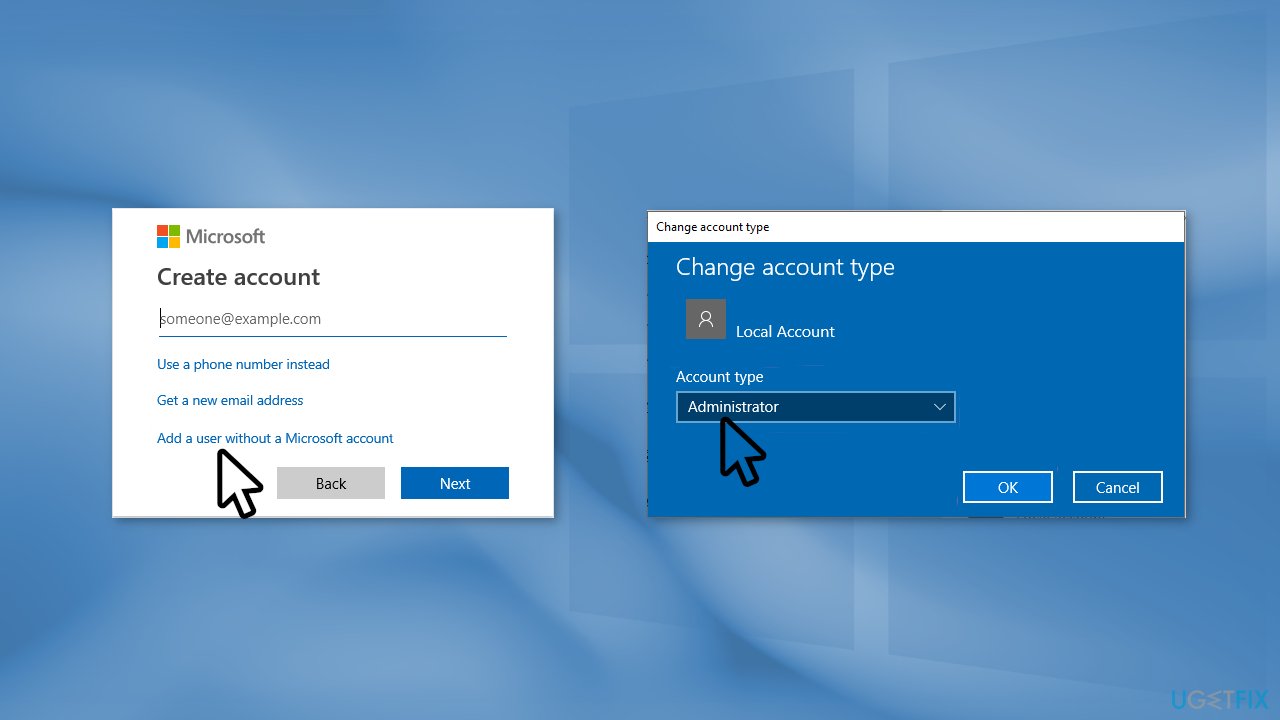
- Sign in with the new administrator account
- Check if the error persists
Bottom line
To fix the "A breakpoint has been reached" error code 0x80000003, you can repair corrupted system files using Command Prompt, check your disk for errors, or utilize a maintenance tool. If none of these methods work, consider further troubleshooting or seeking professional assistance.
Frequently asked questions
This error is typically caused by software conflicts, corrupted system files, or issues with the installed drivers on your Windows system.
To troubleshoot this error, you can try running the Windows Memory Diagnostic tool and performing a System File Checker scan using the command 'sfc /scannow' in the Command Prompt.
Yes, you can resolve this error by updating your drivers, disabling third-party software, or performing a system restore to an earlier point where the error did not occur.




Report an issue
What's wrong with this guide? We review every report and update or remove content.
Report received — thank you. We'll review and fix it.
You need a free account to submit a report.
Be the first to comment