How to fix
A BSOD VIDEO_TDR_ ERROR
on Windows
Resolve the VIDEO_TDR_ERROR on Windows 10 and 11 effortlessly. Get expert-tested solutions to fix your BSOD problems in minutes.

What causes How to fix a BSOD VIDEO_TDR_ ERROR on Windows?
- System fails to reset display driver
- Timeout during display driver operation
- Malfunctioning system drivers
- Outdated Windows version
- Issues with graphic card drivers
Repairs Windows system files, removes malware, and restores a clean OS state — without reinstalling.
Please help ASAP!! a BSOD VIDEO_TDR_ ERROR showed up during a game-play and I can‘t access the system anymore.
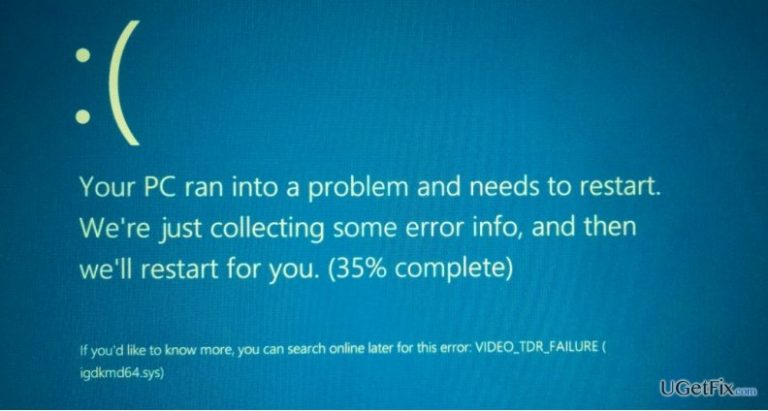
VIDEO_TDR_ ERROR is Blue Screen of Death (BSOD) that has a value 0x00000116. While it‘s not the most common bug check, quite a lot of Windows 10 users have reported about it. Each BSOD is a serious indication of a system mulfunctioning; therefore, a PC owner should respond immediately. VIDEO_TDR_ ERROR occurs when the system fails to reset display driver and recover from a time out. In the majority of the cases, 0x00000116 error value with a VIDEO_TDR_ ERROR BSOD shows up during a game-play, but sometimes it may show under difference circumstances, for instance, viewing a vidoe on YouTube. Unfortunately, but no official fixes have been released by Microsoft. Nevertheless, professional technicians reacted to the help requests of frustrated people and presented several methods to fix VIDEO_TDR_ ERROR BSOD and which have been proven by PC owners to be working.
How to fix a BSOD VIDEO_TDR_ ERROR on Windows?
Method 1. Install Windows Updates
- Navigate to Settings App, select Updates & Security and open Windows Updates.
- Select Check for Updates option and wait until the system scans for available options.
- As soon as you get the list with all Windows updates that you are recommended installing, click Run the Updates.
- After all updates are installed, reboot your PC.
Method 2. Update system drivers
- Press Win key and type Device Manager.
- Click on the search results and look for the malfunctioning drivers (on the left pane). They should be labeled with a yellow exclamation mark.
- If some of the drivers/devices are running improperly, right-click on each of them and select Properties.
- After that, select Drivers and click on Update Drivers option.
- In case none of the drivers is marked with an exclamation mark, then go to the graphic card driver and update it anyway.
- Finally, reboot the system.
It’s important to mention that, according to IT specialists, updating drivers via Device Manager can often fail. Therefore, if the previous steps did not help to fix VIDEO_TDR_ ERROR BSOD, try to update graphic card drivers manually. For this purpose, you have to navigate to the website of your graphics card manufacturer and download the latest dirvers compatible with your PC.
Method 3. Reinstall Display Drivers
- Press Win key, type Device Manager, and press Enter.
- Then look for the Display Drivers on the left pane, click on them and select Uninstall Drivers.
- If a confirmation window pops up, click OK to proceed. In some rare cases, users are required to enter Administrator password, so if you have received such permission, make sure that you type in the right password.
- Once the process is finished, restart your PC.
- Now you have to install the driver you have just removed. To do this, go to the Device Manager as explained above.
- Click Action tab on the toolbar.
- Select Scan for Hardware Changes and let the system detect and install the missing driver automatically.
- If for some reason this process fails, go to the manufacturer’s website and download the driver manually.
- If you have installed wireless network adapters, you should reinstall them as well.
We hope that the methods listed above have helped you to get rid of VIDEO_TDR_ ERROR bug. Once you gain access to your PCs desktop, our recommendation would be to optimize the system using [d1], which may speed up your PC and prevent further errors from emerging.
Bottom line
To fix the BSOD VIDEO_TDR_ERROR, you can install Windows updates and update system drivers through Device Manager. If these methods do not resolve the issue, consider seeking further assistance or exploring additional troubleshooting steps.
Frequently asked questions
The VIDEO_TDR_ERROR is a Blue Screen of Death (BSOD) that occurs when the graphics driver fails to respond to the operating system within a specific time frame. This can be caused by outdated or corrupt graphics drivers, hardware issues, or even overheating components.
To update your graphics drivers, go to Device Manager, locate your display adapter, right-click it, and select 'Update driver.' You can also visit the manufacturer's website for the latest drivers compatible with Windows 10 or Windows 11.
Yes, you can use the Windows Memory Diagnostic tool to check for memory issues, and the built-in Windows Troubleshooter can help identify and fix problems related to hardware and devices that may lead to the VIDEO_TDR_ERROR.




Report an issue
What's wrong with this guide? We review every report and update or remove content.
Report received — thank you. We'll review and fix it.
You need a free account to submit a report.
Be the first to comment