How to fix
“A device attached to the system is not functioning” error
on Windows
Resolve the “A device attached to the system is not functioning” error on Windows 10 quickly. Follow our expert-tested solutions for a smooth experience!

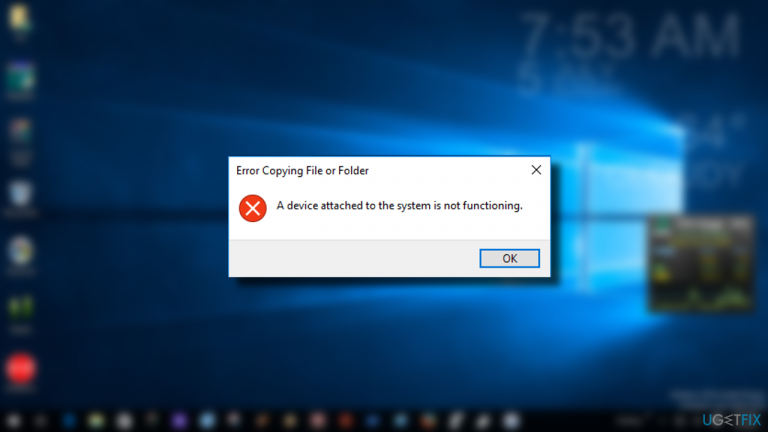
What causes How to fix “A device attached to the system is not functioning” error on Windows 10?
- Corrupted system files
- Virus infection
- Damaged Windows update files
- Corrupted software
- Issues with external devices
Repairs Windows system files, removes malware, and restores a clean OS state — without reinstalling.
So I eventually decided to upgrade my PC to Windows 10. Just like most of its users, I started encountering problems right after the upgrade. Each time I try to open .exe file I get a pop-up message saying “A device attached to the system is not functioning.” I did not get this message under other circumstances yet, but I’m not going to wait until it reoccurs. I have no external hardware attacked. I’m stuck. Please, help!
“A device attached to the system is not functioning” is Windows 10 specific error, which shows up in a form of pop-up window. It can be closed quite simply – just by clicking on the X button at the top-right corner of the pop-up.
Usually, it shows up when the PC is connected with an external hard drive,[ref en-1] USB or another device. In this case, the error is merely an attempt to inform the PC’s user that the external device is malfunctioning and needs proper maintenance.
However, “A device attached to the system is not functioning” error often shows up in Windows 10 PCs and laptops without an external device connected. It may spring up when trying to open an .exe,[ref en-2] .doc, .png or other file types. Sometimes, it prevents files from being copied from desktop to another folder or vice versa.
Although it’s not a fatal error, it is rather annoying, especially if it affects files like .png or .exe. While sometimes the culprit of the problem may be a corrupted software, usually it stems from corrupted system files, virus infection, damaged Windows update files (if the problem started right after the update), and similar.
More often than not, the “A device attached to the system is not functioning” error occurs with the external device attached, so it’s advisable to address the external device in the first place. If that did not help, we’ll try to explain you how to perform Windows diagnostics and how to fix “A device attached to the system is not functioning” error in a comprehensive manner.
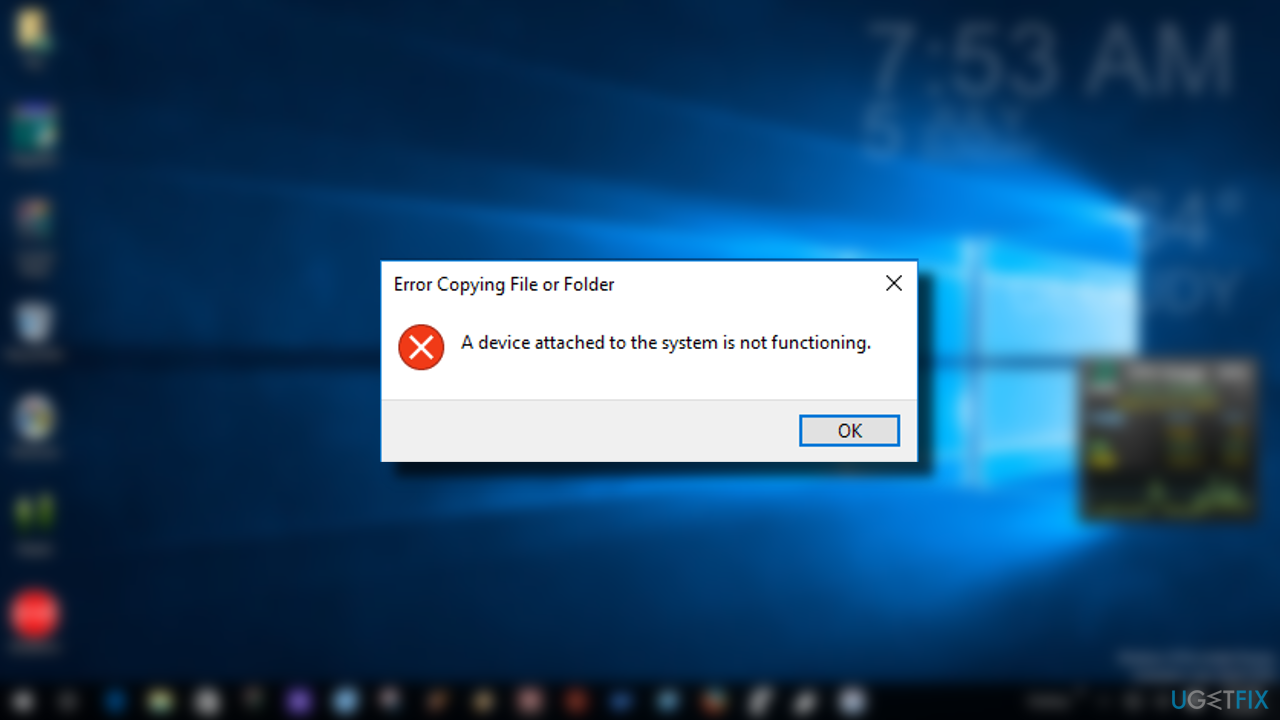
How to fix “A device attached to the system is not functioning” error
You should check the system with [d1] before going for more in-depth manual solutions. Actually, you can scan the system with any professional anti-virus tool also to see if any PUPs are running on the PC. However, we recommend using the program designed for PC repair and system optimization, so the program can fix various system-related problems at the same time. This program is dubbed as an optimization tool as it contains a huge database of Windows system files and components, so it’s capable of fixing or replacing the damaged ones. At the same time, it scans the system for viruses and malware. Thus, it’s worth trying.
Run a System File Checker
- Launch Command Prompt and make sure to choose the Run as administrator option.
- Type sfc/scannow and hit Enter.
- Allow the processing.
- You can continue with DISM /Online /Cleanup-Image /RestoreHealth command.
If your PC is connected with the external device
In case “A device attached to the system is not functioning” pop-up shows up with the external device connected, first of all disconnect the external device, reboot your PC, and then try to reconnect it. If the problem reoccurs, try using another USB data cable[ref en-3] to check if it’s not the culprit.
Format the USB storage device
Before doing that, backup all important data that is stored on it. You can do that on another PC. Once done, you should:
- Open This PC and right-click on your USB device drive.
- Select Format.
- Configure the format settings and click Start.
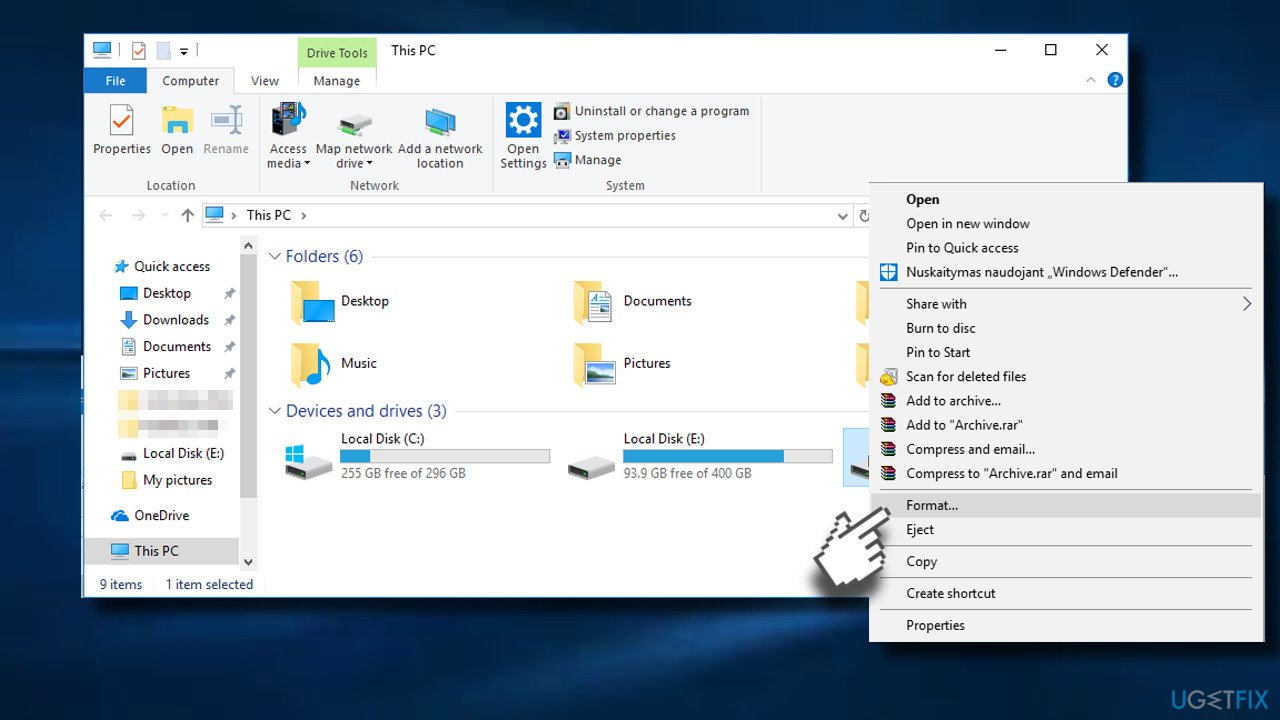
Format usb
If formatting did not fix “A device attached to the system is not functioning” error, follow:
Update drivers on the machine to fix “A device attached to the system is not functioning” error
You can update your drivers and keep them up to date with tools like [rev id="DriverFix"]. The program can find the compatible drivers and install them, find the newest ones and save you some hassle. Of course, you can also go the manual route:
- Right-click Start and choose Device Manager there or right-click the Start menu and choose Run.
- Type devmgmt.msc and hit OK.
- Locate the drivers there.
- Right-click the driver and choose the Update driver option.
- Choose Search automatically for updated driver software.
- Repeat with other needed drivers.
Update the Universal Serial Bus Controllers driver
- Right-click on Windows key and select Device Manager.
- Expand the Universal Serial Bus Controllers tab and update all USB-related drivers.
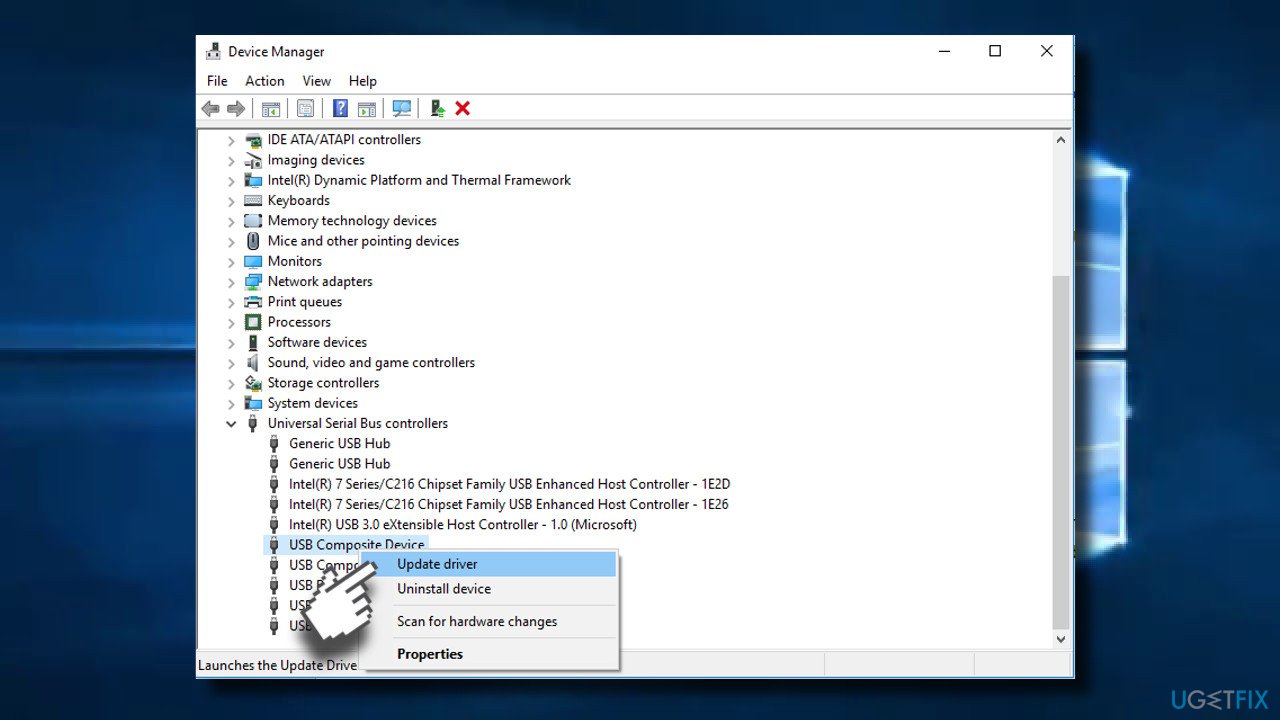
Update drivers - For this purpose, right-click on the device and select Update driver.
- Finally, reboot your PC.
If your PC is NOT connected with the external device
In case you get an error “A device attached to the system is not functioning,” we would recommend you to boot your PC into Safe Mode to check if the problem persists. This will help to identify whether the issue is due to some third-party programs conflict.
Boot PC in Safe Mode
- Press Windows key + I to open Settings.
- Open Update and Security section and click on Recovery.
- Under Advanced startup, click Restart now button.
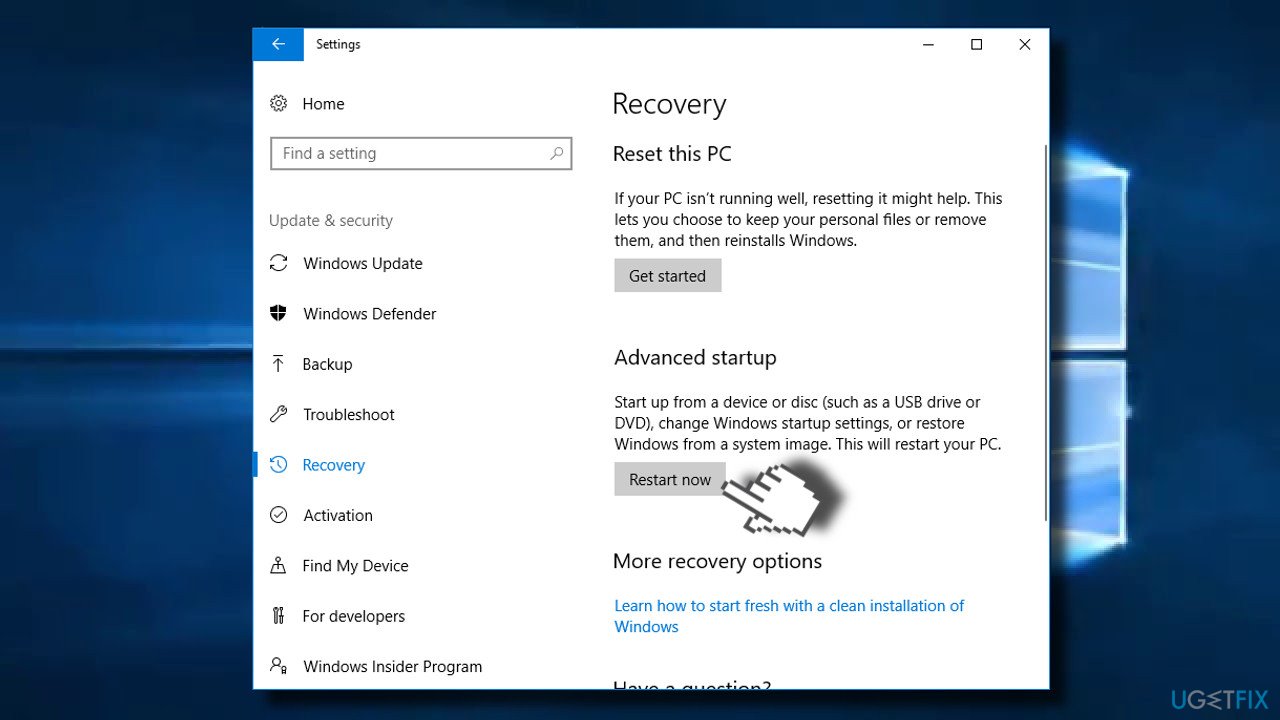
Safe mode - When the PC restarts, you’ll see a Choose an option screen. Select Troubleshoot.
- If you can’t see Startup Settings, click Advanced options and then select Startup Settings.
- Select Restart and select Safe Mode on the Startup Settings screen.
- Now sign in as administrator and check if “A device attached to the system is not functioning” error occurs anyway.
Perform a Clean boot
This way, you’ll be able to isolate the problematic software and, furthermore, fix it.
- Click Windows key + R and type msconfig.
- On the System Configuration windows open the Services tab.
- Mark Hide all Microsoft services box and select Disable all.
- Open Startup tab and click Open Task Manager.
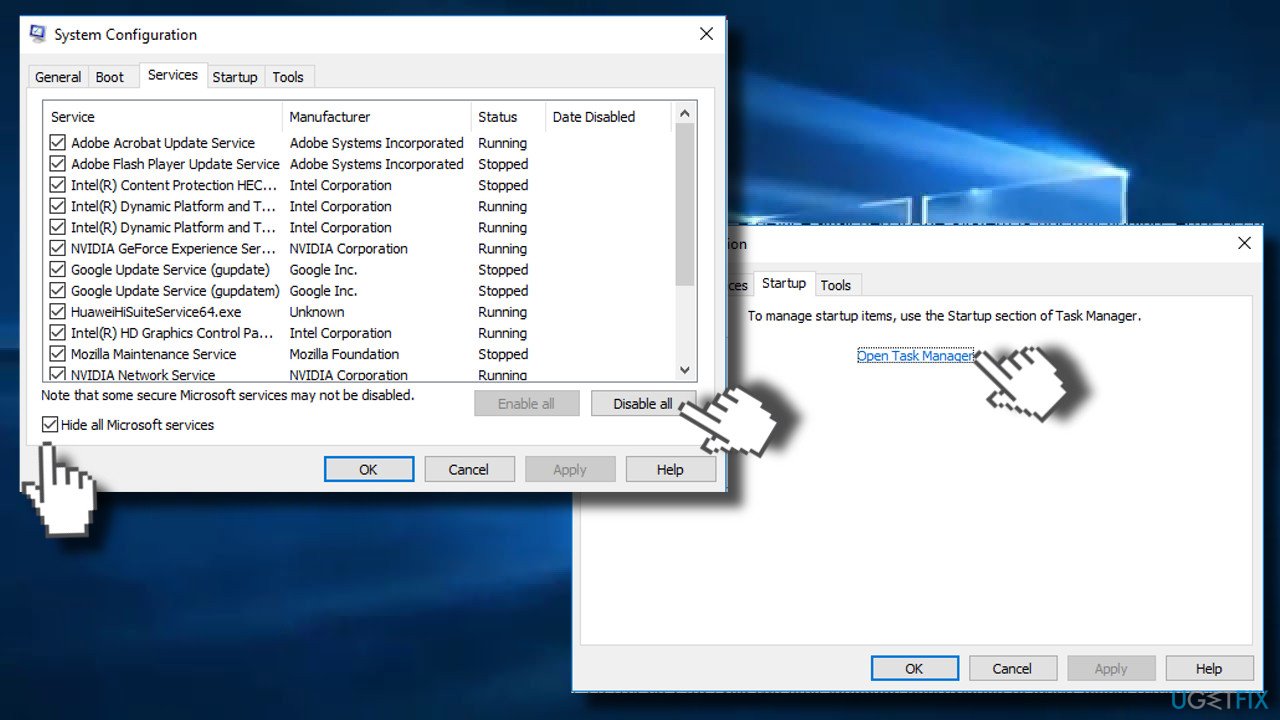
Clean boot1 - Click on each startup item and select Disable.
- Close Task Manager and click OK on the System Configuration window.
- Reboot the system.
Bottom line
To fix the 'A device attached to the system is not functioning' error, you can perform Windows diagnostics and check for issues with external devices. If the problem persists after these steps, consider looking into corrupted system files or potential virus infections.
Frequently asked questions
First, try unplugging and reconnecting the device. If the error persists, check Device Manager for any issues with the device drivers.
You can update drivers by right-clicking the Start menu, selecting Device Manager, finding the device, right-clicking it, and choosing 'Update driver'.
Yes, you can run the Hardware and Devices troubleshooter by going to Settings, selecting Update & Security, and then clicking on Troubleshoot.




Report an issue
What's wrong with this guide? We review every report and update or remove content.
Report received — thank you. We'll review and fix it.
You need a free account to submit a report.
Be the first to comment