How to fix
“A disk read error has occurred”
on Windows
Resolve the "A disk read error has occurred" issue on Windows 10/11 with expert tips and proven methods. Get back on track in no time—fixed in minutes!

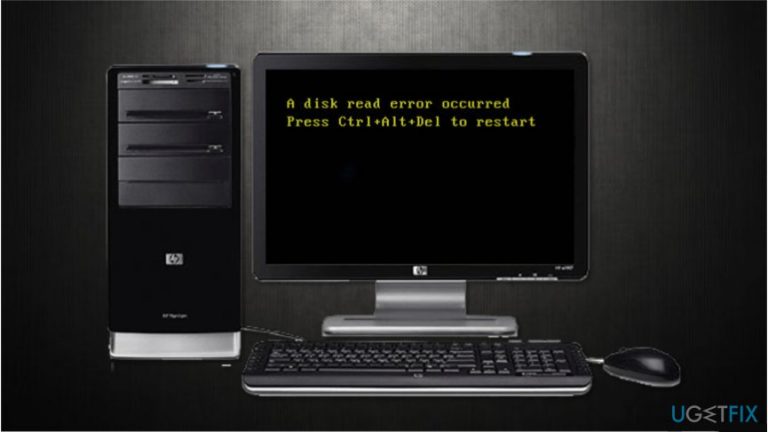
What causes How to fix “A disk read error has occurred”?
- Misconfiguration of Master Boot Record (MBR)
- Incorrect partition table configuration
- Hardware issues with the physical hard disk
- Malware attacks
- Disk errors
Repairs Windows system files, removes malware, and restores a clean OS state — without reinstalling.
Once I tried to turn on my computer, it displayed "A disk read error has occurred. Press Ctrl+Alt+Del to restart." message. No matter how many times I tried to restart it, the error persisted. Can you show me How to fix "A disk read error has occurred" on Windows? Thanks in advance!
"A disk read error has occurred" is an error which prevents the computer from booting into its Windows operating system. As a result, users are asked to press Ctrl + Alt + Del to restart. Although, experts report that the error persists despite the attempts to reboot the computer.
Usually, there can be numerous reasons why you encounter "A disk read error has occurred" error. However, the most common one is the misconfiguration of Mater Boot Record (MBR)[ref en-1]. Keep in mind that incorrectly configured MBR can lead to disk errors and even malware attacks.
Furthermore, "A disk read error has occurred" message might appear due to an incorrect partition table[ref en-2] configuration. Luckily, there are ways how to fix "A disk read error has occurred" error on a software level. You will find guidelines at the end of this article.
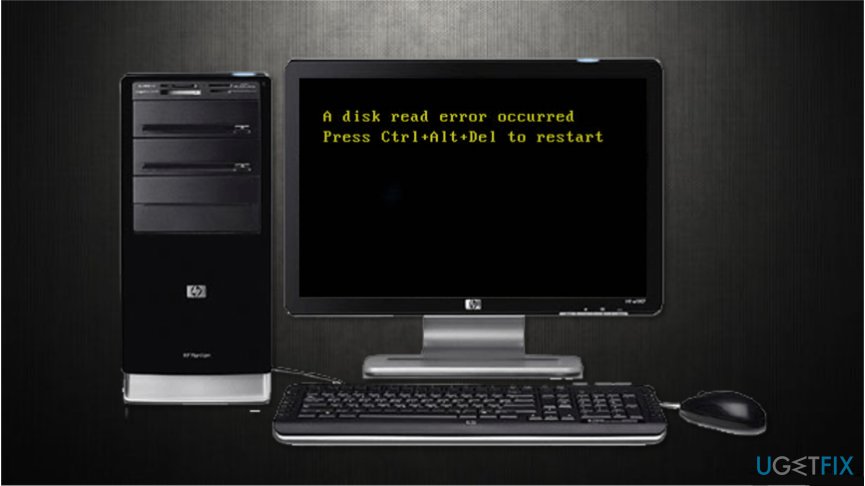
However, if "A disk read error has occurred" notification appears since there are problems with hardware and the physical hard disk itself, you might need to visit an IT specialist. Commonly hardware[ref en-3] issues are followed by "A disk read error has occurred" error and an odd sound.
Otherwise, you should try to complete the steps presented below to fix "A disk read error has occurred" error on your own. Note that there are multiple methods and all of them can address different causes of the problem. Thus, you should try completing all of them to obtain the best results.
Guidelines to fix "A disk read error has occurred" error on Windows
If "A disk read error has occurred" error did not appear due to hardware-related issues, you can install [d1] to help you optimize your system and get rid of Windows errors. Merely download the optimization tool and run a full system scan regularly.
Method 1. Check the disk from Advanced options
- Open Advanced options and select Command Prompt;
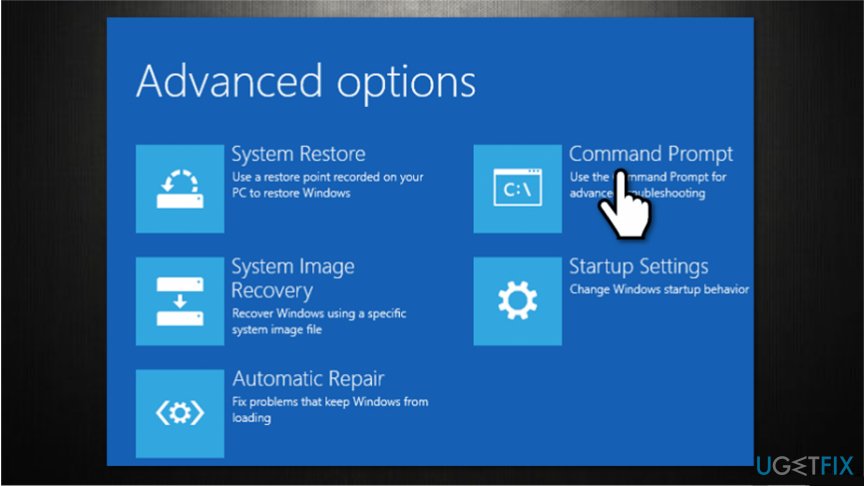
Advanced options windows - Enter chkdsk C: /f /x /r command and press Enter;
- Wait for the scan to finish.
Method 2. Fix Master Boot Record (MBR)
- Hold f8 key when turning on the computer;
- Select Troubleshoot and Command Prompt;
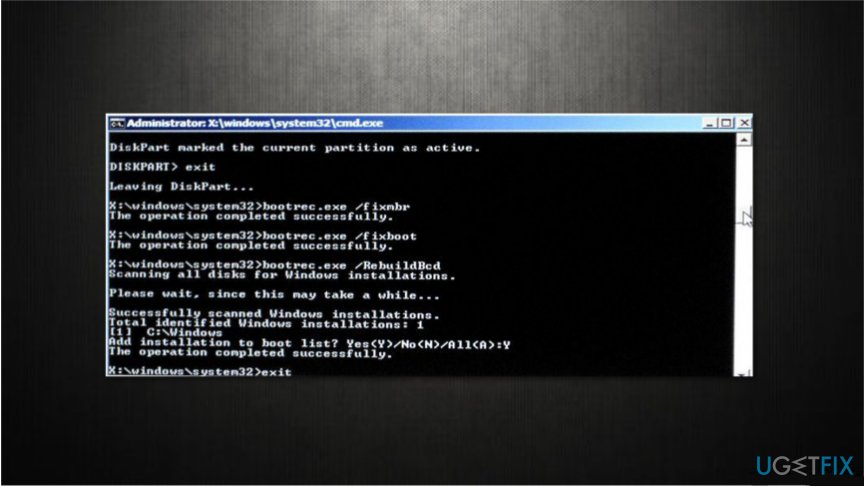
Command prompt - Enter the following commands and hit Enter after each:
bootrec /RebuildBcd
bootrec /fixMbr
bootrec /fixboot - Restart your computer;
Method 3. Check the hardware for issues
First, try to remove the hard drive and insert it on the other device. Check if you are able to access information and files. Additionally, you should check it by running a full scan with a professional antivirus software.
Secondly, if the hard drive works on the other device, you should try changing the cables and even the connection ports. This might help fix "A disk read error has occurred" error.
Finally, try replacing the Random Access Memory (RAM). In case you are using two of them, try interchanging them and cleaning the dust. If none of the methods helped, you should see IT technician immediately.
Bottom line
To fix the "A disk read error has occurred" error, you can check the disk from Advanced options and consider using an optimization tool to scan for Windows errors. If the issue persists after trying these methods, it may be necessary to consult an IT specialist.
Frequently asked questions
First, restart your computer and check all physical connections to the hard drive. If the error persists, try booting into Safe Mode to run a disk check.
Yes, using tools like CHKDSK can help identify and repair disk errors without data loss, but it's always advisable to back up important files first.
If the error appears after a Windows 10 or Windows 11 update, consider rolling back the update or using System Restore to revert to a previous state.




Report an issue
What's wrong with this guide? We review every report and update or remove content.
Report received — thank you. We'll review and fix it.
You need a free account to submit a report.
Be the first to comment