How to fix
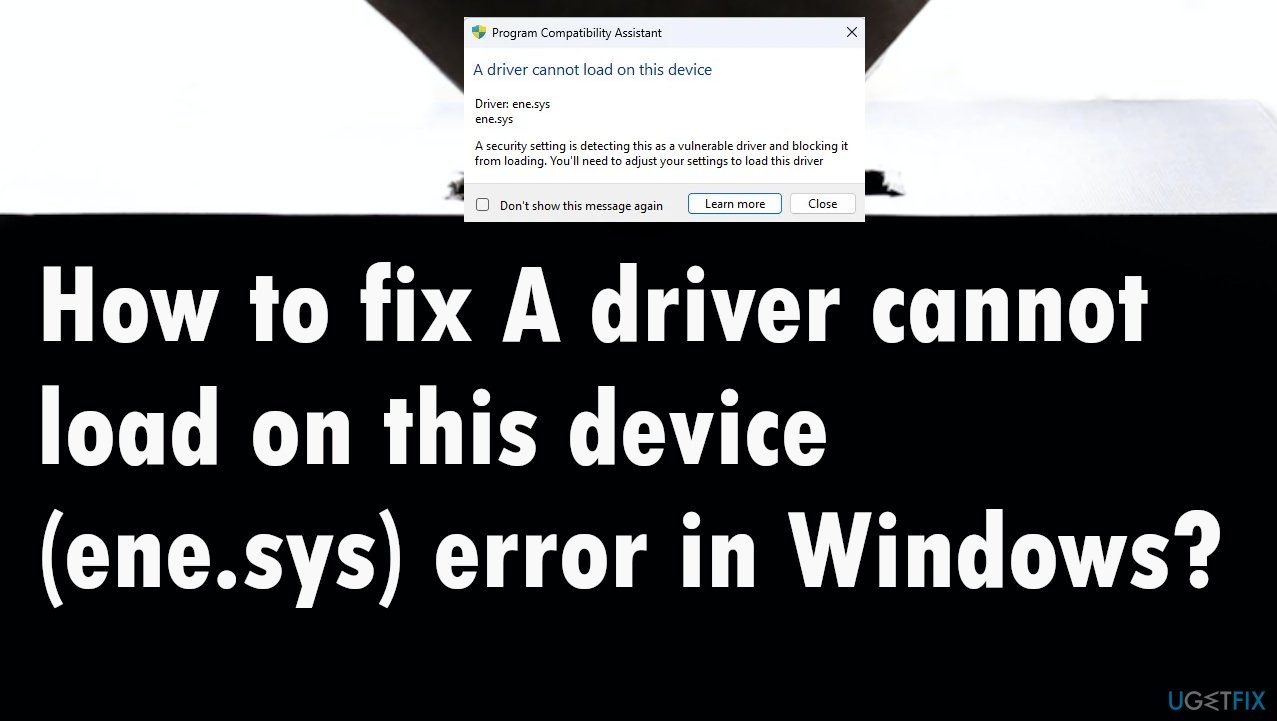
A driver cannot load on this device (ene.sys) error
on Windows
Resolve the "A driver cannot load on this device (ene.sys)" error in Windows 10/11 quickly and effectively with expert-tested solutions that work.


What causes How to fix A driver cannot load on this device (ene.sys) error in Windows?
- Corrupted files due to a faulty upgrade
- Old files from previous Windows versions
- Issues related to system settings in Windows
- Complications from third-party applications
- Alterations to machine settings or preferences
Repairs Windows system files, removes malware, and restores a clean OS state — without reinstalling.
I get the error about drivers that cannot load on the machine. The file ene.sys does not ring a bell to me, so I have no idea what to do and how to solve this. Can you tell me what this means and how to properly fix this? It has already been released a few times and has been bothering me after the update.
A driver cannot load on this device (ene.sys) error in Windows is the issue that commonly occurs after the particular operating system upgrade. The issue is related to drivers and corrupted files that can be the result of a faulty upgrade to the operating system of the device. Users[ref en-1] commonly report this problem and list the issue as bothering them.
The driver is a piece of the file needed for the system to lead properly. The corruption or damage to those files can cause various issues, including error pop-ups and the failure of programs. The error message indicates that the file cannot be loaded properly, so the issues should be related to system settings in Windows.
This can be the issue of old files and older versions of Windows 11 or 10. Update-related problems are pretty common.[ref en-2] These issues are not crucial, but corrupted files and damaged pieces on the machine can lead to other device issues, so communications cannot run smoothly as they are supposed to.
A driver cannot load on this device (ene.sys) error in Windows is not caused by the malicious programs threats,[ref en-3] but corrupted files can be the result of a cyber infection or the issue with a third-party application, a complication of the installation, alterations to the settings or preferences on the machine.
These damaged files can be addressed by running PC repair tools or other programs that can recover corrupted system files. Applications like [d1] can help with the performance and other issues regarding the computer because these tools are designed to find problems with the machine and solve common issues.
This might not fix the "A driver cannot load on this device (ene.sys)" error in Windows directly, but it can improve the services and processes needed for the machine to run. Other solutions might include direct changes to settings and check for particular common triggers for the issue. Pay attention to these steps.
Solution 1. Update drivers
- Press Windows + I to launch the Settings app.
- Select Windows Update from the tabs listed in the navigation pane on the left.
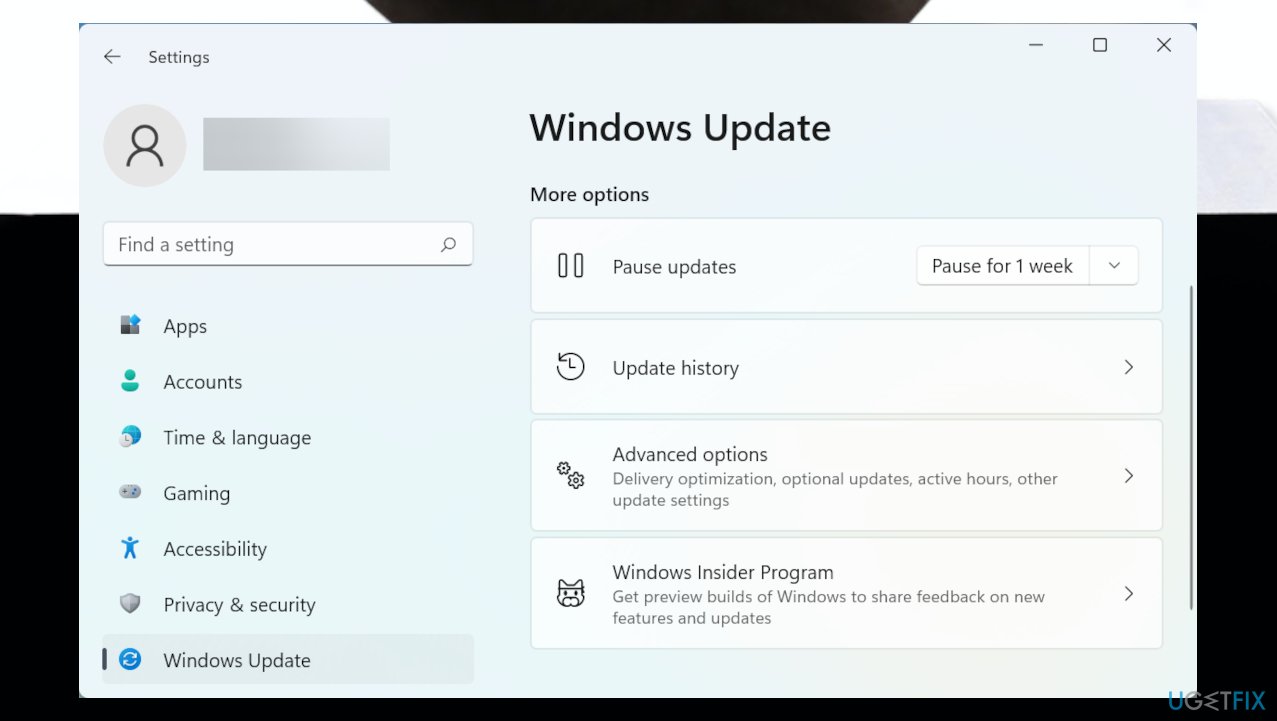
Ene sys driver issue advanced options - Click on Advanced options on the right.
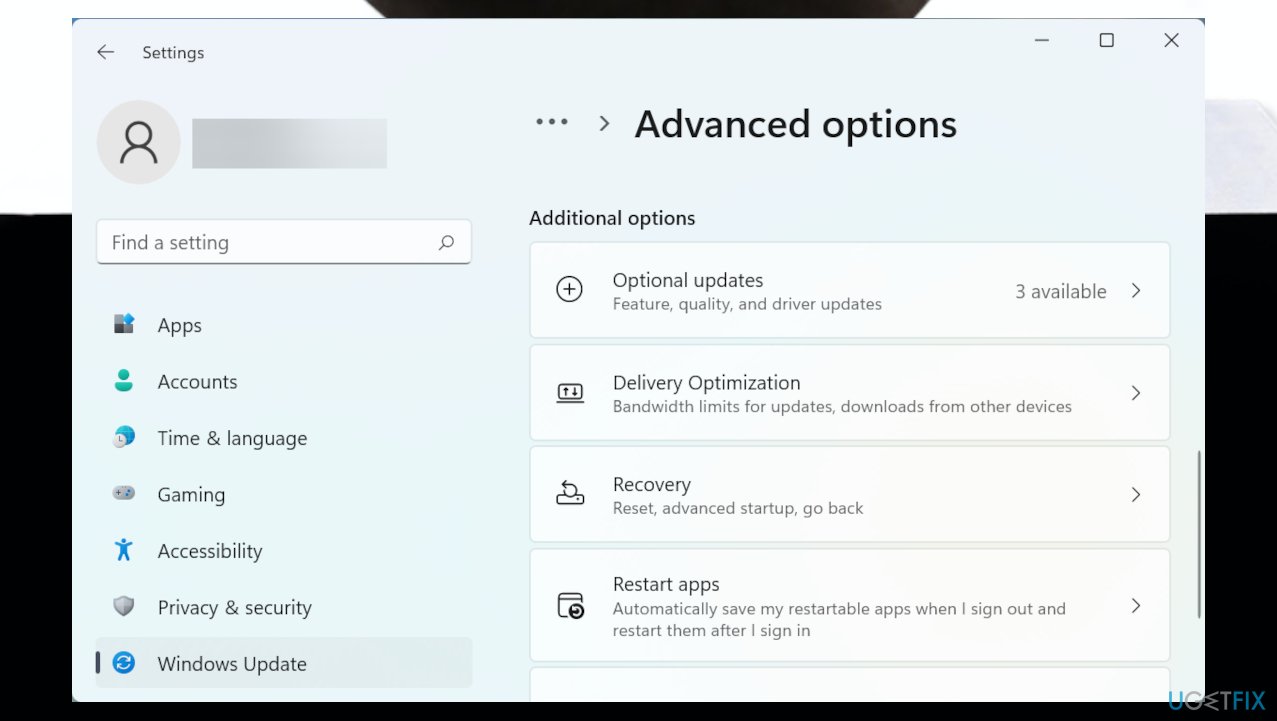
Ene sys driver issue options - Scroll down and click on Optional updates under Additional options.
- Click on Driver updates here.
- Click on the Download & install button at the bottom if there is an update.
- Restart the computer to save changes.
Solution 2. Disable the memory integrity feature
- Go to the search bar and enter Windows Security in the text field at the top.
- Click on the relevant search result.
- Click on Device security from the various options listed here.
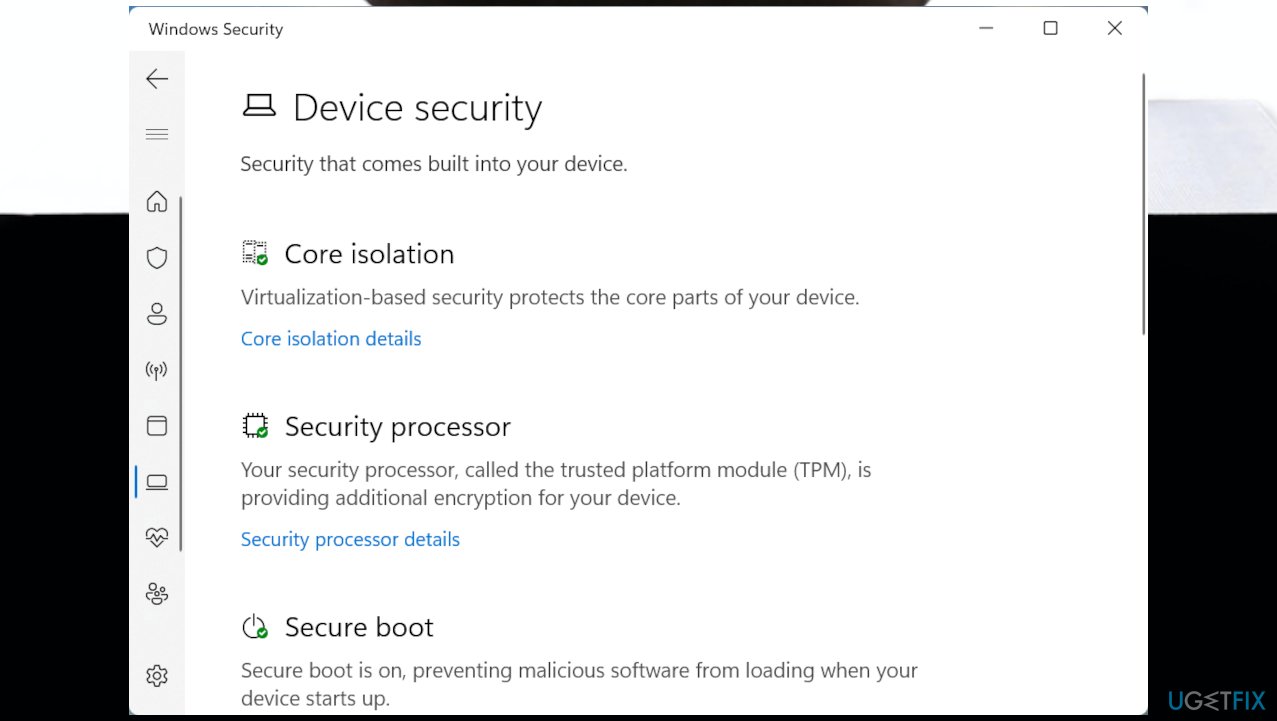
Ene sys driver issue device - Hit the Core isolation details option at the top.
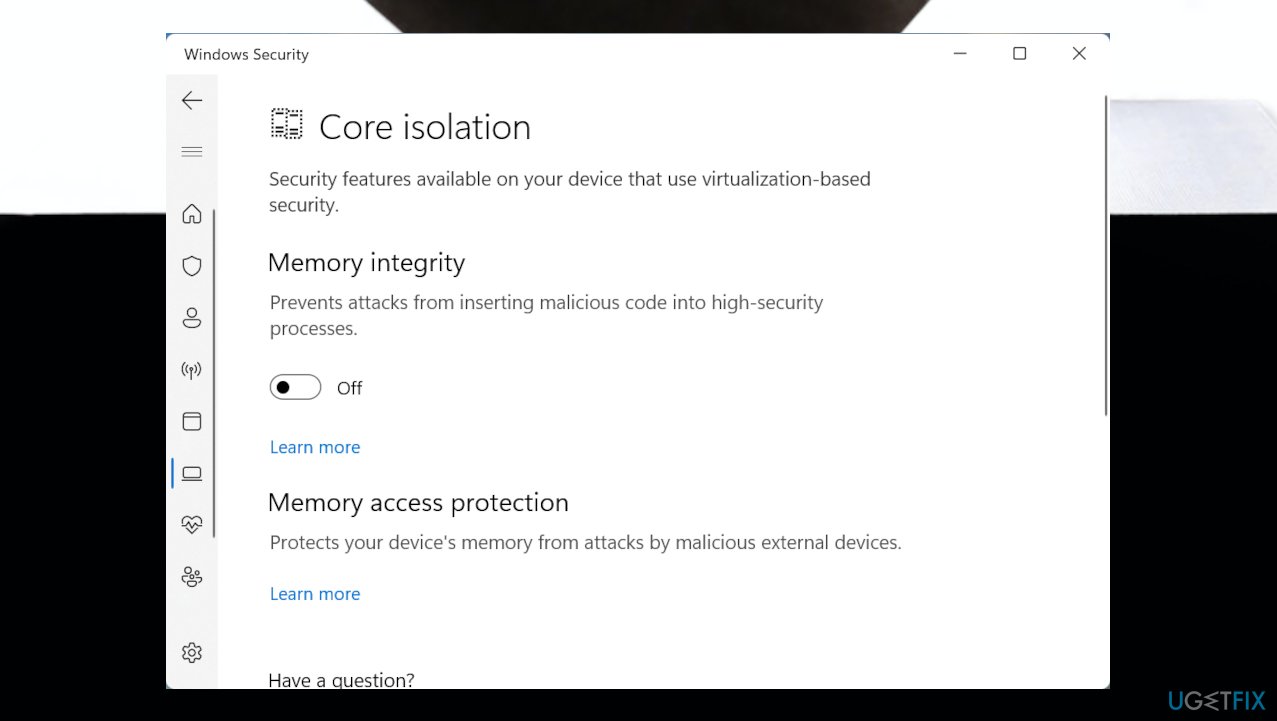
Ene sys driver issue core - Turn off the toggle for Memory integrity.
- Restart the computer.
Solution 3. Run troubleshooter
- Press the Windows key + I to open Settings.
- Go to Update and Security.
- Click the Troubleshooter tab.
- Scroll down and click on Program Compatibility Troubleshooter.
- Click the Run the troubleshooter button.
- Follow on-screen instructions.
Windows 11
- Navigate to System.
- Choose Troubleshoot.
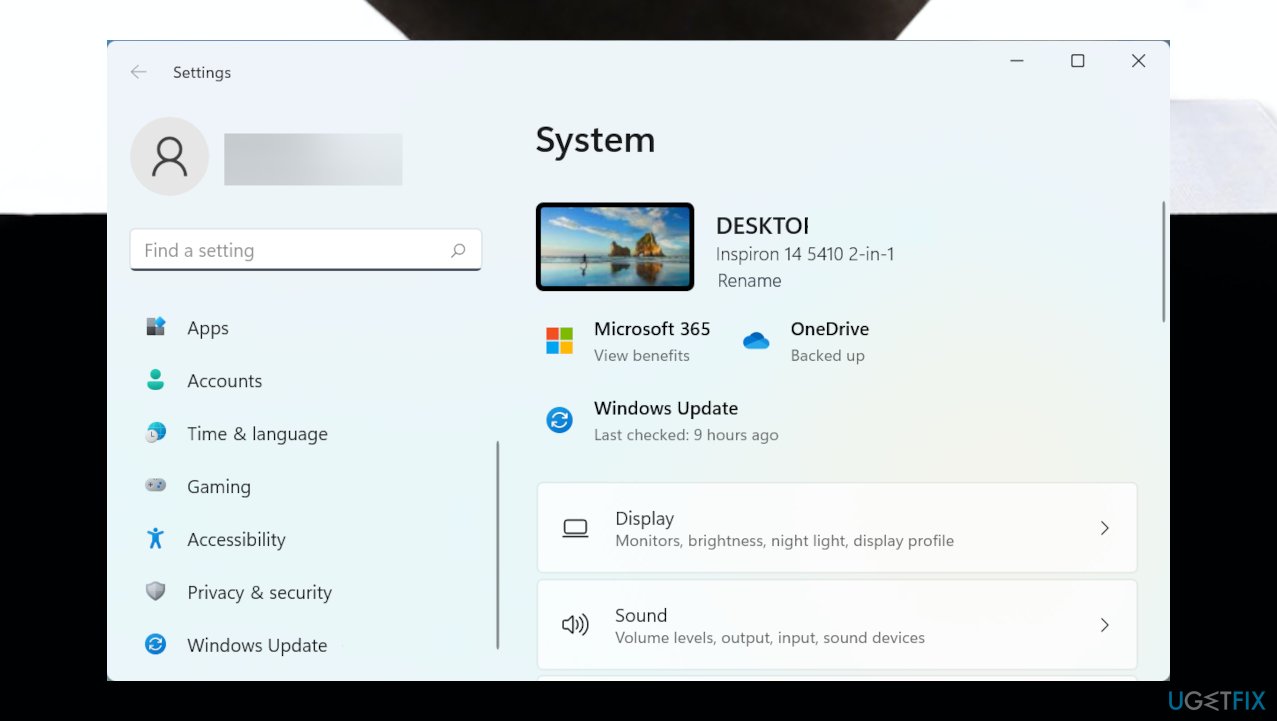
Ene sys driver issue system - Hit Other troubleshooters.
- Under the Other section, find Program Compatibility Troubleshooter.
- Click the Run button.
- Follow on-screen instructions.
- Apply fixes if offered.
Solution 4. Rollback the OS update
- Open the System Settings.
- Click on System.
- Click the Recovery page on the right side.
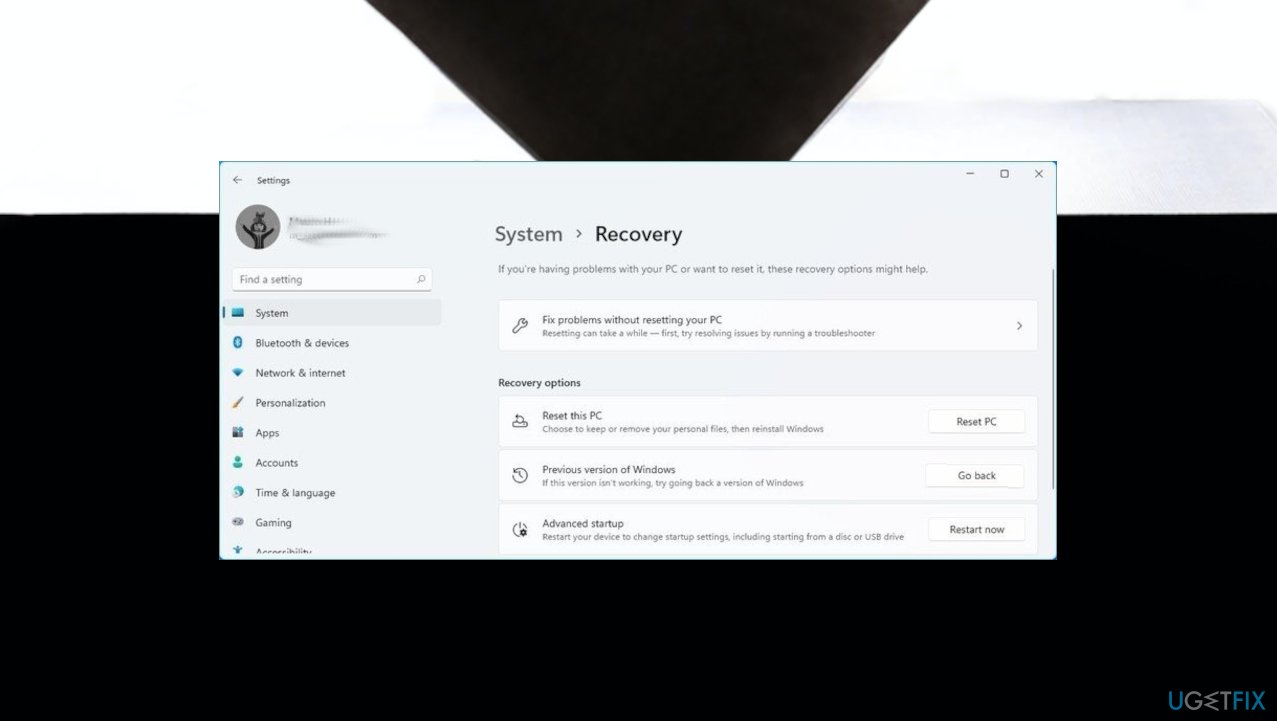
Ene sys driver issue recovery - Under the Recovery options section in the Previous version of Windows settings.
- Click the Go back button.
- Select any of the reasons available.
- Click the Next button.
- Click the No, thanks button.
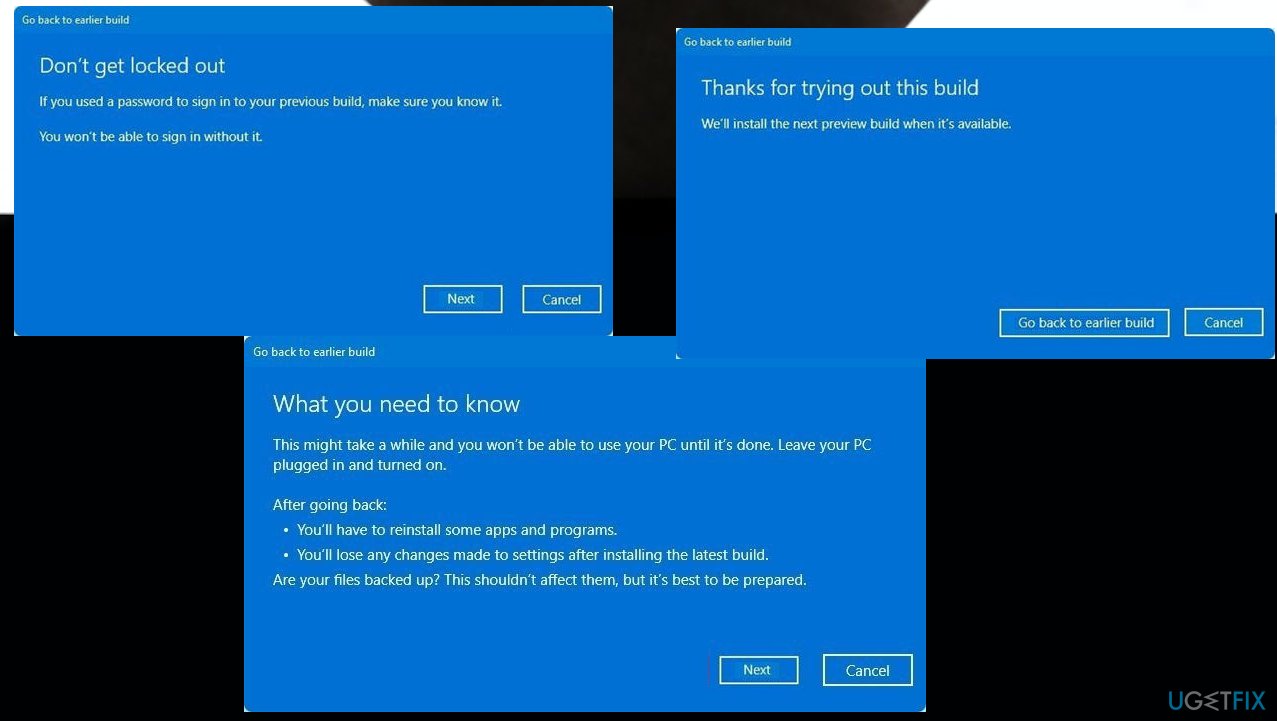
Ene sys driver issue rollback - Click the Next button.
- Click the Next button again.
- Click the Go back to earlier build button.
- Wait for the new update that fixes the issue.
Bottom line
To fix the 'A driver cannot load on this device (ene.sys)' error, users can run PC repair tools or programs designed to recover corrupted system files. If these solutions do not resolve the issue, further investigation into the system settings or a complete reinstall of the drivers may be necessary.
Frequently asked questions
This error typically occurs due to corrupted or outdated drivers associated with the ene.sys file, which is related to the device's hardware functionality. It can also result from Windows updates or conflicts with other installed software.
To update the ene.sys driver in Windows 11, go to Device Manager, locate the device associated with the driver, right-click it, and select 'Update driver.' You can also visit the manufacturer's website to download the latest version.
If reinstalling the driver does not resolve the issue, try running the Windows Troubleshooter for hardware and devices, or consider performing a system restore to revert your system to a previous state before the error appeared.




Report an issue
What's wrong with this guide? We review every report and update or remove content.
Report received — thank you. We'll review and fix it.
You need a free account to submit a report.
Be the first to comment