How to fix
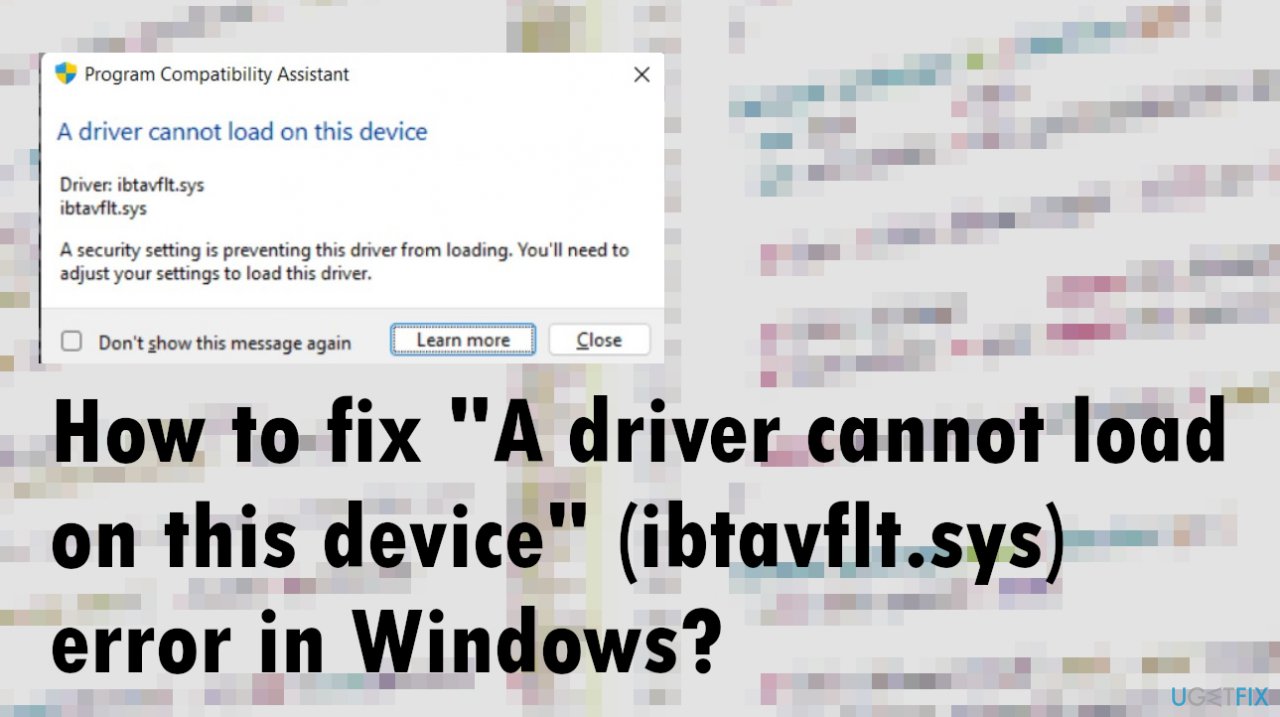
“A driver cannot load on this device” (ibtavflt.sys) error
on Windows
Resolve the "A driver cannot load on this device" error in Windows 10/11 with our expert-tested solutions. Fix it in minutes, no traces left!


What causes How to fix “A driver cannot load on this device” (ibtavflt.sys) error in Windows?
- Corrupted file or driver
- Compatibility issues with the OS and drivers
- Incomplete OS upgrade installation
- Corrupted pieces in system directories
- Damaged data overall
Repairs Windows system files, removes malware, and restores a clean OS state — without reinstalling.
Hello. I receive "A driver cannot load on this device" error and the issue occurs when I try to connect my Bluetooth devices. It even lists the ibtavflt.sys file as the issue. I have no idea what that means and how to fix this. Is the driver updating the solution? I can do that, but anything else seems too difficult for me. Help!
"A driver cannot load on this device" (ibtavflt.sys) error in Windows is the issue related to Windows 11 mainly that has been released recently and is continuously upgraded.[ref en-1] The issue indicates that there is a problem with the driver on the system that cannot load for some reason.
The cause for the issue might be the corrupted file or driver itself that keeps the function from running properly. You can see the error when the OS is booting up, or it might appear when the affected driver is needed for functioning. Troubleshooting the issue might answer some of the questions regarding the error.
"A driver cannot load on this device" error in Windows is the problem, mainly indicating compatibility issues with the OS and drivers on the machine. The particular file is part of the Intel Bluetooth device driver on your computer. This is why you experience the error at a certain time.
In this case, the error might be solved by updating the particular driver that creates issues or fully reinstalling the piece from the proper source of developers. This is not the particular update[ref en-2] issue, but users[ref en-3] complain that the problem occurs after upgrades of the OS, so the reason for "A driver cannot load on this device" (ibtavflt.sys) error in Windows might be related to the incomplete OS upgrade installation, so checking for the latest update can help n some cases.
Also, these problems with system files and compatibility of the system and drivers can be related to corrupted pieces in system directories or damaged data overall. To solve the general issue that caused the upgrade install to fail, you can run [d1] and solve the problem related to the system functioning this way. Then rely on methods listed as solutions for this "A driver cannot load on this device" (ibtavflt.sys) error in Windows.
Fix no.1 Update affected drivers
- Right-click the Start button and select Device Manager from the list.
- Navigate to the problematic driver and expand the category.
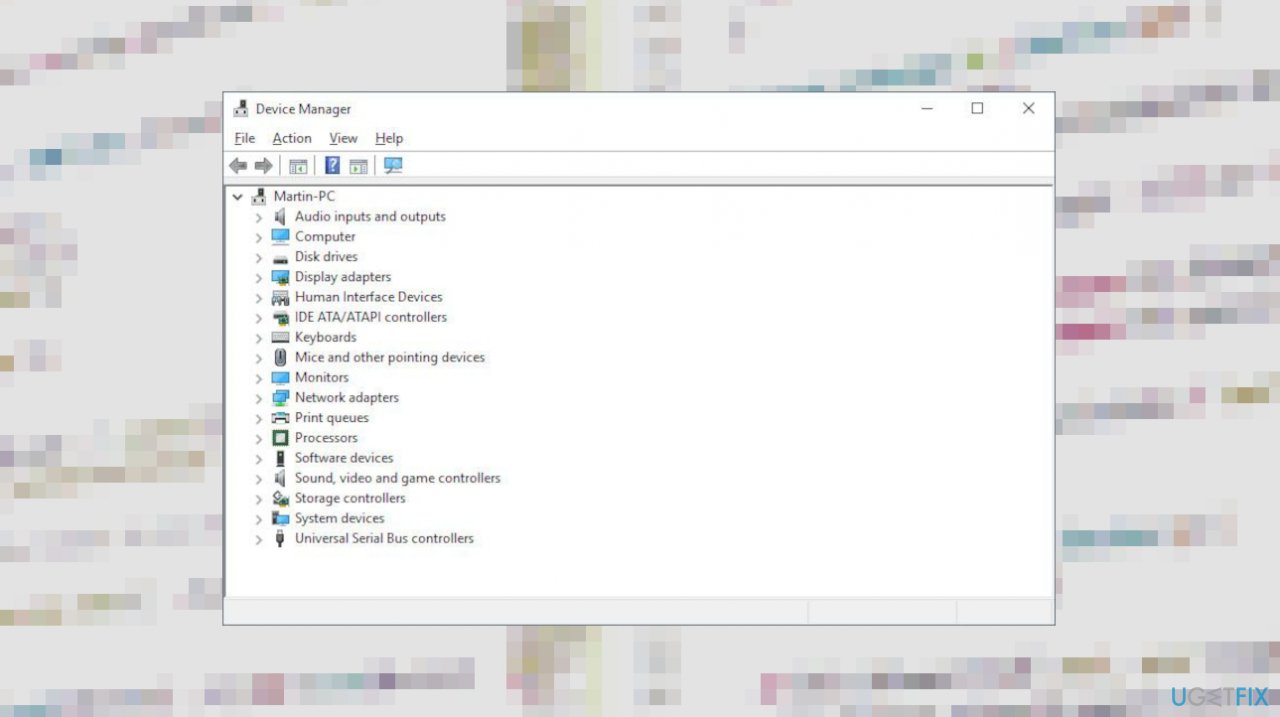
Driver does not load sys file device driver - Then right-click on it, and select Update driver.
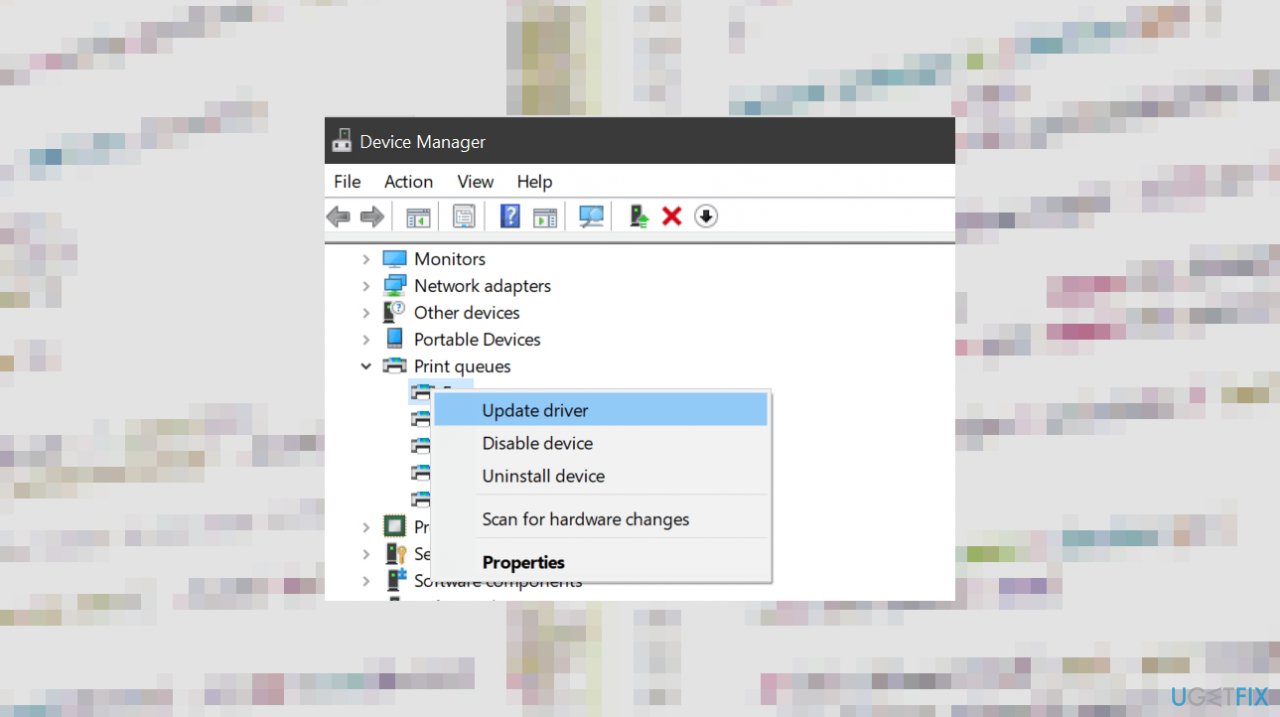
Driver does not load sys file update driver - After that, follow the on-screen instructions to finish updating the driver.
or - Go to Settings.
- Choose Window Update.
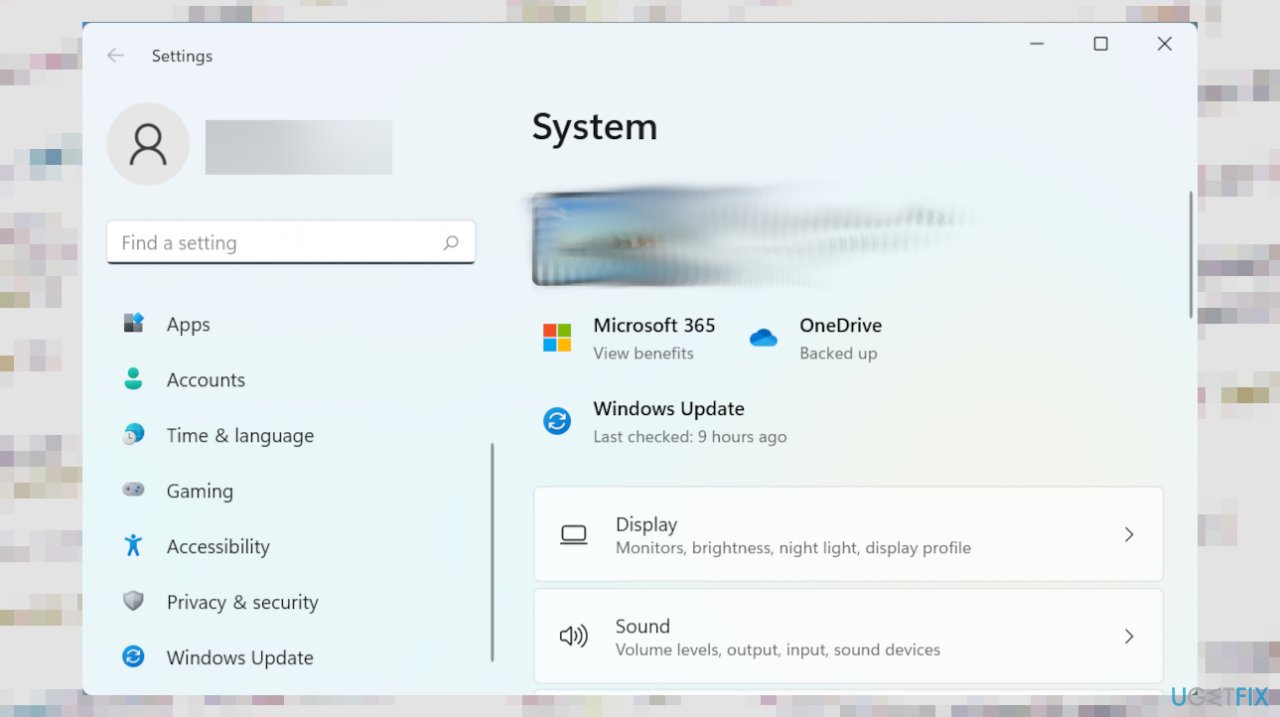
Driver does not load sys file windoes update - Click Advanced options on the right.
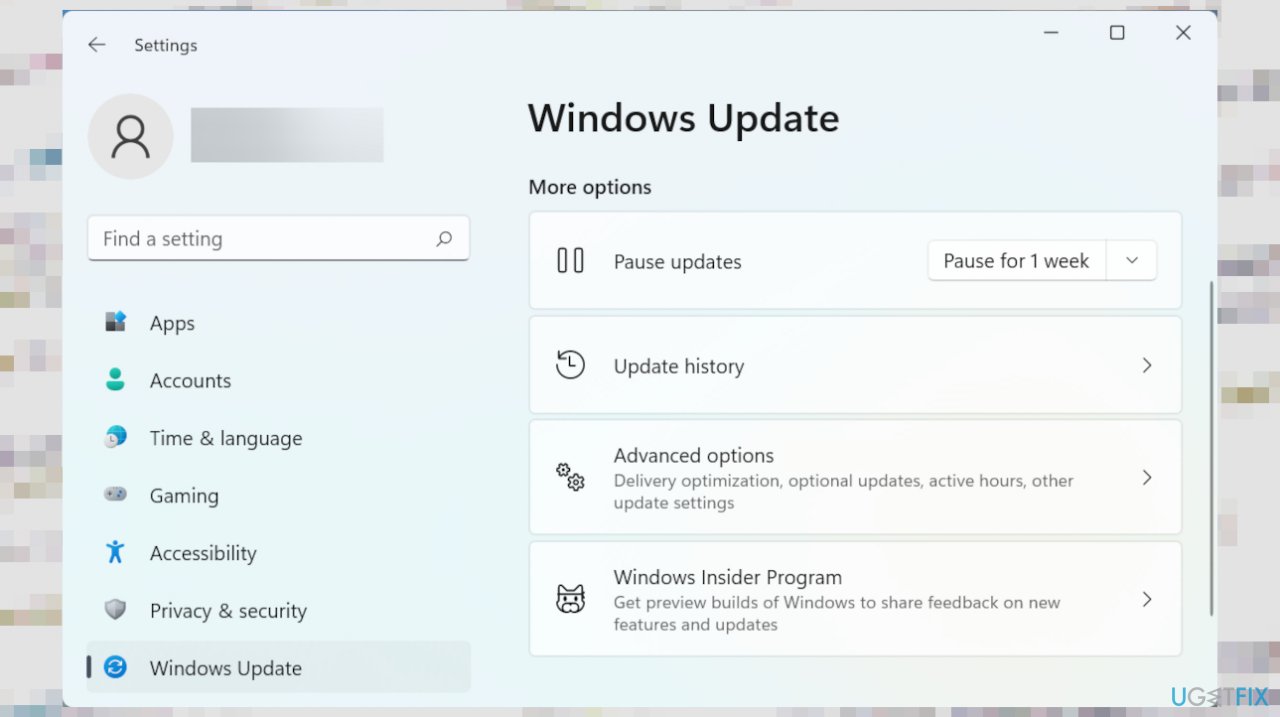
Driver does not load sys file windows settings - Scroll until you find Optional updates.
- Click Driver updates.
- If you see an update for the problematic driver, tick the checkbox for it and click on the Download & install button.
- Follow the process and restart the computer after.
Fix no. 2 Rollback the driver to previous
- Click on the search icon on the Taskbar.
- Then type in device manager, and press Enter.
- Navigate to the troublesome driver, and right-click on it.
- Select Properties.
- Under the Driver tab, click on Roll Back Driver.
- Select a reason for the rollback and click on Yes to continue.
- Once the PC is restarted, the system restores drivers.
Fix no. 3 Turn off memory integrity in Windows Security
- Press the Windows key + S to open Windows Search, type in windows security, and press Enter.
- Go to Device security.
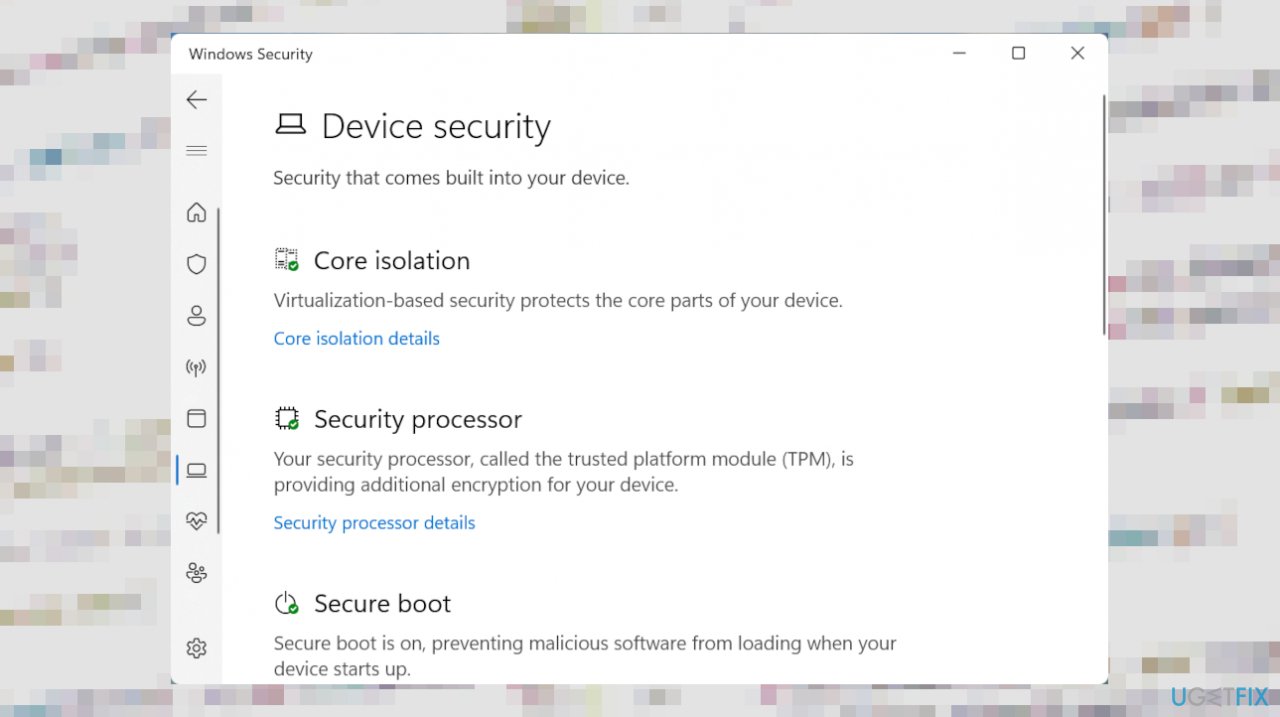
Driver does not load sys file device security - Click on Core isolation details.
- Toggle off the Memory integrity option.
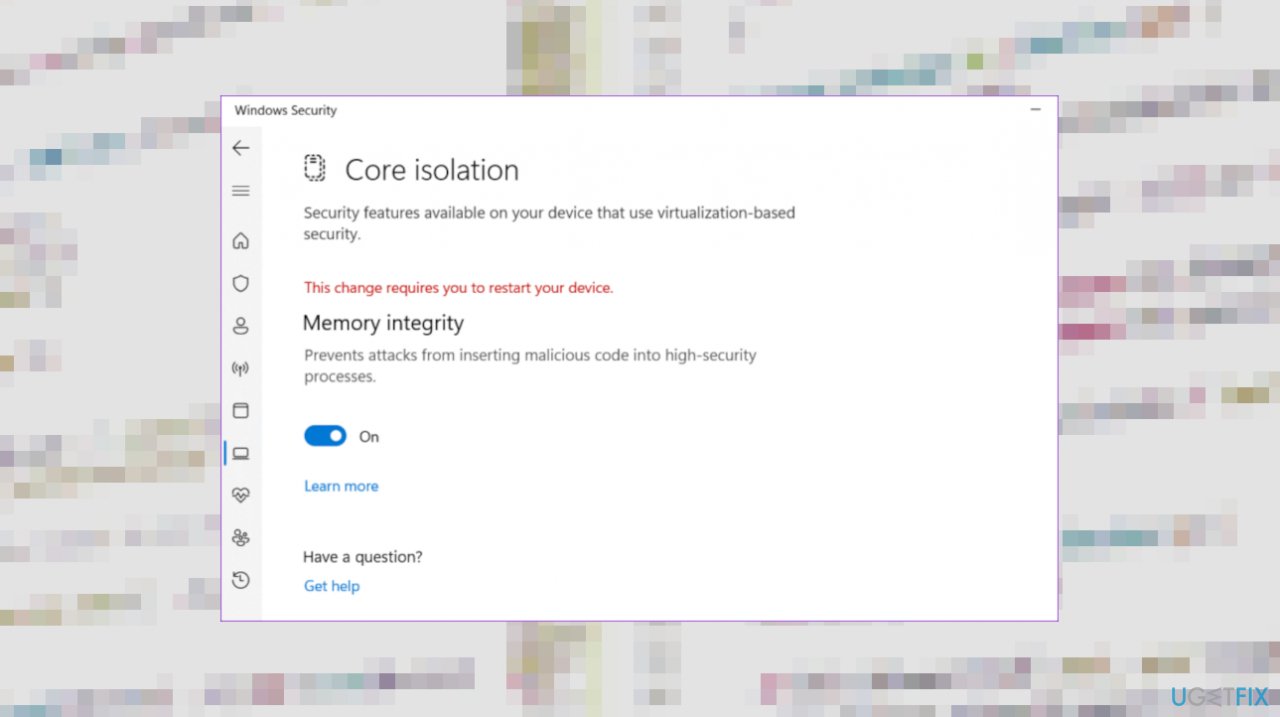
Driver does not load sys file disable memory - Drivers should load normally.
Bottom line
To fix the "A driver cannot load on this device" (ibtavflt.sys) error, you can try updating the Intel Bluetooth device driver or fully reinstalling it from the proper source. Additionally, checking for the latest OS updates may resolve the issue. If these solutions do not work, further troubleshooting may be necessary.
Frequently asked questions
This error typically occurs due to outdated or incompatible drivers for Bluetooth devices, particularly Intel Bluetooth drivers, on Windows 10 or Windows 11.
To update the ibtavflt.sys driver, go to Device Manager, locate your Bluetooth device, right-click and select 'Update driver,' then follow the prompts to search automatically for updated driver software.
Yes, you can fix the ibtavflt.sys error by uninstalling the problematic driver and then reinstalling it, which can be done through Device Manager without the need to reinstall Windows 10.




Report an issue
What's wrong with this guide? We review every report and update or remove content.
Report received — thank you. We'll review and fix it.
You need a free account to submit a report.
Be the first to comment