How to fix
A Frozen Mac When Installing Updates
on Windows
Troubleshooting installation issues on Windows 10 and 11 is quick and easy with our expert-tested solutions. Get your system running smoothly again!


What causes How to Fix a Frozen Mac When Installing Updates?
- Lost power
- Poor internet connection
- Lack of free disk space
- Temporary freeze during updates
Repairs Windows system files, removes malware, and restores a clean OS state — without reinstalling.
My Mac has frozen during the installation of updates. The process has been inactive for hours now. What can I do about it?
Nevertheless, Mac operating system is considered as stable and almost flawless; sometimes problems occur. Just like Windows computers, Macs might freeze too. Most of the time it happens when installing various updates.
Mac might freeze when users upgrade to newer version of the operating system, for instance, from macOS Y Yosemite to Sierra. However, it might also happen when installing updates for other software.
Most of the time the sources of the problem are lost power, poor internet connection or lack of free disk space. Therefore, first of all, you have to check these basic things. Hopefully, they will solve the problem, and you will be able to install available updates. If not, read further.

Methods to fix a frozen Mac when upgrading OS or installing software updates
Our team suggests trying four ways to solve this problem and resume installation of the updates. Please try this method in the sequence as given below:
Option 1. Wait
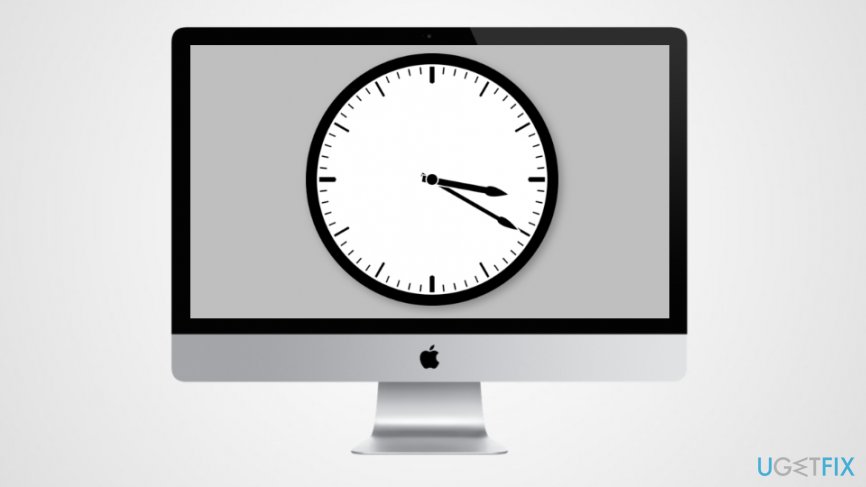
It might sound like a joke because you are most likely came here after waiting for Mac to recover for a while. However, sometimes updates might stick and temporarily freeze the computer.
It’s unknown how much time the updates may take to be installed entirely. It might vary based on the version of Mac, the size of the updates and other criteria. However, some users report that they had to wait up to 10 hours. Thus, you have to be patient.
Option 2. Refresh installation of the updates
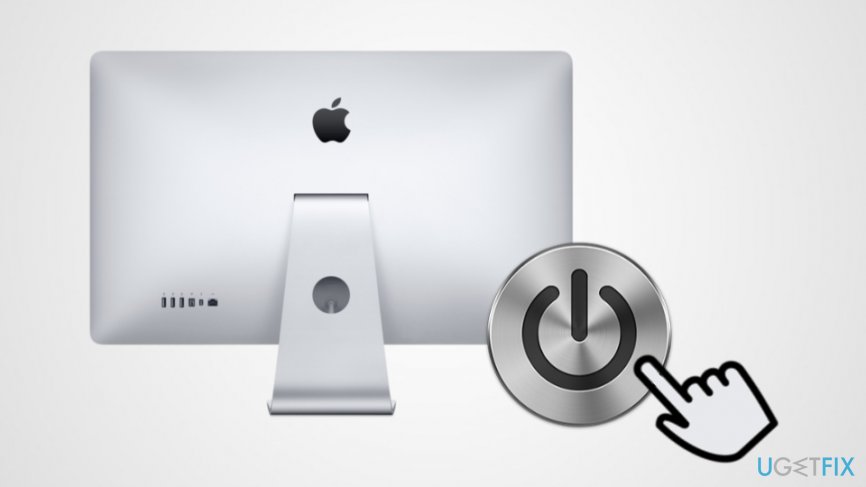
If you are sure that your Mac is frozen for good, you may need to renew the installation. Follow these steps:
- Click and hold the power button and wait for 30 seconds to turn off the Mac.
- Press and hold the power button again. It should let the installation process to resume.
- Click Command + L to find out if the installation continued. If note, try option 3.
Option 3. Reset Non-volatile Random-Access Memory (NVRAM)
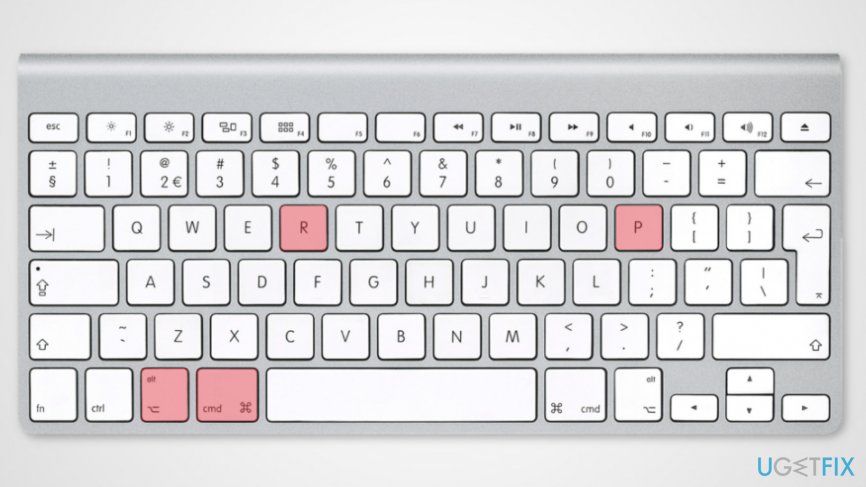
Non-volatile random-access memory allows retaining information when Mac power is cut. This random-access memory collects various settings that can be easily accessed if needed. Thus, resetting NVRAM might help to fix a frozen Mac when installing updates too.
- Click and hold the power button in order to turn off Mac.
- When a device is completely turned off (the screen is black, and fans have stopped spinning), you have to turn on the computer.
- As soon as you hear startup sound, click and hold these keys on the keyboard: Command + Option + P + R. Hold them until you hear the startup sound again.
- Once you hear the sound, release the keys.
Now the installation of stuck updates should resume.
Option 4. Opt for the Recovery Mode
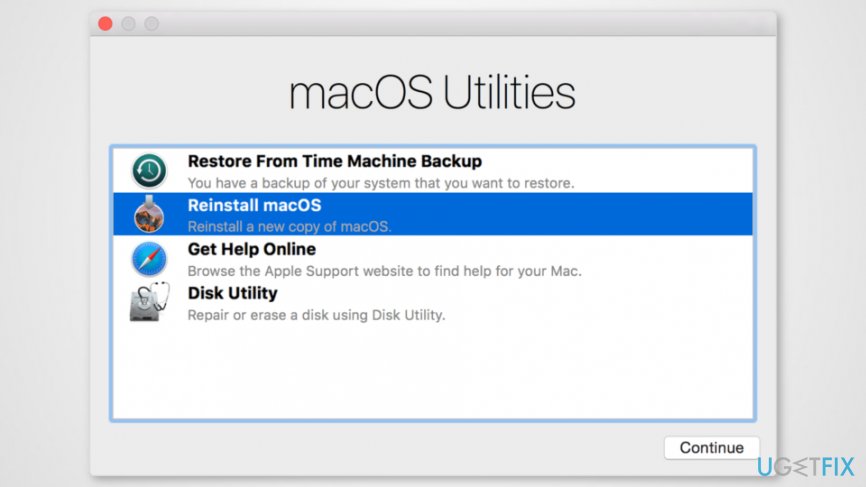
If none of the solutions above helped to solve the issue, you might need to download macOS by following these steps:
- Click and hold Mac’s power button until it shuts down entirely.
- Turn on the device by pressing and holding the power button.
- Click Command + R keys to open Recovery Mode.
- Connect to the Internet.
- Download the current version of Mac operating system from the official website. Install it by following Mac installation wizard.
Once you finish, you should not encounter any problems with updates installation of frozen Mac.
Bottom line
To fix a frozen Mac during updates, you can try waiting for a while, refreshing the installation by turning off and on the Mac, or resetting the Non-volatile Random-Access Memory (NVRAM). If these methods do not resolve the issue, further troubleshooting may be necessary.
Frequently asked questions
While some troubleshooting concepts may overlap, specific steps for unfreezing a Mac do not directly apply to Windows 10 or Windows 11, which have different systems and processes.
If Windows 10 freezes during an update, try restarting your computer and running the Windows Update Troubleshooter to resolve issues.
To minimize the chances of freezing during updates in Windows 11, ensure your system is up-to-date, free of malware, and has sufficient disk space.




Report an issue
What's wrong with this guide? We review every report and update or remove content.
Report received — thank you. We'll review and fix it.
You need a free account to submit a report.
Be the first to comment