How to fix
A missing drive
on Windows
Discover effective solutions to recover your missing drive in Windows 10 or 11. Expert-tested methods ensure quick fixes with zero traces left.

What causes How to fix a missing drive in Windows?
- Defective connections
- Damaged connectors
- Failed drive
- Software bugs
- Driver incompatibilities
- Malware infections
Repairs Windows system files, removes malware, and restores a clean OS state — without reinstalling.
Hello. I wanted to access a drive on my Windows PC only to notice that it was not there. What do I do?
For many people, running into a missing drive issue on a Windows PC can be confusing and upsetting. This issue arises when an internal or external storage device's drive unexpectedly loses recognition by the Windows operating system. Users are unable to access their critical files and data stored on that specific drive because it effectively disappears from File Explorer and other system interfaces.
This problem may have a significant and wide-ranging effect. The abrupt inaccessibility might result in data loss and the interruption of people's job or personal projects if they were depending on the missing drive to store important documents, pictures, or other priceless material. Additionally, it has the potential to halt backup procedures already in progress, jeopardizing the user's data security.
The missing drive issue can occur for a number of reasons, including hardware-related problems like defective connections, damaged connectors, or even a failed drive, as well as software bugs, driver[ref en-1] incompatibilities, or system changes that influence drive identification. Malware infections and unintentional modifications to system settings might occasionally also be a factor in issues.
Software and hardware troubleshooting are frequently used as potential fixes for missing drive issues. These could entail trying to update drivers, using Windows troubleshooting tools, inspecting internal drives for loose connections, testing the drive on a different computer, or getting professional help for hardware-related issues.
In this guide, you will find 5 steps that should help you fix a missing drive in Windows. You can also try running a maintenance tool like [d1] that can fix most system errors, BSODs,[ref en-2] corrupted files, and registry[ref en-3] issues. Otherwise, follow the step-by-step instructions below.
Solution 1. Scan for Malware
It is possible that a malware infection may be the cause of a drive missing in Windows. It is important to run a comprehensive security scan to rule out this possibility and ensure that the computer is not infected. This can help to prevent further issues with the Windows operating system and ensure that it is functioning properly.
If you have access to a security scanner, or if your organization pays for one, you can use it to scan your entire system to check for a virus infection. Otherwise, you can use Windows Defender to scan your system:
- Click on the Windows Start menu or press the Windows key on your keyboard.
- Type Microsoft Defender in the search bar and click on Microsoft Defender Antivirus to open the application.
- Click on the Virus & threat protection option in the left-hand menu.
- Click on the Quick scan or Full scan option, depending on your preference.
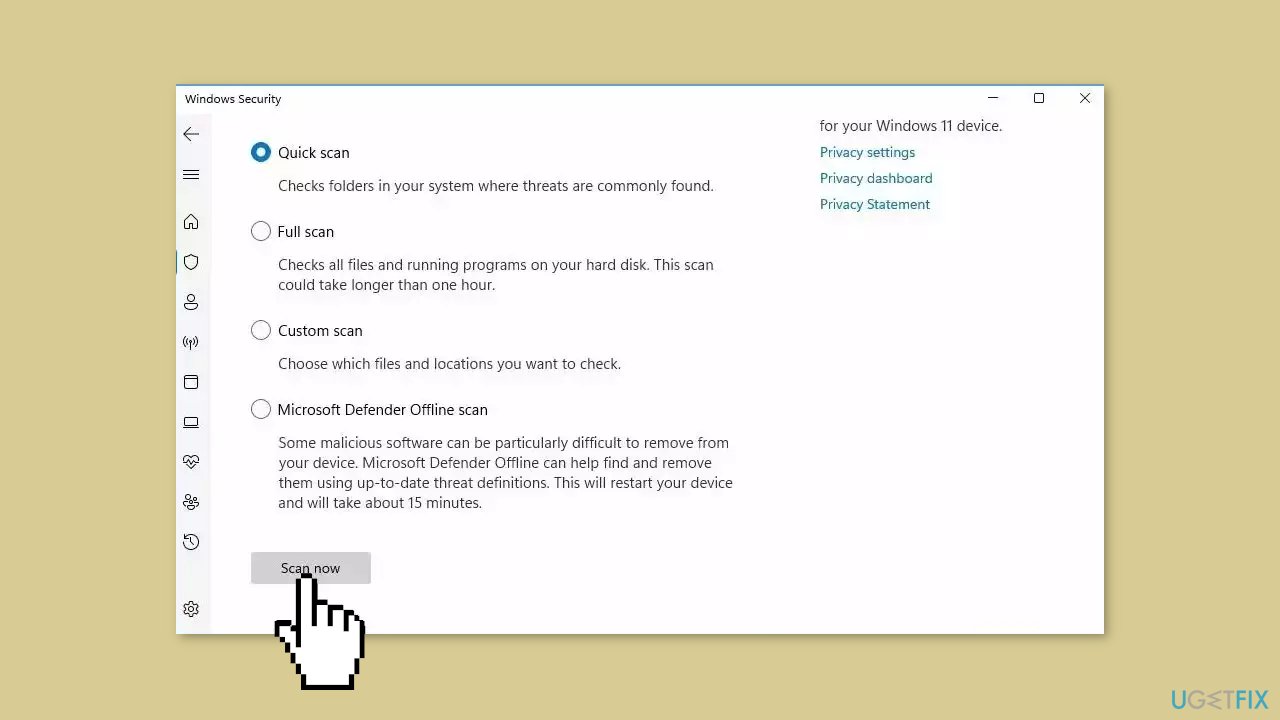
- If you choose Quick scan, Microsoft Defender Antivirus will scan the most vulnerable and commonly infected areas of your computer.
- If you choose Full scan, Microsoft Defender Antivirus will scan your entire computer, including all files, folders, and programs.
- Click on the Scan now button to start the selected scan type and wait for the scan to complete.
- The time it takes will depend on the size of your hard drive and the number of files being scanned.
- Once the scan is complete, you will be informed of any detected threats, and you can choose to quarantine or remove them.
- If no threats are found, Microsoft Defender Antivirus will inform you that your device is secure.
Solution 2. Rescan your Disks
- Press the Windows key + S to open Windows Search.
- In the Search box, type computer management, and select Computer Management when it appears in the search results.
- In the navigation pane on the left, expand Storage and select Disk Management.
- Click on Action in the top menu.
- From the dropdown menu, select Rescan Disks.
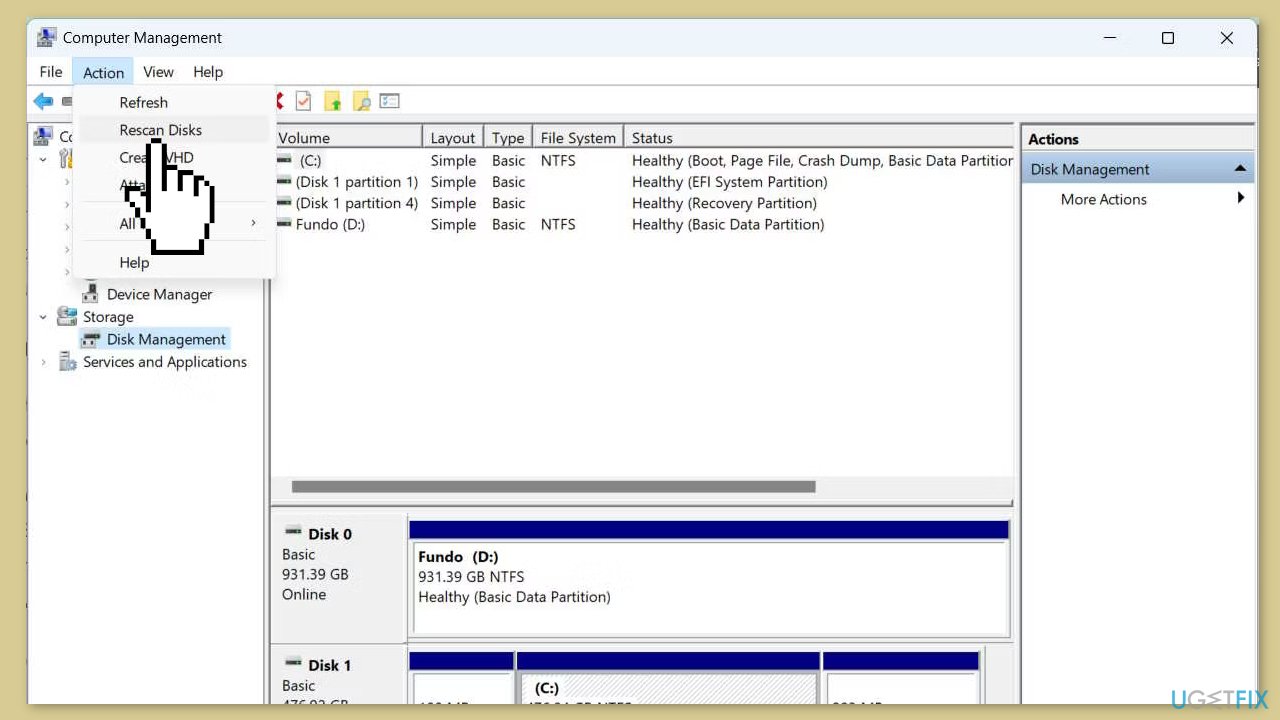
- Check to see if the drive reappears.
- Try to access the drive to ensure it's working properly.
Solution 3. Update Driver
- Open Device Manager.
- Double-click on a Disk drives category to expand and reveal the devices within.
- Right-click on your disk device, then select Properties.
- Within the properties window, click on the Driver tab.
- Click on Update Driver.
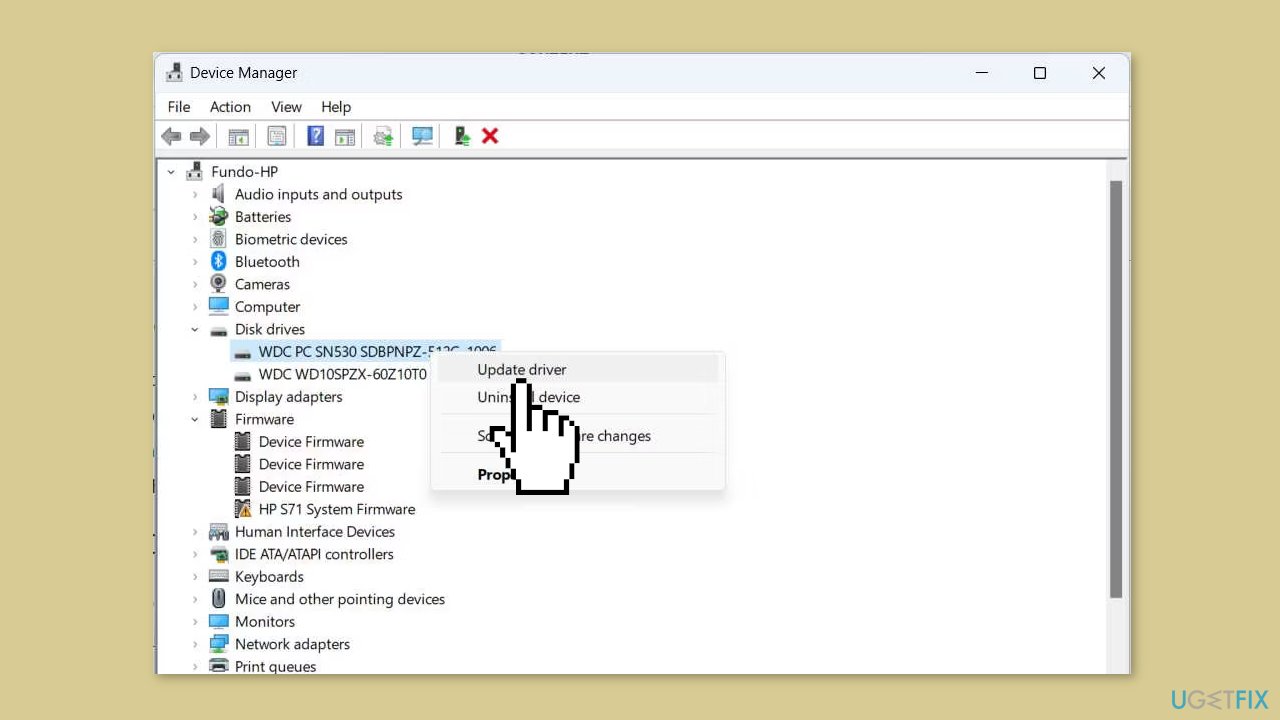
- Choose the option to Search automatically for drivers.
- Wait for the driver update process to complete.
You can also use a dedicated utility like [rev id="DriverFix"] that can find the best drivers for your machine and install them automatically.
Solution 4. Try Clean Boot
- Open the Search menu, type in system configuration, and press Enter.
- Under the Services tab, tick the Hide all Microsoft services box.
- Click on Disable all button.
- Head over to the Startup tab and click on Open Task Manager.

- Select a third-party program and click on Disable at the top.
- Repeat this step to disable all third-party apps and programs.
- Restart your PC to enter the clean boot state and see if the issue persists.
- If the issue disappeared in the clean boot state, then you can be certain that a third-party app is causing it.
- Go through all recently installed apps or programs and remove them one by one.
Solution 5. Check Connection
If your attempts to address the issue through software have been unsuccessful, it's possible that the problem lies with the hardware. Follow these steps to troubleshoot:
For external drives:
- First, try connecting the external drive to a different USB port.
- Use an alternate cable to see if the issue persists.
For internal drives:
- In the case of an internal drive, you'll need to open your PC to examine the connections.
- If you're not comfortable with this, consider seeking assistance from a hardware professional.
If a physical inspection doesn't reveal any connection problems:
- Examine the drive for physical damage.
- Check if the drive's disks are spinning when it's plugged in.
- If you identify any physical issues with the drive, you might need to consider replacing it.
Bottom line
To fix a missing drive in Windows, you can scan for malware, update drivers, use Windows troubleshooting tools, inspect internal drives for loose connections, or test the drive on a different computer. If these solutions do not resolve the issue, consider seeking professional help for hardware-related problems.
Frequently asked questions
First, check if the drive is properly connected and powered on. Then, open Disk Management to see if the drive appears there and assign it a drive letter if necessary.
You can run the Hardware and Devices troubleshooter from the Settings app to identify issues. Additionally, ensure that the drive is enabled in BIOS/UEFI settings.
Try rolling back the update or reinstalling the drivers for the drive through Device Manager. Also, check for any pending updates that may resolve compatibility issues.




Report an issue
What's wrong with this guide? We review every report and update or remove content.
Report received — thank you. We'll review and fix it.
You need a free account to submit a report.
Be the first to comment