
How to fix "A newer version of OneDrive is installed" error?

Prefer to fix it yourself? The manual steps follow.
- 5methods
- 2 to 20 minutes
- Intermediate
Applies to The OneDrive sync app on Windows 11 and Windows 10 22H2, personal and work or school accounts, per-user and per-machine installs
5 methods in this guide
"A newer version of OneDrive is installed. You need to uninstall it first before installing this version." This error message pops up every single time I attempt to use OneDrive. I was thinking of switching from Dropbox, but I see it's not yet stable enough on Windows 10 to be relied on. Dropbox works fine, and now I am baffled whether I should actually switch to OneDrive, as I am already having issues with it. Or maybe it can be fixed easily? I am not sure. Please help!
"A newer version of OneDrive is installed" means the OneDrive installer found a copy of OneDrive on the PC that is newer than itself, and it will not replace it with an older one. Your files are not affected. Download the latest installer from Microsoft first; if the message stays, uninstall the copy that is there and install again.
OneDrive is already installed, in a newer build than the installer you started. Nothing is lost. Open OneDrive from the Start menu, or download the latest installer from Microsoft and run that (Fix 1). If you need a clean install, uninstall Microsoft OneDrive in Installed apps (Fix 2). If it is not listed, run OneDriveSetup.exe /uninstall (Fix 3) or delete its registry key (Fix 4).
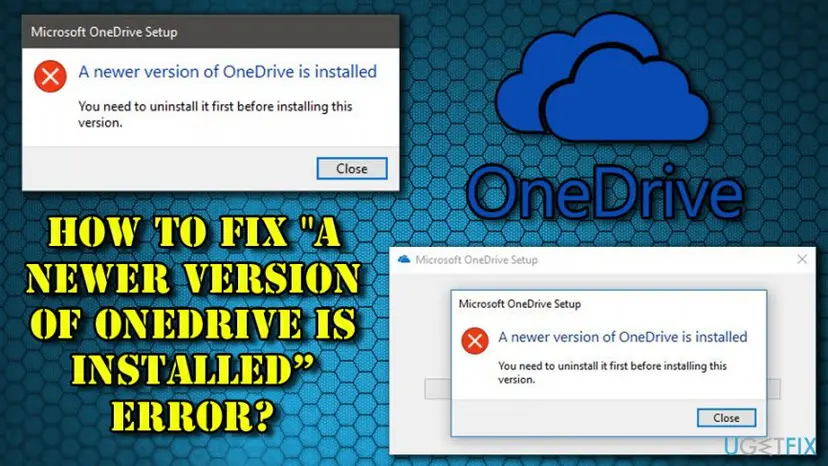
| Error | A newer version of OneDrive is installed. "You need to uninstall it first before installing this version." in a Microsoft OneDrive Setup window with a red cross and a Close button. |
|---|---|
| Where it appears | When you run OneDriveSetup.exe: a downloaded installer, an old saved copy, or a shortcut that starts the installer instead of OneDrive itself. |
| Main cause | A OneDrive build is already registered on the PC and its version is higher than the installer's. Less often, leftovers of a copy you deleted by hand, or a per-machine install for all users. |
| Fastest fix | Download the latest installer from Microsoft and run it, or simply open the OneDrive that is already there (Fix 1). |
| Also written as | "a new version of OneDrive is installed", "OneDrive newer version already installed", "you need to uninstall it first before installing this version". |
| Affects | OneDrive on Windows 11 and Windows 10, personal and work or school accounts. |
| Vendor status | Microsoft has a support article for this exact message; its fixes are to uninstall OneDrive, delete its registry key, and install the latest version (article dated 31 March 2026, checked 15 October 2026). |
| Your files | Safe. Microsoft says you do not lose files by uninstalling or unlinking OneDrive; they stay online and in your OneDrive folder. |
| Time to fix | 2 minutes for the latest installer, 10 to 20 minutes for an uninstall, a registry clean-up and a fresh install. |
Facts checked on 15 October 2026. Steps written for Windows 11 (25H2 and 26H2) and Windows 10 22H2 with the OneDrive sync app.
What "A newer version of OneDrive is installed" means
The window comes from the OneDrive installer, OneDriveSetup.exe, not from OneDrive itself. Before it installs anything, it looks for a OneDrive that is already on the PC. When it finds one with a higher version number than its own, it stops, because it does not downgrade. The full text reads "A newer version of OneDrive is installed. You need to uninstall it first before installing this version."
| What you see | When | What it tells you |
|---|---|---|
| A newer version of OneDrive is installed | You ran an installer you downloaded some time ago | OneDrive has updated itself since then; your installer is simply older. |
| The same window every time you "open OneDrive" | You click a shortcut or a pinned file | The shortcut starts OneDriveSetup.exe, not OneDrive.exe. OneDrive is probably installed and working. |
| The same window after you deleted OneDrive by hand | You removed folders or used a cleaner, then run setup | Windows still has OneDrive registered, so setup believes a newer copy is there. |
| "Your OneDrive files were managed by a newer version of OneDrive. Please update to the latest version to access your files. No data has been lost." | OneDrive starts | The opposite case: the running OneDrive is older than the one that last synced. Install the latest build (Fix 1). |
It is not a sign that OneDrive is damaged, that your files are gone or that Windows is infected. It is a version check that stops an older installer.
What causes the "newer version of OneDrive" error, most common first
OneDrive updates itself in the background, so the copy on your PC is almost always newer than an installer you saved months ago. Microsoft also documents two places a OneDrive can live: per user under %localappdata%, which is the default, and per machine under Program Files (x86) or Program Files when it was installed with the /allusers switch.
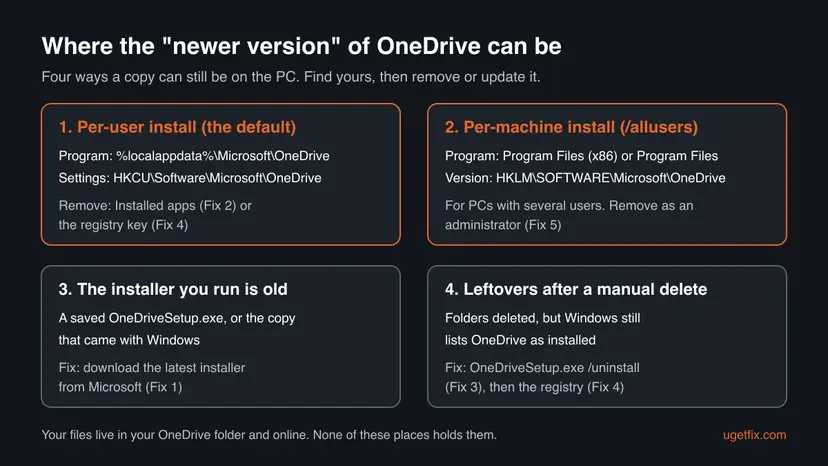
| How often | Cause | Signs | Fix |
|---|---|---|---|
| Most often | The installer you run is older than the installed OneDrive | OneDrive is in the Start menu or the cloud icon is next to the clock | Fix 1 |
| Often | You want a clean reinstall, but the old copy is still installed | Microsoft OneDrive is listed in Installed apps | Fix 2 |
| Often | The copy is registered but cannot be removed from Settings | No Uninstall button, or uninstall fails | Fixes 3 and 4 |
| Less often | Leftovers after a manual delete or a cleaner tool | No OneDrive anywhere, but setup still refuses | Fixes 3 and 4 |
| Rarely, at home | A per-machine install for all users | A Microsoft OneDrive folder under Program Files | Fix 5 |
How to fix "A newer version of OneDrive is installed"
Fix 1 solves it for most readers, because OneDrive is usually already there and working. Fixes 2 to 4 are Microsoft's own steps for a clean reinstall. Fix 5 is for PCs where OneDrive was installed for all users. Use the table to start at the right place.
| What you see or have | Start with |
|---|---|
| You ran a OneDrive installer and got the message once | Fix 1 |
| The message appears every time you click your OneDrive shortcut | Fix 1, step 1 |
| You want to remove OneDrive and install it fresh | Fix 2 |
| Microsoft OneDrive is not in Installed apps, or uninstall fails | Fix 3, then Fix 4 |
| You deleted OneDrive folders by hand earlier | Fix 3, then Fix 4 |
| A Microsoft OneDrive folder is in Program Files, or it is a work PC | Fix 5 |
Fix 1. Open the OneDrive you already have, or run the latest installer from Microsoft
2 minutesNo riskEveryone, first: it takes two minutes and changes nothing on the PC.
The message means OneDrive is already installed in a newer build. Microsoft's own fix for this message includes downloading the latest version, and an installer that is as new as the installed copy has nothing to refuse.
- Select Close in the setup window.
- Select Start, type OneDrive and open the OneDrive app. If the cloud icon appears next to the clock, OneDrive is installed and you do not need setup at all.
- If you were asked to sign in, enter your Microsoft account email address and select Sign in.
- If OneDrive does not start, or you need to install it, delete the old
OneDriveSetup.exefrom Downloads so you do not run it again. - Download the current installer from Microsoft's Download OneDrive page and run it.
Right-click the shortcut you use, select Properties and read Target. If it ends in OneDriveSetup.exe, the shortcut starts the installer. Unpin it and open OneDrive from the Start menu instead.
To compare versions, select the OneDrive cloud, the gear icon, then Settings, and open the About tab. The build next to OneDrive version is what is installed. Right-click any OneDriveSetup.exe, select Properties and the Details tab to see the installer's own version.
It worked if: OneDrive opens and syncs, or the latest installer runs without the message and asks you to sign in.
If not: If even the latest installer shows the message, the copy on the PC is broken or half removed: uninstall it with Fix 2.
Fix 2. Uninstall Microsoft OneDrive in Installed apps, then install it again
10 minutesLow riskYou want a clean install, or OneDrive is installed but does not start properly.
This is Microsoft's first step for this message. Removing the installed copy leaves nothing newer on the PC, so the installer you run next has no reason to stop.
Microsoft says you won't lose files or data by disabling, uninstalling or unlinking OneDrive on your computer. Your files stay online, and the OneDrive folder in your user folder is not deleted.
- Right-click the OneDrive cloud next to the clock and select Quit OneDrive, if it is running.
- Press Win + R, type
appwiz.cpland select OK. On Windows 11 you can also use Settings > Apps > Installed apps; on Windows 10, Settings > Apps > Apps & features. - Find Microsoft OneDrive in the list, right-click it and select Uninstall. Confirm in the User Account Control box.
- Restart the PC.
- Run the latest installer from Microsoft's Download OneDrive page and sign in.
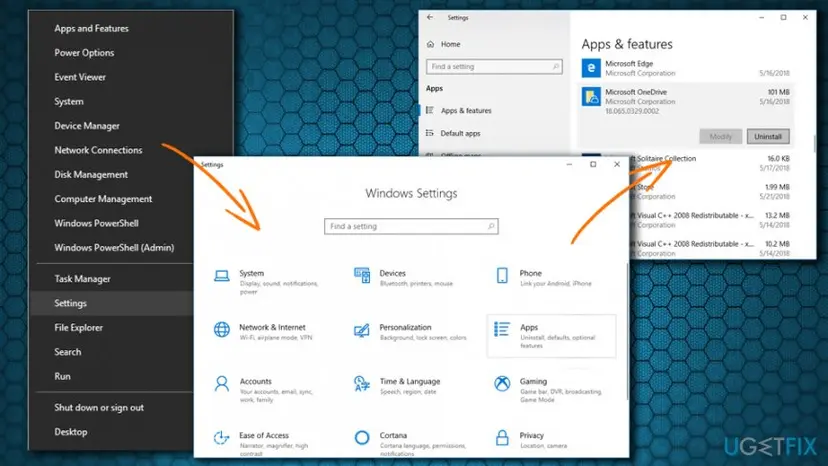
The same uninstall from the Start menu or Control Panel, with Windows 11 screenshots: Uninstall a program or app in Windows.
It worked if: Microsoft OneDrive disappears from the list, and after the restart the new installer runs to the sign-in screen.
If not: If OneDrive is not in the list, or Uninstall fails or is greyed out, use the command in Fix 3.
Fix 3. Uninstall OneDrive with the OneDriveSetup.exe /uninstall command
5 minutesLow riskOneDrive is not listed in Installed apps, the uninstall there fails, or you deleted OneDrive folders by hand.
The OneDrive installer can also remove OneDrive with the /uninstall switch. It clears the installation record that a hand-deleted folder leaves behind, which is what makes setup think a newer copy is still there.
- Press Ctrl + Shift + Esc to open Task Manager. End every Microsoft OneDrive process and close Task Manager.
- Select Start, type cmd, right-click Command Prompt and select Run as administrator. Select Yes in the User Account Control box.
- On 64-bit Windows, run the copy of the installer that comes with Windows:
%SystemRoot%\SysWOW64\OneDriveSetup.exe /uninstall - If Windows says it cannot find the file, try the other system folder:
%SystemRoot%\System32\OneDriveSetup.exe /uninstall - Wait a minute; the command shows no message when it finishes. Then restart the PC.
- Run the latest installer from Microsoft and sign in.
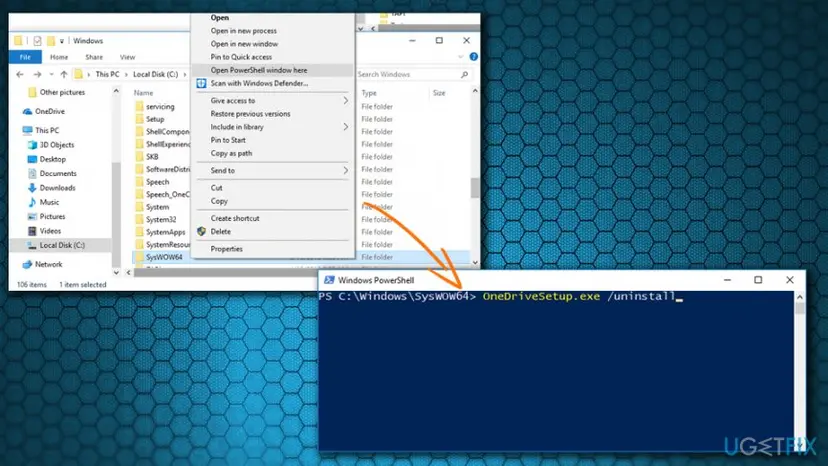
Neither file present? Some Windows builds do not ship the installer in either folder. Then download the current OneDriveSetup.exe from Microsoft, open Command Prompt in your Downloads folder and run OneDriveSetup.exe /uninstall there. We could not confirm from Microsoft that every build accepts the switch, so use Fix 4 if it does nothing.
It worked if: The cloud icon disappears, Microsoft OneDrive is gone from Installed apps, and the new installer runs without the message.
If not: If setup still says a newer version is installed, the registry still holds OneDrive's settings: go to Fix 4.
Fix 4. Delete the OneDrive key in the Registry Editor
5 minutesLow riskFixes 2 and 3 did not help, or OneDrive is gone but setup still refuses.
This is Microsoft's second step for this exact message. HKEY_CURRENT_USER\Software\Microsoft\OneDrive holds the per-user OneDrive settings, including the path of the installed program, and it can outlive the program itself.
You delete one key that holds your OneDrive settings for this user. Your files are not stored there, but OneDrive will ask you to sign in and set up again. Microsoft recommends a registry backup first: Back up the registry before editing it. Delete only the key shown here.
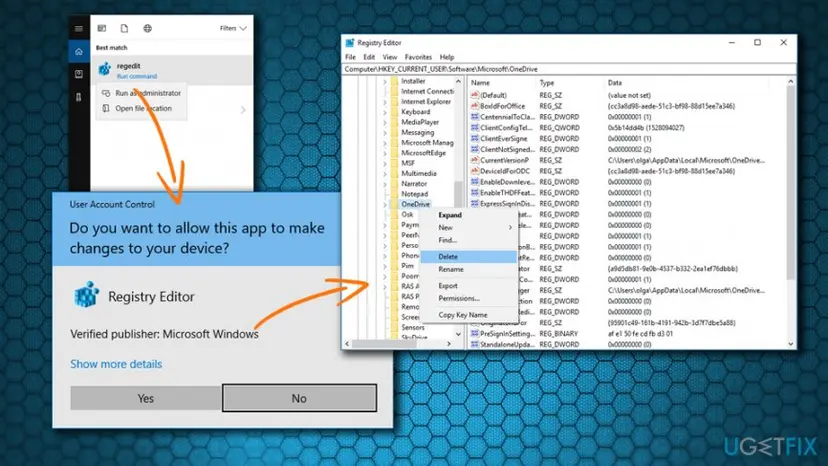
- Quit OneDrive if it is running, and run Fix 3 first if you have not.
- Press Win + R, type
regeditand select OK. Select Yes in the User Account Control box. - Paste this path into the address bar at the top of Registry Editor and press Enter:
Computer\HKEY_CURRENT_USER\Software\Microsoft\OneDrive - Right-click the OneDrive folder in the left pane and select Export to save a copy of the key to your desktop.
- Right-click the OneDrive folder again, select Delete and confirm with Yes.
- Close Registry Editor, restart the PC and run the latest OneDrive installer.
It worked if: After the restart, the latest installer runs to the OneDrive sign-in screen without the message.
If not: If the message is still there, look for a OneDrive installed for all users: Fix 5. To undo the deletion, double-click the exported .reg file.
Fix 5. Remove a per-machine OneDrive installed for all users
10 minutesLow riskA Microsoft OneDrive folder is under Program Files, or someone installed OneDrive with /allusers.
Microsoft documents that a per-machine OneDrive lives in Program Files (x86) or Program Files and records its version under HKEY_LOCAL_MACHINE. A per-user installer finds that newer copy and stops; Microsoft's way back is to uninstall it and install without /allusers.
- Open File Explorer and look for a Microsoft OneDrive folder in
C:\Program Files (x86)and inC:\Program Files. - Open Command Prompt as administrator, as in Fix 3.
- Read the version recorded for a per-machine install. On 64-bit Windows Microsoft's detection rule points to the 32-bit view, so try both lines; one of them may say it cannot find the key:
reg query "HKLM\SOFTWARE\WOW6432Node\Microsoft\OneDrive" /v Version reg query "HKLM\SOFTWARE\Microsoft\OneDrive" /v Version - If a version is shown, uninstall Microsoft OneDrive from Installed apps while signed in with an administrator account, and restart.
- Install the latest OneDrive. For one user, just run the installer. To keep the all-users install, run
OneDriveSetup.exe /allusersfrom an administrator Command Prompt in the folder that holds it.
On a managed PC, OneDrive is often deployed and updated by your IT department. Ask them before you remove it, because a policy can install it again or block the version you run.
It worked if: Neither reg query line returns a version, the Program Files folder is gone, and the new installer runs to the sign-in screen.
If not: Read "If the newer version error is still there" for what to collect before you contact Microsoft or your IT department.
If the "newer version of OneDrive" error is still there
Microsoft does not publish a setup log path for this message, so collect the facts you can check yourself. A support agent or your IT department will ask for them first, and on Microsoft Q&A they ask exactly these questions.
- The installer's version, from the Details tab of
OneDriveSetup.exeProperties, and where you got the file. - What is still on the PC: the output of the two
reg querylines in Fix 5, and whether a folder exists at%localappdata%\Microsoft\OneDriveor under Program Files. - What you removed by hand before you ran setup, and with which tool. A user on Microsoft Q&A reported the message after deleting files and registry entries manually.
- Your Windows version from
winver. Windows 10 reached the end of support on 14 October 2025; use 22H2 or Windows 11.
If you only need your files while this is sorted out, open onedrive.com in a browser and sign in. Everything synced earlier is there, with no app needed.
How to keep "A newer version of OneDrive is installed" from coming back
- Download the OneDrive installer fresh from Microsoft each time you need it.
- Open OneDrive from the Start menu, not from a saved setup file.
- Let OneDrive update itself; it uses the same release notes for per-user and per-machine installs.
- Uninstall through Installed apps or
/uninstallbefore reinstalling.
- Do not keep an old
OneDriveSetup.exepinned to the taskbar or desktop. - Do not delete OneDrive program folders by hand or with a cleaner tool.
- Do not delete your OneDrive files folder to "start over"; files that never synced would be lost.
- Do not mix per-user and per-machine installs on one PC.
Frequently asked questions
Why does it say a newer version of OneDrive is installed when I cannot find it?
Because Windows still has OneDrive registered even if you cannot see it. The program may sit in %localappdata%\Microsoft\OneDrive for your user, or under Program Files for all users, and its settings stay in the registry after a folder is deleted by hand. Check Installed apps first, then run OneDriveSetup.exe /uninstall (Fix 3) and delete the HKEY_CURRENT_USER\Software\Microsoft\OneDrive key (Fix 4). If a Microsoft OneDrive folder is under Program Files, use Fix 5.
Will I lose my files if I uninstall OneDrive to fix this?
No. Microsoft says you won't lose files or data by disabling, uninstalling or unlinking OneDrive on your computer. Files that were synced stay online, where you can open them on onedrive.com, and the OneDrive folder on your PC stays where it is. After you reinstall and sign in, OneDrive connects to the same folder and syncs again. The one thing to avoid is deleting the folder that holds your files, because files that never finished syncing exist only there.
How do I fix "A newer version of OneDrive is installed" on Windows 11?
The fixes are the same as on Windows 10; only the menu names differ. Open OneDrive from the Start menu first, because it is usually already installed. If you need to reinstall, go to Settings > Apps > Installed apps, select the three dots next to Microsoft OneDrive and choose Uninstall, then run the latest installer from Microsoft. If OneDrive is not listed, use OneDriveSetup.exe /uninstall from an administrator Command Prompt (Fix 3).
Why can't I uninstall OneDrive?
Usually for one of three reasons. OneDrive is still running, so quit it from the cloud icon or Task Manager first. It was installed for all users, so you need an administrator account (Fix 5). Or the program files were deleted by hand and the uninstall entry has nothing to run. In the last two cases the command %SystemRoot%\SysWOW64\OneDriveSetup.exe /uninstall in an administrator Command Prompt removes the installation record, and deleting the OneDrive registry key clears what is left.
What does "You need to uninstall it first before installing this version" mean?
It is the second line of the same OneDrive Setup message. The installer you started is older than the OneDrive already on the PC, and it will not overwrite a newer build with an older one. You do not need to uninstall anything if the installed OneDrive works: just open it. Uninstall first only if you want a clean reinstall, and then install the latest version from Microsoft, not the old file that showed the message.
What does "Your OneDrive files were managed by a newer version of OneDrive" mean?
It is the opposite situation. OneDrive starts, but it is older than the build that last managed your OneDrive folder. The message itself says no data has been lost. Download the latest OneDrive from Microsoft and install it. If setup then says a newer version is installed, open OneDrive from the Start menu, because the newer build is already there.
Where is OneDrive installed on Windows?
By default, OneDrive installs for each user under %localappdata%\Microsoft\OneDrive, which is C:\Users\<your name>\AppData\Local\Microsoft\OneDrive. Microsoft documents a second option for PCs with several users: a per-machine install, made with OneDriveSetup.exe /allusers, that goes to Program Files (x86) or Program Files depending on the system. Your files are in a different place, the OneDrive folder in your user folder, and neither program folder holds them.
Is the OneDrive troubleshooter still a fix for this error?
We could not confirm that Microsoft still offers a downloadable OneDrive troubleshooter, and Microsoft's own article for this message does not mention one. Its fixes are to uninstall OneDrive, delete the OneDrive registry key if the uninstall fails, and install the latest version. Those are Fixes 2, 4 and 1 on this page. A troubleshooter could not change the version check anyway, because the message comes from the installer comparing two version numbers.
Can I install an older version of OneDrive over a newer one?
Not directly: that is exactly what this message prevents. To go back, uninstall the installed OneDrive first (Fix 2 or 3), then run the older installer. OneDrive updates itself, so an old build may be replaced again soon unless updates are blocked. On a work PC, the version may be set by your organization, so ask your IT department instead of downgrading yourself.
Sources
- Microsoft Support: How to fix "A newer version of OneDrive is installed" (support.microsoft.com)
- Microsoft Learn: Install the sync app per-machine (Windows) (learn.microsoft.com)
- Microsoft Q&A: A newer version of OneDrive is installed, but it's not (user report and community answer) (learn.microsoft.com)
Did this fix work?
One click, no account. It tells the next reader which guides are worth their time.
Questions and experiences: fix "A newer version of OneDrive is installed" error
Still broken, or found a fix we did not cover? Ask here: members and our editors answer. Reading is open; writing needs a free account.
…