How to fix
A PC that won’t shut down after Windows 10 update
on Windows
Struggling to shut down your PC after a Windows 10 update? Discover effective fixes and regain control of your device with expert-tested solutions.

What causes How to fix a PC that won’t shut down after Windows 10 update?
- Hybrid Shutdown (Fast Startup) enabled by default
- Windows 10 updates not installed
- Power plan settings causing issues
- Corrupted system files
- Conflicting software or drivers
Repairs Windows system files, removes malware, and restores a clean OS state — without reinstalling.
Hi everyone. I’ve eventually upgraded my PC to Fall Creators Update built 16299.19. Right after the install, I’m not able to shut down button by pressing the shut down button on the power menu. Windows shows me the shutdown screen and then returns to the logon screen.
The only way to turn the system off is to press and hold the shift key when pressing shut down button at the same time. Nevertheless, I opt for using Fast Startup, so I don’t treat that as a solution. Is there anything else that I could do to fix shut down problems on Fall Creators Update?
Quite a lot of people reported Windows shut down problems, which started soon or right after the installation of Windows 10 Fall Creators Update.[ref en-1] The part of device users encounters the shut down failure on Windows 10 Technical Preview. In this case, the culprit is usually related to Windows 10 Hybrid Shutdown[ref en-2] (or Fast Startup). 
It’s a default Windows feature available in Windows 8, 8.1, and 10, which decreases the shutdown time, so it’s quite useful for saving people’s time. Nevertheless, Hybrid Shutdown can cause a variety of issues, for example, the PC won’t shut down, keeps restarting, power button won’t respond, shut down gets stuck with black screen, and so on.
Instructions on How to Fix a PC That Won‘t Shut Down after Windows 10 Fall Creators Update
The Hybrid Shutdown, also known as Fast Startup, is enabled on Windows by default, so the first method to fix a PC that won’t shut down is to disable the Hybrid Shutdown. This may result in the prolonged shutdown process, but the shutdown will be accomplished.
In addition to Hybrid Shutdown, it‘s advisable to install the latest Windows 10 updates[ref en-3] and the problem may automatically be resolved. Resetting the power plan is yet another solution that answered the purpose for many people.
Method 1. Turn Off Hybrid Shutdown
1. Press Windows key + S and type Control Panel.
2. Click on Control Panel entry and navigate to Power Options.
3. Click on the Choose what the power button does link on the left pane.
4. At the top of the new window, click Change settings that are currently unavailable.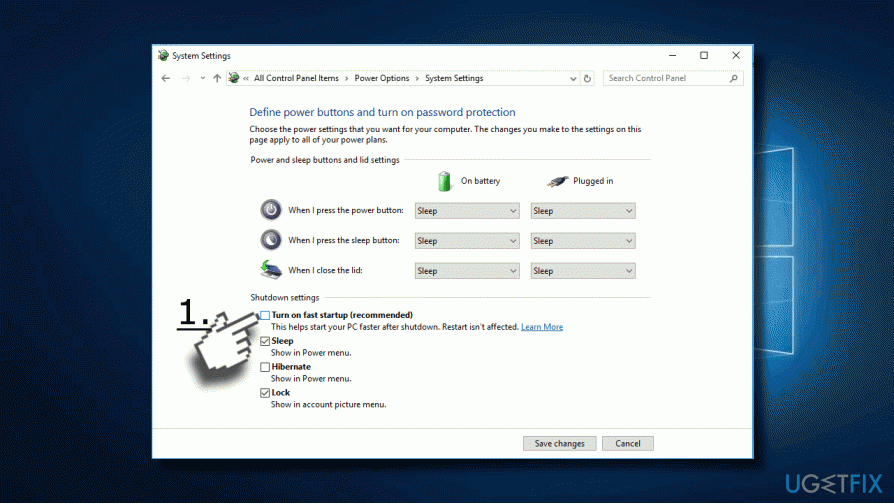
Method 2. Install Windows Updates
Often shut down problems come to an end when the device user installs all available Windows Updates. For this purpose, you should:
1. Press Windows key + I and open Update & Security.
2. Click on Check for Updates button and wait.
3. The system should automatically detect available updates and install them. Repeat the same procedure a couple of times until you see a notification “Your device is up to date.”
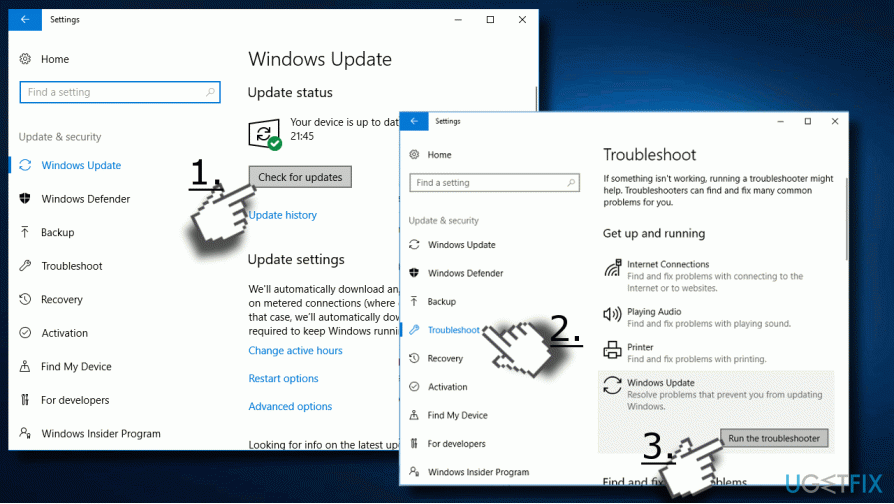
If the installation of updates did not help to fix Windows shut down problems, try to run Windows Update Troubleshooter:
1. Press Windows key + I and open Update & Security.
2. Click Troubleshoot on the left pane and scroll down until you see Windows Update.
3. Click on it and select Run Troubleshooter.
Method 3. Reset the Power Plan
1. Press Windows key + S and type Control Panel.
2. Open the panel and select Power Options.
3. Find the current power plan and click on the Change plan settings option next to it.
4. Select Change advanced power settings and click on Restore plan defaults button. 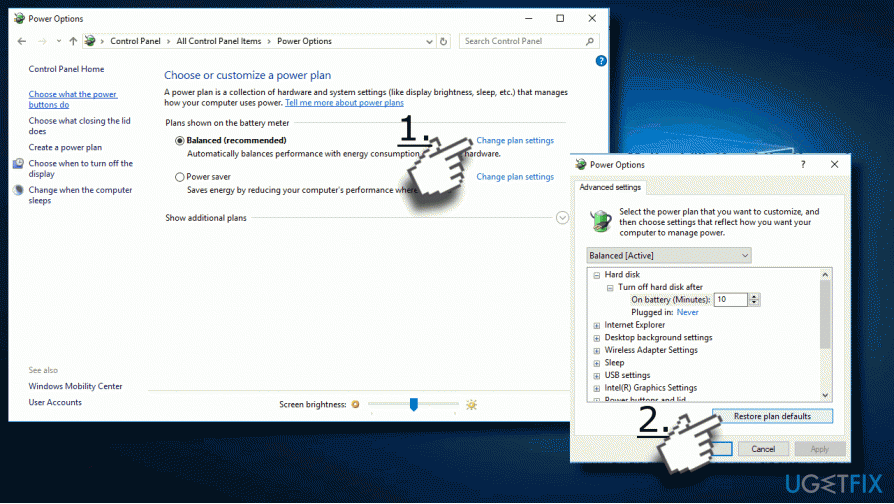
5. Finally, click Apply and OK to save the changes.
Method 4. Turn Off “Allow the computer to turn off this device to save power” option
1. Right-click on Windows key and select Device Manager.
2. Find the Intel(R) Management Engine Interface and right-click it.
3. Select Properties and open Power Management tab.
4. Unmark the Allow the computer to turn off this device to save power option.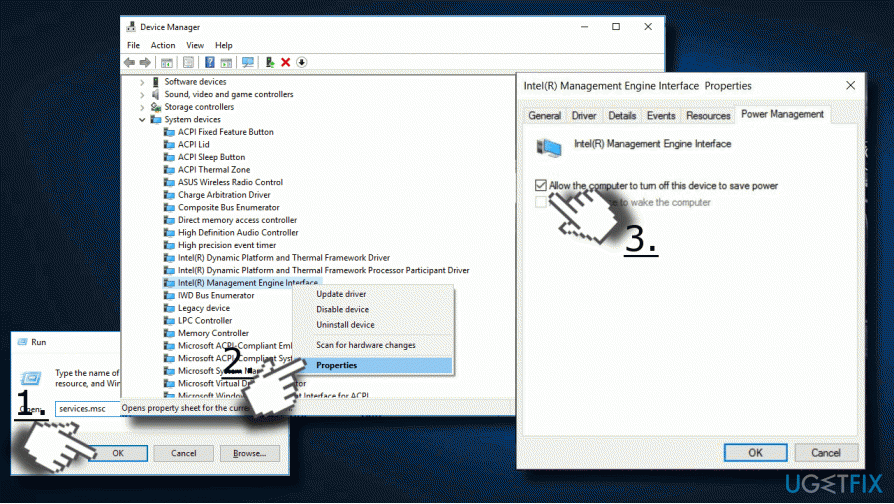
5. Click OK to save the changes and close Device Manager.
Method 5. Disable unnecessary services
To be more precise, Windows 10 shut down can be negatively influenced by Intel Rapid Technology service. The steps provided below will explain how to stop the service, but we would recommend you to enable it if disabling it won’t help to fix the PC that won’t shut down.
1. Press Windows key + R, type services.msc, and press Enter.
2. Find the Intel Rapid Technology service list and double-click on it.
3. Click on the Startup type and set it to Disabled. 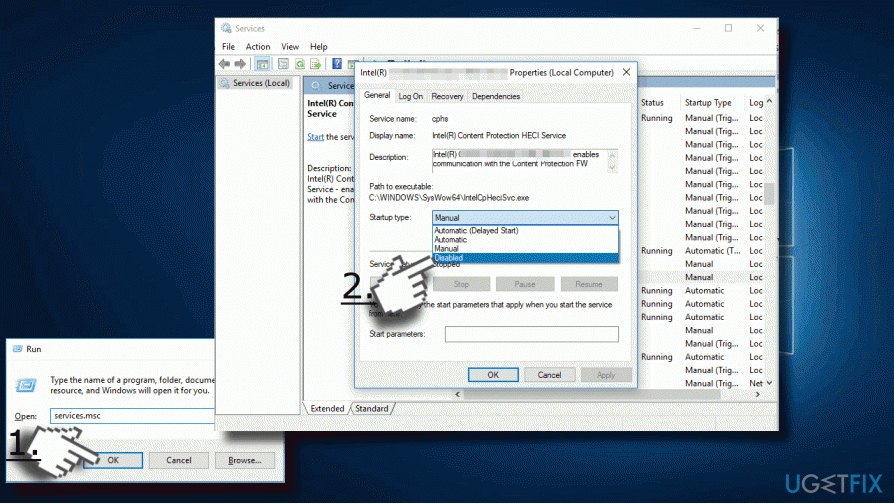
4. Now click Stop button to stop the service completely.
5. Finally, click Apply and OK to save the changes.
6. Now restart your PC and then try to shut your PC down via Shutdown menu.
Bottom line
To fix a PC that won’t shut down after the Windows 10 Fall Creators Update, you can disable Hybrid Shutdown, install the latest Windows updates, or reset the power plan. If these solutions do not resolve the issue, further troubleshooting may be necessary.
Frequently asked questions
Try performing a hard reset by holding down the power button until the PC turns off, then restart it. If the issue persists, check for pending updates that may need to be installed.
Yes, you can go to Settings > System > Power & sleep, then click on Additional power settings to adjust your power options. Look for any settings that might prevent your PC from shutting down properly.
Yes, you can uninstall the latest update by going to Settings > Update & Security > Windows Update > View update history, then select Uninstall updates. This may resolve the shutdown issue.




Report an issue
What's wrong with this guide? We review every report and update or remove content.
Report received — thank you. We'll review and fix it.
You need a free account to submit a report.
Be the first to comment