How to fix
“A problem caused the program to stop working correctly” error
on Windows
Resolve the “A problem caused the program to stop working correctly” error on Windows 10 quickly and effectively, with expert-tested solutions and tips.

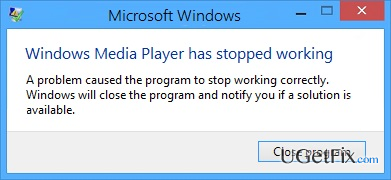
What causes How to Fix “A problem caused the program to stop working correctly” error on Windows 10?
- Norton Antivirus
- Windows Firewall
- Windows updates
- Corrupted system files
- Malware presence
Repairs Windows system files, removes malware, and restores a clean OS state — without reinstalling.
Hello to all. When I attempt to launch Skype, an error saying “A problem caused the program to stop working correctly”. The only option is to click OK and after that the program closes. The same happens with other apps randomly. What is the matter? Could you please help me? I’m running Windows 10 and recently installed KB3132372 update.
Often Windows 10 users encounter an error message that reads: “A problem caused the program to stop working correctly”. While the majority of PC users claim that this is happening with Skype, apps, such as Microsoft Office apps, web browsers, photo viewer, etc. cannot be run due to this problem. There are various speculations related to the causes of “A problem caused the program to stop working correctly” error, for example, some specialists claim that it’s triggered by Windows Wirewall or Norton antivirus. The others consider this bug to be caused by Windows updates. It’s clear that there is no single reason that would apply to all “A problem caused the program to stop working correctly” error cases. Therefore, we will describe several diverse methods that can be helpful in fixing this situation. Try them one by one and find the one that is suitable for your OS. By the way, before you start performing any fixes manually, you should optimize your PC with a professional utility, such as [d1]. It will clean malware, fix registries, system files, report about outdated software, third-party software, and so on.
How to Fix “A problem caused the program to stop working correctly” error on Windows 10?
Fix 1. Uninstall Norton Antivirus
The implication that Norton Antivirus can be related to the occurrence of “A problem caused the program to stop working correctly” error has been done after surveying people who have encountered this problem. The survey has revealed that the majority of them have been using Norton. If you are one of them, you should try uninstalling this software and changing it to the other. By the way, Windows 10 offer Windows Defender by default, so why wouldn’t you try using it?
To remove Norton Antivirus completely, you can use [rev id="Perfect Uninstaller"]. This way, all components will be deleted. Nevertheless, you can disable the process of the antivirus via Task Manager, delete the program via Control Panel, and then look for its leftovers on the registries. Note that this will take some time.
Fix 2. Reset Comodo Firewall’s settings
This fix is most suitable for those, who experience “A problem caused the program to stop working correctly” error during the launching of web browsers (Chrome, IE, Edge, Safari, etc.). To change Comodo’s settings, you have to:
- Open Comodo Firewall, click on Task (top right corner), and open Advanced tasks.
- Click on Open Advanced Settings and select Security Settings.
- After that, navigate to Defense+ -> HIPS -> HIPS Settings.
- Locate Detect shellcode injections and select Exclusions.
- Then find a little arrow at the bottom of Manage Exclusions.
- Select Add and then Files.
- Find chrome.exe. It should be located in the following folder: C:\Program Files (x86)\Google\Chrome\Application\.
- Once found, double-click on the .exe file and click OK.
- In the Advanced Settings window click OK as well and then close everything.
Fix 3. Uninstall KB3132372 update
You may not be allowed to launch particular apps due to the failure of KB3132372 update installation. If you have noticed that “A problem caused the program to stop working correctly” alert appeared right after the installation of this update, then uninstall it to get rid of this error. For this purpose, you have to:
- Right-click on the Win key and select Control Panel.
- Select View installed updates and navigate to Microsoft Windows pane.
- Find the Security Update for Internet Explorer Flash Player for Windows 10 Version 1511 for x64-based Systems (KB3132372).
- Click on it and select Uninstall.
- After that, restart you PC.
Fix 4. Rename Skype folder
The biggest part of “A problem caused the program to stop working correctly” error victims were trying to launch Skype. Luckily, you can easily fix this problem:
- Click Ctrl + Alt + Delete to open Task Manager.
- Select Processes tab and locate Skype.
- Click it, select End Task, and close Task Manager.
- Then, click Win key + R, type %appdata%, and press OK.
- When the App Data directory opens, find Skype folder and rename it to Skype_old.
- Once done, press Win key + R one more time, type %temp%\skype, and press Enter.
- Find DbTemp folder and remove it.
- Restart Skype app.
Bottom line
To fix the error, you can try uninstalling Norton Antivirus, optimizing your PC with a professional utility, or checking for corrupted system files. If none of these methods work, consider seeking further assistance or exploring additional troubleshooting options.
Frequently asked questions
You can try restarting the application, running it in compatibility mode, or updating the program to fix the issue.
Yes, a corrupted user profile can lead to various errors, including this one; creating a new user profile may resolve the issue.
Go to Settings > Update & Security > Windows Update, and click on 'Check for updates' to ensure your system is up to date.




Report an issue
What's wrong with this guide? We review every report and update or remove content.
Report received — thank you. We'll review and fix it.
You need a free account to submit a report.
Be the first to comment