How to fix
A stuck HP printer cartridge
on Windows
Resolve your HP printer cartridge issues effortlessly on Windows 10 or Windows 11. Expert-tested solutions ensure smooth printing with zero traces left.


What causes How to fix a stuck HP printer cartridge?
- Obstructions in the cartridge path
- Accumulated dust or debris
- Issues with the printer's hardware
- Improper installation of cartridges
- Improper removal of cartridges
Repairs Windows system files, removes malware, and restores a clean OS state — without reinstalling.
Upon powering up my printer, an error message reading "Carriage Jam" is displayed. It seems that the ink carriage is immobilized on the right side of the printer and unable to traverse along its designated track.
HP printers remain a staple in both home and business settings, offering reliable and high-quality printing solutions. These devices cater to a range of printing needs, from simple document printing to more complex tasks, ensuring versatility across different environments.
Despite their widespread use and advanced technology, HP printers can encounter mechanical issues, one common problem being a stuck printer cartridge. This issue can occur on either the right or left side of the printer and is often indicated by a "Carriage Jam" error message on the printer's display.
The "Carriage Jam" error or a stuck cartridge in HP printers typically arises due to various reasons. These include obstructions in the cartridge path, accumulated dust or debris, or issues with the printer's hardware. Such obstructions can prevent the cartridge from moving freely, leading to the error. Additionally, improper installation or removal of cartridges can also contribute to this problem, hindering the printer's functionality.
Resolving a stuck HP printer cartridge involves a series of troubleshooting steps. These include checking for any visible obstructions, cleaning the cartridge area to remove dust or debris, ensuring that cartridges are correctly installed, and resetting the printer. The upcoming sections of this article will provide detailed instructions on how to perform these steps, aiming to guide users through the process of fixing the issue effectively and efficiently.
For those encountering frequent issues with their Windows operating systems, such as errors, crashes, or registry problems, it is recommended to consider using PC repair software [d1]. Such software can help in diagnosing and resolving various system-related issues, contributing to the smoother operation of both the operating system and connected devices like HP printers.
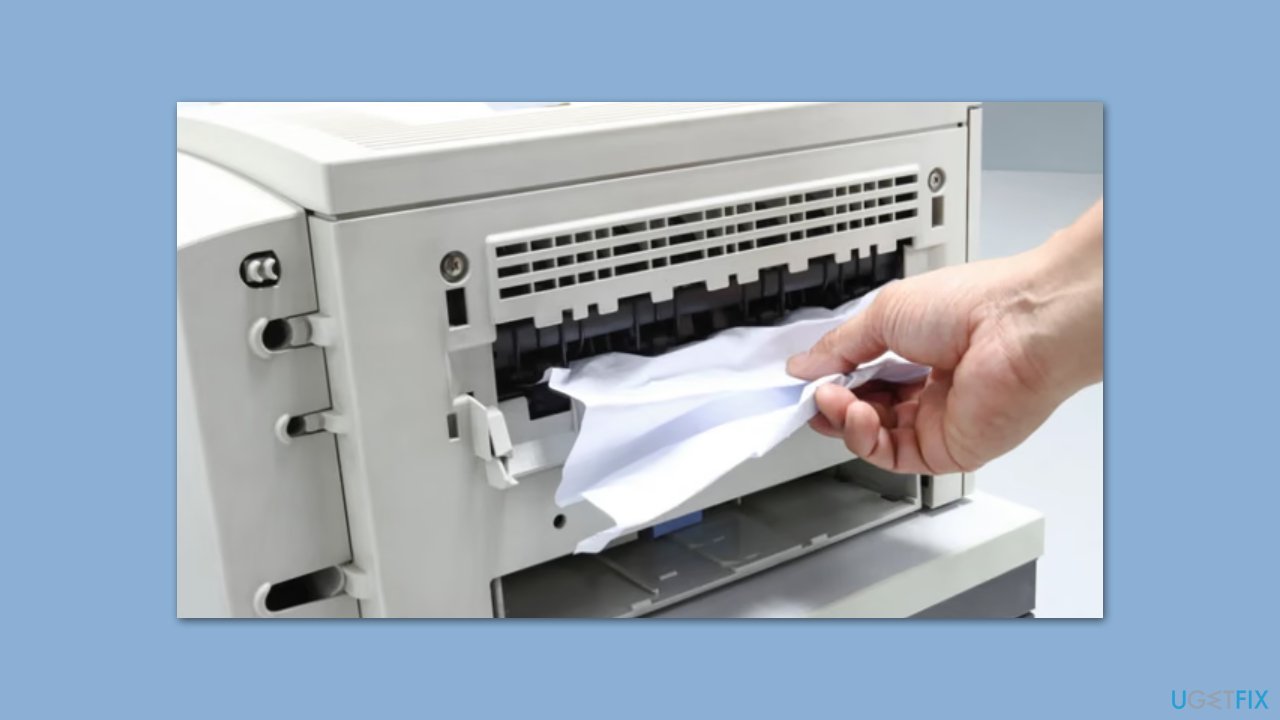
Fix 1. Check for obstructions
This solution addresses physical blockages that might be preventing the cartridge from moving. Objects or accumulated debris can obstruct the cartridge's path, causing it to stick.
- Turn off the printer and unplug it from the power source.
- Open the printer cover and inspect the cartridge area for any foreign objects or debris.
- Gently remove any obstructions found using a soft cloth or brush.
- Ensure that no parts are broken or dislocated in the cartridge area.
- Close the printer cover, plug the printer back in, and turn it on.
Fix 2. Clean the cartridge and carriage
Dust or ink residue on the cartridge or carriage can cause the cartridge to stick. Cleaning these components can help them move more freely.
- Power off the printer and disconnect it from the power outlet.
- Open the printer and remove the stuck cartridge carefully.
- Clean the cartridge and the carriage gently using a soft, lint-free cloth dampened with water.
- Dry the cartridge and carriage completely before reinserting the cartridge.
- Reconnect the power and turn on the printer.

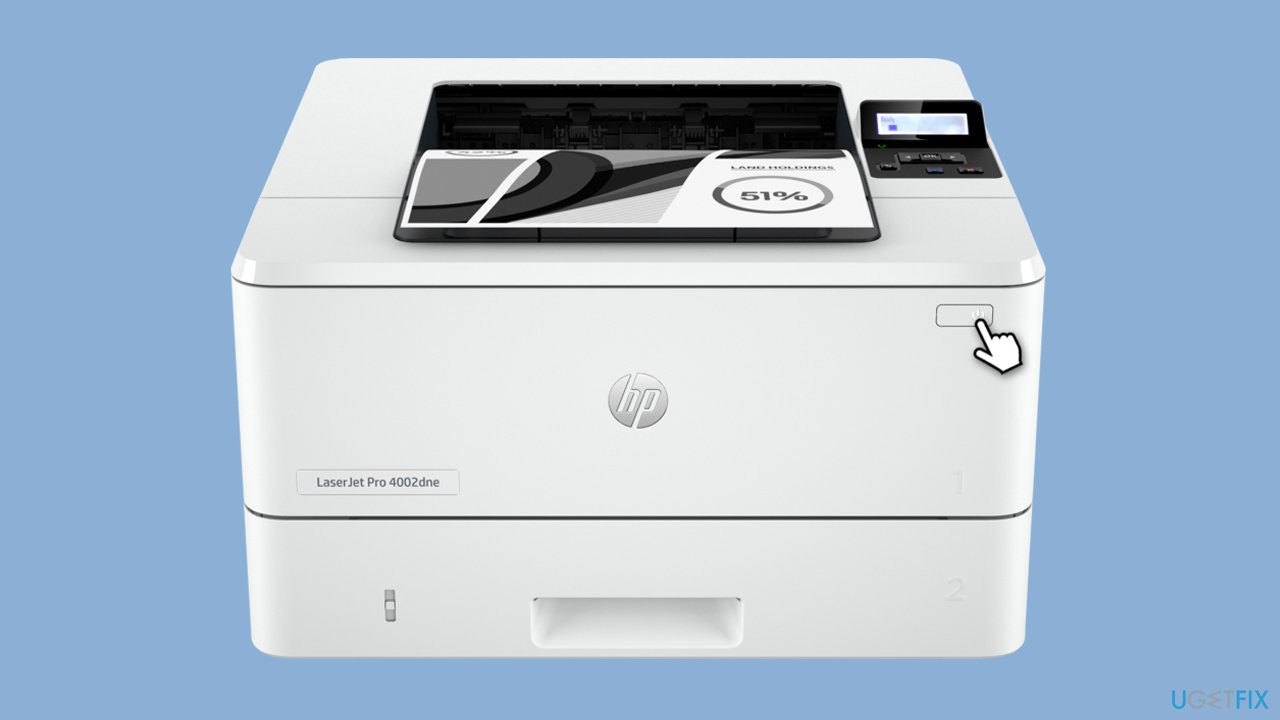
Fix 3. Reset the printer
Resetting the printer can clear any errors and recalibrate the printer settings, potentially resolving the stuck cartridge issue.
- Turn off the printer.
- Unplug it from the power outlet and wait for about 60 seconds.
- Plug the printer back in and turn it on.
- Wait for the printer to go through its startup routine.
Fix 4. Align the printer cartridges
Misalignment of cartridges can lead to them getting stuck. Realigning them can ensure proper placement and movement.
- Access the printer’s control panel or software on your computer.
- Navigate to the maintenance or tools section.
- Select the option to align or calibrate the cartridges.
- Follow the on-screen instructions to complete the alignment process.
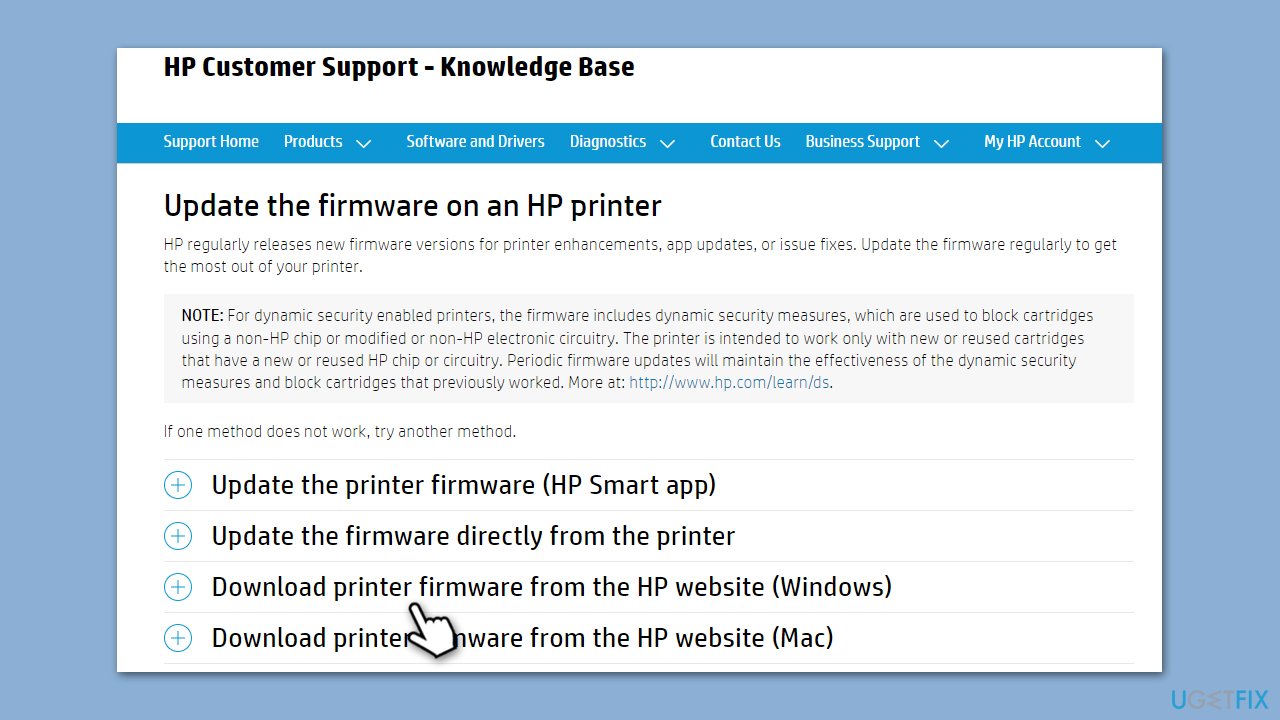
Fix 5. Update printer firmware
Outdated firmware can cause functional errors. Updating it can resolve issues including the stuck cartridge problem.
- Go to the official HP website.
- Locate your printer model.
- Download the latest firmware update.
- Install the update by following the on-screen instructions.
Fix 6. Check for hardware issues
Hardware issues like a damaged carriage or rails can cause the cartridge to stick. Inspecting these parts can help identify if there is a need for repair or replacement.
- Turn off and unplug the printer.
- Open the printer cover and inspect the carriage and rails for any signs of damage.
- Look for broken parts or components that seem out of place.
- If damage is found, contact HP support or a professional printer technician for further assistance.
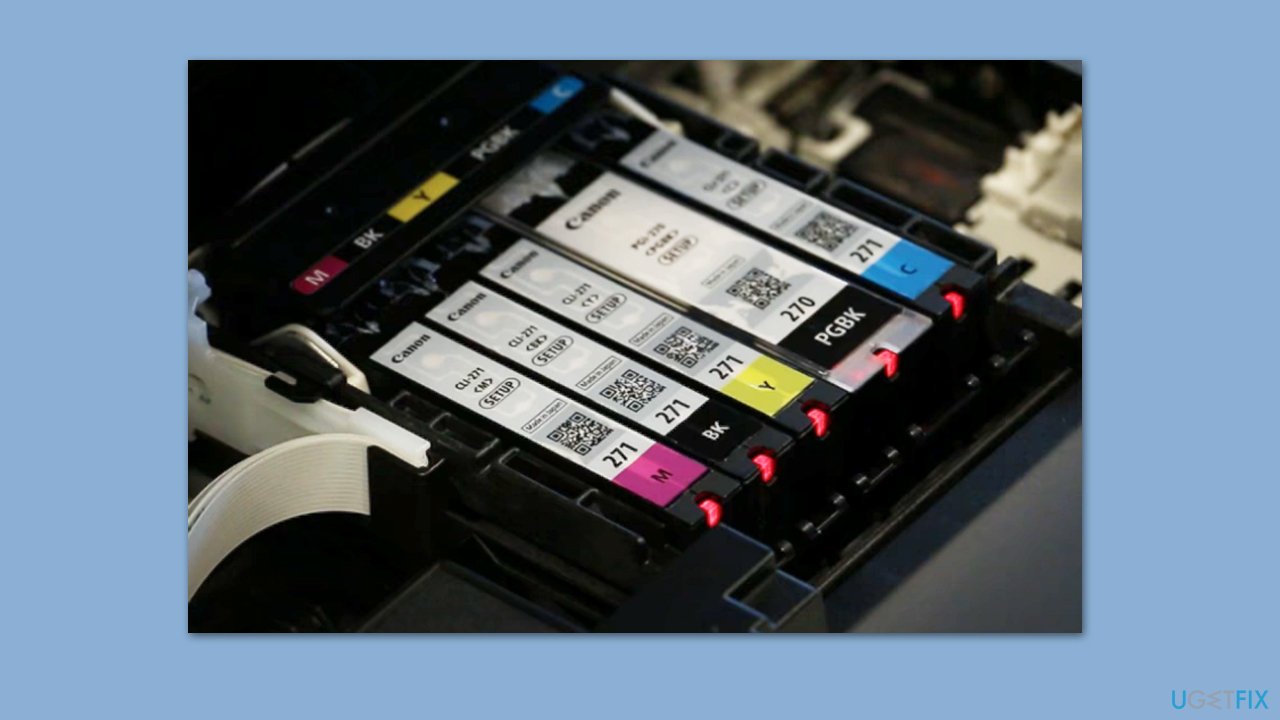
Fix 7. Reinstall printer cartridges
Incorrect installation can lead to cartridges getting stuck. Reinstalling them ensures they are correctly positioned.
- Turn off the printer and disconnect it from the power source.
- Open the printer cover and carefully remove the cartridges.
- Reinstall the cartridges, ensuring they are securely and correctly placed in their respective slots.
- Close the cover, reconnect the power, and turn on the printer.
Bottom line
To resolve a stuck HP printer cartridge, check for visible obstructions, clean the cartridge area, ensure cartridges are correctly installed, and reset the printer. If these steps do not resolve the issue, consider seeking further assistance or consulting HP support.
Frequently asked questions
You can check for a stuck cartridge by opening the printer software on your Windows 10 PC and looking for error messages or status notifications that indicate a cartridge issue.
Try turning off the printer, unplugging it for a minute, and then plugging it back in to reset the mechanism; this often helps release a stuck cartridge.
Yes, you can access the printer settings on your Windows 11 device, navigate to the maintenance section, and select the option to clean the cartridges, which may help if they are jammed.




Report an issue
What's wrong with this guide? We review every report and update or remove content.
Report received — thank you. We'll review and fix it.
You need a free account to submit a report.
Be the first to comment