How to fix
“A toolbar is already hidden on this side of your screen” error
on Windows
Resolve the "A toolbar is already hidden" error on Windows 10 or 11 quickly with our expert-tested solutions. Fix it in minutes!

What causes How to fix “A toolbar is already hidden on this side of your screen” error in Windows?
- Taskbar auto-hide feature malfunction
- Corrupted system files
- Outdated Windows version
- Multiple toolbars conflicting
- Settings reset after restart
Repairs Windows system files, removes malware, and restores a clean OS state — without reinstalling.
Hello. The taskbar auto-hide function keeps resetting every time I restart my Windows 11 computer. What should I do?
The taskbar in Windows 11 can be used for seeing your apps and checking the time. People can personalize it in many ways - change the color, pin their favorite apps to it, and move or rearrange taskbar buttons. They can also check the computer's battery status and minimize opened programs so that they can take a look at the desktop.
However, in some cases, users want to hide the taskbar, for example, if they have multiple monitors. Windows has an auto-hide feature that should help but some people report that it malfunctions. The taskbar keeps reappearing even if the auto-hide function is enabled.
Sometimes users also see an error message - "A toolbar is already hidden on this side of your screen. You can have only one auto-hide toolbar per side." Due to this, the taskbar auto-hide setting resets to unhidden when people restart their PCs, and this can get very annoying. It is unknown what exactly causes this issue but in this guide, you will find 7 possible solutions.
Keep in mind that the manual troubleshooting process can be lengthy, so you can use a maintenance tool like [d1]. It can fix most system errors, BSODs,[ref en-1] corrupted files, and registry[ref en-2] issues. It can also clear cookies and cache[ref en-3] which should improve performance. Otherwise, follow the step-by-step instructions below carefully.
Solution 1. Update Windows
- Click Start on the taskbar
- Select the Setting app pinned to the Start menu
- Click Windows Update on the left side of Settings
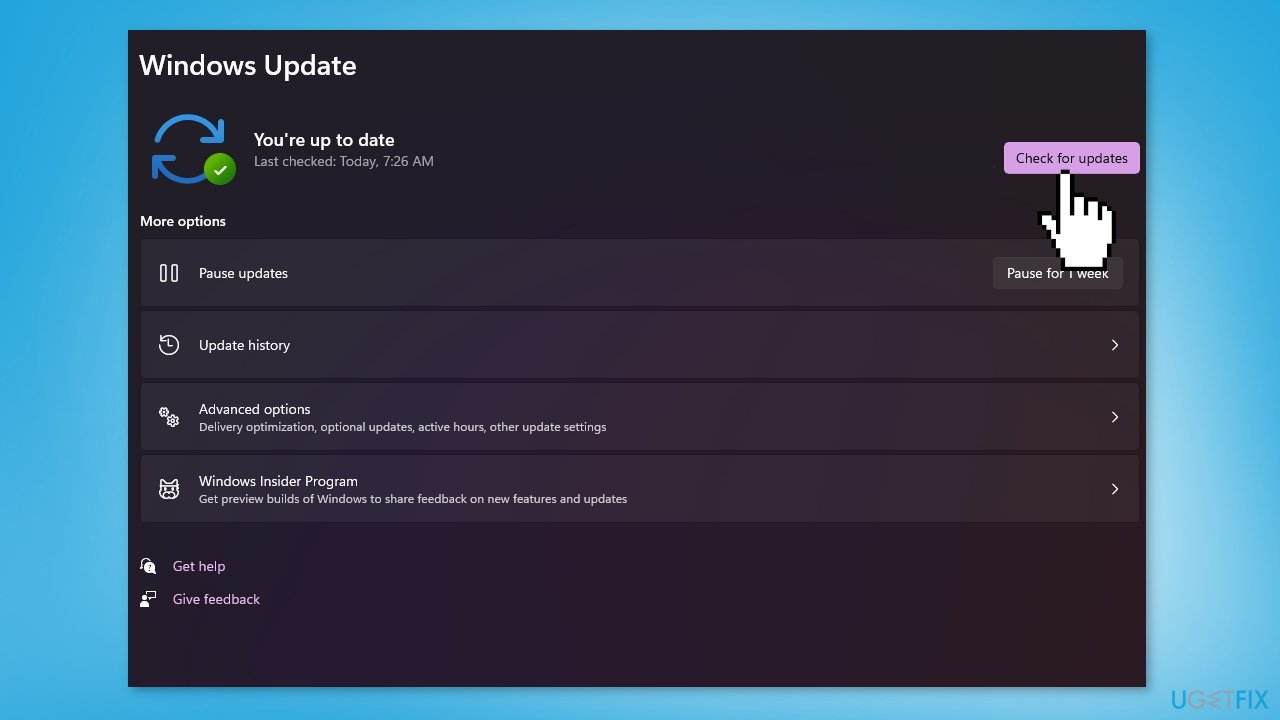
- Press the Check for updates button to download and install new patch updates
- You can also install optional updates by going to the Advanced tab
Solution 2. Fix Corrupted System Files
Use Command Prompt commands to repair system file corruption:
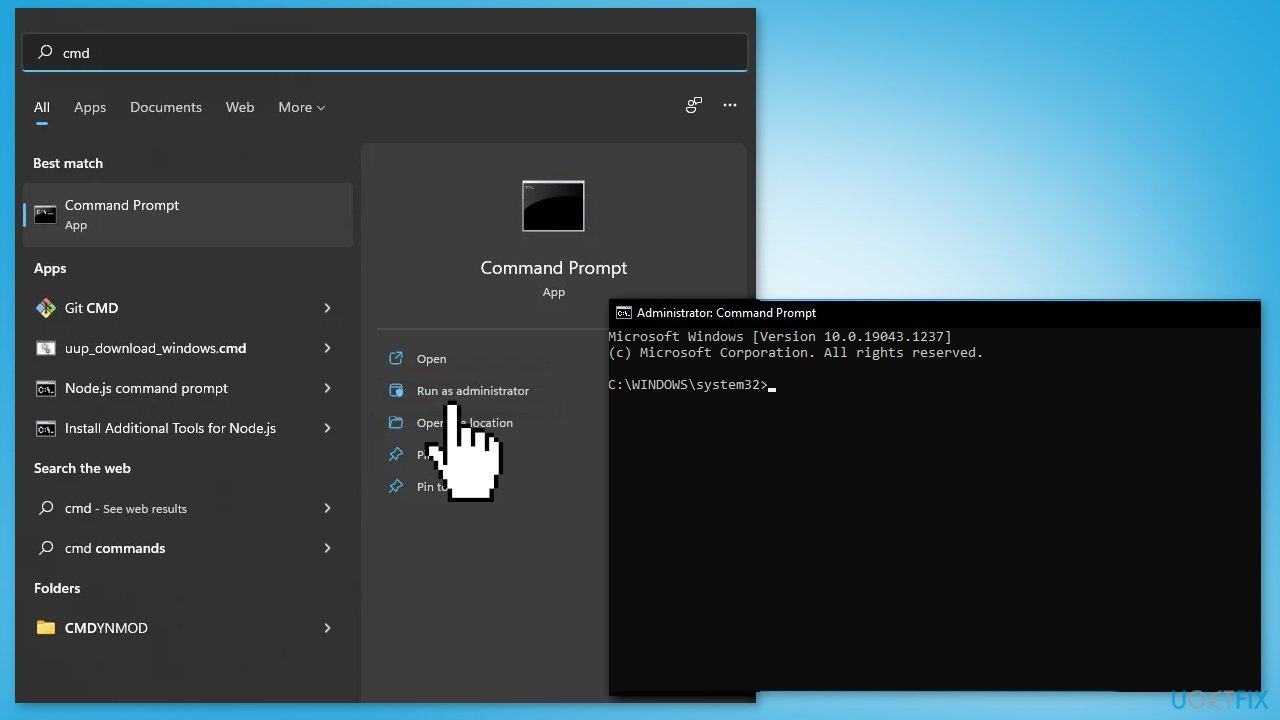
- Open Command Prompt as administrator
- Use the following command and press Enter:
sfc /scannow
- Reboot your system
- If SFC returned an error, then use the following command lines, pressing Enter after each:
DISM /Online /Cleanup-Image /CheckHealth
DISM /Online /Cleanup-Image /ScanHealth
DISM /Online /Cleanup-Image /RestoreHealth
Solution 3. Restart Windows Explorer
- Press the Windows key + I to open Settings
- Go to Personalization
- Click on the Taskbar option at the bottom
- Click on Taskbar behaviors
- Under the Taskbar behaviors section, Make sure Automatically hide the taskbar checkbox is checked
- Close the Settings window
- Open Task Manager app by pressing Ctrl + Shift + Esc keys together on your keyboard
- Then, Select the Processes tab and right-click on the Windows Explorer process
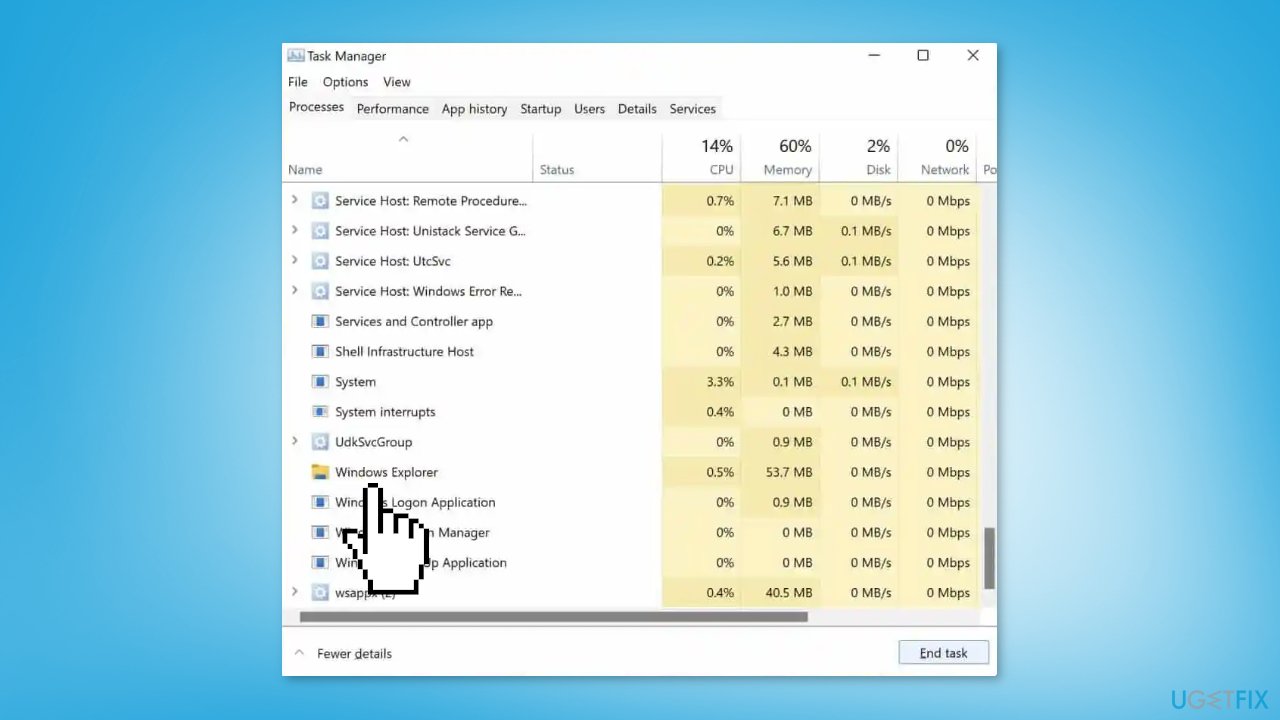
- Click on the Restart option from the context menu
- Check now if the issue is resolved
Solution 4. Disable a Taskbar Behavior
- Right-click on the Start button and select Settings
- Click on the Personalization option from the left pane
- Select Taskbar behaviors on the right side
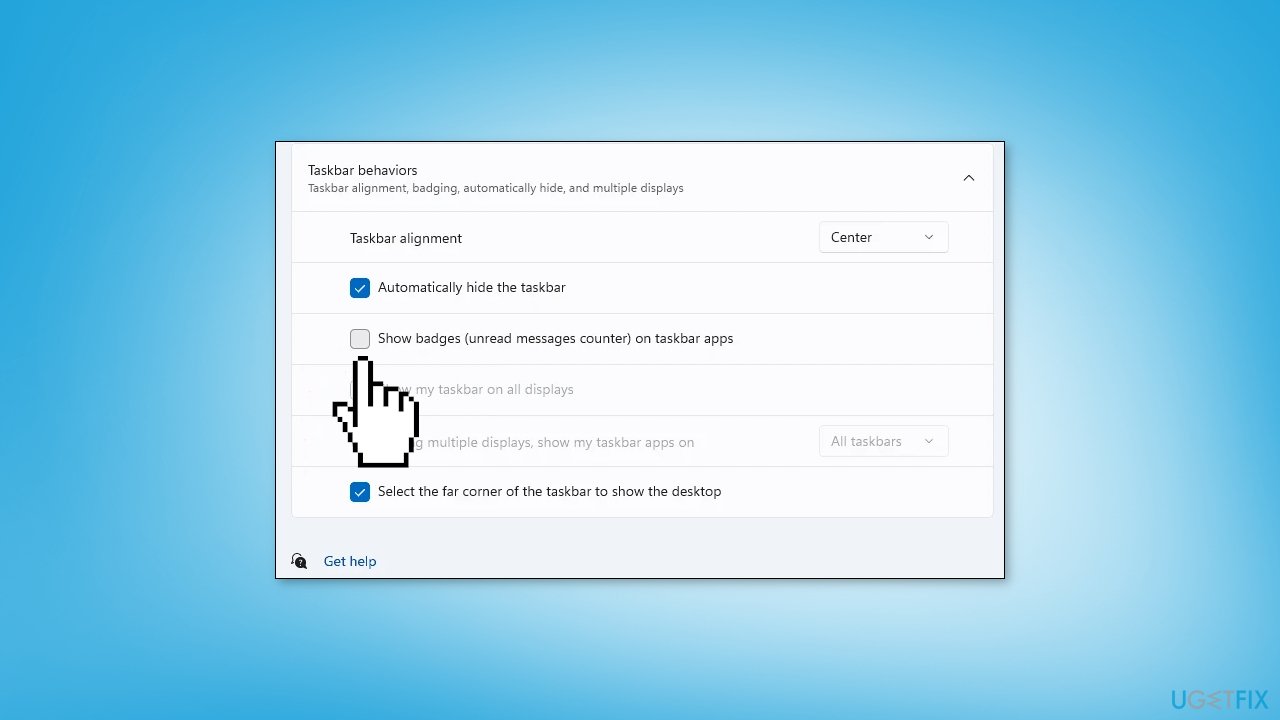
- Disable the Show badges (unread messages counter) on taskbar apps option by unchecking the checkbox
Solution 5. Update Drivers
Outdated drivers could be the cause of the error. In this case, you can fix it automatically by using [rev id="DriverFix"], which will scan your PC for missing and out-of-date device drivers. Or you can update them manually:
- Open Settings
- Click on Update & Security
- Click on Windows Update
- Click the Check for updates button
- Click the View optional updates option
- Click the Driver updates tab
- Select the driver you want to update
- Click the Download and install button
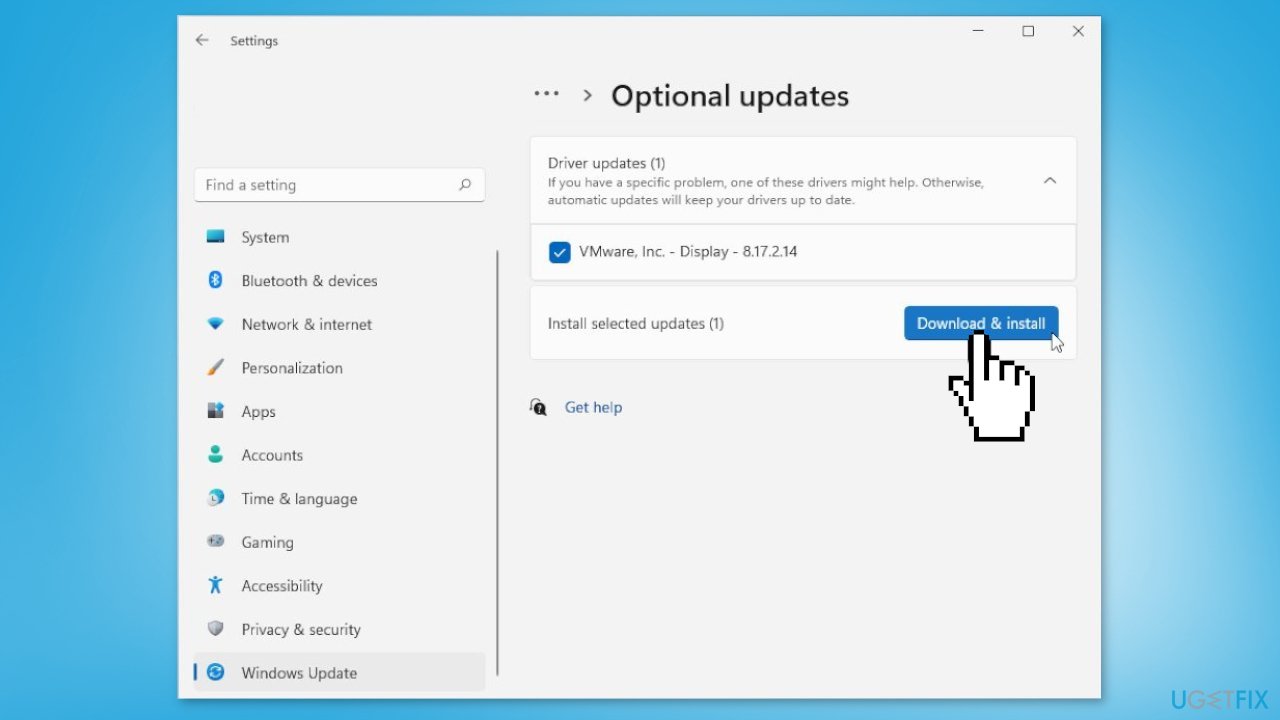
If the View optional updates link is not available after checking for updates, then Windows Update does not have any new drivers or any updates for other products at that particular time.
Solution 6. Re-register the Taskbar Package
- Open the Windows search and type Powershell
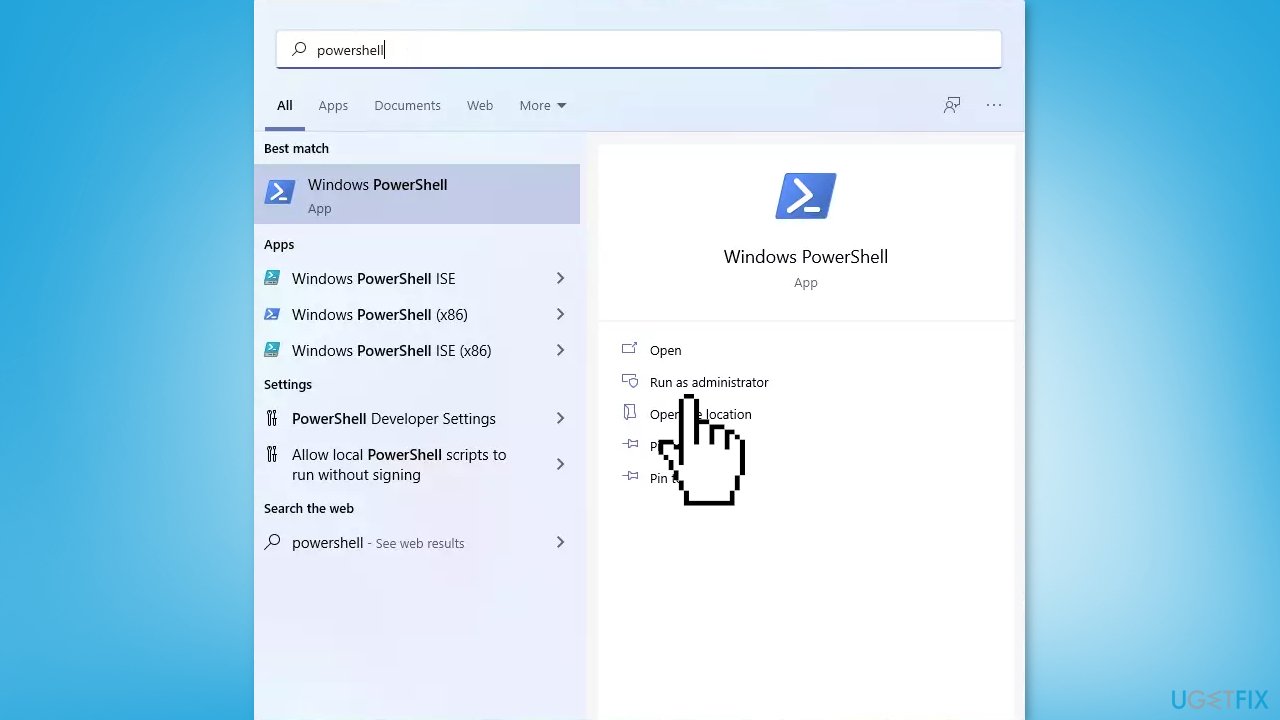
- Select Run as Administrator
- Copy and paste the following command in the window and hit Enter:
Get-AppXPackage -AllUsers | Foreach {Add-AppxPackage -DisableDevelopmentMode -Register"$($_.InstallLocation)AppXManifest.xml"}
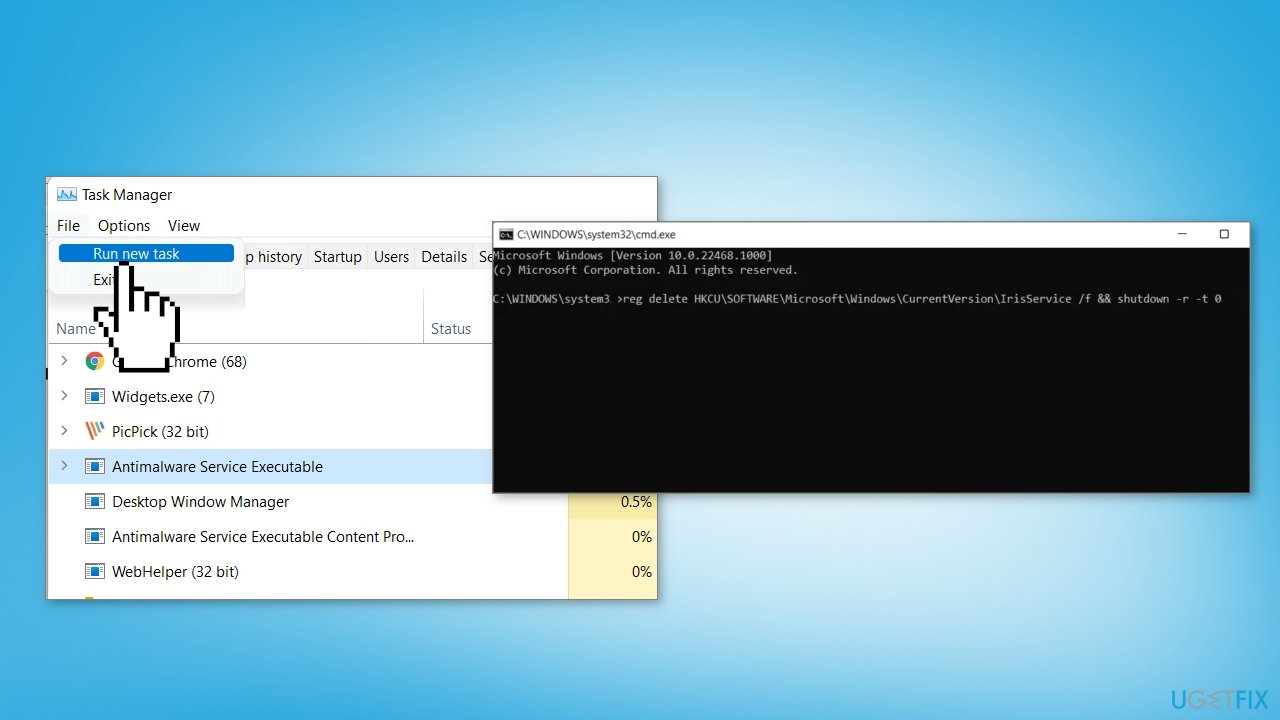
Solution 7. Delete Registry Keys
- Open the Task Manager
- Go to the File menu and select Run new task
- Type cmd in the Open field and click OK or hit Enter
- After that, copy and paste the following command in the command prompt and press Enter:
reg delete HKCU\SOFTWARE\Microsoft\Windows\CurrentVersion\IrisService /f && shutdown -r -t 0
Bottom line
To fix the 'A toolbar is already hidden on this side of your screen' error, you can update Windows, repair corrupted system files using Command Prompt, and check for conflicting toolbars. If these solutions do not resolve the issue, consider using a maintenance tool to address deeper system problems.
Frequently asked questions
Try resetting the toolbar settings by right-clicking on the taskbar, selecting 'Toolbars', and unchecking any active toolbars. If the issue persists, restart Windows Explorer from the Task Manager.
Yes, you can resolve the error by right-clicking the taskbar, selecting 'Taskbar settings', and toggling the toolbars off and back on. Additionally, ensure that all Windows updates are installed.
To minimize the chances of this error, avoid adding too many toolbars or customizations to your taskbar in Windows 10 or Windows 11. Regularly check for system updates and manage your taskbar settings.




Report an issue
What's wrong with this guide? We review every report and update or remove content.
Report received — thank you. We'll review and fix it.
You need a free account to submit a report.
Be the first to comment