How to fix
AAM Updates Notifier.exe error
on Windows
Resolve the AAM Updates Notifier.exe error on Windows 10 or Windows 11 quickly and effectively. Expert-tested solutions await you, fixed in minutes.

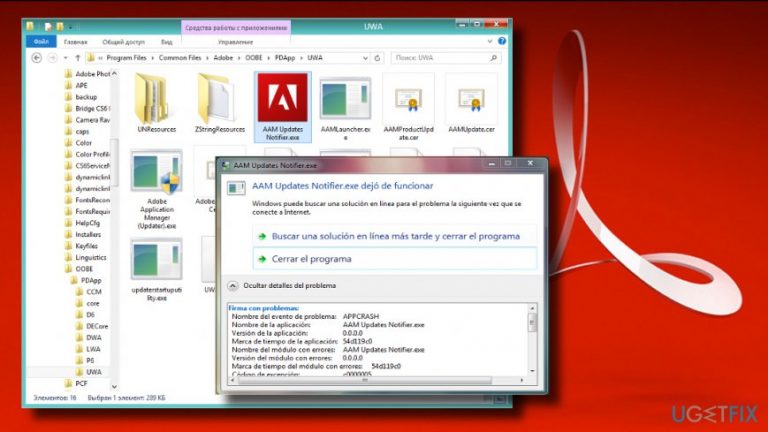
What causes How to fix AAM Updates Notifier.exe error on Windows?
- AAM Updates Notifier.exe is missing
- AAM Updates Notifier.exe has stopped working
- AAM Updates Notifier.exe is not a valid Win32 application
- AAM Updates Notifier.exe is incompatible with the OS version
- AAM Updates Notifier.exe may be flagged as a virus
Repairs Windows system files, removes malware, and restores a clean OS state — without reinstalling.
I've noticed that since February 14th my laptop started working unusually. Some of the apps do not respond. Besides, I started getting the following "AAM Update Notifier Application has stopped working" error message randomly.
AAM Updates Notifier.exe is a file that belongs to the Adobe Acrobat or Adobe Photoshop Elements 10 software packages.[ref en-1] It is owned, digitally signed, and maintained by Adobe Systems - a tech giant which develops software products for web design. Adobe Acrobat along with its integral part AAM Updates Notifier.exe is responsible for the management of Portable Document Format (PDF) files. The software allows viewing, creating, printing, and otherwise manipulating PDF files.
Since we've already determined that the AAM Updates Notifier.exe file is not essential for Windows OS performance, it can be used both modified or deleted. However, you may negatively influence the performance of the Adobe Acrobat or other Adobe's products.
According to people's reports, this file quite frequently causes problems. It may throw an error saying that AAM Updates Notifier.exe is missing or stopped working when trying to launch random apps. Besides, this file may be pointed out to as a problem on pop-up alerts displayed by Windows Notification Center.
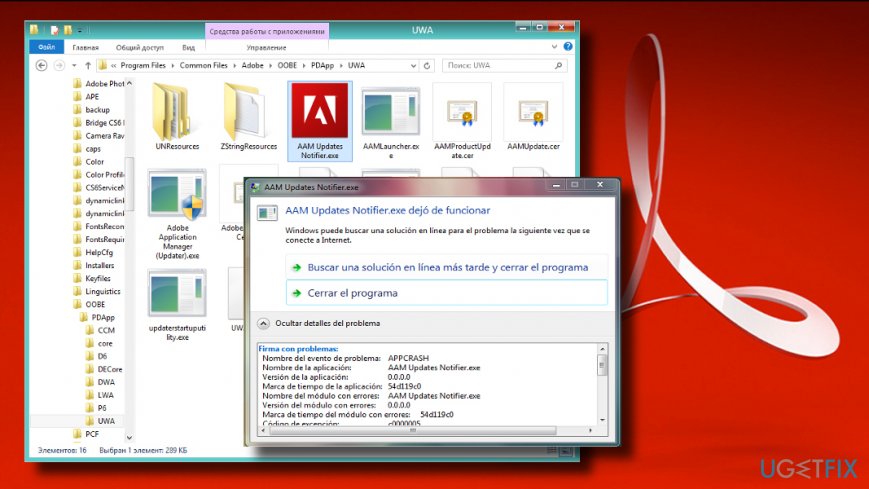
AAM Updates Notifier.exe Application Error
Cannot find AAM Updates Notifier.exe
AAM Updates Notifier.exe failed
AAM Updates Notifier.exe is not a valid Win32 application
AAM Updates Notifier.exe has encountered a problem and needed to close
In this case, you can try to reinstall or update Adobe Acrobat and other products owned by this company. If that did not work, navigate to the C:\\Program Files\\Common Files\\Adobe and search for the faulty AAM Updates Notifier.exe file under OOBE directory. If the file is placed in this location, then you may need to uninstall Abobe entirely as it may be incompatible with the OS version[ref en-2] that is currently running on your PC.
However, sometimes this file is referred to as AAM Updates Notifier.exe virus. According to files.net,[ref en-3] it features a security rating of 21% dangerous. It means that it may be a target for hackers. In this case scenario, the AAM Updates Notifier.exe process can disguise malware or a severe cyber infection. If you have doubts whether the AAM Updates Notifier.exe error is caused by a virus or, for example, software conflicts, we would strongly recommend you to run a full system scan with [d1] to remove malware.
In case the system turns out to be virus-free, we recommend you to try the following solutions:
Update Adobe's products
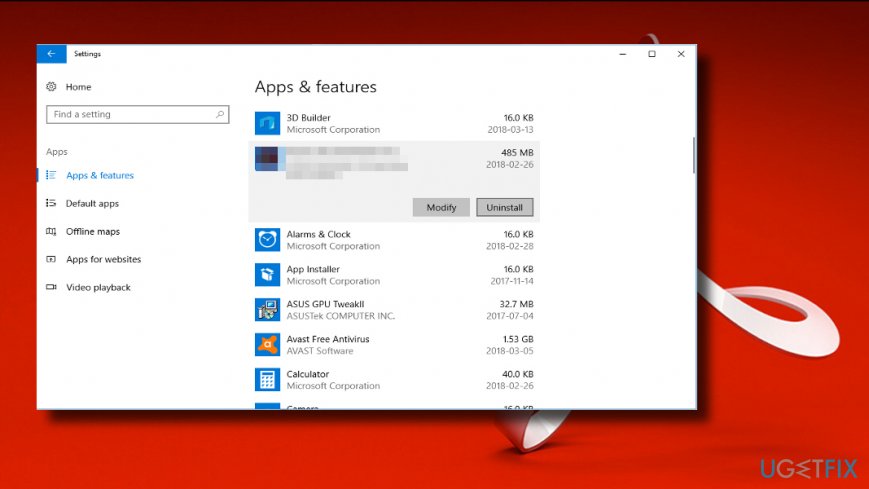
To initiate this task, you'll have to find out what apps owned by Abobe are currently running on your PC. For this purpose, you should open Control Panel and check the list of your apps under Apps & Features.
After research, navigate to the official Adobe's website by clicking on this links and download the needed updates directly. Make sure that the analyzed .exe file is related to Adobe's Acrobat and Photoshop mainly, so make sure to update these two apps in the first place.
Uninstall PoserContent2012
According to IT experts, Abobe Acrobat package may not match with the PoserContent2012. The latter is often classified as a potentially unwanted program (PUP) by cybersecurity specialists. Therefore, it may contain some pieces of malicious files. To remove this app, you can either run a scan with [d1] or do the following:
- Press Windows key + I to open Settings.
- Open Apps and scroll down to find PoserContent2012. Click it once.
- Select Uninstall.
- Alternatively, you can open Control Panel -> Programs & Features.
- Check the apps and delete PoserContent2012 if detected.
Update Windows
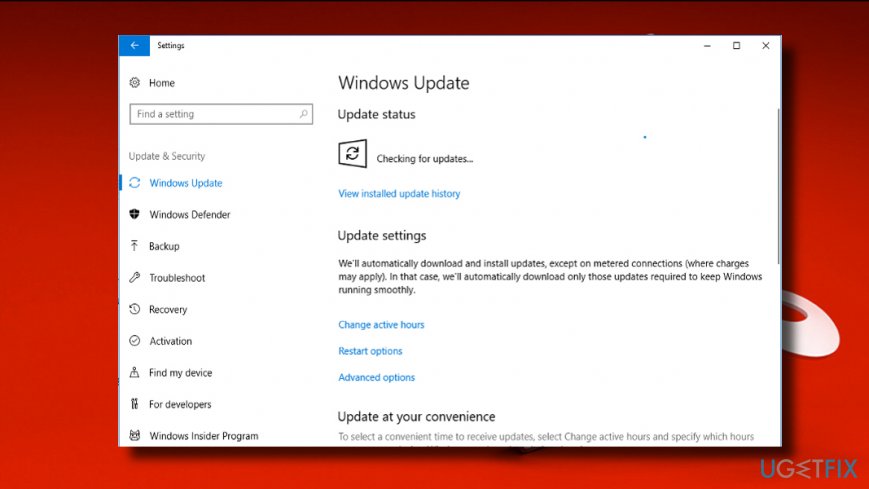
Automatic Windows updates contain software updates and patches. Therefore, if any of the above-provided methods helped to fix AAM Updates Notifier.exe error, try to install all possible updates:
- Press Windows key + I to open Settings.
- Open Updates & Security section.
- Click Check for Updates button and wait.
- All available updates will automatically be installed, but don't forget to restart the system to finish the installation.
Execute SFC and DISM commands
- Right-click on Windows key to open Menu bar.
- Select Command Prompt (Admin).
- Click Yes on the UAC to proceed.
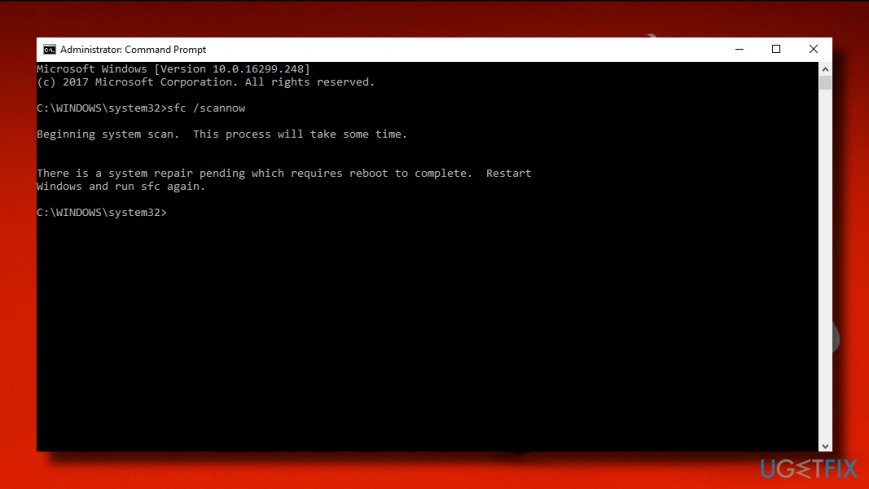
- Now type in the following commands one-by-one. To execute them, click Enter afterwards:
dism.exe /online /cleanup-image /scanhealth
dism.exe /online /cleanup-image /restorehealth
sfc /scannow
Bottom line
To fix the AAM Updates Notifier.exe error, you can try reinstalling or updating Adobe Acrobat and other Adobe products. If that does not resolve the issue, check the C:\Program Files\Common Files\Adobe directory for the file and consider uninstalling Adobe entirely if it is incompatible with your OS. If none of these solutions work, further investigation into potential malware or system issues may be necessary.
Frequently asked questions
AAM Updates Notifier.exe is part of Adobe's software update system, and errors may occur if the application is corrupted or misconfigured in Windows 10.
To fix the AAM Updates Notifier.exe error on Windows 11, you can try reinstalling Adobe applications or disabling the AAM Updates Notifier service via the Task Manager.
Yes, you can check for updates for your Adobe software, run a system file checker scan, or manually remove the AAM Updates Notifier.exe file if it continues to cause issues on Windows.




Report an issue
What's wrong with this guide? We review every report and update or remove content.
Report received — thank you. We'll review and fix it.
You need a free account to submit a report.
Be the first to comment