How to fix
“Accelerometerdll.DLL is Missing” Error
on Windows
Resolve the "Accelerometerdll.DLL is Missing" error on Windows 10 quickly and effectively. Get expert-tested solutions for a smooth experience!

What causes How to Fix “Accelerometerdll.DLL is Missing” Error on Windows 10?
- Outdated HP 3D DriveGuard software
- Corrupted Accelerometerdll.DLL file
- Speaker problems affecting system performance
- Malware disguising as Accelerometerdll.DLL
- Multiple Accelerometerdll.DLL processes running
Repairs Windows system files, removes malware, and restores a clean OS state — without reinstalling.
I’ve recently updated my HP Pavilion Power Laptop and started getting an error saying “Accelerometerdll.DLL not found.” It occurs under various conditions, for example, when I try to open Windows Explorer or launch some games. Could someone please help?
“Accelerometerdll.DLL not found” error is an old Windows problem, which has been harassing Windows users from time to time. Currently, the majority of devices affected by this bug run Windows 10. Besides, it seems that people using HP Pavilion Power Laptops encounter the problem most frequently.
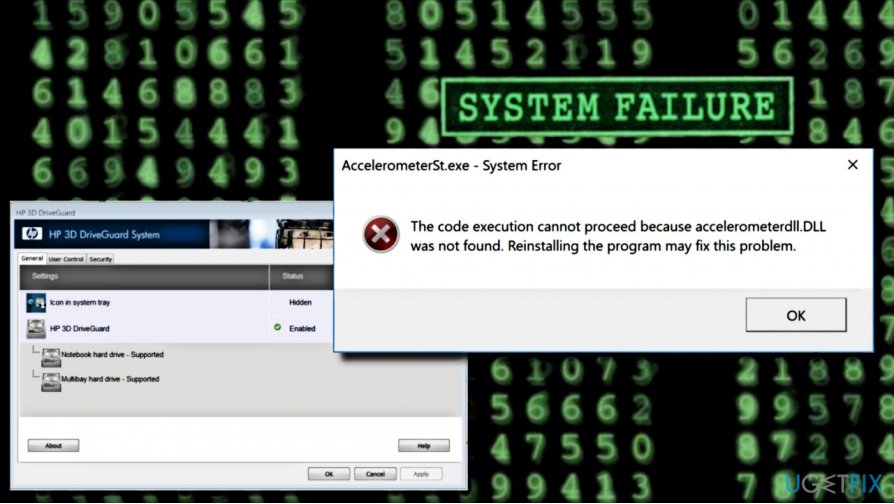
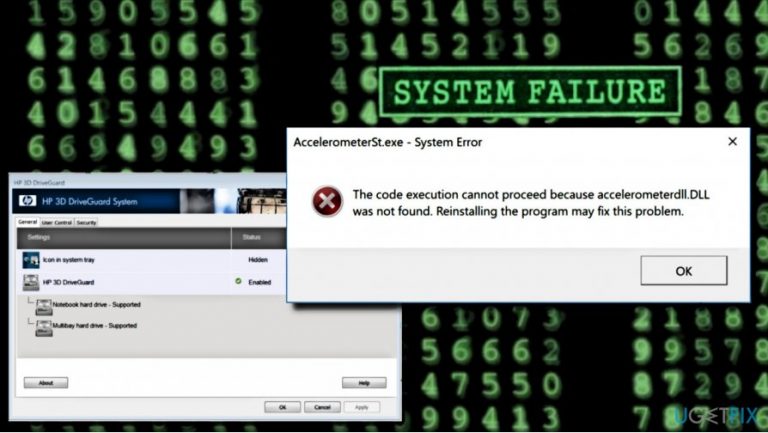
The error message explicitly indicate the culprit of the problem - Accelerometerdll.DLL file. This file is associated with HP 3D DriverGuard developed by HP Hewlett-Packard Company for the Windows Operating System. Therefore, experts recommend uninstalling DriveGuard and then installing its latest version from HP servers. We’ll explain how to do that below.
However, DriveGuard is not the only possible culprit of the “Accelerometerdll.DLL not found” error. Few people reported that the bug check coincides with speaker problems (low volume, no volume at all, etc.) In this case, you may need to update Audio drivers.
Finally, we would highly recommend checking the system for malware. DLL files are often exploited by cyber criminals to hide malicious files and protect them from being removed. Although the original Accelerometerdll.DLL file has only a single point in danger scale, you should check Task Manager for multiple Accelerometerdll.DLL processes. In this case, a virus may be disguising under this process and you should run a full scan with a professional anti-malware to eliminate it. For this purpose, we would recommend using [d1]. If malware is not the culprit of the issue, try to fix Accelerometerdll.DLL error by following these instructions:
Option 1. Reinstall HP 3D Driveguard software
- Press Windows key + I to open Settings.
- Select Apps and click Apps & Features option from the left pane.
- Locate the Driveguard software on the list and click it.
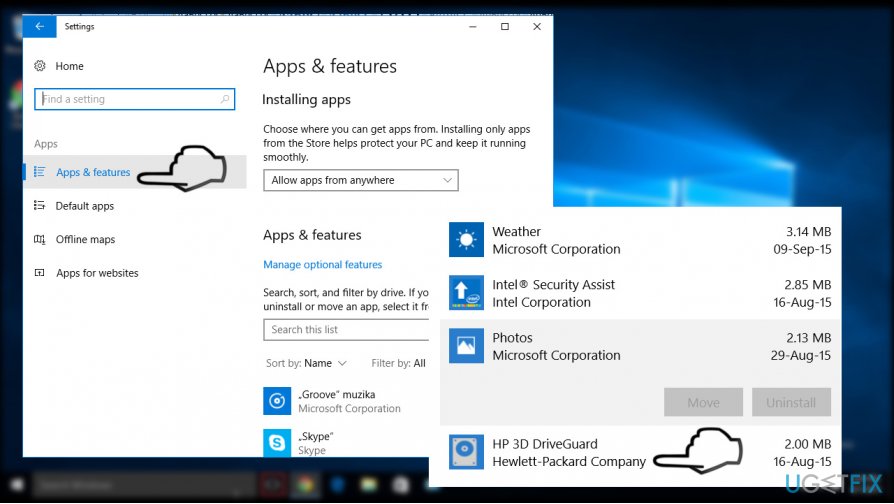
- Select Uninstall and follow the on-screen instructions.
- Then navigate to the HP Server and reinstall the HP 3D Driveguard. To accelerate the search for the software, you can click on this link to download it.
Option 2. Change Accelerometerdll.DLL file’s location
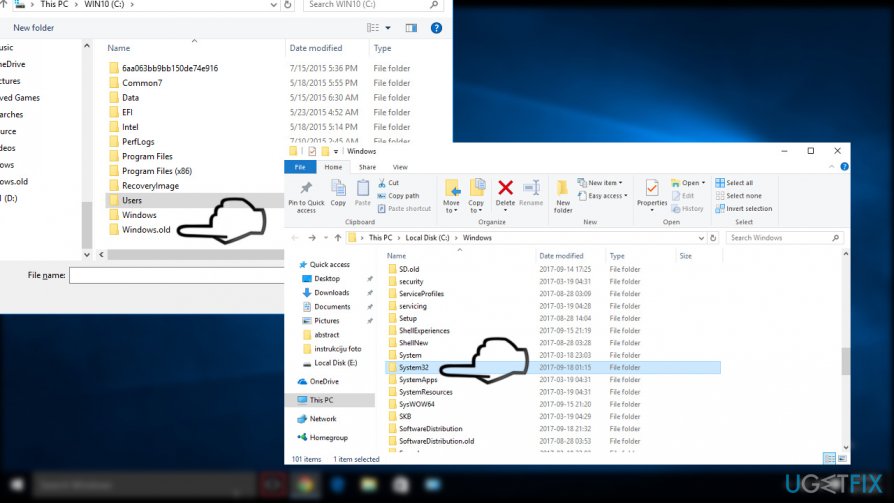
- Navigate to the C:\\Windows.old\\windows\\System32 path.
- Look for the Accelerometerdll.DLL file in the mentioned location. If you found it, click it and press Ctrl + C or right-click it and select Copy.
- Then navigate to the C:\\Windows\\System32 location and paste the copied Accelerometerdll.DLL file.
- After that, reboot the system.
Option 3. Re-register Accelerometerdll.DLL file
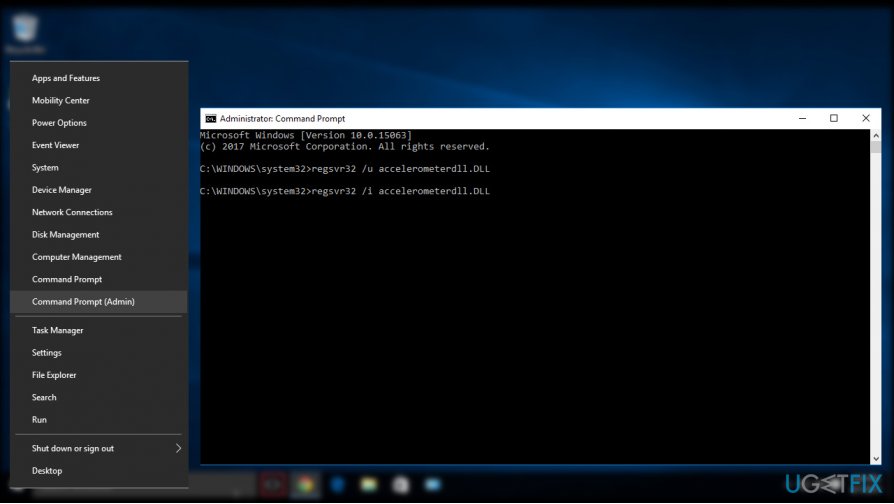
- Right-click Windows key and select Command Prompt (Admin).
- Click Yes on the confirmation window.
- In the Command Prompt window, type the following commands and press Enter after each
regsvr32 /u accelerometerdll.DLL
regsvr32 /i accelerometerdll.DLL - Close Command Prompt and restart the DriveGuard software.
Option 4. Run Hardware and Devices troubleshooter
If the “Accelerometerdll.DLL is missing” error emerged along with audio problems, we would highly recommend running Hardware and Devices troubleshooter:
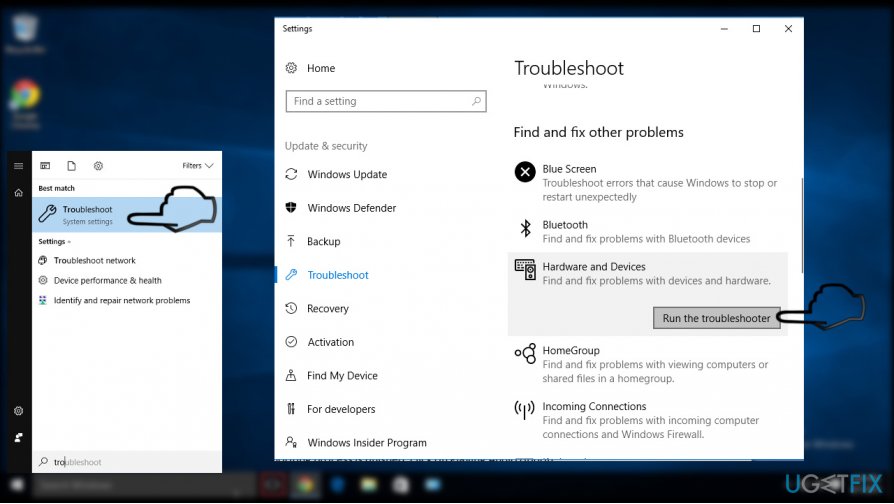
- Open Windows search and type Troubleshooting.
- Select Troubleshoot and scroll down to find Hardware and Devices.
- Click Hardware and Devices option and select Run troubleshooter.
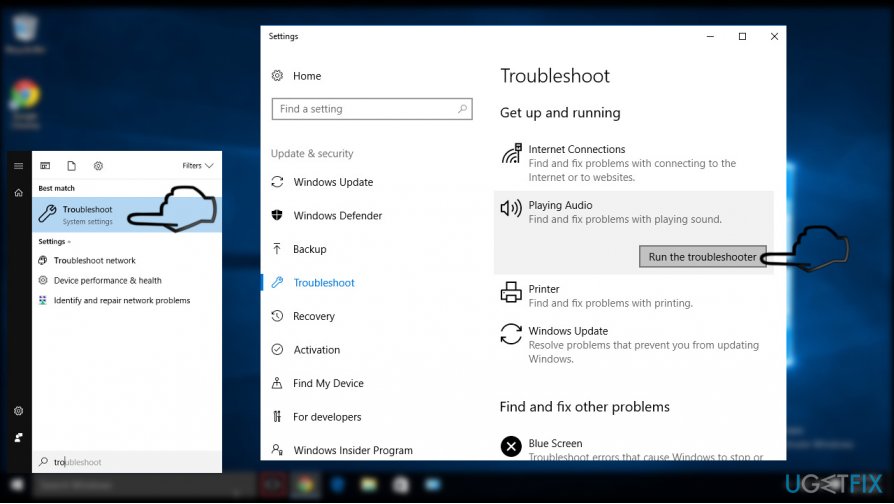
- Once the troubleshooting process is finished, click on Playing Audio option.
- Select Run troubleshooter and wait for the scan to be finished.
Option 5. Perform a system restore
If none of the options listed above helped to fix Accelerometerdll.DLL error, try performing a system restore. If you don’t know how to do that, please refer to this post for more information.
IMPORTANT: Downloading DLL files separately, especially from unknown sources, is highly NOT recommended due to the risk of getting the system infected with a serious virus.
Bottom line
To fix the 'Accelerometerdll.DLL is missing' error, you can uninstall and reinstall the HP 3D DriveGuard software, update audio drivers, and check for malware on your system. If these steps do not resolve the issue, consider running a full scan with a professional anti-malware program.
Frequently asked questions
This error typically occurs due to corrupted system files, missing DLL files, or issues with device drivers related to motion sensors.
You can reinstall the DLL by performing a System File Checker scan using the command 'sfc /scannow' in Command Prompt, which will replace missing or corrupted system files.
Yes, updating Windows 10 can resolve the error by installing the latest drivers and system updates that may restore the necessary DLL files.




Report an issue
What's wrong with this guide? We review every report and update or remove content.
Report received — thank you. We'll review and fix it.
You need a free account to submit a report.
Be the first to comment