How to fix
“Accelerometerst.exe – Application Error”
on Windows
Resolve the "Accelerometerst.exe - Application Error" quickly on Windows 10 or 11. Follow our expert-tested tips and fix it in minutes!

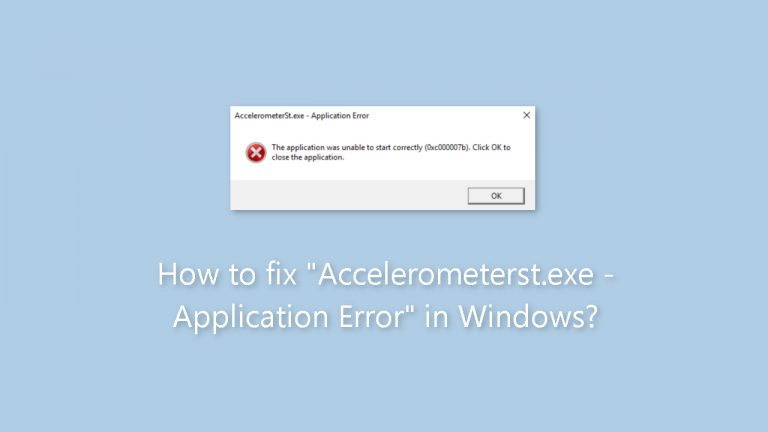
What causes How to fix “Accelerometerst.exe – Application Error” in Windows?
- Corruption within the Accelerometerst.exe file
- Outdated hardware drivers
- Incompatible hardware drivers
- Conflicts with other software
- Issues during system startup or shutdown
Repairs Windows system files, removes malware, and restores a clean OS state — without reinstalling.
Hello. I keep getting the "Accelerometerst.exe - Application Error" pop-up message on my Windows PC. What is it and how do I fix it?
The "Accelerometerst.exe - Application Error" is an error message that can occur in Windows operating systems. This error message indicates a problem with the Accelerometerst.exe file, which is part of the accelerometer feature found in some laptops and tablets. The accelerometer is a sensor that detects the device's orientation and movement.
The error usually occurs as a result of conflicts or corruption within the Accelerometerst.exe file, or when the associated hardware drivers are out of date or incompatible. Users may encounter this error when starting or shutting down their computers, or when attempting to access certain accelerometer-related features or applications.
This issue has the potential to have a significant impact on users. For starters, frequent error pop-ups with the "Accelerometerst.exe - Application Error" message can disrupt and frustrate users. Second, the error can cause system instability, resulting in unexpected program crashes or freezes. Finally, if the accelerometer feature is required for certain applications or functions, the error may prevent users from properly utilizing those features, limiting the functionality of their device.
There are a number of potential solutions to this problem. Users can attempt to update or reinstall the accelerometer drivers to ensure they are current and compatible with the operating system. Another option is to restore the system to a previous working state, which may assist in resolving any conflicts or corruption related to the accelerometer component. Users can also try repairing or replacing the problematic Accelerometerst.exe file.
In this guide, you will find 6 steps that should help you fix "Accelerometerst.exe - Application Error" in Windows. However, you may also try a maintenance tool like [d1] that can fix most system errors, BSODs,[ref en-1] corrupted files, and registry[ref en-2] issues. Otherwise, follow the step-by-step instructions below.
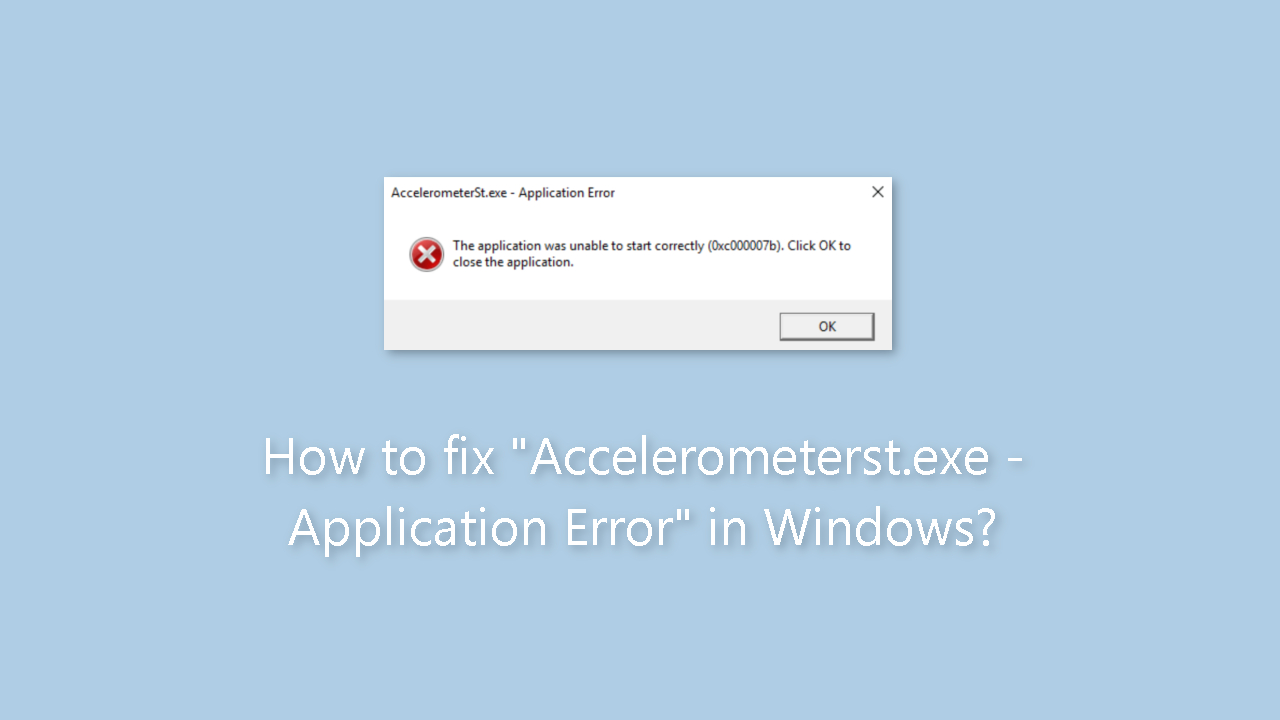
Method 1. Fix Corrupted System Files
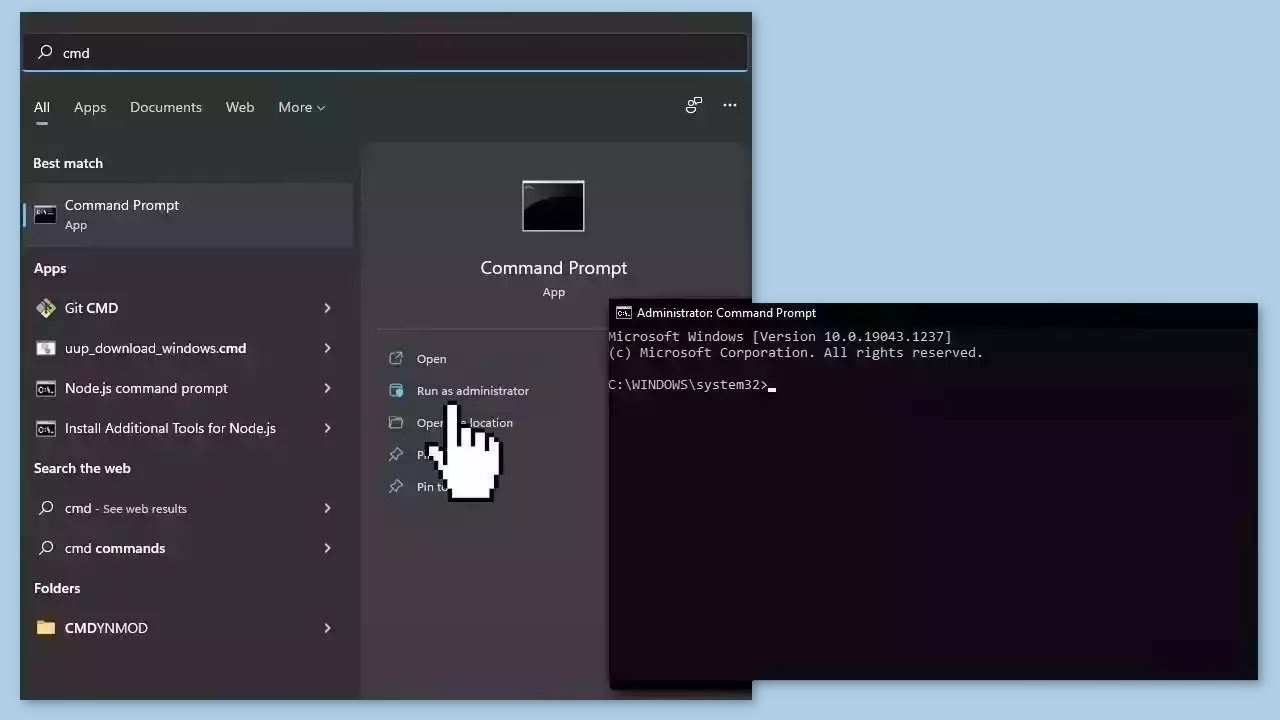
Use Command Prompt commands to repair system file corruption:
- Open Command Prompt as administrator
- Use the following command and press Enter:
sfc /scannow
- Reboot your system
- If SFC returned an error, then use the following command lines, pressing Enter after each:
DISM /Online /Cleanup-Image /CheckHealth
DISM /Online /Cleanup-Image /ScanHealth
DISM /Online /Cleanup-Image /RestoreHealth
Method 2. Uninstall HP 3D DriveGuard
- Press the Windows key.
- Type control in the search bar.
- Click on Control Panel from the search results.
- In Control Panel, locate and click on the Uninstall a program option under the Programs section.
- Right-click on the faulty program that you want to uninstall.
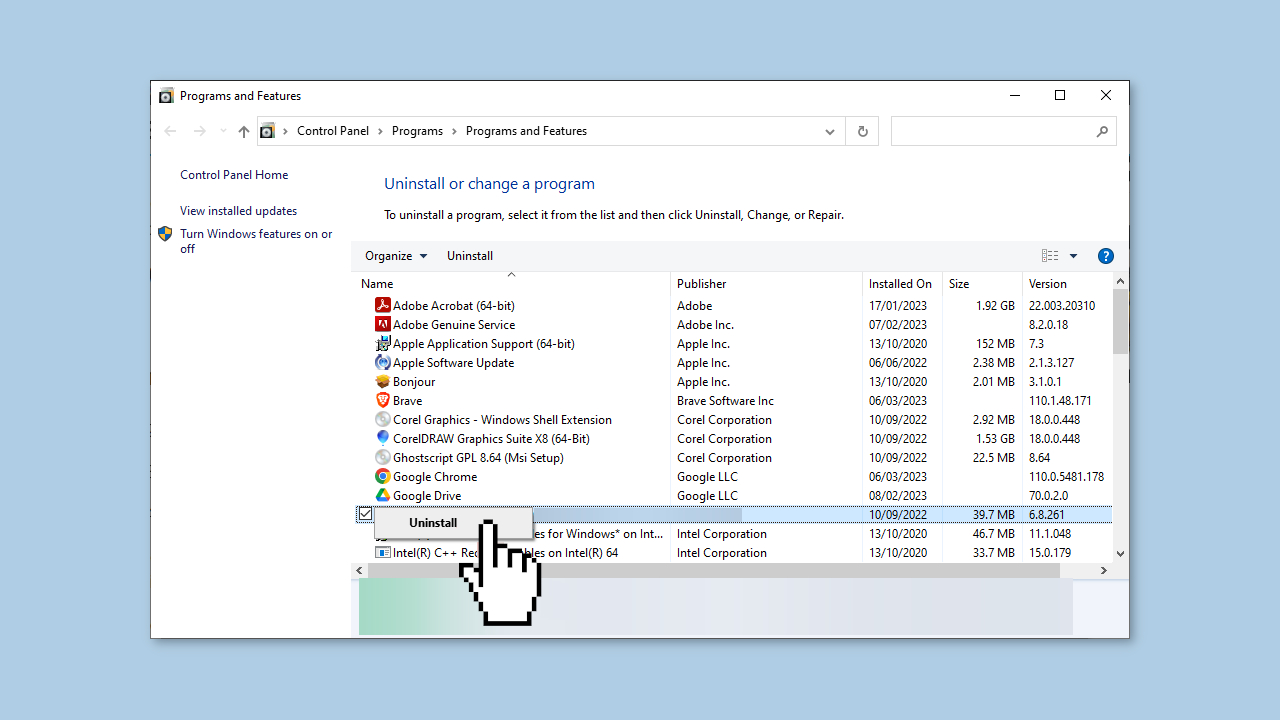
- Select the Uninstall option from the context menu.
- Follow any prompts or instructions that appear to complete the uninstallation process.
- Once the program is uninstalled, open a web browser.
- Navigate to the website of the program you uninstalled.
- Look for the Downloads or Get the latest version section on the website.
- Download the latest version of the program compatible with your PC.
Method 3. Re-register VCRUNTIME140.dll
- Press the Windows key + R to open the Run utility.
- In the Run window, type the following command:
regsvr32 /u c:\Windows\System32\vcruntime140.dll
- Click the OK button.
- This command is used to unregister the vcruntime140.dll file.
- Launch the Run utility again by pressing the Windows key + R.
- In the Run window, type the following command:
Regsvr32 c:\Windows\System32\vcruntime140.dll
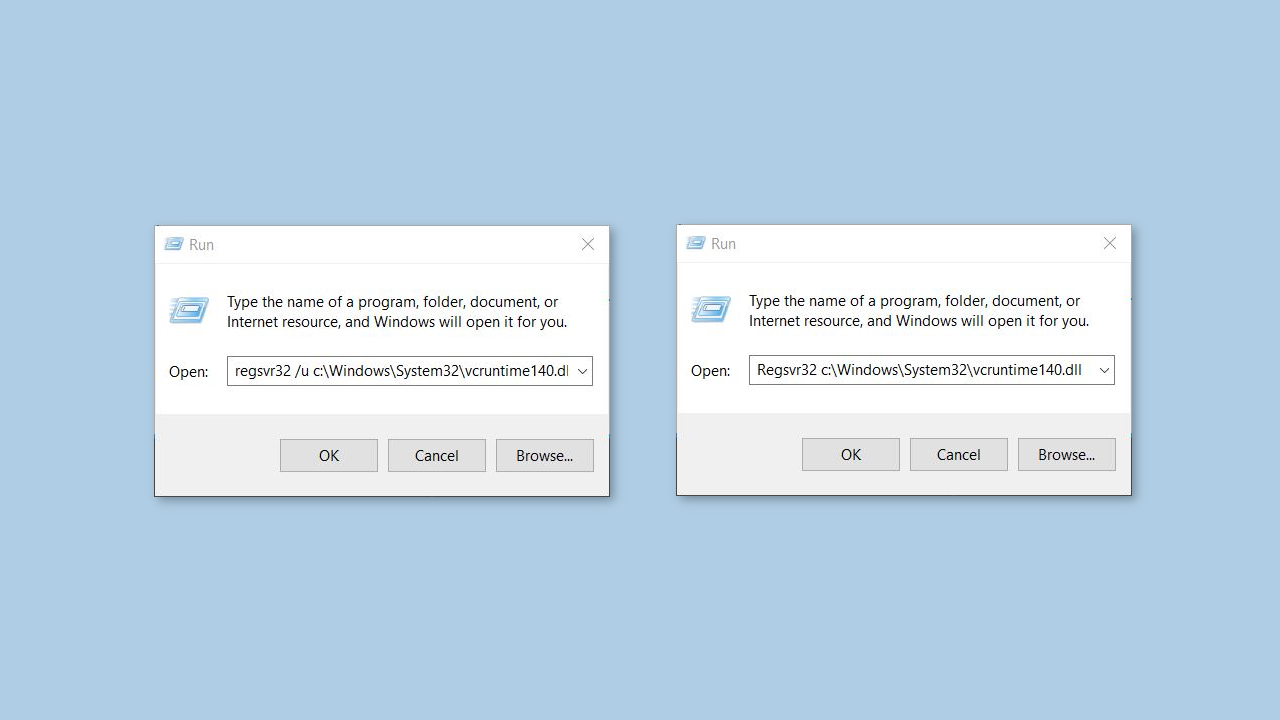
- Press the Enter key or click the OK button.
- This command is used to register the vcruntime140.dll file.
- After executing the second command, you should see a confirmation message indicating that the registration was successful.
Method 4. Download Microsoft Visual C++ Redistributable Package
- Visit the official website to download the Microsoft Visual C++ Redistributable Package Update 3 for Visual Studio 2015.
- Look for the Download button on the website and click on it.
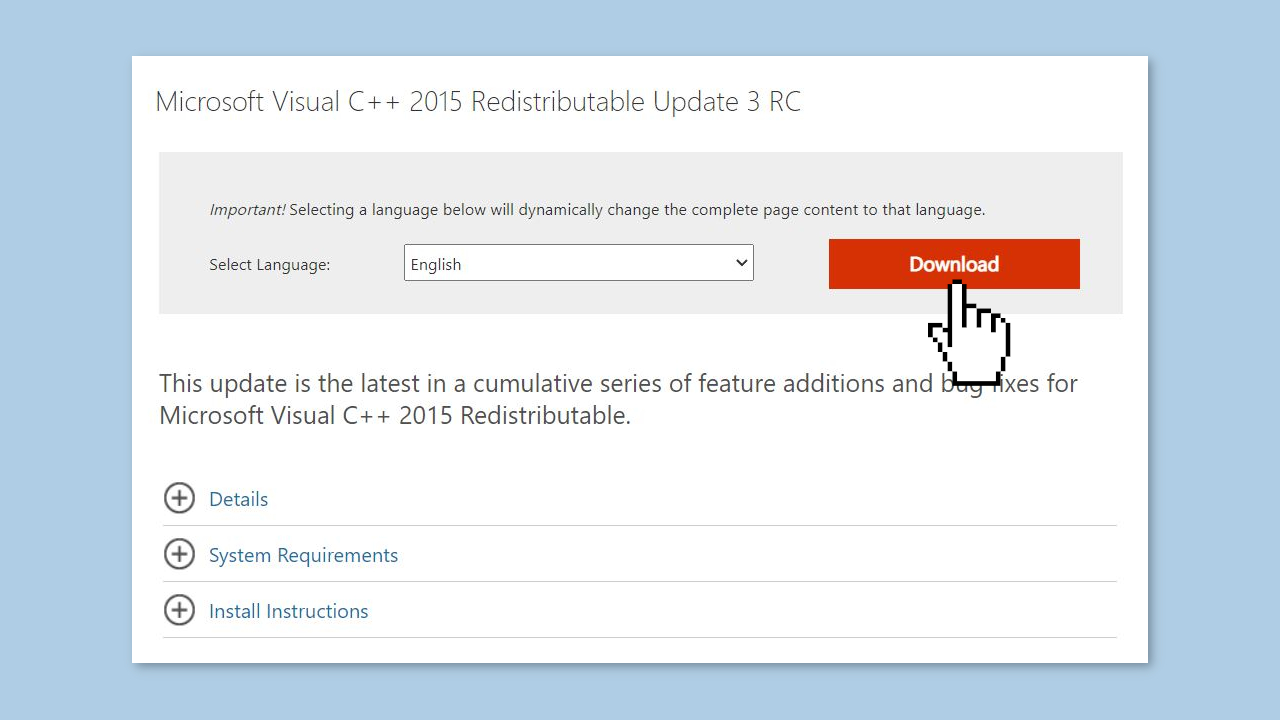
- If you are using a 64-bit PC, locate the checkbox before vc_redist.x64.exe and click on it to select it. If you are using a 32-bit PC, you only need to click on x86.exe.
- Follow the onscreen instructions provided on the website to proceed with the download process.
- Once the download is complete, locate the downloaded file on your PC.
- Double-click on the downloaded file to start the installation process.
- Follow any prompts or instructions that appear during the installation process.
- After the installation is finished, restart your PC to ensure the changes take effect.
- After restarting, the Microsoft Visual C++ Redistributable Package Update 3 for Visual Studio 2015 will be installed on your PC and ready to use.
Method 5. Repair the Microsoft Visual C++ Redistributable File
- Press the Windows key + R to open the Run utility.
- In the Run window, type appwiz.cpl and click the OK button.
- This will open the Programs and Features window.
- Scroll through the list of installed programs and locate the Microsoft Visual C++ 2015 Redistributable file.
- Right-click on the Microsoft Visual C++ 2015 Redistributable file.
- From the context menu that appears, select the Uninstall option.
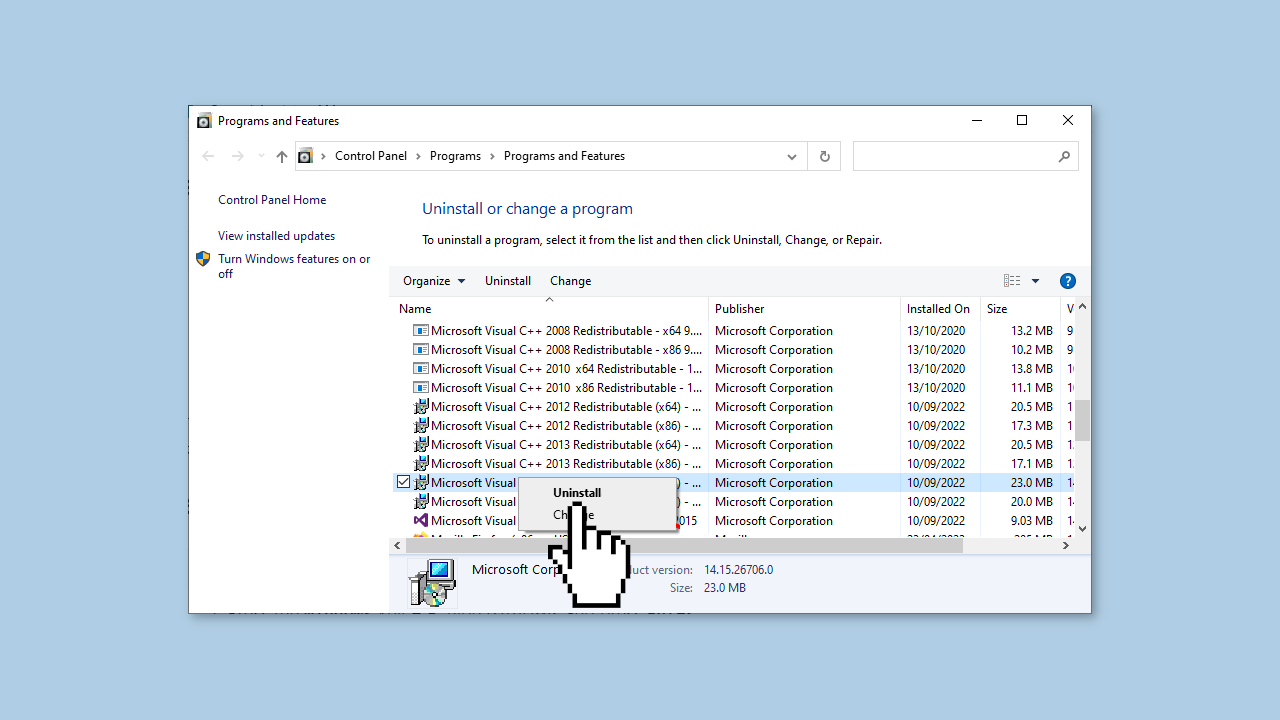
- Follow any prompts or instructions that appear to start the uninstallation process.
- Once the uninstallation process begins, wait for it to complete.
- After the uninstallation is finished, locate the Microsoft Visual C++ 2015 Redistributable file again.
- Right-click on the Microsoft Visual C++ 2015 Redistributable file.
- From the context menu, select the Repair option.
- This will initiate the repair process for the Microsoft Visual C++ 2015 Redistributable file.
- Follow any onscreen instructions or prompts that appear during the repair process.
Method 6. Use System Restore
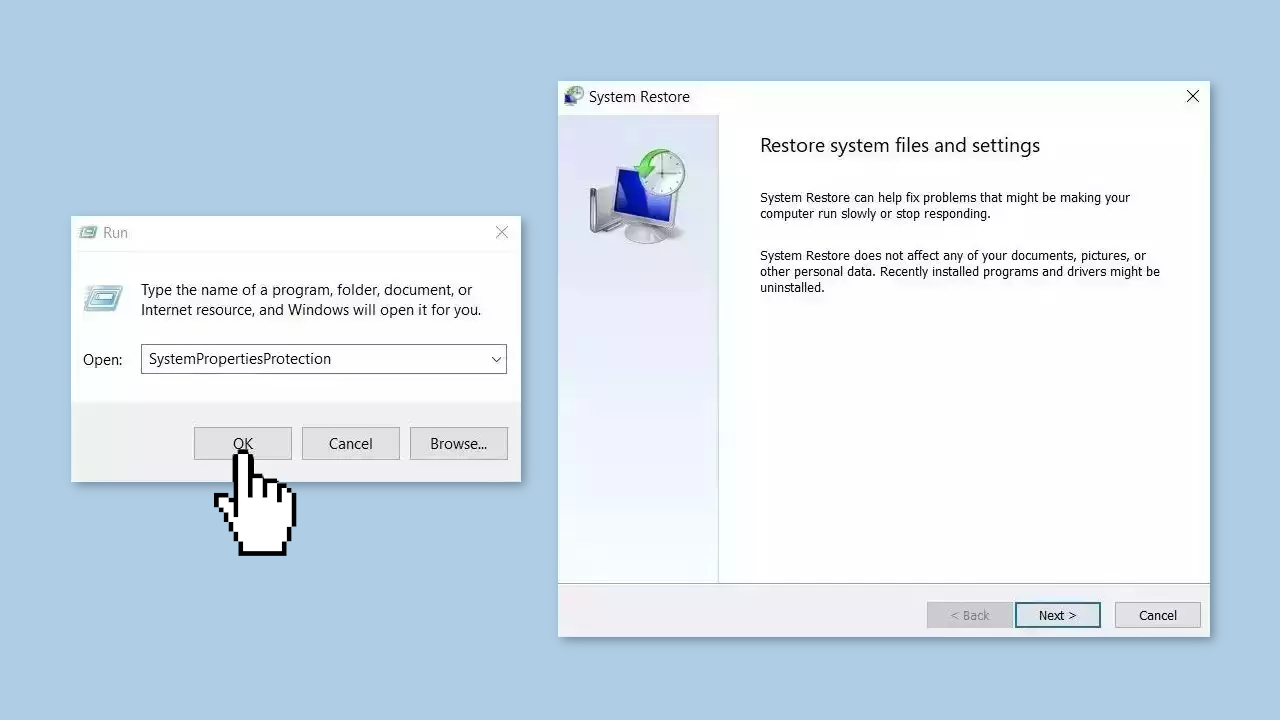
System Restore is a feature in Microsoft Windows that allows users to revert their computer's state to a previous point in time. This can be helpful if you have made changes to your system that are causing problems.
- Go to the Start menu, type restore, and click on Create a restore point.
- Click System Restore, then follow the prompts until you can select a restore point.
- Select the one you want (ideally before the issue started occurring) and go ahead with the process.
Bottom line
To fix the 'Accelerometerst.exe - Application Error', users can update or reinstall the accelerometer drivers, restore the system to a previous working state, or repair the problematic Accelerometerst.exe file. If these solutions do not resolve the issue, consider using a maintenance tool to address system errors.
Frequently asked questions
This error typically occurs due to corrupted system files or issues with the accelerometer driver. It can also be triggered by incompatible software or settings.
You can repair the error by running the System File Checker tool to fix corrupted files or updating the drivers for the accelerometer through Device Manager.
To prevent this error from reoccurring, ensure that your Windows 11 system is up to date and regularly check for driver updates related to the accelerometer.




Report an issue
What's wrong with this guide? We review every report and update or remove content.
Report received — thank you. We'll review and fix it.
You need a free account to submit a report.
Be the first to comment