How to fix
“Access is denied” error when using Windows services
on Windows
Resolve the "Access is denied" error in Windows 10 and 11 services quickly with expert-tested solutions. Get back to work in minutes!


What causes How to fix “Access is denied” error when using Windows services?
- Interference of a third-party security program
- Lack of ownership over the Windows service's registry keys
- User account control restrictions
- Corrupted system files
- Issues with Windows updates
Repairs Windows system files, removes malware, and restores a clean OS state — without reinstalling.
Hello. I tried to change the Startup Type of one of the Windows Services but I received the "Access is denied" error. What should I do? Any tips would be appreciated.
Microsoft Windows services[ref en-1] are programs that run in the background. They enable users to create long-running executable applications that run in their own Windows sessions. These services can be automatically started when the computer boots, paused, or restarted.
Occasionally, there comes a time when users need to go and change the Startup Type of the services. This can happen if users are unable to install Windows updates or encounter other issues. The "Access is denied" error prevents some people from doing so. This can be caused by the interference of a third-party security program or lack of ownership over the particular Windows service's registry[ref en-2] keys.
While it is unknown what exactly could cause the "Access is denied" error when using Windows services, we prepared a 5 step guide that could help you fix it. However, troubleshooting can become a lengthy process, so you can also use a maintenance tool like [d1] that can fix most system errors, BSODs,[ref en-3] corrupted files, and registry issues. Otherwise, follow the instructions below.

Solution 1. Uninstall Third-Party Security Software
Some third-party antivirus programs can prevent users from modifying Windows services. Uninstall them to see if it solves the issue.
- Go to your Apps & Features
- Find the program in the list and click on it
- Press Uninstall and wait for the process to finish

Solution 2. Modify the Service using Command Prompt
- Find the Service that you want to modify
- Open the Start menu and look for Command Prompt
- Click Run as Administrator
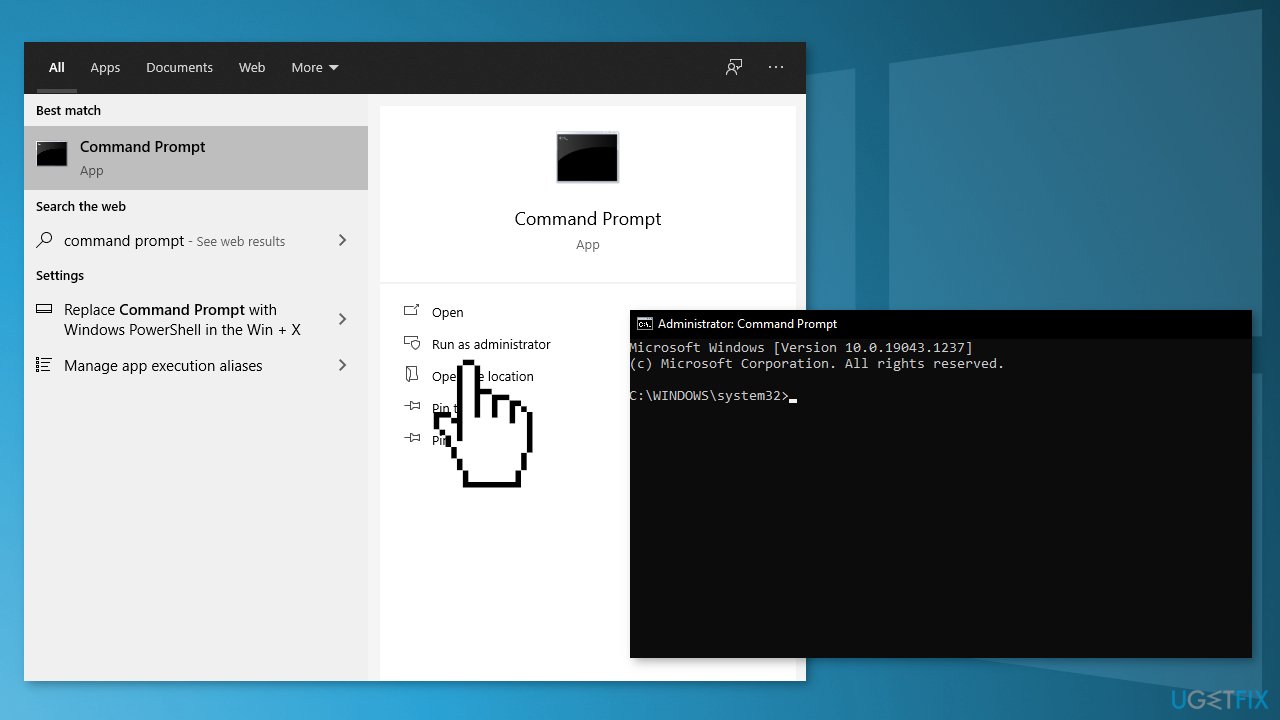
- Click on Yes if asked by UAC
- Use the following command to modify the Startup type:
sc config ServiceName start=auto
- Instead of ServiceName write the name of the service that causes you the problem and change the start value to one of these:
Boot = 0
System = 1
Automatic = 2
Manual = 3
Disabled = 4
Solution 3. Modify the Service using the Registry Editor
- Press the Windows key + R to open the Run box
- Type regedit and press Enter to open Registry Editor
- Navigate to Computer\HKEY_LOCAL_MACHINE\SYSTEM\CurrentControlSet\Services\ServiceName
- Find Start from the right-hand side panel
- Change the Value:
Boot = 0
System = 1
Automatic = 2
Manual = 3
Disabled = 4
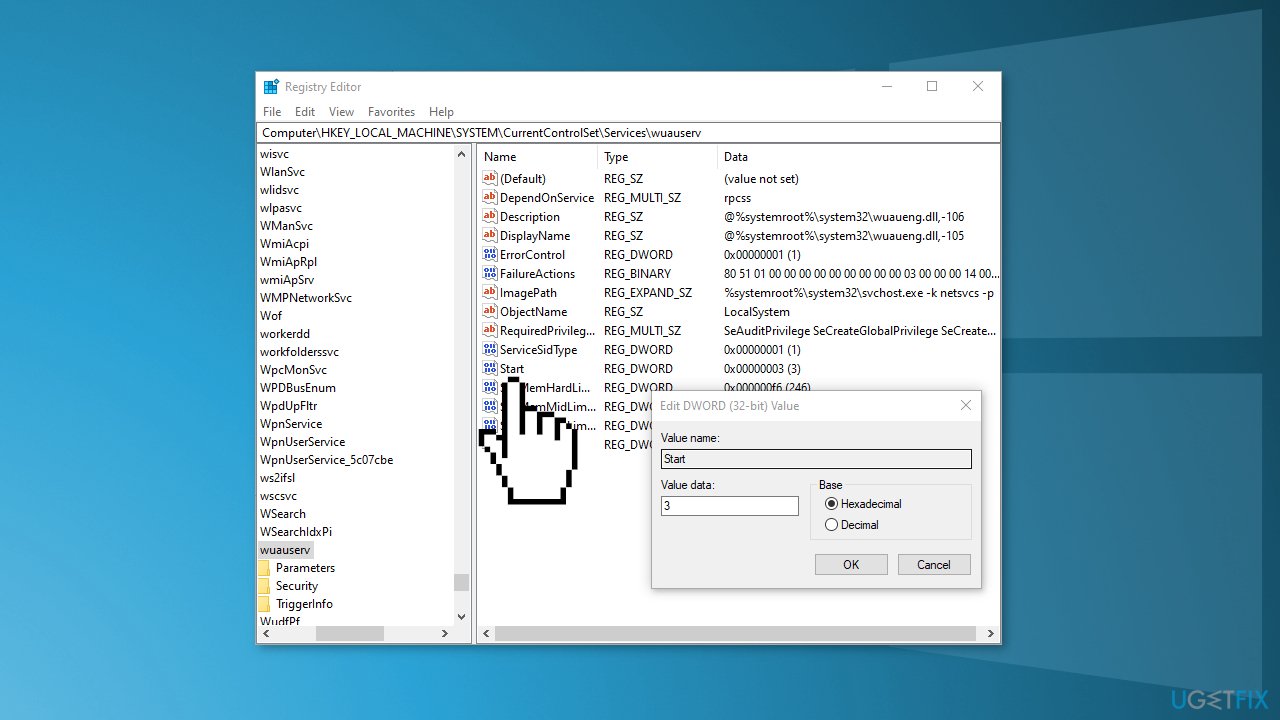
- Restart the system
Solution 4. Take Ownership of the Key
If the previous step did not let you change the registry key, you have to take ownership:
- In Registry Editor, right-click on the key that you cannot edit
- In the Permissions, click the Advanced button
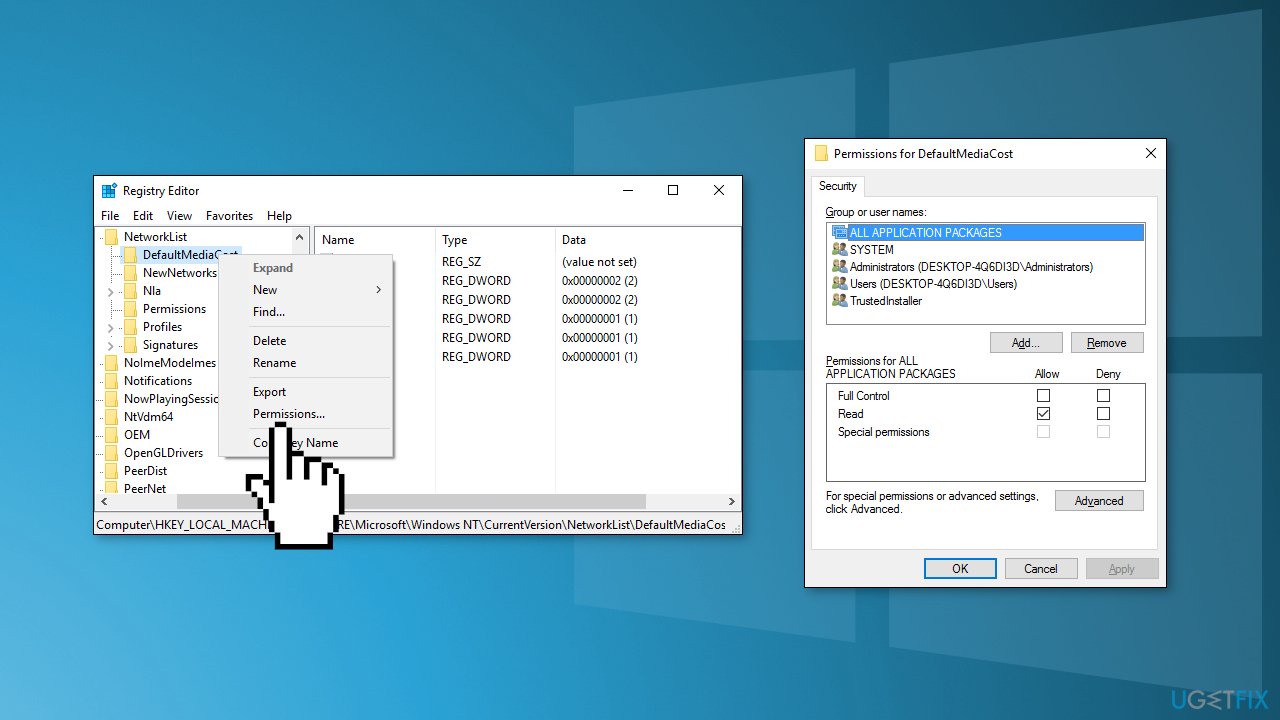
- In the Advanced Security Settings window, next to the listed Owner, click the Change link
- In the Enter the object name to select box, type the name of your Windows user account
- Click the Check Names button
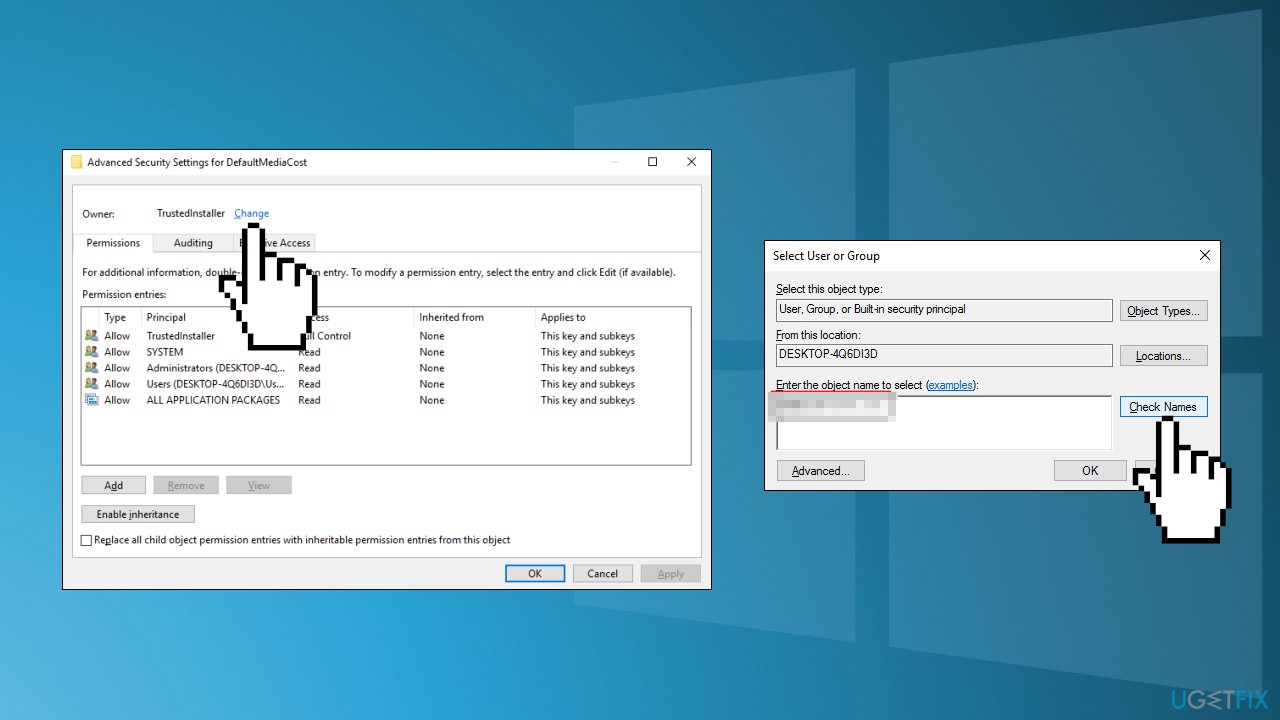
- Click OK to close the Select User or Group window and then click OK again to close the Advanced Security Settings
- In the Permissions window, select the Users group and then choose the Allow check box next to the Full Control permission
- Click OK
- Try the previous steps again
Solution 5. Repair Install Windows
- Download the Windows 10 ISO file from the official Microsoft website
- If you agree to the license terms, select Accept
- On the What do you want to do? page, select Create installation media for another PC and then select Next
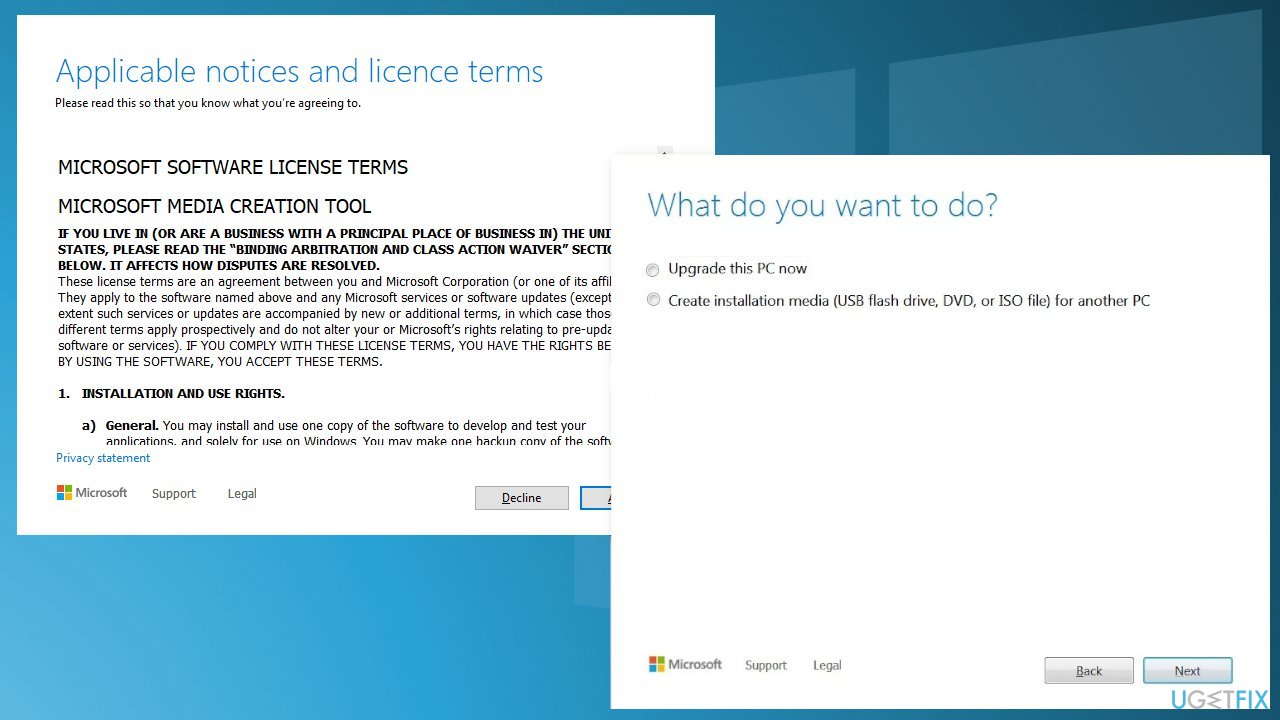
- Select the language, edition, and architecture (64-bit or 32-bit) for Windows 10
- In Select which media you want to use, Select ISO file then click Next
- Select the download location then click Save
- Windows 10 ISO file will be downloaded
- Right-click Windows 10 ISO file and click Mount
- Open Setup.exe
- To get important updates, select Download and install updates
- Ensure that Keep personal files and applications is checked
- Click on Install to start the upgrade
Bottom line
To fix the 'Access is denied' error when using Windows services, you can uninstall third-party security software or modify the service using Command Prompt. If these solutions do not resolve the issue, consider using a maintenance tool to address system errors.
Frequently asked questions
Ensure that you are logged in as an administrator and check the service properties to confirm that your user account has the necessary permissions.
Yes, if the user account running the service lacks the proper permissions, it can lead to 'Access is denied' errors.
You can use the Services management console to modify service properties, or use the Command Prompt with administrative privileges to adjust security settings.




Report an issue
What's wrong with this guide? We review every report and update or remove content.
Report received — thank you. We'll review and fix it.
You need a free account to submit a report.
Be the first to comment