How to fix
“Access To Your Computer Has Been Restricted” pop-up
on Windows
Eliminate the "Access To Your Computer Has Been Restricted" pop-up on Windows 10 and 11 with our expert-tested solutions, fixed in minutes.

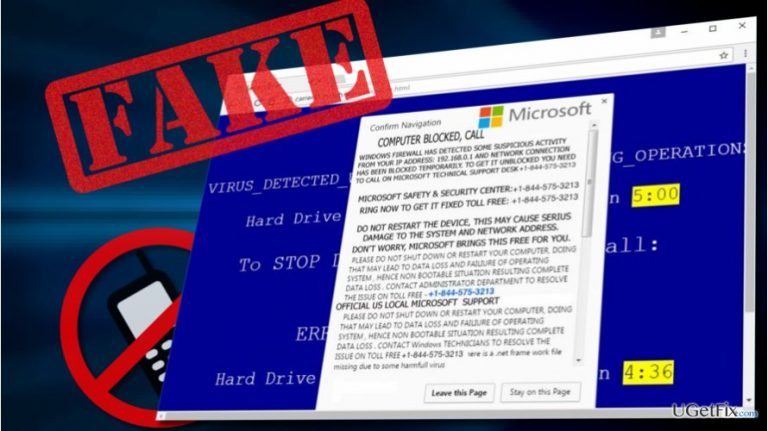
What causes How to fix “Access To Your Computer Has Been Restricted” pop-up?
- Malicious website redirection
- Clicking on a pop-up advertisement
- Installation of a free application
- Bundled potentially unwanted programs
- Third-party download sources
Repairs Windows system files, removes malware, and restores a clean OS state — without reinstalling.
Today I received an intimidating warning saying that "Access To Your Computer Has Been Restricted." It shows up while browsing with Chrome and then the browser freezes. The pop-up contains the error code #3658d5546db22ca. Should I worry?
"Access To Your Computer Has Been Restricted" is a pop-up alert distributed by scammers. It is classified as a Tech-Support-Scam and all information on it is fictitious. There are two reasons why your web browser may generate this fake pop-up – you have either landed on a malicious website or installed a potentially unwanted program (PUP), namely adware. Anyway, if you have received "Access To Your Computer Has Been Restricted" pop-up on Chrome, Edge or another web browser, we would strongly recommend scanning the system with a professional anti-malware, for example, [d1].
"Access To Your Computer Has Been Restricted" scam peculiarities
"Access To Your Computer Has Been Restricted" tech-support scam occurs if you type an URL address, which redirects to a malicious website or click on a pop-up advertisement, which contains a link to a dangerous page. In addition, it may appear soon after the installation of a free application, such as download managers or media players. Third-party tools, especially those distributed in third-party download sources, are bundled with potentially unwanted programs (web browser add-ons, toolbars, extensions).
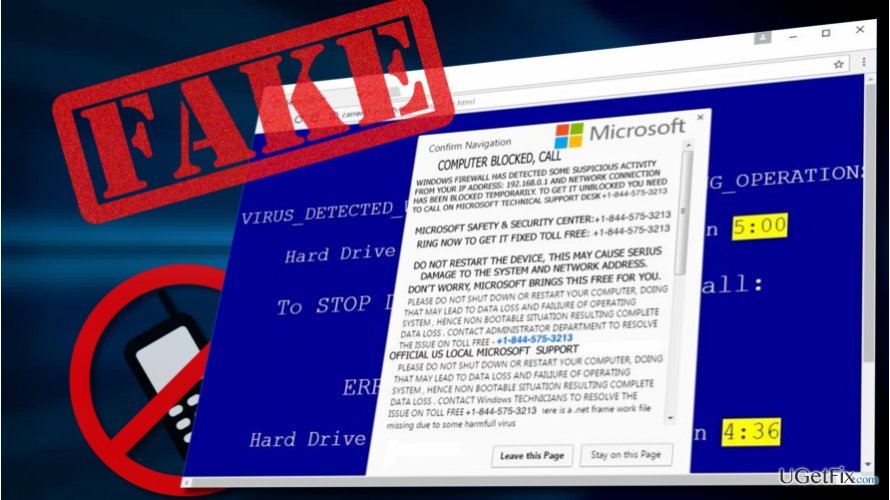
The "Access To Your Computer Has Been Restricted" pop-up contains fake information to intimidate people and trick into calling for scammers. The message informs the PC owner about a supposed spyware and virus infection, which may result in the loss of personal information (Facebook Login, Credit Card Number, Email Account Login, Photos stored on this computer). The only way to fix "Access To Your Computer Has Been Restricted" scam is to call for “A certified Windows Support agent” dialing a given Toll Free telephone number (888-230-6741). However, that’s just a trick used by cyber criminals to swindle people’s money or make them subscribe paid services.
Avoiding "Access To Your Computer Has Been Restricted" pop-up
To prevent "Access To Your Computer Has Been Restricted" hijack, install a powerful anti-malware and keep it up-to-date. Besides, be extremely cautious during the installation of free programs. Always opt for the Advanced or Custom installation and unmark check boxes saying that you agree to install browser add-ons or extensions.
Fixing "Access To Your Computer Has Been Restricted" pop-up
Step 1. Close web browser
- Press Ctrl + Shift + Del to open Task Manager.
- Find the process of your web browser and right-click on it.
- Select End Task.
Step 2. Boot your PC into Safe Mode
- Press Windows key and move your cursor over the Power button.
- Press and hold the Shift key and select Restart.
- When PC restarts, choose Troubleshoot → Advanced Options → Startup Settings.
- Click Restart.
- You will then see a new table with the list of boot settings. Press F5 to enable Safe Mode with Networking mode.
Step 3. Remove suspicious programs
- Right-click on Windows key and select Control Panel.
- Open Programs & Features and look for unkown/suspicious entries.
- Click on them and select Uninstall. (The date of the malware installation should coincide with the date of the first "Access To Your Computer Has Been Restricted" scam occurence).
- To make sur that all malicious files have been successfully removed, scan your PC with [d1] or another anti-malware tool.
Bottom line
To fix the 'Access To Your Computer Has Been Restricted' pop-up, it is recommended to scan your system with a professional anti-malware tool. Additionally, ensure that your anti-malware software is powerful and up-to-date. If these steps do not resolve the issue, further investigation may be necessary.
Frequently asked questions
This pop-up is often triggered by malware or unwanted software that attempts to scare users into calling a fake support number. It can also appear due to browser hijackers that modify your settings.
To remove the pop-up, run a full system scan using Windows Defender or a reliable antivirus program to eliminate any threats. Additionally, consider resetting your web browser settings to default.
No, calling the number is not safe as it may lead to further scams or the installation of more malicious software on your Windows 10 or Windows 11 device.




Report an issue
What's wrong with this guide? We review every report and update or remove content.
Report received — thank you. We'll review and fix it.
You need a free account to submit a report.
Be the first to comment