How to fix
Access Violation error 0xC0000005
on Windows
Resolve the Access Violation error 0xC0000005 on Windows 10 and 11 effortlessly with our expert-tested solutions. Fix issues in minutes!


What causes How to fix Access Violation error 0xC0000005 on Windows?
- Corrupted registry entries
- Corrupted or outdated drivers
- Virus infection
- Incomplete or missing security updates
- Memory access issues
Repairs Windows system files, removes malware, and restores a clean OS state — without reinstalling.
Hello, for some reason, installation of apps is interrupted by a following message: "Windows installation encountered an unexpected error. Verify that the install sources are accessible, and restart installation.” Error code: 0xC0000005. Sometimes this message shows up out of nowhere when I’m browsing or doing other installation non-related tasks. What could this be? Please help!
Windows is an intricate system, which is performing multiple tasks once activated. Therefore, all constituent parts of the OS have to work flawlessly. If, for some reason, one of the parts exits the formations, the system may start reporting about malfunctions by slowing down, freezing, or bringing up error messages. Error code 0xC0000005, also known as Access Violation Error, is one of them.
0xC0000005 is a relatively rare but broad error, as it might even prevent users from using the most common Windows functions, such as preventing audio from being played or being unable to access Control Panel. Without a doubt, such scenarios can significantly reduce user experience, hence the need to perform 0xC0000005 fix as soon as possible.
There are a few different instances of the issue. The 0xC0000005 pop-up indicates the following information:
Windows installation encountered an unexpected error. Verify that the install sources are accessible, and restart installation
Error code: 0xC0000005
The application was unable to start correctly (0xc0000005). Click OK to close the application
It is stated that 0xC0000005 error usually occurs when a particular application is trying to access memory, which is no longer available or can’t be accessed for some reason. As a consequence, the connection cannot be created, and the system cannot perform a required task.
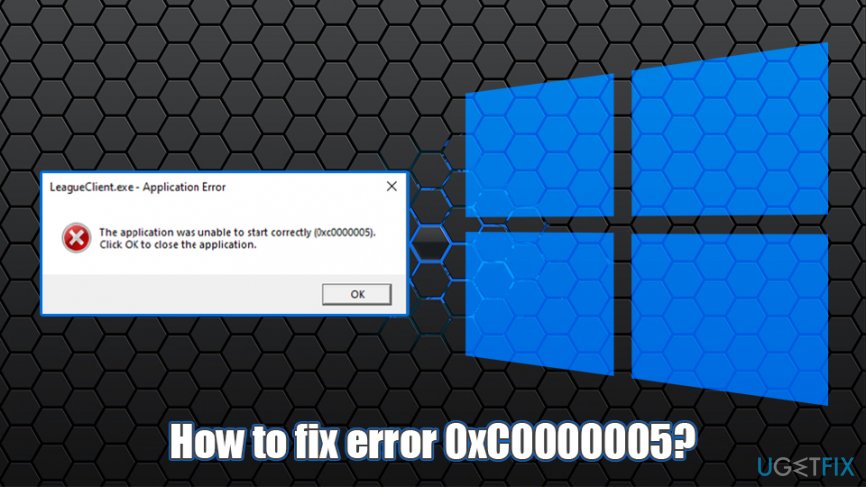
The system malfunction that causes 0xC0000005 error may be related to corrupted registry entries,[ref en-2] corrupted/outdated drivers, virus infection, incomplete/missing security updates, and similar issues. Thus, since the actual cause of the 0xC0000005 error is not clear, you should try all fixes provided below.
Note, before you try to fix 0xC0000005 manually, we suggest you try to solve the issue automatically with the help of a repair tool [d1] - it is designed to find a root cause of the problem and fix it within a scan. This is especially beneficial for less IT-savvy users.
Fix 1. Check the system for malware
In general, it’s advisable to check the system with a professional malware removal tool regularly. A full system scan is also a must when your PC encounters a system error, such as 0xC0000005, because viruses are by far the most common error pop-up and BSOD[ref en-3] causes. Thus, activate the anti-virus that is running on your PC and let it check the system thoroughly.
There are many free third-party applications that offer you trial versions, so a scan with these tools should suffice, although you should make sure that the provider is reputable - there are plenty of fake anti-malware tools that act like malware themselves instead of guarding users. However, the built-in Windows Defender (known as Microsoft Defender as of recently) is more than sufficient to ensure that no malware is involved. The tool has been tested by various independent parties and proved to be just as good as third-party providers, as is ranked as a top product on multiple occasions.[ref en-1]
- In Windows search, type Security and click on Windows Security
- Select Virus & Threat protection
- Choose Scan options
- Click on Full scan and then pick Scan now
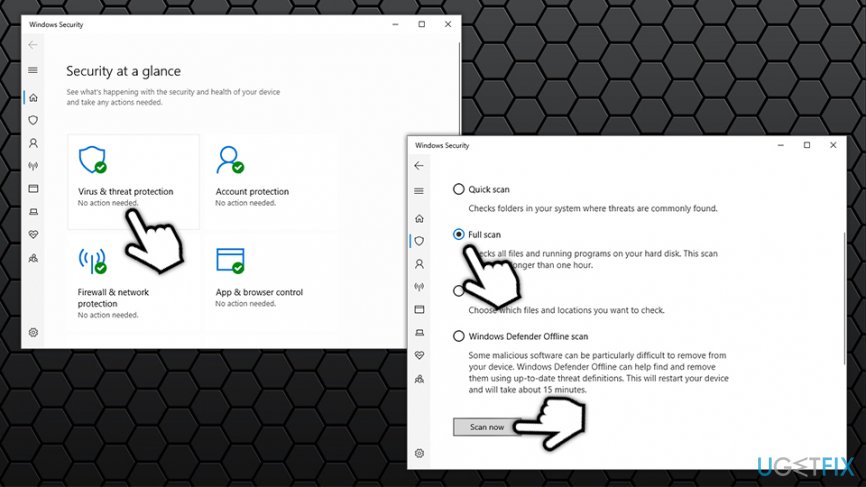
How to fix error 0xc0000005 access violation scan computer for malware
Fix 2. Run Registry Editor
If malware scan did not help, follow these steps:
- Press Win key + R, type regedit, and press Enter
- When the Registry Editor opens, navigate to the HKEY_LOCAL_MACHINE\\SOFTWARE\\Microsoft\\Windows NT\\CurrentVersion\\Windows
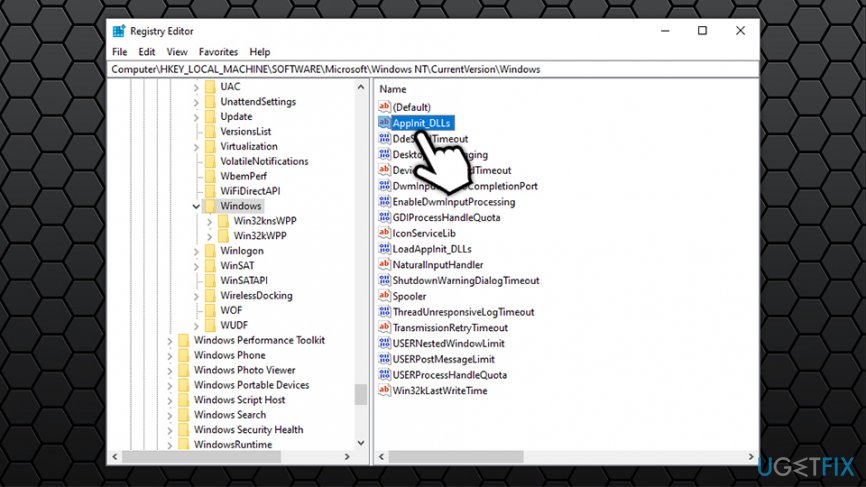
How to fix error 0xc0000005 access violation fix windows registry - Click LoadAppInit_DLLs and change its value from 1 to 0
- To confirm the changes, click OK
- Restart your PC and try to run the application that you couldn’t open before. If the error is gone, you don’t need to perform the next fix. If, however, 0xC0000005 still emerges, try the following fix.
Fix 3. Check the drivers
- Type Device Manager into Windows search and press Enter
- When the Device Manager opens, check for malfunctioning drivers on the left pane. For this purpose, go through each device and check for the drivers marked with a yellow exclamation mark
- In case there are no such drivers, it means that all of them are working properly. If, nevertheless, some of them are malfunctioning, right-click on them and select Properties
- After that, click on Update Drivers and pick Search automatically for updated driver software
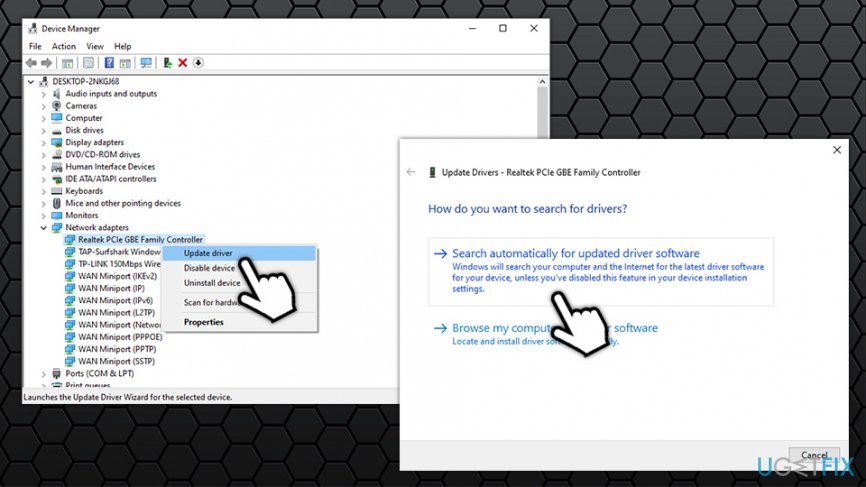
How to fix error 0xc0000005 access violation update drivers - Don’t forget to reboot the system when it’s done
Fix 4. Run SFC scan
System File Checker is an excellent built-in tool that can help users diagnose and repair system file-related errors. To run SFC scan, you should access Command Prompt with administrator's rights:
- In Windows search, type in cmd
- Right-click on Command Prompt result and select Run as administrator
- Once Command Prompt window opens, type in the following command and press Enter:
sfc /scannow
- Wait for scan to finish - Windows will report the findings and attempt to fix issues automatically
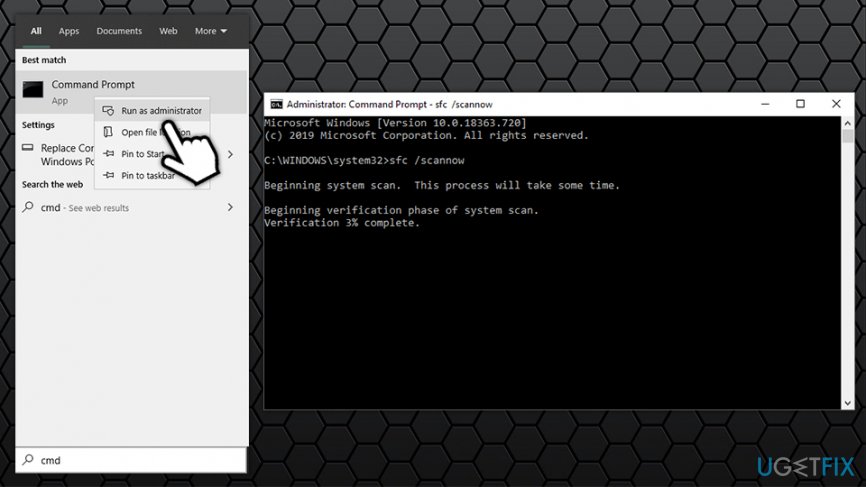
How to fix error 0xc0000005 access violation run sfc scan
Fix 5. Use System Restore
This option will return your computer state to a previous point of time and you will not lose any personal files, although some apps might disappear so you will have to reinstall them.
- Press Win + R simultaneously
- Type in rstrui.exe and press Enter
- Click Next
- Select a restore point with a know good system configuration
- Click Next and press Finish
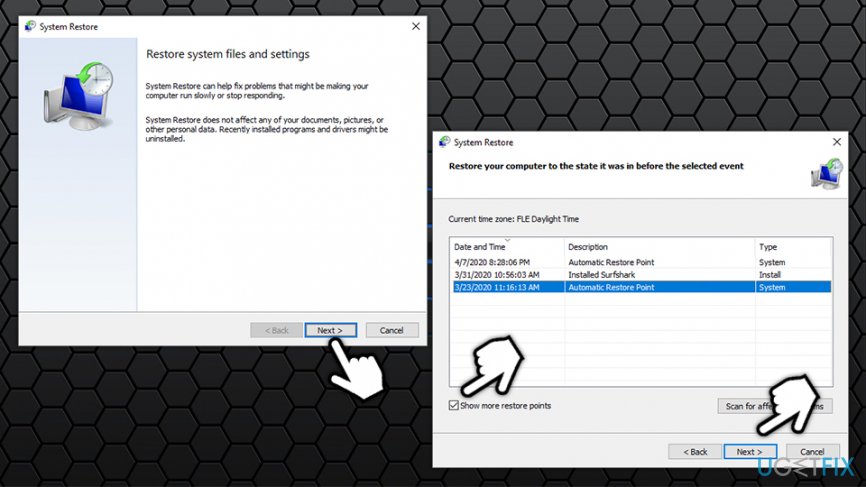
How to fix error 0xc0000005 access violation use system restore
Fix 6. Reset your PC
If none of the above methods help, you should reset your Windows. You will lose all the installed applications, although files will remain intact:
- Right-click on Start button and select Settings
- Pick Update & Security from the list and access Recovery panel
- In the Reset This PC section, click Get Started
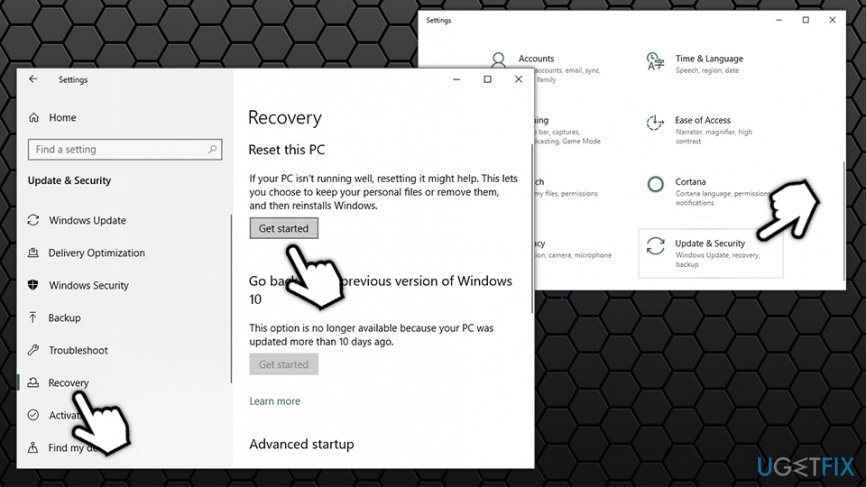
How to fix error 0xc0000005 access violation reset windows - Select Keep my files
- Proceed with on-screen instructions
Bottom line
To fix the 0xC0000005 error, you can try using a repair tool to automatically identify and resolve the issue, or manually check for corrupted drivers and registry entries. If these solutions do not work, consider further troubleshooting or seeking professional assistance.
Frequently asked questions
This error typically occurs due to attempting to access memory that the program does not have permission to use, often caused by faulty RAM, outdated drivers, or software conflicts.
You can try updating your drivers, running a memory diagnostic, or performing a system restore to a point before the error started occurring.
Disabling DEP can alleviate the error temporarily, but it is not recommended as it reduces system security; instead, consider troubleshooting the underlying issue.




Report an issue
What's wrong with this guide? We review every report and update or remove content.
Report received — thank you. We'll review and fix it.
You need a free account to submit a report.
Be the first to comment