How to fix
“Account error. There are problems with your account” in Microsoft Office
on Windows
Resolve the "Account error" in Microsoft Office on Windows 10 and 11 swiftly. Get expert-tested solutions and enjoy smooth functionality again!


What causes How to fix “Account error. There are problems with your account” in Microsoft Office?
- Outdated Office software
- Issues with account credentials
- Conflicts with Office activation
- Temporary disconnection from Microsoft’s authentication servers
- Expired licenses
- Corrupt account data stored on the local machine
Repairs Windows system files, removes malware, and restores a clean OS state — without reinstalling.
I keep being signed out of my Office apps - the message says "Account error. There are problems with your account. To fix them, please sign in again." I've tried to log in several times but the result is the same, so I am looking for a solution that would work permanently. Any advice would be appreciated. I am on Windows 11 Home.
Microsoft Office is an essential tool for many users, facilitating productivity through programs such as Word, Excel, and Outlook. However, users occasionally face issues that prevent smooth operation.
One common problem is the “Account error. There are problems with your account” message that can appear when using Office applications. It can disrupt your ability to access certain features, save files to the cloud, or sync data effectively.
The "Account error. There are problems with your account" message generally indicates a problem with your Microsoft account's connection to the Office suite. This can happen due to several reasons, such as outdated Office software, issues with account credentials, or conflicts with Office activation. Users have reported seeing this error after changes to their Microsoft account, such as password resets or updates to security information, as well as after Office or Windows updates that may disrupt the link between the software and the account.
Some common causes of this issue include a temporary disconnection between your device and Microsoft’s authentication servers, expired licenses, or corrupt account data stored on the local machine. Network issues, such as unstable internet connectivity or proxy settings, can also prevent Office from verifying your account.
To address the "Account error. There are problems with your account" message in Microsoft Office, various solutions are available, ranging from simple checks, like verifying account credentials and ensuring your Office is up-to-date, to more advanced steps such as clearing cached credentials, resetting Office settings, or reinstalling the Office suite if necessary.
For automatic troubleshooting, using [d1] PC repair tool can help detect and fix underlying Windows and Office issues efficiently, restoring normal functionality.

Fix 1. Update Microsoft Office
Outdated Office software can cause connection issues or account errors. Updating ensures that you are running the latest version with all patches.
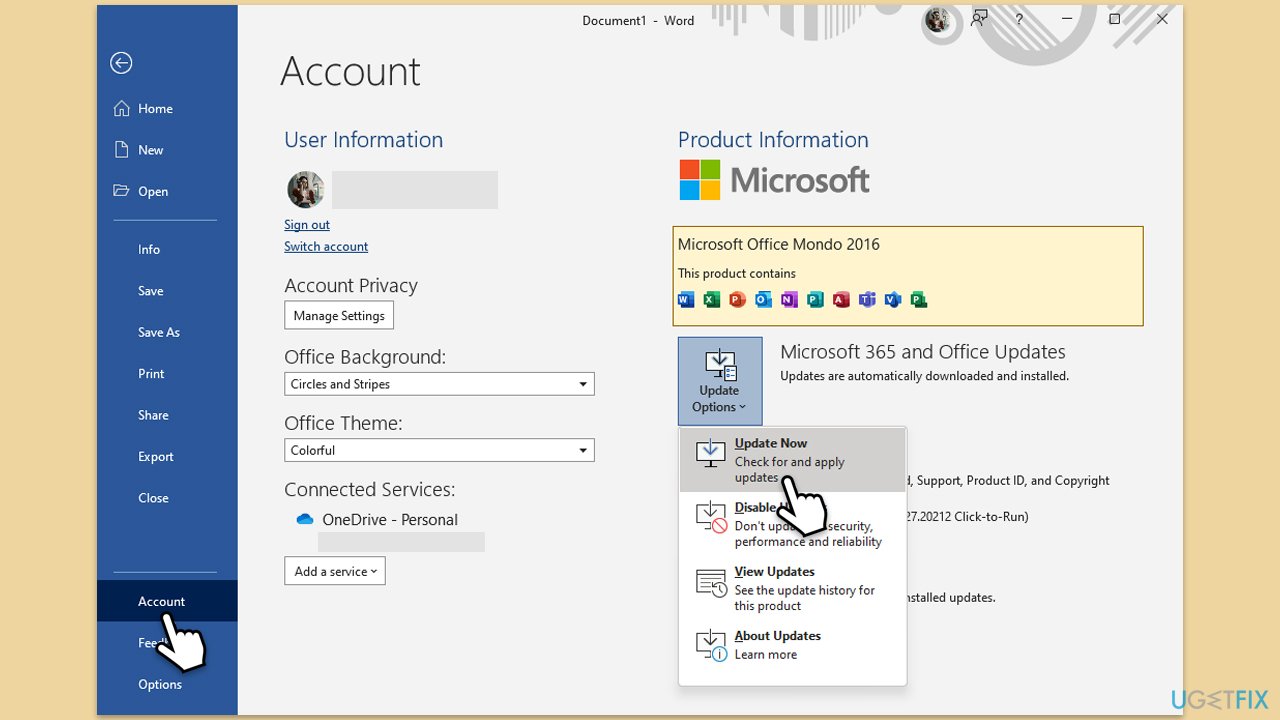
- Open Word or any other Office app.
- Click on the File tab in the top-left corner.
- Select Account from the menu.
- Under the Product Information section, click on Update Options.
- Choose Update Now to check for and install any available updates.
- Restart the Office application after the update is complete to see if the issue is resolved.
Fix 2. Run the troubleshooters
Built-in troubleshooters can automatically detect and fix issues related to account verification.
- Type troubleshoot into the Windows search bar, then press Enter.
- In the options that appear, select Additional troubleshooters or Other troubleshooters (depending on your Windows version).
- Scroll through the list until you locate Windows Store Apps, then click on Run the troubleshooter/Run.
- Wait as the process runs to completion, then apply any recommended changes to resolve the issue.
- Repeat with Network and Internet troubleshooter.

On Windows 10, run Network Troubleshooter as follows:
- Right-click on Start and pick Settings.
- Go to the Network & Internet section.
- On the right side, find the Advanced network settings section.
- Click Network troubleshooter, specify the problem, and wait till the scan is finished.
- When done, apply all the recommendations.
Fix 3. Clear cached credentials
Clearing stored credentials from Windows Credential Manager can fix corrupted account data that may cause errors.
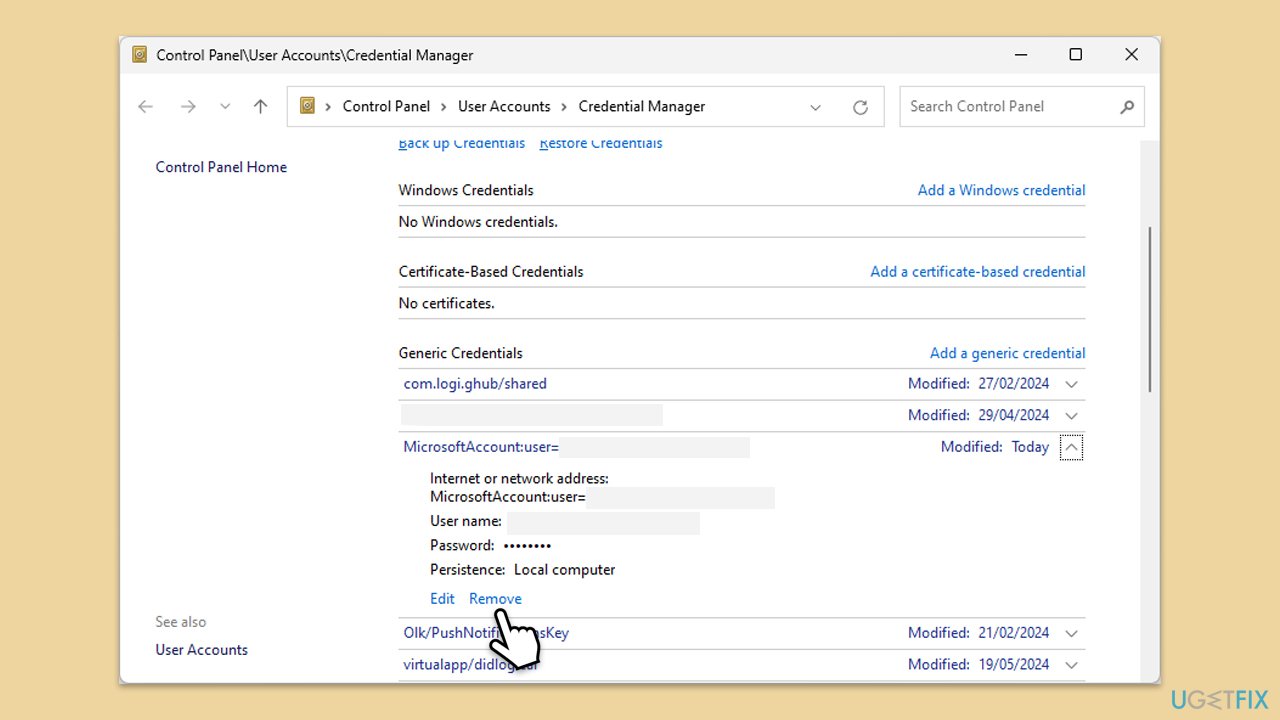
- Type Credential Manager in Windows search and press Enter.
- Select Windows Credentials.
- Look for any Office-related credentials, such as MicrosoftOffice15, MicrosoftOffice16, or OneDrive, and remove them.
- Restart Office and sign in again.
Fix 4. Reactivate Office
If your Office license is expired or not properly activated, reactivating it can resolve the account error.
- Open any Office application and go to File > Account.
- Click on Change License or Reactivate.
- Enter your product key or sign in with the Microsoft account associated with your license.
Fix 5. Repair Microsoft Office
Repairing Office can fix any underlying software issues that affect its account connectivity.
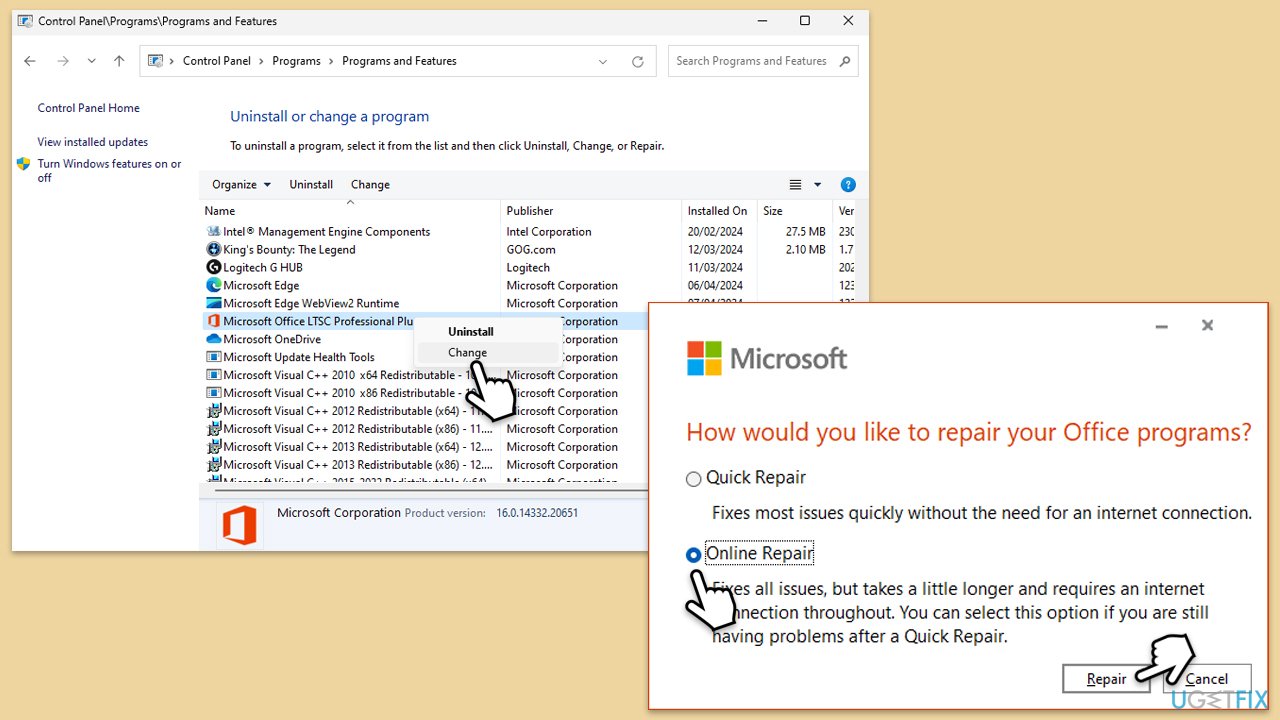
- Type Control Panel in Windows search and press Enter.
- Select Programs > Programs and Features.
- Select Microsoft Office and click on Change.
- Choose the option for Online Repair and click Repair.
- Follow the prompts to finish the process.
Fix 6. Reinstall Microsoft Office
If other solutions do not resolve the issue, reinstalling Office can refresh the installation and fix deeper issues.
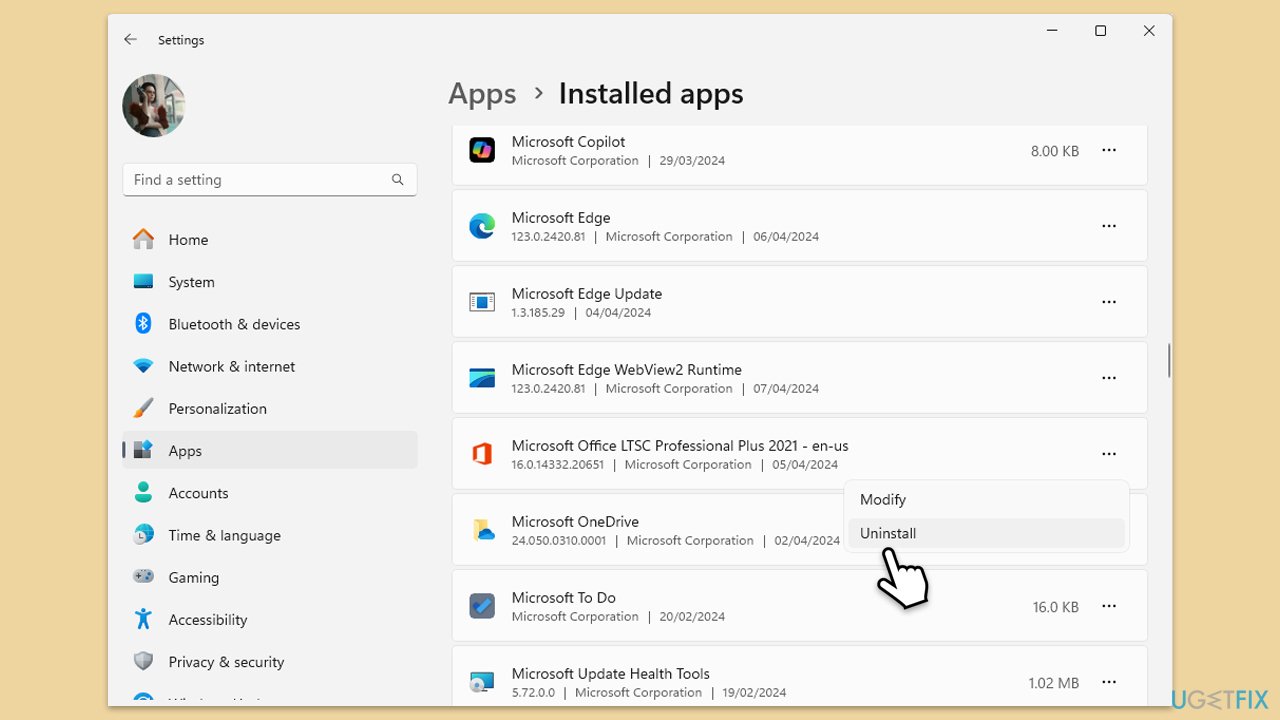
- Right-click on Start and pick Apps and Features/Installed apps.
- Scroll down to find the MS Office installation.
- Click Uninstall and confirm with Uninstall.
- Follow on-screen instructions to remove the app completely.
- Press Win + E to open File Explorer.
- Navigate to the following location and delete its contents:
C:\Program Files\Microsoft Office - Next, type regedit in Windows search and press Enter.
- Go to the following locations in the Registry Editor and delete these items:
Computer\HKEY_LOCAL_MACHINE\SOFTWARE\Microsoft\AppVISV
Computer\HKEY_LOCAL_MACHINE\SOFTWARE\Microsoft\Office\ClickToRun
Computer\HKEY_CURRENT_USER\Software\Microsoft\Office - Reboot the computer.
- Visit the Microsoft Office download page to download and reinstall Office.
Bottom line
To fix the 'Account error. There are problems with your account' message, users can verify their account credentials, ensure their Office is up-to-date, clear cached credentials, reset Office settings, or reinstall the Office suite. If none of these solutions work, consider using a PC repair tool for automatic troubleshooting.
Frequently asked questions
First, try signing out and then signing back into your Microsoft account within Office applications. If the issue persists, check for any pending Windows updates and install them.
You can fix this error by running the Office Repair tool from the Control Panel, which can help repair any corrupted files. Additionally, ensure that your Office installation is up to date.
Yes, you can switch accounts by going to File > Account in any Office application and selecting the correct Microsoft account. Make sure to remove any accounts that are no longer in use to avoid confusion.




Report an issue
What's wrong with this guide? We review every report and update or remove content.
Report received — thank you. We'll review and fix it.
You need a free account to submit a report.
Be the first to comment