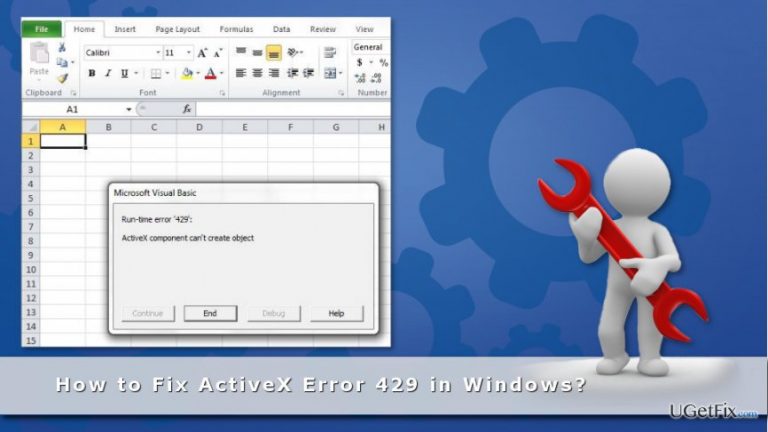
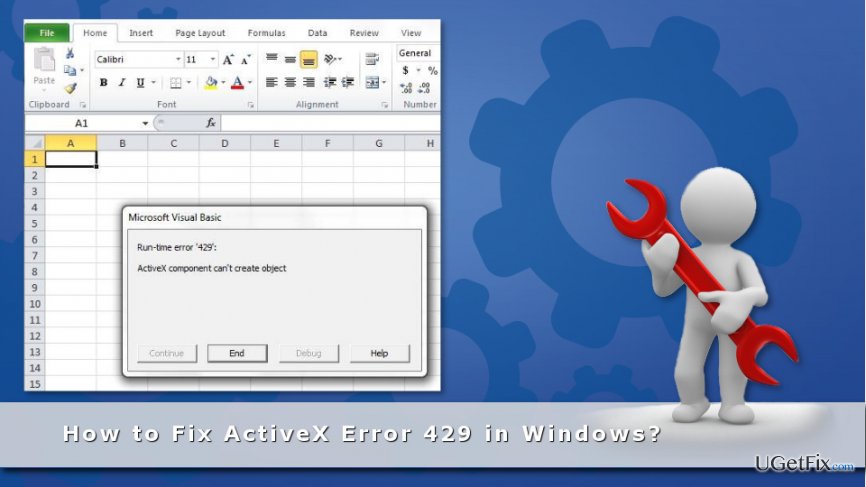
I was working with Excel, and it crashed. I was forced to close the program and received “Run-time error ‘429’: ActiveX component can’t create object.” error. I thought it was a one-time problem. However, it has occurred few more times. Is there something wrong with my computer?
ActiveX error 429 belongs to the wide group of run-time errors. It usually occurs using various Microsoft Office programs, such as Word or Excel, in Windows 10, 8 or 7. The main reasons why this error is triggered might be:
corrupted registry entries;
deleted operating system’s files;
incomplete installation of the program;
corrupted system files;
corrupted program files;
malware attack.
If some of these problems occur, the Windows closes the currently running program and delivers an error message saying:
Many different issues can cause Active X Error 429, so there’s a bunch of ways to fix it.
Method 1. Scan the device for malware
Various computer viruses can damage system files, corrupt registry and cause other problems that trigger this error message. Typically, malware attack is followed by system slow downs and other error messages. Therefore, if you have noticed signs of the attack, you should scan the device with reputable malware removal tool, such as [d1]
Method 2. Reregister the program
If you have encountered the error while using a particular program, it might be the source of the problem. Thus, you should reregister it by following these steps:
1. Login to Windows admin account.
2. Open Run application by pressing Win key +R.
3. Type the full path of the program (including the exe file) in the text box, for instance: C:\\Program Files \\ Mozilla Firefox \\ firefox.exe \\ regserver
4. Click OK.
Method 3. Reregister the specified file
Active X Error 429 might occur due to the corrupted or deleted file. If the error message states that there’s a problem with .ocx or .dll file, you should reregister it.
1. Open Command Prompt:
Windows 10 and 8: Press the Win key + X -> choose Command Prompt (Admin) from the appeared drop-down menu.
Windows 7: Open Start -> Type “cmd” in the Windows search box -> choose necessary result.
2. When in Command Prompt, enter the name of the corrupted file, for instance, regsvr32 Filename.ocx or regsvr32 Filename.dll.
3. Replace the filename with the specified title.
4. Click the Return key for file reregistration.
Method 4. Run the System File Checker
Corrupted system files might be the reason of ActiveX Error 429. In order to fix it, you have to run the System File Checker that is an inbuilt feature in Windows.
1. Enter “cmd” in Windows search box.
2. Right-click on the Command Prompt and choose Run as administrator option.
3. In the Command Prompt type sfc /scannow and click the Return key.
4. When the scan is over, you will receive this message:
“Windows Resource Protection found corrupt files and successfully repaired them.”
5. Restart your computer.
Since then, the ActiveX 429 issue should no longer bother you.
Bottom line
To fix ActiveX Error 429, you can scan your device for malware, reregister the program, or reregister the specified .ocx or .dll file. If these methods do not resolve the issue, further investigation into the system may be necessary.
Frequently asked questions
ActiveX Error 429 is typically caused by missing or unregistered ActiveX components, often due to improper installation or system changes. Additionally, it can occur if the application trying to use ActiveX is not compatible with your version of Windows.
To register ActiveX controls, open Command Prompt as an administrator and use the 'regsvr32' command followed by the path to the ActiveX DLL file. This will ensure that the necessary components are properly registered in Windows 10 or Windows 11.
Yes, updating Windows 10 or Windows 11 can resolve ActiveX Error 429 by ensuring that all system files and components are up to date, which may include necessary updates for ActiveX controls. Always check for updates regularly to maintain system stability.
Driver troubleshootingHardware conflictsDevice Manager errorsUSB and peripheral issuesAudio and video problems
Lucia Danes is a tech support specialist focused on driver conflicts, hardware recognition failures, and device-level troubleshooting on Windows. Her guides walk users through the full diagnostic process — from reading Device Manager error codes and identifying problematic drivers to performing clean driver installations and resolving hardware compatibility issues. Lucia covers a wide range of devices including printers, audio hardware, graphics cards, USB peripherals, and external storage. Her writing is valued for its step-by-step precision and the real-world testing behind every recommended fix.





Report an issue
What's wrong with this guide? We review every report and update or remove content.
Report received — thank you. We'll review and fix it.
You need a free account to submit a report.
Be the first to comment