How to fix
Adaptive brightness not working
on Windows
Fix adaptive brightness issues in Windows 10 and Windows 11 effortlessly. Follow our expert-tested solutions for a seamless experience. Fixed in minutes!

What causes How to fix Adaptive brightness not working in Windows?
- Bad Windows Update
- Corrupt registry files
- Outdated graphics driver
- Incorrect power plan settings
Repairs Windows system files, removes malware, and restores a clean OS state — without reinstalling.
Hi. Every time I watch a video or play games, my screen becomes much brighter than I originally set it to be. I am not sure why Adaptive brightness is not working correctly. Any tips?
Adaptive Brightness is a useful feature in Windows that automatically adjusts the screen brightness based on the ambient lighting conditions. However, it can be frustrating when it stops working correctly, either failing to detect changes in the light environment or adjusting the brightness inappropriately.
One common cause of Adaptive Brightness not working correctly is a bad Windows Update. Microsoft regularly releases updates to Windows, and sometimes these updates can interfere with the functioning of Adaptive Brightness. If you suspect this is the case, try rolling back to a previous version of Windows or updating to the latest version.
Another possible cause of the problem is corrupt registry files. The registry is a critical component of the Windows operating system, and if its files become damaged or corrupted, it can cause issues with various system features, including Adaptive Brightness.
Issues with the graphics driver can also cause problems with Adaptive Brightness. If the driver is outdated, incompatible, or corrupted, it can prevent the system from detecting changes in the light environment correctly. Updating or reinstalling the graphics driver is usually the solution to this problem.
Finally, incorrect power plan settings can cause Adaptive Brightness to malfunction. Windows offers various power plans that control how the system manages energy consumption. If the power plan settings are incorrect, it can cause the system to override the Adaptive Brightness feature. Adjusting the power plan settings or creating a new power plan that is optimized for the environment can often solve this issue.
Below we provide several tips that should help you fix Adaptive brightness not working correctly in Windows. We also recommend running a scan with powerful PC repair software [d1], which can quickly and easily repair damaged system files, ultimately fixing any issues that come with it.
Fix 1. Run Power troubleshooter
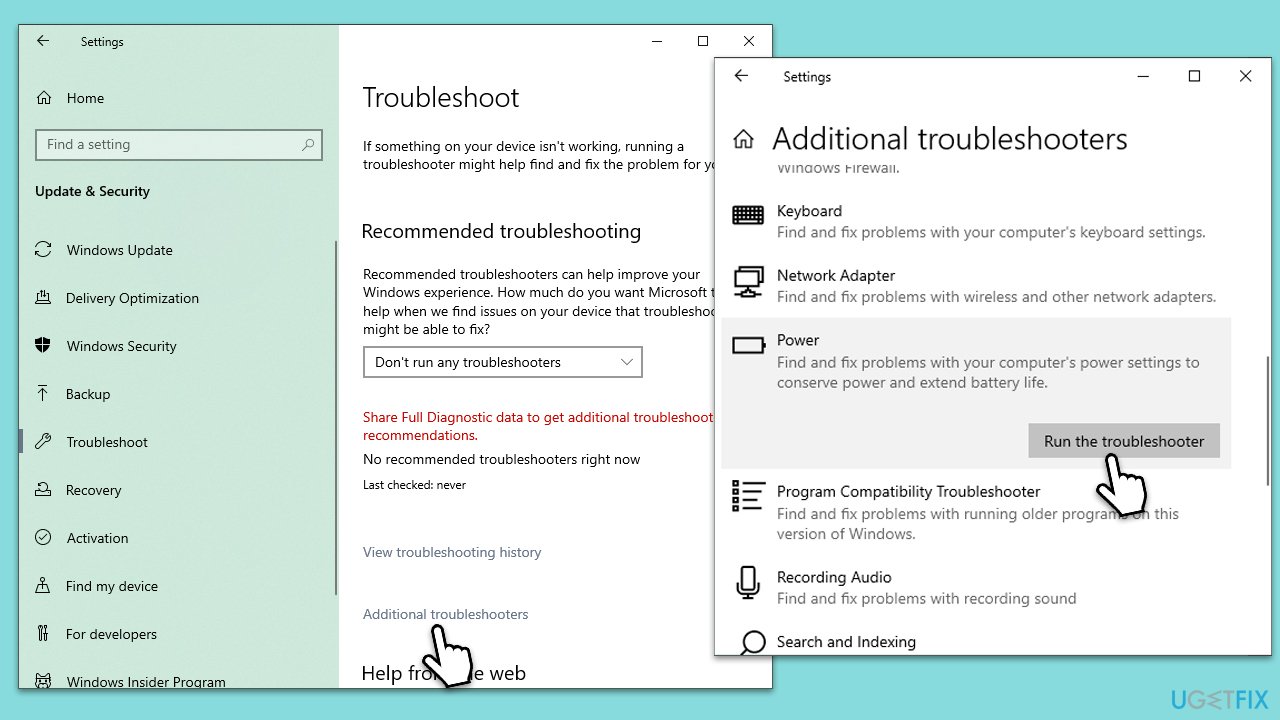
If you are having issues with adaptive brightness, you can start with the built-in troubleshooter.
- Type troubleshoot in Windows search and press Enter.
- Select Additional troubleshooters/Other troubleshooters.
- Scroll down to find Power.
- Select it and pick Run the troubleshooter/Run.
- Wait till the results are displayed and apply all the recommended changes.
Fix 2. Update your GPU drivers
Your initial objective is to update the drivers for your GPU, and there are various methods you can employ to accomplish this. To begin with, it is recommended that you confirm that all available updates for Windows have been installed:
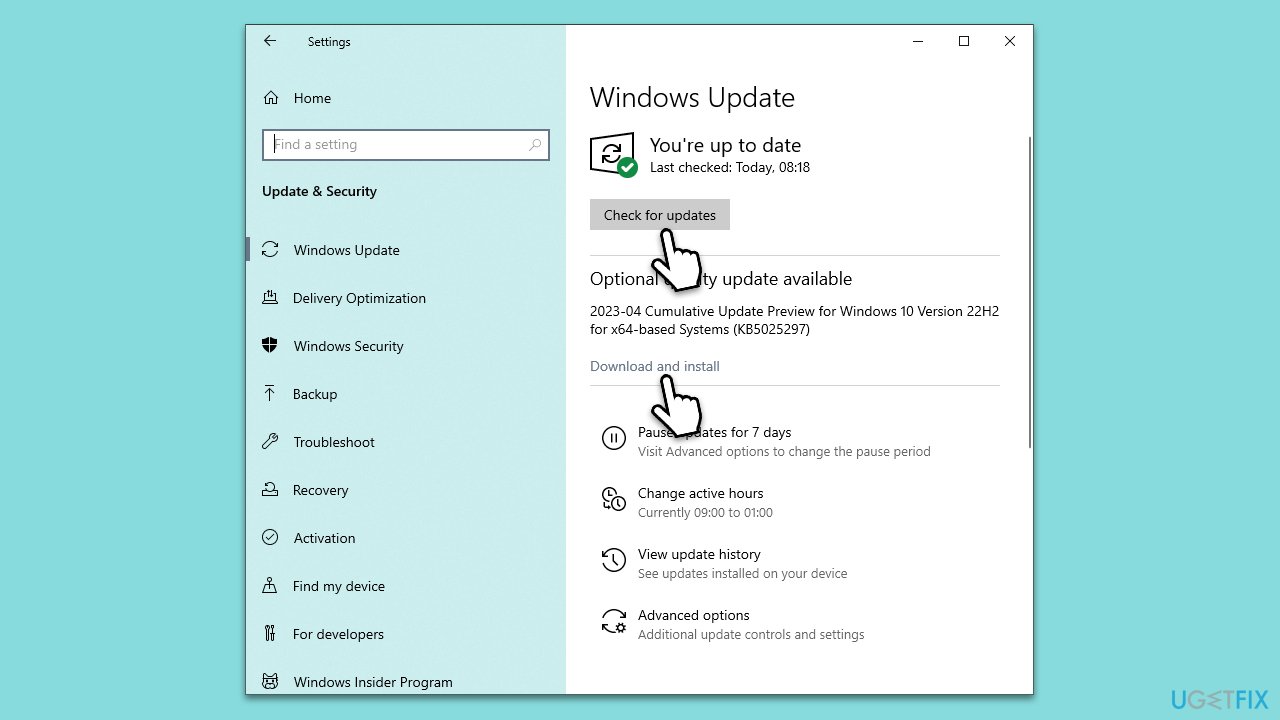
- Type Update in Windows search and hit Enter.
- Click Check for updates and wait till they are installed.
- If optional updates are available, install them as well because that's where driver updates are located.
- When done, restart Windows.
When it comes to GPU updates, relying solely on Windows updates may not be the most effective approach. Therefore, we suggest exploring alternative methods, such as visiting the website of your GPU manufacturer, such as Nvidia, and downloading the drivers from there. Alternatively, you could consider using an automatic driver updater like [rev id="DriverFix"].
Fix 3. Reinstall your GPU driver
- Right-click on Start and select Device Manager.
- Expand the Display adapters section.
- Right-click on your graphics card and select Uninstall device.
- Tick the Delete the driver software for this device checkmark and click Uninstall.
- Reboot your system.
After this, use one of the methods described in the previous step to install the latest drivers on Windows.
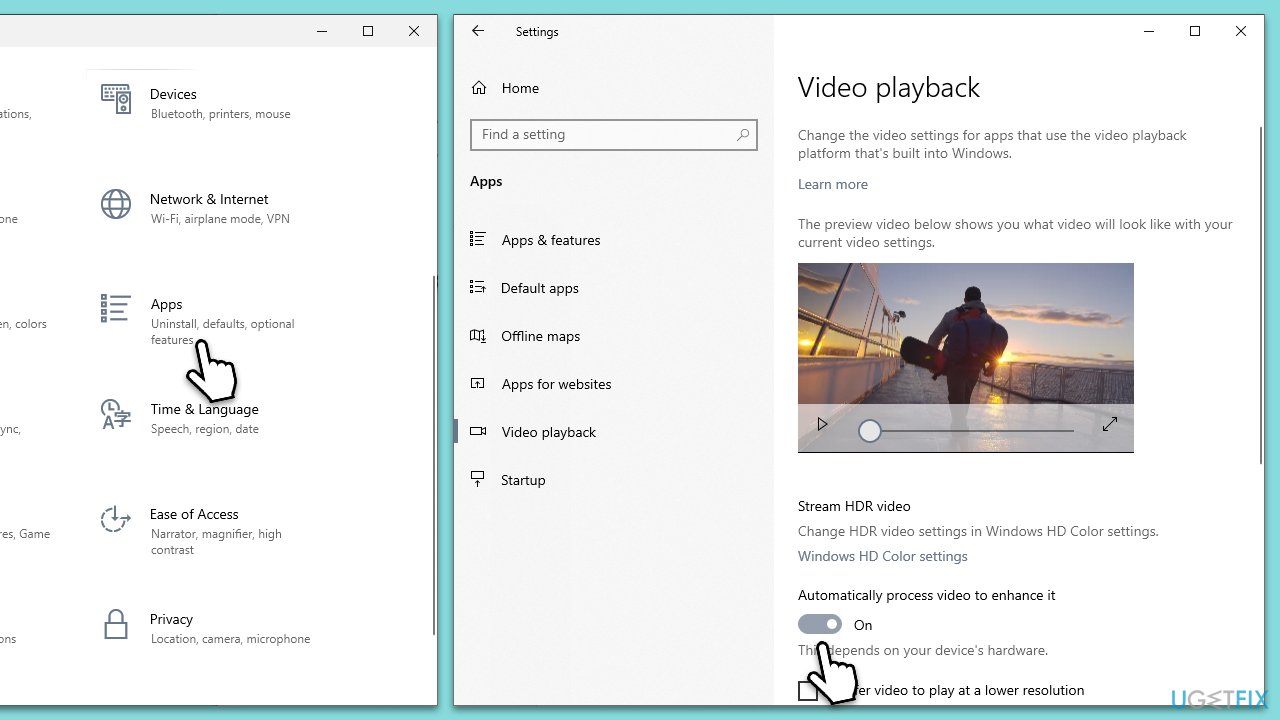
Fix 4. Tweak Video playback settings
- Click Start and pick Settings.
- Go to the Apps section.
- There, turn on the Automatically process video to enhance it option.
- If this option is already enabled, try switching it off instead.
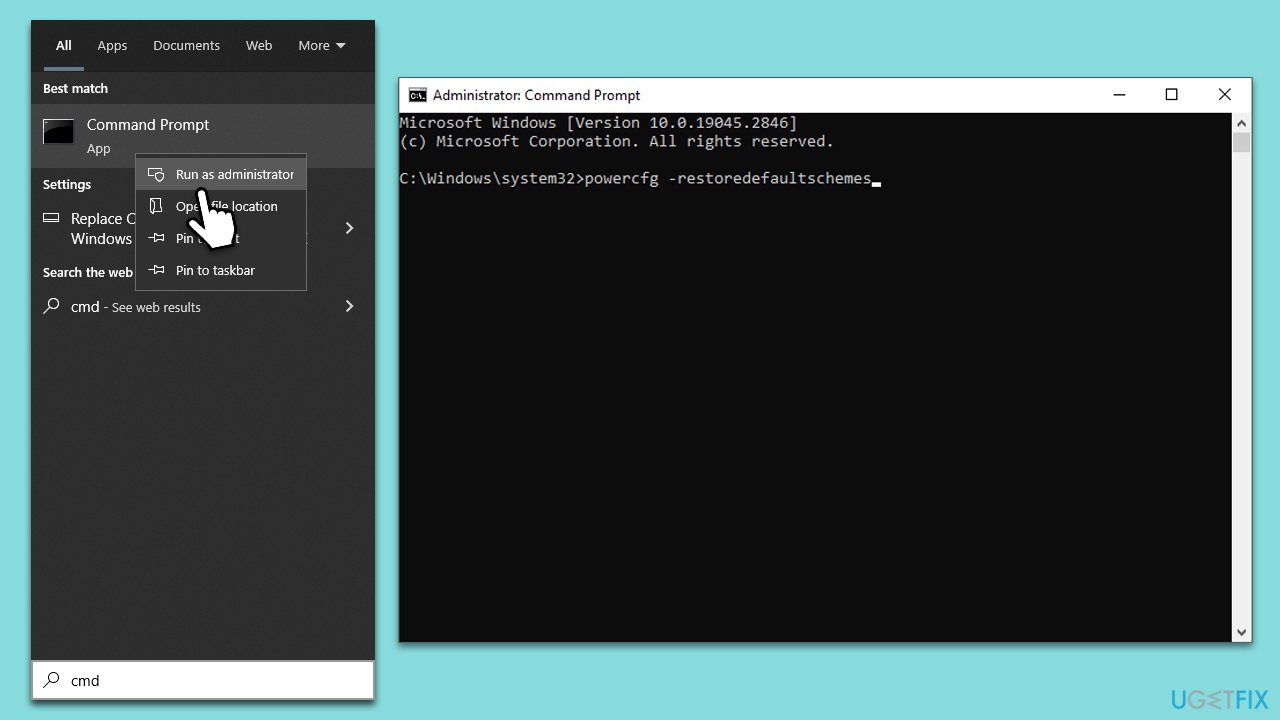
Fix 5. Reset Power plans to default
- Type cmd in Windows search.
- Right-click on the Command Prompt result and select Run as administrator.
- When User Account Control shows up, click Yes.
- Copy and paste the following command, and press Enter:
powercfg –restoredefaultschemes - Once the command is executed, close down Command Prompt.
Fix 6. Disable Adaptive brightness [workaround]
If you are having an issue where your brightness is inconsistent and do not match your preferences, you can always disable it via the registry. Please make sure you back up the registry database before proceeding with this.
- Type regedit in Windows search and press Enter.
- Go to the following location (you can also copy and paste this into the address bar at the top):
Computer\HKEY_LOCAL_MACHINE\SOFTWARE\Intel\Display\igfxcui\profiles\Media\Brighten Movie - On the right side, double-click the ProcAmpBrightness key and set its value to 0.
- Next, go to the following location:
Computer\HKEY_LOCAL_MACHINE\SOFTWARE\Intel\Display\igfxcui\profiles\Media\Darken Movie - Double-click ProcAmpBrightness and set its value to 0.
Bottom line
To fix Adaptive Brightness not working in Windows, you can try rolling back or updating Windows, repairing corrupt registry files, updating or reinstalling the graphics driver, and adjusting power plan settings. If none of these solutions work, consider running a scan with PC repair software to repair damaged system files.
Frequently asked questions
First, ensure that the adaptive brightness feature is enabled in the Power Options settings under 'Change plan settings' and 'Change advanced power settings'. If it’s still not working, update your graphics drivers through Device Manager.
Go to Settings, then System, and select Display; from there, toggle on the 'Automatically adjust brightness' option under 'Brightness and color'. If this does not help, check for Windows updates and install any pending updates.
Yes, try disabling the 'Enable adaptive brightness' option in the advanced power settings and then re-enable it. Additionally, consider running the Power Troubleshooter from Settings > Update & Security > Troubleshoot.




Report an issue
What's wrong with this guide? We review every report and update or remove content.
Report received — thank you. We'll review and fix it.
You need a free account to submit a report.
Be the first to comment