How to fix
Adblock doesn’t stop ads on Twitch
on Windows
Struggling with Adblock not blocking ads on Twitch in Windows 10 or 11? Discover effective solutions that deliver results with expert-tested methods.

What causes How to fix Adblock doesn’t stop ads on Twitch?
- AdBlock extension is not updated
- Allow Acceptable Ads is enabled
- Twitch ads are not being blocked due to settings
- Browser cache and cookies are interfering
- AdBlock is not configured to block Twitch ads
Repairs Windows system files, removes malware, and restores a clean OS state — without reinstalling.
Hello. I got the AdBlock extension for my browser, but I still see the advertisements when I watch Twitch streams. Is there something I can do?
Twitch is a video live streaming service that focuses on video games. It is a platform for content, including esports[ref en-1] tournaments, personal streams of individual gamers, and gaming-related talk shows. The website also runs ads because the revenue supports content creators, extension developers, and the website itself. Without ad revenue, Twitch could not offer a free viewing experience to all of its users.
Method 1. Update AdBlock To The Latest Version
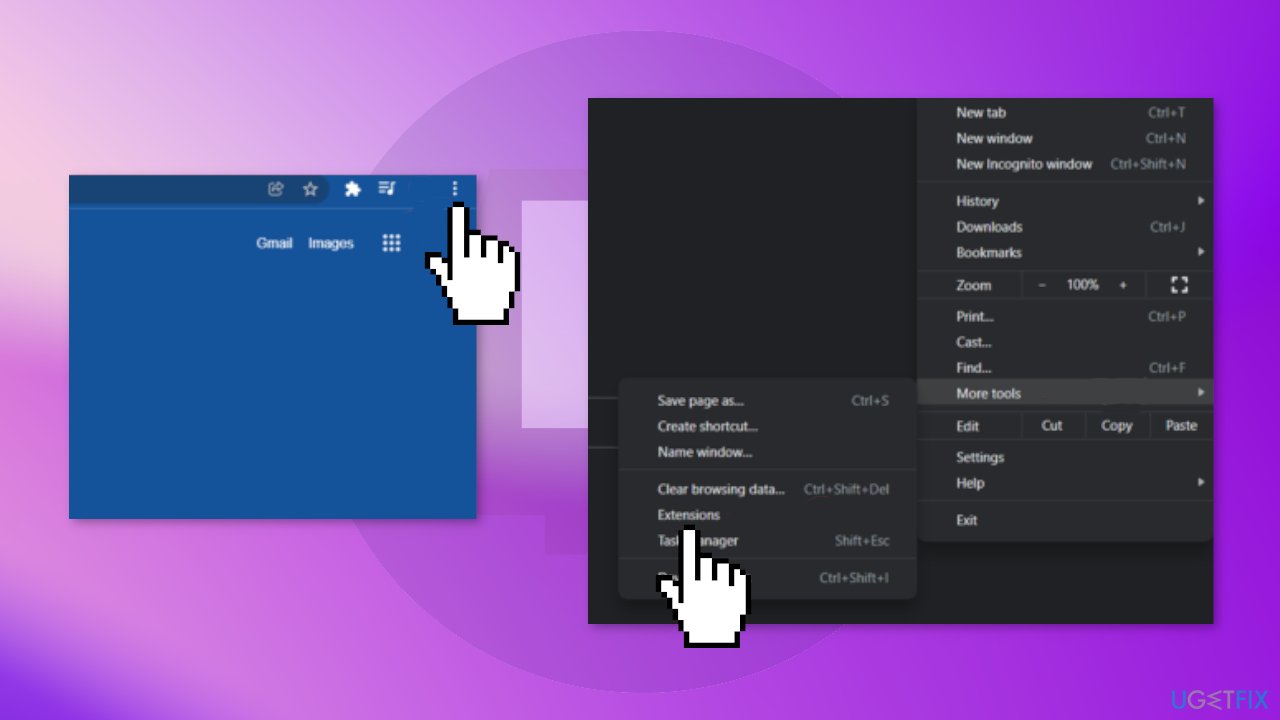
- Open your Chrome browser
- In the address bar, type in chrome://extensions and press Enter
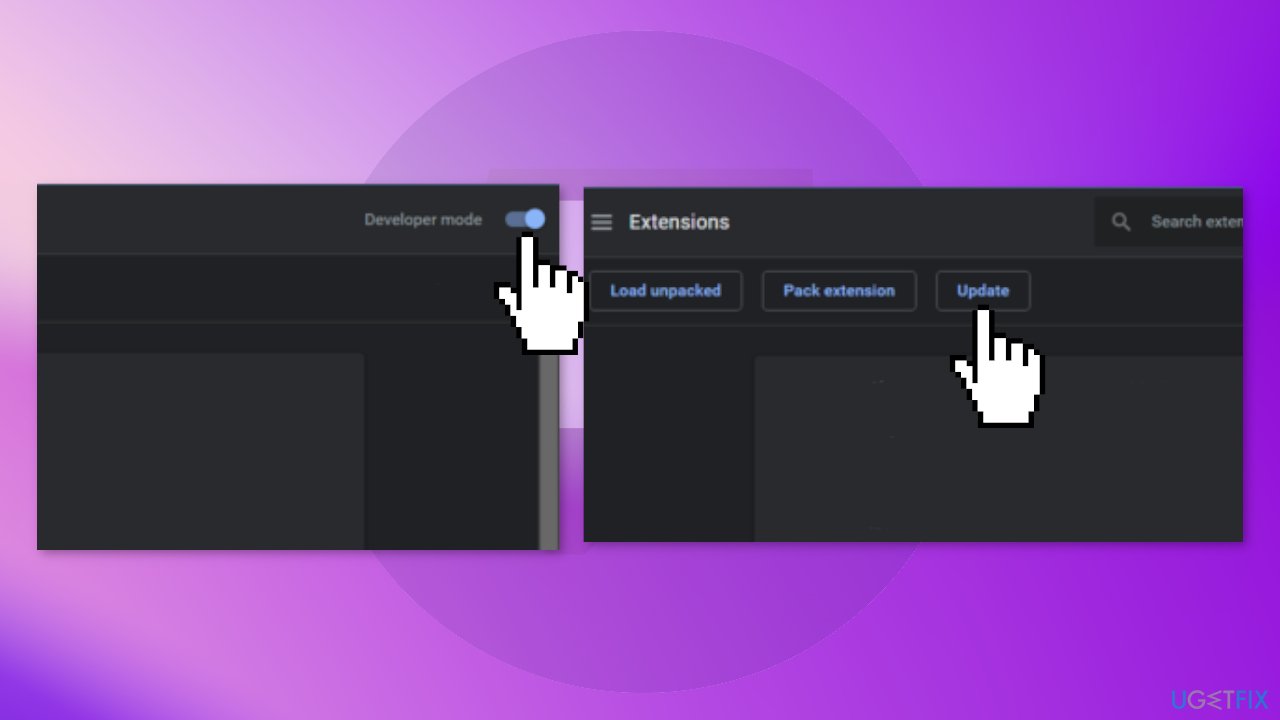
- Find Developer Mode in the top right corner and click it
- Click Update, and all of your extensions will be updated
- Restart Chrome
- Visit Twitch and see if the problem is resolved
Method 2. Configure AdBlock Settings
- Open AdBlock by clicking the icon in the top right corner of your Chrome browser
- Click on the gear icon, which opens the Settings
- Click on the General tab
- Untick Allow Acceptable Ads and then restart Chrome
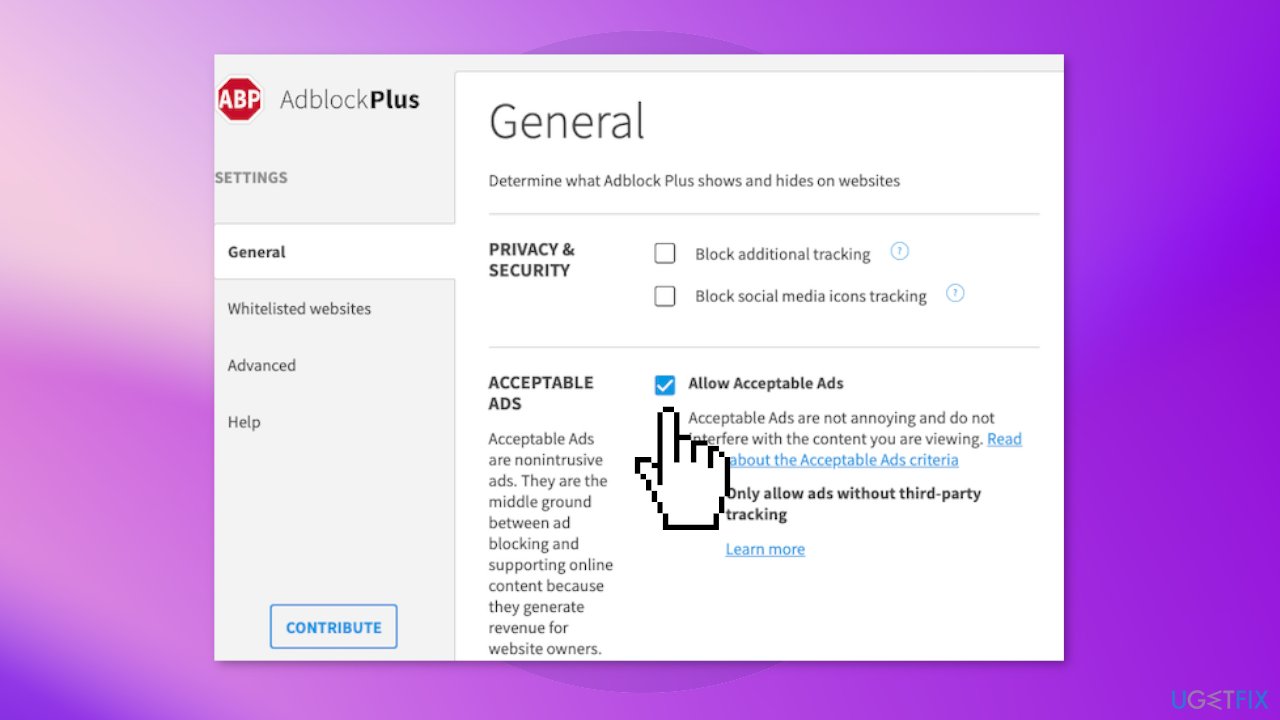
- Visit Twitch and see if the problem is gone
Method 3. Add Twitch to Adblock Manually
- Open your Chrome browser
- In the top right, click the AdBlock icon
- When the pop-up appears, click the gear icon, which will take you to Settings
- On the left side, click on Advanced tab, then scroll down to the My Filter section and click it
- Add the following commands, with one on each line:
www.twitch.tv##.player-ad-overlay.player-overlay
www.twitch.tv##.js-player-ad-overlay.player-ad-overlay
r/https://imasdk.googleapis.com/js/sdkloader/ima3.js
https://imasdk.googleapis.com/js/sdkloader/ima3.js
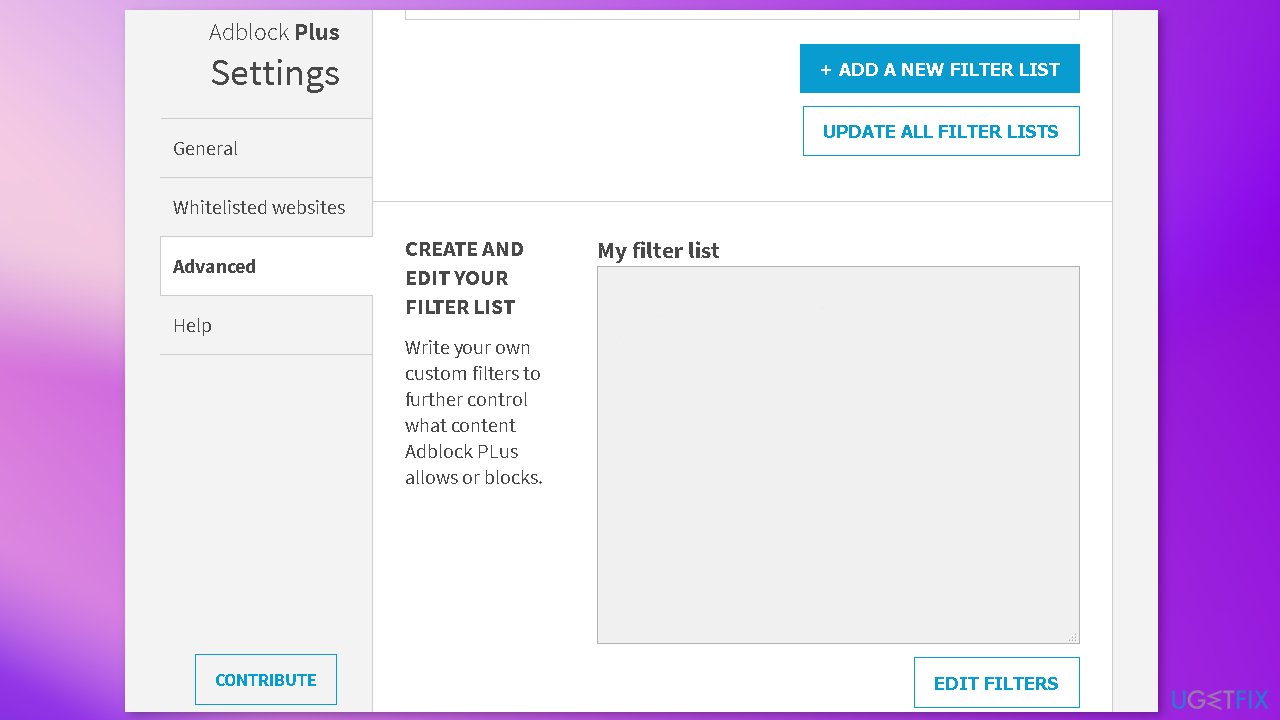
- Save the settings and restart the browser
- Visit Twitch and see if the problem is resolved
Method 4. Try using a Different Browser
If the previous methods have not fixed the issue, you may want to try giving other browsers a chance.
Method 5. Use Twitch Turbo
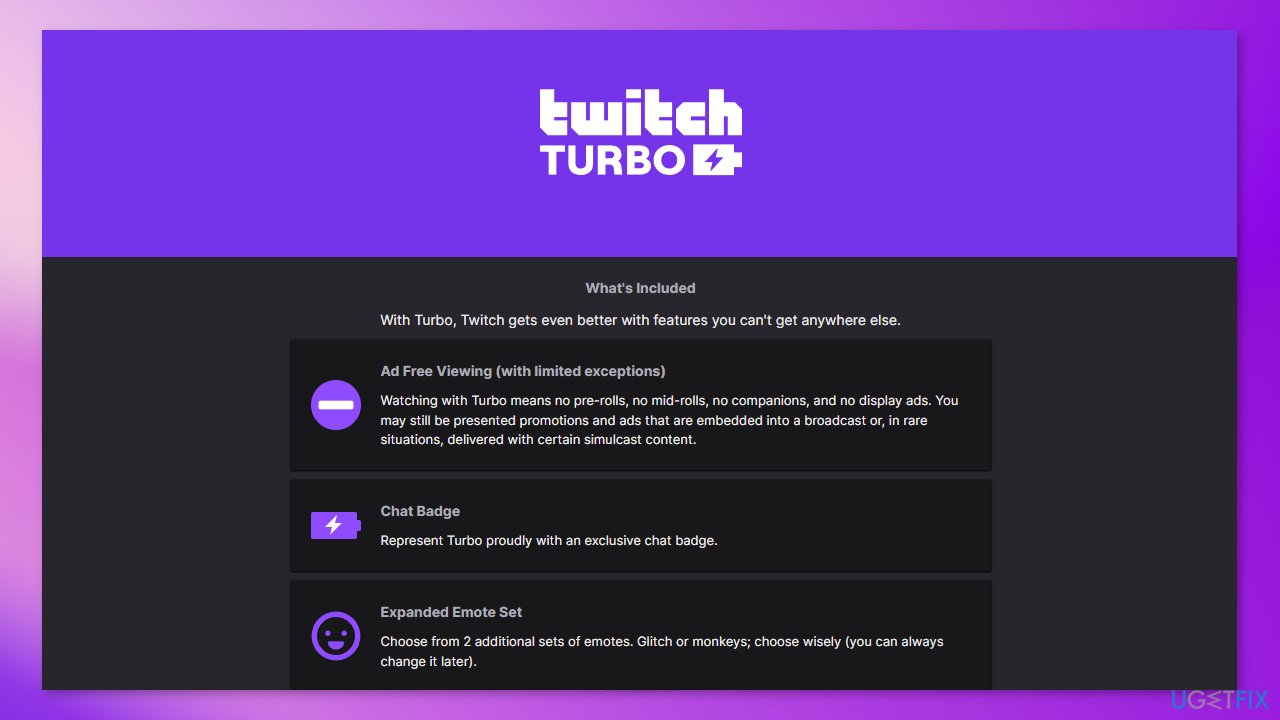
Twitch Turbo is a monthly subscription program offered exclusively on Twitch. It is guaranteed to remove all advertisements from the streaming platform. Users also receive many other interesting benefits that can improve their Twitch experience.
Bottom line
To fix the issue of AdBlock not stopping ads on Twitch, you can update AdBlock to the latest version, configure its settings to disable Acceptable Ads, and manually add Twitch to AdBlock. If these methods do not resolve the problem, consider using a maintenance tool to clear cookies and cache or check for other browser-related issues.
Frequently asked questions
Ads may still appear on Twitch due to the platform's attempts to bypass ad blockers. Ensure your Adblock extension is up to date and check its settings for any filters related to Twitch.
Try disabling and re-enabling the Adblock extension, or clear your browser cache to see if that resolves the issue. Additionally, check if any other extensions might be interfering with Adblock's functionality.
It's possible that the latest update has affected your browser settings or extensions; consider reinstalling Adblock or switching to a different browser to test its effectiveness.




Report an issue
What's wrong with this guide? We review every report and update or remove content.
Report received — thank you. We'll review and fix it.
You need a free account to submit a report.
Be the first to comment