How to fix
Adobe Flash Player Issues in Internet Explorer
on Windows
Resolve Adobe Flash Player issues in Internet Explorer on Windows 10 and 11 effortlessly. Quick solutions, expert-tested, and updated for 2025!


What causes How to Fix Adobe Flash Player Issues in Internet Explorer?
- Adobe Flash Player is not enabled in Internet Explorer
- Compatibility View settings are not configured properly
- Adobe Flash Player may need to be refreshed
- Malicious files may be affecting Adobe Flash Player
- Vulnerabilities in Adobe Flash Player may be exploited by hackers
Repairs Windows system files, removes malware, and restores a clean OS state — without reinstalling.
When I visit some sites, which use Adobe Flash Player, they ask me to enable Adobe Flash Player, though it is downloaded and installed. I use IE 11. Can you help me solve this annoying problem?
Adobe Flash Player functions as software which is employed by hundreds of websites. Because of this incorporated plug-in, users are able to review multimedia, play videos or review other visual material on a website. It was first released in 1996. Since then, it has grown into a worldwide platform used by millions of users. However, its availability and popularity also attracted hackers‘ attention. The reason, why cyber villains succeeded in executing such a high number of hackers by exploiting this software, lies in the vulnerabilities of Adobe Flash Player. They may be also at fault why Internet Explorer or MS Edge users might experience problems using this plug-in in their browsers. It is commendable that Adobe Systems Ltd has released several patches for the platform. Here are a couple of options you might try to refresh and enforce Flash Player to function properly on the system.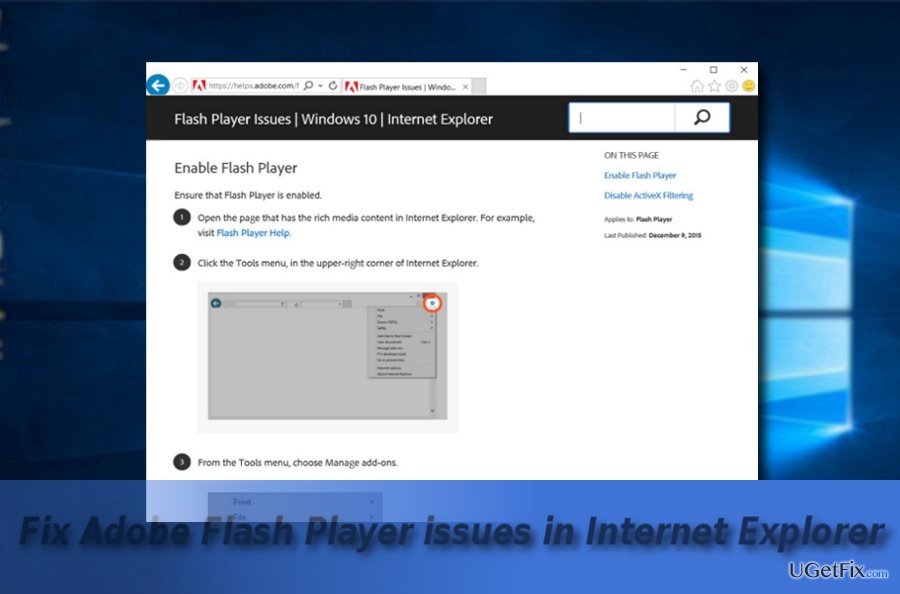
Option 1. Refresh the software
If a video, which uses this platform, does not play, follow these steps:
- Enter Youtube or another website where you are having difficulties running Flash add-on. Click on the gear icon located in the top right corner of IE. Opt for Compatibility View settings.
- Check whether Display intranet sites in Compatibility View and Use Microsoft compatibility lists boxes are pre-marked. There, you can add the web pages which do not load Flash content properly.
- Relaunch IE browser.
Option 2. Restart Adobe Flash Player in Internet Explorer 11
- Click on the Start button. Type cmd.
- Right-click on Command Prompt and choose Run as administrator.
- When the program launches, type in the following entry and press Enter:
regsvr32 c:\windows\system32\macromed\flash\flash.ocx
When the command is completed, reboot the device for changes to take effect.
Option 3. Check your system for possible malicious files
Taking into account that the Adobe Flash player has been exploited by hackers quite frequently, there is a possibility that you may have installed a corrupted version of Flash Player from secondary sources. In that case, locate the Adobe Flash Player app in the list of system applications in the Control Panel.Uninstall it. Note that you may need to download a special Flash uninstaller for Windows OS for it to delete all files. In addition, scan the device with [d1] as well. Download the application from the official web page and install the platform again. After that, reboot the PC and launch Internet Explorer.
Bottom line
To resolve Adobe Flash Player issues in Internet Explorer, you can refresh the software, restart Adobe Flash Player using Command Prompt, or check your system for malicious files. If none of these solutions work, consider seeking further technical support.
Frequently asked questions
To enable Adobe Flash Player in Internet Explorer on Windows 10, go to Tools > Manage Add-ons, find Shockwave Flash Object, and ensure it is enabled.
If Adobe Flash Player is not working in Internet Explorer on Windows 11, try resetting Internet Explorer settings or checking for updates in Windows Update.
To troubleshoot Flash Player errors in Internet Explorer on Windows 10, clear your browser cache and cookies, and ensure that your security settings allow ActiveX controls.




Report an issue
What's wrong with this guide? We review every report and update or remove content.
Report received — thank you. We'll review and fix it.
You need a free account to submit a report.
Be the first to comment