How to fix
Ahcix64s.sys BSOD error
on Windows
Resolve the Ahcix64s.sys BSOD error in Windows 10 and 11 quickly and effectively. Expert-tested solutions for a smoother experience!

What causes How to fix Ahcix64s.sys BSOD error in Windows?
- Driver issues with Ahcix64s.sys
- Outdated AHCI drivers
- Hardware conflicts
- Faulty AHCI controller
- Corrupted system files
Repairs Windows system files, removes malware, and restores a clean OS state — without reinstalling.
I don't know what is going on but I keep getting BSOD with a code DRIVER IRQL NOT LESS OR EQUAL with what failed: Ahcix64s.sys. What is the problem here?
Blue Screen of Death (BSOD) errors are critical system errors in Windows that cause the computer to stop functioning to prevent damage. These errors can be alarming because they often appear without warning and can disrupt your work or activities. One particular BSOD error that users may encounter is related to the Ahcix64s.sys file. This error is typically accompanied by the code "DRIVER IRQL NOT LESS OR EQUAL."
Understanding Ahcix64s.sys BSOD error
Ahcix64s.sys is a driver linked to Advanced Host Controller Interface (AHCI) controllers, responsible for managing communication between the operating system and storage devices like hard drives and SSDs. If issues arise with this file, it may trigger a BSOD error.
The appearance of the "DRIVER IRQL NOT LESS OR EQUAL" error code typically indicates that a driver, Ahcix64s.sys in this case, attempted to access a higher Interrupt Request Level (IRQL) than allowed, resulting in a system crash.
Ahcix64s.sys BSOD causes
Ahcix64s.sys is a driver file connected to Advanced Host Controller Interface (AHCI) controllers, which play a vital role in managing communication between the operating system and storage devices like hard drives and SSDs. Issues with this file can trigger a BSOD error.
The error message "DRIVER IRQL NOT LESS OR EQUAL" commonly indicates that the driver, Ahcix64s.sys, attempted to access a higher Interrupt Request Level (IRQL) than allowed, resulting in a system crash.
How to fix Ahcix64s.sys BSOD in Windows?
While BSODs are in some cases quite difficult to solve, we have a hint on what's written and that's the error code and the Ahcix64s.sys component. So, you can start by updating or reinstalling the AHCI drivers, which can often resolve the issue.
If updating the drivers does not solve the problem, you might need to check for hardware conflicts or test the AHCI controller for any faults.
Additionally, running a system file check can help identify and repair corrupted files that might be causing these crashes. In some cases, modifying the BIOS settings related to AHCI controllers may be necessary - setting the hard drive mode to RAID helped multiple users.
For a more hands-off approach, we highly recommend using a [d1] PC repair app which can deal with system crashes and errors automatically in Windows.
Fix 1. Update AHCI drivers
Updating AHCI drivers can resolve the Ahcix64s.sys BSOD error by ensuring that the driver is compatible and not corrupted. Updated drivers often include fixes for known issues.
- Go to the manufacturer's website for your AHCI controller.
- Download the latest driver version.
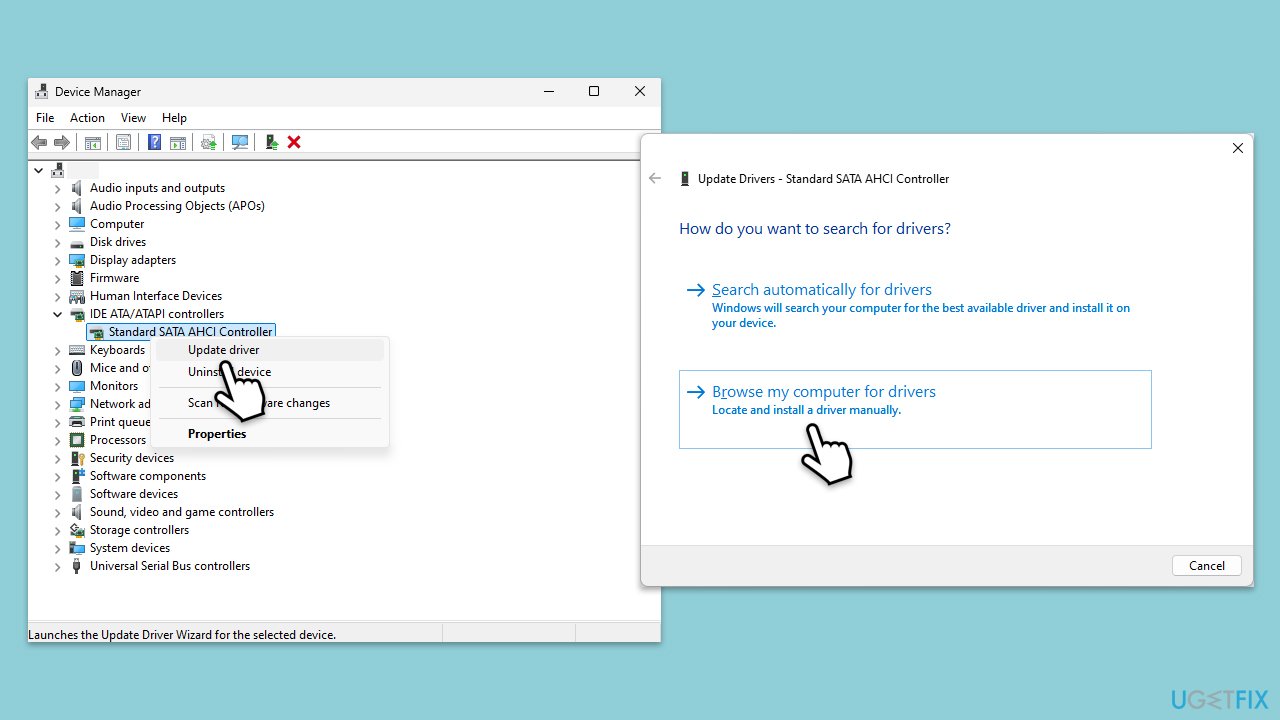
- Right-click on Start and pick Device Manager.
- Expand the IDE ATA/ATAPI controllers section.
- Right-click on the AHCI controller and select Update driver.
- Choose Browse my computer for driver software.
- Locate the downloaded driver and follow the on-screen instructions to install it.
- Restart your PC when done.
Fix 2. Reinstall AHCI drivers
Reinstalling AHCI drivers can help if the current driver is corrupted or improperly installed. This process removes the faulty driver and installs a fresh copy.
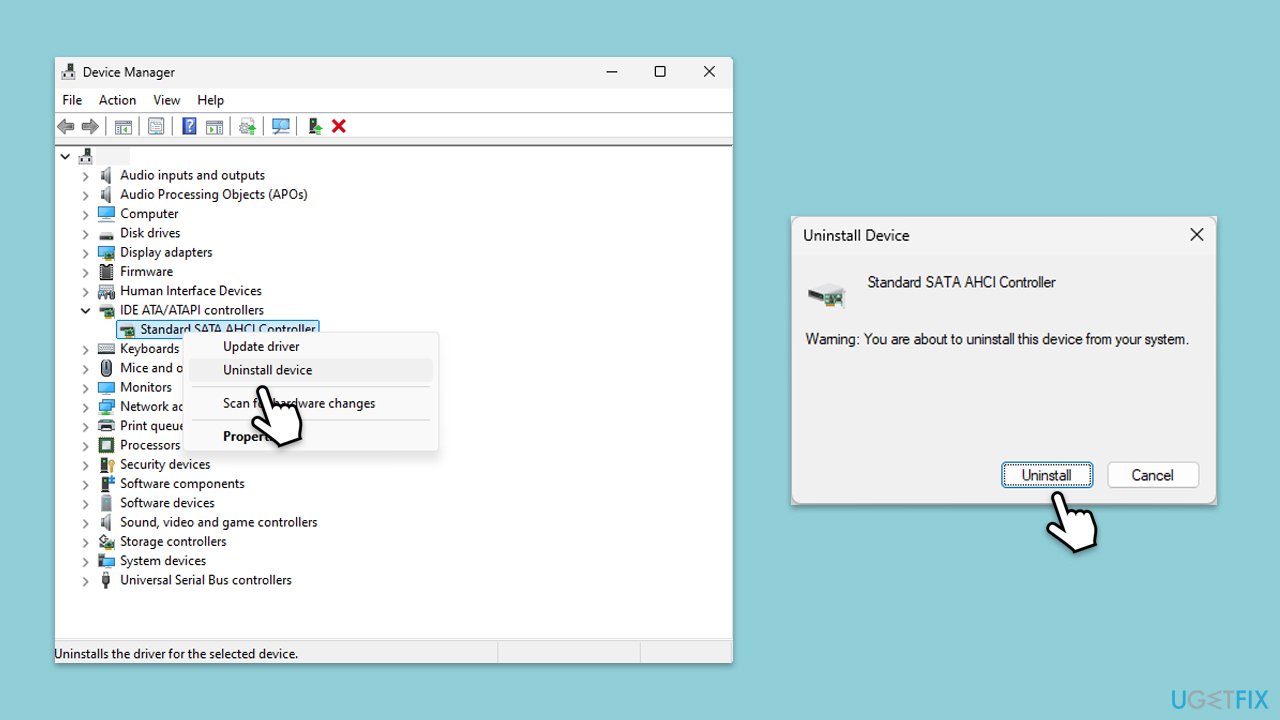
- Open Device Manager.
- Expand the IDE ATA/ATAPI controllers section.
- Right-click on the AHCI controller and select Uninstall device.
- Restart your computer.
- Upon reboot, Windows will automatically reinstall the AHCI driver.
- If not, you can download the driver manually or employ automatic tools like [rev id="DriverFix"].
Fix 3. Repair corrupted files
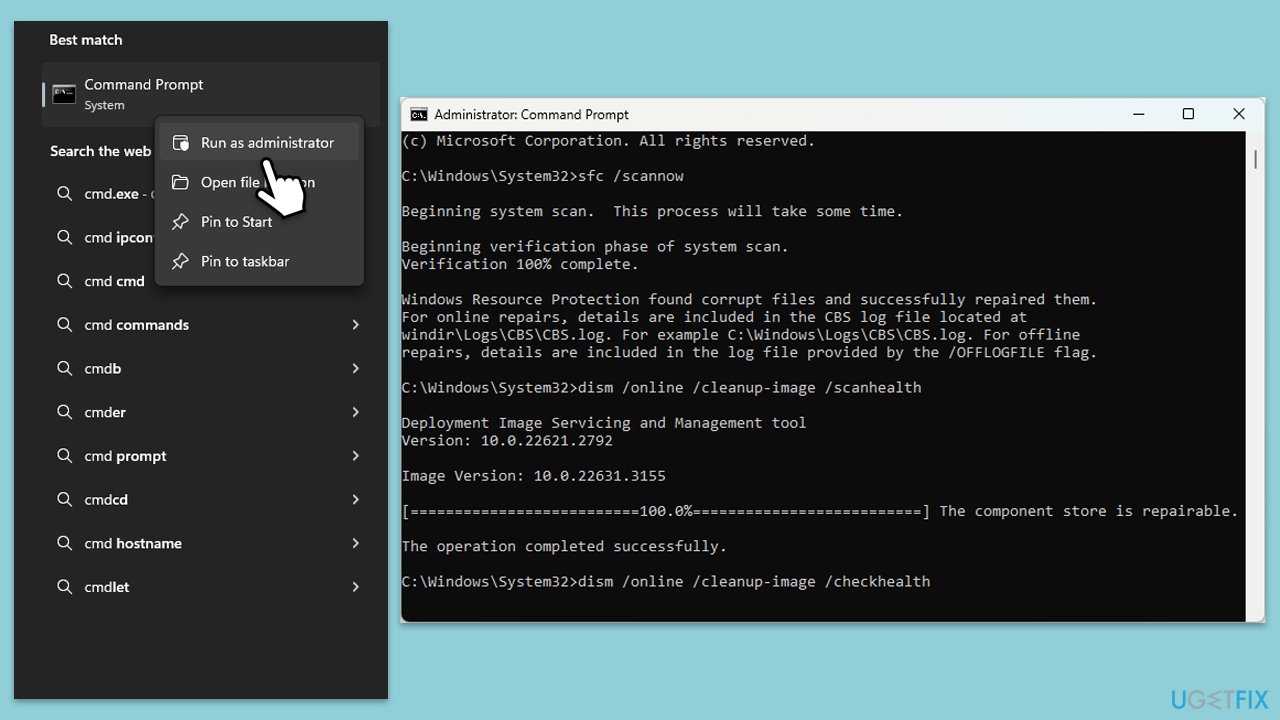
- Type cmd in Windows search.
- Right-click on Command Prompt and select Run as administrator.
- When the User Account Control window shows up, click Yes.
- Copy and paste the following command, pressing Enter after:
sfc /scannow - Wait till the scan is finished. If Windows finds system file integrity violations, it will attempt to fix them. After this, use the set of the following commands, pressing Enter each time:
DISM /Online /Cleanup-Image /CheckHealth
DISM /Online /Cleanup-Image /ScanHealth
DISM /Online /Cleanup-Image /RestoreHealth - (Note: if you get an error executing this last command, add /Source:C:\RepairSource\Windows /LimitAccess to it and try again).
- Close down the Command Prompt and restart your computer.
Fix 4. Check for hardware conflicts
Hardware conflicts can cause driver issues leading to BSOD errors. Ensuring that all hardware components are functioning correctly can help.
- Open Device Manager.
- Look for any devices with a yellow exclamation mark.
- Right-click on the problematic device and select Update drive or Uninstall device.
- Restart your computer.
Fix 5. Update BIOS
An outdated BIOS can cause compatibility issues with drivers like Ahcix64s.sys. Updating the BIOS can resolve these conflicts.
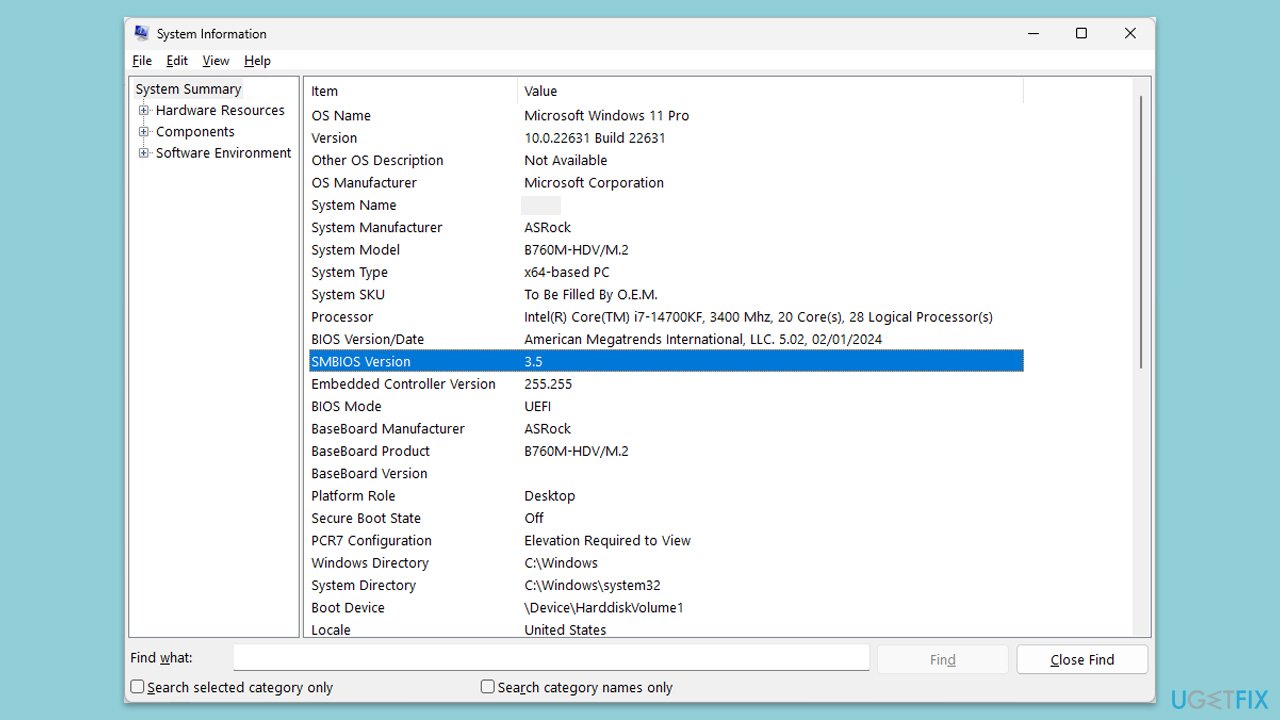
- Visit the manufacturer's website and download your specific model's latest BIOS update file (you can check which BIOS you are using by typing System information in Windows search and checking the BIOS Version/Date and BaseBoard Product entries there).
- Extract the BIOS update files and read any provided instructions or documentation.
- Create a bootable USB drive with the BIOS update files, if required.
- Update the BIOS using the manufacturer's recommended method, which may be through a built-in utility or booting from a USB drive.
- Restart your computer to complete the process.
Fix 6. Change hard drive mode to RAID in BIOS
Changing the hard drive mode to RAID in the BIOS can resolve issues related to the Ahcix64s.sys driver by improving compatibility and performance for storage devices.
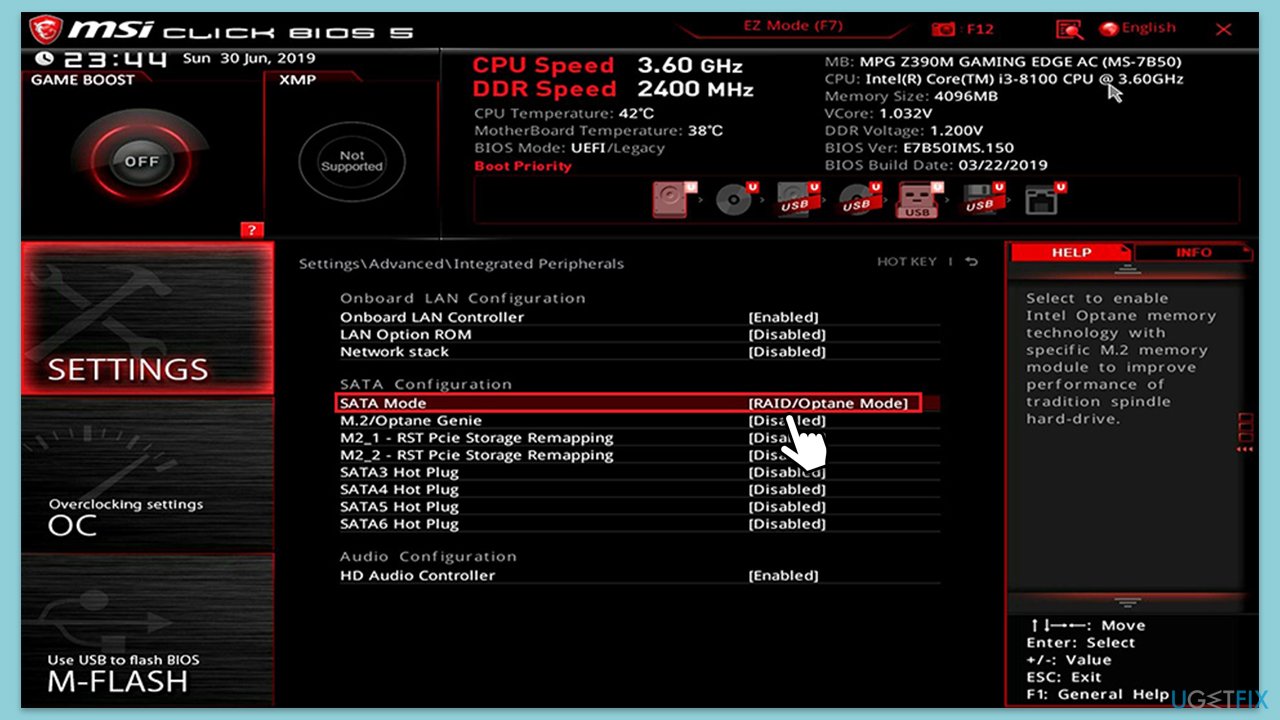
- Restart your computer and enter the BIOS setup (usually by pressing F2, Del, Esc, or another button during startup).
- Navigate to the Storage or Advanced tab in the BIOS menu.
- Locate the SATA Mode or SATA Configuration option.
- Change the mode to RAID from the current setting.
- Save changes and exit the BIOS setup.
- Restart your computer and allow Windows to boot normally.
Bottom line
To fix the Ahcix64s.sys BSOD error, you can start by updating or reinstalling the AHCI drivers. If that doesn't resolve the issue, check for hardware conflicts and test the AHCI controller for faults. Additionally, running a system file check may help identify and repair corrupted files; if none of these solutions work, further troubleshooting may be necessary.
Frequently asked questions
The Ahcix64s.sys BSOD error is typically caused by issues with the AHCI driver for your storage controller, often linked to outdated or incompatible drivers in Windows 10.
To update the Ahcix64s.sys driver in Windows 11, go to Device Manager, locate your storage controller, right-click it, and select 'Update driver' to search for the latest version.
Disabling AHCI mode can temporarily resolve the Ahcix64s.sys BSOD error, but it may affect system performance and should only be done as a last resort on Windows 10 or Windows 11.




Report an issue
What's wrong with this guide? We review every report and update or remove content.
Report received — thank you. We'll review and fix it.
You need a free account to submit a report.
Be the first to comment