How to fix
“AIGPUSniffer quit unexpectedly”
on Windows
Resolve the "AIGPUSniffer quit unexpectedly" error on Windows 10 and 11 with our expert-tested solutions. Get back to smooth performance in minutes!

What causes How to fix “AIGPUSniffer quit unexpectedly”?
- Compromised Adobe Updates
- Outdated Adobe Software
- Fake Adobe Flash Updates
- Vulnerability Exploits in Adobe Software
- GPU Acceleration Settings
Repairs Windows system files, removes malware, and restores a clean OS state — without reinstalling.
Hello, I have a problem that I hope you guys will be able to help me with. I cannot open specific files in Adobe Illustrator CC 2018 and instead receive a “'AIGPUSniffer quit unexpectedly” error message. However, all the features of the program work absolutely fine, and only the file opening feature fails. Is there anything I can do?
“AIGPUSniffer quit unexpectedly” is an error that might occur on Mac OS X when using various Adobe products, including Adobe Illustrator, Adobe Bridge, Adobe Creative Cloud and others. This is quite a common issue that has been bothering users at least since 2015.[ref en-1]
In some cases, the issue is caused by compromised Adobe Updates. Therefore, uninstalling them might help to solve the problem. On the other hand, those who use outdated Adobe software might see the “AIGPUSniffer quit unexpectedly” error as well. Thus, patching the software might fix the problem immediately.
Tip: beware that fake Adobe Flash updates[ref en-2] can install dangerous malware on your PC. Therefore, we highly advise using security software that can prevent virus attacks (we recommend using [d1]). Additionally, Adobe is known for vulnerability[ref en-3] exploits that many hackers use, so patching software on time is critical for device' security.
However, some users say that reinstalling the program or updates did not help to fix “AIGPUSniffer quit unexpectedly” error. Some users report that they were able to get rid of the error by disabling GPU Acceleration settings in Adobe Illustrator. All in all, there are several ways to fix “AIGPUSniffer quit unexpectedly” error, as it highly depends on users' system configuration and similar peculiarities.
In the second part of the article, you can find all the methods that should help to get rid of “AIGPUSniffer quit unexpectedly” error on Mac and continue using Adobe Illustrator smoothly.
Methods to fix “AIGPUSniffer quit unexpectedly” error on Mac OS X
In 2017, some Adobe Illustrator update caused the AIGPUSniffer error for many users. However, reverting to the previous version or uninstalling program helped to solve the problem. Thus, these options might also be useful today.
Option 1. Turn off GPU Acceleration
The first method to fix “AIGPUSniffer quit unexpectedly” error is to disable GPU Acceleration. Many users reported that turning off this feature on Adobe Illustrator was enough to be able to use the open feature of the program. However, if this method does not help, try the second option. Please follow these steps:
- Go to Illustrator > Preferences
- On the left pane, pick GPU Performance
- Untick GPU performance and click OK
Option 2. Change File Type Association settings
The “AIGPUSniffer quit unexpectedly” error might occur when AI files are set to open with AIGPUSniffer. However, you can change these settings by following these instructions:
- Go to Bridge Preferences.
- Choose File Type Association.
- Change default to Adobe Illustrator.
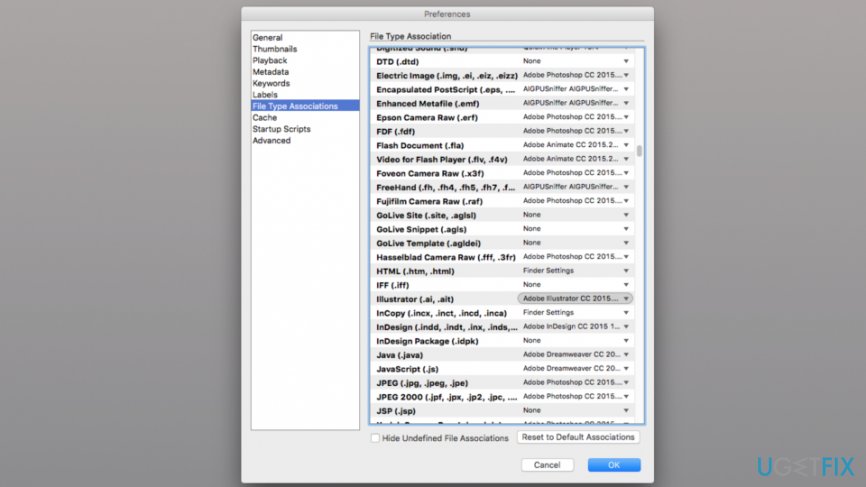
Change file type association settings
Option 3. Install available updates
Software updates usually provide fixes for various operation problems. Therefore, you should check if there are any available updates for Adobe Illustrator or other products. You can do it either automatically via the program itself or visiting the official website online:
- Access Adobe Product Updates website.
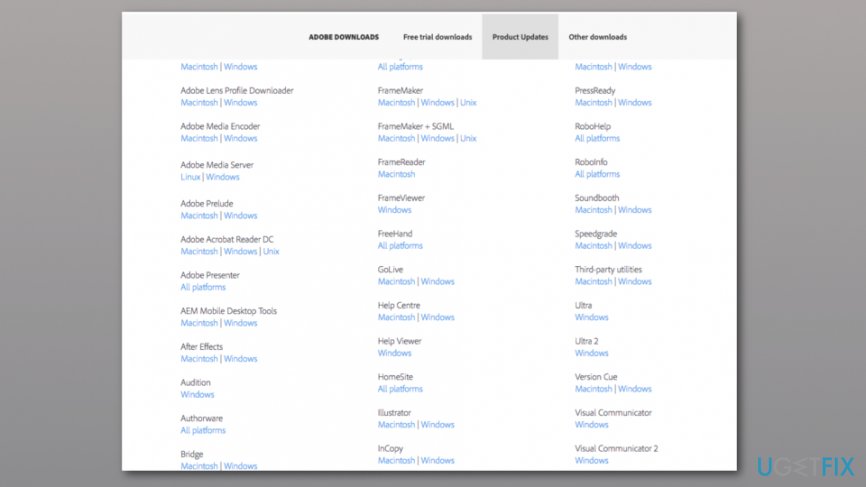
Access adobe product updates website - Find Adobe Illustrator (or another program you want to update).
- Click on the update name to download the update.
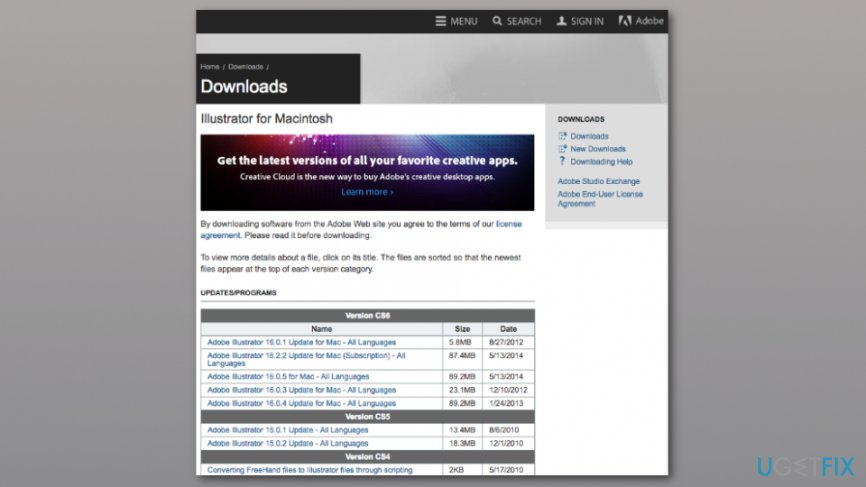
Install adobe product updates - Follow onscreen instructions.
Option 4. Reinstall the program
If none of the above-mentioned methods helped to get rid of the “AIGPUSniffer quit unexpectedly” error, you can try reinstalling the program. In order to uninstall it, follow these steps:
- Open Finder and access Applications.
- Find the program in the list and select it.
- Click File menu or right-click the program and choose Move to Trash.
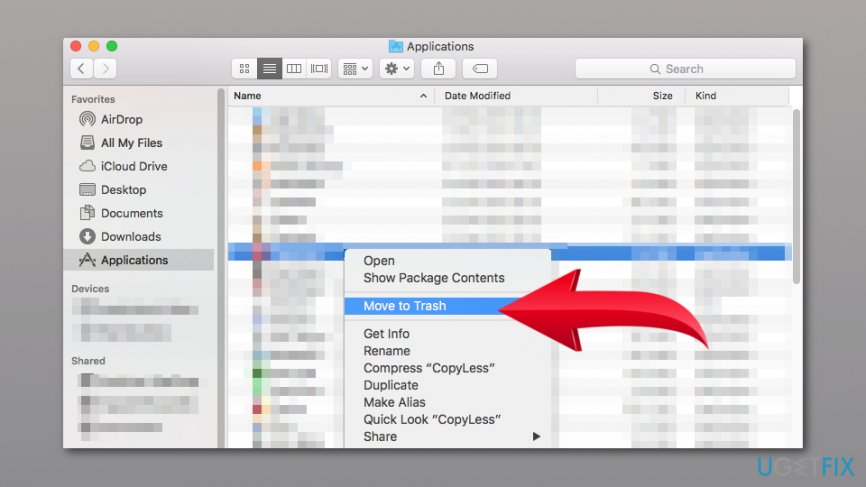
Uninstall adobe illustrator - Right-click Trash icon and choose Empty Trash.
- Confirm deletion in the appeared prompt.
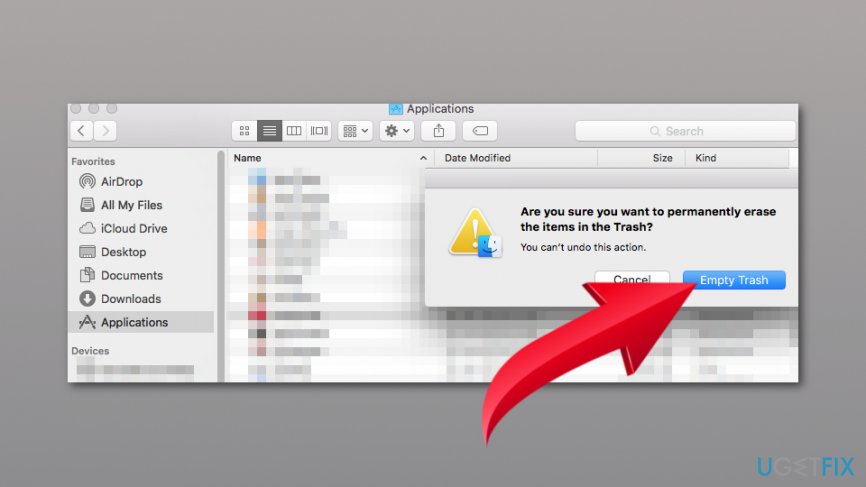
Confirm uninstallation adobe illustrator
Then access the official website and install the program again. If it did not help, you can also try to install the previous version of the program. Some of the updates are known for crashing the application or corrupting some of its features.
Bottom line
To fix the "AIGPUSniffer quit unexpectedly" error, users can try uninstalling compromised updates, patching outdated software, or disabling GPU Acceleration settings in Adobe Illustrator. If these methods do not resolve the issue, consider reverting to a previous version of the software or uninstalling and reinstalling the program.
Frequently asked questions
This error typically occurs due to issues with the Intel graphics driver or conflicts with other software. Updating your graphics drivers or reinstalling them can often resolve the problem.
You can update your Intel graphics driver by going to Device Manager, expanding the Display adapters section, right-clicking on your Intel graphics device, and selecting 'Update driver.' Alternatively, you can download the latest drivers directly from the Intel website.
Yes, you can disable AIGPUSniffer by using the Task Manager to end the process or by preventing it from starting up with Windows. However, this may affect the performance of certain applications that rely on Intel graphics.




Report an issue
What's wrong with this guide? We review every report and update or remove content.
Report received — thank you. We'll review and fix it.
You need a free account to submit a report.
Be the first to comment