How to fix
AirPods connected but there’s no sound
on Windows
Resolve the AirPods sound issue on Windows 10 or 11 effortlessly. Restore audio in minutes with our expert-tested solutions and clear screenshots.

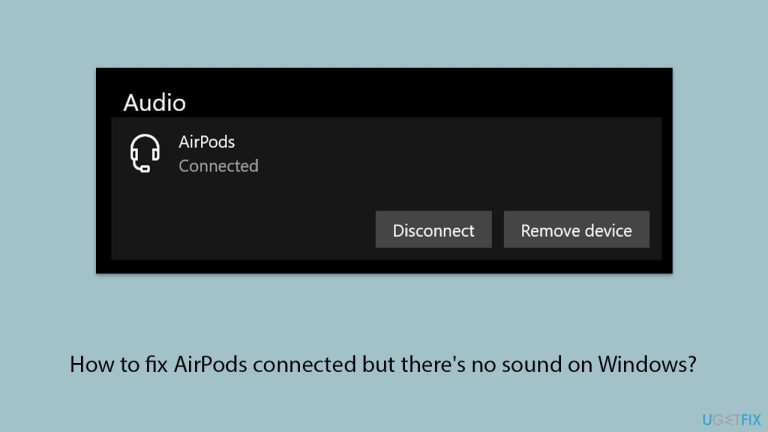
What causes How to fix AirPods connected but there’s no sound on Windows?
- Incorrect audio output settings in Windows
- Outdated or malfunctioning Bluetooth drivers
- Interference from other Bluetooth devices
- Incorrect configurations in Windows audio settings
- Selecting the wrong AirPods profile
Repairs Windows system files, removes malware, and restores a clean OS state — without reinstalling.
I have recently purchased a Windows laptop and I want to use my AirPods to listen to music, watch videos, etc. But to my surprise, it says that AirPods are connected but there's still no sound. Am I doing something wrong?
AirPods have become a popular choice for wireless audio, but some users encounter issues when using them with Windows. One of the most common problems is that AirPods connect successfully but produce no sound. This can happen with various models, including AirPods Pro and AirPods Max. When this issue occurs, the device appears connected in Windows settings, yet there is no sound using AirPods, regardless of the app being used.
Several factors can cause this issue. Incorrect audio output settings in Windows can result in AirPods being connected but with no sound. Windows may still be using the default speakers instead of routing audio to the AirPods. Another common reason is that the Bluetooth drivers are outdated or malfunctioning, preventing proper audio transmission.
Additionally, interference from other Bluetooth devices or incorrect configurations in the Windows audio settings can contribute to the problem. Users have also reported that selecting the wrong AirPods profile, such as Hands-Free mode instead of Stereo mode, leads to poor or no sound output.
To fix this problem, some troubleshooting measures can be taken. Making sure that the proper audio output is chosen in Windows sound properties is imperative. Updating or reinstalling Bluetooth drivers also works, as buggy drivers might be causing the issue of no playback through AirPods.
Unpairing and re-pairing the AirPods and removing them from Windows and pairing them once more may get it to function sometimes. Adjusting Windows sound settings and checking Bluetooth settings can also resolve the issue. If the problem persists, resetting the AirPods or updating Windows to check if patches for Bluetooth audio problems are available may be necessary.
If AirPods are paired but not in use, it can be frustrating to troubleshoot if everything seems to be where it should be. To simplify the process, it is helpful to have an automatic Windows repair utility such as [d1] that can detect and fix underlying system issues that may be disrupting Bluetooth audio output.
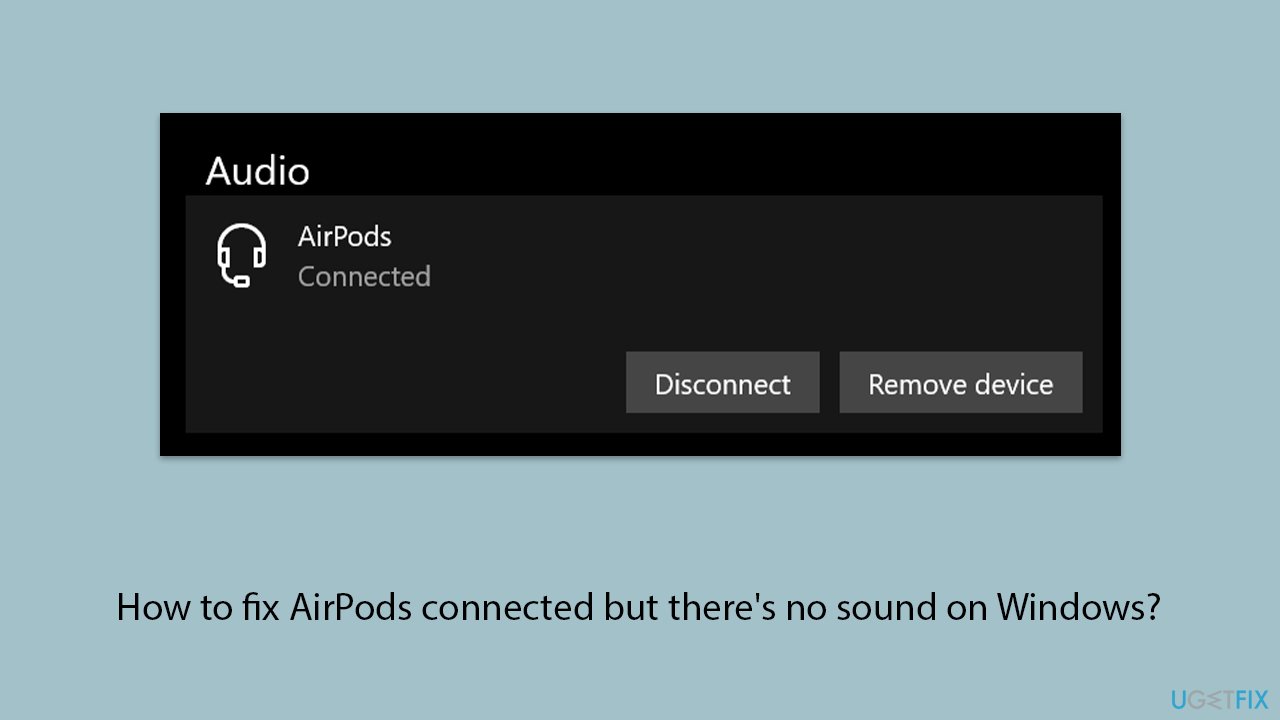
Fix 1. Set AirPods as the default playback device
Windows may not automatically use AirPods as the main output, causing no sound issues. Setting them as the default playback device ensures that audio is directed to them instead of another output.
- Right-click the speaker icon in the taskbar and select Sound Settings.
- Scroll to the output section and select your AirPods from the list of devices.
- Some users said that picking AirPods Hands-Free AG Audio instead of AirPods Stereo helped them.
- If they do not appear, click Manage sound devices, locate them under disabled, and enable them.
- Set them as default by clicking on them and choosing Set as default.
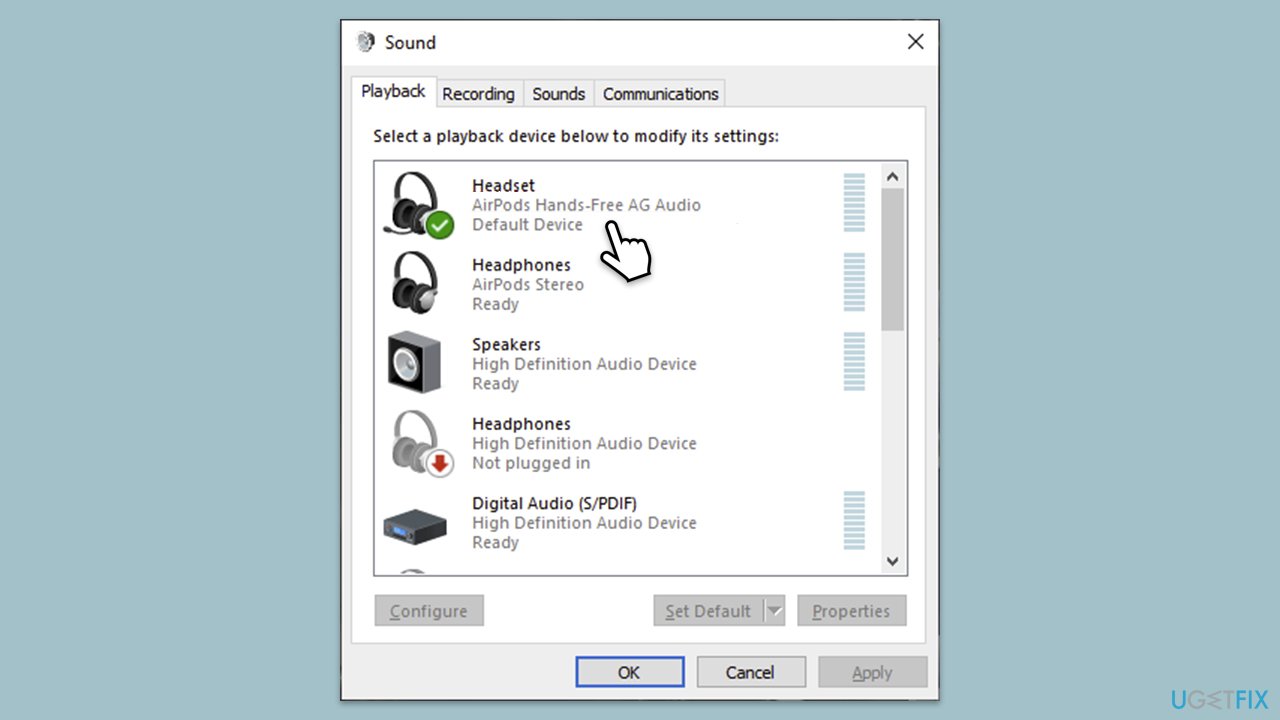
Fix 2. Reconnect AirPods
Sometimes, connection issues between AirPods and Windows can cause audio problems. Reconnecting them can refresh the connection and restore sound output.
- Right-click on Start and pick Settings, then select Bluetooth & Devices.
- Select Devices.
- Under Audio, find your AirPods in the list, click on them, and select Remove.
- Put your AirPods in the case, close the lid, then reopen it after a few seconds.
- Press and hold the setup button on the case until the LED starts flashing white.
- Pair your AirPods again.
Fix 3. Restart the Bluetooth service
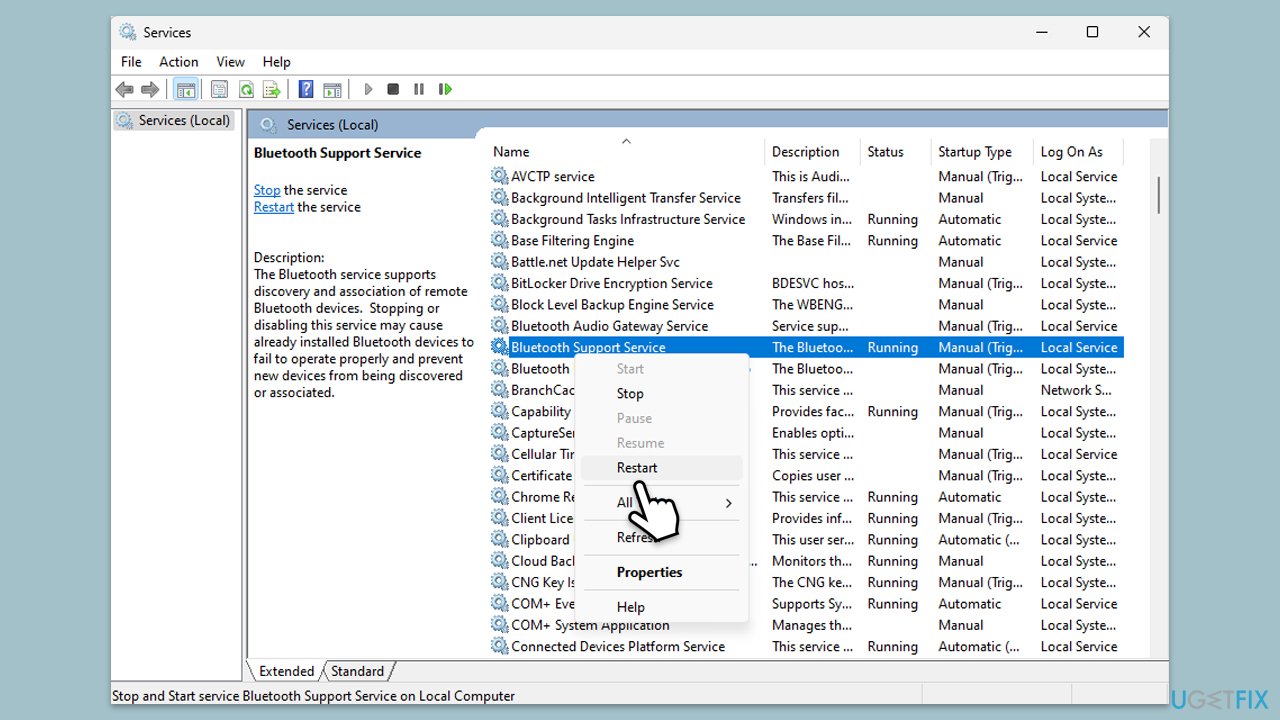
The Bluetooth support service helps manage wireless devices, and if it is not running correctly, AirPods may not work properly. Restarting the service can fix connection and sound issues.
- Type Services in Windows search and press Enter.
- Locate Bluetooth Support Service from the list.
- Right-click on it, select Restart.
- Double-click on the service and set Startup type to Automatic.
- Click Apply and OK.
Fix 4. Update Bluetooth and audio drivers
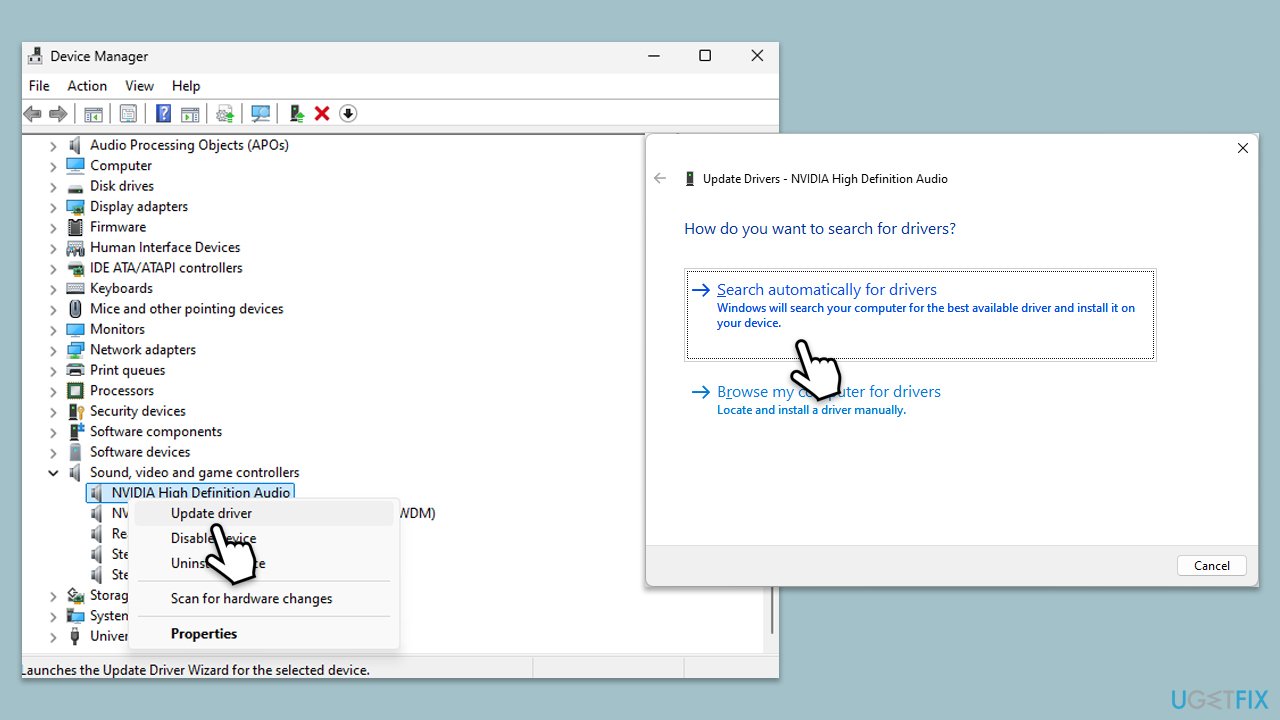
Outdated or faulty drivers can prevent Windows from properly detecting and using AirPods. Updating them can resolve compatibility problems.
- Right-click on Start and select Device Manager.
- Look for Bluetooth in the list and expand it.
- Find AirPods on the list, right-click it, and select Update driver.
- Select Search automatically for drivers and wait.
- Once the process is finished, restart your computer to implement the changes.
- Repeat the process in the Sound, video and game controllers section for audio drivers.
- Restart your computer and check if the issue is resolved.
Fix 5. Disable hands-free telephony mode
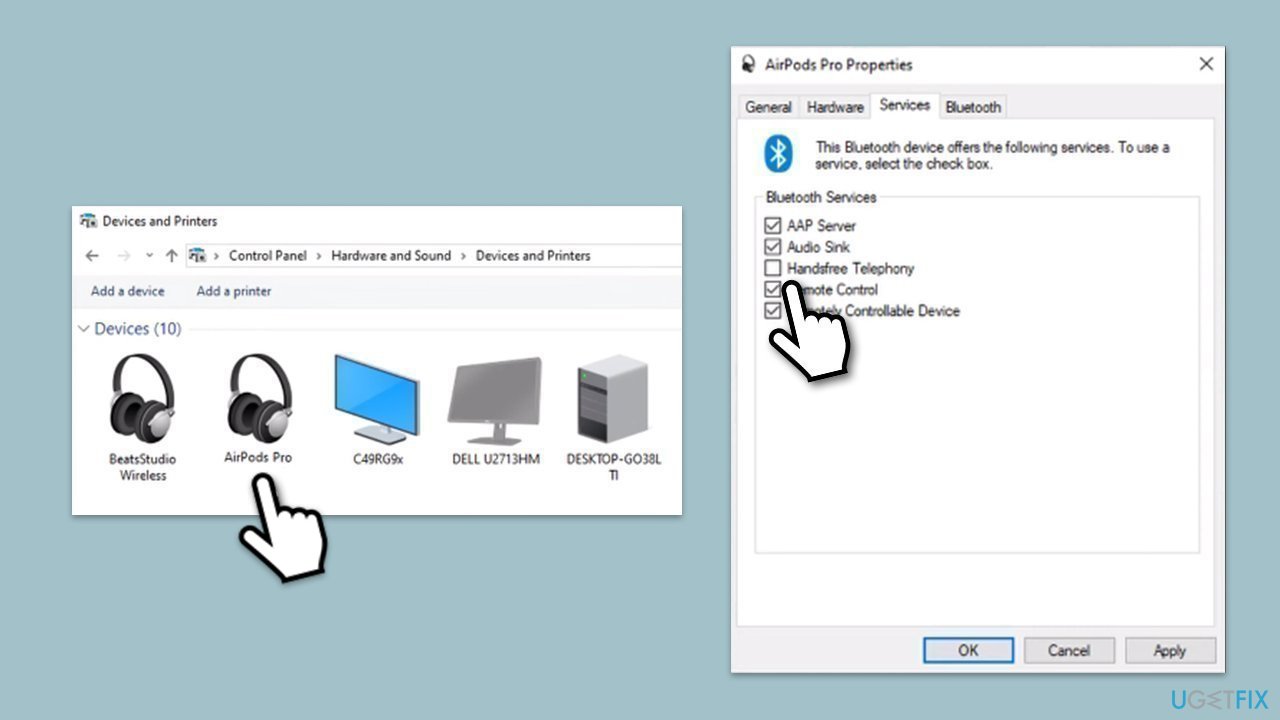
Windows may default to a low-quality audio mode meant for calls, causing sound problems. Disabling this feature forces Windows to use the correct audio profile.
- Type in Control Panel in Windows search and press Enter.
- Under Hardware and Sound, select View devices and printers.
- Double-click your Airpods Pro.
- Go to Services tab.
- De-select Handfree Telephony.
- Click Apply and OK.
Fix 6. Run the audio troubleshooter
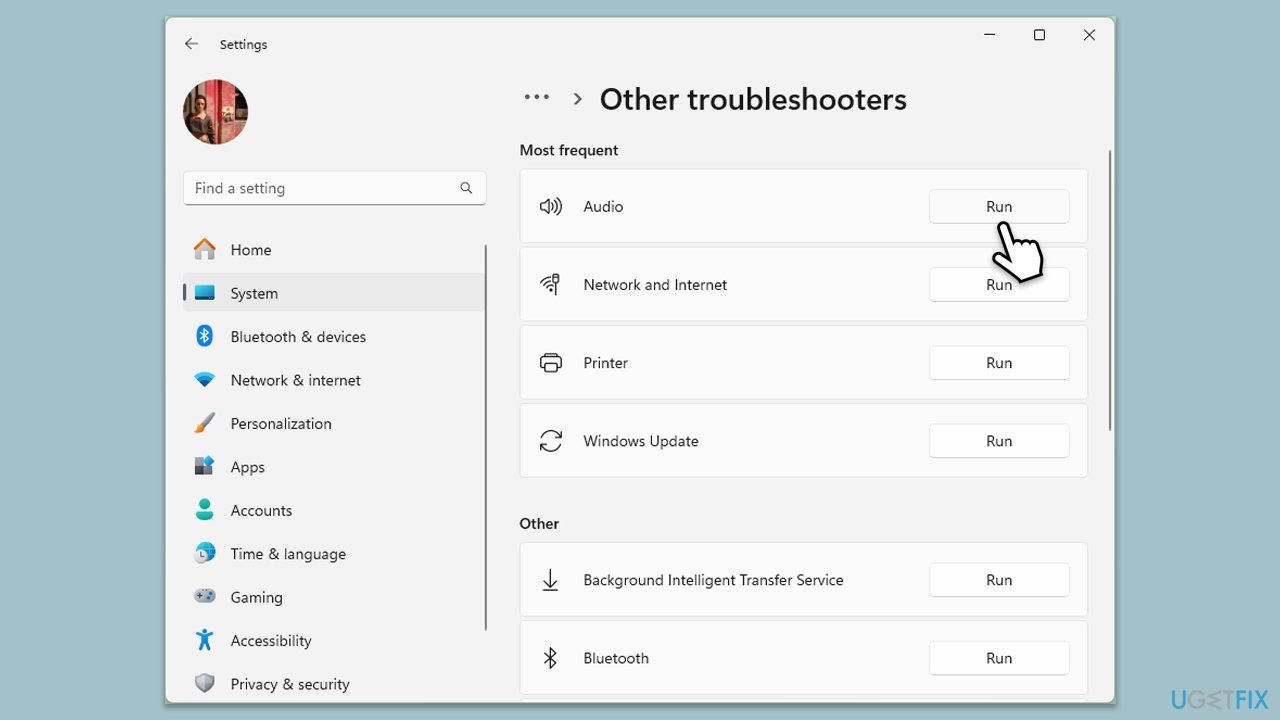
Windows has a built-in troubleshooter that can detect and fix sound issues automatically. Running it may help identify why AirPods have no sound.
- Type Troubleshoot in Windows search and press Enter.
- Select Other troubleshooters/Additional troubleshooters.
- Choose Playing Audio and click on Run/Run the troubleshooter.
- Follow the on-screen prompts to allow the troubleshooter to diagnose and resolve any problems.
Fix 7. Reset AirPods
If all else fails, resetting AirPods can clear any connection issues and restore proper functionality with Windows.
- Put your AirPods back in their case and close the lid.
- Wait 30 seconds, then open the lid.
- Press and hold the button on the back of the case until the LED light flashes amber.
- Re-pair the headphones with your Windows computer.
Bottom line
To fix the issue of AirPods being connected but producing no sound, ensure the proper audio output is selected in Windows sound properties, update or reinstall Bluetooth drivers, and try unpairing and re-pairing the AirPods. If the problem persists, consider resetting the AirPods or updating Windows for potential Bluetooth audio patches.
Frequently asked questions
This issue may occur if the AirPods are not set as the default playback device. Go to Sound settings, find your AirPods under Playback devices, and set them as default.
Try disconnecting and reconnecting your AirPods, and ensure that the audio is not muted in the volume settings. Additionally, check for any pending Windows updates that may affect Bluetooth functionality.
If the problem persists, try resetting your AirPods by holding the setup button and then reconnecting them to your Windows device. Also, consider removing any other Bluetooth devices that may be interfering.




Report an issue
What's wrong with this guide? We review every report and update or remove content.
Report received — thank you. We'll review and fix it.
You need a free account to submit a report.
Be the first to comment