How to fix
Alexa missing from Microsoft Store
on Windows
Resolve the issue of Alexa missing from the Microsoft Store on Windows 10 or 11 with our expert-tested solutions. Fixed in minutes!

What causes How to fix Alexa missing from Microsoft Store?
- Server issues
- App updates
- Issues with the Microsoft Store app
- Temporary glitches in the Microsoft Store
- Corrupted files
Repairs Windows system files, removes malware, and restores a clean OS state — without reinstalling.
Hello. I can't find the Alexa app in the Microsoft Store. What can I do?
The Alexa app is a voice-controlled personal assistant that connects users to Amazon's Alexa service. The app allows users to manage and control various aspects of their smart home devices, as well as access a variety of other Amazon services, such as music streaming and online shopping. One common issue that users may encounter is the absence of the Alexa app from the Microsoft Store.
This can happen for a number of reasons, including server issues, app updates, or issues with the Microsoft Store app itself. The absence of the Alexa app may have a significant impact on users who rely on it to manage their smart home devices and access other Alexa services. Users may be unable to control their smart home devices, access their music or shopping services, or set up new devices if they do not have access to the app.
This can result in significant functionality and convenience loss. This problem can be resolved by resetting the Microsoft Store app, updating Windows, resetting the time and date settings, and manually installing the app via PowerShell or third-party app stores. This guide will walk you through 5 steps to get Alexa back into the Microsoft Store.
You can also try using a maintenance tool like [d1] that can fix most system errors, BSODs,[ref en-1] corrupted files, and registry[ref en-2] issues. Otherwise, follow the step-by-step instructions below.
Solution 1. Clear Microsoft Store Cache
- Press the Windows key on your keyboard.
- Type wsreset into the search bar.
- Click on the Wsreset option that appears (this will run the command).
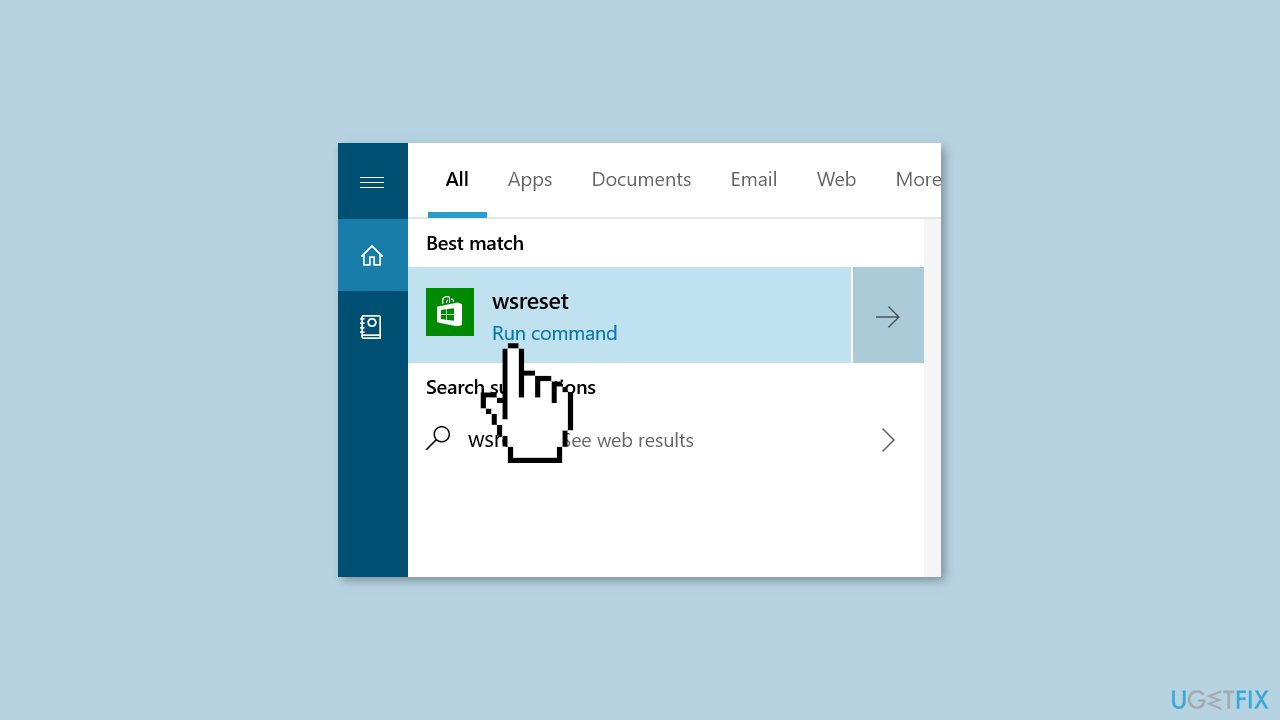
- Wait for the command to execute successfully (you may see a blank command prompt window briefly appear).
- Launch the Microsoft Store app.
- Search for the Alexa app and attempt to download it.
- If the download is still not successful, resetting the Microsoft Store app may help to resolve any temporary issues.
- To reset the Microsoft Store app, right-click on the Microsoft Store app icon in your taskbar and select More > App settings.
- Scroll down to the Reset section and click on the Reset button.
- Confirm that you want to reset the app when prompted.
- Wait for the reset process to complete.
- Launch the Microsoft Store app again and try to download the Alexa app once more.
Solution 2. Download the App Manually
- Go to the Alexa app page.
- Copy the URL of the Alexa app from the address bar.
- Navigate to the official website of Adguard Store.
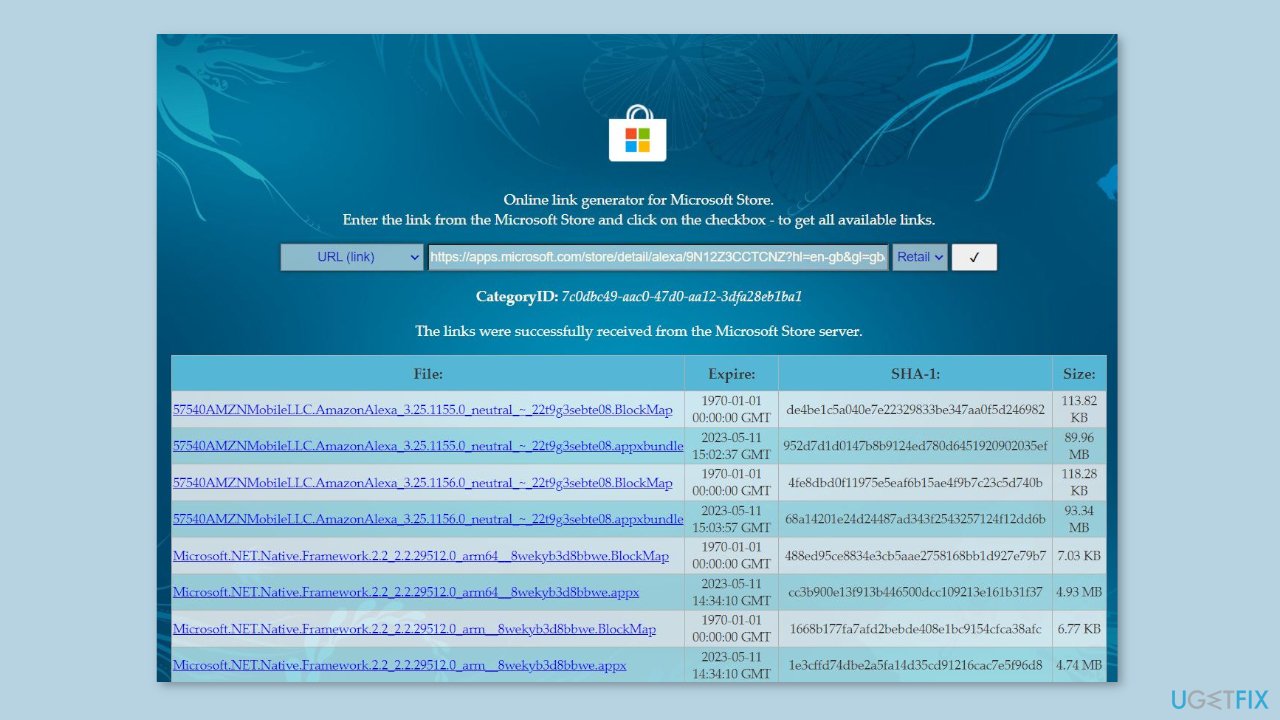
- Paste the Alexa app URL into the address bar on the Adguard Store website.
- Click the drop-down button next to the URL field and select Retail from the options.
- Click on the checkmark button to proceed.
- Download both the .appxbundle and .eappxbundle files of the Alexa app by clicking on the corresponding links.
Solution 3. Check Date and Time Settings
- Click on the Start menu on your desktop.
- Select Settings from the list of options.
- Click on Time and Language.
- Check if the date and time on your computer are correct.
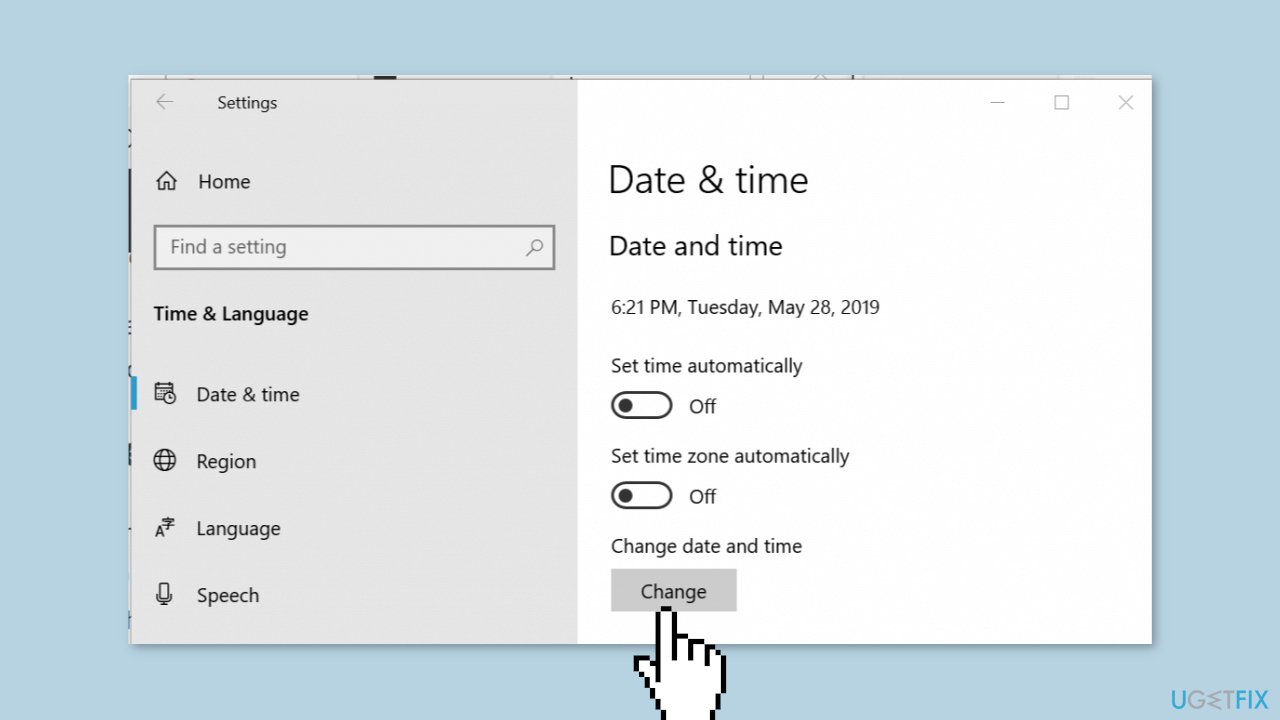
- If the date and time are incorrect, turn off the Set time automatically and Set time zone automatically options.
- Click on the Change button located under the Change date and time section.
- Set the correct time and date in the pop-up window that appears.
- After setting the correct time and date, make sure to enable the Set time automatically and Set time zone automatically options again.
- Launch the Microsoft Store app.
- Check if the app is functioning properly after adjusting the time and date settings.
Solution 4. Use Windows PowerShell
- Click on the Search icon located on the taskbar.
- Type PowerShell into the search bar.
- Right-click on the PowerShell option that appears and select Run as administrator from the drop-down menu.
- Click on Yes from the User Account Control dialog box that appears.
- Type the following command into the PowerShell window:
add-appxpackage "C:\Users\username\Downloads\57540AMZNMobileLLC.AmazonAlexa_3.25.1156.0_neutral___22t9g3sebte08.AppxBundle"
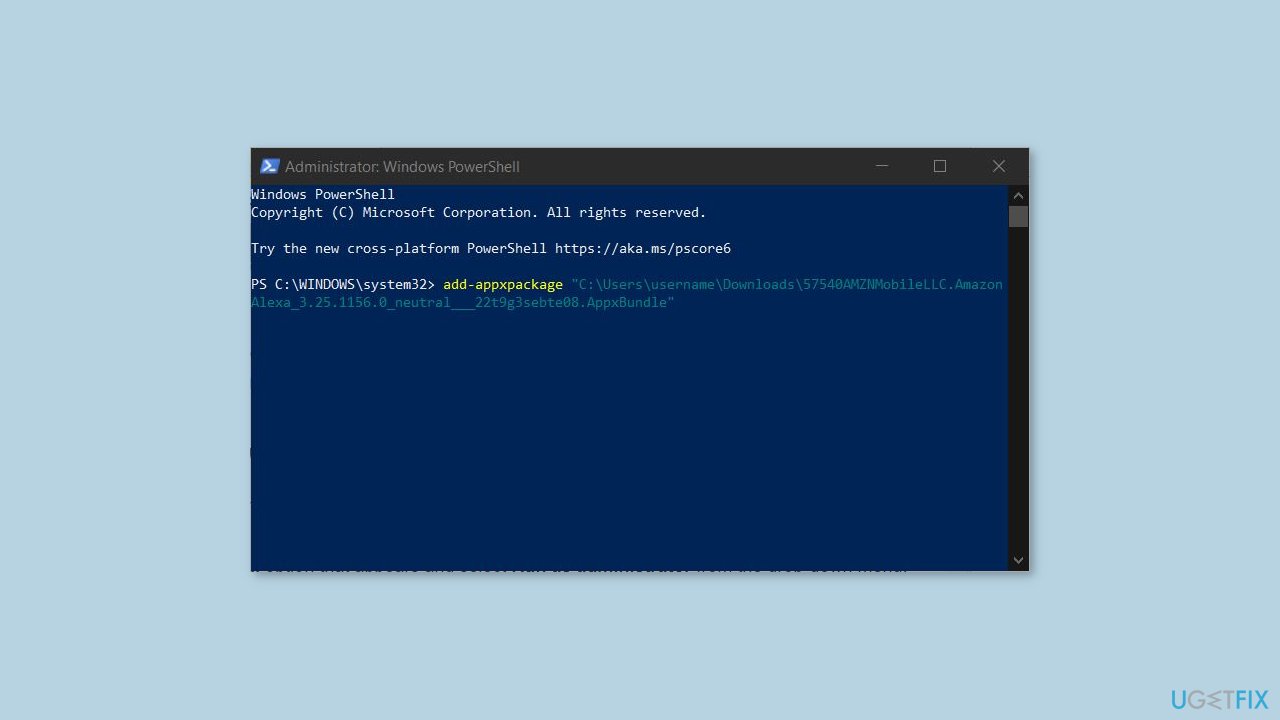
- Replace username in the command with your own username.
- Press Enter to execute the command.
- Wait for the installation process to complete.
- Launch the Amazon Alexa app from the Start menu or the Microsoft Store.
Solution 5. Update Microsoft Store
- Click on the Microsoft Store icon located on the taskbar or Start menu to open the app.
- Select Library from the left panel.
- Click on Get updates located at the top right corner of the Library screen.
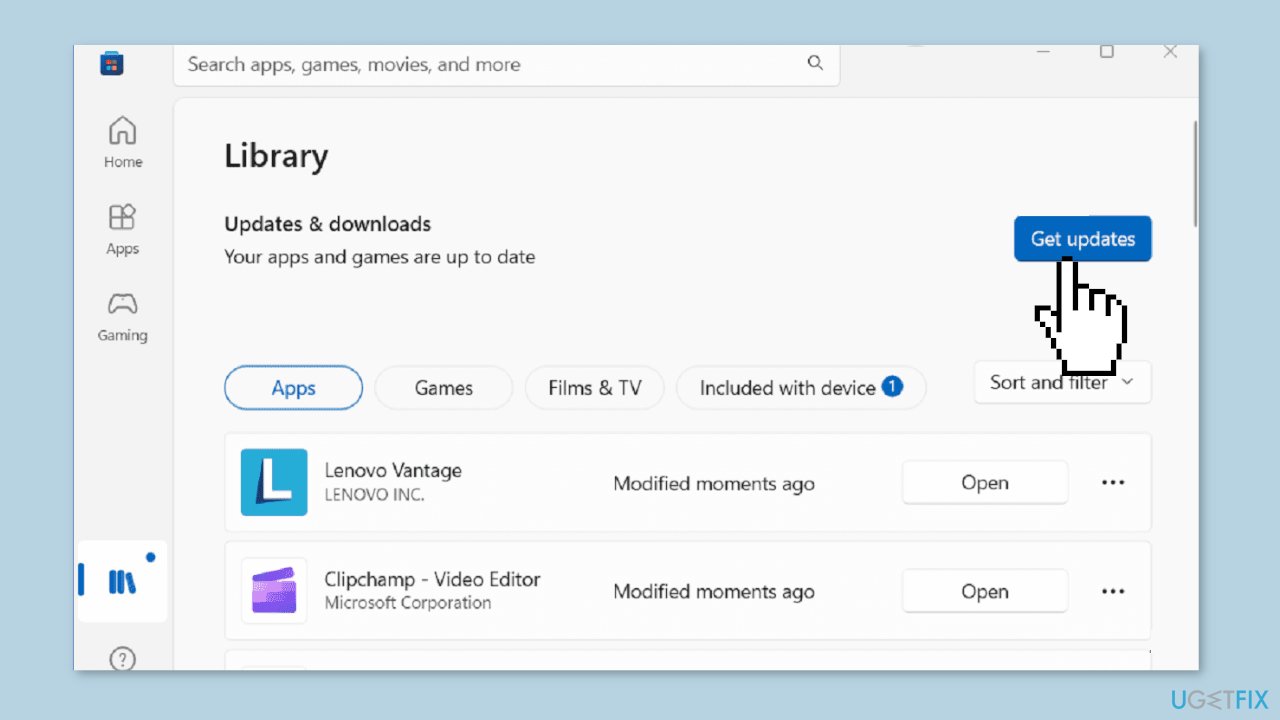
- Wait for the Microsoft Store to check for updates to your installed apps.
- If any updates are available, click on the Update all button to update your apps.
- After the updates are complete, restart your computer.
- Launch the Amazon Alexa app from the Start menu or the Microsoft Store to check if the issue has been resolved.
Bottom line
The absence of the Alexa app from the Microsoft Store can be resolved by clearing the Microsoft Store cache, resetting the Microsoft Store app, updating Windows, resetting the time and date settings, or manually installing the app via PowerShell or third-party app stores. If none of these solutions work, consider using a maintenance tool to fix system errors.
Frequently asked questions
The Alexa app may not be available in your region or your Windows 10 version might not support it. Check for Windows updates and ensure your region settings align with the app's availability.
Try resetting the Microsoft Store cache by running 'wsreset.exe' in the Run dialog. If the issue persists, consider reinstalling the Microsoft Store or checking your internet connection.
Ensure that your Windows 11 is up to date and that your Microsoft Store app is functioning properly. If errors continue, you might need to repair the Microsoft Store through the Settings app.




Report an issue
What's wrong with this guide? We review every report and update or remove content.
Report received — thank you. We'll review and fix it.
You need a free account to submit a report.
Be the first to comment