How to fix
All Windows apps not working
on Windows
Resolve Windows 10 and Windows 11 app issues with our expert-tested solutions. Get your apps running smoothly again—fixed in minutes!

What causes How to fix all Windows apps not working?
- Corrupted system files
- General bugs in the operating system or apps
- Complications with cache files
- Issues in the Software Distribution folder
Repairs Windows system files, removes malware, and restores a clean OS state — without reinstalling.
None of my Windows apps are working, including their settings - Microsoft Store, Notifications, Photos, Mail, and other Windows apps. It goes without saying that this makes my PC experience rather miserable. Is there anything that could be done to fix this?
Windows applications, commonly known as apps, are an integral part of the modern computing experience, especially within the Windows operating system. These apps range from productivity tools and entertainment options to essential system functions. Their systematic integration into Windows makes them crucial for daily tasks, offering convenience and efficiency to users. However, there can be instances where all Windows apps are not working, leading to a significant disruption in regular computer usage.
When you face a scenario where all Windows apps do not work, the impact extends beyond the malfunctioning of individual applications; it also disrupts their related settings and features. This issue manifests in various forms, affecting core aspects of the Windows experience.
For example, numerous users have encountered challenges with the Start button, a pivotal element for navigating within the Windows interface. In such situations, you might find that applications either refuse to open entirely or, if they do launch, they unexpectedly crash within a few seconds, hindering any productive use.
There are several potential reasons behind the malfunctioning of all Windows apps. Often, this issue stems from corrupted system files, which are essential for the smooth operation of applications.
Additionally, general bugs, either within the operating system or in specific apps, can disrupt normal functioning. Complications with cache files, which play a key role in app performance, are another common source of trouble.
Moreover, issues in the Software Distribution folder, integral to the Windows Update process, can significantly impede your applications' functionality. Each of these factors can contribute to the widespread problem of Windows apps not working correctly.
Addressing these issues typically involves delving into the system settings and files, which can be complex. However, identifying and resolving the root cause is essential for restoring normal functionality to your Windows apps. In many cases, these problems are indicative of broader underlying issues within the Windows operating system.
For those looking for a straightforward solution, using a professional PC repair tool can be an effective approach. Tools like [d1] are designed to automatically identify and fix various Windows issues, potentially resolving the problems with your apps without the need for extensive technical knowledge.
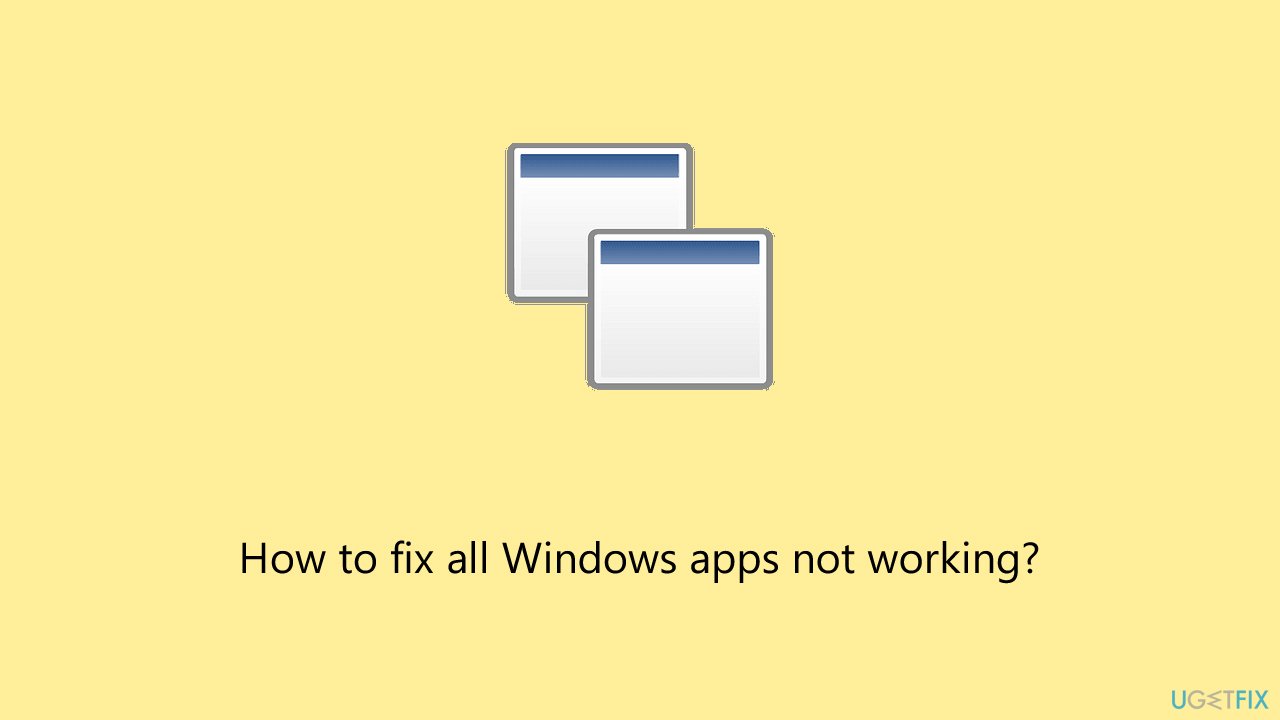
Fix 1. Run Windows Store apps troubleshooter
Starting with a troubleshooter can be a good first step - this built-in tool can automatically check issues and fix them. Note that sometimes you might have to perform manual steps once the problem is diagnosed.
- Type Troubleshoot in Windows search and hit Enter.
- Click Additional troubleshooters/Other troubleshooters.
- Scroll down to find Windows store apps and select it.
- Click Run the troubleshooter/Run.
- Wait till the process is finished and apply the fixes, then try updating again.
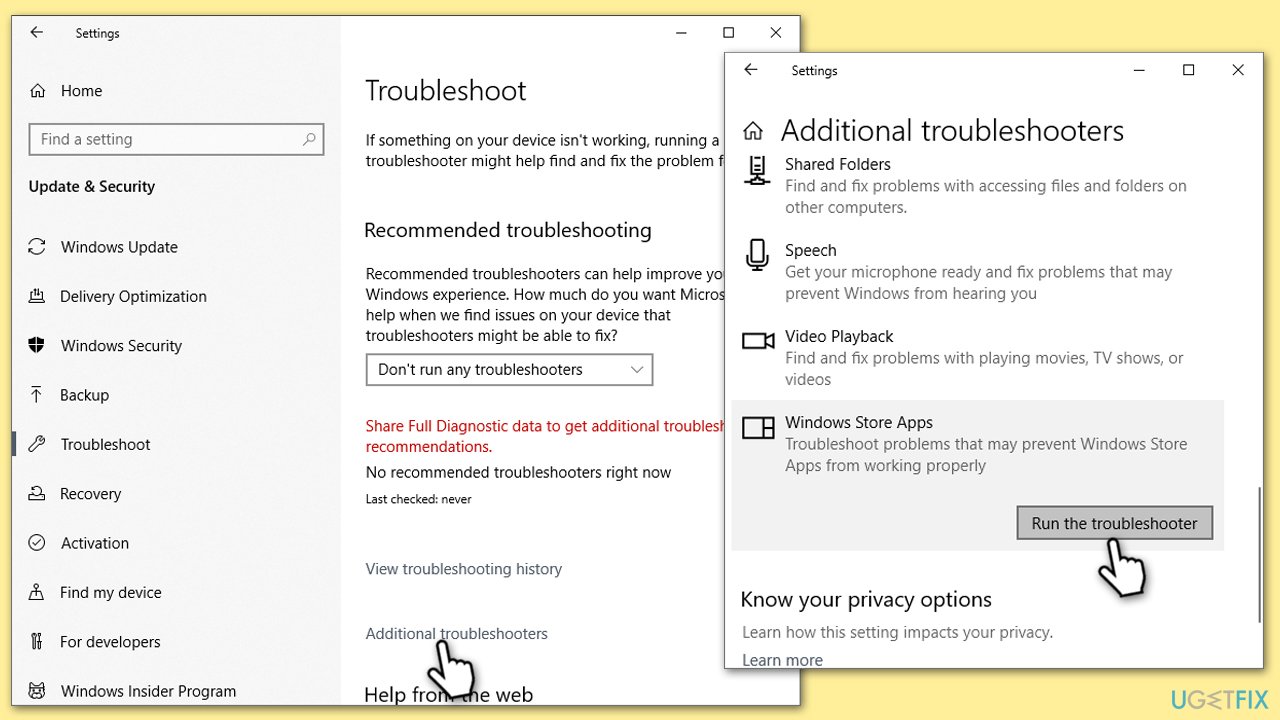
Fix 2. Reset Windows Store cache
- Type wsreset in Windows search and press Enter.
- At this time, a blank pop-up window will show up - do not close it.
- After a few moments, the window will close down, and the Microsoft Store will relaunch.
- Check whether your apps are working again.
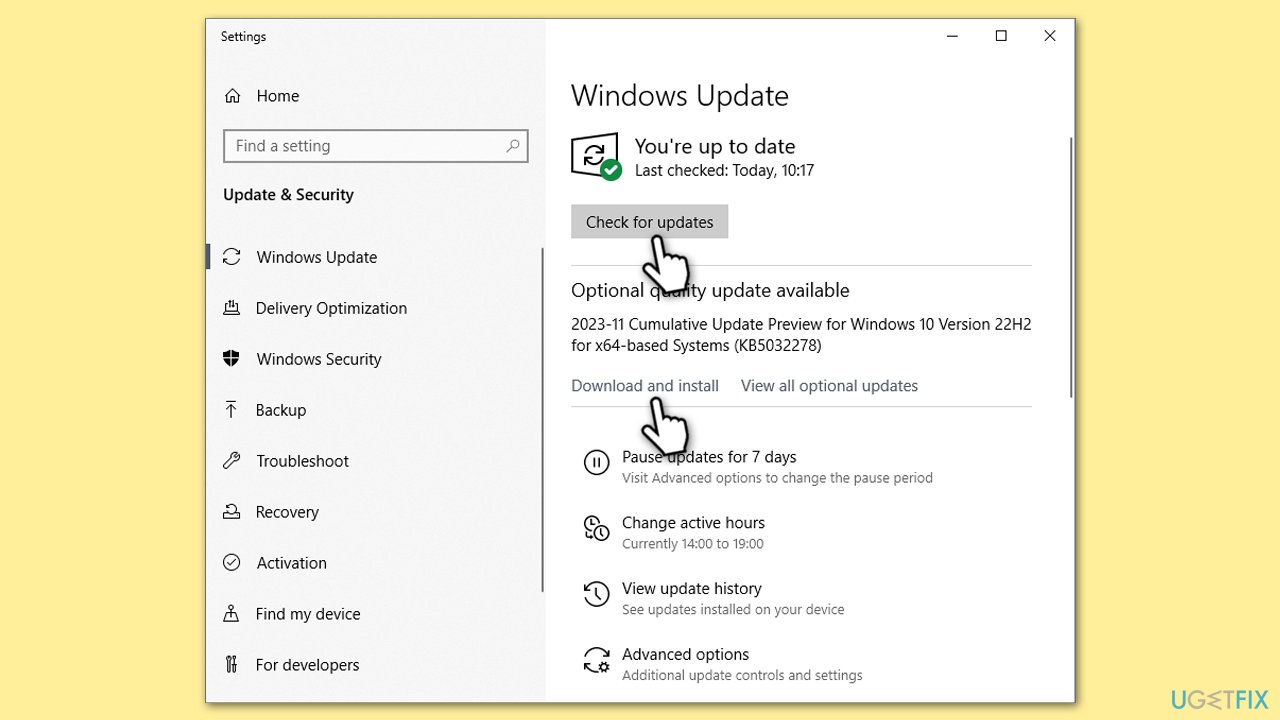
Fix 3. Install all Windows updates
Windows updates can often provide fixes for bugs and other widespread issues. For example, if a previous update has caused issues for many users, Microsoft would ship an out-of-band update fixing it.
- Type Updates in Windows search and press Enter.
- In the new window, click Check for updates.
- If optional updates are available, install them as well.
- Once everything is installed, restart your system to implement new changes.
Fix 4. Restart relevant services or set them to automatic startup
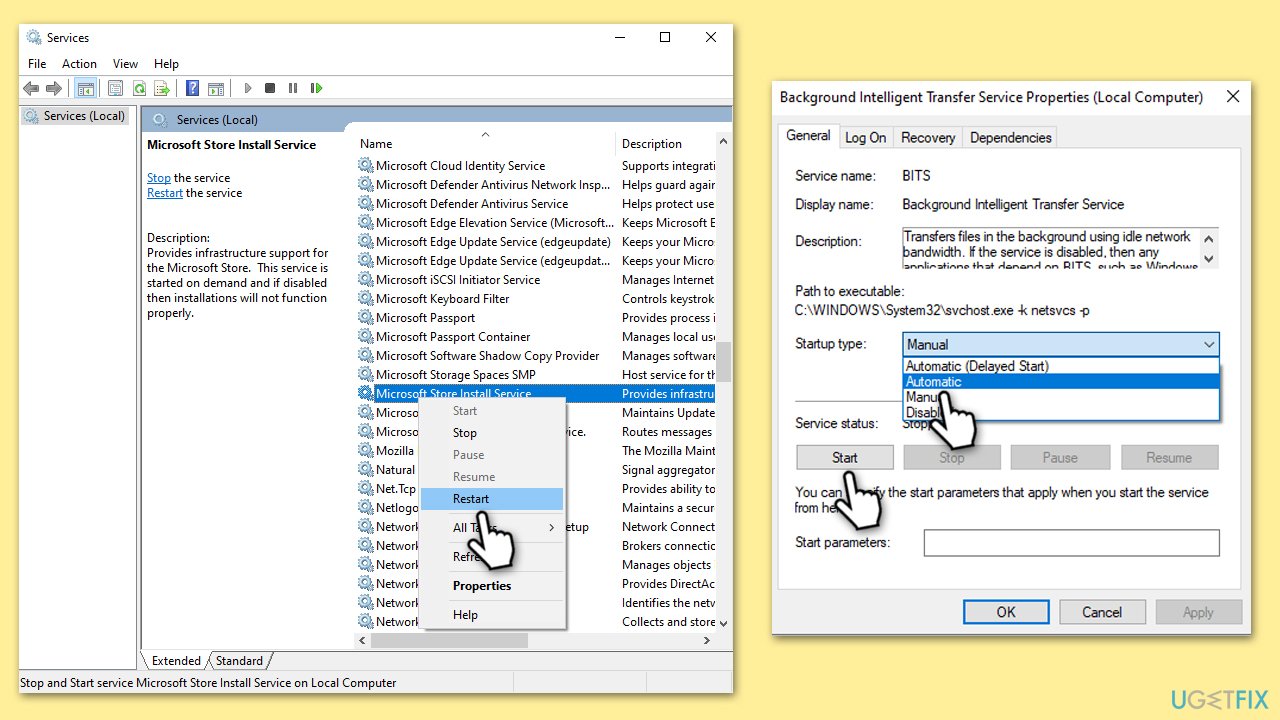
If certain services are not working, it might prevent Windows apps from working properly. (Re)starting them can help in this situation.
- Type in Services in Windows search and press Enter.
- Find Background Intelligent Transfer Service (BITS).
- If it is already running, right-click and pick Restart.
- If the service is not running, double-click it, and select Automatic under the Startup type from the drop-down menu.
- Click Start, Apply, and OK.
- Repeat this process with Microsoft Store Install Service.
Fix 5. Check the system for corruption
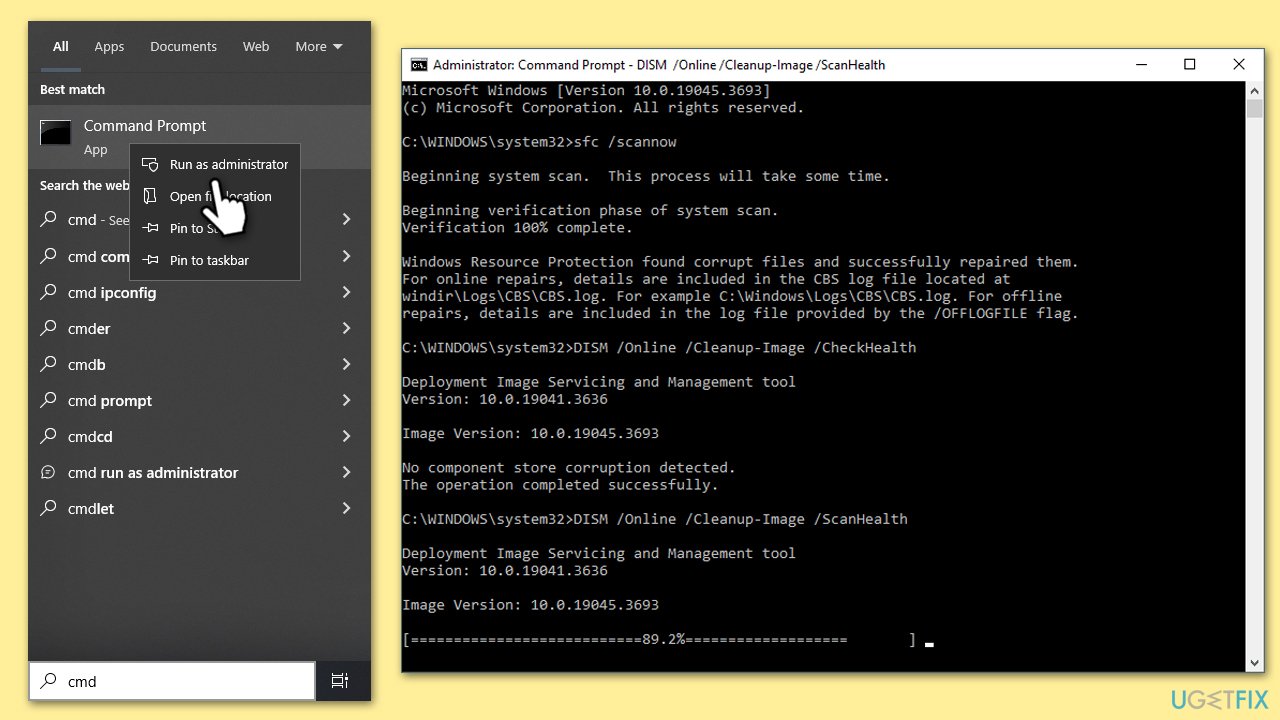
- Type cmd in Windows search.
- Right-click on the Command Prompt result and select Run as administrator.
- When User Account Control shows up, click Yes.
- Paste the following command into the new window:
sfc /scannow - Press Enter and wait till the scan is finished
- Once done, run this set of commands, pressing Enter each time:
DISM /Online /Cleanup-Image /CheckHealth
DISM /Online /Cleanup-Image /ScanHealth
DISM Online /Cleanup-Image /RestoreHealth /Source:C:\RepairSource\Windows /LimitAccess - Restart your PC.
Fix 6. Reset Windows Update components
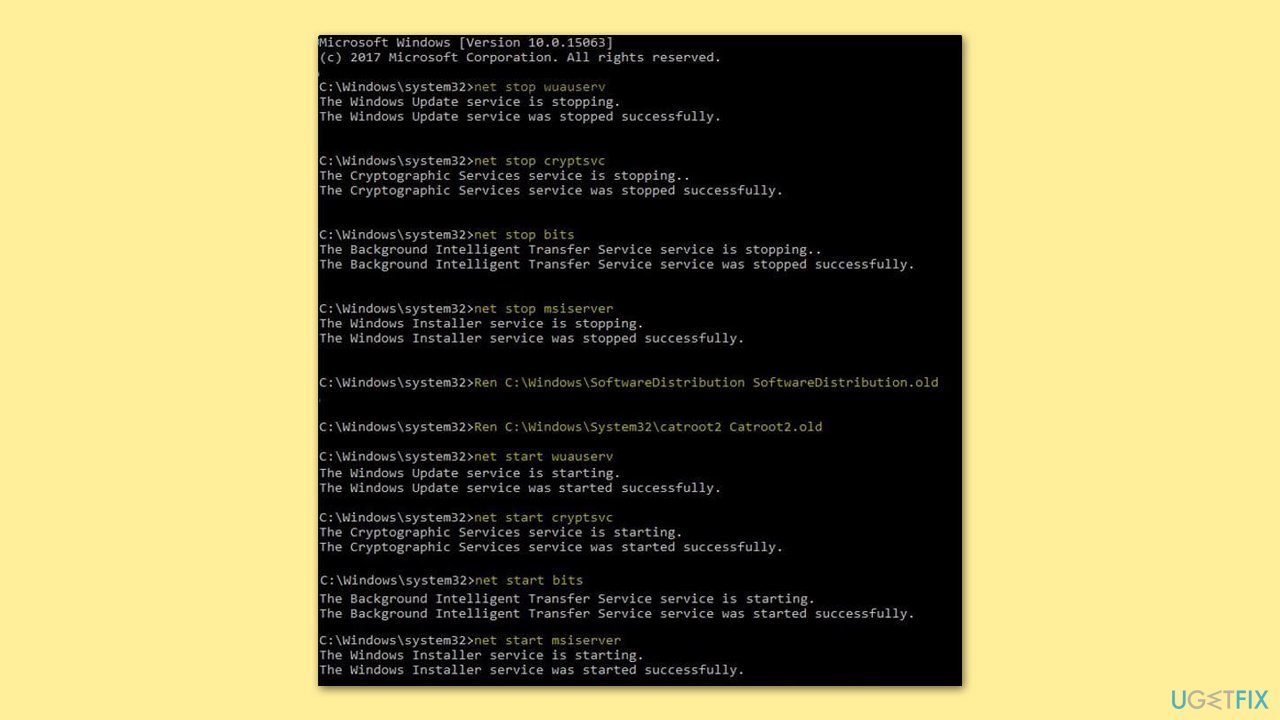
- Open Command Prompt as administrator.
- Stop the Windows Update-related services by running the following commands one at a time, pressing Enter after each one:
net stop wuauserv
net stop cryptSvc
net stop bits
net stop msiserver - Rename the SoftwareDistribution and Catroot2 folders by running the following commands:
ren C:\Windows\SoftwareDistribution SoftwareDistribution.old
ren C:\Windows\System32\catroot2 Catroot2.old
Note: If your Windows installation is not on the C drive, replace "C" with the appropriate drive letter. - Restart the Windows Update-related services by running the following commands:
net start wuauserv
net start cryptSvc
net start bits
net start msiserver - Reboot your system.
Fix 7. Reset and/or repair the malfunctioning apps via Settings
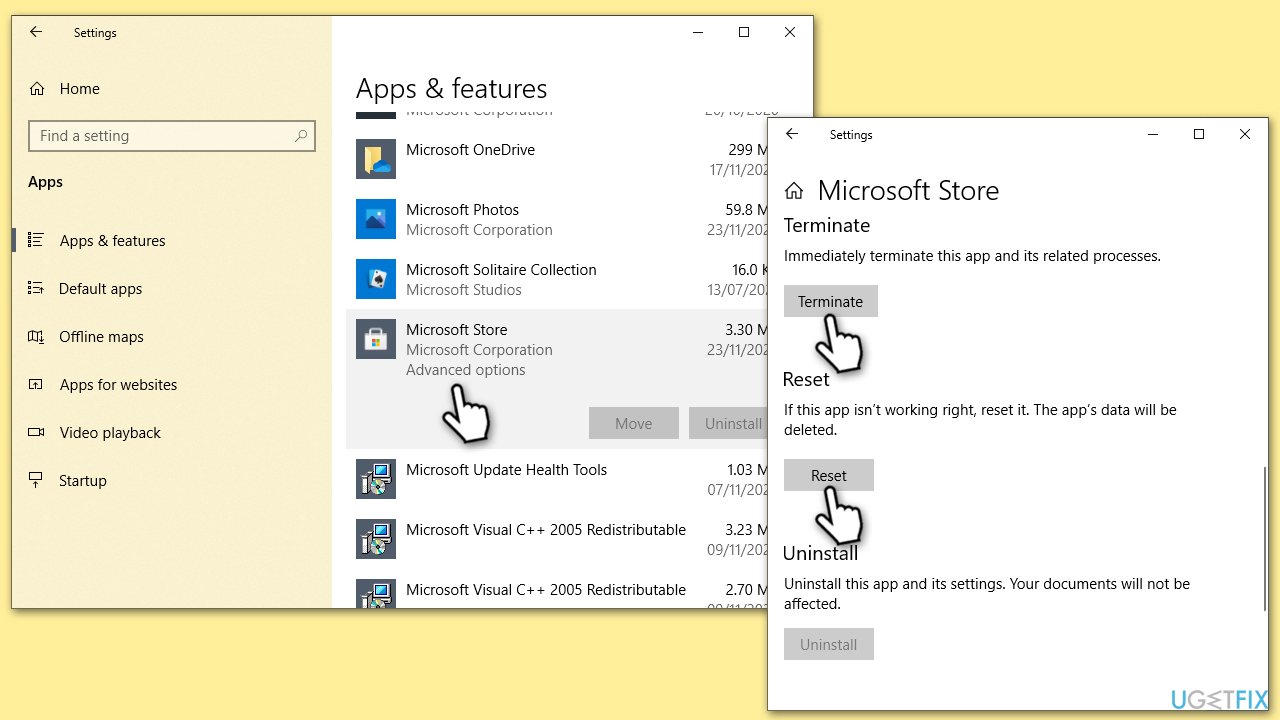
In Windows settings, you can repair or reset Windows apps via the Advanced options. Follow these steps:
- Right-click on Start and select Apps & Features.
- Scroll down to find the malfunctioning app, for example, Microsoft Store.
- Click Advanced options.
- Scroll down again and click Terminate, then Repair (if available).
- If that does not work, try using Reset.
Fix 8. Re-register built-in apps and reinstall the Microsoft Store
Re-registering the built-in apps and reinstalling the Microsoft Store might fix the issue. For that, you need to open the elevated Powershell as follows:
- Type Powershell in Windows search.
- Right-click on the result and select Run as administrator.
- When UAC shows up, click Yes.
- In the new window, type in the following commands, pressing Enter after each:
Get-AppXPackage *WindowsStore* -AllUsers | Foreach {Add-AppxPackage -DisableDevelopmentMode -Register "$($_.InstallLocation)\AppXManifest.xml"} - Restart your PC.
Fix 9. Perform in-place upgrade
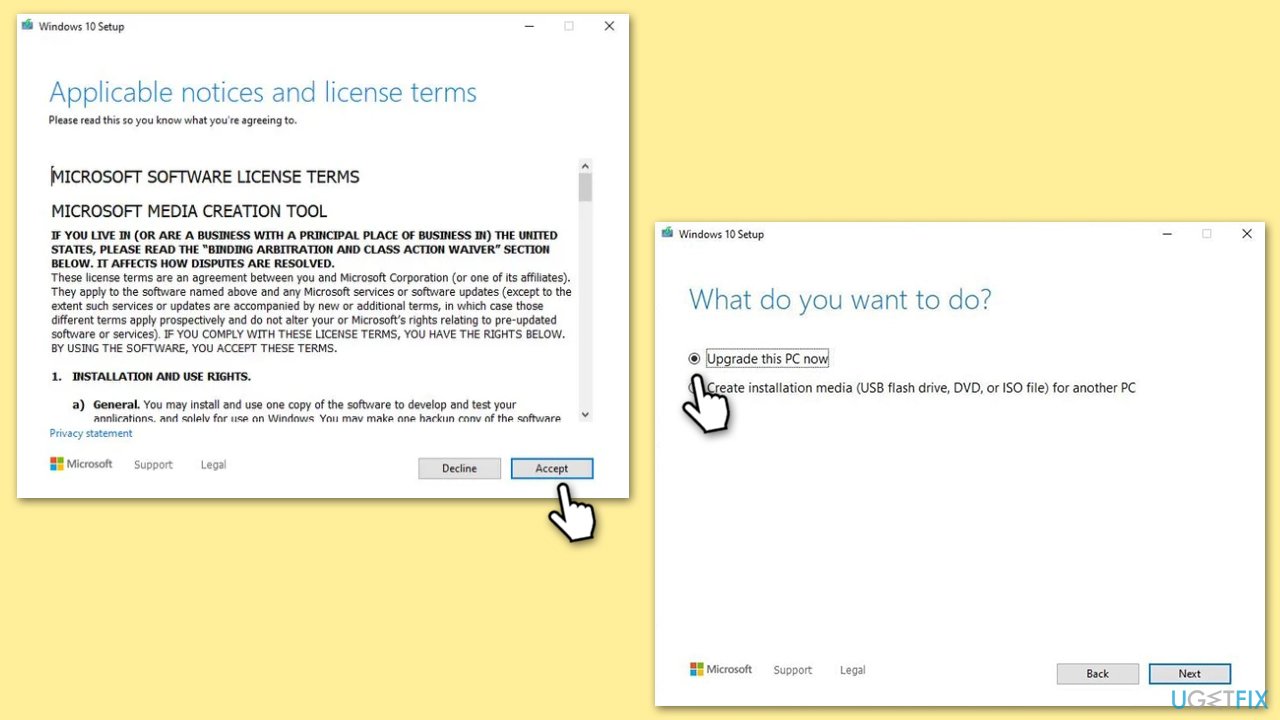
If everything else fails, you can perform an in-place upgrade using the Media Creation Tool from Microsoft.
- Visit the official Microsoft website and download Windows 10 installation media (Windows 11 version).
- Double-click the installer, select Yes when UAC shows up, and agree to the terms.
- Select Upgrade this PC now and click Next.
- Windows will start downloading the needed files.
- Agree to the terms once again and click Next.
- Before installing, ensure you are happy with your choices (otherwise, you can click the Change what to keep option).
- Finally, click Install to begin the upgrade process.
Bottom line
To fix the issue of Windows apps not working, you may need to delve into system settings and files, addressing corrupted files, clearing cache, or resolving update folder issues. If these solutions do not restore functionality, consider seeking further technical assistance.
Frequently asked questions
Try running the Windows Store Apps Troubleshooter, which can automatically detect and fix issues with apps. You can access it by going to Settings > Update & Security > Troubleshoot > Additional troubleshooters.
You can reset the Microsoft Store by opening the Settings app, navigating to Apps > Apps & features, finding Microsoft Store, clicking on it, and selecting Advanced options to reset.
Yes, you can use the 'wsreset.exe' command in the Run dialog to reset the Windows Store cache, which often resolves app issues.




Report an issue
What's wrong with this guide? We review every report and update or remove content.
Report received — thank you. We'll review and fix it.
You need a free account to submit a report.
Be the first to comment