How to fix
“Allow Chrome to access the network in your firewall or antivirus settings” error
on Windows
Resolve the "Allow Chrome to access the network" error on Windows 10/11 with simple solutions. Expert-tested fixes for a seamless browsing experience!

What causes How to fix “Allow Chrome to access the network in your firewall or antivirus settings” error in Windows?
- Firewall or antivirus software blocking Chrome's network access
- Security software detecting malware or unusual activities in the browser
- Antivirus or firewall identifying the accessed website as potentially dangerous
- Outdated antivirus software
- Specific capabilities of the antivirus or firewall being enabled
Repairs Windows system files, removes malware, and restores a clean OS state — without reinstalling.
Hello. When I try to access a certain website in Chrome, I get the "Allow Chrome to access the network in your firewall or antivirus settings" error. How do I get rid of it?
Users may find it upsetting to receive the "Allow Chrome to access the network in your firewall or antivirus settings" warning on a Windows PC. When trying to load a webpage in the Google Chrome browser, this error frequently appears. It indicates that the firewall or antivirus software on your machine is actively preventing Chrome from establishing a network connection. Although this security measure is intended to shield your computer from dangers, it occasionally interferes with normal web browsing.
This error message could be caused by a number of things. One possibility is that your firewall or antivirus program have picked up on malware or unusual activities in your browser. To stop the spread of additional possible risks, it might block Chrome's access to the network in such circumstances. Another possibility is that your security software has identified the website you're trying to access as potentially dangerous and is blocking the connection as a result.
Dealing with this problem can be difficult and time-consuming. In order to fix issues, users frequently need to troubleshoot, navigate through antivirus or firewall settings, and possibly seek help. Users often need to modify their antivirus or firewall settings to let Chrome access the network in order to solve this problem.
But you must proceed cautiously, making sure the browser is clean of viruses and that the page being visited is actually secure. A successful connection may also be facilitated by updating antivirus software to its most recent version or even temporarily turning off specific capabilities.
In this guide, you will find 2 steps that should help you fix "Allow Chrome to access the network in your firewall or antivirus settings" error in Windows. You can run a maintenance tool like [d1] if you experience any other OS issues. It can fix most system errors, BSODs,[ref en-1] corrupted files, registry[ref en-2] issues, or clear cookies and cache.[ref en-3] Otherwise, follow the step-by-step instructions below.
Fix 1. Give Chrome Access to the Network
- Right-click on Windows Start and select Settings.
- In the left sidebar, click Privacy and security.
- In the right pane, click Windows Security. Click Firewall & network protection.

- On the right side of the Windows Security window, click on Allow an app through firewall.
- Check if Chrome is already listed in the Allowed applications window. If it has already been added, select the app and click Remove.
- Afterward, add Chrome again by following the steps below.
- If Chrome has not been added yet, follow the steps below to add it for the first time:
- Click the Change settings button.
- Click on Allow another app.
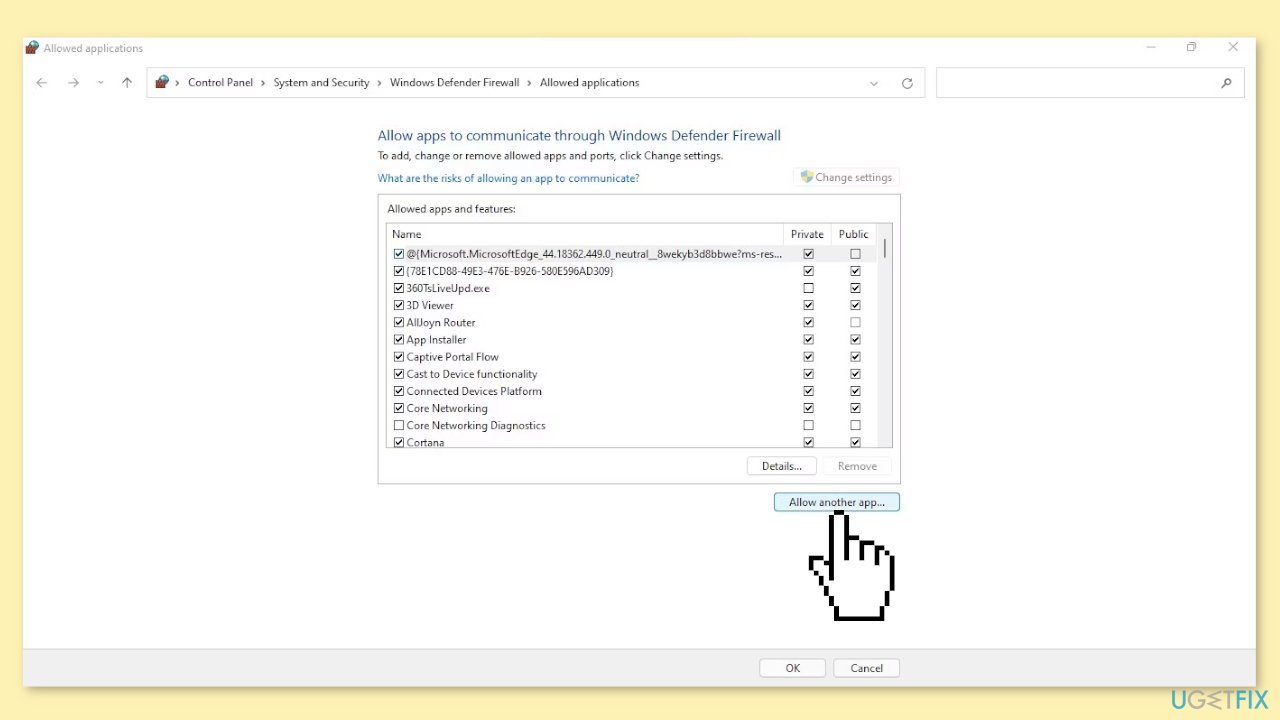
- In the Add an app window, click the Browse button.
- Select Chrome's executable file by going to C: drive > Program Files > Google > Chrome > Application.
- Once the path has been defined, click the Add button again.
- Make sure the Public and Private boxes are checked right next to Chrome.
- Click Ok.
Fix 2. Make an Exception for Chrome in an Antivirus
Make sure your antivirus software is not preventing Chrome from connecting by creating an exception for it. The steps for adding an exception for Chrome in your antivirus may differ based on the antivirus program you have. You can find instructions on how to create an exception for any program on their official websites.
Bottom line
To fix the 'Allow Chrome to access the network in your firewall or antivirus settings' error, users should modify their antivirus or firewall settings to allow Chrome access, ensure the browser is free of viruses, and verify the security of the website. Additionally, updating antivirus software or temporarily disabling certain features may help. If these steps do not resolve the issue, consider running a maintenance tool to address other potential system problems.
Frequently asked questions
To allow Chrome through the Windows 10 firewall, go to Control Panel > System and Security > Windows Defender Firewall > Allow an app or feature through Windows Defender Firewall, then find Chrome and ensure both Private and Public boxes are checked.
If your antivirus is blocking Chrome on Windows 11, open your antivirus software and look for firewall or app control settings, then add Chrome to the list of allowed applications.
This error typically occurs when firewall or antivirus settings prevent Chrome from connecting to the internet, which can happen after software updates or changes to security settings.




Report an issue
What's wrong with this guide? We review every report and update or remove content.
Report received — thank you. We'll review and fix it.
You need a free account to submit a report.
Be the first to comment