How to fix
Amazon App Store not working
on Windows
Resolve Amazon App Store issues on Windows 11 quickly and easily. Get expert-tested solutions for a smooth app experience! Zero traces left.


What causes How to fix Amazon App Store not working in Windows 11?
- Missing Subsystem for Android
- Virtual Machine Platform turned off
- Hypervisor Platform turned off
- Disabled necessary components in Windows Features
Repairs Windows system files, removes malware, and restores a clean OS state — without reinstalling.
Amazon Appstore is not working on Windows 11 - it simply says "This app will not work on your device." I thought that it should work with no problems in Windows 11 but it's still not the case. Please help.
Windows 11 is the latest version of the Windows operating system, developed by Microsoft. It offers a variety of improvements over previous versions, including faster boot times, improved security and privacy measures, and an overall more user-friendly experience.
Major changes include Internet Explorer being replaced by the newest Chromium-based Edge, Microsoft Teams integrated into the OS, major Start Menu changes, and much more. Among these iterations, users were also promised to allow users to integrate Android apps in Windows 11 without problems, although that's not what some people have experienced so far.
There have been numerous reports that users were unable to to download and install Amazon Android app on their systems. Some users receive the following error:
This app will not work on your device
This statement makes little sense because Windows 11 is meant to come with preinstalled Android subsystem, and users should have no problems with it.
One of the major causes for this issue is the missing subsystem for Android, which prevents the app from being seen in the first place when using Microsoft Store. In this case, users can resolve this issue by reinstalling the missing component manually using the process known as sideloading.
In other cases, Virtual Machine Platform and Hypervisor platform might be turned off on your device. Enabling these features is required in order to fix Amazon App Store not working in Windows 11.
Remember, performing manual troubleshooting can take a long time. To shorten the process and save energy, use [1] to repair most system glitches, blue screen of death (BSOD) errors, corrupted files, and registry issues, or clear cookies and cache. Otherwise, follow the instructions detailed below carefully.
Solution 1. Enable Virtual Machine Platform and Hypervisor platform
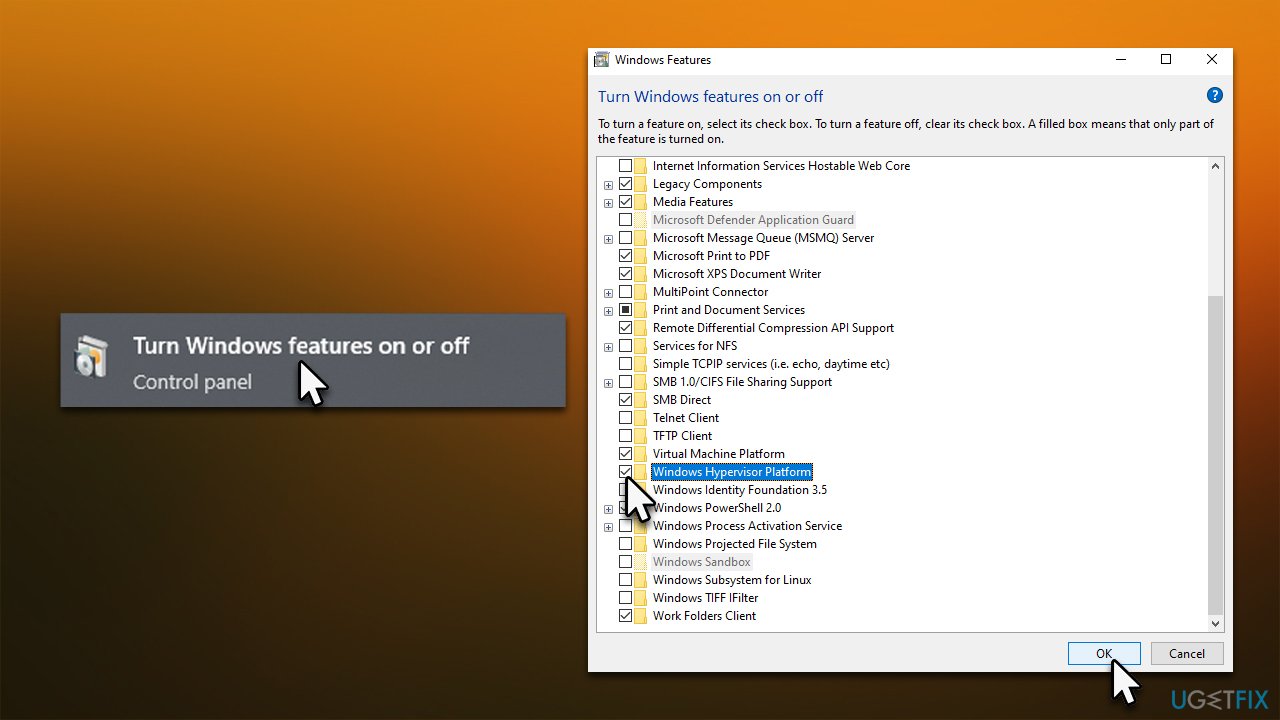
If necessary components in Windows Features are disabled, Amazon App Store won't work, so make sure they are:
- In Windows search, type in Turn Windows features on or off and press Enter
- Scroll down until you locate Virtual Machine Platform and Windows Hypervisor Platform
- Make sure both of these are ticked
- Click OK.
Solution 2. Check requirements
You need to make sure that your Windows is running the latest version and other conditions are met, including:
- You are using the latest version of Windows 11
- You are not using Hyper-V or similar emulation software
- Your device is equipped with an SSD (HDD/Hard drive won't work)
- Your computer has at least 8GB of RAM.
There are few other requirements but those can be bypassed in the instructions below.
Solution 3. Install Amazon App Store manually
You can use the sideloading technique to install the missing component manually. This method will work if the Android subsystem is entirely missing from Windows.
- Open your browser and navigate to Online link generator for Microsoft Store
- To the left of the search bar, click on the drop-down menu and select Productid
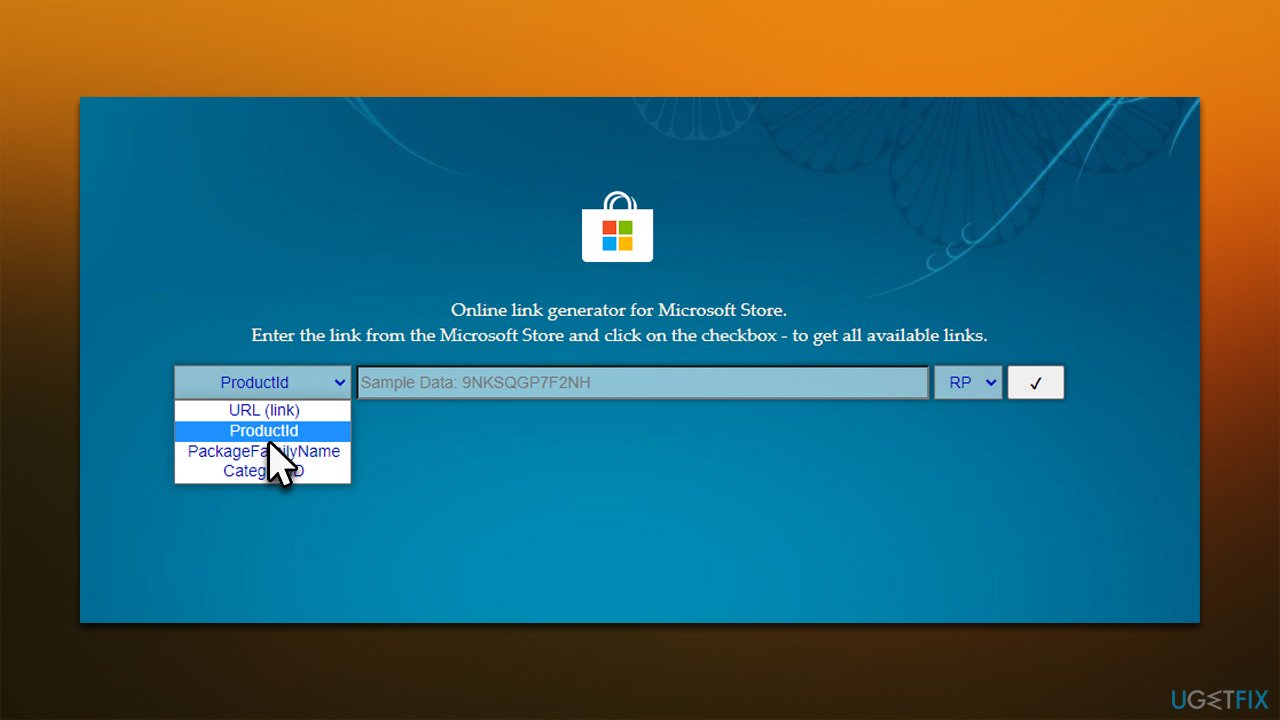
- Pase the following text into the search box:
9P3395VX91NR - Click the tick box button to search
- Scroll down until you find the msixbundle file from the download list
- Right-click on the link and select Save link as...
- Select a convenient location and click Save
- Right-click the downloaded path and pick Copy as path (we recommend pasting the text somewhere safe so it would be accessible for you later)
- Then, type Terminal in Windows search
- Right-click on Terminal from search results and select Run as administrator
- When User Account Control shows up, click Yes
- Copy and paste the following command, replacing the bolded word PASTE with the actual path you copied earlier:
Add-AppxPackage -Path PASTE - Press Enter
- The installation will start - wait for it to finish.
Solution 4. Change your region to US
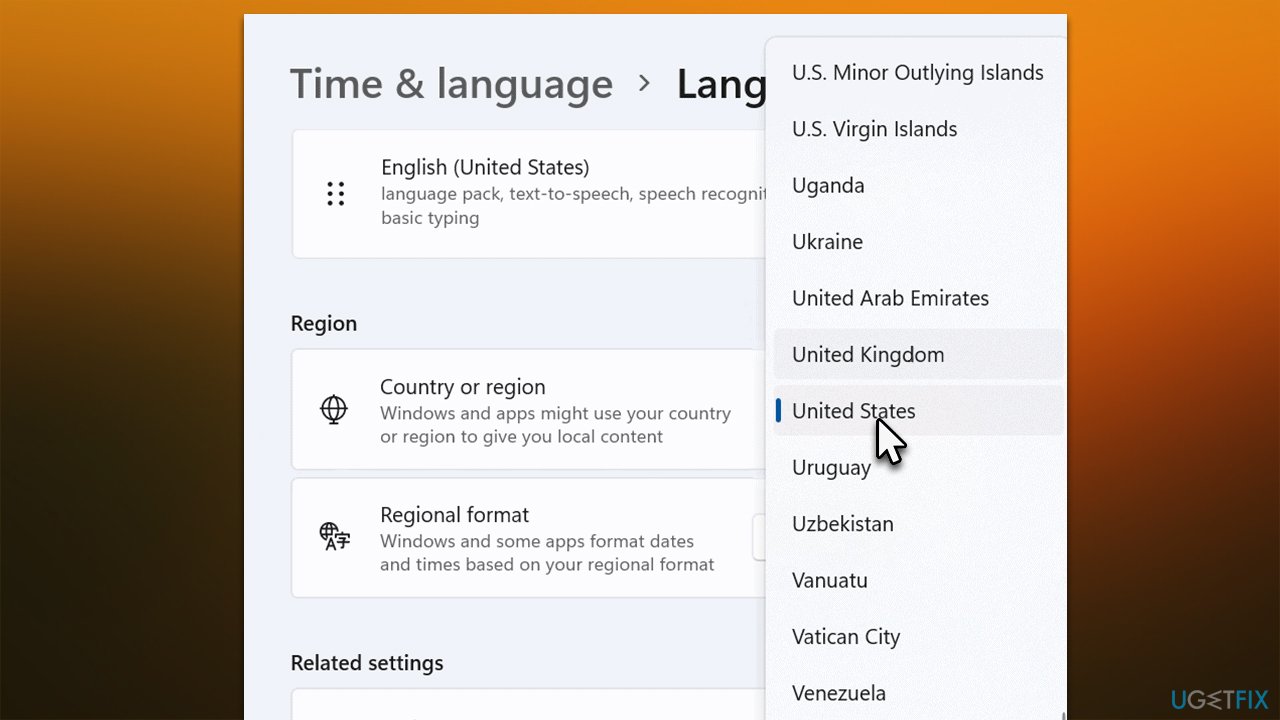
Amazon App Store is only available to those in the US and only works with US-based Amazon accounts. Thus, if you are not from the US, you can create an appropriate account on the official Amazon website first. Next, you'll have to change the region to that of the US as follows:
- Type Region settings in Windows search and hit Enter
- Under Country or Region, select United States from the drop-down menu
- Close down Settings panel and try using Amazon App Store.
Amazon, Microsoft, and Google are among the most prominent companies out there, with billions of dollars in revenue. It is quite unacceptable that regular users have to deal with various issues dealing with software or service issues from these companies. However, we hope that our guide here provided some insights on this issue and helped users to fix it.
Bottom line
To fix the Amazon App Store not working in Windows 11, users should enable the Virtual Machine Platform and Hypervisor Platform. Additionally, they may need to manually reinstall the missing Android subsystem. If these solutions do not resolve the issue, consider using a repair tool for system glitches.
Frequently asked questions
Try resetting the Amazon App Store by going to Settings > Apps > Apps & features, selecting the app, and clicking on Advanced options, then selecting Reset.
Ensure that your Windows 11 is fully updated and check for any pending updates for the Amazon App Store itself in the Microsoft Store.
This could be due to insufficient system resources; try closing other applications and checking your internet connection for stability.




Report an issue
What's wrong with this guide? We review every report and update or remove content.
Report received — thank you. We'll review and fix it.
You need a free account to submit a report.
Be the first to comment