How to fix
AMD Driver Timeout (TDR) error
on Windows
Resolve AMD Driver Timeout (TDR) errors in Windows 10 and 11 effortlessly. Get expert-tested solutions to restore your graphics performance! Fixed in mi…


What causes How to fix AMD Driver Timeout (TDR) error in Windows?
- Driver conflicts
- Incompatibilities with drivers
- Outdated Windows operating system
- Inadequate virtual memory settings
Repairs Windows system files, removes malware, and restores a clean OS state — without reinstalling.
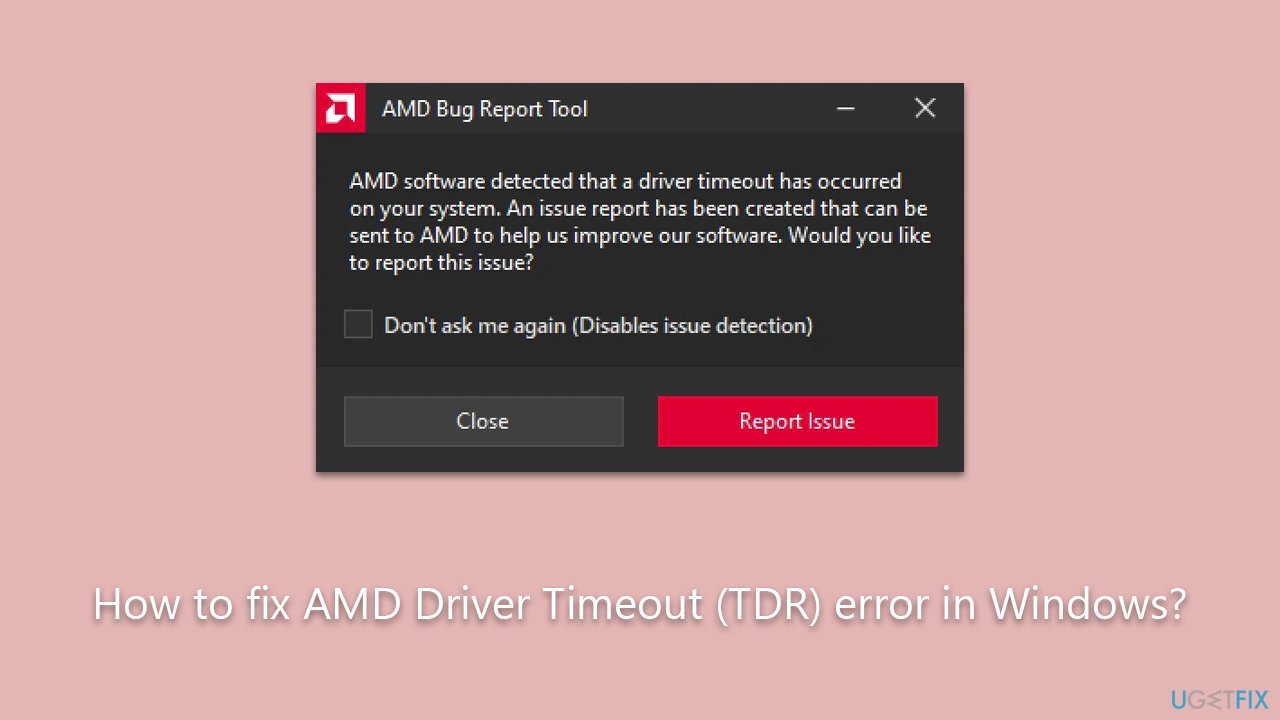
Hi. Occasionally, I receive an error message from the AMD Bug Report Tool, which says that a Driver Timeout has occurred. This started happening a couple of weeks ago and I am not sure what's causing it. I am using AMD Ryzen 5 5600X CPU with Radeon RX 6500 XT graphics.
Advanced Micro Devices, commonly referred to as AMD, is a multinational semiconductor company that produces a wide range of hardware components. These range from graphics cards, server processors, to their renowned desktop and laptop processors. Their processors, in particular, have gained significant popularity in the market due to their performance, efficiency, and value proposition.
However, like all technological products, AMD hardware is not without its potential issues. Users have sometimes reported encountering specific problems, and among these, the Driver Timeout (TDR) error is a notable one. This error doesn’t always manifest in the same way for every user, but there are common scenarios in which it tends to occur.
Many users have observed this error when streaming videos on YouTube or browsing the internet using Google Chrome or other web browsers. Apart from these, the error has also been known to surface following the crash of a game or another software application.
Primarily, the root cause of the AMD Driver Timeout (TDR) error in Windows is related to driver conflicts or incompatibilities. The immediate steps users should consider include updating the current drivers, rolling back to a previous driver version, or even reinstalling them completely. Yet, it's essential to understand that while the driver issues are the most frequent culprits, they aren't the only ones. An outdated Windows operating system or inadequate virtual memory settings can also be contributing factors to this error.
For those unsure about manually navigating and rectifying these issues, comprehensive instructions will be provided below to guide users through the process, ensuring a smooth and hassle-free resolution.
Lastly, for individuals seeking an all-in-one solution, consider using the [d1] PC repair tool. It is capable of fixing various Windows-related issues automatically and optimizing the system for peak performance.
Fix 1. Install all Windows updates
It's essential to ensure that your operating system is up-to-date because outdated Windows versions can sometimes conflict with newer drivers or applications. Windows updates often contain patches for known issues, enhancing system stability.
- Press the Windows key and type Update.
- Click on Check for updates from the results.
- If there are any pending updates, click Download or Install.
- Ensure you install all the optional updates as well.
- Once installed, restart your computer.

Fix 2. Update your AMD driver
Keeping your drivers updated is crucial. Drivers act as a bridge between the OS and hardware, and outdated ones can lead to conflicts. You can download the latest driver from the official AMD website, use automatic driver update software. such as [rev id="DriverFix"], or update through the Device Manager.
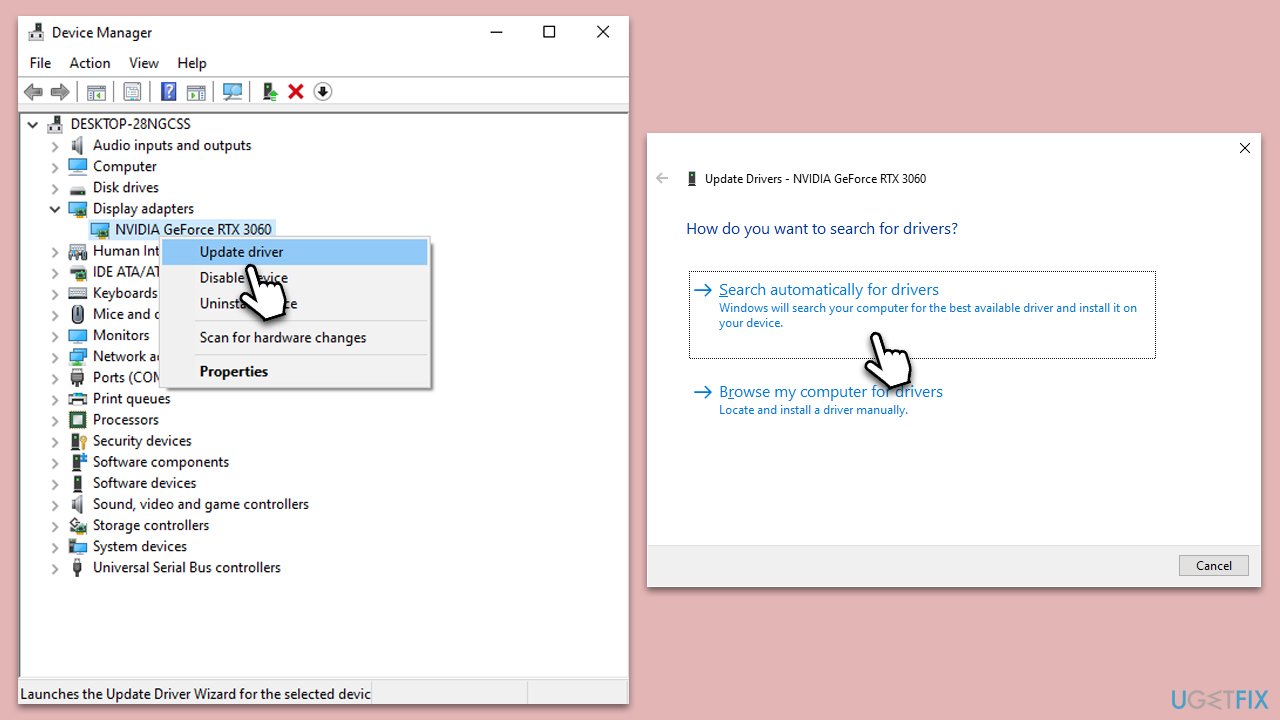
- Press the Win + X and select Device Manager.
- Expand the Display adapters section.
- Right-click on your AMD graphics device and select Update driver.
- Choose Search automatically for driver.
- Follow the on-screen instructions and restart your PC after the update.
Fix 3. Roll back the driver
Sometimes, the newest driver might not be the most stable for your system. Rolling back to a previous version might resolve the issue.
- Go to Device Manager as described above.
- Right-click on your AMD device and select Properties.
- Go to the Driver tab.
- Click on Roll Back Driver, select the reason for uninstallation, and follow the prompts.
- Restart your computer.
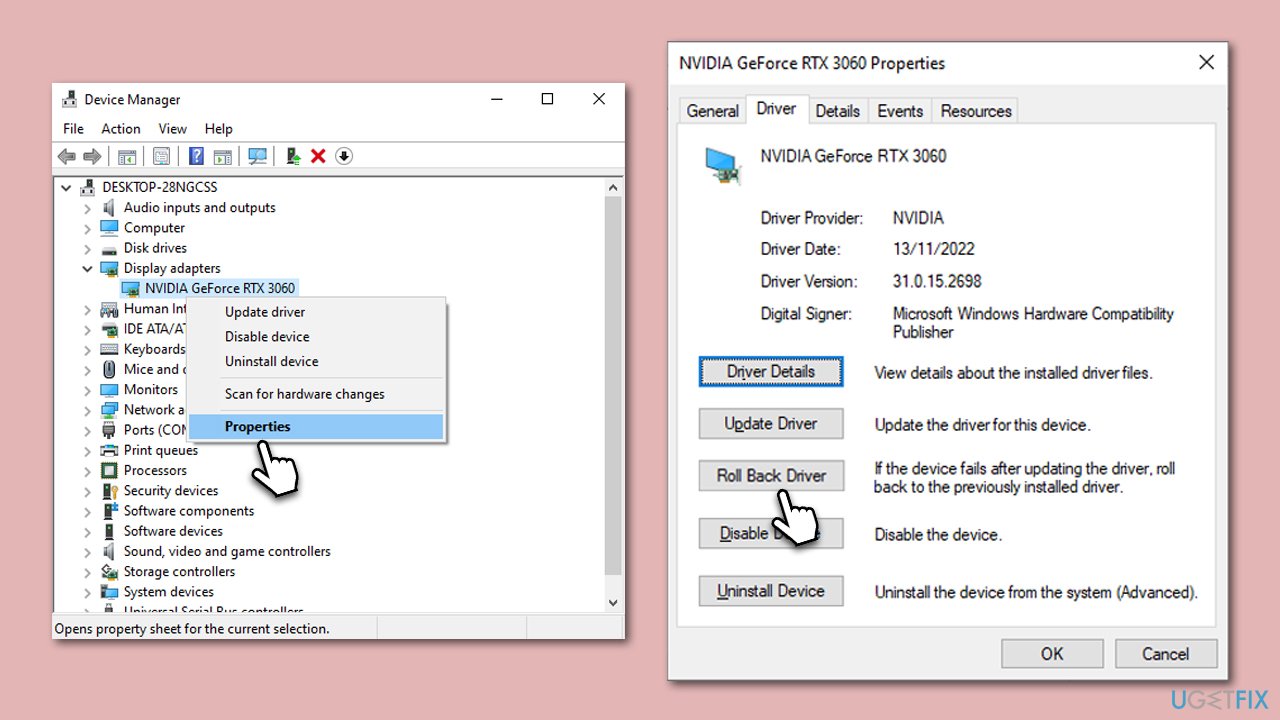
Note that this option might be grayed out, depending on your device configuration. If that's the case, you need to manually download the previous version of the driver from the official AMD website.
Fix 4. Reinstall the driver
A fresh installation can remove any corrupt files or configurations from the previous driver.
- In Device Manager, right-click on your AMD graphics device.
- Choose Uninstall device.
- Visit the AMD official website and download the latest driver or use other methods mentioned previously.
- Install the driver and restart your computer.
Fix 5. Change Power Plan
Optimizing your computer's power settings can improve performance and reduce conflicts.
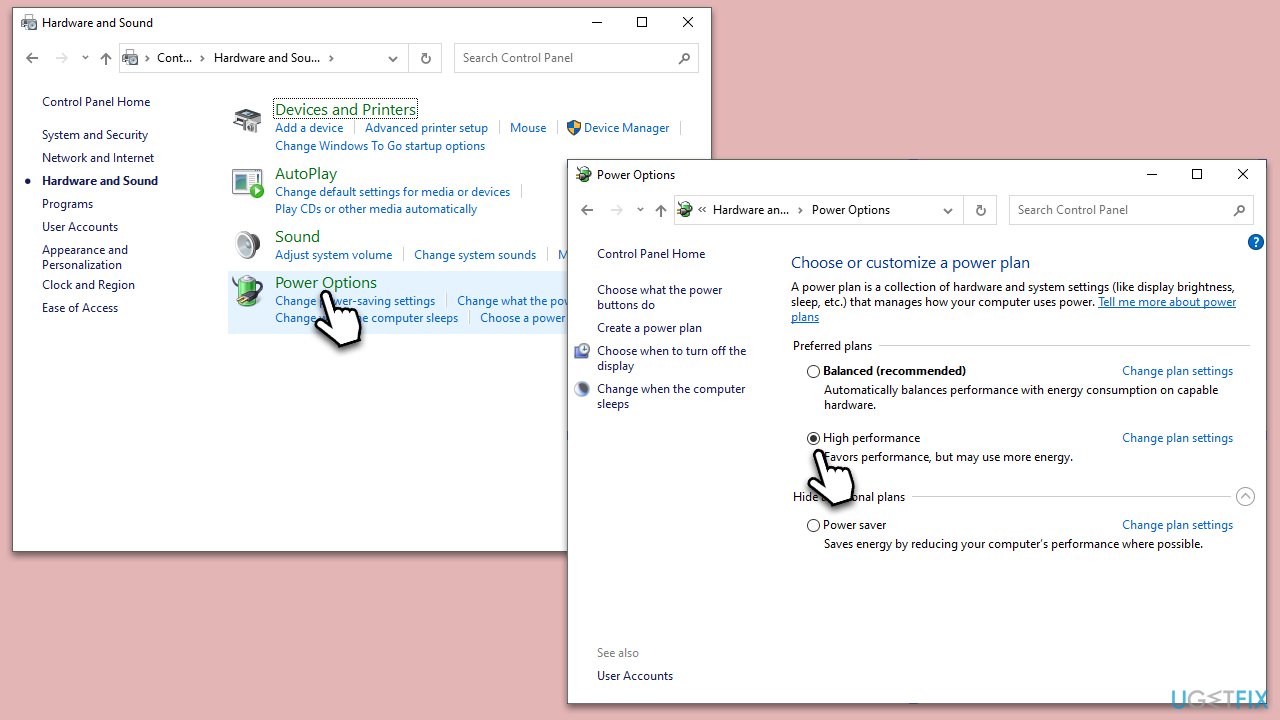
- In Windows search, type Control Panel and press Enter.
- Here, go to Hardware and Sound > Power options.
- Here, you will see the listed plans.
- Change the plan from Power saver to High performance.
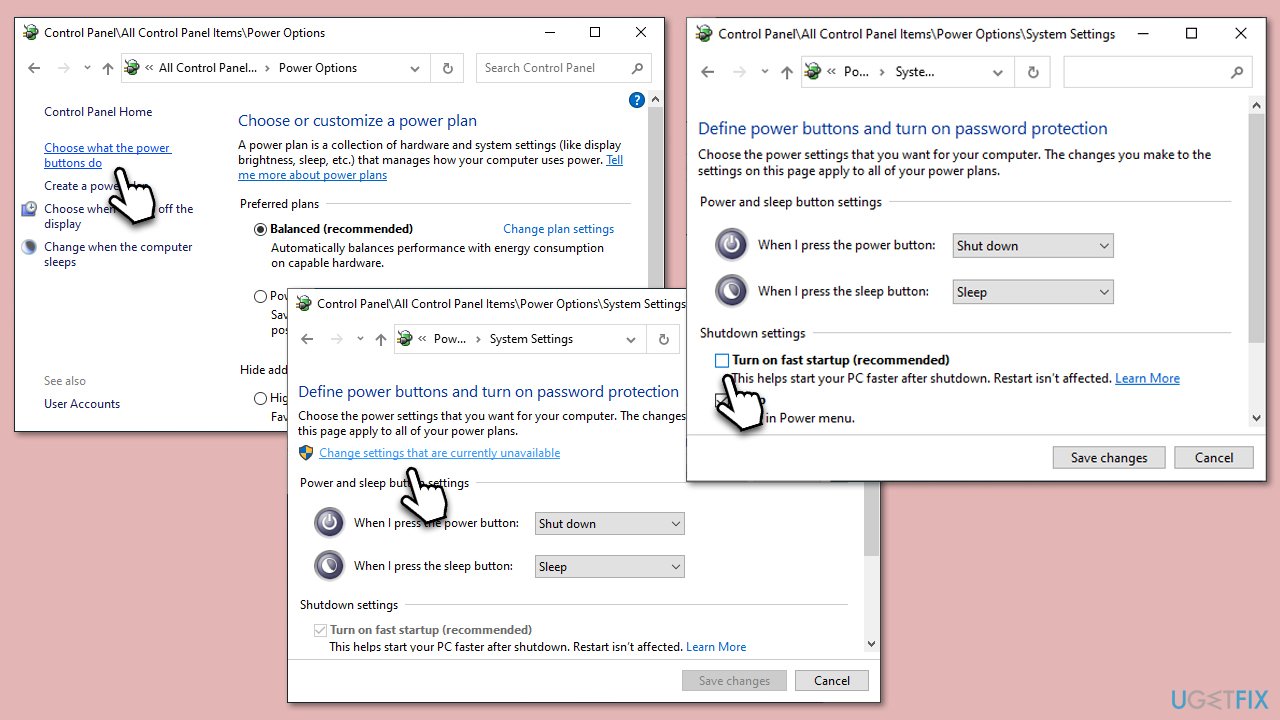
Fix 6. Disable Fast Startup
Fast Startup can sometimes conflict with drivers during the boot-up process. While the feature should improve the loading times of the operating system, it is known to cause some issues to users.
- Type Control Panel in Windows search and hit Enter.
- Select Small icons view and pick Power options.
- On the left side of the window, select Choose what the power buttons do
- Pick the Change settings that are currently unavailable option at the top
- Remove the tick from the Turn on fast startup (recommended) option and select Save changes.
Fix 7. Clear Shader cache via AMD software
Clearing the cache can resolve any graphical glitches or errors.
- Open your AMD software and navigate to the Settings (Gear icon) section.
- Go to the Graphics tab and select Advanced.
- Scroll down to find Reset Shader Cache and click Perform Reset.
- To confirm, click OK.
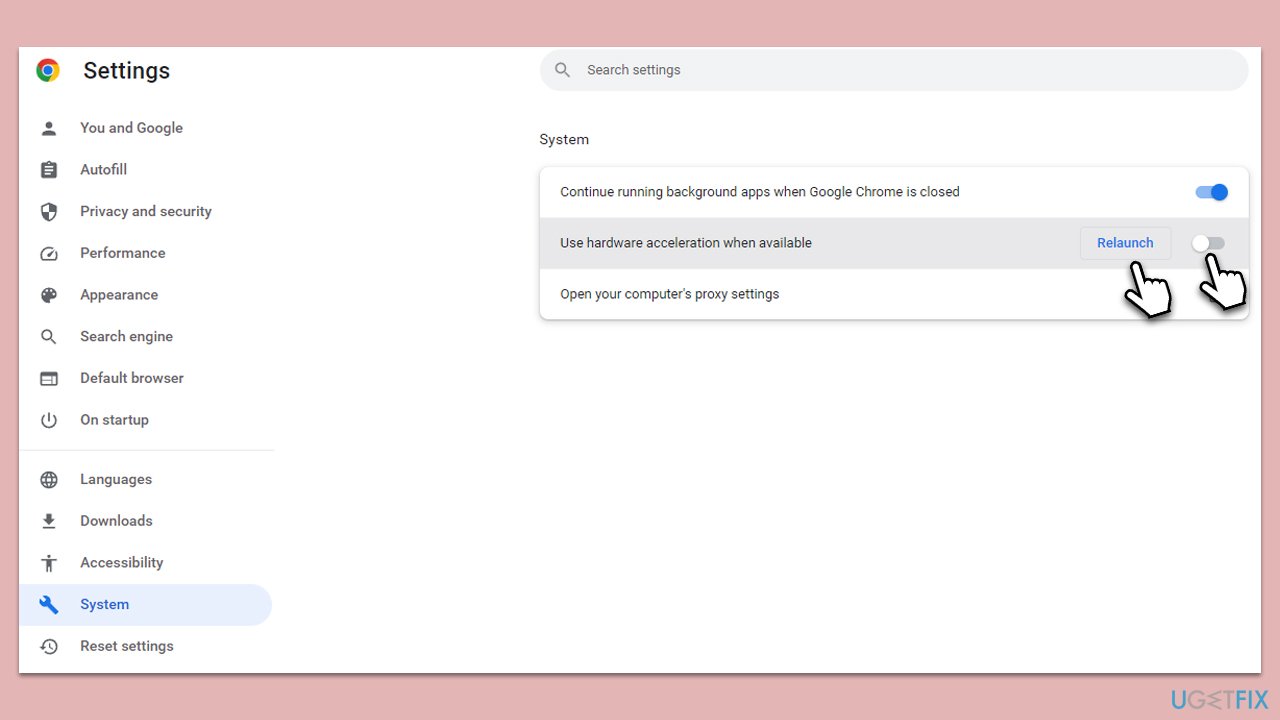
Fix 8. Disable Hardware Acceleration (Chrome or other browser)
Hardware acceleration can sometimes conflict with graphics drivers.
- Open Chrome and click 3 dots, then select Settings.
- On the left side, select System.
- Toggle Use hardware acceleration when available to the OFF position.
- Click the Relaunch button to apply changes.
Fix 9. Increase the size of the Paging File
The Paging File acts as virtual memory. Increasing its size can resolve memory-related issues.
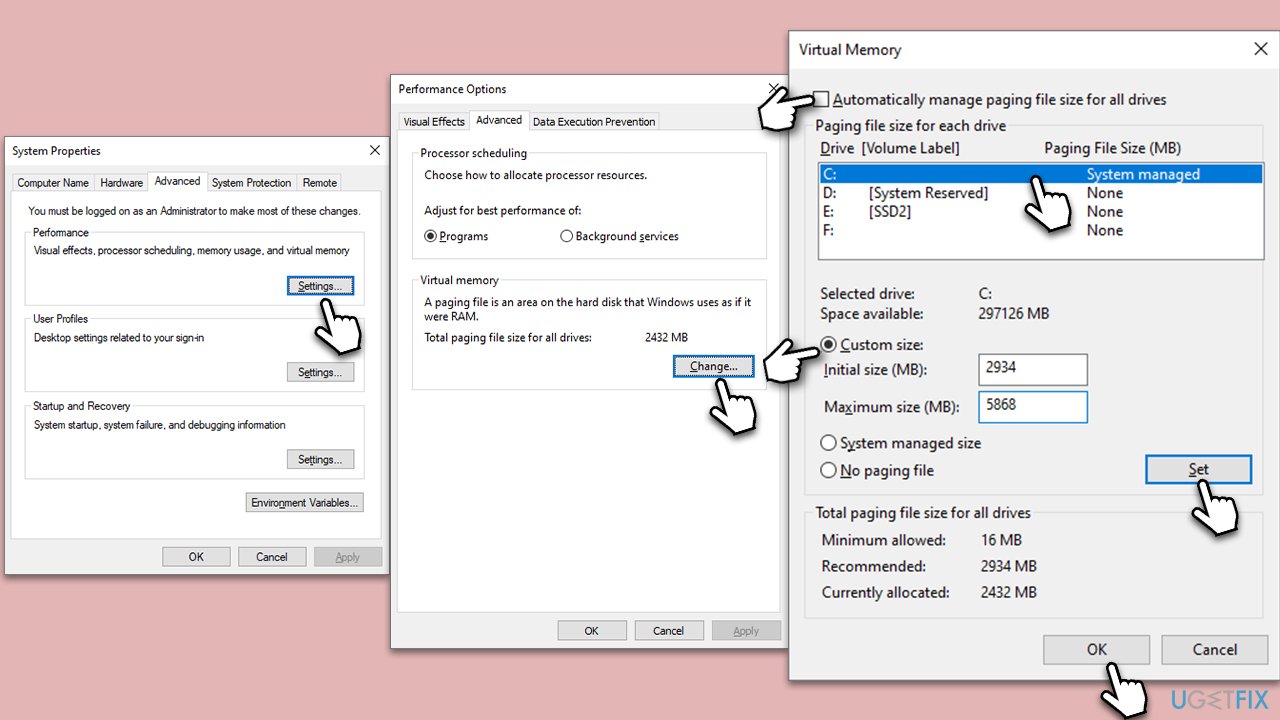
- In Windows search, type in Advanced system settings and press Enter.
- Under the Performance section, click Settings.
- Go to the Advanced tab.
- Under Virtual Memory, select Change.
- Untick the Automatically manage paging size for all drives option (make sure your main drive is selected - C: is the default).
- Select Custom size.
- At the bottom, check the Recommended memory size and type it into the Initial size (MB) field.
- In the Maximum size (MB) field, enter double size than that in the Initial size section.
- Click Set and OK.
Bottom line
To fix the AMD Driver Timeout (TDR) error, users should consider updating their current drivers, rolling back to a previous driver version, or reinstalling the drivers completely. If these steps do not resolve the issue, it may be beneficial to use a PC repair tool for automatic fixes and system optimization.
Frequently asked questions
The AMD Driver Timeout (TDR) error is often caused by outdated graphics drivers, overheating hardware, or conflicts with other software. Ensuring that your drivers are updated and your system is properly cooled can help resolve these issues.
To update your AMD graphics drivers in Windows 10, go to the AMD website, download the latest drivers for your graphics card, and install them. You can also use the Device Manager to check for updates automatically.
In Windows 11, you can adjust the power settings to High Performance and ensure that your graphics card is not being throttled. Additionally, you can increase the TDR timeout value in the registry, which may provide more time for the graphics driver to respond.




Report an issue
What's wrong with this guide? We review every report and update or remove content.
Report received — thank you. We'll review and fix it.
You need a free account to submit a report.
Be the first to comment