How to fix
Amdacpbus.sys blue screen
on Windows
Resolve the Amdacpbus.sys blue screen error on Windows 10 and 11 effortlessly. Get expert-tested solutions and fix your system in minutes!

What causes How to fix Amdacpbus.sys blue screen in Windows?
- Conflict with other software
- Conflict with other hardware
- Corruption of Amdacpbus.sys file
- Damage to Amdacpbus.sys file
- Malware infection
Repairs Windows system files, removes malware, and restores a clean OS state — without reinstalling.
Hello. Yesterday out of nowhere I experienced an Amdacpbus.sys Blue Screen error in Windows. The same error appeared today again. What can I do to get rid of it?
Recently, some people reported experiencing a Blue Screen error[ref en-1] in Windows. The reported Stop Code is SYSTEM_THREAD_EXCEPTION_NOT_HANDLED, and the culprit is shown as Amdacpbus.sys. It is a system file that is associated with AMD hardware and software on a computer running Microsoft Windows.
Amdacpbus.sys is a driver[ref en-2] file that is responsible for communicating between the operating system and certain AMD hardware components, such as the AMD audio controller and AMD graphics card. The file is typically located in the "C:\Windows\system32\drivers" folder on a Windows system. It is a critical system file and should not be deleted or modified, as doing so can cause problems with the functioning of your AMD hardware and software.
If you are experiencing an Amdacpbus.sys Blue Screen error, it may be caused by a conflict with other software or hardware on your system, or by corruption or damage to the file itself. In these cases, you may need to update or repair the file or reinstall the associated AMD software or drivers to resolve the issue.
In this guide, you will find 6 steps that should help you fix Amdacpbus.sys Blue Screen in Windows. Keep in mind that the manual troubleshooting process can be lengthy. Instead, you can use a maintenance tool like [d1]. It can fix most system errors, corrupted files, and registry[ref en-3] issues. Otherwise, follow the step-by-step instructions below.
Solution 1. Check your PC for Malware
- Launch Settings from the Start menu
- Navigate to Update & Security and choose Windows Security
- Tap on Virus & threat protection
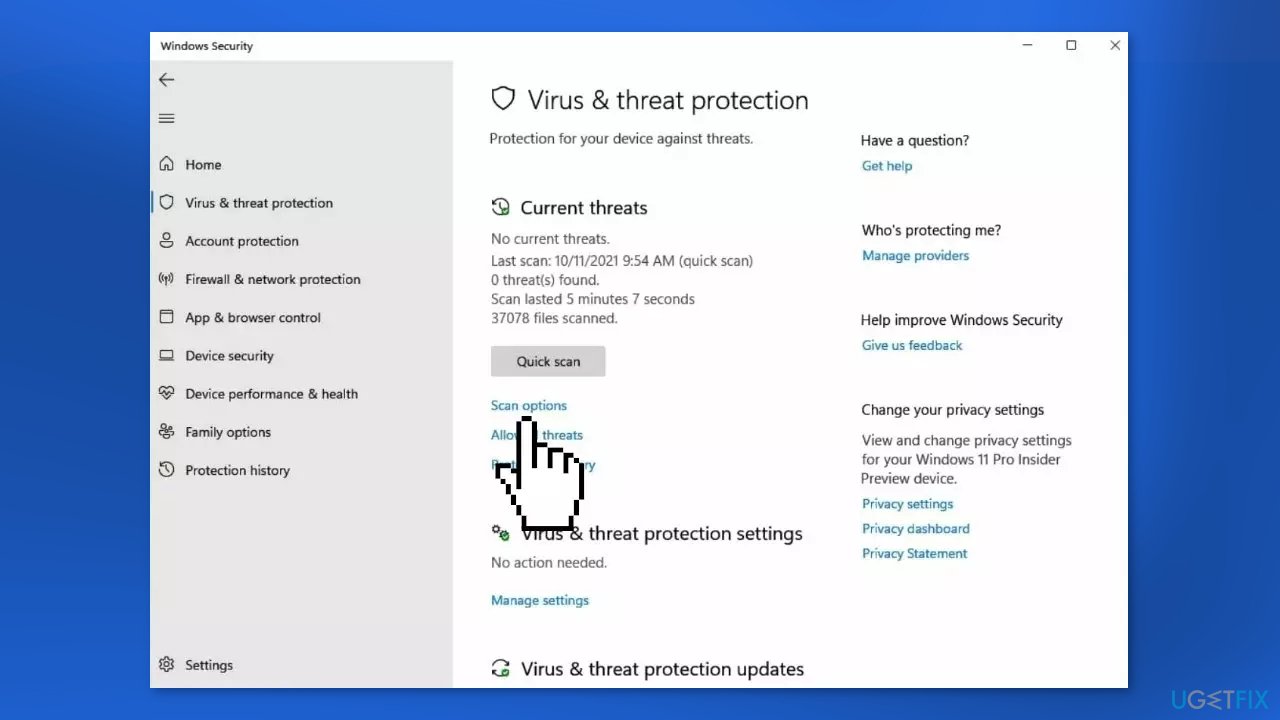
- Click on the Scan options menu below Quick scan
- Select Full scan and click on Scan now
Solution 2. Repair System Files
Use Command Prompt commands to repair system file corruption:
- Open Command Prompt as administrator
- Use the following command and press Enter:
sfc /scannow
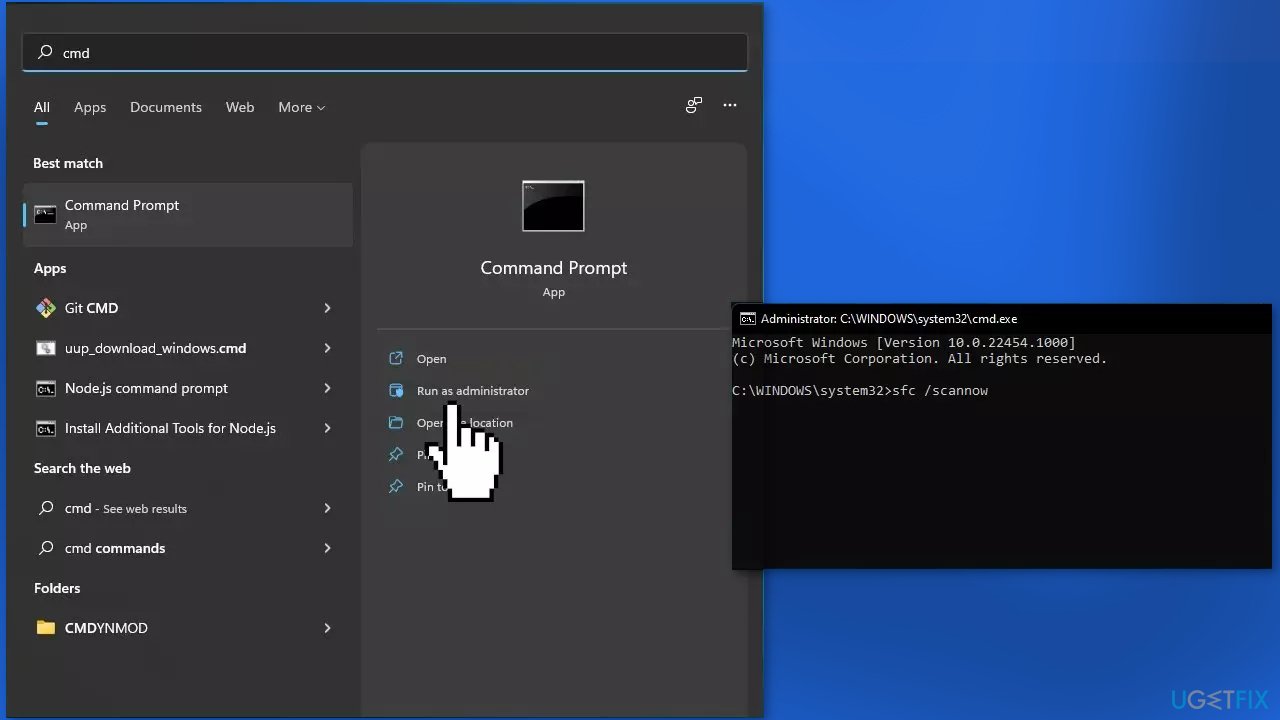
- Reboot your system
- If SFC returned an error, then use the following command lines, pressing Enter after each:
DISM /Online /Cleanup-Image /CheckHealth
DISM /Online /Cleanup-Image /ScanHealth
DISM /Online /Cleanup-Image /RestoreHealth
Solution 3. Reinstall Audio Drivers
If you want an automatic solution, you can use a dedicated utility like [rev id="DriverFix"]. It can find the best drivers for your system and install them.
- Go to Device Manager
- Click the arrow pointing to Audio Inputs and Outputs
- Right-click the installed device and click Properties
- Go to the Driver tab, then click on Uninstall Device
- Press Uninstall again
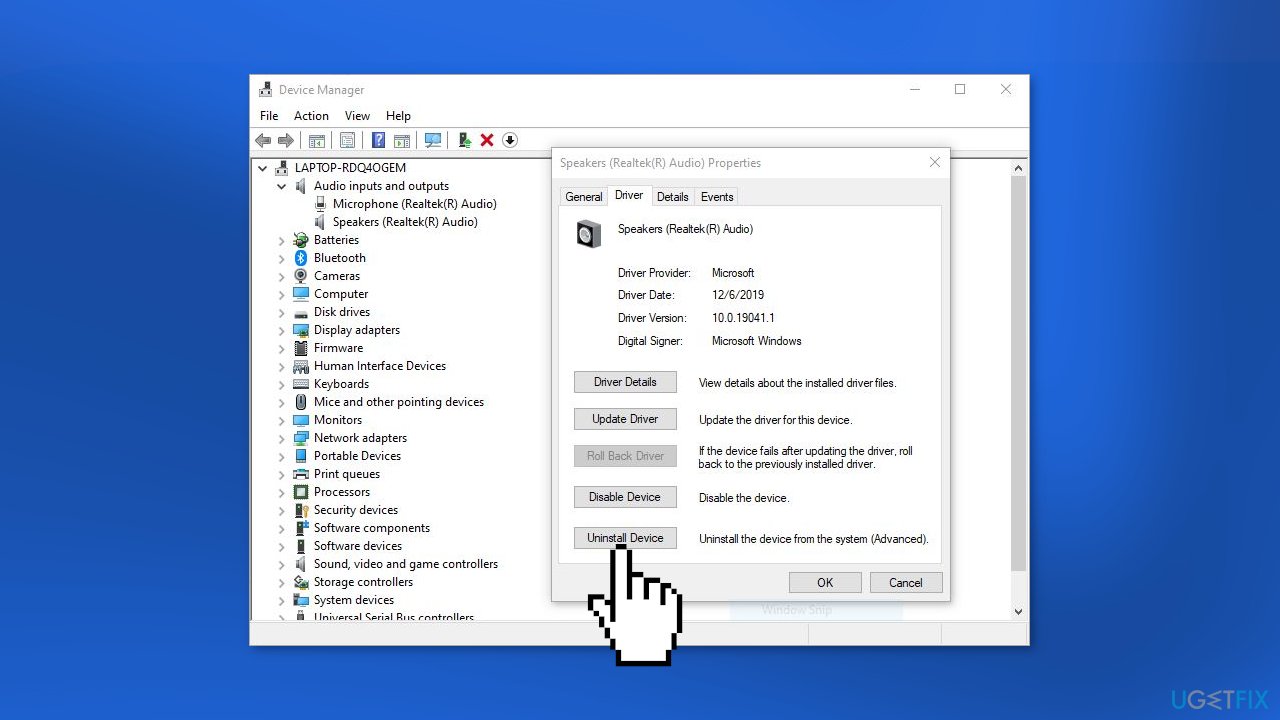
- Do the same for other audio devices
- Restart your computer
- You can also download drivers from the manufacturer's website directly
Solution 4. Reinstall Motherboard Drivers
- Open the Device manager
- Expand System Devices
- Find the motherboard driver
- Right-click on it and press Uninstall device
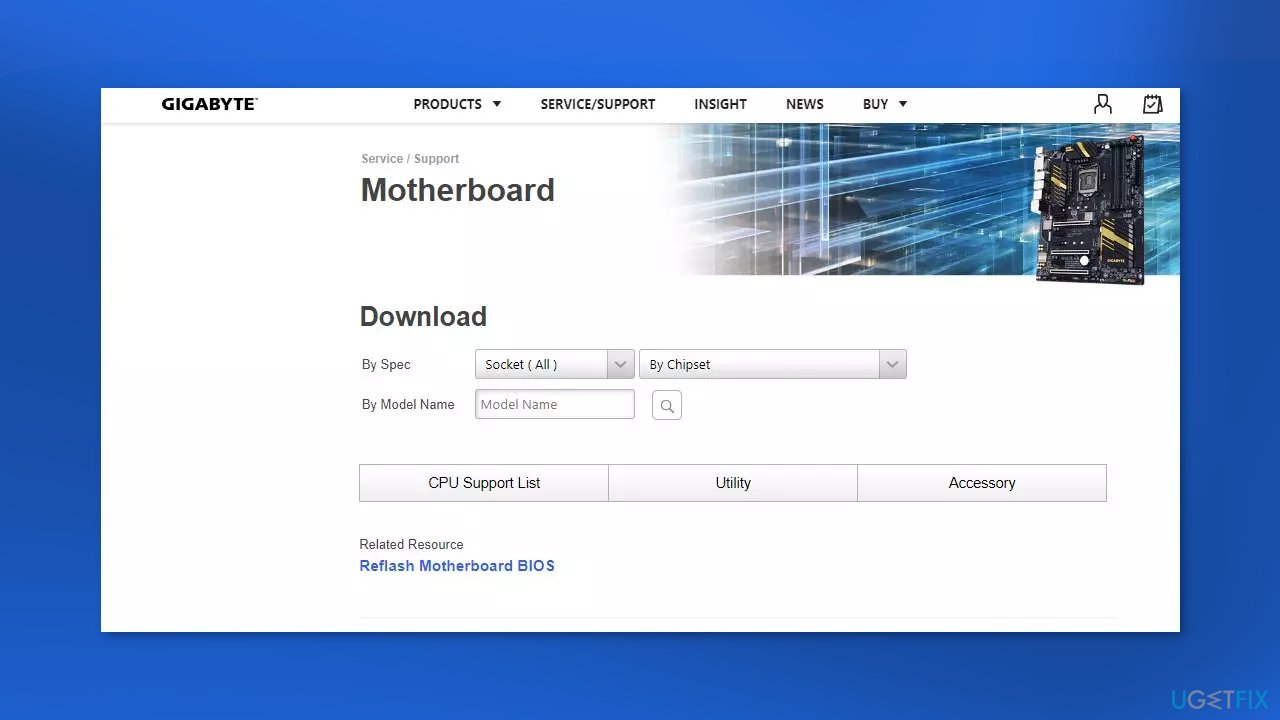
- Go to the official website of your motherboard manufacturer, then search for your motherboard model
- Go to the driver download page for the motherboard, then download the correct and latest drivers
- You should download the drivers for all the components on your motherboard
- Open the downloaded files and follow the on-screen instructions to install the drivers on your computer
Solution 5. Use System Restore
System Restore allows users to reverse a Windows system to a previous point before any issues started occurring.
- Go to the search bar and type Create a restore point
- Click the System Restore button
- Select Choose a different restore point and click Next
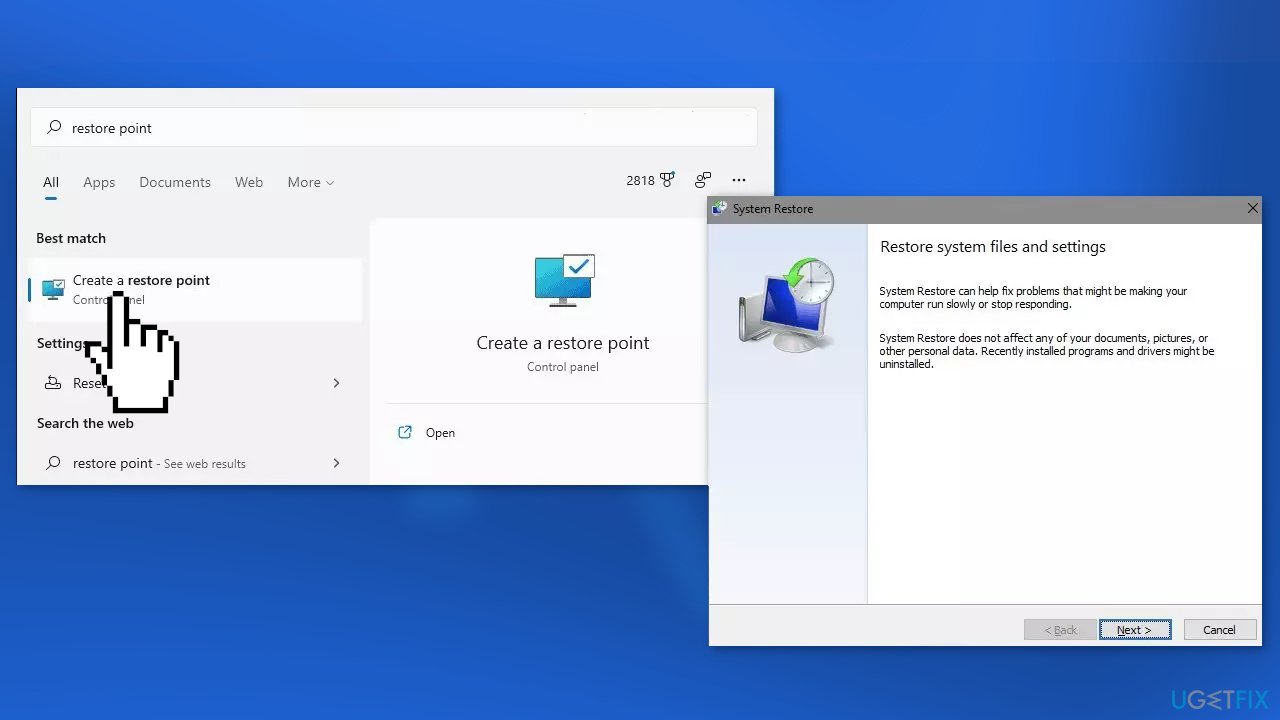
- Select a date for restore before the issue occurred, then click on Next
- Enter your password if asked and follow the on-screen steps to choose a restore location
- Reset your device
Solution 6. Repair Install Windows
- Visit the official Microsoft website to download Windows 11 or Windows 10 Installation Media
- Run the Media Creation Tool and select Create Installation Media for another PC
- Select your USB drive
- Let the Process complete of writing the Installation files to the USB drive
- Click Finish
- On the PC you wish to upgrade, Press Windows + E to open the File Explorer
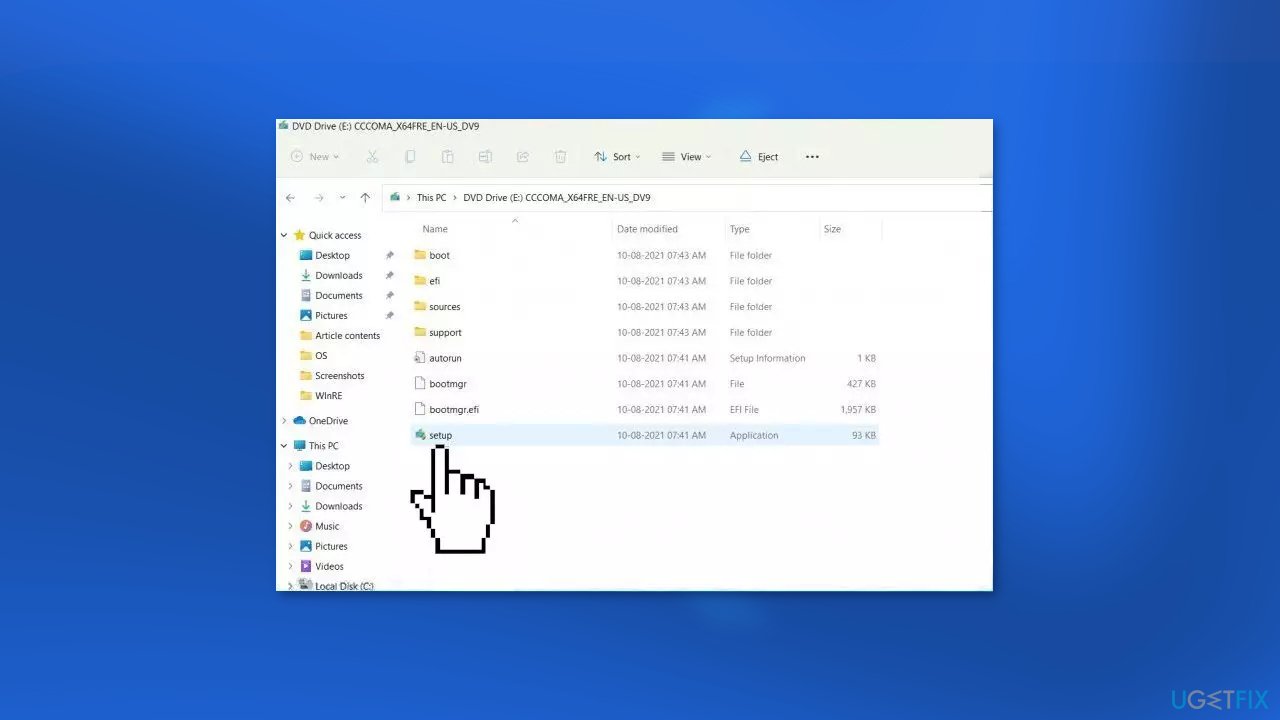
- Open the Removable drive and click Setup.exe
- Accept the license terms on the next screen
- Confirm the Upgrade options – Files, apps and Settings are kept
- Click Install, and the upgrade should start
Bottom line
To fix the Amdacpbus.sys Blue Screen error, you can check your PC for malware, repair system files using Command Prompt, or reinstall the associated AMD software or drivers. If these steps do not resolve the issue, consider using a maintenance tool to fix system errors and corrupted files.
Frequently asked questions
The Amdacpbus.sys blue screen error in Windows 10 is often caused by outdated or corrupted AMD drivers, particularly related to audio or graphics hardware. Updating your drivers or performing a system restore can help resolve this issue.
To update the Amdacpbus.sys driver in Windows 11, go to Device Manager, locate the relevant AMD device, right-click it, and select 'Update driver'. You can also download the latest drivers from the official AMD website.
No, deleting the Amdacpbus.sys file is not recommended as it is a critical system file associated with AMD hardware. Instead, focus on updating or reinstalling the drivers to fix the blue screen error.




Report an issue
What's wrong with this guide? We review every report and update or remove content.
Report received — thank you. We'll review and fix it.
You need a free account to submit a report.
Be the first to comment